

iptables in Linux is a userspace utility that configures the kernel’s Netfilter firewall. It controls network traffic by defining rules in tables and chains to allow, drop, forward, or NAT packets. Admins use iptables to harden servers, restrict ports, log events, and enforce security policies across interfaces and protocols.
If you’re searching for what is iptables in Linux and how to access and manage it safely, this guide covers everything, from fundamentals and core concepts to real world commands, NAT, logging, persistence across reboots, and modern alternatives like nftables, UFW, and firewalld.
What is iptables in Linux?
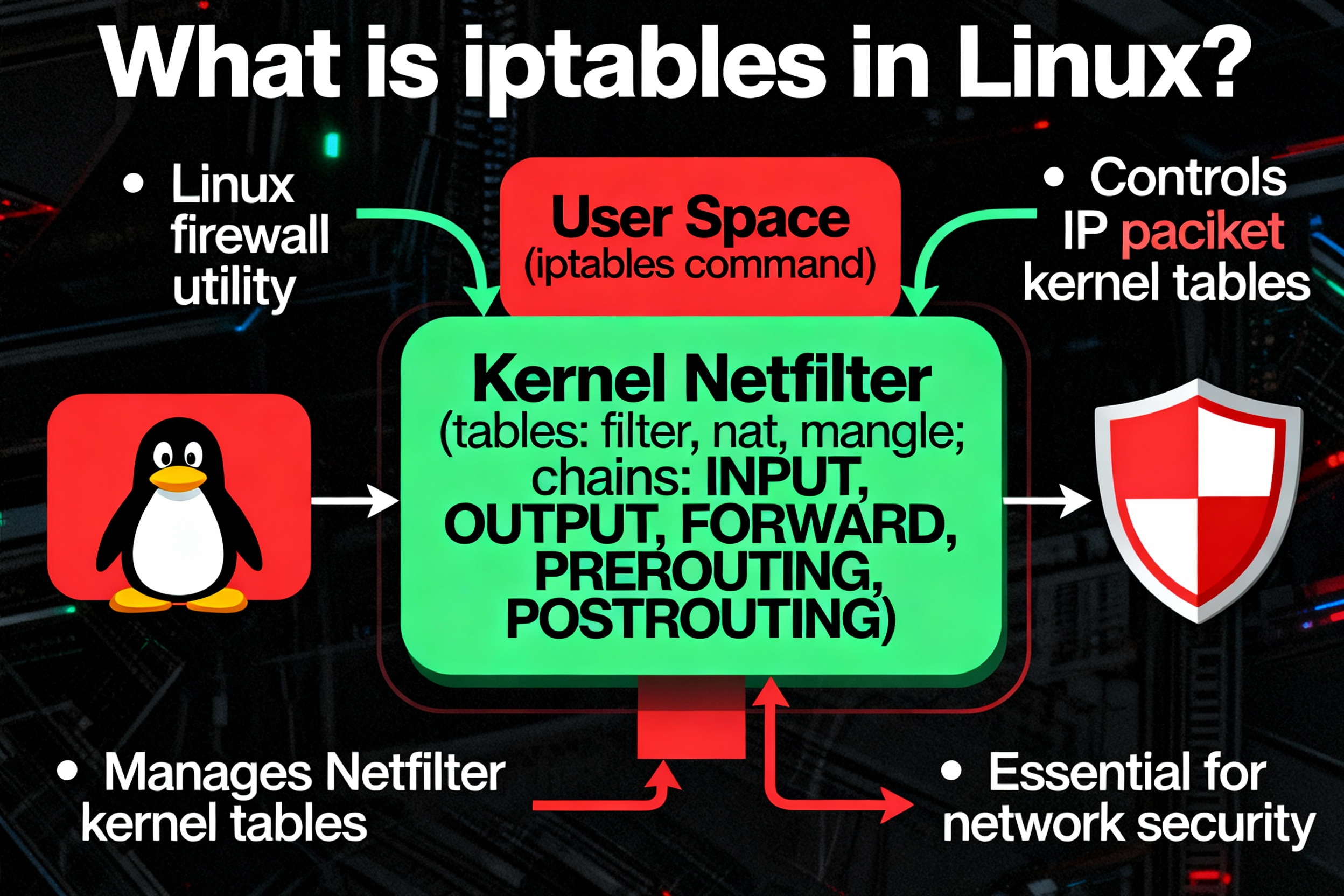
iptables is the classic command line interface for managing the Linux kernel’s Netfilter packet filtering framework. It lets you define rules that match packet attributes (IP, port, protocol, interface, connection state) and take actions like ACCEPT, DROP, REJECT, DNAT, or SNAT. It’s the backbone of many server security setups and network appliances.
While modern distributions are moving toward nftables (and wrappers like firewalld/UFW), iptables is still widely deployed, especially on legacy systems and minimal servers. Understanding iptables remains essential for sysadmins, DevOps engineers, and anyone managing Linux firewalls.
How iptables Works: Tables, Chains, and Rule Flow
iptables uses “tables” that contain “chains” of ordered rules. Each packet traverses certain chains depending on direction and purpose. The first matching rule wins, and the chain’s default policy is applied if no rule matches.
Core tables
- filter (default): Handles packet filtering. Chains: INPUT (to local host), FORWARD (through the host), OUTPUT (from local host).
- nat: Handles address translation (DNAT/SNAT/MASQUERADE). Chains: PREROUTING (before routing), POSTROUTING (after routing), OUTPUT (locally generated).
- mangle: Advanced packet alteration (QoS/TTL/marks).
- raw: Exempt packets from connection tracking (conntrack).
Default policies and rule order
- Policy: The action taken when no rule matches (e.g., ACCEPT or DROP). Best practice: set restrictive defaults and explicitly allow required traffic.
- Order matters: Rules are evaluated top down. Place specific allows/blocks before broad rules.
- Stateful firewalling: Use
-m conntrack --ctstateto allow ESTABLISHED,RELATED responses.
Access and Manage iptables Safely
Always ensure you keep SSH access during firewall changes, especially on remote servers. Open another console (or use a screen/tmux session), and test connectivity after each change. Consider a “failsafe” by scheduling an automatic rollback if you get locked out.
Check installed iptables variant
Newer distros ship iptables as a wrapper over nftables (iptables-nft). Legacy systems use iptables legacy. Both accept similar CLI syntax but manage different backends.
sudo iptables --version
sudo update-alternatives --config iptables   # Debian/Ubuntu: switch legacy/nft if available
Essential iptables Commands (Beginner Friendly)
View current rules and policies
# List current filter table rules (-v for counters, -n for numeric, --line-numbers for indices)
sudo iptables -S
sudo iptables -L -v -n --line-numbers

# Show NAT table
sudo iptables -t nat -L -v -n
Set secure default policies
Lock down inbound and forward traffic by default, then allow what you need. Keep outbound open unless you must restrict egress.
# Default DROP for inbound and forward, ACCEPT outbound
sudo iptables -P INPUT DROP
sudo iptables -P FORWARD DROP
sudo iptables -P OUTPUT ACCEPT

# Allow loopback and established connections
sudo iptables -A INPUT -i lo -j ACCEPT
sudo iptables -A INPUT -m conntrack --ctstate ESTABLISHED,RELATED -j ACCEPT
Allow SSH, HTTP, and HTTPS
SSH is your lifeline. Always confirm your SSH port before applying a restrictive policy.
# Allow SSH on port 22 (change if using a custom port)
sudo iptables -A INPUT -p tcp --dport 22 -j ACCEPT

# Allow web traffic
sudo iptables -A INPUT -p tcp --dport 80 -j ACCEPT
sudo iptables -A INPUT -p tcp --dport 443 -j ACCEPT
Allow only a specific IP or subnet
# Allow SSH only from a trusted address or CIDR
sudo iptables -A INPUT -p tcp --dport 22 -s 203.0.113.10 -j ACCEPT
sudo iptables -A INPUT -p tcp --dport 22 -s 203.0.113.0/24 -j ACCEPT
Drop unwanted ports and ICMP floods
# Explicitly drop common attack surfaces
sudo iptables -A INPUT -p tcp --dport 23 -j DROP     # Telnet
sudo iptables -A INPUT -p tcp --dport 25 -j DROP     # SMTP (if not a mail server)

# Rate-limit ICMP echo (ping) to mitigate floods
sudo iptables -A INPUT -p icmp --icmp-type echo-request -m limit --limit 5/second --limit-burst 15 -j ACCEPT
sudo iptables -A INPUT -p icmp --icmp-type echo-request -j DROP
Delete or flush rules carefully
# Delete a rule by chain and line number (get line numbers via -L --line-numbers)
sudo iptables -D INPUT 3

# Flush rules in a chain or table (dangerous on remote servers)
sudo iptables -F       # Flush filter table
sudo iptables -t nat -F
NAT and Port Forwarding (iptables for Routing)
Use the nat table for address/port translation and basic router/gateway use cases. Enable IP forwarding at the kernel level first.
# Enable IPv4 forwarding (temporary)
sudo sysctl -w net.ipv4.ip_forward=1
# Permanent: set net.ipv4.ip_forward=1 in /etc/sysctl.conf and reload: sudo sysctl -p

# NAT outbound traffic from LAN (eth1) to WAN (eth0)
sudo iptables -t nat -A POSTROUTING -o eth0 -j MASQUERADE
sudo iptables -A FORWARD -i eth1 -o eth0 -m conntrack --ctstate NEW,ESTABLISHED,RELATED -j ACCEPT
sudo iptables -A FORWARD -i eth0 -o eth1 -m conntrack --ctstate ESTABLISHED,RELATED -j ACCEPT

# Port forward WAN:8080 to internal 10.0.0.10:80
sudo iptables -t nat -A PREROUTING -i eth0 -p tcp --dport 8080 -j DNAT --to-destination 10.0.0.10:80
sudo iptables -A FORWARD -p tcp -d 10.0.0.10 --dport 80 -m conntrack --ctstate NEW,ESTABLISHED,RELATED -j ACCEPT
Logging and Monitoring iptables
Log drops to trace attacks and misconfigurations. Ensure your system logger (rsyslog/journald) captures kernel log messages.
# Log then drop
sudo iptables -A INPUT -p tcp --dport 22 -m recent --update --seconds 60 --hitcount 10 --name SSHBRUTE -j LOG --log-prefix "IPT-SSH-BRUTE "
sudo iptables -A INPUT -p tcp --dport 22 -m recent --update --seconds 60 --hitcount 10 --name SSHBRUTE -j DROP

# View logs (examples)
sudo journalctl -k | grep IPT-
sudo dmesg | grep IPT-
Persisting iptables Rules Across Reboots
iptables rules are in memory. Save them so they load on boot.
Debian/Ubuntu
# Install helper
sudo apt-get update && sudo apt-get install -y iptables-persistent

# Save current rules
sudo netfilter-persistent save
# or
sudo sh -c 'iptables-save > /etc/iptables/rules.v4'
RHEL/CentOS/AlmaLinux/Rocky
# Use iptables-services (disables firewalld)
sudo yum install -y iptables-services
sudo systemctl enable iptables
sudo service iptables save   # Saves to /etc/sysconfig/iptables
Alternatively, migrate to firewalld (nftables backend) for easier persistent policies if you prefer a higher level interface.
iptables vs nftables vs UFW/firewalld
- iptables: Mature, ubiquitous, powerful. Steeper learning curve. Syntax heavy. Excellent for low level control and legacy systems.
- nftables: Modern replacement for Netfilter with a simpler, unified syntax and better performance/atomic rule updates. Recommended for new deployments.
- UFW (Ubuntu) and firewalld (RHEL/Fedora): User friendly front ends that manage nftables/iptables under the hood, ideal for quick setups and consistent persistence.
If you manage multiple servers or need role based, reproducible firewall policies, front ends or config management (Ansible, Terraform) may be better than hand crafted iptables commands.
Real World Use Cases in Hosting and Cloud
- Harden a web server: Default DROP, allow 22/80/443, rate limit SSH, log drops, block suspicious IPs.
- Reverse proxy tier: Allow 80/443 from CDN or load balancer ranges only; restrict backend ports to private subnets.
- NAT gateway: MASQUERADE LAN traffic to public WAN; forward specific ports to internal services.
- Multi tenant VPS: Egress filtering to prevent abuse; per-tenant IP allowlists and bandwidth shaping via mangle/marks.
On YouStable VPS or Dedicated Servers, our experts can preconfigure secure firewall baselines, monitor logs, and help you migrate from iptables to nftables without downtime. This reduces misconfiguration risk and aligns with best practice hardening for production workloads.
Common Mistakes and How to Avoid Them
- Locking yourself out: Always allow SSH first and test from a second session before applying restrictive policies.
- Forgetting ESTABLISHED,RELATED: Without this rule, return traffic might be dropped, breaking DNS, HTTP, and more.
- No persistence: Reboots wipe rules. Save them using iptables persistent or iptables services.
- Rule order issues: Broad drops above specific allows will block legitimate traffic.
- Ignoring IPv6: Use
ip6tables(or nftables) to handle IPv6; otherwise, v6 stays unfiltered. - Mixing backends: Don’t mix iptables legacy with iptables-nft/nftables accidentally. Keep your firewall tooling consistent.
A Minimal Secure Baseline: Step-by-Step
Use this as a starting point for a typical Linux server. Adapt ports as needed.
# 1) Default policies
sudo iptables -P INPUT DROP
sudo iptables -P FORWARD DROP
sudo iptables -P OUTPUT ACCEPT

# 2) Hygiene rules
sudo iptables -A INPUT -i lo -j ACCEPT
sudo iptables -A INPUT -m conntrack --ctstate ESTABLISHED,RELATED -j ACCEPT

# 3) Service allows
sudo iptables -A INPUT -p tcp --dport 22 -j ACCEPT
sudo iptables -A INPUT -p tcp --dport 80 -j ACCEPT
sudo iptables -A INPUT -p tcp --dport 443 -j ACCEPT

# 4) Optional: logs for debugging
sudo iptables -A INPUT -j LOG --log-prefix "IPT-DROP " --log-level 6
# 5) Drop everything else (policy already does)
# 6) Save rules (Debian/Ubuntu)
sudo sh -c 'iptables-save > /etc/iptables/rules.v4'
Security Best Practices
- Principle of least privilege: Open only what you must, where you must.
- Document rules: Add comments with
-m comment --commentso future you knows why a rule exists. - Rate limit exposed services: Especially SSH and API endpoints.
- Segment networks: Use interfaces, VLANs, and subnets to reduce blast radius.
- Monitor and alert: Parse logs for anomalies. Consider fail2ban with iptables for automated blocking.
- Plan upgrades: Evaluate migrating to nftables for long term maintenance.
FAQs
What is iptables used for in Linux?
iptables configures the Linux kernel’s Netfilter firewall to control network traffic. You can allow or block ports, limit connections, log suspicious activity, and perform NAT for routing and port forwarding. It’s a key tool for hardening servers and enforcing security policies.
How do I check my current iptables rules?
Run sudo iptables -S for rule syntax or sudo iptables -L -v -n --line-numbers for a tabular view with counters. For NAT rules, use sudo iptables -t nat -L -v -n. These commands show active in-memory policies.
Is iptables deprecated? Should I use nftables instead?
iptables isn’t immediately deprecated, but nftables is the modern replacement and default backend on many distros. For new deployments, nftables or front ends like firewalld/UFW are recommended. Legacy servers can keep iptables, but plan a gradual migration.
How can I persist iptables rules after reboot?
On Debian/Ubuntu, install iptables-persistent and run sudo netfilter-persistent save. On RHEL/CentOS-like systems, install iptables-services, enable the service, and run service iptables save. Alternatively, switch to firewalld for automatic persistence.
How do I allow SSH from only one IP?
Add a rule such as sudo iptables -A INPUT -p tcp --dport 22 -s 203.0.113.10 -j ACCEPT and ensure your default policy or subsequent rules drop other SSH attempts. Always test from a second session before locking it down.
How do I block a specific port with iptables?
Use sudo iptables -A INPUT -p tcp --dport 25 -j DROP to silently drop inbound TCP port 25. Replace the port number as required. If your default policy is DROP, you may not need an explicit drop rule unless you want logging.
Can I manage iptables with a friendlier tool?
Yes. On Ubuntu, UFW provides simpler syntax. On RHEL/Fedora, firewalld offers zones and services. Both use nftables/iptables under the hood and handle persistence automatically. Managed hosting providers like YouStable can also set up and monitor firewall rules for you.
Conclusion
iptables remains a powerful Linux firewall tool for controlling, logging, and translating network traffic. By understanding tables, chains, and safe rule management, you can harden your servers confidently.
If you prefer expert help, YouStable’s engineers can deploy secure, auditable firewall policies tailored to your stack, whether you stay on iptables or migrate to nftables.




