FirewallD on a Linux server is a dynamic firewall manager that controls network traffic using zones and services instead of raw iptables rules. It provides runtime and permanent configurations, supports IPv4/IPv6, NAT, and port forwarding, and uses nftables under the hood on modern distros—making server security simpler, safer, and easier to automate.
Securing your Linux server starts with understanding FirewallD on Linux server environments. Whether you run CentOS, RHEL, Rocky Linux, AlmaLinux, Fedora, or even Ubuntu (with FirewallD installed), this guide explains how FirewallD works, how to configure zones and services, and how to apply best practices that scale in production.
What is FirewallD and Why it Matters?
FirewallD is a daemon that dynamically manages firewall rules. Instead of editing complex iptables/nftables chains, you manage higher-level objects—zones, services, ports, and sources. Most enterprise Linux distributions ship with FirewallD enabled by default, leveraging nftables for performance and flexibility.
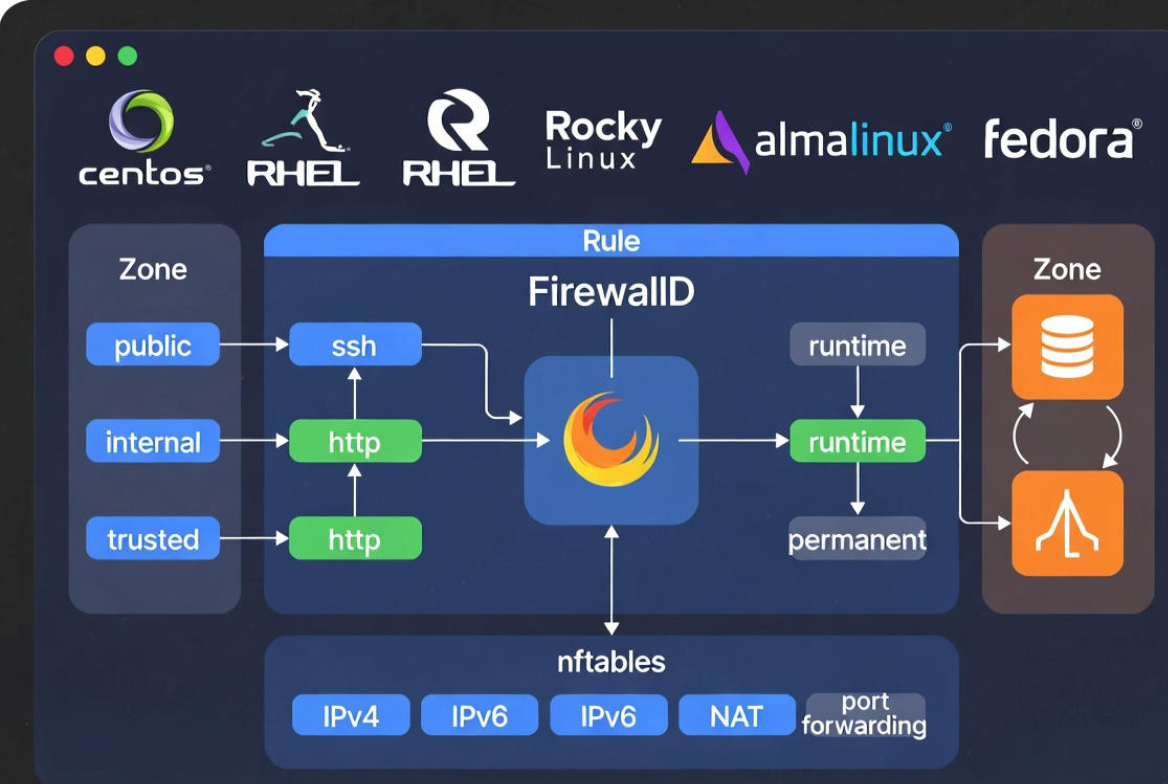
Key benefits over raw iptables include on-the-fly changes without breaking connections, standardized service definitions, easier automation, and cleaner separation between temporary (runtime) and persistent (permanent) rules.
How FirewallD Works: Zones, Services, and Runtime vs Permanent
FirewallD groups rules into zones, which you assign to network interfaces or source IP ranges. Each zone represents a trust level—for example, drop, public, home, work, internal, and trusted. Services and ports are then allowed within zones.
- Zones: Predefined trust levels; you map interfaces (e.g., eth0) or source subnets to them.
- Services: Named definitions (like ssh, http, https) stored in XML with known ports/protocols.
- Ports: Custom ports when a service isn’t available (e.g., 8080/tcp).
- Runtime vs permanent: Runtime changes apply immediately but vanish after reboot; permanent changes persist after reload or reboot.
Modern systems use the nftables backend. You still interact with FirewallD via firewall-cmd, while FirewallD translates to nftables rules under the hood.
Install, Enable, and Check FirewallD
Most RHEL-based systems already include FirewallD. If it’s missing, install and enable it:
# RHEL/CentOS/AlmaLinux/Rocky
sudo dnf install firewalld -y
sudo systemctl enable --now firewalld

# Fedora
sudo dnf install firewalld -y
sudo systemctl enable --now firewalld

# Ubuntu/Debian (optional, default is ufw)
sudo apt-get update
sudo apt-get install firewalld -y
sudo systemctl enable --now firewalld

# Verify status
sudo firewall-cmd --state
sudo firewall-cmd --get-active-zones
sudo firewall-cmd --list-all
Common FirewallD Commands (Cheat Sheet)
- List zones: firewall-cmd –get-zones
- Active zones and interfaces: firewall-cmd –get-active-zones
- List rules for zone: firewall-cmd –zone=public –list-all
- Allow service (runtime): firewall-cmd –zone=public –add-service=http
- Make it permanent: firewall-cmd –zone=public –add-service=http –permanent
- Open port: firewall-cmd –zone=public –add-port=8080/tcp –permanent
- Reload permanent rules: firewall-cmd –reload
- Copy runtime to permanent: firewall-cmd –runtime-to-permanent
- Change default zone: firewall-cmd –set-default-zone=public
Opening Ports and Allowing Services
Prefer services when available; they’re clearer and less error-prone. If a service doesn’t exist, use ports.
# Allow SSH and HTTPS permanently in the public zone
sudo firewall-cmd --zone=public --add-service=ssh --permanent
sudo firewall-cmd --zone=public --add-service=https --permanent
sudo firewall-cmd --reload

# Open custom port 8080/tcp at runtime, test, then persist
sudo firewall-cmd --zone=public --add-port=8080/tcp
sudo firewall-cmd --runtime-to-permanent
Understanding Zones with Real Scenarios
Map zones to how much you trust a network. Typical server setups use public for internet-facing NICs and internal for private VLANs.
- Public zone (internet-facing web server): Allow http, https, and ssh from specific admins if possible.
- Internal zone (backend network): Allow MySQL/PostgreSQL between app and DB servers; block from the public.
- Trusted zone (highly controlled admin segment): Broader access for monitoring or backups.
- Drop zone (hostile networks): Silently drop all inbound except what you explicitly allow.
# Bind interfaces to zones
sudo nmcli connection modify "eth0" connection.zone public
sudo nmcli connection modify "eth1" connection.zone internal
sudo nmcli connection up "eth0"
sudo nmcli connection up "eth1"

# Or assign a source subnet to a zone
sudo firewall-cmd --zone=internal --add-source=10.10.0.0/16 --permanent
sudo firewall-cmd --reload
Rich Rules: Granular Control
When you need conditions (source IP, logging, rate limits, specific protocols), use rich rules.
# Allow SSH only from your office IP with logging
sudo firewall-cmd --zone=public --add-rich-rule='rule family="ipv4" \
  source address="203.0.113.10/32" service name="ssh" log prefix="SSH-ALLOW" level="info" accept' --permanent

# Drop all SSH attempts from a hostile subnet
sudo firewall-cmd --zone=public --add-rich-rule='rule family="ipv4" \
  source address="198.51.100.0/24" service name="ssh" drop' --permanent

sudo firewall-cmd --reload
Masquerading and Port Forwarding (NAT)
Enable masquerading to allow outbound connections from private networks. Use port forwarding to publish a service running on a different host or port.
# Enable masquerade on the public zone
sudo firewall-cmd --zone=public --add-masquerade --permanent

# Forward external 8443/tcp to internal 10.10.0.20:443
sudo firewall-cmd --zone=public --add-forward-port=port=8443:proto=tcp:toaddr=10.10.0.20:toport=443 --permanent

sudo firewall-cmd --reload
FirewallD vs iptables vs nftables
FirewallD is a management layer; nftables is the kernel-level packet filtering framework. iptables is legacy and still present on some systems, but modern RHEL/Fedora family use nftables by default through FirewallD.
- FirewallD: High-level, dynamic, zone-based; user-friendly and automation-friendly.
- nftables: Modern, efficient packet filtering; back-end for FirewallD.
- iptables: Older framework; powerful but verbose and error-prone for daily ops.
For most admins, FirewallD offers the best balance of simplicity and power. Advanced teams may mix direct rules, but consistency and maintainability favor FirewallD abstractions.
Troubleshooting and Common Pitfalls
- Runtime vs permanent mismatch: Changes with no –permanent vanish after reboot. Use –permanent and firewall-cmd –reload or firewall-cmd –runtime-to-permanent.
- Wrong zone: Your interface may be in a different zone than expected. Check with firewall-cmd –get-active-zones.
- Service not found: Use firewall-cmd –get-services or open an explicit port.
- SELinux conflicts: Allowing a port in FirewallD doesn’t override SELinux. Use semanage port -a -t http_port_t -p tcp 8080 for custom ports.
- Docker/Podman interaction: Containers manipulate low-level rules. Ensure masquerading is enabled, or rely on –publish ports which set rules automatically. Consider using the docker network host policy carefully.
- SSH lockout: Test rules at runtime first. Keep an emergency console or out-of-band access ready before reloading.
Security Best Practices for Production Servers
- Default-deny stance: Use restrictive zones (public/drop) and explicitly allow only required services.
- Limit SSH: Allow from known IPs via rich rules, move to non-standard ports if policy allows, and use keys plus fail2ban.
- Separate interfaces by zones: Public vs internal networks should have different trust levels.
- Log strategically: Use rich rules with logging for sensitive services, then ship logs to a SIEM.
- Version control your firewall: Store firewall-cmd scripts or Ansible roles in Git for auditability.
- Review regularly: Run firewall-cmd –list-all for each zone and remove stale ports.
- Harden services: Combine FirewallD with strong TLS, up-to-date packages, and minimal exposed surface.
Automation and Persistence
Automate FirewallD with Ansible, Terraform (via scripts), or cloud-init. For golden images, bake permanent rules into AMIs or templates, then apply environment-specific overrides at boot.
# Example: Hardening script for a web server
#!/usr/bin/env bash
set -e
# Base zone
firewall-cmd --set-default-zone=public
# Services
firewall-cmd --zone=public --add-service=ssh
firewall-cmd --zone=public --add-service=http
firewall-cmd --zone=public --add-service=https
# Limit SSH by source
firewall-cmd --zone=public --add-rich-rule='rule family=ipv4 source address=203.0.113.10/32 service name=ssh accept'
# Persist
firewall-cmd --runtime-to-permanent
firewall-cmd --reload
Where FirewallD Stores Configuration
Services live in /usr/lib/firewalld/services/ (defaults) and /etc/firewalld/services/ (custom). Permanent zone configs are written to /etc/firewalld/zones/. Runtime configuration exists in memory; reload writes permanent definitions into effect. This structure simplifies backups and audits.
When to Consider Managed Hosting
If you prefer focusing on applications instead of firewall intricacies, managed servers help. At YouStable, our engineers provision servers with sane FirewallD defaults, restrict administrative access, and document changes—so you get a secure, production-ready baseline without the guesswork.
FAQs:
How do I check if FirewallD is running and which zone my interface uses?
Run firewall-cmd –state to verify it’s running. To see active zones and their interfaces, use firewall-cmd –get-active-zones. For detailed rules in a zone, run firewall-cmd –zone=public –list-all (replace public with your zone).
What’s the difference between runtime and permanent in FirewallD?
Runtime changes apply immediately but are temporary. Permanent changes persist across reboots. Use –permanent when adding rules you want to keep, then run firewall-cmd –reload. To save all current runtime rules, run firewall-cmd –runtime-to-permanent.
How do I open a port or allow a service safely?
Test at runtime first, then persist. Example: firewall-cmd –zone=public –add-service=https (test), followed by firewall-cmd –zone=public –add-service=https –permanent and firewall-cmd –reload once confirmed. Prefer services over raw ports when possible.
Should I use FirewallD or iptables directly?
Use FirewallD for most cases. It’s simpler, safer, and integrates with nftables by default. Reserve direct nft/iptables rules for rare edge cases. Consistency and maintainability in teams usually favor FirewallD abstractions.
How does FirewallD interact with Docker or Podman?
Containers insert low-level rules automatically for published ports. Ensure masquerading is enabled on your external zone for outbound connectivity. Avoid mixing manual low-level rules with container-managed chains unless you know the implications.