Want to update all your Windows apps in one go without checking each one manually? The winget upgrade –all command makes this process simple by scanning your system and upgrading every outdated application automatically.
If you manage your PC, development setup, or even servers, learning how to use the winget upgrade all command can save time, reduce manual work, and help keep your system secure.
You’ll understand how it works, how to use it with real examples, and how to run it safely without breaking your workflow.
What is Winget and Why Use it?
Winget (Windows Package Manager) is Microsoft’s official command line tool that helps you install, update, remove, and manage software on Windows in a simple and fast way. Instead of downloading apps one by one, you can control everything using a few commands.
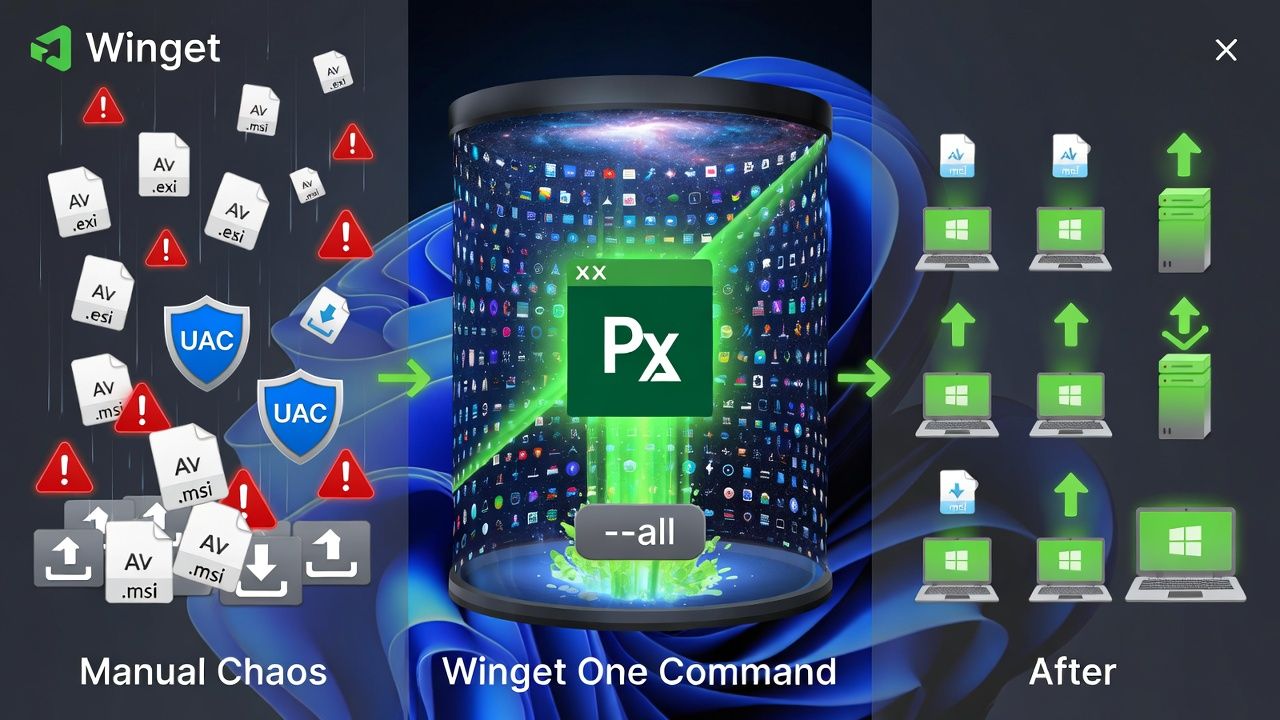
It works with trusted sources like the Winget community repository and Microsoft Store, which means you can easily manage software across personal systems, development setups, and even Windows servers without extra effort.
Here’s why Winget is useful:
- Fast bulk updates: Update all apps at once using the
winget upgrade --allcommand - Easy environment setup: Install multiple tools quickly for development work
- Automated updates: Run updates silently without manual steps
- Better security: Keep all applications updated with the latest stable versions
This makes Winget a powerful tool if you want to save time, reduce manual work, and manage your Windows software more efficiently.
How the Winget Upgrade All Command Works
The command checks installed apps against known repositories (e.g., winget community repo, Microsoft Store) and attempts to upgrade each one to the newest version. Some installers require elevation or user input, which you can avoid with the right switches (silent mode and agreement flags).
Basic Syntax and Important Switches
winget upgrade --all [options]Common switches you’ll actually use:
- –silent or –disable-interactivity: Run installers without prompts.
- –accept-package-agreements –accept-source-agreements: Auto-accept license prompts.
- –include-unknown: Include packages without known versions (use when some apps aren’t detected as upgradable).
- –force: Force reinstall/upgrade if needed.
- –scope user|machine: Prefer user or machine installation when supported.
- –source winget or –source msstore: Target a specific source (optional; omit to use all available sources).
You can also target a single app instead of all, using:
winget upgrade --id <PackageId> [--version <X.Y.Z>] [options]Prerequisites and Environment
- Windows 10 (1809+) or Windows 11
- App Installer (Microsoft Store) which delivers winget
- Administrator rights for system wide upgrades (recommended)
- Updated sources:
Verify your winget installation:
winget --info
winget --version
How to Check Outdated Apps Before Running Winget Upgrade
Before you run the winget upgrade –all command, it’s a smart idea to first check which apps actually need an update. This helps you understand what will change and avoid updating important tools without review.
Open PowerShell or Command Prompt and run:
winget upgrade
This command will show you a list of all installed applications that have available updates. From here, you can decide whether to update everything or upgrade only specific apps based on your needs.
Quick Start: Upgrade Everything in One Command
Basic Example
Run this from an elevated PowerShell or Command Prompt to upgrade every available package:
winget upgrade --allThis displays a list of apps and proceeds with upgrades where supported. If an installer requires interaction, you might be prompted use silent options to avoid that.
Silent, Unattended Upgrades (CI, Dev Boxes, Labs)
For automated environments, suppress prompts and accept agreements:
winget upgrade --all --silent --disable-interactivity ^
  --accept-package-agreements --accept-source-agreements
This is ideal for developer PCs or lab servers where downtime is acceptable and you need predictable, hands off updates.
Include Unknown Versions and Force Reinstalls
Some programs don’t report version info cleanly. To try updating them anyway, use:
winget upgrade --all --include-unknownIf you suspect a broken install and want to re-run installers even if versions match:
winget upgrade --all --forceUse –force cautiously test on non production machines first.
Upgrading Only Specific Apps (Selective Approach)
There’s no native “exclude list” flag for –all. Instead, list upgradeable packages, then upgrade selected IDs:
# Show what is upgradeable
winget upgrade

# Upgrade a specific app by Id
winget upgrade --id Git.Git --silent --accept-package-agreements --accept-source-agreements

# Upgrade multiple, one by one
winget upgrade --id VideoLAN.VLC
winget upgrade --id Google.Chrome
winget upgrade --id Notepad++.Notepad++
In PowerShell, you can script filters to skip critical tools during a sprint and only patch developer utilities.
Real World Automation Examples
Weekly Scheduled Task (Silent Updates)
Create a minimal PowerShell script (e.g., C:\Scripts\Winget UpgradeAll.ps1):
$Arguments = @(
  'upgrade','--all','--silent','--disable-interactivity',
  '--accept-package-agreements','--accept-source-agreements'
)
Start-Process -FilePath 'winget.exe' -ArgumentList $Arguments -Wait -NoNewWindow
Then schedule it via Task Scheduler to run weekly with “Run with highest privileges” enabled. This keeps your apps patched without manual clicks useful on dev workstations and lab servers that host local services or staging sites.
Microsoft Store Apps Considerations
Winget can upgrade Store apps when the msstore source is available and you’re signed into the Microsoft Store. If Store based apps aren’t updating, open Microsoft Store, sign in, and ensure App Installer is current. You can also target Store explicitly:
winget source list
winget upgrade --all --source msstore
Working Behind a Proxy or in Corporate Networks
Ensure system proxy settings are configured. If some downloads fail due to SSL inspection or blocked hosts, request firewall allowlists for winget repositories and vendor CDNs. Running as Administrator often helps with machine wide installs that require elevation.
Troubleshooting Winget Upgrade All
“Winget not recognized” or App Installer missing
Install or update “App Installer” from the Microsoft Store. Then run:
winget --info
winget source update
Package not found or wrong package matched
Specify the exact ID and source:
winget show <name>
winget upgrade --id <Exact.PackageId> --source winget
Installer prompts break automation
Use non-interactive flags and run elevated:
winget upgrade --all --silent --disable-interactivity ^
  --accept-package-agreements --accept-source-agreements
Hash or signature validation issues
Occasionally, mismatched hashes or vendor packaging changes cause failures. First, update sources and retry. You may temporarily reinstall a single app with –force if you trust the source. Avoid disabling security checks unless you fully trust the package and repository.
Logging and Diagnostics
Winget writes diagnostic logs to the App Installer local state. Review logs for failing packages and error codes.
winget --info
# Check LocalState\DiagOutputDir under App Installer's package data folder
# Example path (user-specific):
# %LOCALAPPDATA%\Packages\Microsoft.DesktopAppInstaller_8wekyb3d8bbwe\LocalState\DiagOutputDir
Best Practices for Safe, Effective Upgrades
- Test first: Trial upgrades on a non critical machine before rolling out to teams.
- Create a restore point: Especially on critical workstations.
- Pin critical versions: For tools that impact builds (IDEs, SDKs), upgrade selectively.
- Run elevated: Use an Administrator shell for machine scoped apps.
- Keep sources clean: to repair source issues.
- Document exceptions: Maintain a list of apps you never upgrade automatically (e.g., database clients during sprint week).
At YouStable, we apply a similar approach to internal Windows tooling that supports our hosting workflows. We test major app updates in staging, schedule silent upgrades during low traffic windows, and document exceptions for mission critical utilities. The goal: maximum security and stability with minimal disruption.
Practical Examples You Can Copy
See What Will Upgrade Before Running
# Preview upgradeable packages
winget upgrade

# Include unknown versions in the preview
winget upgrade --include-unknown
Run a Full, Quiet Upgrade
winget upgrade --all --silent --disable-interactivity --include-unknown ^
  --accept-package-agreements --accept-source-agreements
Upgrade From a Single Source Only
# Use only the community repo
winget upgrade --all --source winget

# Or only Microsoft Store apps
winget upgrade --all --source msstore
FAQs
What does “winget upgrade –all” do exactly?
It scans installed applications and upgrades every package with an available update from enabled sources (winget community, Microsoft Store, etc.). It attempts each installer in turn and reports successes or failures. Use silent and agreement flags to avoid prompts during the process.
Is “winget update” the same as “winget upgrade”?
Yes, winget upgrade is the canonical command. Recent versions of winget accept update as an alias for upgrade. For clarity and scripts, prefer winget upgrade since it’s the primary verb in official documentation and examples.
Why do some apps not upgrade with winget –all?
Reasons include: the app isn’t in your enabled sources, requires a manual in app updater, the installer needs user interaction, or version detection is unknown. Try –include unknown and ensure you’re signed into the Microsoft Store for Store apps. You can also target a specific app by its exact ID.
Can I schedule “winget upgrade –all” on Windows?
Yes. Place a PowerShell script that calls winget upgrade –all with silent and agreement flags, then use Task Scheduler to run it weekly with highest privileges. This gives you hands off, predictable patching for developer PCs and lab servers.
Does winget replace Windows Update or update drivers?
No. Winget manages application packages. Windows Update handles OS patches, drivers, and Microsoft components at the system level. Use both: Windows Update for OS/drivers and winget for applications like browsers, IDEs, runtimes, and utilities.
Conclusion
The winget upgrade all command is one of the fastest ways to keep Windows software up to date, securely and consistently. With silent flags, agreement acceptance, and a scheduled task, you can fully automate application patching.
If you manage WordPress or hosting workflows, this is an easy win for security and productivity. Need help streamlining your developer or content team’s tooling stack?
At YouStable, we build reliable, secure hosting environments and share proven operations practices like winget automation to keep your team focused on shipping, not patching.