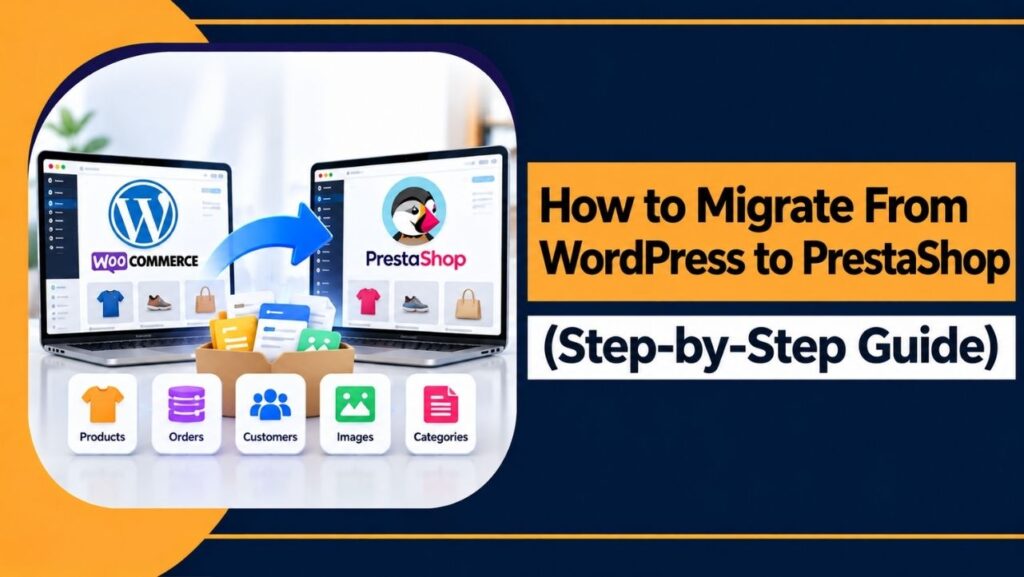
If you run an online store on WordPress with WooCommerce and want to move to PrestaShop, the process involves more than installing a new platform.
Your products, categories, customers, orders, images, URLs and SEO information all need to move properly. Your payment methods, shipping settings and other store functions also need to be set up again on PrestaShop.
One thing I would like to tell you is that you do not have to rebuild everything from scratch. Most of your important store data can be moved with the right migration method. Here, in this tutorial, you’ll get the right way to move your store from WordPress to Prestashop.
The main job is to prepare the new store, move the data, check everything and then switch your domain.
This guide explains the whole process in simple steps, from backing up your WooCommerce store to taking the new PrestaShop store live.
What Does WordPress to PrestaShop Migration Mean?
WordPress and PrestaShop use different systems to manage an online store. WooCommerce stores your products and your customer orders inside the WordPress environment. PrestaShop, on the other hand, uses its own database structure.
So, migration does not mean copying your WordPress website and pasting it into PrestaShop. Instead, you move the useful store data from WooCommerce and arrange it inside a new PrestaShop installation.
Products need to match PrestaShop’s product fields, WooCommerce categories need to match PrestaShop categories and customer and order information needs to be checked after import.
| The basic process of the migration looks like this: Back up your WordPress store >> buy hosting and set up PrestaShop >> prepare the new store >> move WooCommerce data >> rebuild store functions >> protect URLs and SEO >> test everything >> switch the domain. |
Your WordPress theme and plugins will not move across as they are. PrestaShop uses its own themes and modules, so those parts need to be recreated on the new platform.
What Can You Move From WooCommerce to PrestaShop?
Products, categories, customers, orders and product images from your online store can be migrated from WooCommerce to Prestashop. Product descriptions, prices, SKUs, stock information and variations can also be moved, although some fields may need manual checking.
Pages and blog posts can usually be moved too, but they may need a separate process depending on how your WordPress website is set up.
Your WordPress plugins and themes are different.
You cannot install a WooCommerce plugin inside PrestaShop.
Instead, you need to find a PrestaShop module that provides the same feature. The same applies to your theme. You need a PrestaShop theme for the new store.
| This is one of the first things to understand before starting the migration. Your store data can move, but your WordPress setup does not move as a complete package. |
What Changes After Moving to PrestaShop?
The new store will not look exactly like your WooCommerce store unless you recreate the design.
The admin area will be different. Product management, categories, checkout settings, payment gateways, shipping, taxes and customer management will also work through PrestaShop’s system.
That does not mean your store has lost these features. You simply need to configure them again in PrestaShop.
Your customers may also notice some changes, particularly if the design or checkout process is different. For this reason, testing the new store before changing the domain is very important.
What You Need Before Starting the Migration
Before touching your existing store, collect the access details and information you will need.
- You should have access to your WordPress dashboard, WooCommerce, hosting account, database, domain and DNS settings.
- Keep a complete backup of the website and database as well.
- It is also useful to prepare a list of your important product URLs, categories, pages and blog posts.
- Keep your existing SEO titles, meta descriptions, redirects and other SEO information somewhere safe.
- You will also need information about important WooCommerce plugins.
The most important rule is that you should not shut down your WooCommerce store before the PrestaShop store has been tested.
Your old store should continue working while you build and test the new one.
How to Migrate From WordPress to Prestashop: Step-by-Step Guide
If you follow the process in the right order, you;ll be able to easily move your store from WordPress to PrestaShop. Here are the steps to move your store safely, protect your data and keep your SEO intact.
Step 1: Register Your Domain and Buy PrestaShop Hosting
Before you start building the new store, decide which domain you want to use.
- If your existing WooCommerce store already uses a custom domain such as sauvikstore.com, you can continue using that domain after the migration.
- If your current store is running on a temporary or free subdomain such as sauvikstore.wu.ca, this is a good time to move to your own custom domain.
A custom domain gives you a permanent web address and makes the new PrestaShop store easier to manage.
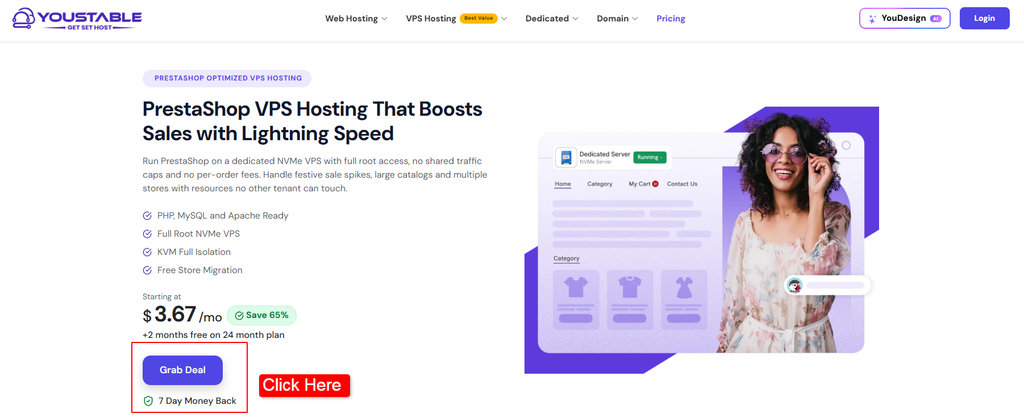
You can register your domain and buy PrestaShop hosting from YouStable’s PrestaShop VPS Hosting.
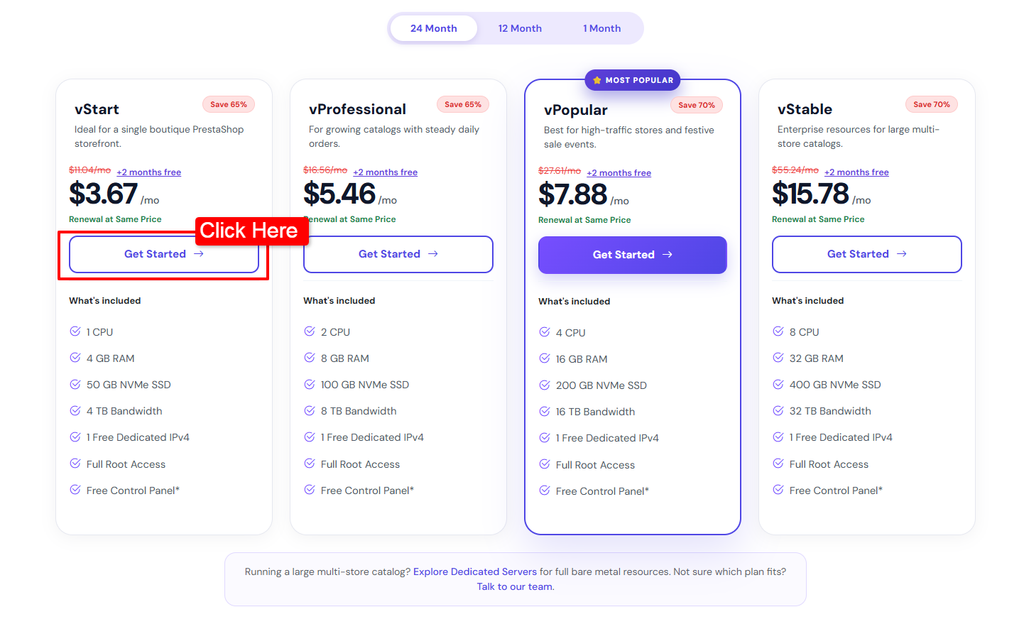
YouStable’s PrestaShop VPS starts at 1 CPU, 4 GB RAM, 50 GB NVMe SSD, 4 TB bandwidth and full root access, with KVM isolation and a free dedicated IPv4.
First, Click the Grab Deal button.
Choose the prestashop plan based on the size of your store and expected traffic.
Check the server configuration >> Click the Continue button.
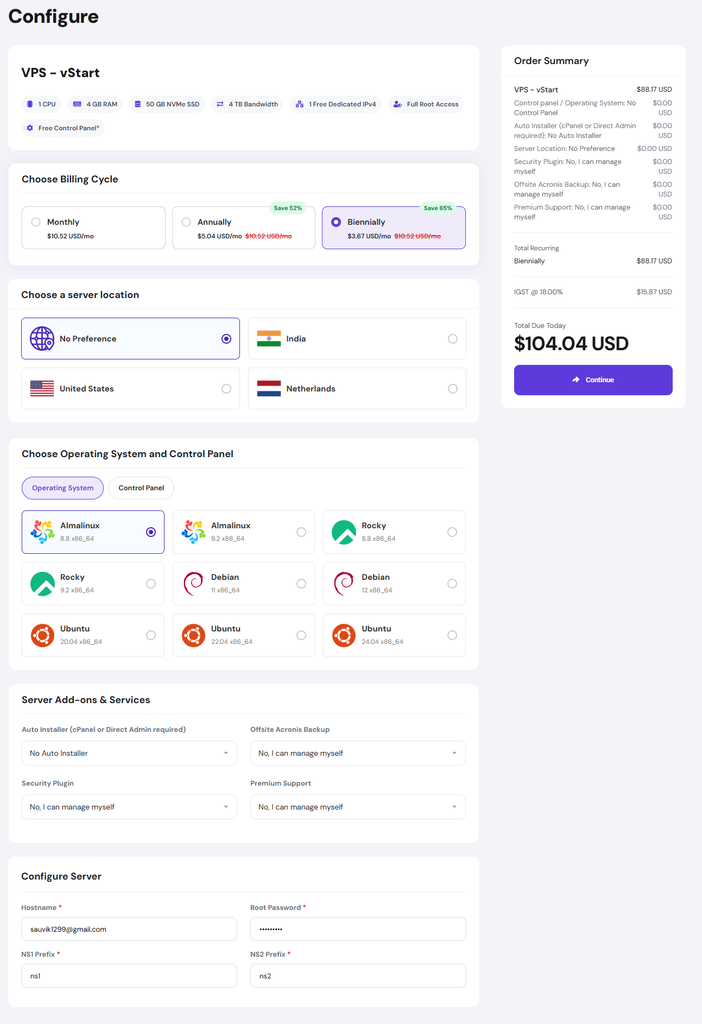
Now add a YouStable discount coupon code: Stable10 to get 10% Instant OFF on the plans >> Then, press the checkout option.
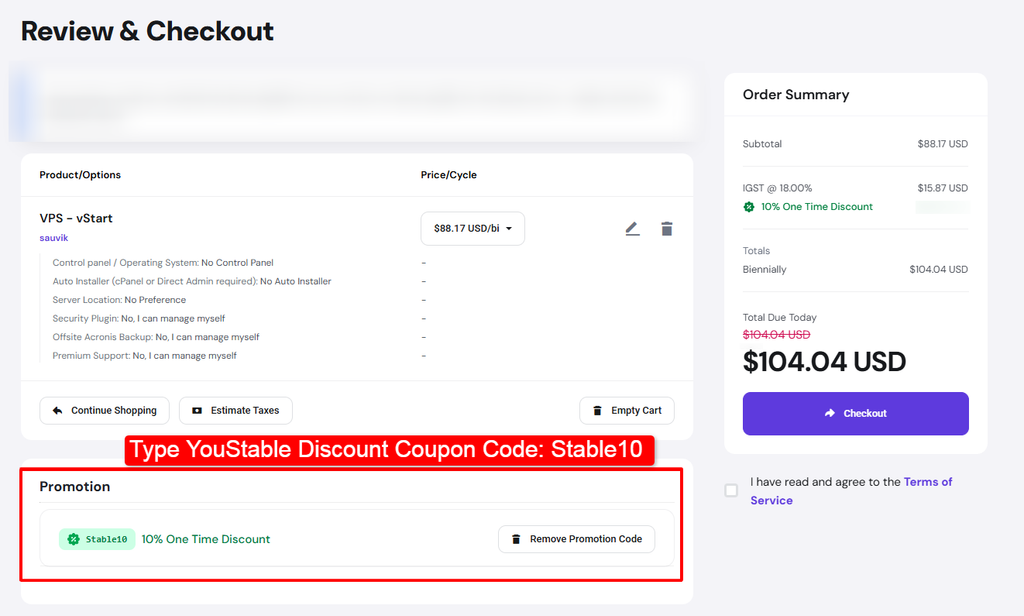
After pressing the checkout option >> Make the payment and wait for a confirmation email from YouStable team. The email will have access to your VPS.
- If you already own a custom domain, connect it to the new hosting account.
- If you are using a subdomain for your current store, decide on your final custom domain before the migration. You do not want to complete the entire migration and then change the store address again.
Once the domain and hosting are ready, keep the domain pointed to your existing WordPress store until the new PrestaShop website has passed all your tests.
This gives you a safe place to build the new store while your existing business continues to operate.
Step 2: Back Up Your WordPress and WooCommerce Store
Before you move a single product, create a complete backup.
Your backup should include the WordPress files, database, wp-content folder, uploads, WooCommerce information, theme files and important configuration files.
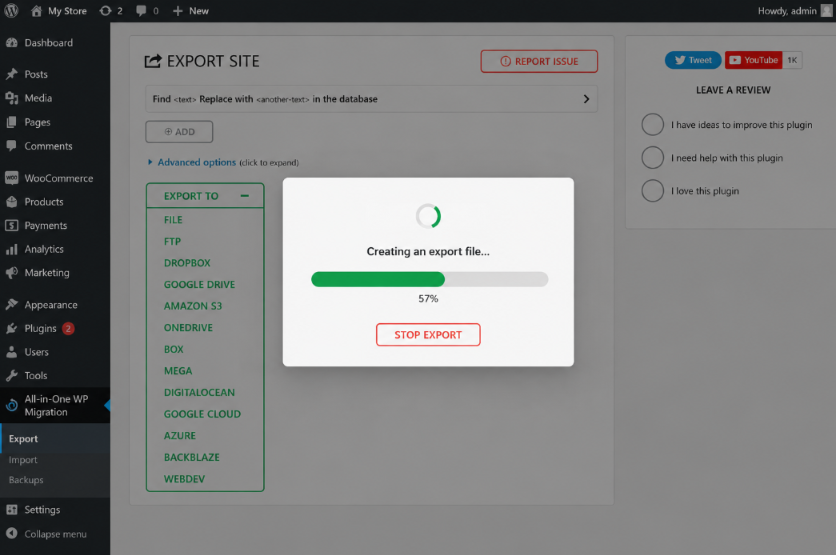
Do not keep the only copy of your backup on the same hosting account. Download a copy and store it somewhere safe.
The database is particularly important because it contains much of your store information. Your products, customers, orders and other WordPress data depend on it.
After creating the backup, check that the files are actually there. A backup is only useful when you can restore it.
Keep the old WooCommerce store running during the migration. If something goes wrong with the new store, you still have the original website to fall back on.
Step 3: Set Up PrestaShop
Now you can prepare the new PrestaShop installation. Current PrestaShop 9 releases support PHP 8.1 through PHP 8.4, according to PrestaShop’s documentation. PrestaShop 9 is also the current major release line, with PrestaShop 9.2 now available.
Your hosting should meet the requirements of the exact PrestaShop version you plan to install. Check the PHP version, database support, server resources and required PHP extensions before installation.
With your hosting ready, install PrestaShop and set up the basic store information.
Enter your store name, language, currency and administrator details. Turn on SSL so the new store uses HTTPS.
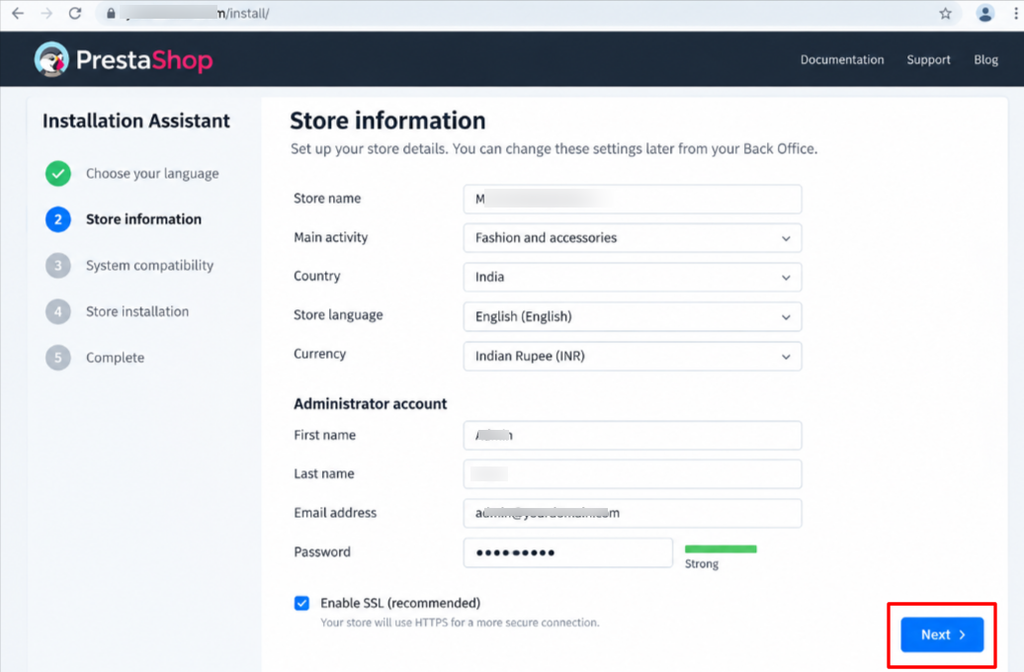
At this stage, do not spend too much time making the website look perfect. The main goal is to create a clean PrestaShop installation that is ready to receive your store data.
If possible, keep the new store private while you work on it.
Step 4: Prepare the New PrestaShop Store
Before importing your WooCommerce data, set up the basic structure of the PrestaShop store.
Add your store details, currency, language, tax settings, customer groups and shipping zones. Configure the basic order statuses and email settings as well.
You can also select your PrestaShop theme at this stage, but there is no need to spend hours adjusting the design before the data is ready.
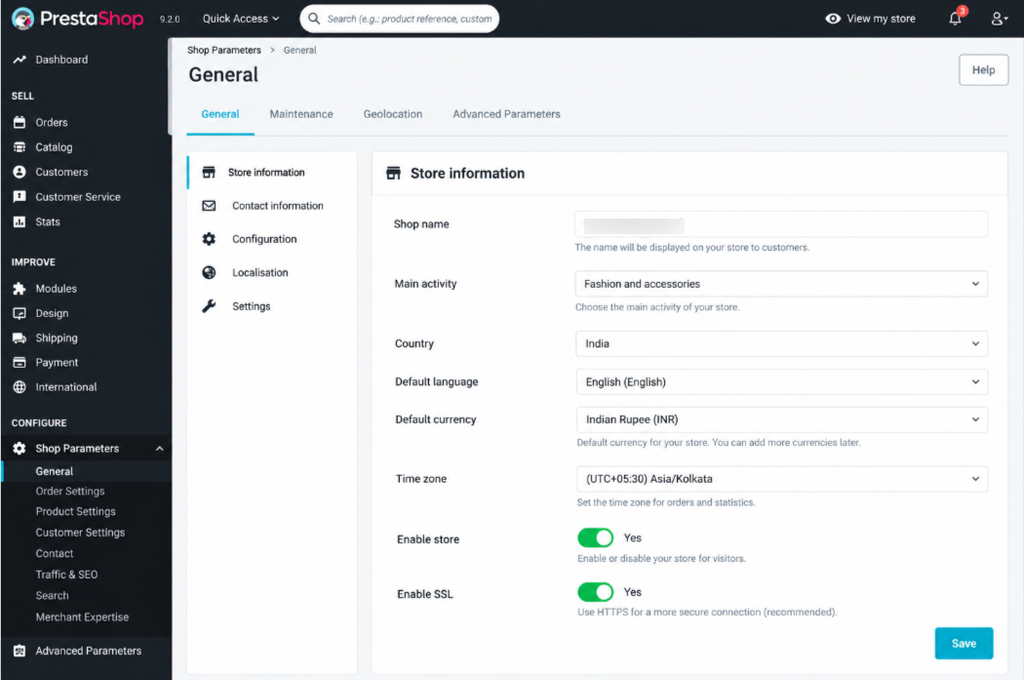
Think of this step as preparing the new shop before putting the products on the shelves.
Your product categories should have a clear structure. Your customer groups should also be ready before importing customers.
If your WooCommerce store has special tax rules, shipping areas or payment requirements, make a note of them now. These settings will need to be recreated in PrestaShop.
Step 5: Export Your WooCommerce Data
Now it is time to prepare the information that will move from WordPress to PrestaShop.
You have several options. You can use WooCommerce exports, CSV files, database exports or a dedicated migration tool. For a larger store, a migration tool can save a lot of manual work.
Tools such as Cart2Cart or LitExtension can help move information between ecommerce platforms. The exact features depend on the tool and migration package you use, so check which data it supports before starting.
A typical product mapping may look something like this:
| WooCommerce | PrestaShop |
| SKU | Reference |
| Regular price | Price |
| Product category | Category |
| Product description | Description |
| Short description | Short description |
| Product image | Cover and additional images |
Do not assume that every field will match automatically.
Custom fields, variable products, attributes and special product data often need extra attention.
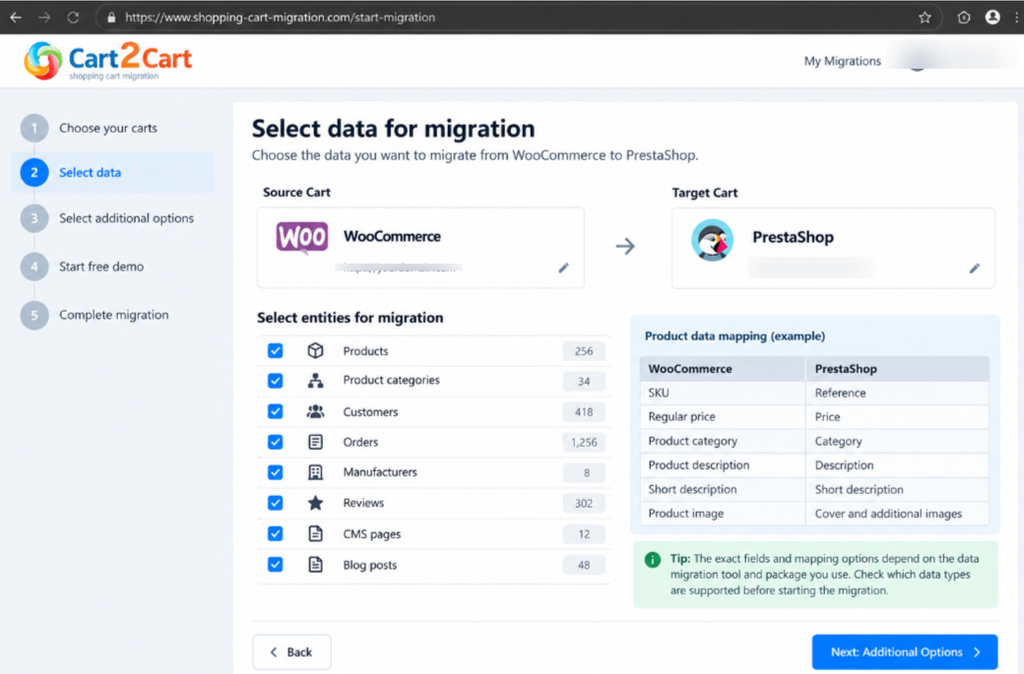
A good approach is to perform a small test migration first. Move a limited number of products and check them inside PrestaShop. Once you are happy with the result, continue with the full migration.
This small test can save you from discovering a mapping problem after thousands of products have already been imported.
Step 6: Migrate Products and Categories
Your product catalogue is one of the most important parts of the migration, so take your time here.
After importing your products, check the product names, SKUs, prices, descriptions, stock levels, categories, attributes, variations and images.
Pay particular attention to variable products.
WooCommerce and PrestaShop handle product variations differently. A WooCommerce product with size, colour or other attributes may need to be converted into PrestaShop combinations.
Open several products and test different combinations. Check the price, stock level and product information for each variation.
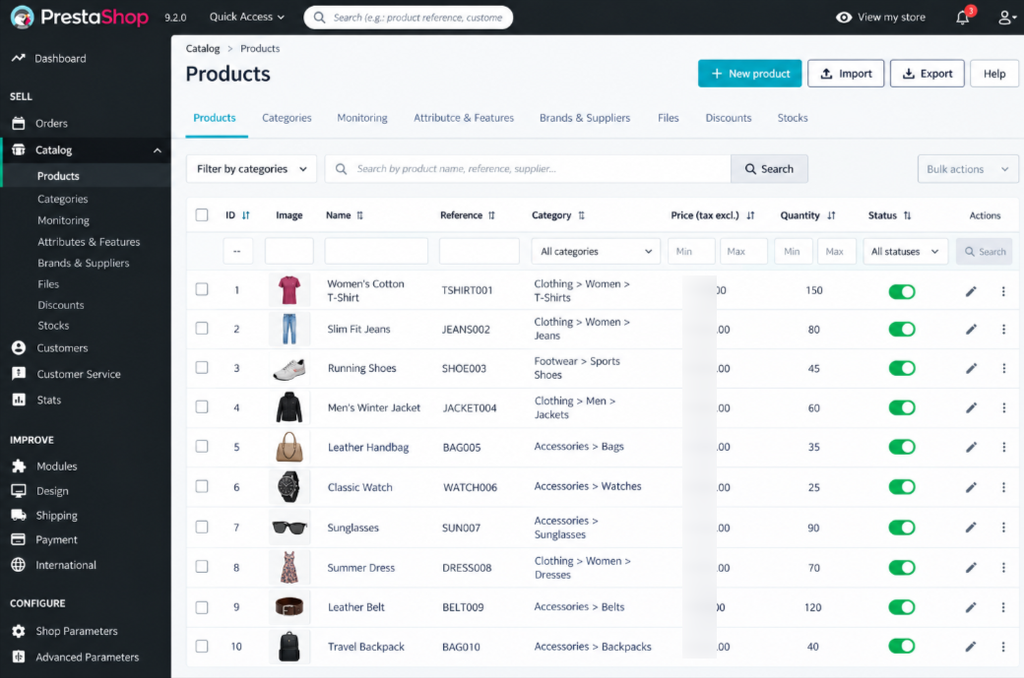
Start with your best-selling products. These are the products your customers use most, so you want to make sure they work correctly before checking the rest of the catalogue.
Also check your category structure. A product can be imported successfully but still appears in the wrong category, so do not assume that a completed import means everything is correct.
Step 7: Migrate Customers and Orders
After the product catalogue, move your customers and order history.
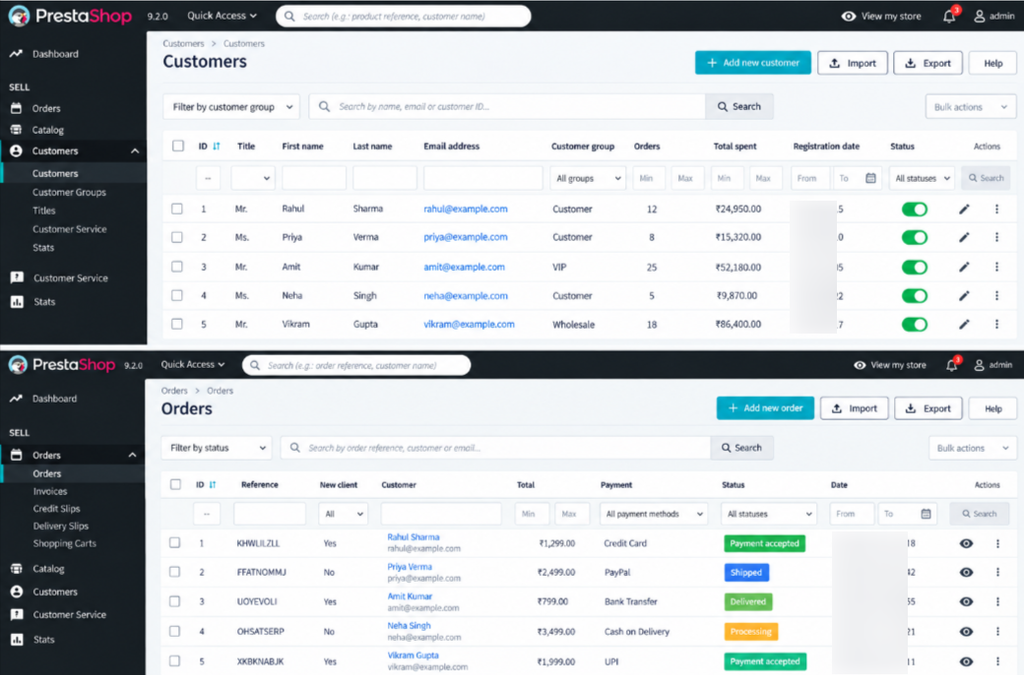
Customer information can include names, email addresses, phone numbers, billing addresses, shipping addresses and customer groups.
Order information may include the order number, customer, products, quantities, prices, taxes, shipping costs, payment method, order status and order date.
Check the imported order history carefully. Your old orders are useful for customer service, accounting and business records, so you want those records to remain accurate.
Customer passwords can be a little more complicated.
WordPress and PrestaShop do not use the same password system, so password migration depends on the tool you use. Some migration services support password transfer, while other setups require customers to create a new password.
If customers need to reset their passwords, send them a clear email explaining what has changed and what they need to do.
Do not surprise customers with a sudden login problem after the migration.
Step 8: Move Product Images and Other Media
Images are easy to overlook during a migration.
A product may appear in the new store with all its text and pricing but still have a missing image. That can make the product page look incomplete and can hurt customer confidence.
Check your product cover images, gallery images and other product media.
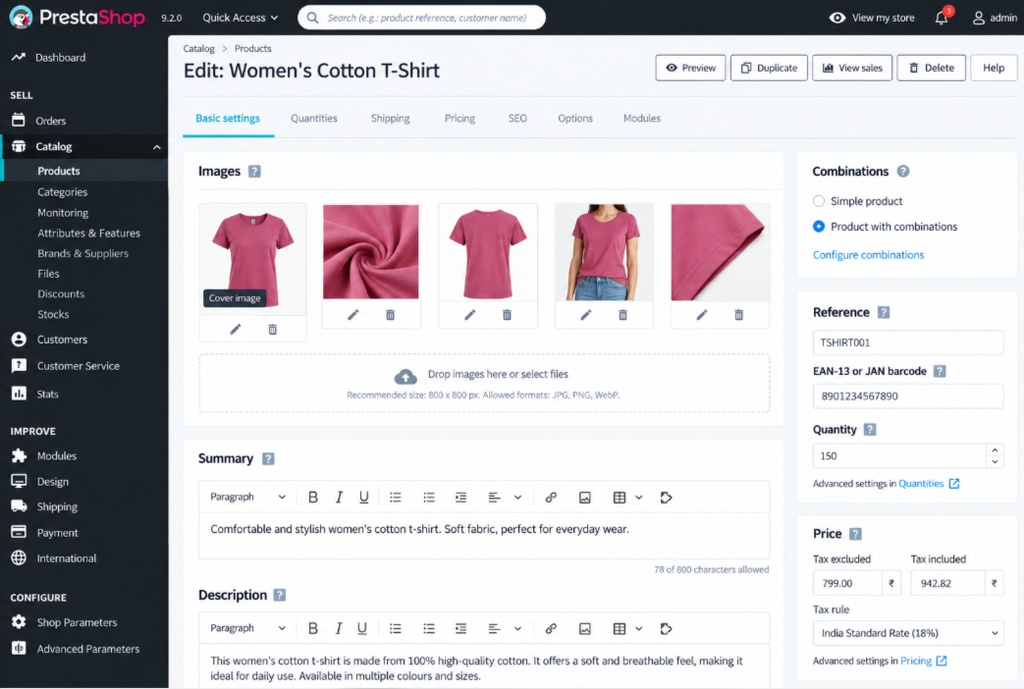
Open a selection of products from different categories and make sure their images load correctly. If you are moving your blog and other WordPress pages too, check those images as well. Old image paths can break after the move.
Pay attention to image filenames, alt text and image URLs. If an image is missing, check its path first. In many cases, the file exists but PrestaShop is looking for it in the wrong location.
Step 9: Recreate Your Store Settings and Features
Your store needs more than products and customers.
You also need to recreate the functions that make the ecommerce website work.
Set up your payment gateway, shipping methods, tax rules, customer groups, checkout settings, email notifications, coupons and order statuses.
This is also where you deal with your old WooCommerce plugins.
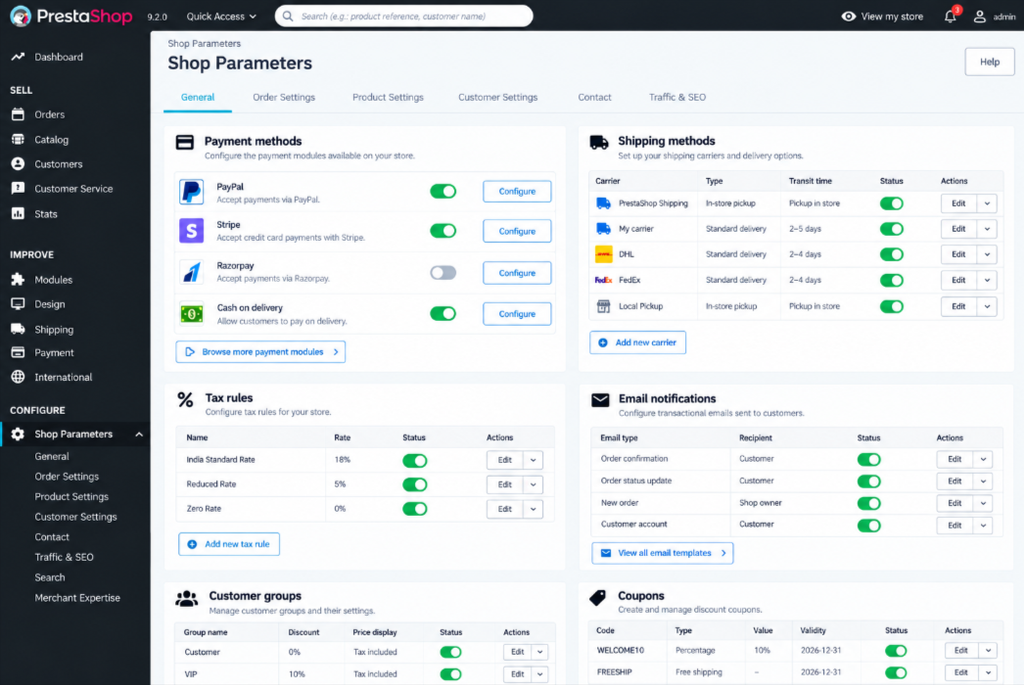
A WooCommerce payment plugin cannot simply be copied into PrestaShop. You need a suitable PrestaShop module or another supported integration.
The same applies to other features such as product filters, shipping calculators, analytics integrations, marketing tools and customer functions.
Go through your old WordPress plugins one by one and ask a simple question: What job did this plugin perform?
Then find the PrestaShop option that provides that function.
This approach is better than trying to copy every old plugin because some features may already be available in PrestaShop or may not be needed on the new store.
Step 10: Match Your Old URLs
Now comes one of the most important parts of the migration: your URLs.
Your old WooCommerce URLs may not have the same structure as your new PrestaShop URLs.
For example: example.com/product/red-shoes
could become: example.com/red-shoes
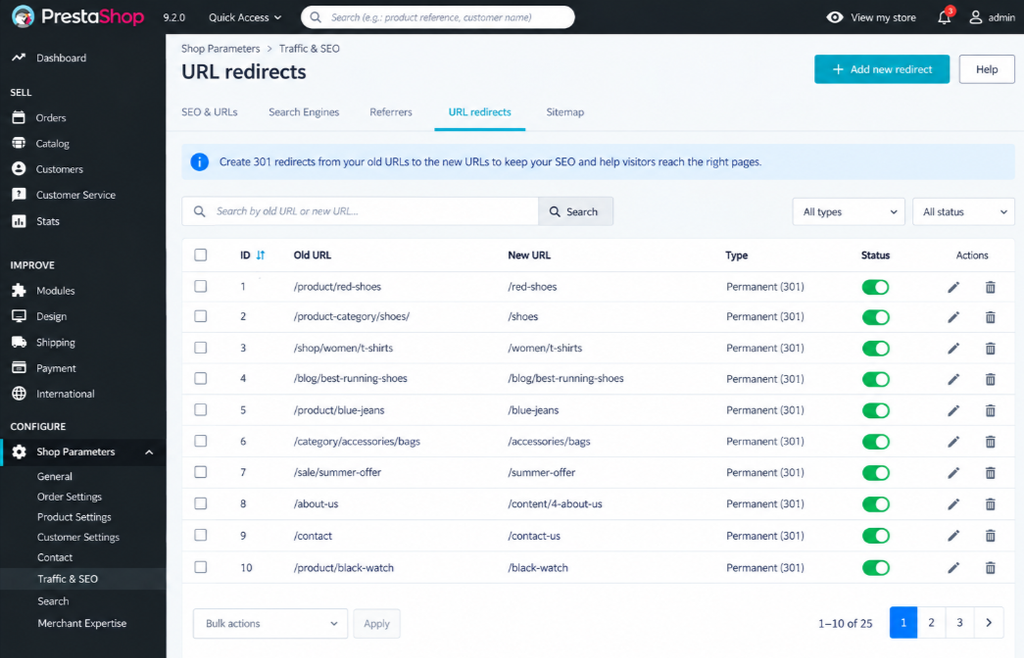
The exact URL structure depends on how your PrestaShop store is configured.
Create a list of your important old URLs and identify the matching new page for each one.
Pay attention to product pages, category pages, important landing pages, blog posts and other pages that already receive traffic from Google.
Once you have the mapping, add 301 redirects from the old URLs to the correct new URLs.
Do not send every old URL to the homepage. A product URL should go to the new product page, and an old category should go to the matching category.
This helps visitors reach the page they expected and helps search engines understand that the content has moved.
Step 11: Transfer Your SEO Settings
A platform change does not automatically mean you will lose your Google rankings.
The bigger problem comes when important URLs disappear, metadata is lost or internal links stop working.
Before the migration, save your important SEO information. This includes SEO titles, meta descriptions, H1 headings, canonical URLs and image alt text.
You should also check your XML sitemap, robots.txt file, internal links and structured data.
Once PrestaShop is ready, recreate the relevant SEO settings on the new store.
Compare your important pages with their old versions. Your top products, categories and landing pages deserve the most attention.
Also check that the new store has the correct canonical URLs and that your sitemap contains the pages you want search engines to crawl.
Do not make the domain change until your main SEO checks are complete.
Step 12: Test the New PrestaShop Store
Testing should happen before you point the live domain to the new store.
Start as a normal customer would.
Open the homepage. Visit product pages. Browse categories. Add products to the cart. Change quantities. Remove products. Try a coupon if your store uses one.
Then go through the checkout.
Test customer registration, login, billing details, shipping address, shipping options, payment and order confirmation.
After placing a test order, check the PrestaShop admin area. Make sure the order appears correctly and that the price, customer information, products, shipping and payment details are correct.
Test the store on mobile as well.
A website can look fine on a desktop screen and still have problems with mobile menus, product images, buttons or checkout fields.
You should also test your redirects and important old URLs.
Before launch, place at least one complete test order from the product page through the final confirmation screen.
Step 13: Point Your Domain to PrestaShop
Once the new store has passed your tests, you can prepare the final domain switch.
Take one more backup of your WordPress store first.
Then make sure the new PrestaShop store is ready to accept real customers. Check SSL, payment, shipping, email notifications and order processing one more time.
If your old store is still receiving orders, plan the final switch carefully. You do not want an order to arrive on the old website while the new store is already live.
Update your DNS records or hosting configuration so the domain points to the new PrestaShop server.
If you were working on a temporary domain or subdomain, this is where you move the final custom domain to the new store.
The DNS change may take some time to spread. During that period, some visitors may still reach the old server while others reach the new one.
Keep the old WordPress store and its backup available until you are sure the migration has worked properly.
Step 14: Check the Store After Launch
The first few days after launch deserve close attention.
Open your homepage, products, categories, cart and checkout. Test customer login and account pages. Check payments, shipping and order emails.
Look at your 404 errors as well. A sudden increase in 404 pages often points to missing redirects or incorrect URLs.
Open Google Search Console and check the new sitemap. Submit the sitemap if required and watch for indexing problems.
Also check your analytics tracking. Your store may be working perfectly while your analytics code has been missed during the redesign.
Keep an eye on page speed and mobile usability too.
Do not delete the old WordPress installation immediately. Keep it available as a fallback until the new store has remained stable for a reasonable period.
Common WordPress to PrestaShop Migration Problems
A few problems appear often during ecommerce migrations.
- Missing product images usually come from incorrect image paths or an incomplete media transfer.
- Broken links usually happen because the new store uses a different URL structure and the old URLs were not redirected.
- Customer login problems can happen because WordPress and PrestaShop handle passwords differently.
- Product variation problems usually come from differences between WooCommerce variations and PrestaShop combinations.
- Payment problems are another common issue. Your WooCommerce payment plugin will not simply work on PrestaShop, so the payment method needs a compatible PrestaShop module or integration.
- You may also find missing orders if the migration settings did not include historical order data.
The best way to reduce these problems is to test a small amount of data first and keep a full backup of the old store.
Final WordPress to PrestaShop Migration Checklist
Before you change the domain, make sure the important parts of the migration have been checked.
Your WordPress backup should be safe, PrestaShop should be installed, and your products and categories should be in place. Customers and orders should be checked, and product images should load correctly.
Payment and shipping should work. Your old URLs should have matching new URLs, and the required 301 redirects should be active.
Your SEO titles, descriptions, canonicals, sitemap and internal links should also be checked.
Finally, place a test order and check the complete buying process on desktop and mobile. Once those checks are complete, you can switch the domain with much more confidence.
Also Read: How to Migrate From Magento to WordPress
Frequently Asked Questions
Can I migrate from WordPress to PrestaShop?
Yes! WooCommerce products, categories, customers, orders and images can be moved to PrestaShop with the right migration method. Your WordPress theme and plugins do not move directly, so those parts need to be recreated with PrestaShop themes and modules.
Can I migrate WooCommerce products to PrestaShop?
Yes! Product names, descriptions, prices, SKUs, categories and images can be transferred. Variable products need extra checking because WooCommerce and PrestaShop manage product combinations differently.
Can I migrate WooCommerce customers to PrestaShop?
Yes! You can migrate WooCommerce customers to PrestaShop. Customer names, emails and addresses can be moved easily. Password migration depends on the method or tool you use. Some customers may need to create a new password after the migration.
Can I migrate WooCommerce orders to PrestaShop?
Yes! Order history can be moved with a suitable migration tool. Check several old orders against the new records before the store goes live.
Will I lose my Google rankings after moving to PrestaShop?
You do not automatically lose your rankings just because you changed ecommerce platforms. The main risks come from broken URLs, missing redirects, lost metadata, incorrect canonicals and broken internal links. A proper URL map and 301 redirect plan can help search engines understand the move.
Do I need to rebuild my WordPress theme in PrestaShop?
Yes! A WordPress theme cannot run on PrestaShop. You need a PrestaShop-compatible theme or a custom design. You can recreate the same general appearance, colours, branding and layout, but the theme itself needs to be built for PrestaShop.
Can I move WordPress plugins to PrestaShop?
Not directly! WooCommerce plugins are built for WordPress and WooCommerce. You need a PrestaShop module or another suitable integration for each feature you want to keep.
Some features may have a direct PrestaShop alternative, while others may need custom development.
What should I do if my current store uses a subdomain?
If your store currently runs on a temporary or free subdomain, decide on your final custom domain before the migration. Register the custom domain, set up your PrestaShop hosting and build the new store there. Keep the old subdomain active until your new store has been tested.
Once everything is ready, connect the custom domain to the PrestaShop hosting and use redirects where needed.
Should I delete WordPress after migration?
Do not delete it immediately. Keep your old WordPress store and backup until the new PrestaShop store is stable. You may need the old files or database to check historical information or recover something that was missed during migration.
How long does a WordPress to PrestaShop migration take?
There is no single time for every store. A small store with a limited product catalogue can be moved much faster than a large store with thousands of products, customer accounts, orders, custom fields and many integrations. The time also depends on how much manual work is needed after the initial import. It is better to spend extra time testing than to rush the domain switch.
Final Thoughts
Moving from WordPress and WooCommerce to PrestaShop is mainly a matter of moving your store data and rebuilding the parts that are specific to the old platform.
Start with a complete backup. Set up your new PrestaShop vps hosting and domain, build the new store, move your products and customer data, recreate your payment and shipping setup, and then work through your URLs and SEO.
Do not rush the final domain change.
Your old WooCommerce store should stay available while you test the new one. Once products, customers, orders, checkout, payments, redirects and SEO have all been checked, you can point your custom domain to PrestaShop.
A careful migration may take a little more time, but it gives you a much better chance of keeping your products, customers, sales history and search traffic in good shape.