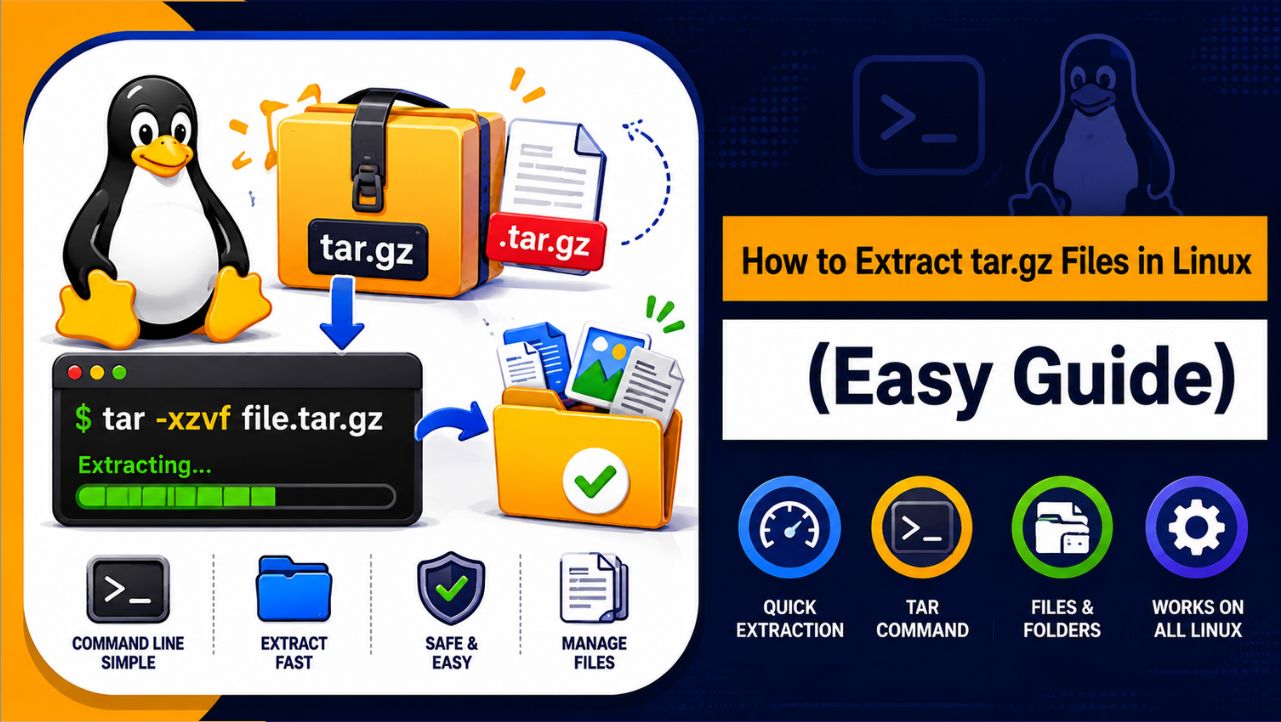
Working with .tar.gz files in Linux is a basic yet essential skill, especially if you are handling software installations, backups, or server files. Most Linux applications, source code packages, and backups are distributed in .tar.gz format because it combines multiple files into one archive and reduces file size.
If you understand how to extract and manage these files properly, it becomes much easier to organize your system and work efficiently without confusion.
What Is a tar.gz File?
A .tar.gz file is created using two steps:
- .tar (Tape Archive): Combines multiple files and directories into a single file
- .gz (Gzip Compression): Compresses that file to reduce its size
Example:
A folder containing hundreds of files can be converted into a single compressed file like:backup.tar.gz
This makes it easier to:
- Transfer files
- Save storage space
- Manage large data
Basic Command to Extract tar.gz Files
The most commonly used command to extract a .tar.gz file is:
tar -xzvf filename.tar.gz
Meaning of Each Option:
- x (Extract): Extract files from the archive
- z (Gzip): Decompress gzip format
- v (Verbose): Show files being extracted
- f (File): Specify archive file name
This command works on almost all Linux distributions like Ubuntu, CentOS, Debian, etc.
Extract tar.gz File in Same Directory
If your .tar.gz file is already in your current directory, you can extract it directly.
Step 1: Move to the File Location
cd /path/to/your/file
Step 2: Run Extraction Command
tar -xzvf yourfile.tar.gz
Step 3: Verify Extracted Files
ls -l
This will show all extracted files and folders.
Extract tar.gz File to a Different Directory
Sometimes, you don’t want to extract files in the current directory. You can extract them to another location using the -C option.
tar -xzvf yourfile.tar.gz -C /path/to/destination
Example:
tar -xzvf backup.tar.gz -C /home/user/Documents
Why This Is Useful:
- Keeps your directory clean
- Helps organize files better
- Useful for server environments
View tar.gz File Without Extracting
Before extracting, you might want to check what files are inside.
tar -tzvf yourfile.tar.gz
This command:
- Lists all files inside the archive
- Does NOT extract anything
Extract Specific Files from tar.gz
You can also extract only selected files instead of the entire archive:
tar -xzvf yourfile.tar.gz filename.txt
This is helpful when:
- You only need one file
- The archive is very large
How to Create tar.gz File in Linux
You can create your own compressed archive using:
tar -czvf archive-name.tar.gz /path/to/directory
Options Explained:
- c (Create): Create new archive
- z (Gzip): Compress it
- v (Verbose): Show process
- f (File): File name
Example:
tar -czvf backup.tar.gz /home/user/data
Extract .tar File (Without Gzip)
Sometimes files are only .tar (not compressed):
tar -xvf file.tar
No z option is needed here.
Common Errors and How to Fix Them
1. File Not Found
Fix:
- Check file name
- Verify directory path
2. Permission Denied
Fix:
sudo tar -xzvf filename.tar.gz
3. Not a gzip File
Fix:
- Ensure file extension is correct
- File might be corrupted
4. Disk Space Full
Fix:
- Free up space
- Extract in another location
Best Practices for Working with tar.gz Files
To work with .tar.gz files in Linux safely and efficiently, it’s important to follow a few simple practices that help you avoid errors and keep your system organized:
- Check archive contents before extracting → Use
tar -tzvfto see what’s inside the file. This helps you avoid extracting unnecessary or harmful files. - Use
-Coption for a clean directory → Extract files into a specific folder instead of the current one to keep your workspace organized and avoid clutter. - Avoid unknown or untrusted files → Do not extract archives from unknown sources, as they may contain harmful scripts or unwanted files.
- Keep backups of important data → Always create a backup before extracting or modifying files to prevent data loss if something goes wrong.
- Use clear and meaningful archive names → Naming files properly helps you identify their content easily and manage multiple archives without confusion.
Following these practices ensures safe, clean, and efficient handling of compressed files in Linux.
When Are tar.gz Files Used?
.tar.gz files in Linux are widely used for combining and compressing multiple files into a single archive, making storage and transfer much easier.
You will commonly see them used in:
- Software downloads (Linux packages) → Many applications and tools are distributed as
.tar.gzfiles so users can easily download and install them. - Website backups → Entire website data, including files and folders, is compressed into a single archive for safe storage and quick restoration.
- Server data exports → Large amounts of server data are packaged into one file for easy transfer between systems.
- Open-source project distributions → Developers share source code in
.tar.gzformat so users can download, extract, and use or modify it easily.
These files make it simple to manage, share, and store large sets of data efficiently.
Also Read:
• Best Linux Dedicated Server
• Learn How to Update NPM Versions
Conclusion
Extracting .tar.gz files in Linux becomes simple once you understand the tar command and its options. Whether you are managing files on your system or working on a server, these commands help you handle compressed archives quickly and efficiently.
With just a few commands, you can extract, view, create, and manage files without any complexity. Once you practice these steps, working with .tar.gz files will feel natural and save you a lot of time.