

To create CI/CD on a Linux server, provision a secure host, connect your Git repository, install a CI runner or orchestrator (Jenkins, GitHub Actions Runner, or GitLab Runner), define pipeline jobs or YAML to build, test, and package your app, then deploy to staging/production via SSH or containers, with secrets management, rollback, and monitoring.
In this guide, you’ll learn how to create CI/CD on a Linux server using proven DevOps practices. We’ll cover multiple approaches Jenkins, GitHub Actions self hosted runners, GitLab Runner, and a lightweight Bash pipeline, so you can pick what fits your stack and budget.
I’ll share real world steps, commands, and security tips from 12+ years building pipelines for web hosting and cloud environments.
What Is CI/CD on a Linux Server?
CI/CD (Continuous Integration/Continuous Delivery) automates how you build, test, and deploy applications. On a Linux server, that means using a runner or orchestrator to pull your code on changes, run tests, build artifacts or containers, and deploy reliably to your environment.
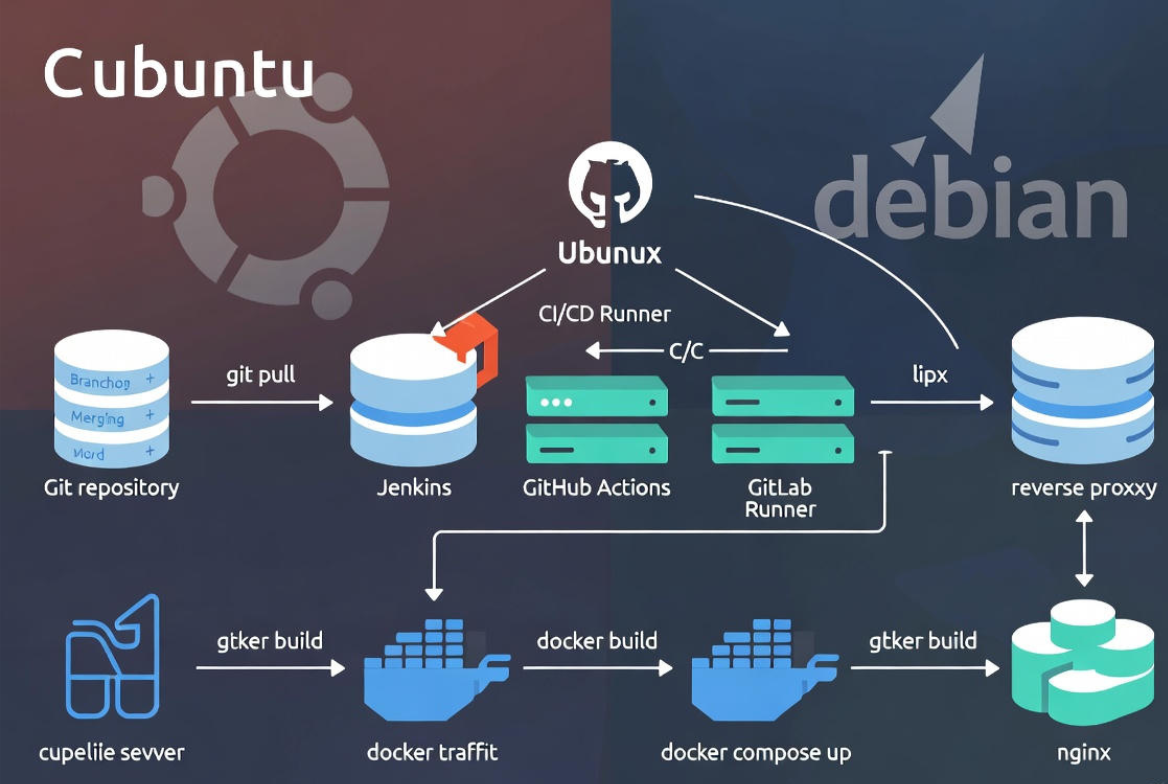
Core tools include Git, Docker, Jenkins, GitHub Actions, GitLab CI, and Nginx.
Who Is This For and What You’ll Build
This tutorial is ideal for developers, sysadmins, and small teams who want a secure, maintainable CI/CD pipeline. You’ll set up an Ubuntu/Debian based server, add a CI agent, configure pipelines, and deploy a containerized web app behind Nginx with rollback. We’ll also cover secrets, firewalls, logs, and monitoring.
Prerequisites and Recommended Stack
- Linux server (Ubuntu 22.04+ or Debian 12 recommended)
- Root or sudo access, SSH keys
- Git repository (GitHub, GitLab, Bitbucket)
- Docker and Docker Compose (or language runtime such as Node.js/Python/Java)
- Domain and DNS (optional but recommended for HTTPS)
Hosting tip: A VPS or cloud instance with 2–4 vCPU, 4–8 GB RAM suits most small CI/CD workloads. If you prefer managed assistance, YouStable’s VPS hosting and managed server plans make it easy to deploy CI/CD with pre hardened images, snapshots, and 24×7 support.
Step 1: Baseline Server Setup (Security First)
Harden the server before you install CI tools. Use a non root user, SSH keys, a firewall, and essential packages.
# Create a non-root user
sudo adduser ci
sudo usermod -aG sudo,docker ci

# SSH hardening (on your local machine)
ssh-copy-id ci@your_server_ip

# Basic packages and updates
sudo apt update && sudo apt -y upgrade
sudo apt -y install git curl ufw fail2ban ca-certificates gnupg lsb-release

# Enable firewall
sudo ufw allow OpenSSH
sudo ufw allow 80/tcp
sudo ufw allow 443/tcp
sudo ufw --force enable

# Install Docker (official repo)
sudo install -m 0755 -d /etc/apt/keyrings
curl -fsSL https://download.docker.com/linux/ubuntu/gpg | sudo gpg --dearmor -o /etc/apt/keyrings/docker.gpg
echo \
  "deb [arch=$(dpkg --print-architecture) signed-by=/etc/apt/keyrings/docker.gpg] \
  https://download.docker.com/linux/ubuntu $(. /etc/os-release && echo $VERSION_CODENAME) stable" | \
  sudo tee /etc/apt/sources.list.d/docker.list > /dev/null
sudo apt update
sudo apt -y install docker-ce docker-ce-cli containerd.io docker-buildx-plugin docker-compose-plugin

# Allow ci user to run docker without sudo (re-login required)
sudo usermod -aG docker ci
Optional: Install Nginx to reverse proxy your app and terminate TLS with Let’s Encrypt.
sudo apt -y install nginx
sudo ufw allow "Nginx Full"

# Example minimal reverse proxy (adjust server_name and upstream)
sudo bash -c 'cat >/etc/nginx/sites-available/app.conf' <<EOF
server {
    listen 80;
    server_name app.example.com;

    location / {
        proxy_pass http://127.0.0.1:8080;
        proxy_set_header Host $host;
        proxy_set_header X-Real-IP $remote_addr;
    }
}
EOF
sudo ln -s /etc/nginx/sites-available/app.conf /etc/nginx/sites-enabled/app.conf
sudo nginx -t && sudo systemctl reload nginx
Step 2: Choose Your CI/CD Architecture
- GitHub Actions self hosted runner: Tight GitHub integration, YAML pipelines, fast for mono repos.
- GitLab Runner: Works with GitLab CI/CD using shell, Docker, or Kubernetes executors.
- Jenkins: Highly extensible, plugin rich, great for complex, multi repo orchestration.
- Lightweight Bash: Small teams can script build/test/deploy triggered by webhooks or cron.
Pick one primary path below. You can mix and match (e.g., Actions for CI and Ansible for CD) as you scale.
Option A: GitHub Actions Self Hosted Runner
Run workflows on your own Linux server for full control and cache locality. Register the runner in your GitHub repo settings > Actions > Runners.
# As ci user
mkdir -p ~/actions-runner && cd ~/actions-runner
# Download the latest runner from GitHub (replace version/URL from GitHub UI)
curl -o actions-runner.tar.gz -L https://github.com/actions/runner/releases/download/vX.Y.Z/actions-runner-linux-x64-X.Y.Z.tar.gz
tar xzf actions-runner.tar.gz

# Configure (use the token from GitHub Runner setup)
./config.sh --url https://github.com/your-org/your-repo --token YOUR_TOKEN --labels self-hosted,linux,prod

# Install as a service
sudo ./svc.sh install
sudo ./svc.sh start
sudo systemctl status actions.runner.*
Example GitHub Actions workflow to build, test, Dockerize, and deploy with Docker Compose locally on the server:
name: CI/CD
on:
  push:
    branches: [ "main" ]
jobs:
  build-test-deploy:
    runs-on: self-hosted
    steps:
      - uses: actions/checkout@v4

      - name: Set up Node.js
        uses: actions/setup-node@v4
        with:
          node-version: '20'

      - name: Install deps & test
        run: |
          npm ci
          npm test --if-present

      - name: Build Docker image
        run: |
          docker build -t registry.example.com/myapp:${GITHUB_SHA::7} .
          docker tag registry.example.com/myapp:${GITHUB_SHA::7} registry.example.com/myapp:latest

      - name: Push image (if using private registry)
        env:
          REGISTRY_USER: ${{ secrets.REGISTRY_USER }}
          REGISTRY_PASS: ${{ secrets.REGISTRY_PASS }}
        run: |
          echo "$REGISTRY_PASS" | docker login registry.example.com -u "$REGISTRY_USER" --password-stdin
          docker push registry.example.com/myapp:${GITHUB_SHA::7}
          docker push registry.example.com/myapp:latest

      - name: Deploy with Compose
        run: |
          docker compose pull || true
          docker compose up -d --remove-orphans
          docker image prune -f
Create a minimal docker-compose.yml in your repo:
services:
  app:
    image: registry.example.com/myapp:latest
    restart: unless-stopped
    ports:
      - "8080:8080"
    env_file:
      - .env
Option B: GitLab Runner on Linux
Use GitLab CI/CD with a shell or Docker executor. Register your runner with a project or group token.
curl -L https://packages.gitlab.com/install/repositories/runner/gitlab-runner/script.deb.sh | sudo bash
sudo apt -y install gitlab-runner

# Register runner (shell executor for simplicity)
sudo gitlab-runner register \
  --url https://gitlab.com/ \
  --registration-token YOUR_TOKEN \
  --executor shell \
  --description "linux-shell-runner"
Sample .gitlab-ci.yml:
stages: [test, build, deploy]

variables:
  DOCKER_HOST: "unix:///var/run/docker.sock"

test:
  stage: test
  script:
    - npm ci
    - npm test --if-present

build:
  stage: build
  script:
    - docker build -t registry.example.com/myapp:$CI_COMMIT_SHORT_SHA .
    - docker tag registry.example.com/myapp:$CI_COMMIT_SHORT_SHA registry.example.com/myapp:latest
    - echo $REGISTRY_PASS | docker login registry.example.com -u $REGISTRY_USER --password-stdin
    - docker push registry.example.com/myapp:$CI_COMMIT_SHORT_SHA
    - docker push registry.example.com/myapp:latest
  only:
    - main

deploy:
  stage: deploy
  script:
    - docker compose pull
    - docker compose up -d --remove-orphans
    - docker image prune -f
  environment:
    name: production
  only:
    - main
Option C: Jenkins Pipeline on Linux
Jenkins is a powerhouse for complex workflows and multi environment promotion.
# Install Java and Jenkins
sudo apt -y install openjdk-17-jre
curl -fsSL https://pkg.jenkins.io/debian-stable/jenkins.io-2023.key | sudo tee \
  /usr/share/keyrings/jenkins-keyring.asc > /dev/null
echo deb [signed-by=/usr/share/keyrings/jenkins-keyring.asc] \
  https://pkg.jenkins.io/debian-stable binary/ | sudo tee \
  /etc/apt/sources.list.d/jenkins.list > /dev/null
sudo apt update && sudo apt -y install jenkins
sudo systemctl enable --now jenkins
# Access: http://your_server_ip:8080 (retrieve initial admin password)
Example Jenkinsfile (Declarative):
pipeline {
  agent any
  environment {
    REGISTRY = 'registry.example.com'
    IMAGE = 'myapp'
  }
  stages {
    stage('Checkout') {
      steps { checkout scm }
    }
    stage('Test') {
      steps {
        sh 'npm ci'
        sh 'npm test --if-present'
      }
    }
    stage('Build & Push Image') {
      steps {
        withCredentials([usernamePassword(credentialsId: 'registry-creds', usernameVariable: 'USER', passwordVariable: 'PASS')]) {
          sh '''
            echo "$PASS" | docker login $REGISTRY -u "$USER" --password-stdin
            TAG=$(git rev-parse --short HEAD)
            docker build -t $REGISTRY/$IMAGE:$TAG .
            docker tag $REGISTRY/$IMAGE:$TAG $REGISTRY/$IMAGE:latest
            docker push $REGISTRY/$IMAGE:$TAG
            docker push $REGISTRY/$IMAGE:latest
          '''
        }
      }
    }
    stage('Deploy') {
      steps {
        sh 'docker compose pull && docker compose up -d --remove-orphans'
      }
    }
  }
  post {
    always { sh 'docker image prune -f || true' }
  }
}
Option D: Lightweight Bash CI/CD (No Orchestrator)
For very small projects, use a post receive Git hook or a cron triggered script to build and deploy. Keep it simple but secure.
#!/usr/bin/env bash
set -euo pipefail

REPO_DIR=/opt/myapp
cd "$REPO_DIR"

echo "==> Pulling latest..."
git fetch --all
git checkout main
git pull --ff-only

echo "==> Running tests..."
npm ci
npm test --if-present

echo "==> Building & deploying..."
docker build -t myapp:latest .
docker compose up -d --build --remove-orphans
docker image prune -f
Secrets, Environment Variables, and Rollbacks
- Store secrets in the platform (GitHub Secrets, GitLab CI variables, Jenkins Credentials). Never commit .env files.
- Use environment specific configs: .env.staging and .env.production with a secure secrets manager if possible.
- Tag releases (e.g., semantic versions) and keep the previous version available for quick rollback with Docker Compose or a symlinked release directory.
- Blue/green or canary deployments reduce risk for high traffic apps.
Security Hardening Checklist
- Principle of least privilege: run runners with non root users; limit sudo.
- Network: close unused ports with UFW; isolate build and prod networks if possible.
- SSH: key based authentication, disable password login, rotate keys regularly.
- Dependencies: scan images with Trivy or Grype; pin base images and patch frequently.
- Logs and alerts: enable fail2ban; ship logs to a central system; monitor runner services.
- Backups and snapshots: automate via your hosting panel; test restore monthly.
Troubleshooting and Observability
- Check services: systemctl status jenkins, gitlab runner, or actions.runner.*
- Runner logs: journalctl -u “actions.runner*” -e, journalctl -u gitlab-runner -e
- Docker logs: docker ps, docker logs <container>, docker events
- Nginx: sudo tail -f /var/log/nginx/access.log /var/log/nginx/error.log
- Common failures: missing environment variables, incorrect registry credentials, firewall blocking outbound registry or package mirrors.
Cost and Scaling Considerations
- Start with 2–4 vCPU, 4–8 GB RAM; add CPU for builds and RAM for Docker layers.
- Use build caches and runners pinned to the server hosting your container registry for speed.
- Separate CI from production workloads as you grow to avoid resource contention.
- If you need predictable performance, consider multiple runners and a dedicated registry.
End to End Example: From Push to Production
- Developer pushes to main; CI pulls code.
- Run unit tests and linting.
- Build Docker image, tag with commit SHA and latest.
- Push to registry and update docker compose on the server.
- Compose recreates the container with zero or minimal downtime.
- Health check endpoint confirms success; alerts fire on failures.
This flow is resilient, auditable, and easy to replicate for staging and production with different variables and DNS records.
Best Practices to Keep Your CI/CD Healthy
- Keep pipelines fast: cache dependencies and parallelize tests.
- Make failures loud: fail fast, notify Slack/Email, and include logs.
- Immutable artifacts: build once, promote through environments with the same image.
- Idempotent deploys: running deploy twice should not break your app.
- Document everything: READMEs, runbooks, rollback steps.
FAQs
How do I choose between Jenkins, GitHub Actions, and GitLab CI?
Use GitHub Actions if your code lives on GitHub and you want simple YAML workflows. Choose GitLab CI for integrated GitLab repos and group level runners. Pick Jenkins for highly customized pipelines, complex approvals, or when you need deep plugin support and multi repo orchestration.
Is Docker required for CI/CD on Linux?
No, but Docker simplifies reproducible builds and deployments. Without Docker, you can run language native builds (Node, Python, Java) and deploy via rsync or systemd services. For consistency and portability, containers are strongly recommended.
How do I secure secrets in my pipeline?
Store secrets in your CI platform (GitHub Secrets, GitLab Variables, Jenkins Credentials). Avoid plaintext .env files in repos. For advanced setups, consider HashiCorp Vault or cloud KMS. Limit who can read secrets and rotate them regularly.
What’s the easiest way to roll back a bad deployment?
Keep the previous Docker image tag and revert docker compose.yaml to that tag, then run docker compose up -d. If you use non containerized deploys, maintain a symlinked “current” release and switch it back, then restart the service.
Can I run CI/CD on a small VPS?
Yes. For small projects, a 2 vCPU/4 GB RAM VPS is sufficient. Use caching and avoid heavy parallel builds. As your pipelines grow, scale up resources or split CI runners from production workloads. Providers like YouStable make vertical and horizontal scaling straightforward.



