Is your Magento store becoming difficult to manage? Complicated updates and a heavy dashboard can make everyday store management frustrating. Moving to WordPress with WooCommerce can give you a simpler setup. But it is seen that the migration process from Magento to WordPress is a big technical headache for the newbies as it involves moving stores and losing products, customers, orders, images, or SEO rankings can affect your site.
That is exactly what this guide helps you solve.
You will learn how to prepare your Magento store, set up WordPress and WooCommerce, migrate your store data, move images, preserve your URLs, configure SEO settings, create redirects, test everything and safely switch your domain.
You will also learn how to avoid common migration mistakes that can cause broken pages, missing data, or lost search traffic.
The steps are arranged in the correct order, so you can follow the migration from start to finish without guessing what to do next.
Before You Start: Magento Store or Subdomain?
Before you start moving anything, take a quick look at your Magento store’s URL (Actually the thing is that the place where your store is currently live affects how you plan the migration process.)
There are two common setups:
- Your store may be running on your main domain.
- Or it may be running on a subdomain.
Store on Your Main Domain
For example, your store may be running directly on sauvikkurtis.com. If that is your setup, you can keep using the same domain after moving to WordPress.
| The safest approach is to leave your Magento store running while you build the new WordPress site separately. This gives you time to set everything up, move your data, test the site and fix any problems before your customers see the new store. |
Your Magento store can continue handling orders while you work on the new WordPress site in the background.
Once everything is ready, you can point the nameservers to your domain so that the customers can see your new store.
Store on a Subdomain
Before you start moving your Magento store, decide which domain you want to use for your new WordPress store. This small decision can save you from broken links, unnecessary redirects, and SEO issues later.
Your Magento store may already be using a subdomain such as store.example.com or a temporary address such as
- sauvikkurtis.cu.ma. (This is a temporary subdomain where the magento site lives)
You can keep the same address during the migration or move the store to your main business domain.
| Your Current Setup | What You Can Do |
| Main domain | Keep the same domain (Point the nameservers to your domain only afterwards) |
| Subdomain | Move to the main domain |
Tip: Decide your final domain before importing your store data. Changing it halfway through the migration can create extra redirects and broken URLs.
If you need a new domain >> You can check YouStable’s available domain plans and offers.
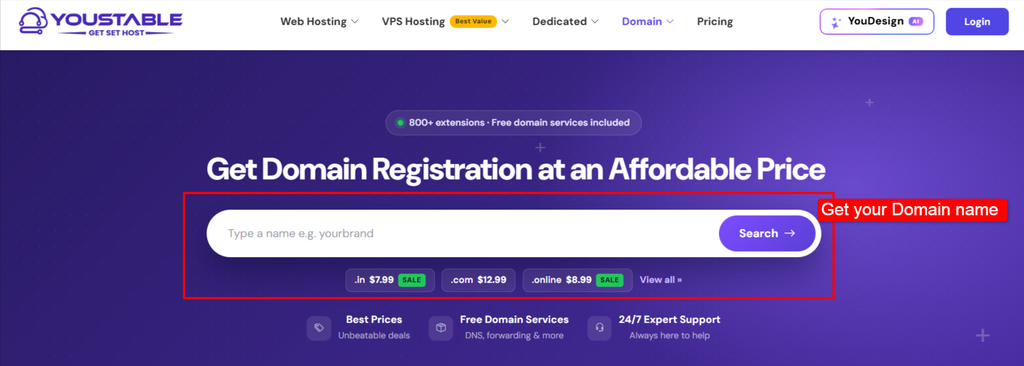
You also have an opportunity to get a free domain for a year on selected extensions on buying WordPress Hosting annual plan annual and on three-year plan as well. The renewal price is the same as the price you pay during buying.
Once your final domain is decided, you can move through the rest of the migration with a much clearer plan.
What You Need Before You Migrate
Before you start moving anything from Magento, take a little time to prepare. I keep this checklist ready before every migration because it saves a lot of back-and-forth later.
Here is what you should have ready:
- Magento admin and hosting login details
- A complete Magento backup that you can download and restore if needed
- Access to your domain control panel
- A WordPress hosting account with WordPress installed (we have discussed about it further)
- WooCommerce ready to install and configure
- Your product, customer, and order data
- All your product images
- A list of your current Magento URLs
- Google Search Console and Google Analytics access
- A list of your current theme and extensions
- A redirect plan for your old URLs
This preparation may seem simple, but it can make a big difference. You do not want to reach the middle of the migration and then realize you cannot access your domain, find an important backup, or locate a set of product images.
I also recommend keeping a copy of everything before you begin. If something goes wrong, you will have the original Magento data to fall back on.
| A small Disclaimer: If your store has thousands of products or orders, or relies on several custom Magento extensions, consider getting help from a migration specialist or using a paid migration service. A manual migration can work well for smaller stores, but large or heavily customized stores usually need more planning. |
Once you have everything on this checklist, you are ready to start the actual migration. The next 10 steps will take you through the process in order. Try not to skip ahead.
10 Steps to Migrate From Magento to WordPress
Migrating a store is not something I recommend doing in a hurry. Each step prepares you for the next one, and skipping something early can create much bigger problems later.
I follow the steps below in the same order whenever I work through a Magento to WordPress migration.
The steps are really simple: back up first, prepare the new store, move the data, test everything, and only then switch the domain.
Let’s start with the part that protects everything else.
Step 1: Audit and Back Up Your Magento Store
Before you change anything, make sure you have a complete copy of your Magento store. This is your safety net. If something goes wrong during the migration, you can go back to your original store instead of trying to recover missing data.
Your backup should include:
- Magento store files and database
- Product images
- Customer and order data
- Categories and attributes
- CMS and blog pages
- Store configuration settings
Do not depend only on the automatic backup provided by your hosting company. Download your own copy and save it somewhere safe where you can access it if needed.
Once the backup is done, make a simple list of what is currently in your store. I find this useful because you can use the same list to check your new WordPress store later.
| Data | What to record |
| Products | Name, SKU, price, stock |
| Categories | Names and hierarchy |
| Customers | Names and email addresses |
| Orders | Order numbers, dates, totals |
| Images | Product and category images |
| URLs | Product, category, and page URLs |
| SEO | Titles, meta descriptions, canonicals |
| Extensions | Current Magento extensions |
Think of this sheet as your migration checklist. Keep it with you throughout the process and use it to make sure nothing important gets left behind.
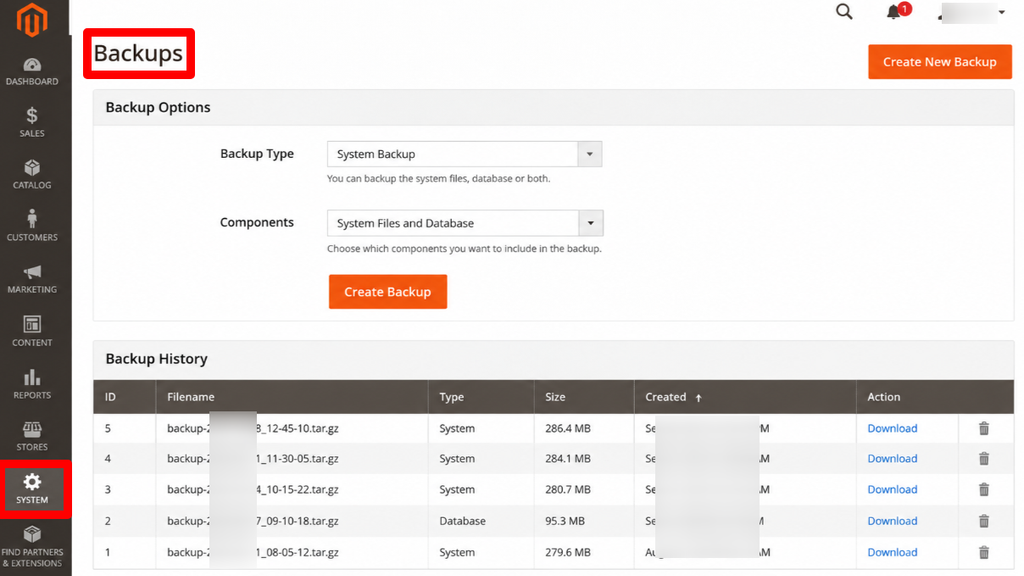
Your Magento store is now backed up and documented. Next, you need a place to build the new WordPress store.
Step 2: Choose Your WordPress Hosting and Domain
Now it is time to decide where your new WordPress store will live. You need WordPress hosting that can comfortably handle WooCommerce and your store traffic. This is also where you should settle your domain if you have not already done so.
- If you already own your domain, you can keep using it. Set up your WordPress hosting first and connect the existing domain after the new store has been tested.
- If your Magento store is running on a subdomain but you want the new store on your main domain, build WordPress on a staging address first. Once everything is ready, you can move it to the main domain.
- If you need a new domain, you can register one using an extension such as .com, .in, .co.in, .net, or .xyz. Prices vary depending on the extension, so check the current price before registering.
A WordPress-focused host can make this part easier. That’s where YouStable’s WordPress Hosting plans can be helpful for you as it includes NVMe storage, free SSL, one-click WordPress installation, weekly backups, and free migration on selected plans.
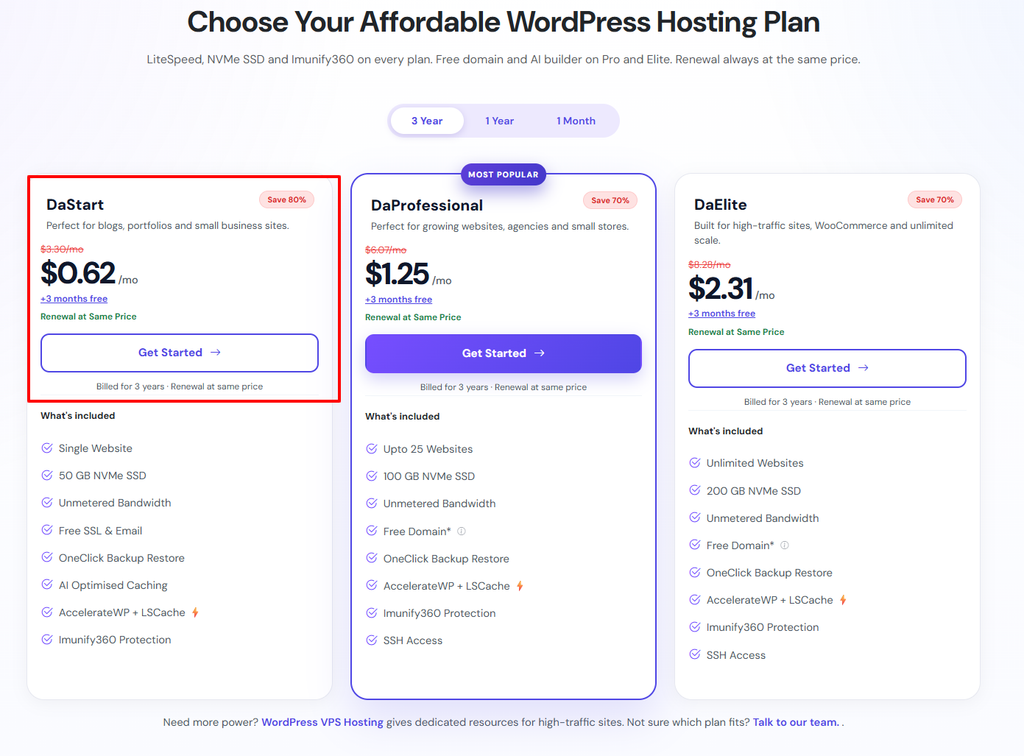
If you are keeping Magento running while preparing the new store, YouStable also offers VPS plans with NVMe storage and root access.
Please note: The free first-year domain offer applies only to selected annual and 3-year plans. Check the current terms at checkout because offers can change.
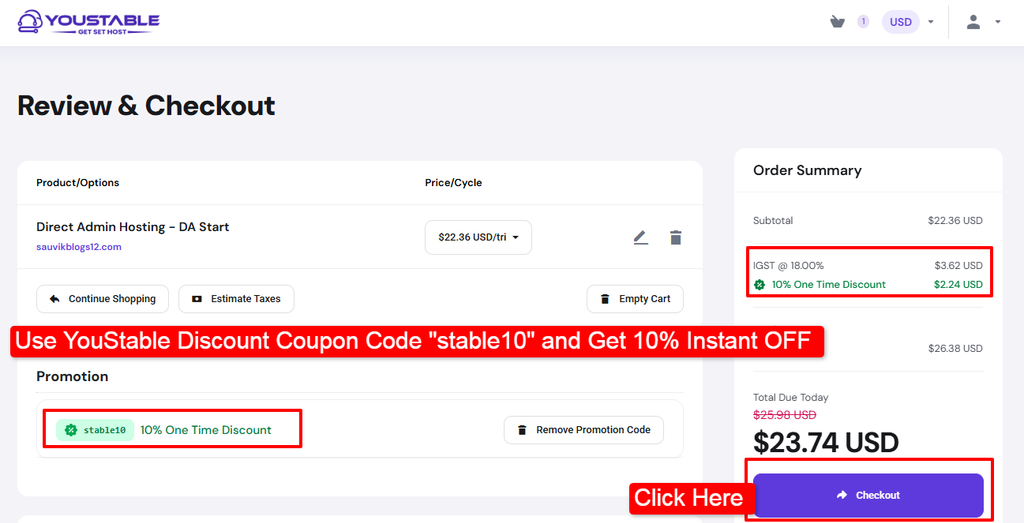
You can even use the YouStable Discount Coupon code “Stable10” and get 10% Instant OFF on the final bill just before your checkout.
With your hosting ready, you can start building the new store.
Step 3: Install WordPress and WooCommerce
Start by installing WordPress on your new hosting account. Many hosts (YouStable) offer a one-click installation, so you can usually get the basic setup ready in just a few minutes.
Once WordPress is installed:
- Log in to your WordPress dashboard >> Go to Plugins >> Add New.
- Search for WooCommerce >> Install and activate it >> Follow the WooCommerce setup wizard.
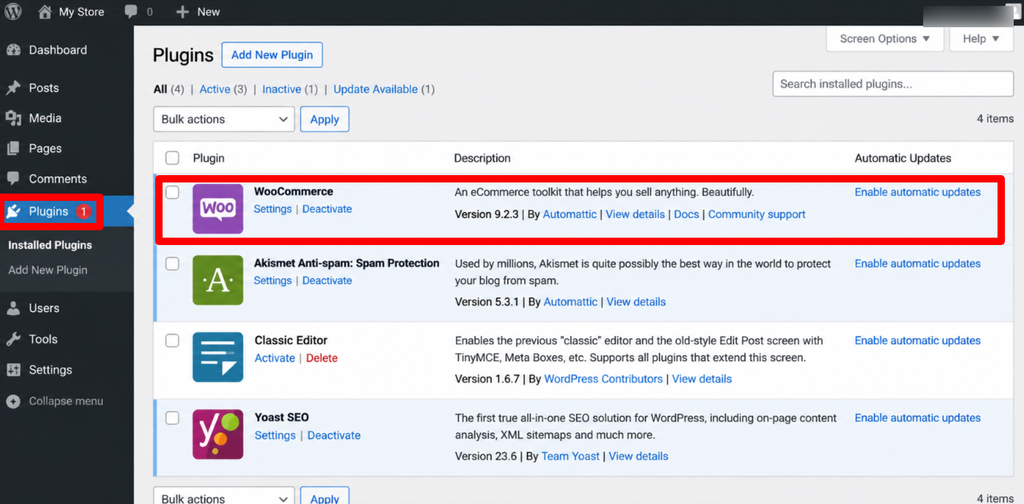
WooCommerce will become the store system for your new website. You can think of it this way: Magento is your old store system, while WordPress and WooCommerce will power the new one.
You are not copying Magento itself into WordPress. Instead, you are taking the useful store data from Magento and moving it into WooCommerce.
So, WooCommerce is ready. Now it is time to prepare the Magento data you are going to move.
Step 4: Prepare Your Magento Data for Migration
This is where I recommend slowing down a little. Before moving your Magento store to WordPress, clean your data instead of exporting everything as it is.
Remove anything you no longer need, such as test or duplicate products, old categories, outdated customer accounts, discontinued products, test orders, unused attributes and broken image links.
This helps you avoid carrying unnecessary or outdated data into your new WooCommerce store.
Next, organize your product data in a spreadsheet so it is ready for import.
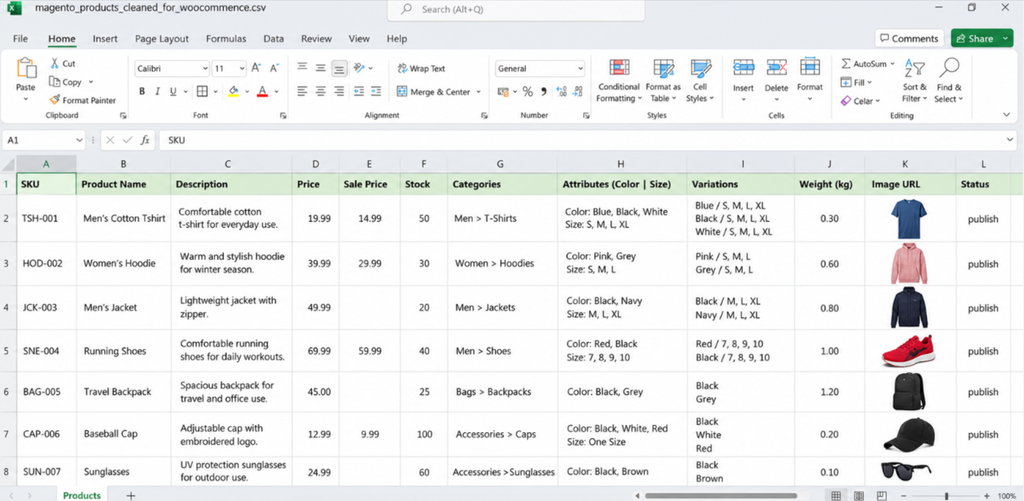
Make sure you include the SKU, product name, description, price, sale price, stock, categories, attributes, variations, weight, product images, and product status.
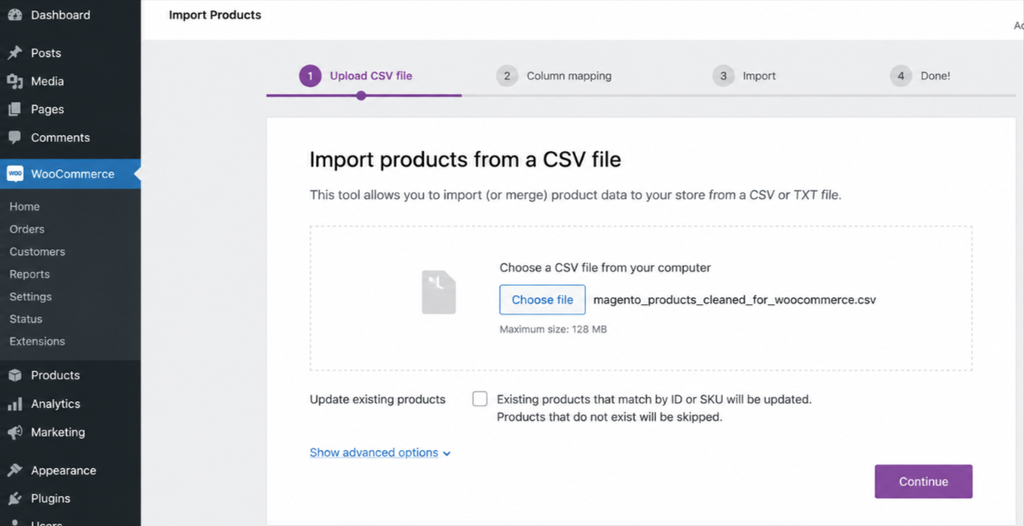
WooCommerce has a built-in CSV importer that can handle bulk product imports, including variations.
For customers and orders, you may need a dedicated migration tool such as FG Magento to WooCommerce or a paid service such as LitExtension. Before you move ahead, check that:
- Your product and customer data is clean and up to date.
- Your spreadsheet includes all important product details, including variations and images.
- You have a suitable migration method ready for customers and orders.
Your data is now cleaned and organized. Next comes the first actual transfer: your products.
Step 5: Import Your Products Into WooCommerce
Now you can start moving your product catalog.
In WordPress, go to Products >> All Products >> Import. Upload the CSV file you prepared and let WooCommerce process it.
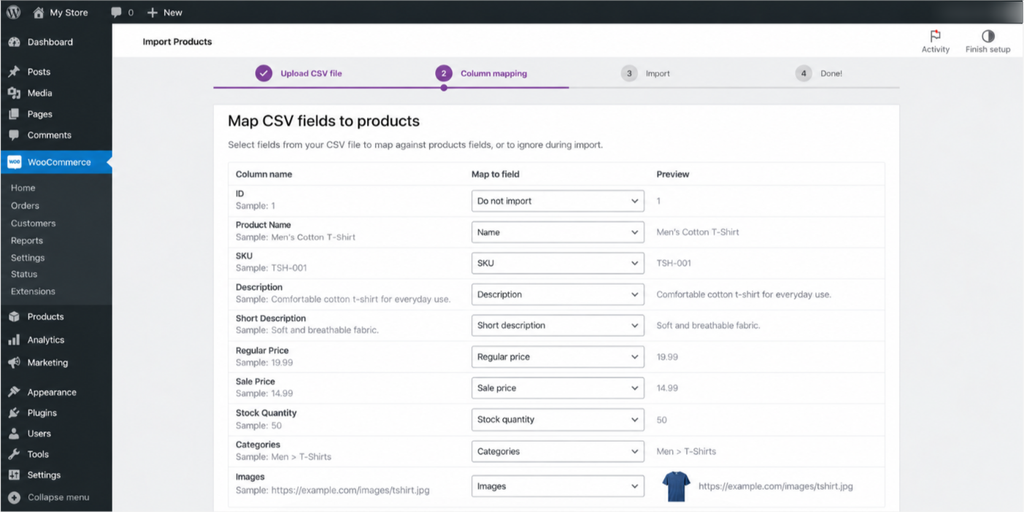
For a normal product catalog, this is one of the quickest ways to move Magento products into WooCommerce.
WooCommerce will then show you a column-mapping screen. Do not rush through this part. You need to make sure each Magento field is matched with the correct WooCommerce field.
For example:
| Magento data | WooCommerce field |
| Product name | Name |
| SKU | SKU |
| Price | Regular price |
| Sale price | Sale price |
| Description | Description |
| Short description | Short description |
| Stock | Stock quantity |
| Category | Categories |
| Weight | Weight |
Images also need some attention. WooCommerce can pull images from accessible image URLs and add them to your Media Library during the import.
But do not import your entire catalog straight away.
Start with 5 to 10 products. Open those products on the new website and check the names, prices, SKUs, stock, categories, variations, and images.
If everything looks right, you can continue with the rest of the catalog.
Tip: A small test import can save you from having to redo hundreds or thousands of products. Check a small batch first, then move the rest.
Step 6: Move Customers, Orders and Other Store Data
Customer and order data needs extra attention. A wrong email address, duplicate customer, or incorrect order total can create problems for both you and your customers.
Keep the key details ready, test the migration with a small batch first, and only increase the import size after checking the results.
- Customers: First and last name, email, billing and shipping addresses, phone number, and customer role.
- Orders: Order number, customer, products, SKUs, quantity, total, shipping, tax, payment method, status, and order date.
- Test first: Import a few customers and orders, then check names, addresses, products, totals, and customer links before moving larger batches.
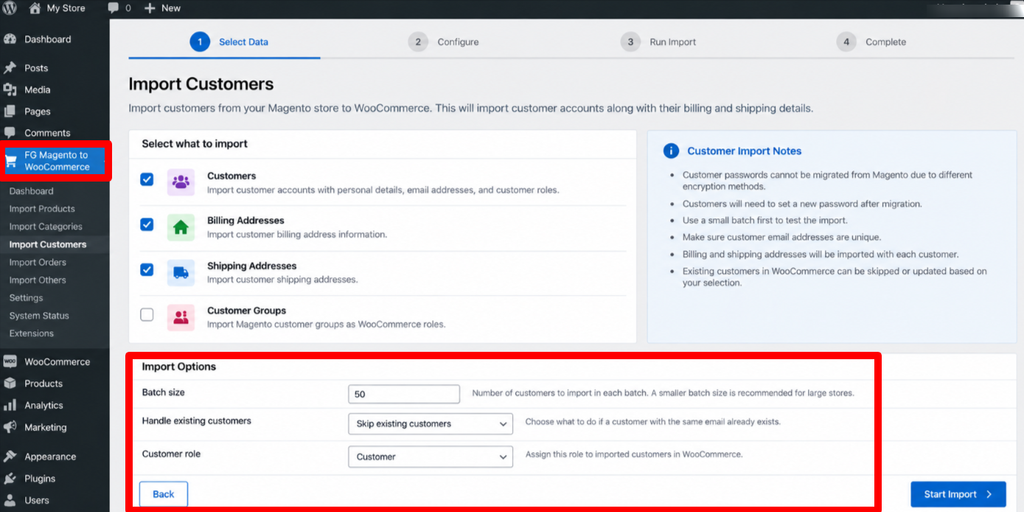
- Passwords: Magento and WordPress handle passwords differently, so customers may need to create new passwords. Inform them and provide a secure password-reset link.
Once your important store data is in place, you can start making your new WooCommerce store look and feel like your original Magento store.
Step 7: Rebuild Your Design, Pages and Store Settings
With your main store data moved, you can now rebuild the design in WordPress.
Choose a theme that suits your store and recreate the important parts of your Magento website, including the homepage, header, footer, menu, product and category pages, About, Contact, Shipping and Returns, Privacy Policy, Terms and Conditions, and FAQ pages.
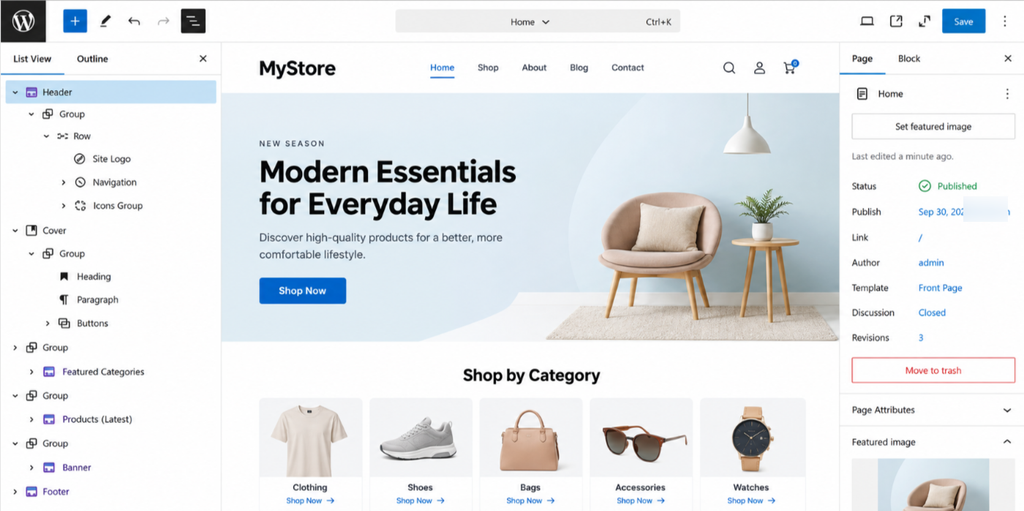
This is also a good time to remove anything unnecessary and keep the new store simple and easy to use.
As you rebuild, check your Magento extensions and decide which features you still need. Then find suitable WooCommerce or WordPress plugins for payments, shipping, product filters, reviews, SEO, caching, and other essential features.
Your store is now starting to look like your own again. Next, you need to protect something just as important as the design: your existing SEO.
Step 8: Recreate URLs and Protect Your SEO
Do not rush this step. Your Magento URLs may be different from your new WooCommerce URLs, so map each important old URL to its new address and create 301 redirects.
For example, /old-product.html could redirect to /product/old-product/, while /category/shoes.html could redirect to /product-category/shoes/.
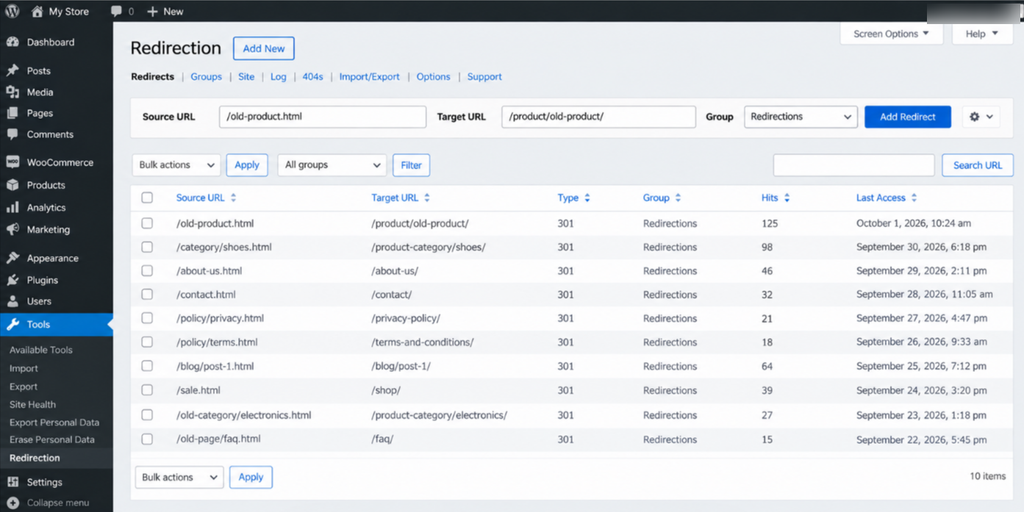
Also review your page titles, meta descriptions, canonical URLs, XML sitemap, robots.txt, image alt text, internal links and breadcrumbs. These settings do not automatically move to WordPress with your store data.
Pay special attention to your homepage, best-selling products, main categories, landing pages, popular blog posts, and pages with backlinks. Test each important redirect to make sure it reaches the correct new page and does not create a 404 error or redirect loop.
Keep a simple URL mapping spreadsheet so you can track what has been moved.
Now it is time to test the new store before launch.
Step 9: Test the New WordPress Store Before Going Live
Now, use your new store like a customer rather than the person who built it.
Start from the homepage and go through the full buying journey. Check the logo, menu, images, loading speed, mobile layout, buttons, links, simple and variable products, discounts, and stock limits. Then add products to the cart and place a complete test order. Check the billing, shipping, coupons, payment, confirmation page, emails, stock updates, and order status.
Also make sure your payment gateway is in the correct test or live mode. Repeat these checks on desktop, tablet, Android, and iPhone so you can catch device-specific problems.
Before launch, run a broken-link or website crawl to find 404 pages, missing images, broken internal links, redirect loops, and incorrect redirects.
Check that your products, images, customers, orders, pages, SEO settings, redirects, checkout, payments, mobile layout, and backups are all working properly. Most importantly, place at least one complete test order yourself. Going through the store from start to finish can reveal problems that are easy to miss in the WordPress dashboard.
Everything is now checked and ready. Next, you can move on to the final launch steps.
Step 10: Point Your Domain to WordPress and Go Live
This is the moment when your new WordPress store replaces Magento.
- If you are keeping the same domain, update the DNS records or nameservers so the domain points to your new WordPress hosting account.
- If you are moving from a subdomain to your main domain, this is when you make the root domain point to the new store.
- If you are using YouStable, you can connect your existing domain to your hosting account once the WordPress store is ready.
After the DNS change, do not assume everything is finished. Open the website and check it again.
Make sure:
- The domain opens the WordPress store
- HTTPS works correctly
- The homepage loads
- Products open properly
- The cart works
- Checkout works
- Orders are coming through
- Emails are being delivered
And do not delete your Magento store immediately.
Keep the old installation and your backup available while you make sure the new store is stable. DNS changes can also take some time to spread, so keeping Magento available in the background gives you an extra safety net.
Once the new store is live, submit your new sitemap through Google Search Console and keep an eye on indexing and crawl errors during the first week or two.
| Please note: DNS changes can take a few hours to fully update. Give the change time to spread and keep checking the new store during this period. |
And that is it. Your Magento store has moved to WordPress and WooCommerce.
But I would not consider the migration completely finished on launch day. The first few days after launch are just as important as the migration itself. Keep watching orders, payments, redirects, indexing, broken links, and customer activity before you finally retire the old Magento store.
What Happens to Your Magento Store After the Move?
Do not delete your Magento store as soon as the new WordPress site goes live.
I recommend keeping the old store available for a little while, along with a complete backup. This gives you something to fall back on if you discover a missing order, broken page, incorrect redirect or another problem after the switch.
Spend some time checking the new store properly.
- Make sure your products, customers, orders, images, payments, emails, redirects and important SEO settings are all working as expected.
- Once you are confident that everything has moved correctly and the new store is stable, you can plan to shut down the old Magento installation. (Until then, think of your old store as a safety net.) There is no need to remove it before you know the migration is complete.
Before you finish, keep this checklist nearby and tick off each item as you complete it.
Your Quick Migration Checklist
A migration has many small tasks, and it is easy to forget one when you are busy. I like using a simple checklist because it gives me one place to see what is finished and what still needs attention.
| Task | Tick (If Done) |
| Back up Magento |  |
| Export products, customers, and orders | |
| Record old URLs | |
| Choose hosting and connect the domain | |
| Install WordPress and WooCommerce | |
| Import products | |
| Import customers and orders | |
| Move product and category images | |
| Rebuild pages and navigation | |
| Set up payments and shipping | |
| Set up SEO and 301 redirects | |
| Test checkout, mobile layout, and emails | |
| Connect the live domain | |
| Submit the new sitemap | |
| Keep the Magento backup | |
Keep this list open while you work through the migration. Going through each item one by one is much safer than trying to remember everything at the end.
Also Read: Migrate From Wix to WordPress
FAQs
Will I lose my SEO rankings after migration?
No! A migration does not automatically mean you will lose your rankings, but you need to handle the SEO part carefully. Set up 301 redirects from your old Magento URLs to the correct WordPress URLs. Also carry over important page titles, meta descriptions, canonical settings, and other SEO information, then submit your new sitemap to Google Search Console.
How long does a Magento to WordPress migration take?
There is no single timeline because it all depends on the size of your store. A small store (with a small number of products) may be moved relatively quickly. A larger store with thousands of products, customers, orders and custom features can take several days or longer.
Can I keep my old customers and their orders?
Yes! Customer and order data can be moved from Magento to WordPress (WooCommerce). For larger stores, I recommend using a dedicated migration tool or service rather than trying to move everything manually. This helps keep customers connected to their addresses and orders during the migration.
Do customer passwords transfer to WooCommerce?
No! Magento and WordPress handle customer passwords differently. Please do not assume that existing passwords will work after the migration. Let your customers know about the change that you’ve done on your site and provide them a secure password-reset link so they can create a new password and access their accounts again.
Is WooCommerce good enough to replace Magento?
Yes! WooCommerce is a suitable replacement for many small and medium-sized stores, especially when you want a WordPress-based store that is easier to manage. Just make sure that before migrating you look at the Magento features and extensions that you currently rely on and make sure WooCommerce has suitable alternatives for the features you actually need.
Should I migrate manually or use a tool?
It all depends upon the size of your store. For a very small catalog, you may be able to move product data using CSV files and handle some of the other information manually. For a larger store, a dedicated migration tool can save time and reduce the amount of manual work involved.
Can I migrate while my Magento store stays live?
Yes! In fact, this is the approach that is highly recommended for a live store. Build your WordPress store separately using a staging or temporary address. Move your data, configure the store, set up redirects, and test everything while Magento continues to serve your customers. Once the new store is ready and you have checked the important parts, switch the domain to WordPress.
Final Thoughts
Moving from Magento to WordPress can look like a huge job when you look at everything that needs to be moved. But once you break it into smaller steps, the process becomes much easier to manage.
Start with a complete Magento backup >> Set up WordPress and WooCommerce >> Clean and move your data in stages >> Rebuild the important pages and store features >> Then spend enough time testing the new store before changing the domain.
And do not forget the SEO work. Your products and orders are important, but so are the visitors who already find your store through search. Mapping your old URLs and setting up the right redirects should be part of the migration, not something you think about after launch.
Start with the backup and keep the checklist beside you. Take the migration one step at a time.