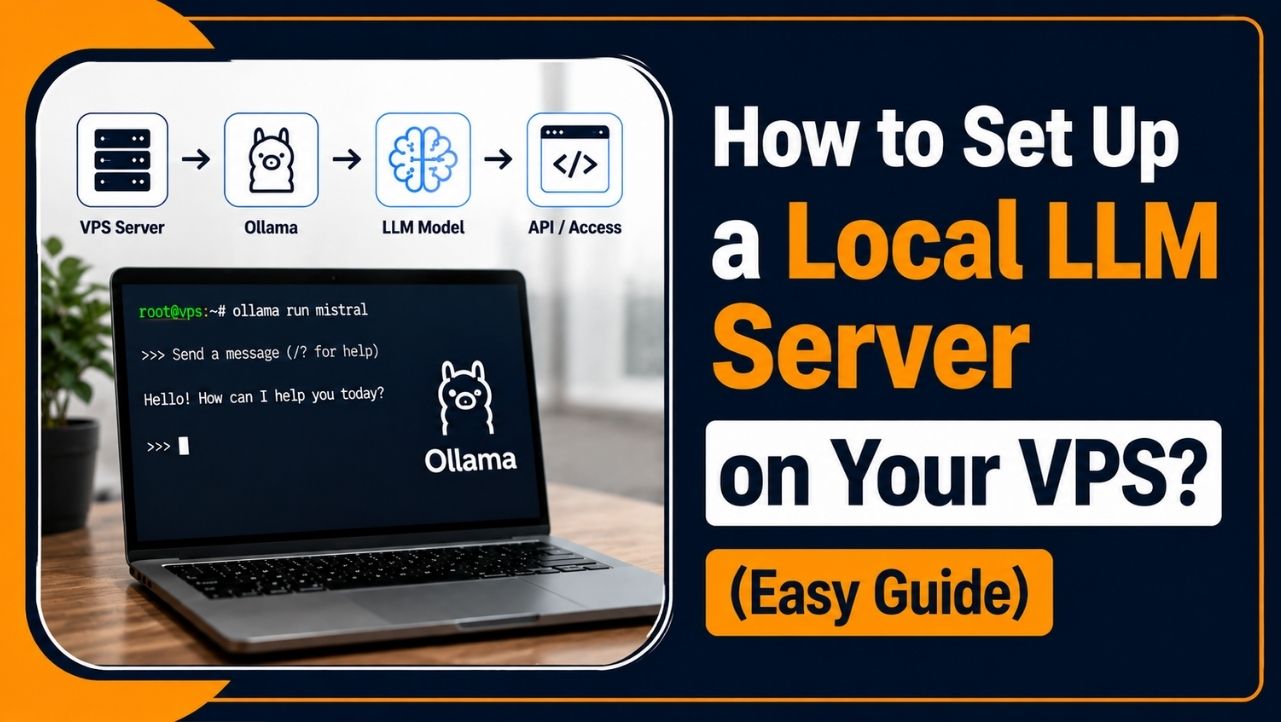
Your own AI model running on a server you fully control is closer than you might think. And no, you do not need a huge budget to get started.
Many people think running a local LLM requires expensive hardware and a complicated setup.
That is not always true. With the right VPS and the right tools, you can run your own AI model without relying entirely on paid AI APIs.
I have set up local LLM servers on VPS machines for my own projects and for clients. Some wanted more privacy. Others wanted to avoid paying for every AI request they made.
Before creating this guide, every important step was tested on real servers.
So, this is not just theory. I will show you the setup process that actually works.
By the end of this guide, you will know how to set up a local LLM server on a VPS, starting with a fresh server and ending with a working AI endpoint.
I will keep everything simple. You will learn each step one at a time, and I will explain the commands in easy words.
Ready? Let us get your own AI server running.
What a Local LLM Server Actually Means
Before we run any commands, let me explain what we are actually building. Understanding this now will make the rest of the guide much easier.
A local LLM server is simply an AI model running on a machine that you control. LLM stands for Large Language Model. It is the technology behind AI tools such as ChatGPT.
Here, the word local means the AI model runs on your VPS instead of running on someone else’s server.
A VPS (Virtual Private Server) is a virtual machine that gives you your own resources on a physical server. You can use it much like a computer that is always connected to the internet.
So, when you run a local LLM server on a VPS, you are basically putting your own AI model on that VPS and letting it answer your prompts.
Think of it this way: instead of using an AI service where someone else runs the model for you, you rent your own small office and run the AI inside it.
That is the basic idea.
Now, let me show you why running an LLM on your own VPS can be useful.
Why Run an LLM on Your Own VPS?
Imagine sending a client contract to an AI tool.
That contract is now being processed on someone else’s servers. For many businesses, that is enough to raise privacy concerns.
Of course, you can simply use a cloud AI service and move on.
My team asked the same question. But after testing self-hosted LLMs, we found some clear advantages.
- Better privacy: Your prompts and files stay on your VPS. You do not have to send them to an external AI company.
- Lower cost at scale: You pay for the VPS each month instead of paying for every AI request. This can save money when you make a lot of requests.
- Fewer usage limits: You are not tied to an API provider’s request limits. Your actual limit depends on your VPS resources and the model you run.
- More control: You choose the AI model, settings, and how the server works. You have control over the entire setup.
These benefits are especially useful for teams that work with sensitive information or need to send a large number of prompts every day.
For those users, running an LLM on their own VPS can make a lot of sense.
| Please Note: My team tested the setup covered in this guide on a live Ubuntu VPS before publishing it. I will show you the same steps and commands we used. |
Local LLM Server vs Cloud AI at a Glance
Still deciding between the two? Let me make the choice easier.
My team put a local LLM and a cloud AI API side by side so you can see the main differences before you choose.
| Features | Local LLM on VPS | Cloud AI API |
| Privacy | More control over your data | Data is processed by the provider |
| Cost | Fixed VPS Cost | Usually charged based on usage |
| Speed | Depends on your VPS and model | Usually very fast |
| Limits | Mainly limited by your own server | Provider limits may apply |
| Control | High | Limited to the provider’s options |
Neither option is perfect for everyone.
If you need more control, want to keep your AI workload on your own server, or send a large number of prompts, a self-hosted LLM can be a better fit.
What You Need Before You Start
A good setup starts with the right VPS.
If you skip this part, you may install everything correctly and still end up with a slow AI server. So, let me quickly explain what you need before we run any commands.
The Right VPS Specs
Your VPS does most of the work when you run an LLM. The model you choose also matters because larger models need more RAM and CPU power.
There is no single RAM formula that works for every model. The actual requirement depends on the model, quantization, context size, and other settings.
For a simple starting point, you can use this guide:
| Model Size | RAM Needed | Good For |
|---|---|---|
| 3B | 4 GB | Light tasks and quick replies |
| 7B to 8B | 8 GB | General use and everyday tasks |
| 13B | 16 GB | Deeper reasoning and coding (More demanding tasks) |
| 30B and up | 32 GB or more | Heavy workloads |
For most beginners, I recommend starting with an 8 GB VPS and at least 4 CPU cores.
That gives you a good starting point for smaller 7B or 8B models. If you want to run larger models or handle several users at once, you will need more resources.
Also keep in mind that a CPU-only VPS will be much slower than a server with a suitable GPU.
The Operating System
Next, you need a clean Linux installation.
I recommend Ubuntu 22.04 LTS or Ubuntu 24.04 LTS. LTS stands for Long Term Support. These releases receive long-term security and maintenance updates, which makes them a good choice for a server.
You can create an Ubuntu VPS in a few clicks and have your server ready within minutes.
Once Ubuntu is installed, you have the basic server we need.
Now you need a way to connect to it.
The Access You Need
You will control your VPS through SSH.
SSH stands for Secure Shell. It lets you safely connect to your server from your own computer and run commands remotely.
You will normally need three things:
- Server IP address: The public address of your VPS.
- Username: Often root on a new server, although using a separate sudo user is better for regular administration.
- Password or SSH key: Your method of logging into the server. SSH keys are generally safer than passwords.
Once you have these details, you can connect to your VPS and start installing the software.
Before we do that, there is one more thing you should understand: how much memory your AI model actually needs.
How Much RAM and CPU Do You Really Need
This is one of the most common questions I get: How much RAM and CPU do I actually need?
RAM and CPU do different jobs, so it helps to understand both before choosing your VPS.
RAM decides whether your model can fit in memory. If your VPS does not have enough RAM, the model may fail to load or the server may become very slow.
CPU affects how quickly the model generates answers. More CPU power can help, but the exact speed depends on the model, its settings, and your VPS hardware.
On a typical CPU-only VPS, a 7B or 8B model may generate only a few tokens per second.
Storage matters too. LLM models can take several gigabytes of disk space, so make sure your VPS has enough storage for the models you want to use.
Fast NVMe SSD storage can also reduce the time it takes to load model files.
A NVMe SSD VPS is a good choice if you want faster storage and smoother server operations.
You also do not need a GPU to get started. A CPU-only VPS can run smaller models, although larger models will need more RAM and may respond much more slowly.
| My advice is simple: start small. Try a 3B, 7B, or 8B model first. If you need better speed or want to run larger models, you can upgrade your VPS later. |
Which Models Can You Run on Your VPS
There are hundreds of LLMs available, so choosing your first model can feel confusing.
I like to keep the first setup simple. Here are a few popular options to consider:
- Llama 3.1 8B: A good general-purpose model for everyday questions, writing, and basic coding.
- Llama 3.2 3B: A smaller model that needs fewer resources and works well on lower-end VPS machines.
- Mistral 7B: A lightweight option for chat, writing, and summarization.
- Qwen 2.5 7B: A useful choice if you work with multiple languages or want a capable general-purpose model.
DeepSeek models: Some DeepSeek models are useful for coding and reasoning, but their resource requirements vary widely. Check the specific model before installing it.
If you are new to this, I would not spend too much time comparing models.
Start with a smaller model and see how it performs on your VPS. You can always install another model later.
With tools such as Ollama, changing models is simple. You can download another model, test it, and keep the one that works best for you.
Setting Up Your Local LLM Server (Step by Step)
Now we get to the part you came for.
I will break the entire setup into simple steps. Follow them in order, and you can have a working local LLM server on your VPS.
You do not need to be a Linux expert.
I will give you the commands you need and explain what each one does. Copy a command, run it, check the result, and then move to the next step.
Let us start by preparing your VPS.
Step 1: Connect to Your VPS
Let us start by connecting to your VPS.
Open Terminal on your computer. If you are using Windows, you can use Windows Terminal or PowerShell.
Run this command:
ssh root@your-server-ipReplace your-server-ip with the actual IP address of your VPS.
The first time you connect, you may see a message asking whether you trust the server. Type yes and press Enter.
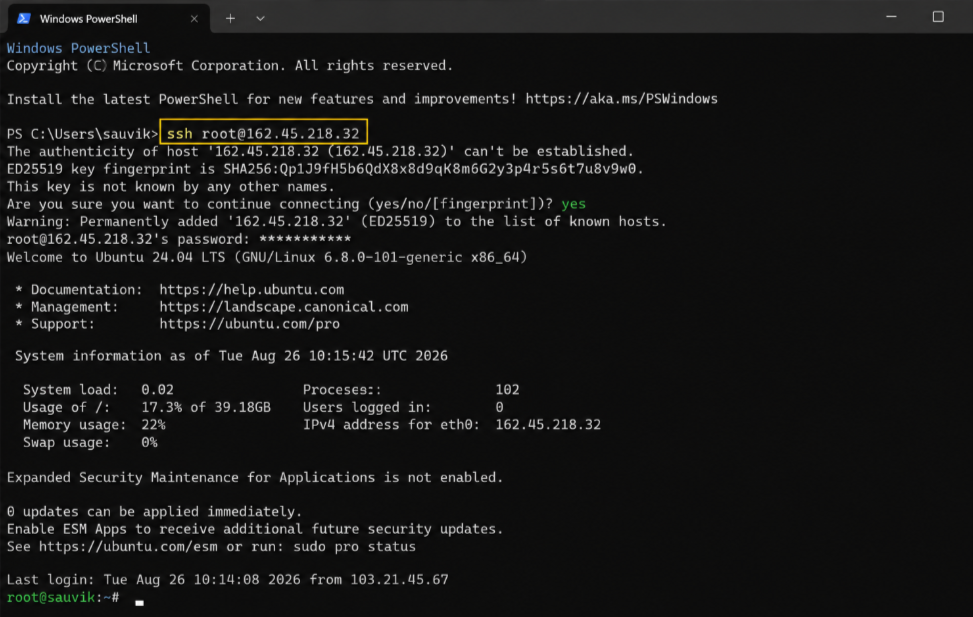
Next, enter your VPS password.
Once you are logged in, you are inside your server. Any commands you run now will run on the VPS, not on your personal computer.
Step 2: Update Your Server
Before installing anything, update the packages on your VPS.
Run:
sudo apt update && sudo apt upgrade -yThe first command checks for available updates. The second installs them. The -y option automatically answers yes when Ubuntu asks for confirmation.
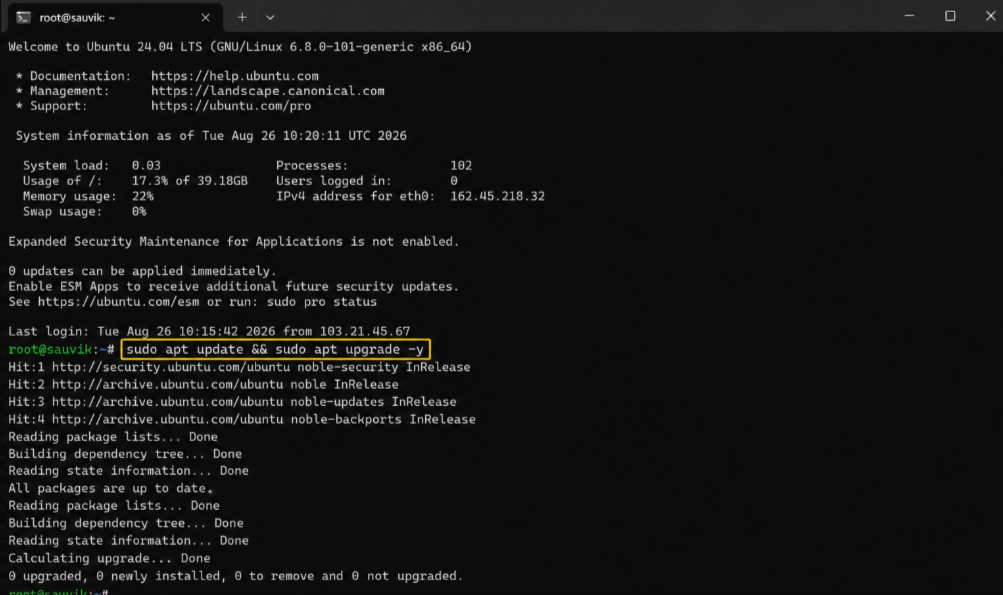
This may take a few minutes. Let it finish before moving to the next step.
Once the updates are complete, your VPS is ready for Ollama.
Step 3: Install Ollama
Now we can install Ollama.
Ollama makes it much easier to download and run LLMs on your own server. Instead of setting up every model manually, you can manage models with simple commands.
Run:
curl -fsSL https://ollama.com/install.sh | shThe installer downloads Ollama and sets it up on your Ubuntu server.
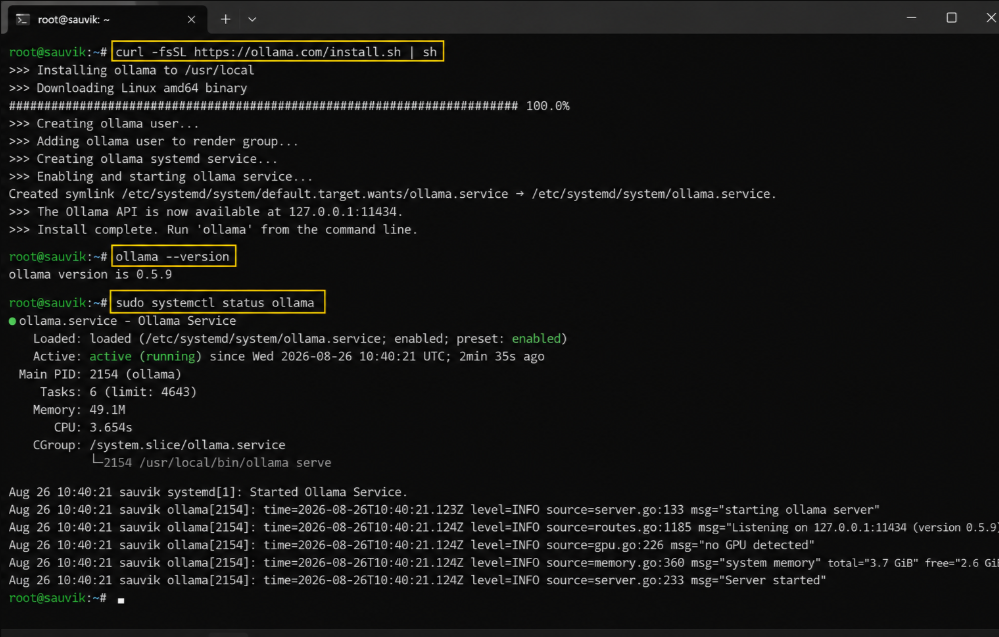
After the installation finishes, check that Ollama is working:
ollama --versionYou should see an Ollama version number. If you do, the installation worked. You can also check the Ollama service with:
sudo systemctl status ollamaLook for a status showing that the service is running.
Step 4: Download Your First Model
Ollama is now installed, but it still needs a model to run.
For your first test, I recommend starting with a smaller model that your VPS can handle comfortably.
For example:
ollama pull llama3.1:8bThis downloads the Llama 3.1 8B model to your VPS. The download can be several gigabytes, so do not worry if it takes a while. The exact size can vary depending on the model version and format.
If your VPS has limited RAM, you can start with a smaller model instead:
- ollama pull llama3.2:3b
You can also try other models, such as:
- ollama pull mistral
- ollama pull qwen2.5:7b
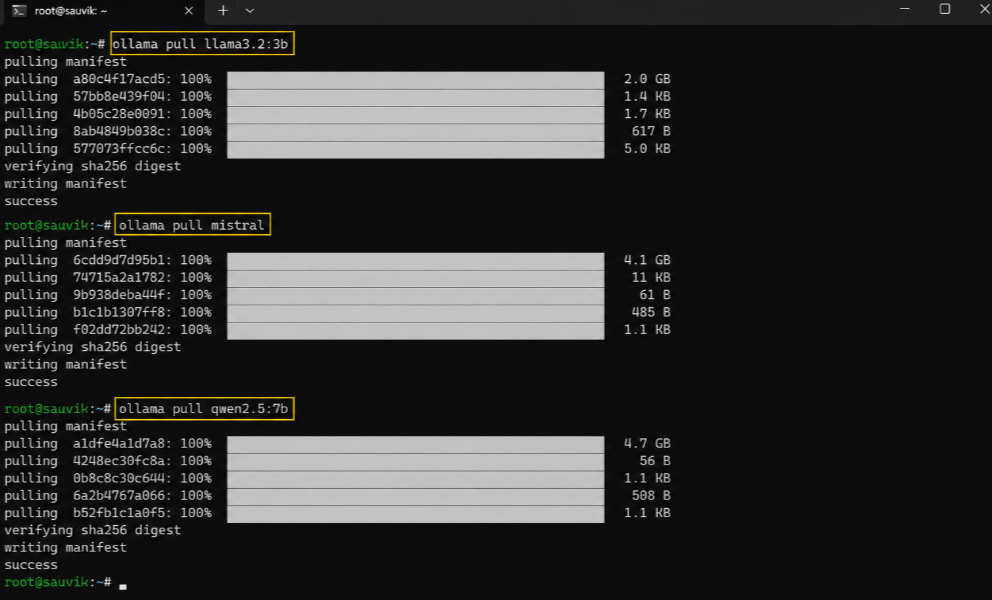
Run:
ollama pull llama3.2:3bollama pull mistralollama pull qwen2.5:7bThe best model depends on what you want to do.
Smaller models usually need fewer resources, while larger models can provide better results but require more RAM and processing power.
Step 5: Run and Test Your Model
Now comes the fun part.
Start your model with:
ollama run llama3.1:8b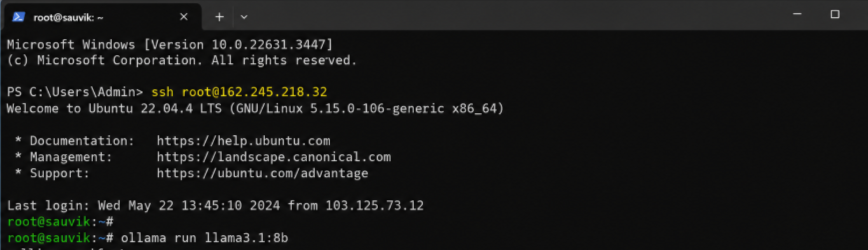
Ollama will start the model and open an interactive chat in your terminal. Type something simple, such as:
- Explain what a VPS is in simple words >> Press Enter and wait for the response >> The answer is being generated by the model running on your VPS.
When you finish testing, type >>
/bye>> Press Enter to exit the chat.
Congratulations. You have just run your first local LLM on your VPS.
Step 6: Turn It Into an API Server
The terminal is useful for testing, but you will probably want your website, application, or other software to communicate with the model.
That is where an API comes in.
Ollama provides a local API that normally listens on port 11434.
You can test it from the VPS with:
curl http://localhost:11434/api/generate -d '{"model":"llama3.1:8b","prompt":"Hello","stream":false}'If everything is working, Ollama will return a response from the model.
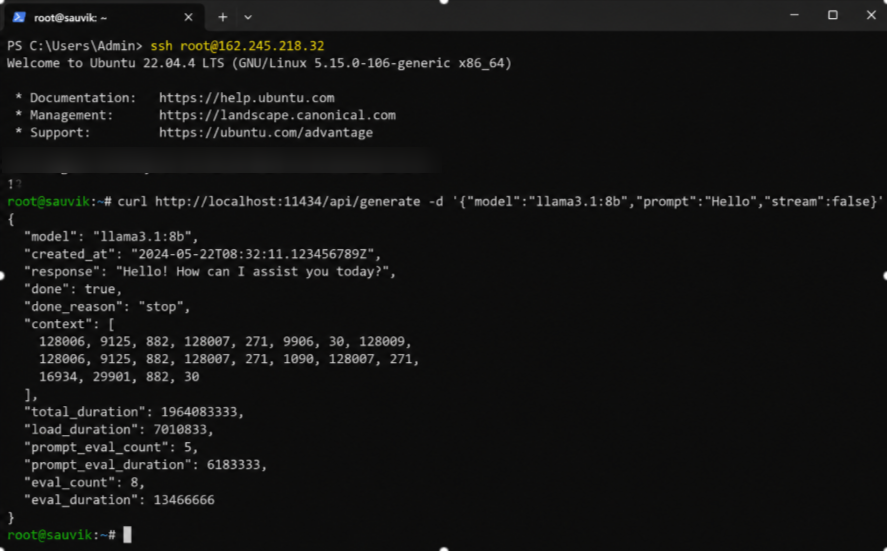
That means your VPS is now running an AI model that other software can communicate with.
For now, keep the API accessible only from the server itself. We will deal with remote access safely in a later step.
Step 7: Lock Down Your Server
This is one of the most important steps in the entire setup. Do not expose Ollama’s port 11434 directly to the public internet.
A publicly accessible Ollama API can allow other people to send requests to your server and use your CPU, RAM, and bandwidth.
First, make sure SSH is allowed through your firewall & then enable the firewall.
sudo ufw allow OpenSSHsudo ufw enableCheck its status:
sudo ufw statusYou should see SSH allowed.
For personal access, an SSH tunnel is a safer option than opening port 11434 to everyone. Run this command on your own computer, not inside the VPS:
ssh -N -L 11435:127.0.0.1:11434 root@your-server-ipKeep that terminal window open while you use the tunnel. Now your computer’s port 11435 forwards securely to Ollama’s port 11434 on the VPS.
You can then access the API through:
- http://127.0.0.1:11435
This approach keeps Ollama’s API off the public internet.
| Important: Never assume that an API is safe just because the model is running on your own VPS. Keep the Ollama port private unless you have properly secured remote access. |
Step 8: Reach Your Server From Anywhere Safely
An SSH tunnel works well when you need to access the server from your own computer. But what if you want your website or another application to communicate with the LLM?
That requires a different setup.
You can place a reverse proxy such as Nginx or Caddy in front of Ollama. The proxy can handle HTTPS and authentication while Ollama stays protected behind it.
The basic setup looks like this:
- Your App >> HTTPS >> Reverse Proxy >> Ollama >> AI Model
This is much safer than simply opening port 11434 to the entire internet.
You can also use a domain such as:
https://ai.sauvik(yourdomain).comSee! You can use such a domain instead of connecting directly to the server’s IP address.
For a production server, I strongly recommend using HTTPS, authentication, firewall rules, and access restrictions before allowing other people or applications to reach your LLM.
Your local LLM is now running. The next step is to make the setup more useful by connecting it to your own applications.
Add a Simple Chat Screen with Open WebUI
Not everyone wants to talk to an AI through the terminal.
That is why I often recommend adding Open WebUI. It gives your self-hosted LLM a simple chat interface that feels similar to ChatGPT.
You can run Open WebUI using Docker.
Docker is a tool that runs applications inside containers. Think of a container as a ready-made package that includes the software and the things it needs to run.
First, make sure Docker is installed on your VPS.
Then run:
docker run -d -p 3000:8080 \ --add-host=host.docker.internal:host-gateway \ -v open-webui:/app/backend/data \ --name open-webui \ ghcr.io/open-webui/open-webui:mainOnce the container starts, Open WebUI will run on port 3000.
You can open it in your browser by visiting:
- http://your-server-ip:3000
You should now see the Open WebUI setup screen >> Create your account >> Connect Open WebUI to Ollama >> You will have a simple web-based chat interface for your local AI model.
| Security tip: Do not leave port 3000 publicly open without thinking about security. For production use, place Open WebUI behind a reverse proxy with HTTPS and proper access controls. |
A VPS built for Docker can be a good option if you plan to run Open WebUI, Ollama, and other containers on the same server.
Why YouStable VPS Works Great for a Local LLM Server
My team has worked with different VPS providers over the years. For this type of setup, I believe YouStable can be a practical option.
But let me be completely transparent.
| Please Note: YouStable is my own company, so treat this as my genuine opinion, not a neutral review. I still kept the reasons practical and real. |
A YouStable VPS gives you administrative control over your server, allowing you to install software such as Ollama, Docker, Open WebUI, and other tools you may need.
Here are a few features that can be useful when running a local LLM:
- Root access: Install and configure the software you need.
- SSH access: Connect securely to your VPS and manage it remotely.
- NVMe SSD storage: Faster storage can help with model loading and general server performance.
- Ubuntu support: Easily set up a Linux environment for Ollama and other AI tools.
- Scalable resources: Upgrade your server resources if your workload grows.
The most important thing is choosing enough RAM and CPU power for the model you want to run.
For a first local LLM project, start with a smaller model and a VPS that fits your budget. You can always upgrade later when you understand your workload better.
Connect Your LLM to Automation Tools
A local LLM becomes much more useful when it can do work automatically.
For example, automation platforms such as n8n can send prompts to your Ollama API and use the responses inside automated workflows.
You could build workflows that:
- Summarise text or documents
- Categorise support tickets
- Create draft responses
- Process incoming data
- Generate content drafts
- Send AI-generated results to other applications
The basic idea is simple:
Trigger >> Send data to your LLM >> Get a response >> Perform the next action
For example, a new support ticket could trigger automation.
The workflow sends the ticket to your local LLM, receives a summary, and then sends that summary to your support system.
A VPS for n8n can also be useful if you plan to run automation workflows alongside your AI setup. This is where a local LLM starts becoming more than just a chatbot.
It can become part of your everyday workflow.
Real Ways People Use a Local LLM Server
You might now be wondering what you can actually do with your new LLM server.
Here are some common use cases:
- Private chat assistants: Build an internal chatbot for your team and keep more control over where your data is processed.
- Document processing: Summarise, categorise, and analyse large amounts of text automatically.
- Coding assistance: Use coding models to help write, explain, or review code.
- Content drafts: Create first drafts of emails, articles, social media posts, and other content.
- Data classification: Automatically label and organise large collections of text.
- Automation workflows: Connect your LLM to tools that perform tasks automatically.
The same LLM server can support multiple projects. You simply connect different applications to its API and build workflows around the model.
How to Check Everything Is Working
Before using your local LLM for important work, run a few quick checks. First, make sure Ollama can see your downloaded models:
ollama listYou should see the models you installed earlier.
Next, test your model through the API:
curl http://127.0.0.1:11434/api/generate \ -d '{"model":"llama3.1:8b","prompt":"Hello","stream":false}'If you receive a response, the Ollama API is working correctly.
Finally, test the way you plan to access your server. If you are using an SSH tunnel, make sure the connection works through the tunnel.
If you are using a reverse proxy, test your domain and HTTPS connection. Once everything works, your VPS is ready to start handling real AI tasks.
Common Mistakes to Avoid
I have seen a lot of LLM server setups run into problems for the same reasons. Avoid these common mistakes and you will save yourself a lot of troubleshooting.
Too Little RAM
If your VPS does not have enough memory, your model may fail to load or perform poorly. Always check the requirements of the specific model you want to run.
Choosing a Model That Is Too Large
A large model on a small VPS will be painfully slow.
Start with a smaller model, test the performance, and upgrade only when necessary.
Leaving Ports Open
Never expose Ollama’s port 11434 directly to the public internet unless you fully understand the security risks and have added proper protection.
Use an SSH tunnel, firewall rules, authentication, or a properly configured reverse proxy.
Skipping System Updates
Update your server before installing your software.
Keeping Ubuntu and your software updated also helps reduce security risks over time.
Forgetting About Backups
Your downloaded models can always be downloaded again, but your configuration and application data may be harder to recreate.
Back up important settings, Docker volumes, and application data regularly.
Expecting CPU Performance to Match a GPU
A CPU-only VPS is a great way to learn and run smaller workloads. But do not expect it to perform like a dedicated GPU server.
Larger models and multiple users can quickly require much more powerful hardware.
| My honest take: Installing the basic software can be quick. Choosing the right VPS, model, security setup, and access method is the part that deserves the most attention.Take your time with those decisions, and you will have a much more reliable local LLM server in the long run. |
FAQs
Do I need a GPU to run a local LLM server on a VPS?
Not at all. A CPU only VPS runs models up to 14B just fine. A GPU adds speed, but you can start without one and still get useful replies.
How much RAM do I need for a local LLM?
Multiply the model size in billions by 0.6. A 7B model needs about 4 to 5 GB, so an 8 GB VPS works well for most people.
Which model should I start with?
Start with Llama 3.1 8B. It balances quality and speed. For lighter servers, Llama 3.2 3B or Mistral 7B are great starting points.
Is running a local LLM cheaper than using a cloud API?
Yes, at scale. A flat VPS price beats per request billing once you send many prompts daily. For only a few requests, cloud APIs can be cheaper.
Can I access my local LLM server from other apps?
Yes. Ollama runs an OpenAI compatible API on port 11434. Most AI tools connect to it with almost no changes to their settings.
How do I keep my local LLM server secure?
Use a firewall, keep port 11434 private, and reach it through an SSH tunnel. Never expose the model directly to the open internet.
How fast will my responses be on a VPS?
On a CPU VPS, expect around 3 to 8 words per second for a 7B model. Good for API and batch work, a little slow for live chat.
Conclusion
We covered a lot in this guide, so let us quickly bring everything together.
You now know how to turn an empty VPS into your own working AI server.
We started by explaining what a local LLM server is and why self-hosting can give you more control over your AI, data, and costs.
Then, we covered the VPS requirements and walked through the complete setup step by step. You learned how to connect to your server, install Ollama, download an AI model, test it, and use it through an API.
We also covered security, added a simple chat interface with Open WebUI, and looked at ways to connect your LLM with automation tools.
The good news is that the basic setup is not as difficult as it might seem. Once your VPS is ready, you can get a simple LLM server running fairly quickly.
My advice is simple: start small.
Pick a VPS that fits your needs, choose a model your server can handle, and follow the steps one at a time. You can always upgrade your server or try larger models later.
Before long, your own VPS could be running an AI model and answering prompts for you.
So, what are you waiting for?
Go build your own local LLM server.