My client called me at midnight last winter. His app had crashed and every user of his app was locked out. It was only one server that crashed and nothing sent the traffic of the app anywhere else.
That night pushed me toward Kubernetes. I rebuilt the entire setup on a VPS and the same crash never took the app offline back again.
Since then, my team and I have built Kubernetes on VPS servers a lot of times. We have done it for tiny startups and even for our own tools.
Here, in this guide, I’ll tell you every step that I take.
I have explained to you how you can go use your bare VPS server and set up Kubernetes with real commands you can copy and paste.
Let’s get started.
Before we put even a single command in the powershell , let me explain the tool in words a newbie can also understand.
What Is Kubernetes?
Kubernetes is a system that runs your apps inside small boxes called containers. Kubernetes keeps the containers (means the place where the code that makes up your app is kept) alive across many servers at once.
Think of it as a smart manager. You tell it what you want running and it makes sure many healthy copies stay up 24/7.
One thing I’ve also seen is that developers often write kubernetes as K8s. The 8 means the eight letters between the K and the s. Same tool, shorter name.
When one server falls, Kubernetes moves your app to a server that still works. Setting up Kubernetes on the VPS saved my client that night.
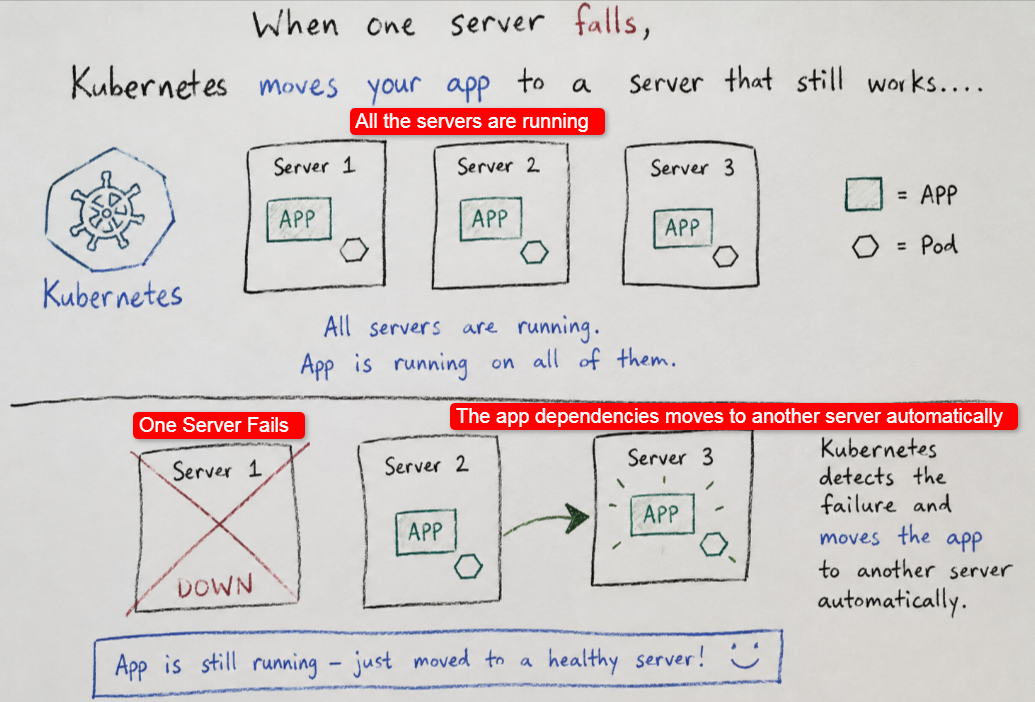
That safety (the app runs securely without interruptions 24/7) is the whole reason I usually pair Kubernetes with a VPS.
Let me show you why the combo makes so much sense.
Why Run Kubernetes on a VPS?
A lot of my clients have asked me this question that why do I run Kubernetes on a VPS. So, to understand that, you need to know what a VPS actually is.
A VPS or virtual private server, is a slice of a real physical server. Using virtualization technology, a big physical server is divided into various VPS servers where each virtual machine has its own dedicated RAM, CPU cores and NVMe storage.
You also get full root access (via SSH key) where you can connect to the VPS securely. You also get a fixed amount of power and full control.
One more thing! Why VPS? Why not big dedicated servers? See! Kubernetes on big cloud servers is really costly. Physical servers have a great deal of resources that lie idle when you run Kubernetes on it for startup apps.
This way you end up wasting money.
- A VPS keeps the cost flat and clear, which my team loves for small and mid-size projects.
- You also learn far more this way. When you build Kubernetes on VPS by hand, you see every step instead of clicking a magic button.
- And you own the whole stack (the entire VPS server where Kubernetes runs to manage your containers where your app codes stay).
- VPS gives you dedicated resources, plus it has no sharing members (you are the boss of your VPS) and there are no restrictions when your traffic goes up on a busy day.
Before setting up Kubernetes, let me name the parts you should be knowing about, so the things never seem difficult to you.
Why YouStable VPS Is a Smart Home for Kubernetes
Every command stays on your server. A weak VPS makes each step slow, so the VPS server you run truly matters.
My team runs Kubernetes on YouStable VPS and I want to share why we do it.
First of all, YouStable VPS gives you full root access on every plan. Kubernetes needs 100% control over the system and therefore full root gives you exactly that.
Second of all, the login stays safe with SSH key access. You get an SSH key using which you can securely enter into a VPS server. You skip weak passwords and sign in with a key, which keeps your working environment hard to break into.
The servers run on NVMe SSD storage and KVM virtualization. Fast disks mean quick pod starts and snappy commands, even when the cluster gets busy.
You can place nodes in India, the USA, or the Netherlands. Servers close to your users cut lag, and my team leans on this a lot.
Support answers day and night. When a node acts up at 2 AM, a real person helps you out instead of a canned script.
| Pro Tip: For a first cluster, my team runs three small YouStable VPS nodes over one big box. You get real failover practice for a low monthly cost. |
You can spin up a Kubernetes-ready node in minutes. Grab a plan that has room to grow at the link below.
Start here: https://www.youstable.com/vps-hosting/
With a strong server under you, let me get back to the build. Time to switch on the cluster brain.
What Each Part of a Cluster Does?
A Kubernetes cluster has a few key parts. Once you know them, every command in this guide clicks into place.
- The control plane is the boss. It decides what runs where, tracks health, and hands orders to the rest of the cluster.
- A worker node is the workhorse. It runs your actual apps and reports back to the control plane all day long.
- A pod is the smallest unit. It wraps one or more containers, and Kubernetes starts, moves, and heals pods for you.
- A deployment is your wish list. You tell it how many copies to keep, and Kubernetes makes that number true and holds it.
- kubectl is your voice. Every request you type flows through it to the control plane, which then acts on your words.
- When a pod dies, Kubernetes notices in seconds. It starts a fresh copy at once, so your users rarely feel the hiccup.
| Note: You do not need to memorise these. My team still keeps a cheat sheet nearby, and the names sink in after your first real build. |
Alright, enough background. Let me walk you through exactly what you need before the first command runs.
What You Need Before You Start?
I have run this setup on fresh servers hundreds of times. The list below is the exact starting point my team uses on every single build.
You need at least two servers for a real cluster. One acts as the boss, called the control plane, and the rest run your apps as worker nodes.
| Requirement | Minimum | What My Team Recommends |
|---|---|---|
| Servers | 2 nodes | 3 nodes (1 boss, 2 workers) |
| CPU | 2 vCPU per node | 2 to 4 vCPU per node |
| RAM | 2 GB per node | 4 GB per node |
| Storage | 20 GB SSD | 40 GB NVMe SSD |
| OS | Ubuntu 22.04+ | Ubuntu 24.04 LTS |
| Access | Root or sudo SSH | SSH key login |
You can run a single-node cluster for practice. Still, I always suggest two nodes so the whole setup feels like the real thing.
| Note: Every command here was tested by my team on Ubuntu 24.04 with Kubernetes v1.36 in July 2026. They run the same on Debian with tiny tweaks. |
Here is the full road map before we dig in. Keep this table open in another tab and treat it as your checklist.
The Setup Plan at a Glance
My team broke the whole job into ten clean steps. Each one builds on the last, so follow them in order for a smooth, calm run.
| Step | What It Does |
|---|---|
| 1. Prepare servers | Set names and update packages |
| 2. Turn off swap | Kubernetes needs swap disabled |
| 3. Kernel modules | Let servers pass pod traffic |
| 4. Install containerd | The engine that runs containers |
| 5. Install the tools | Add kubeadm, kubelet, kubectl |
| 6. Start control plane | Build the cluster boss |
| 7. Set up kubectl | Let you send commands |
| 8. Pod network | Let pods talk to each other |
| 9. Join workers | Add your app servers |
| 10. Test it | Deploy a real, live app |
Ten steps sound like a lot. Trust me, most take under a minute once you find the rhythm. Let’s dive in.
How to Setup Kubernetes on VPS?
Below, I’ve done the exact steps that you need to do to set up kubernetes on VPS. First, you have to buy VPS from a reliable VPS provider and they will give you your VPS login credentials via SSH. After logging in to the VPS, you need to carry on with these steps exactly how I’ve done it.
Step 1: Prepare Every Server
Run this first part on every server, both the control plane and the workers. It sets the stage so nothing breaks on you later.
Give each server a clear name. This helps you know which machine you sit on, since every terminal window looks the same.
sudo hostnamectl set-hostname control-plane # on the bosssudo hostnamectl set-hostname worker-1 # on a workerNow add each server’s name and private IP to the hosts file. This lets your servers find each other by name, not just by numbers.
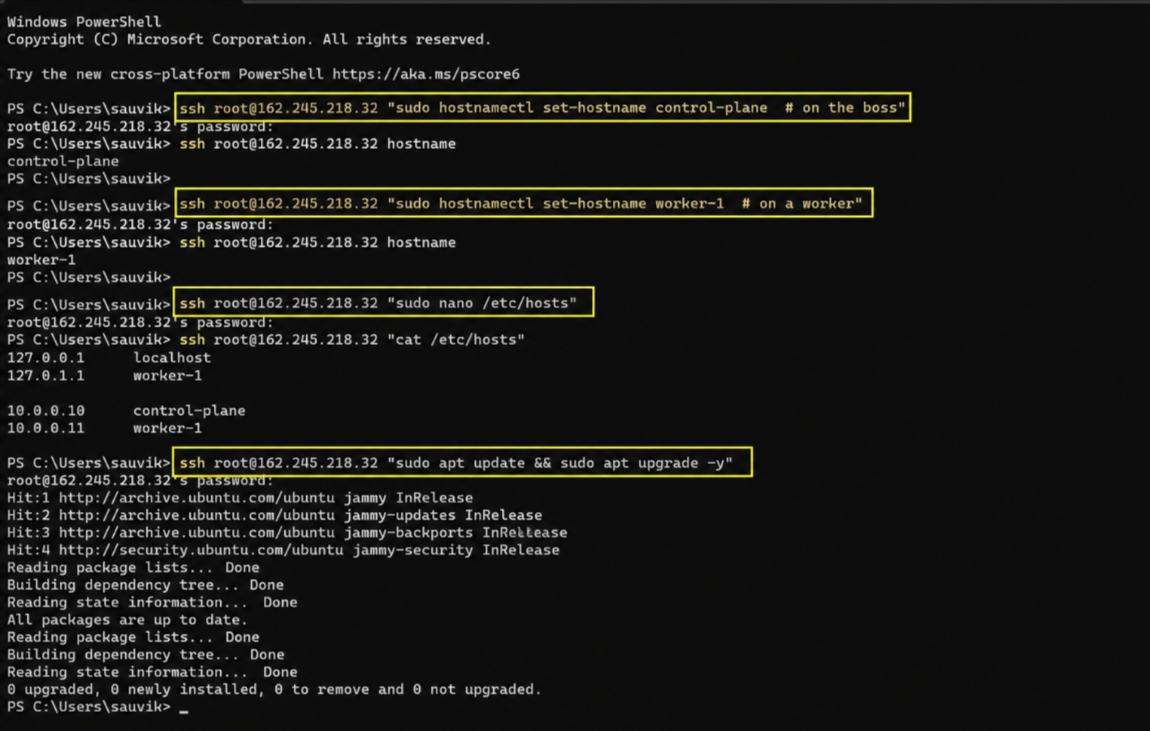
sudo nano /etc/hosts# add lines like these, with your own real IPs10.0.0.10 control-plane10.0.0.11 worker-1Then update the packages on every box. Fresh packages mean fewer bugs and fewer surprises during the install.
sudo apt update && sudo apt upgrade -yWith names set and packages fresh, we hit the one setting that trips up almost every single beginner.
Step 2: Turn Off Swap
Swap is spare disk space that acts like extra memory. Kubernetes wants it off so it can read real memory the right way.
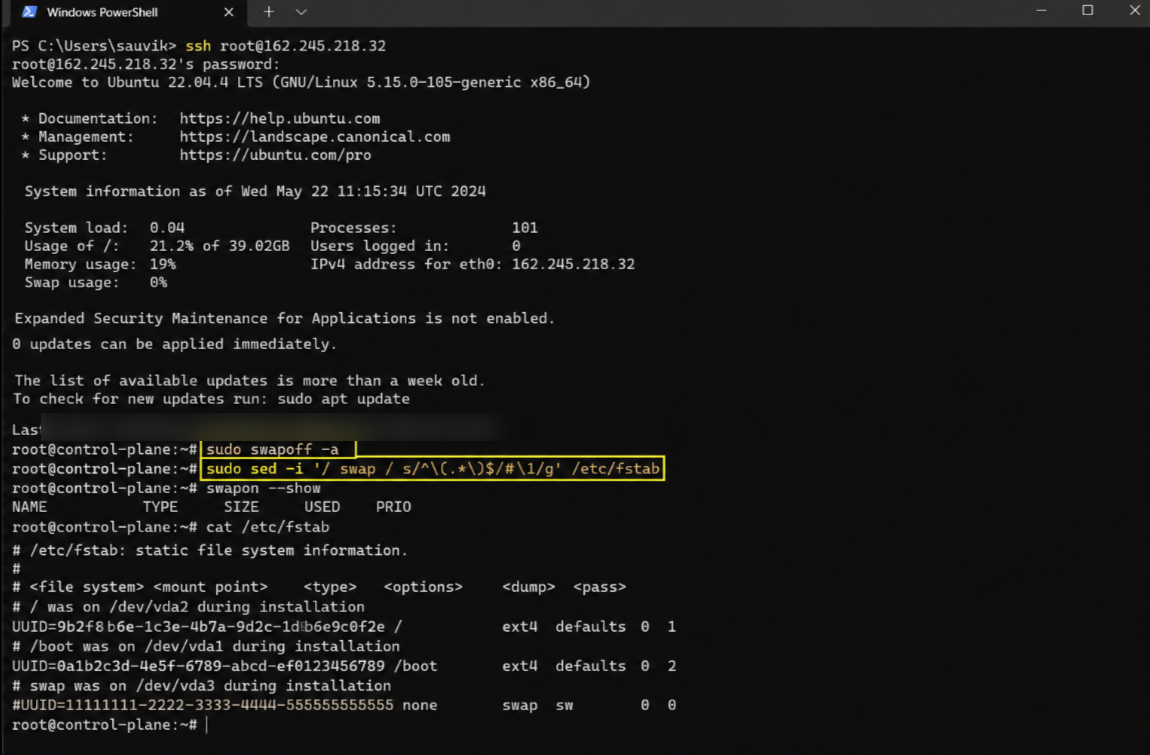
Switch it off with two short commands. The first stops swap now, and the second keeps it off after a reboot.
sudo swapoff -asudo sed -i '/ swap / s/^\(.*\)$/#\1/g' /etc/fstabRun these on every server. Skip this, and your cluster may refuse to start with a confusing, hard-to-read error.
| Pro Tip: Run every step on all servers unless I clearly say control plane only. My team keeps three terminals open side by side for this. |
Next we tell the Linux kernel to allow the network traffic that your pods will lean on.
Step 3: Load Kernel Modules and Network Settings
Pods need to send traffic across your servers. Two small kernel modules make that possible, so let me switch them on for you.
The overlay and br_netfilter modules handle how containers share the network. Load them with the short block below.
cat <<EOF | sudo tee /etc/modules-load.d/k8s.confoverlaybr_netfilterEOF sudo modprobe overlaysudo modprobe br_netfilterNow set a few network rules so traffic flows the right way between pods. Kubernetes checks for these during the setup.
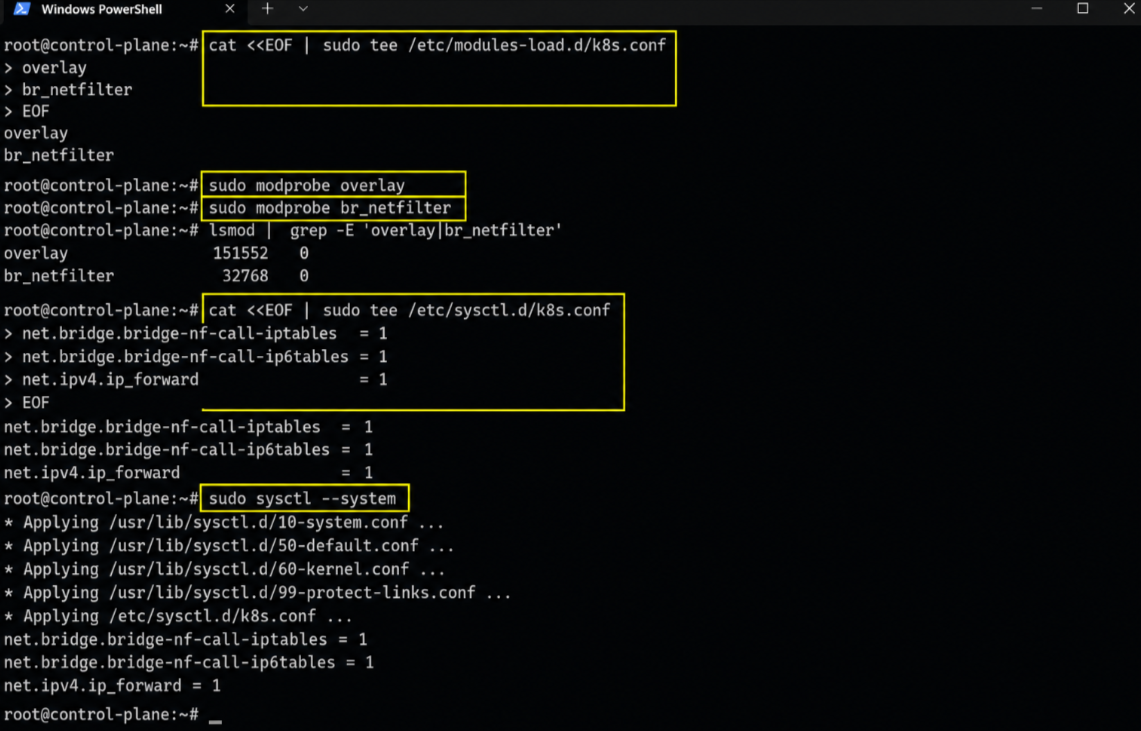
cat <<EOF | sudo tee /etc/sysctl.d/k8s.confnet.bridge.bridge-nf-call-iptables = 1net.bridge.bridge-nf-call-ip6tables = 1net.ipv4.ip_forward = 1EOF sudo sysctl --systemThese lines look scary. They simply let one server pass pod traffic to another and never drop it. Run them on every node.
Now we install the real engine that runs your containers under the hood.
Step 4: Install containerd, the Container Runtime
A container runtime is the program that actually starts and stops your containers. Kubernetes needs one, and containerd is the runtime my team trusts.
Docker used to fill this role. Kubernetes dropped that path a while back, so we now use containerd on its own.
sudo apt install -y containerdNext, create its default settings file. This gives containerd a clean base to work from.
sudo mkdir -p /etc/containerdcontainerd config default | sudo tee /etc/containerd/config.toml > /dev/nullOne setting matters a lot. Flip SystemdCgroup to true so containerd and Kubernetes agree on how to track resources.
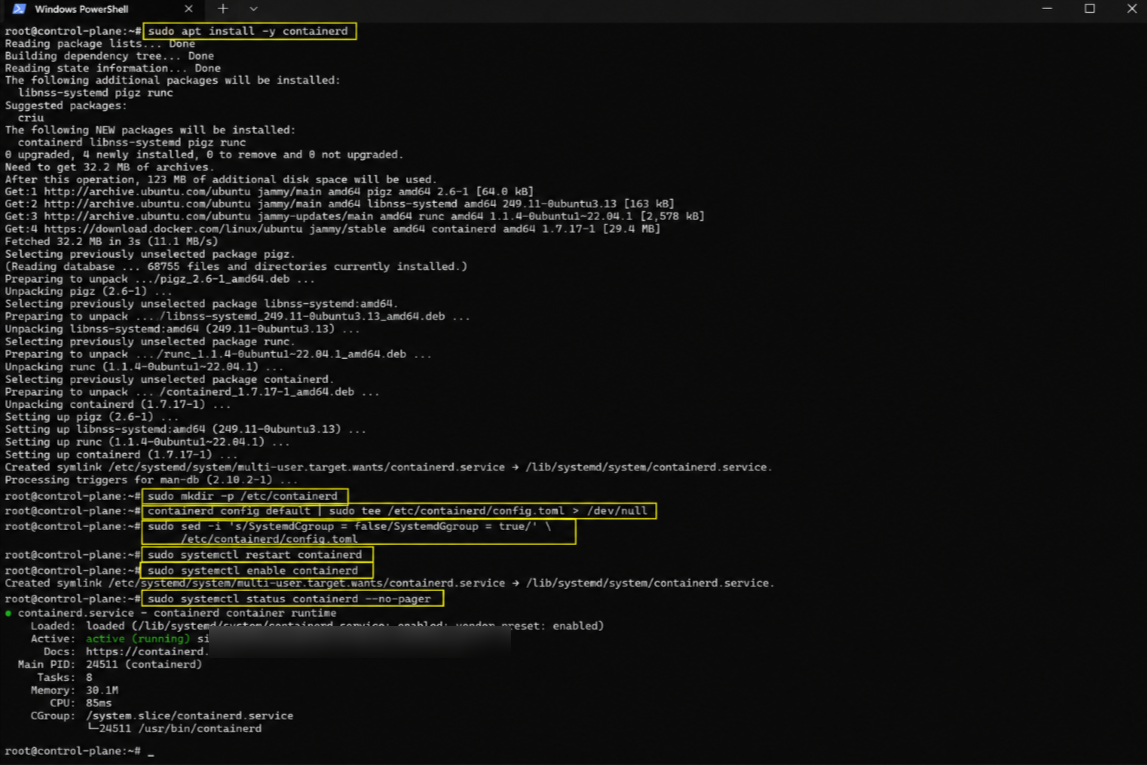
sudo sed -i 's/SystemdCgroup = false/SystemdCgroup = true/' \ /etc/containerd/config.tomlsudo systemctl restart containerdsudo systemctl enable containerdMiss that one flag, and your pods crash in a loop later. My team has debugged that exact issue more times than we admit.
With the engine ready, we bring in the three tools that run the whole show.
Step 5: Install kubeadm, kubelet, and kubectl
These three tools do the heavy lifting. Let me tell you what each one does before you install them.
kubeadm builds the cluster. kubelet runs on every node and keeps pods alive. kubectl is the command you type to control it all.
First, add the official Kubernetes package source. This block grabs the signing key for the current v1.36 release.
sudo apt install -y apt-transport-https ca-certificates curl gpgsudo mkdir -p -m 755 /etc/apt/keyringscurl -fsSL https://pkgs.k8s.io/core:/stable:/v1.36/deb/Release.key \ | sudo gpg --dearmor -o /etc/apt/keyrings/kubernetes-apt-keyring.gpgNow point apt at that source and install the three tools in one go.
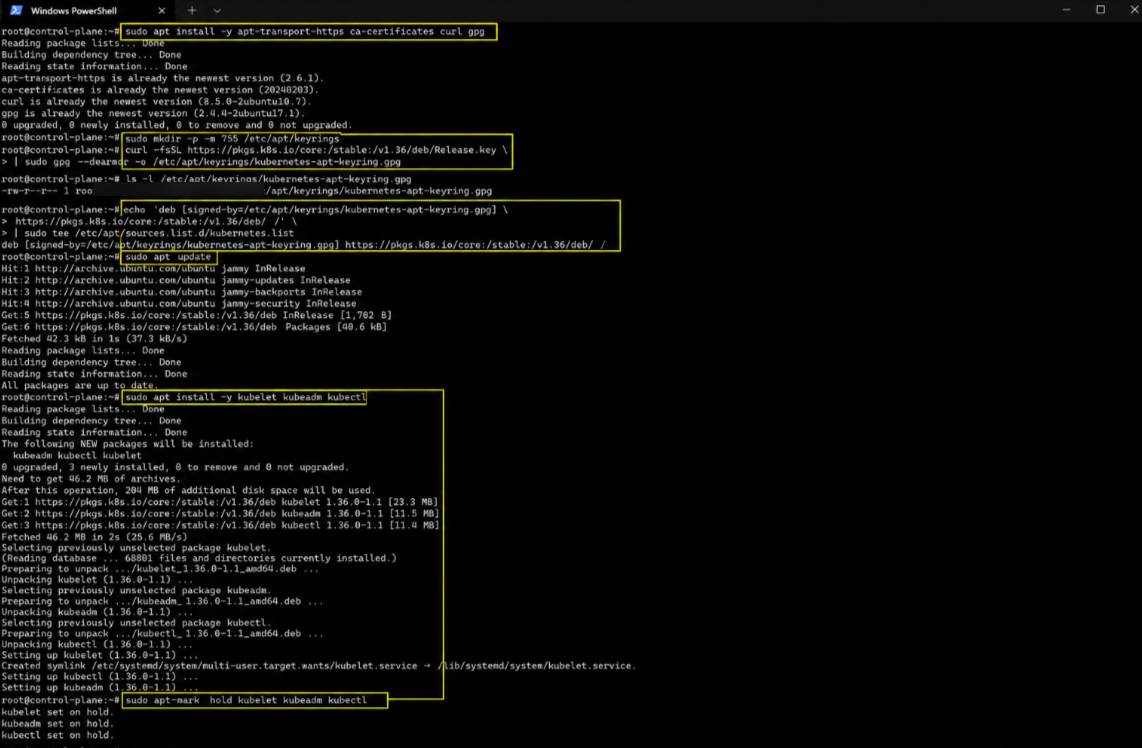
echo 'deb [signed-by=/etc/apt/keyrings/kubernetes-apt-keyring.gpg] \ https://pkgs.k8s.io/core:/stable:/v1.36/deb/ /' \ | sudo tee /etc/apt/sources.list.d/kubernetes.listsudo apt updatesudo apt install -y kubelet kubeadm kubectlThen lock the versions. This stops a random update from breaking your cluster during normal patching.
sudo apt-mark hold kubelet kubeadm kubectl| Note: The old apt.kubernetes.io source is dead and gone. My research team only uses the pkgs.k8s.io source shown above, and so should you. |
Run every step so far on all your servers. Before we start the cluster brain, let me pause on the thing that decides how smooth all of this feels.
Step 6: Start the Control Plane
This step runs on the control plane only. It turns your boss server into the brain of the whole cluster.
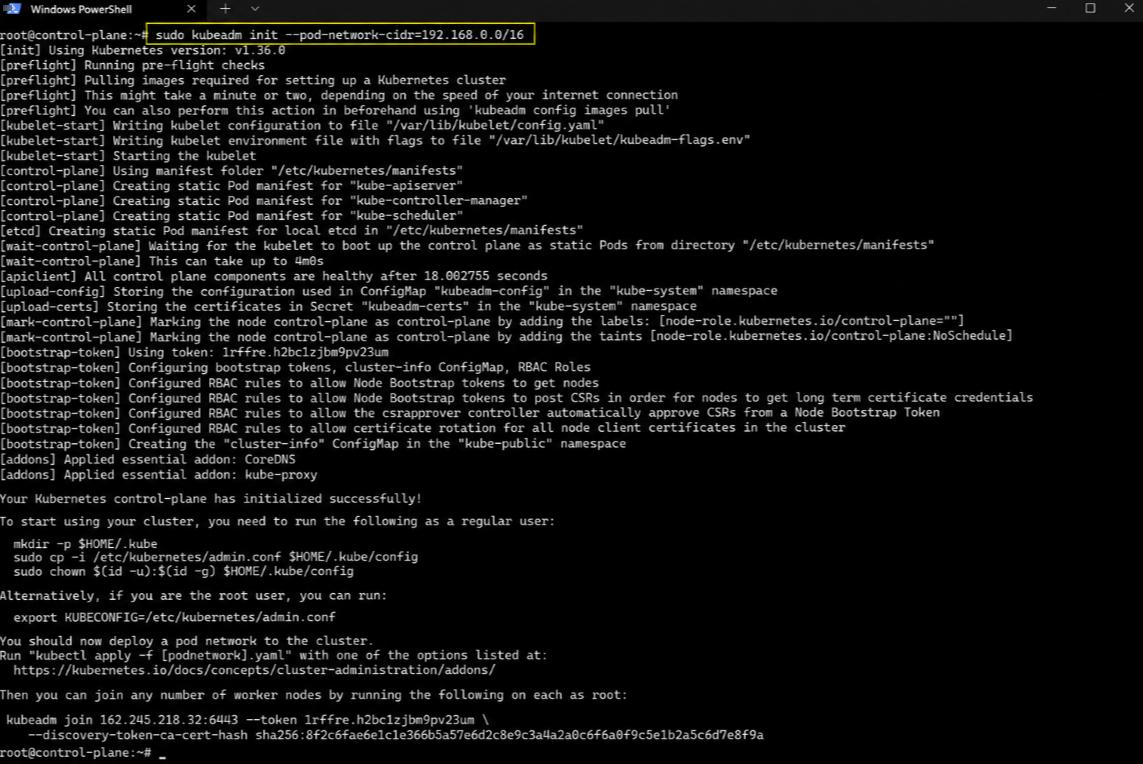
The command below starts the cluster and sets the pod network range. My team pairs this range with Calico, the network tool we add next.
# run on the control plane onlysudo kubeadm init --pod-network-cidr=192.168.0.0/16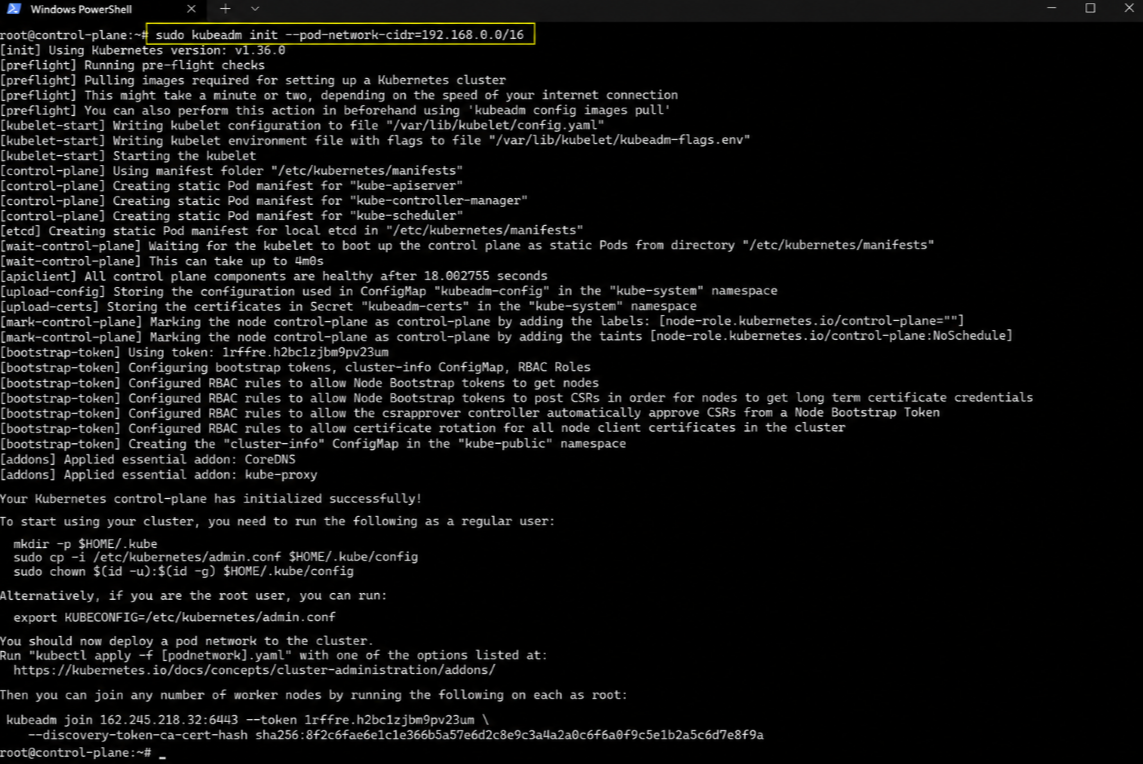
This takes a few minutes. When it finishes, it prints a kubeadm join command. Copy that whole line and save it somewhere safe.
That join line is your ticket to add workers later. It holds a token that expires in 24 hours, so please do not lose it.
| Disclaimer: Your exact output, IPs, and tokens will differ from mine. Never share your join token in public, since anyone who holds it can add nodes to your cluster. |
The cluster brain is alive. Now let me hand you the keys to talk to it.
Step 7: Set Up kubectl Access
Right now only root can reach the cluster. These three lines let your normal user run kubectl and skip typing sudo every time.
Run them on the control plane as your regular user, not as root.
mkdir -p $HOME/.kubesudo cp -i /etc/kubernetes/admin.conf $HOME/.kube/configsudo chown $(id -u):$(id -g) $HOME/.kube/config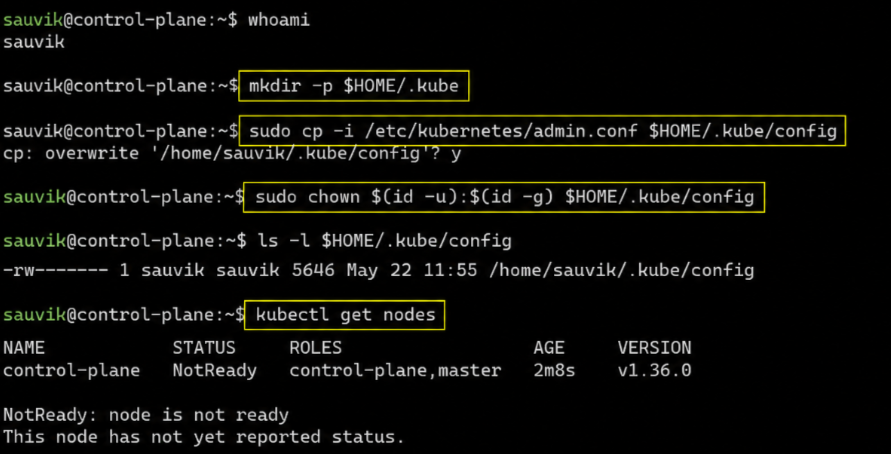
Test it right away. This command asks the cluster to list its nodes for you.
kubectl get nodesYou see your control plane listed as NotReady. That is fine for now. It stays that way until we add the pod network next.
That NotReady status is our cue. The cluster needs a way for pods to talk, so let me install one.
Step 8: Install a Pod Network
Pods cannot reach each other until you add a network layer, called a CNI. My team uses Calico because it is stable and simple.
Install it with one command on the control plane. It reads a ready-made file straight from the Calico project.
# run on the control plane onlykubectl apply -f https://raw.githubusercontent.com/projectcalico/\calico/v3.28.0/manifests/calico.yamlGive it a minute or two to settle. Then check your nodes one more time.
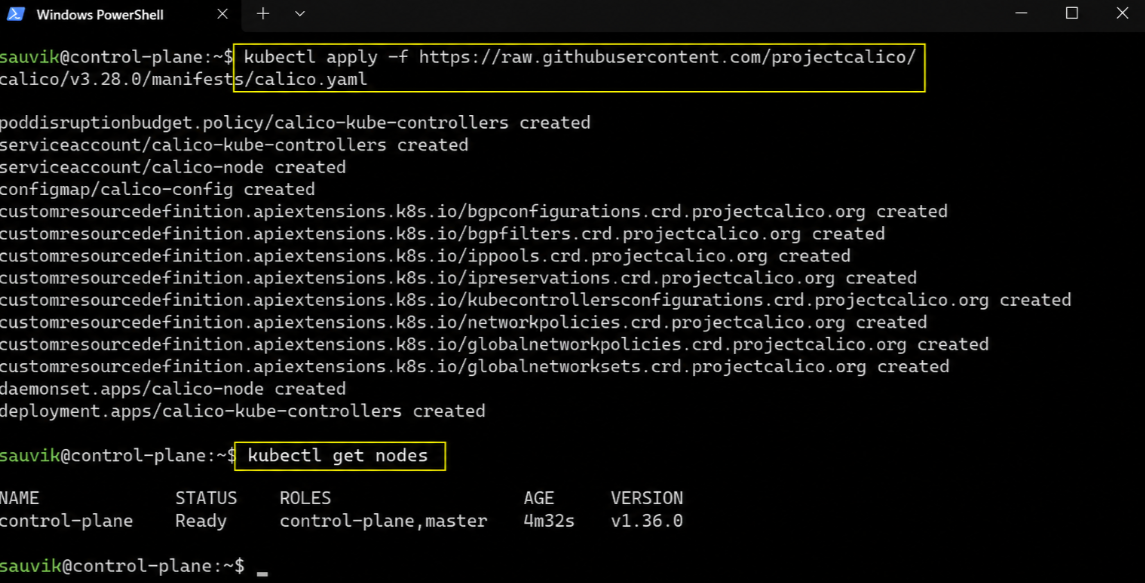
kubectl get nodesYour control plane should now read Ready. That single word means the network is live and the cluster is healthy.
| Note: Calico ships new versions often. My team checks the Calico site for the current file link before each fresh install, and I suggest you do the same. |
Your cluster runs, but it has no workers yet. Let me bring your app servers into the family.
Step 9: Join Your Worker Nodes
Now grab that kubeadm join command you saved back in Step 6. You run it on each worker, not on the control plane.
The line looks like the one below, with your own IP and token filled in. Add sudo at the front.
# run on each worker nodesudo kubeadm join 10.0.0.10:6443 --token abcdef.0123456789abcdef \ --discovery-token-ca-cert-hash sha256:1234...yourhashLost the token? That is fine. Run this on the control plane to print a fresh join command for you.
kubeadm token create --print-join-command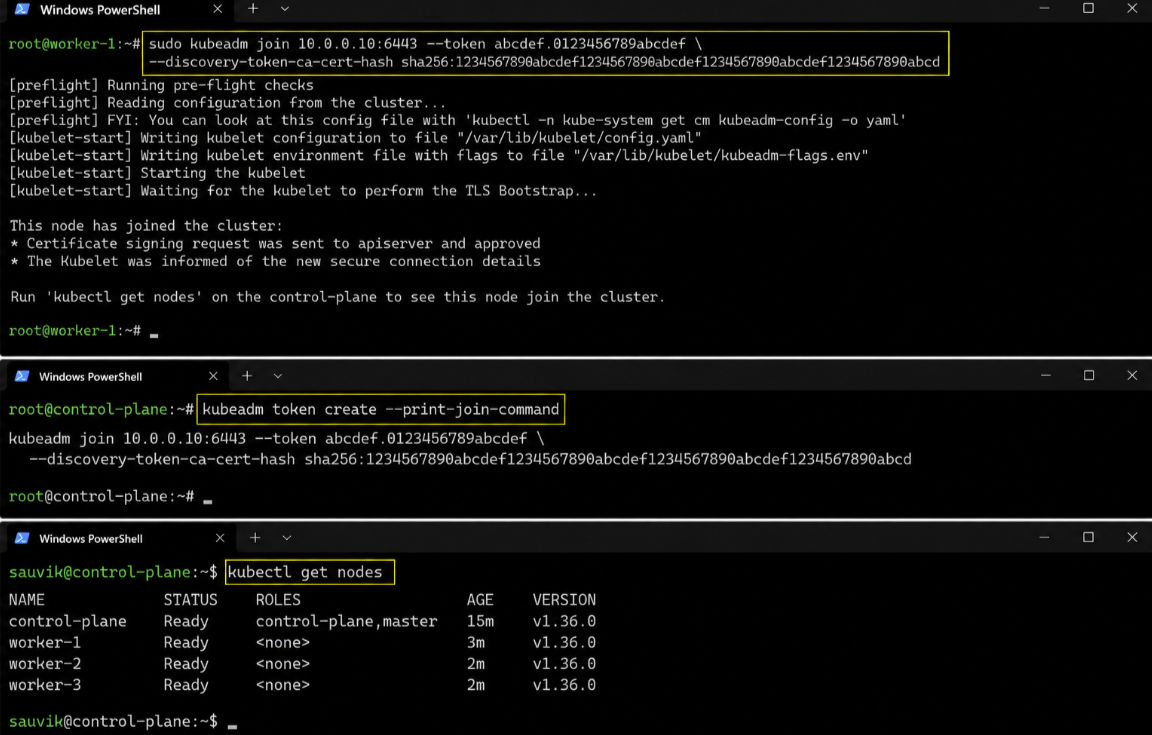
After each worker joins, hop back to the control plane and list your nodes. Watch them turn Ready one by one.
kubectl get nodesIt feels great to see every node marked Ready. My team still smiles at that screen after all these years.
A cluster with nothing running is just a shell. Let me prove it works by deploying a real app.
Step 10: Test the Cluster With a Real App
Let me put a small web app on the cluster. This shows that pods start, spread out, and answer traffic like they should.
Run this on the control plane. It creates a tiny Nginx web server with two copies for safety.
kubectl create deployment web --image=nginx --replicas=2kubectl expose deployment web --port=80 --type=NodePortCheck that both copies are running. This command lists your pods and the node each one landed on.
kubectl get pods -o wideYou should see two web pods spread across your workers. That spread is Kubernetes at work, keeping your app alive when a node dies.
Open the NodePort in your browser to see the Nginx welcome page. That live page is proof your cluster now serves real traffic.
| Note: This test app is safe to remove. Run kubectl delete deployment web and kubectl delete service web once you finish poking around. |
You now hold a working cluster. Before you celebrate, let me save you from the traps my team hit early on.
Common Mistakes I See Beginners Make
I have cleaned up a lot of broken clusters over the years. These few slips cause most of the pain, so watch for them.
- Swap left on is the top offender. Double-check you turned it off on every node, not just the control plane.
- A skipped SystemdCgroup flag is next. Pods crash in a loop when containerd and Kubernetes disagree on resource tracking.
- An expired token blocks many joins. Tokens die after 24 hours, so create a fresh one when a worker refuses to connect.
- A closed firewall port causes silent failures. Open the ports your nodes need so the boss and workers can chat freely.
Speaking of ports, here are the exact ones my team opens between nodes. Set these first when a fresh cluster acts odd.
| Port | Node | Purpose |
|---|---|---|
| 6443 | Control plane | API server, all nodes talk here |
| 10250 | All nodes | kubelet health and stats |
| 30000-32767 | Workers | NodePort apps reach the outside |
Open these ports between your nodes and you dodge the most common network headache. My team checks this list first every time.
You have the full build and the common fixes. Let me answer the questions my team hears most about Kubernetes on VPS.
Frequently Asked Questions
Do I need more than one server to run Kubernetes on a VPS?
Yes, a real cluster needs at least two VPS nodes. One runs the control plane, and the other runs your apps as a worker.
Can I run Kubernetes on a single VPS?
You can, for practice only. Remove the control plane taint so one node also runs apps. My team never uses a single node for real traffic.
How much RAM does a Kubernetes VPS node need?
Each node needs 2 GB of RAM at the very least. My team runs 4 GB per node so pods and the system never fight for memory.
Is containerd better than Docker for Kubernetes?
Yes, containerd is the right pick today. Kubernetes dropped direct Docker support years ago, and containerd runs your containers with less overhead.
Why does my Kubernetes node show NotReady?
A NotReady node almost always means the pod network is missing. Install a CNI like Calico, wait a minute, and the node turns Ready.
How do I add a new worker node later?
Run kubeadm token create –print-join-command on the control plane. Copy the fresh join line, then run it with sudo on your new worker.
Is a VPS cheaper than managed Kubernetes?
Usually yes. A VPS gives you a flat monthly cost with no per-hour cluster fees. My team finds it far cheaper for small and mid-size work.
Conclusion
You started with a bare server and a bit of doubt. Now you hold a real Kubernetes on a VPS cluster that heals itself when a node fails.
We walked through it together. You prepped your servers, turned off swap, set the network, and installed containerd with the core tools.
Then you built the control plane, added a pod network, joined your workers, and pushed a live app across the cluster.
My team runs this exact flow for real projects, and now it is yours. Keep this guide close and run it again for every new cluster.
Your next step is simple. Grab a solid VPS with room to grow, open three terminals, and build your first cluster today. You have got this.
Launch a Kubernetes-ready node with full root access, SSH key login, and NVMe speed: https://www.youstable.com/vps-hosting/