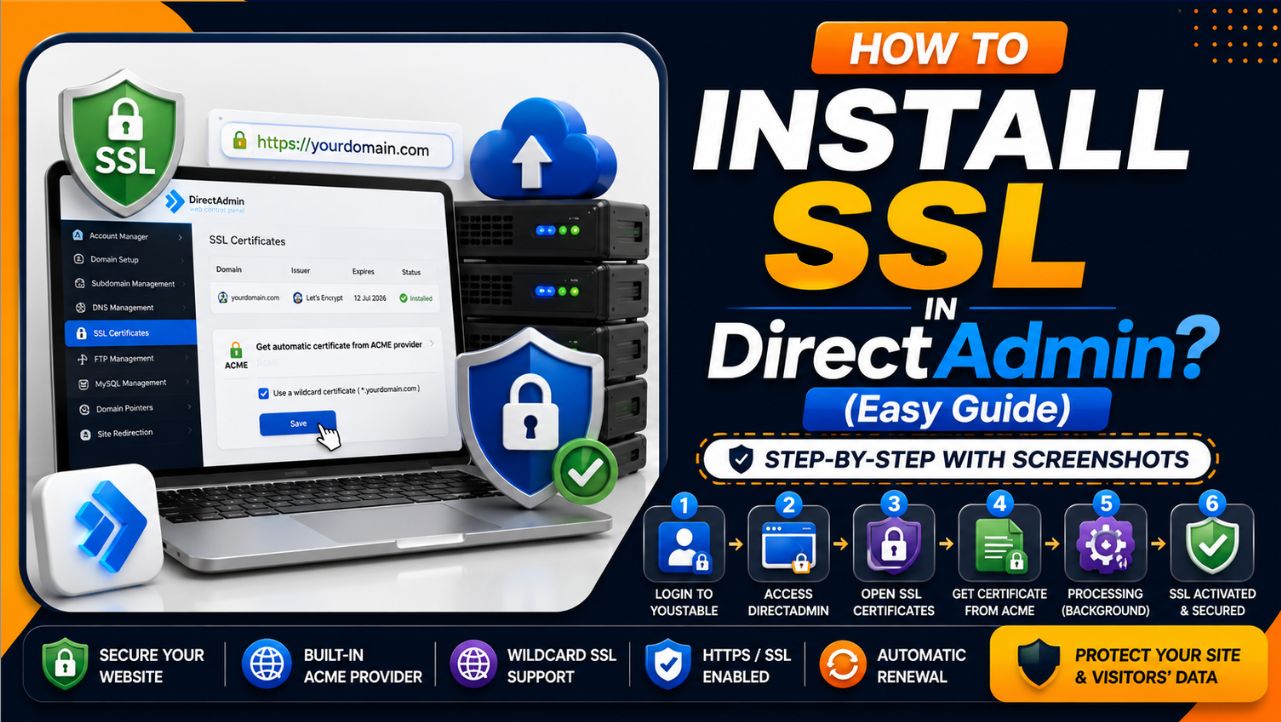
I know you want an SSL certificate for your domains. Here in this guide, I’ll tell you exactly how to install an SSL certificate in DirectAdmin using the built-in ACME provider.
It is very easy. I’ve also added the screenshots so that you can do it exactly how I’m doing it
Steps to Install SSL in DirectAdmin
Go to the official website of YouStable, click the sign in button and be ready to login to your dashboard. Here are the steps given below:
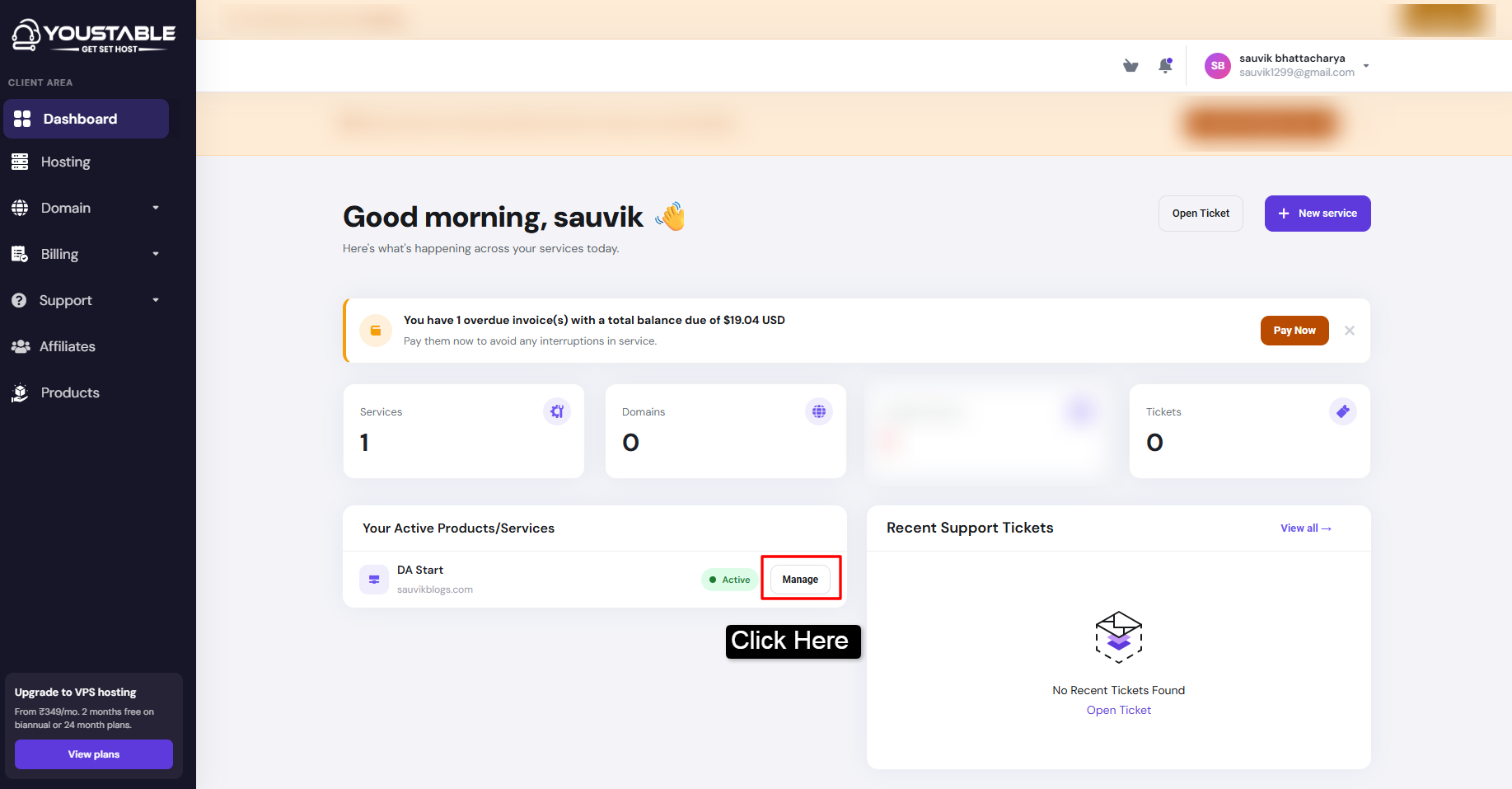
Step 1) Enter your username and password to the Youstable login page >> Click Sign In to YouStable >> You’ll be redirected to your client area >> Now, select the domain name whose SSL you want to install >> Click the Manage button provided at the right side of the selected product tab.
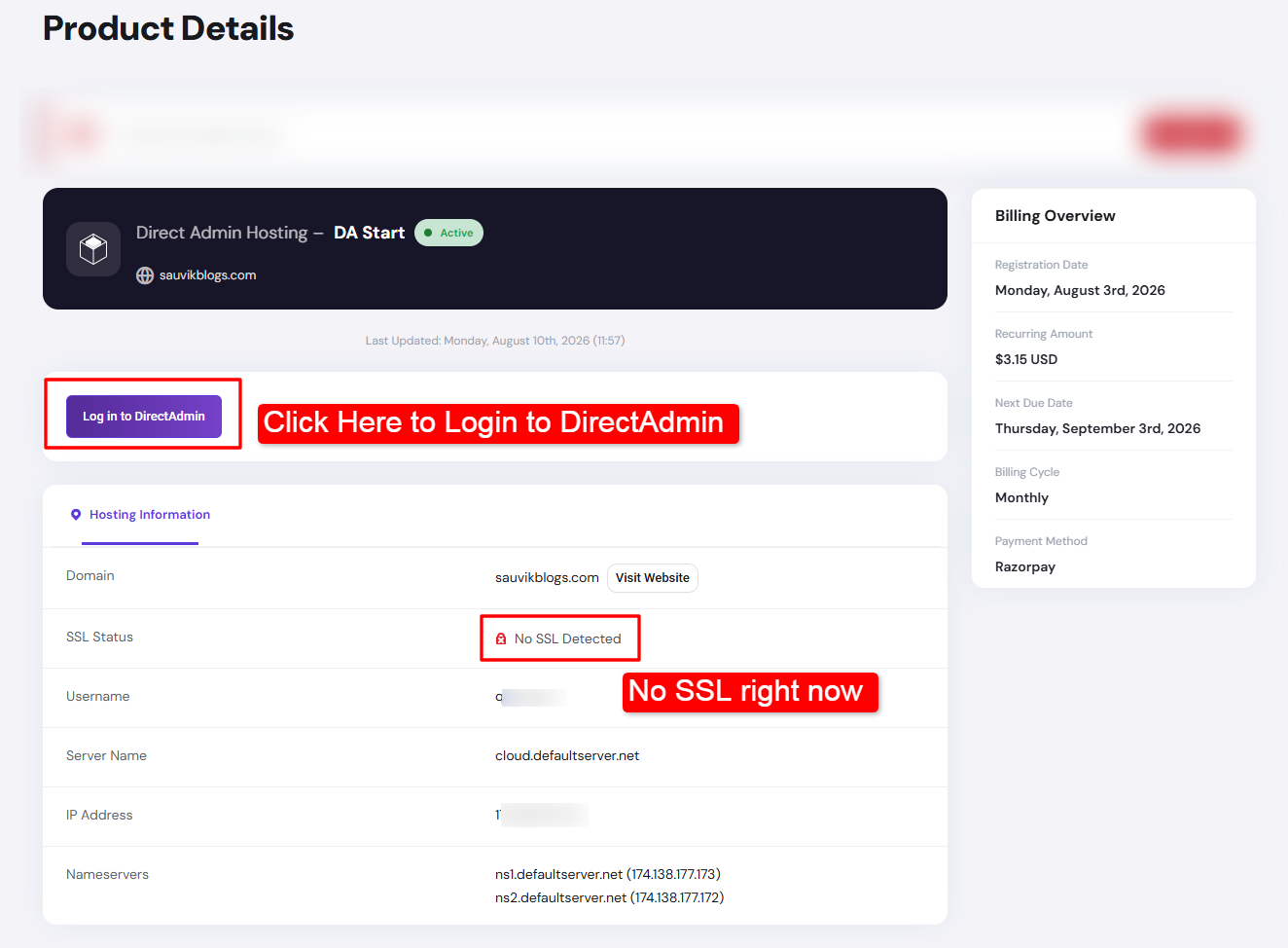
Step 2) As you click the Manage button >> You reach the product details page (In this page you can see that the SSL status is NO SSL DETECTED) >> Now, click the Login to DirectAdmin button to directly access the control panel in just one click.
Step 3) Once you enter your DirectAdmin dashboard >> Click the SSL certificates tab right under the Account Manager Option.

Before making changes to your website’s security settings, it’s always a good idea to create a recent backup. If you haven’t created one yet, follow our How to Create Backup in DirectAdmin guide first.
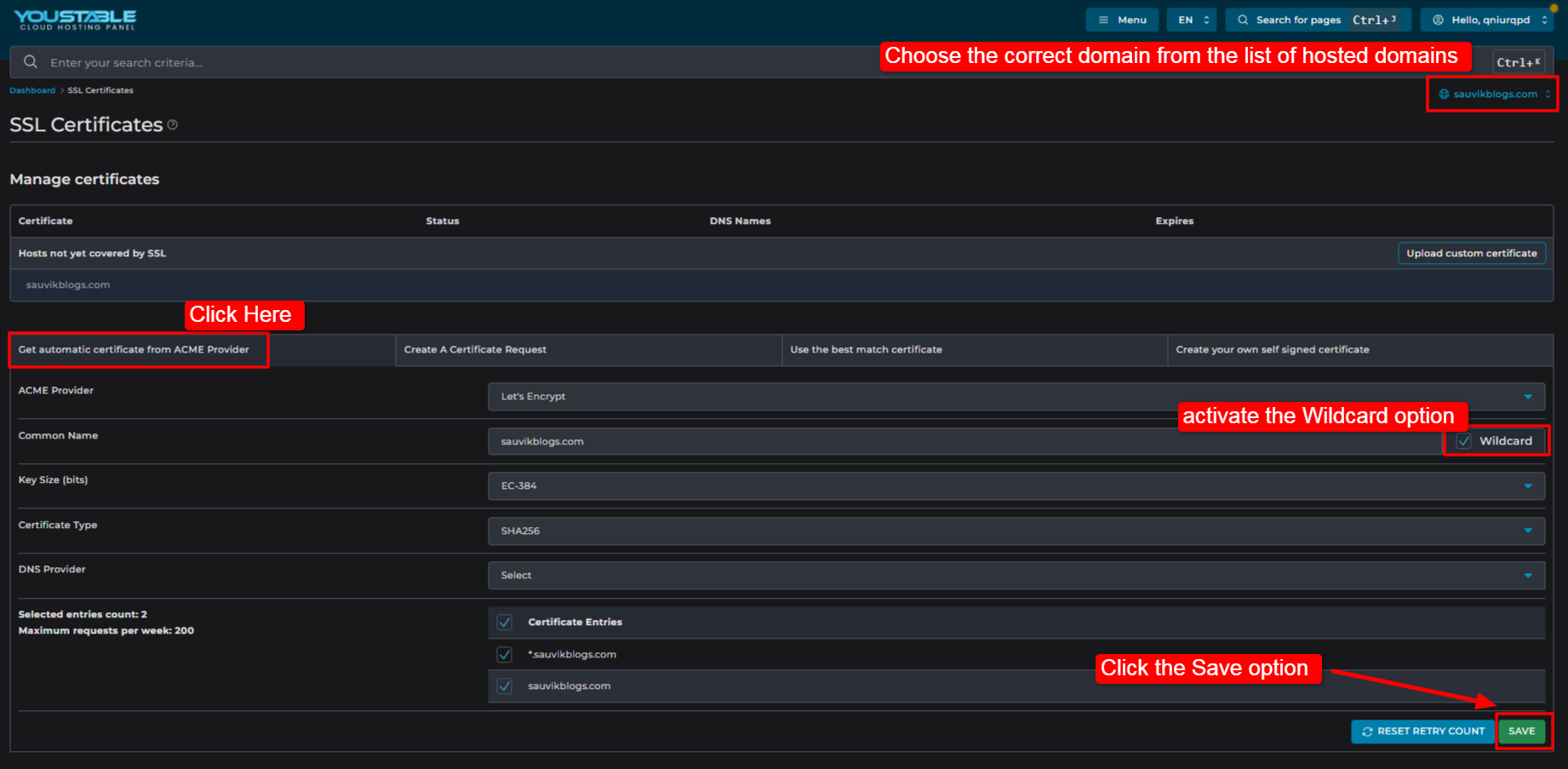
Step 4) As you make that move, you’ll be then redirected to the SSL certificate page >> First of all make sure you have chosen the correct domain from the list of hosted domains >> Right after that, Click Get automatic certificate from ACME provider >> You can leave the default setting exactly how they are. They work perfectly. The only thing you need to do is activate the wild card option.
| This is important because it secures your main domain and every future subdomain you will create. |
Then click on save >> It will take some time to process, and that’s it
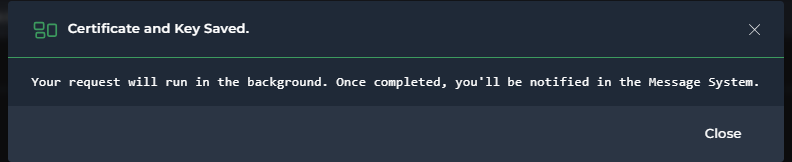
Step 5) Your request runs in the background (It takes only 15 seconds to process) >> Once the process is completed you get notified soon. Once you receive the message, this means your domain gets successfully protected with SSL certificates.
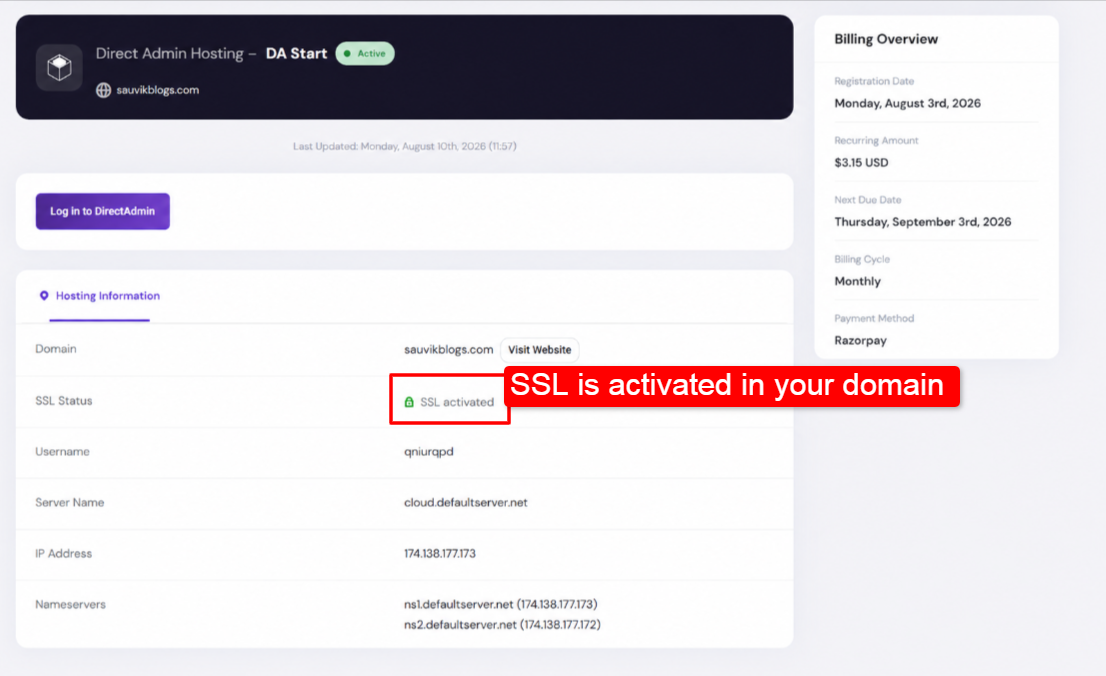
Step 6) Go to your YouStable client area dashboard >> Here you can see that the SSL status shows SSL ACTIVATED.
You can also open your website using HTTPS to verify that the SSL certificate is working correctly.
You can see that it is really very easy to install SSL in DirectAdmin, and these steps are easy to follow. SSL is important for securing your website and protecting visitors’ data.
If anything doesn’t go as expected after making changes, you can easily recover your website by following our How to Restore Backup in DirectAdmin guide with step-by-step screenshots.