UFW (Uncomplicated Firewall) on a Linux server is a simple command-line interface for managing netfilter firewall rules. It lets you allow, deny, and log traffic by port, protocol, IP, and interface using human friendly commands.
UFW simplifies iptables/nftables, ships with secure defaults, and is ideal for quickly hardening Ubuntu and Debian servers.
In this guide, you’ll understand UFW on Linux server environments from the ground up. We’ll cover what UFW is, how it works, essential commands, advanced scenarios, security best practices, common pitfalls, and real-world tips from 12+ years of server administration across VPS, dedicated, and cloud platforms.
What is UFW and How it Works?
UFW (Uncomplicated Firewall) is a wrapper around Linux’s netfilter subsystem. Under the hood, it programs rules via iptables-nft (iptables frontend using nftables) or legacy iptables, depending on your distribution. UFW provides an easy syntax to define default policies and per-port rules without wading through complex chains.
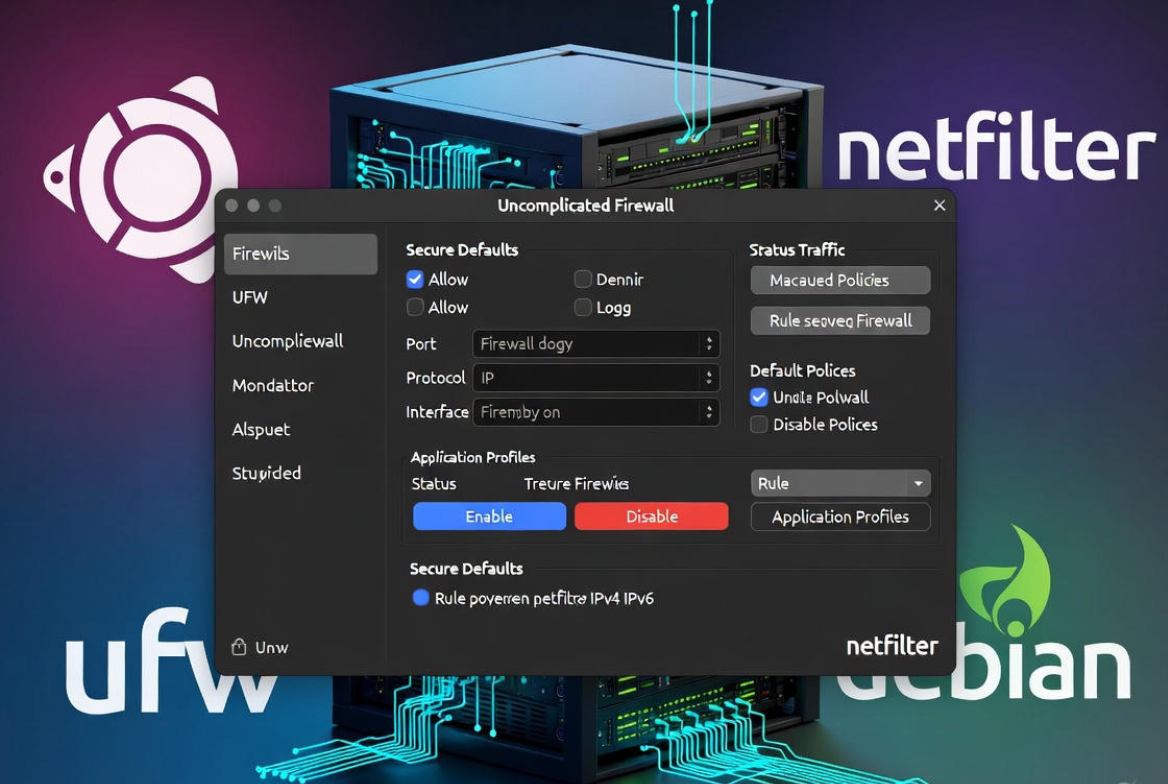
Use UFW when you want a minimal, readable firewall you can maintain quickly. It’s popular on Ubuntu and Debian, works with IPv4 and IPv6, and includes application profiles to simplify common services.
Why Use UFW Instead of iptables or nftables Directly
- Beginner-friendly: Human-readable syntax like ufw allow 22 instead of multi-flag iptables/nftables commands.
- Fewer mistakes: Default policies and numbered rules reduce risk of misconfiguration.
- Quick audits: ufw status shows what’s open at a glance.
- IPv6 support: One config covers both IPv4 and IPv6 when enabled.
- Application profiles: Predefined rules for services (e.g., OpenSSH, Nginx Full).
When to prefer raw nftables/iptables: complex multi-interface routing, advanced NAT, container networking at scale, or when you need fine-grained chain and set handling. For most single-server and small cluster workloads, UFW is sufficient and safer for everyday operations.
Before You Start: Prerequisites and Safety Checklist
- Root or sudo access to the server.
- Console/serial or provider control panel access (in case you lock yourself out).
- Know your SSH port (default 22) or any custom management port.
- List the services you need to expose: SSH, HTTP/HTTPS, databases, etc.
- Confirm whether you use IPv6; keep v4 and v6 rules consistent.
Quickstart: Essential UFW Commands
Install and Enable UFW
On Ubuntu/Debian, UFW is usually preinstalled. Otherwise:
sudo apt update
sudo apt install ufw
On RHEL/CentOS/Alma/Rocky, UFW is not default (they prefer firewalld), but you can install via EPEL. Most users on these distros should stick to firewalld unless you have a reason to standardize on UFW.
Set Secure Defaults
Default policies define what happens if no rule matches. A safe baseline is to deny incoming, allow outgoing, and deny routed traffic unless you need forwarding.
sudo ufw default deny incoming
sudo ufw default allow outgoing
sudo ufw default deny routed
Allow SSH Before Enabling the Firewall
Always permit your SSH port before enabling UFW to avoid lockout.
# If using the default port 22:
sudo ufw allow OpenSSH
# Or explicitly:
sudo ufw allow 22/tcp

# If you use a custom port, e.g., 2222:
sudo ufw allow 2222/tcp
Enable UFW
sudo ufw enable
sudo ufw status verbose
Open Common Web Stack Ports
# HTTP and HTTPS
sudo ufw allow 80/tcp
sudo ufw allow 443/tcp

# Or use application profiles (if available)
sudo ufw app list
sudo ufw allow "Nginx Full"
# Alternatives: "Apache Full", "Nginx HTTP", "Nginx HTTPS"
Other Common Rules
# Databases (restrict to trusted IPs!)
sudo ufw allow from 203.0.113.10 to any port 5432 proto tcp   # PostgreSQL
sudo ufw allow from 203.0.113.10 to any port 3306 proto tcp   # MySQL/MariaDB

# DNS (for resolvers/authoritative servers)
sudo ufw allow 53/udp
sudo ufw allow 53/tcp

# SMTP (mail transfer) and SMTPS/Submission
sudo ufw allow 25/tcp
sudo ufw allow 465/tcp
sudo ufw allow 587/tcp

# Port ranges (e.g., passive FTP)
sudo ufw allow 40000:50000/tcp
View, Order, and Delete Rules
# Human-friendly status
sudo ufw status numbered

# Delete by number
sudo ufw delete <rule-number>

# Insert at top for priority (optional)
sudo ufw insert 1 allow 443/tcp

# Reset all rules (use with caution)
sudo ufw reset
Enable/Disable, Reload, and Logging
# Temporarily disable/enable
sudo ufw disable
sudo ufw enable

# Reload after changes
sudo ufw reload

# Logging levels: off, low, medium, high, full
sudo ufw logging on
sudo ufw logging medium
Advanced UFW Usage
Enable and Mirror IPv6 Rules
If your server has IPv6, ensure it’s enabled in UFW so IPv6 traffic is filtered consistently with IPv4.
# In /etc/ufw/ufw.conf, set:
IPV6=yes

# Then reload:
sudo ufw reload
Rate Limiting to Throttle Abuse
Use “limit” to rate-limit connection attempts on services like SSH. This helps mitigate brute force bursts without blocking legitimate users.
sudo ufw limit 22/tcpApplication Profiles
Many packages ship UFW profiles in /etc/ufw/applications.d/. List and enable them by name.
sudo ufw app list
sudo ufw app info "Nginx Full"
sudo ufw allow "Nginx Full"
Granular Rules: IPs, Subnets, Interfaces, Protocols
# Allow from a single IP
sudo ufw allow from 203.0.113.10 to any port 22 proto tcp

# Allow a subnet
sudo ufw allow from 203.0.113.0/24 to any port 443

# Bind to an interface (e.g., eth0)
sudo ufw allow in on eth0 to any port 443 proto tcp

# Deny specific traffic explicitly
sudo ufw deny from 198.51.100.0/24 to any port 25
Logging and Where to Find It
UFW logs via rsyslog to /var/log/ufw.log (or /var/log/syslog on some systems). Use this when troubleshooting drops or verifying rules.
sudo tail -f /var/log/ufw.log
sudo grep UFW /var/log/syslog | less
Using UFW with Docker
Docker manages its own netfilter rules and can bypass host firewalls for bridged containers. Safer patterns:
- Publish only needed ports with
-pand secure those host ports via UFW (e.g.,ufw allow 8080/tcp). - Avoid disabling Docker’s iptables globally; it can break networking.
- Prefer reverse proxies (Nginx/Traefik) listening on 80/443 and secure those via UFW.
- For advanced isolation, consider cloud firewalls or a managed solution.
Common Mistakes and How to Fix Them
- Locking yourself out of SSH: Always allow SSH first. If locked out, use your host’s console to disable UFW (
sudo ufw disable) and reapply rules. - Forgetting IPv6: If IPv6 is active, mirror rules or enable
IPV6=yes. Leaving IPv6 open undermines security. - Overly permissive database ports: Never expose 3306/5432 to the world. Restrict by IP or use private networking/VPN.
- Rule order confusion: Use
ufw status numberedandufw insertto control priority. The first matching rule wins. - Mismatched default policy: If you intend to deny by default, ensure
sudo ufw default deny incomingis set and reload.
Production Security Best Practices with UFW
- Principle of least privilege: Open only the ports your application truly requires.
- Restrict management access: Allow SSH/RDP from specific office/VPN IPs.
- Enable rate limiting and use Fail2ban to dynamically block abusive IPs.
- Use HTTPS everywhere; redirect port 80 to 443 at the application level.
- Keep IPv4 and IPv6 rules aligned; test both with
nmap -6where applicable. - Automate audits: Periodically run
ufw status verboseand external scans from a separate host. - Centralize logs or forward to SIEM for alerting and forensics.
- Back up firewall configuration and document change history.
UFW vs firewalld vs iptables/nftables: Which Should You Choose?
- Choose UFW if you want a simple, stable, and readable host firewall (Ubuntu/Debian, small to medium deployments).
- Choose firewalld if you are on RHEL/CentOS/Alma/Rocky or need zone-based management and D-Bus integration.
- Choose nftables/iptables directly for highly customized networking, complex NAT, or when building network appliances.
Real-World Examples
Basic LEMP server:
sudo ufw default deny incoming
sudo ufw default allow outgoing
sudo ufw allow OpenSSH
sudo ufw allow "Nginx Full"
sudo ufw enable
Database node accepting connections only from app servers:
sudo ufw default deny incoming
sudo ufw default allow outgoing
sudo ufw allow from 10.0.10.20 to any port 5432 proto tcp
sudo ufw allow from 10.0.10.21 to any port 5432 proto tcp
sudo ufw enable
FAQs:
What is UFW in Linux and what does it do?
UFW (Uncomplicated Firewall) is a simple interface to Linux netfilter that lets you allow, deny, and log network traffic using easy commands. It simplifies iptables/nftables, making it ideal for securing Ubuntu/Debian servers quickly with readable, maintainable rules.
How do I allow a port in UFW?
Use sudo ufw allow <port>/<proto>. For example, sudo ufw allow 443/tcp opens HTTPS. You can also allow by service name if an application profile exists: sudo ufw allow "Nginx Full". Confirm with sudo ufw status.
Does UFW support IPv6?
Yes. Set IPV6=yes in /etc/ufw/ufw.conf and reload UFW. Ensure rules cover both IPv4 and IPv6 so you don’t leave services exposed on IPv6 inadvertently.
Is UFW better than iptables or nftables?
“Better” depends on your needs. UFW is easier and safer for typical host firewalls. For advanced scenarios (complex routing, custom chains, high-scale container networking), direct nftables or firewalld may be more suitable.
How do I reset UFW to default settings?
Run sudo ufw reset. This disables UFW, removes all rules, and restores defaults. Reapply your rules, enable again with sudo ufw enable, and verify using sudo ufw status verbose. By mastering UFW on Linux servers, you’ll reduce your attack surface, simplify audits, and deploy faster with fewer surprises. Start with the secure defaults, open only what you need, and keep IPv6 aligned. If you want expert help, YouStable’s team can harden and monitor your firewall 24/7.