DirectAdmin on a Linux server is a lightweight, commercial web hosting control panel that streamlines server administration. It provides a fast, secure GUI to manage websites, domains, email, DNS, databases, and SSL.
Running on popular distros like AlmaLinux, Rocky, Debian, and Ubuntu, it’s ideal for admins, resellers, and end users alike.
If you’re exploring a reliable control panel for Linux hosting, DirectAdmin on Linux server offers an efficient, cost-effective alternative to heavier panels. In this guide, I’ll explain what DirectAdmin is, how it works, when to choose it, and how to install, secure, and optimize it—based on real-world experience managing hundreds of production servers.
What is DirectAdmin (and How it Works)?
DirectAdmin is a Linux web hosting control panel with a clean interface and three access levels:
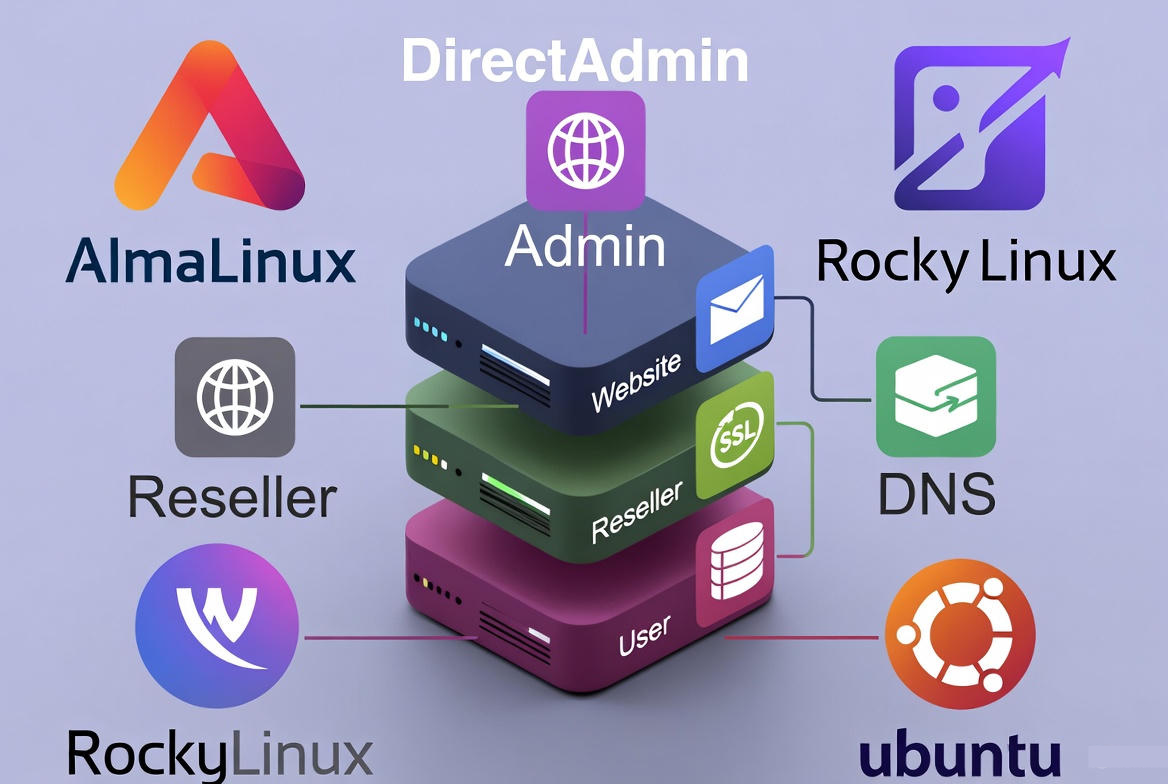
- Admin: Manages the server, services, IPs, packages, backups, and global settings.
- Reseller: Creates and manages user accounts and hosting packages.
- User: Manages individual websites, domains, email, files, SSL, and databases.
Under the hood, DirectAdmin orchestrates services like Apache/Nginx/OpenLiteSpeed for web, Exim and Dovecot for mail, MariaDB/MySQL for databases, and PHP-FPM for PHP. Its CustomBuild tool lets you compile or switch software versions, enable features, and optimize stacks with minimal friction.
Why Choose DirectAdmin on Linux?
- Lightweight and fast: Low resource usage compared to many competitors.
- Cost-effective: Predictable licensing, attractive at scale.
- Simple UX: Straightforward for admins and end users.
- Flexible stack: Apache, Nginx reverse proxy, or OpenLiteSpeed; PHP-FPM; Let’s Encrypt; MariaDB.
- Mature ecosystem: CSF firewall, ModSecurity, SpamAssassin/Rspamd, ClamAV, and robust backup tooling.
Supported Linux Distros and Requirements
- OS: AlmaLinux 8/9, Rocky Linux 8/9, Debian 11/12, Ubuntu LTS (e.g., 20.04/22.04/24.04). Use fresh, minimal installs.
- Hardware: 2 vCPU, 4 GB RAM, 40 GB SSD (minimum for small installs). For production: 4–8 vCPU, 8–32 GB RAM depending on workload.
- Network: Static public IPv4 (IPv6 optional), reverse DNS, valid hostname (FQDN like server.example.com).
- Ports: Open 22 (SSH), 2222 (DirectAdmin), 80/443 (web), 53 (DNS), 25/587/465 (SMTP), 110/995 (POP3), 143/993 (IMAP), 21/20 (FTP), 3306 (MySQL/MariaDB).
Installing DirectAdmin on a Linux Server
Preparation Checklist
- Point your server to a fully qualified hostname (A record) and ensure reverse DNS.
- Have your DirectAdmin Client ID and License ID ready.
- Update the OS and set basic security: SSH key auth, disable root password login, configure a firewall.
Quick Install (AlmaLinux/Rocky/Debian/Ubuntu)
Run as root on a fresh server. Replace placeholders with your license details and hostname:
# Set a proper hostname
hostnamectl set-hostname server.example.com

# Update system (choose appropriate package manager)
dnf -y update || apt-get update && apt-get -y upgrade

# Download and run DirectAdmin installer
cd /root
wget -O setup.sh https://www.directadmin.com/setup.sh
chmod 755 setup.sh

# Interactive or automated install
./setup.sh

# (Optional) one-liner auto mode:
# bash <(curl -Ss https://www.directadmin.com/setup.sh) auto
During installation, you’ll be prompted for Client ID, License ID, hostname, IP, and preferred services. The installer configures necessary packages and starts DirectAdmin.
Post-Install Essentials
- Access the panel at https://yourserverIP:2222
- Log in with the admin credentials created during setup.
- Set nameservers and default DNS templates.
- Issue a Let’s Encrypt SSL for the server hostname.
- Create hosting packages and your first user/domain.
CustomBuild: Configure Your Web Stack
CustomBuild lets you switch web servers, PHP modes, and service versions safely. Here’s a common high-performance baseline (Nginx reverse proxy with Apache + PHP-FPM):
cd /usr/local/directadmin/custombuild
./build update

# Choose web stack and PHP
./build set webserver nginx_apache
./build set php1_release 8.2
./build set php1_mode php-fpm

# Optional extras
./build set modsecurity yes
./build set letsencrypt yes
./build set mysql_inst mariadb

# Apply changes (d = download/compile where needed)
./build all d

# Rebuild virtual hosts / rewrite configs as needed
./build rewrite_confs
For ultra-low memory or high concurrency setups, consider OpenLiteSpeed via CustomBuild. Always test changes off-peak or on staging and keep snapshots/backups.
Core Features You’ll Use Daily
- Domain & DNS: Add domains, subdomains, and manage DNS records. Set default templates with SPF, DKIM, and DMARC.
- SSL/TLS: One-click Let’s Encrypt certificates per domain or wildcard. Auto-renewals.
- Email: Mailboxes, forwarders, autoresponders, catch-all, filters, webmail (Roundcube), spam control (SpamAssassin/Rspamd).
- Databases: Create MySQL/MariaDB users and databases; manage with phpMyAdmin.
- Files & FTP: File Manager in GUI, SFTP with system users, optional FTP service.
- Backups: User/reseller/admin-level backups; schedule to local or remote (SCP, FTP, S3-compatible via plugins).
- One-click apps: Softaculous/Installatron integration for WordPress and other CMS.
Security Hardening Checklist
- Panel access: Enforce HTTPS on port 2222, issue an SSL for hostname, and restrict admin access by IP if possible.
- Firewall: Install and configure CSF/LFD; close unused ports and rate-limit brute-force attempts.
- Mail authentication: Enable SPF, DKIM, and DMARC in DNS templates to prevent spoofing and improve deliverability.
- WAF: Enable ModSecurity with a mature ruleset (e.g., OWASP CRS) and tune false positives.
- PHP hardening: Use PHP-FPM, disable dangerous functions where practical, and enable open_basedir per user.
- Malware & spam: Add ClamAV and keep SpamAssassin/Rspamd updated; set sane thresholds.
- Updates: Patch OS regularly; periodically run CustomBuild updates for services.
- Backups: Keep at least one off-server copy; test restores.
Performance Tuning Best Practices
- Nginx + Apache or OpenLiteSpeed: Nginx as reverse proxy offloads static assets; OpenLiteSpeed can further reduce CPU usage.
- PHP-FPM: Match pool settings to RAM/traffic; enable OPCache with sensible memory limits.
- MariaDB: Use InnoDB as default; tune buffer pool, log file size, and connections based on workload.
- HTTP/2 and TLS: Ensure HTTP/2 is enabled; prefer modern ciphers and TLS 1.2/1.3.
- Caching: Enable page/object caching in apps (e.g., Redis, Memcached) and optimize images/headers via Nginx/Apache directives.
Backups and Disaster Recovery
- Schedules: Daily incrementals with weekly full backups.
- Scopes: User-level (files, DBs, email), reseller-level (accounts), admin-level (system-wide).
- Destinations: Local + remote (SCP/rsync, object storage via plugin). Follow the 3-2-1 rule.
- Test restores: Validate permissions, SSL, and DB integrity on a staging server.
DirectAdmin vs cPanel vs Plesk (Quick Take)
- DirectAdmin: Lightweight, fast, cost-efficient, flexible stack. Less “hand-holding,” but very capable.
- cPanel: Feature-rich, massive ecosystem, familiar to many users; higher resource use and licensing costs.
- Plesk: Polished UI, strong Windows and Linux support; licensing varies and can be heavier on resources.
If you value performance, simplicity, and savings, DirectAdmin is an excellent choice. For teams that rely on specific cPanel/Plesk plugins or workflows, weigh migration costs and training.
Pricing and Licensing at a Glance
DirectAdmin offers several license tiers (personal, lite, standard) with monthly or lifetime options. Pricing is generally lower than competing panels, especially at scale. Always match the license to your user/domain count and consider managed hosting if you prefer not to administer the stack yourself.
Common Mistakes (and How to Avoid Them)
- Using a non-FQDN hostname: Breaks SSL and mail reputation. Always set server.example.com.
- Skipping rDNS: Hurts email deliverability. Ensure PTR matches the hostname.
- No offsite backups: Keep at least one remote copy and verify restores.
- Overcommitting RAM: Tune PHP-FPM pools and database buffers; monitor usage.
- Inconsistent DNS: Align NS records, glue records, and A/AAAA for nameservers.
When to Choose Managed DirectAdmin Hosting
If you want the power of DirectAdmin without the maintenance overhead, managed hosting is ideal. At YouStable, we provision optimized Linux servers with DirectAdmin, configure secure defaults (CSF, ModSecurity, Let’s Encrypt), set up backups, and monitor performance so you can focus on websites and growth, not patches and tuning.
Step-by-Step: Initial Post-Install Configuration
- Issue SSL for hostname: In Admin Settings, enable Let’s Encrypt and secure the panel.
- Set nameservers: Create ns1/ns2 records and update DNS templates with SPF/DKIM/DMARC.
- Create packages: Define resource limits (disk, bandwidth, inodes, email, DBs).
- Add a user and domain: Verify web, SSL, email, and DNS are working.
- Enable backups: Schedule daily incrementals and weekly full, with remote sync.
FAQs:
Is DirectAdmin free on Linux?
No. DirectAdmin is a commercial control panel with multiple license tiers. However, its pricing is typically more affordable than many alternatives, making it attractive for startups, agencies, and budget-conscious hosts.
How do I install DirectAdmin on AlmaLinux or Ubuntu?
Use the official setup script on a fresh server with a valid hostname and license. Update the OS, open required ports, run the installer, and complete the prompts. After install, secure the panel with SSL, set nameservers, and create hosting packages.
DirectAdmin vs cPanel: Which is better?
Neither is universally better. DirectAdmin is lighter, faster, and often cheaper; cPanel has a larger ecosystem and wider familiarity. Choose based on cost, required features, team expertise, and migration complexity.
What are the minimum server requirements for DirectAdmin?
For small sites or staging: 2 vCPU, 4 GB RAM, and 40 GB SSD. For production with multiple WordPress sites, plan 4–8 vCPU and 8–32 GB RAM. Requirements vary by traffic, PHP workers, and caching.
Can I migrate from cPanel to DirectAdmin?
Yes. DirectAdmin supports importing cPanel backups, including domains, email, databases, and DNS. Test the migration on staging, verify mail deliverability (SPF/DKIM/DMARC), and ensure SSL, PHP versions, and redirects are preserved.