You found Ollama! Want to run this AI model on a VPS? Great! That’s great!
But I can guarantee that a lot of you do not know which VPS plan to choose to run Ollama 24/7, what web resources requirements a VPS should have, to run it with no latency.
I have been there with the same problem too.
Over the past 30+ months, my team and I have deployed Ollama on dozens of servers, from tiny 4 GB boxes to fat 64 GB machines.
We have watched models work with no latency at one word per millionth second and run beautifully.
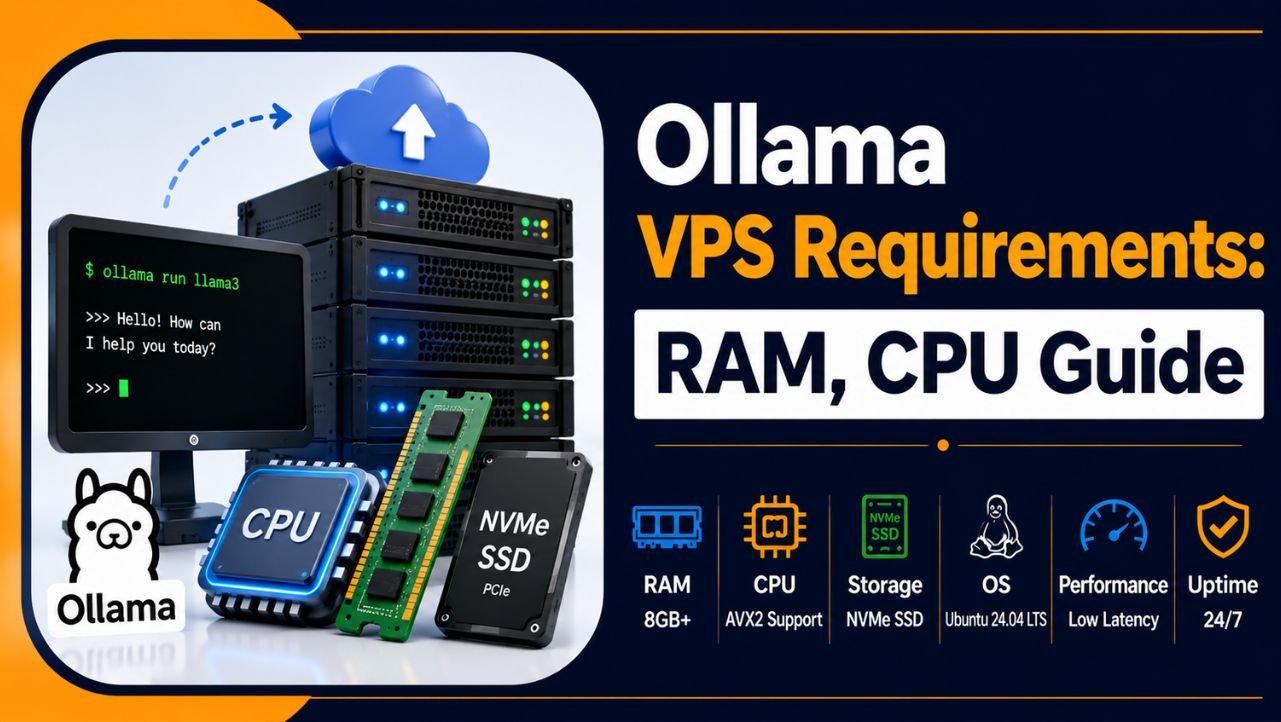
In this guide, I’ve told you the exact Ollama VPS requirements: how much RAM, CPU power, storage and what operating system you actually need to run Ollama on VPS successfully with zero latency and 24/7 online.
See! The goal is simple. You buy the right plan the first time and Ollama runs smoothly from day one.
Let’s get started right away!
Ollama VPS Requirements: At a Glance
Here is the short answer to your query before we start.
Ollama runs on a VPS with a minimum of 8 GB RAM, a 64-bit CPU with AVX2 support and around 10 GB of free disk for one model. That covers small models.
For smooth daily use of a 7B or 8B model, target 16 GB RAM, 4 to 8 CPU cores and 40 GB or more of NVMe SSD storage.
| Requirement | Bare Minimum | Comfortable (7B to 8B) |
|---|---|---|
| RAM | 8 GB | 16 GB |
| CPU | 2 cores, AVX2 | 4 to 8 cores, AVX2 |
| Storage | 10 GB NVMe SSD | 40 GB+ NVMe SSD |
| GPU | Optional | Optional |
| Operating System | 64-bit Linux | Ubuntu 24.04 LTS |
Please Note:
- A GPU is optional.
- Most cloud VPS plans run Ollama on the CPU alone.
What Is Ollama? Why Run Ollama on a VPS
Ollama is a free tool that lets you download and run large language models on your own server (It can be your personal computer or a server that runs 24/7).
A large language model, often written as LLM, is the kind of AI that powers chat assistants. Ollama pulls the model, loads it into memory and gives you a simple command line and a local API to chat with it.
You own the whole thing. Zero monthly token bills, zero data leaving your server.
That control is the reason so many users self-host their AI in 2026.
Running Ollama on Laptop Vs Running Ollama on VPS: Which is Better?
Running Ollama on your laptop is really a mess.
See! Your laptop sleeps, drops Wi-Fi, at times crashes due to heavy load and gets closed at the end of the day. A model that dies out every time you shut the lid of the machine is useless for a real project.
A VPS, which is also known as Virtual Private Server, is a slice of a powerful physical server in a data center that stays on with full power backup 24 hours a day, never goes down.
| Ollama on Laptop | Ollama on VPS |
| Can crash due to limited RAM and CPU | Never crashes! Offers one-click resource scaling |
| Sleeps at regular interval | Never Sleep! Remains always On! Like your heart beat. |
Along with that, VPS gives you a dedicated IP address, a fixed API endpoint your apps can call at any hour of the day and steady performance your laptop cannot match.
On a flat-rate VPS you pay one monthly fee, so running Ollama 24/7 costs the same as leaving it idle.
| Please Note: Every recommendation in this guide comes from real deployments my team has run and tested. I have kept the numbers practical, so they hold true on any VPS host you choose. |
The One Rule That Decides Everything: RAM Comes First
Before we break down each spec for running Ollama successfully, first learn the single rule that saves you money.
The entire model has to fit inside your server’s RAM to run. That is the important gate.
Too little memory and the model refuses to load at all, no matter how many CPU cores you paid for. Get the RAM right and a modest, affordable VPS runs Ollama well.
So we start every plan with memory, then tune speed with CPU and storage. Memory first, always.
Buy the Right VPS hosting for Ollama
I honestly recommend YouStable VPS for Ollama and there is a reason why I do so. Personally, I have run Ollama on plenty of hosts and the reason I point my own readers to YouStable VPS is simple: the hardware and access lines up with exactly what Ollama asks for.
Here is what makes the fit right:
- AMD EPYC processors: Ollama leans on the CPU for inference, and these are exactly the modern 64-bit chips with the AVX2 support that Ollama wants. That means faster words-per-second on the same model.
- Pure NVMe SSD storage: Every model loads from disk into memory each time it starts. On the NVMe SSD storage here, an 8B model loads in a few seconds instead of the minutes an old hard drive would take. Your AI feels instant, not broken.
- 99.9% uptime: A self-hosted model is only useful when it stays reachable. High uptime keeps your API endpoint live around the clock for your apps and your team.
- Full admin and root access: Ollama installs with a single command that needs root. YouStable gives you full root plus secure SSH access, so you log in, paste the install script, and you are running a model in a couple of seconds.
- Dedicated CPU and RAM: Your memory and cores are yours alone, so the model that fits keeps performing steadily even under load, with zero noisy-neighbour slowdowns.
- Custom OS support: You can pick Ubuntu, the smoothest operating system for Ollama, straight from the setup.
- Scalable resources plus 24/7 human support: Start small, then bump your RAM the moment you want a bigger model. Real support answers at any hour when you need a hand.
Put together, that covers every line on the Ollama requirements checklist: root access, an AVX2-capable CPU, fast storage, and enough memory that scales with your model.
Now, the question is which YouStable VPS plan to pick for each model? Lemme answer that in a very easy manner.
Ollama RAM Requirements by Model Size
Model size is measured in billions of parameters, written as 3B, 7B, 13B, and so on.
An important rule: Always budget roughly 0.7 GB of RAM per billion parameters at Ollama’s default 4-bit setting, then add about 2 GB for context and 1 GB for the operating system.
Here is how that plays out across YouStable VPS plans.
Small Models (1B to 3B): 8 GB RAM
These tiny models, like Llama 3.2 3B or Gemma 3B, are the friendliest place to start.
They load on an 8 GB VPS with room to spare and reply quickly, around 15 to 25 words per second on a decent CPU. Great for learning, simple chat, classification, and light automation.
The vPopular plan of YouStable (4 CPU, 8 GB RAM, 120 GB NVMe) runs these comfortably. On a tighter budget, vProfessional (2 CPU, 6 GB RAM) also handles small models well.
Mid-Size Models (7B to 8B): 16 GB RAM
This is the sweet spot for most people.
A 7B or 8B model, such as Llama 3.1 8B or Mistral 7B, handles chat, summarising, drafting, and question answering with real competence.
Step up to a 16 GB RAM configuration (4 or more cores). This is the sweet spot for most people, and it is a quick scale-up from vPopular or a custom build the YouStable team sets up for you.
Larger Models (13B to 14B): 16 to 24 GB RAM
Models in the 13B to 14B range answer with more nuance and depth.
The weights need around 9 GB, so 16 GB works and 24 GB gives you a bit more space for longer context and a live app. On CPU alone these run slower, so I reach for them when answer quality matters more than raw speed.
For 13B to 14B models go with a 16 to 24 GB RAM custom VPS and 4 or more dedicated cores, plus 80 GB or more of NVMe for a small model library.
Big Models (32B and 70B): 32 GB and Beyond
A 32B model wants about 32 GB of RAM to sit comfortably.
A 70B model, like Llama 3 70B, needs roughly 48 to 64 GB and is honestly not possible on a CPU-only VPS. You might see one word per second, which turns a short reply into a long coffee break. For this tier, a GPU server is the sensible route.
Ask for a 32 GB RAM build with 8 dedicated cores and 100 GB of NVMe storage. At times, it may also want 48 GB or more of RAM and honestly a GPU server is more important than CPU alone.
Please Note: YouStable is my own company, so treat this as an honest in-house recommendation. The specs above hold true on any host, and I have kept the RAM numbers matched to real Ollama requirements rather than to any single plan.
Below is a table for a small overview about what we discussed above about the specs:
| Model Size | RAM to Target | Best For | CPU-Only Speed |
|---|---|---|---|
| 1B to 3B | 8 GB | Learning, light chat | Fast (15 to 25 tok/s) |
| 7B to 8B | 16 GB | Daily chat, drafting, RAG | Usable (5 to 10 tok/s) |
| 13B to 14B | 16 to 24 GB | Higher-quality answers | Slow |
| 32B | 32 GB | Advanced reasoning, code | Very slow |
| 70B | 48 to 64 GB | Frontier-class quality | GPU advised |
Understanding Quantization: A Way to Save Your RAM
You keep seeing the word quantization, so let me make it painless. Quantization is a way of shrinking a model so it uses less memory.
The original weights are stored as 16-bit numbers. Ollama compresses them down to 4-bit numbers by default, a setting called Q4_K_M.
That single trick cuts the memory a model needs by roughly half, with only a tiny drop in answer quality most people cannot notice. This is why a 7B model fits in about 5 GB instead of 14 GB.
When you see a tag like llama3.1:8b-q4_K_M, the q4 part is telling you the compression level.
| Please Note: Ollama picks 4-bit quantization for you automatically. You do not have to configure anything to get these memory savings. The figures across this guide assume this default 4-bit setting. |
Ollama CPU Requirements: Cores, Clock Speed, and AVX2
What does AVX2 mean and why does it matter? AVX2 is a feature built into modern processors that speeds up the heavy math a language model does.
It is known that almost every VPS sold since 2015 has it. You only run into trouble on very old or unusual hardware.
Ask your host, or check the plan details, to confirm the CPU is 64-bit with AVX2.
How Many vCPU Cores You Actually Need
For a 7B or 8B model on CPU, 4 to 8 cores is the practical range.
More cores speed up replies, but the gains flatten out after about 12 to 16 cores. A vCPU, short for virtual CPU, is a share of a physical processor core assigned to your VPS.
So 4 vCPU means your server gets four of these shares.
Shared vCPU vs Dedicated vCPU
Budget VPS plans give you shared vCPU, where your cores are pooled with other customers. That works fine for development and background jobs.
Dedicated vCPU plans reserve the cores for you alone, giving steadier speed under load. For a production API that many people hit at once, dedicated cores earn their higher price.
Ollama Storage Requirements: Disk Space and Why NVMe Matters
Storage decides two things!
- How many models you can keep
- How fast each one loads.
Get the size and the drive type right, and Ollama feels quick from the first command. Let’s check out the Storage requirements and related things:
How Much Disk Space Each Model Takes
Models are large files that live on your disk. Here is a rough sense of the sizes: a 7B model is about 4 to 5 GB, a 34B model is around 19 GB, and a 70B model is close to 39 GB. The Ollama program itself is tiny, about 300 MB.
For one model, 10 GB of free space is the floor. Planning to collect a few models to compare them? Set aside 50 to 100 GB so you are not deleting and re-downloading all the time.
Why You Want NVMe SSD, Not a Hard Drive
Every time Ollama starts a model, it reads the whole file from disk into memory. On a fast NVMe SSD that takes 3 to 5 seconds.
On an old mechanical hard drive it can take one to three minutes, which makes the AI feel broken.
Pick a VPS with NVMe SSD storage. An NVMe SSD is the fastest common type of solid-state drive. This one choice changes how responsive your whole setup feels.
Do You Need a GPU to Run Ollama on a VPS
Short answer: You do not need one for small and mid-size models.
This surprises people, so let me be very clear. Ollama runs happily on the CPU alone and a well-chosen CPU VPS handles 7B and 8B models at a sensible pace.
A GPU, which is a graphics chip built to speed things up a lot: a 7B model can jump from 8 words per second to 40 or more. The thing is that standard cloud VPS plans do not include a GPU and GPU servers cost considerably more.
MY RULE: Start on a CPU VPS for models up to 8B >> Move to a GPU server only when you need a 30B-plus model or fast replies for many users at once.
| Please Note: A CPU-only VPS runs every model in this guide. A GPU changes speed, not what is possible. For most self-hosted projects, my team finds a solid CPU box does the job at a fraction of the cost. |
Operating System Requirements for Ollama on a VPS
Ollama runs on Linux, macOS, and Windows.
On a VPS you almost always want Linux, and I recommend Ubuntu 24.04 LTS. It has the smoothest driver support, the largest community, and the clearest install steps: one command sets everything up.
The install script also registers Ollama as a background service, so it starts automatically and keeps running after you log out.
Any modern 64-bit Linux works, though Ubuntu saves you the most time.
Bandwidth and Download Considerations
One point newcomers miss: models are big downloads.
Pulling a 7B model means fetching 4 to 5 GB the first time. Most VPS providers give generous bandwidth, so this is rarely a problem, though slow connections can make that first pull take a while.
The reassuring part is that Ollama resumes an interrupted download, so a dropped connection does not force you to start over.
After the first pull, the model sits on your disk and loads instantly from then on.
Recommended VPS Specs for Ollama by Use Case
Now the part you came for.
Here are the VPS specs I point people toward, matched to what they actually want to do. Find your row and you have your plan.
| Use Case | RAM | CPU | Storage | Model Tier |
|---|---|---|---|---|
| Learning and testing | 8 GB | 2 to 4 cores | 20 GB NVMe | 1B to 3B |
| Solo developer, small app | 16 GB | 4 cores | 40 GB NVMe | 7B to 8B |
| Small team, production API | 32 GB | 8 dedicated | 80 GB NVMe | 13B to 14B |
| Heavy or advanced models | 48 GB+ or GPU | 8+ or GPU | 100 GB+ NVMe | 32B to 70B |
For most readers, the middle row is the honest sweet spot: 16 GB RAM, 4 cores, and NVMe storage runs a capable 8B model with room for a real app.
That is the plan I recommend most often. My team runs several of these setups on YouStable VPS plans, which ship with NVMe SSD storage and full root access, so you can install Ollama in a couple of commands.
| Disclaimer: YouStable is my own company. I have kept every spec recommendation in this guide vendor-neutral, so the numbers stay true on any host you pick. |
How to Confirm a VPS Can Run Ollama Before You Buy
Run through this quick checklist before you click purchase. It takes two minutes and saves you from a plan that will not do the job.
- Match the RAM: Confirm the memory fits your target model from the table above. This is the deal-breaker.
- Check the storage type: Insist on NVMe SSD, not a mechanical hard drive.
- Confirm the CPU. It should be 64-bit with AVX2 support. Ask support when the plan page stays silent.
- Choose the operating system: Pick Ubuntu 24.04 LTS during checkout for the smoothest setup.
- Pick a flat-rate plan: Around-the-clock use then costs the same as idle time.
- Get full root access. You need it to run the one-line Ollama install.
Once your VPS meets these requirements, follow this guide to install and run Ollama on a VPS correctly and get your AI model running without unnecessary setup issues.
Common Mistakes to Avoid When Choosing a VPS for Ollama
I have watched people burn money on the wrong VPS more times than I can count. These are the slip-ups that irritates newcomers most, so learn from them first:
- Buying cores over memory: A server with many cores and too little RAM runs zero models. Memory first, always.
- Ignoring the storage type: A hard drive makes every model load painfully slow. Demand NVMe SSD.
- Picking too big a model on day one: Start with a 3B or 8B model, get your project working, then size up only when you must.
- Assuming you must have a GPU: For models up to 8B, a CPU VPS is cheaper and does the job.
FAQs
How much RAM do I need to run Ollama on a VPS?
For a small 1B to 3B model, 8 GB of RAM is enough. For a capable 7B or 8B model, target 16 GB. For 13B to 14B models, plan for 24 GB, and for 32 GB and larger, 32 GB or more.
Can I run Ollama on a VPS with zero GPU?
Yes. Ollama runs on the CPU alone, and a good CPU VPS handles models up to 8B at a usable speed. A GPU makes replies faster, but it is optional. Standard cloud VPS plans do not include a GPU and for most self-hosted projects a CPU box does the job at a much lower cost.
What CPU does Ollama need on a VPS?
A 64-bit processor with AVX2 support, which almost every VPS sold in recent years has. For a 7B or 8B model, 4 to 8 cores gives a comfortable pace. More cores help up to a point, then the benefit flattens out around 12 to 16 cores.
How much disk space should my VPS have for Ollama?
For one 7B model, 10 GB of free space is the floor and 40 GB is comfortable. Each 7B model is about 4 to 5 GB, a 34B model is around 19 GB, and a 70B model is close to 39 GB.
Which operating system is best for Ollama on a VPS?
Ubuntu 24.04 LTS. It offers the smoothest setup, the widest community support, and a one-command install. Ollama also runs on other modern 64-bit Linux systems, though Ubuntu saves you the most time and trouble.
How fast is Ollama on a CPU-only VPS?
For a 7B model, expect roughly 5 to 10 words per second on a modern multi-core CPU. Smaller 3B models feel snappy at 15 to 25 words per second. Larger 13B-plus models slow down sharply, which is why a GPU helps once you go big.
Does running Ollama 24/7 on a VPS cost extra?
On a flat-rate VPS, running Ollama around the clock costs the same as leaving it idle. You pay one monthly fee with zero per-request charges, which is a major saving over cloud AI APIs that bill per token.
What is the cheapest VPS that runs Ollama well?
YouStable VPS for Ollama is the cheapest VPS that runs Ollama well only for $3.67 per month starting price. An 8 GB RAM plan with NVMe SSD and a modern multi-core CPU runs small models and light 7B work for a low monthly cost.
Final Thoughts: Picking the Right VPS for Ollama
The right VPS for Ollama comes down to one honest question: which model do you want to run?
Answer that, match the RAM from the table, add NVMe storage and a modern multi-core CPU, and you are set.
For most people, a 16 GB RAM VPS with 4 cores and NVMe SSD is the plan that balances cost and capability, running a capable 8B model with room to spare.
Start small, get your project working, then size up only when a real need appears. That approach has saved my team money on every deployment over the past 30+ months, and it will do the same for you.
Match your model to the RAM table, pick NVMe storage, and launch Ollama on a VPS that fits your budget.
| Please Note: The speed figures in this guide come from my team’s own testing across many servers and are approximate. Your exact words-per-second will vary with the CPU model, RAM speed, and context length you use. |