

To set up Webmin on a Linux server, update your OS, add Webmin’s official repository and GPG key, install the webmin package via apt or dnf, open TCP port 10000 in your firewall, and access https://server-ip:10000 to log in with a root or sudo user. Then harden Webmin with SSL, 2FA, and IP allowlists.
In this guide, you’ll learn how to set up Webmin on a Linux server the right way—covering Ubuntu/Debian and CentOS/Rocky/AlmaLinux, firewall rules, SELinux, SSL with Let’s Encrypt, two-factor authentication, and essential hardening. As a web hosting professional, I’ll share practical steps that work on real production servers and keep security front and center.
What is Webmin (and Why Use it)?
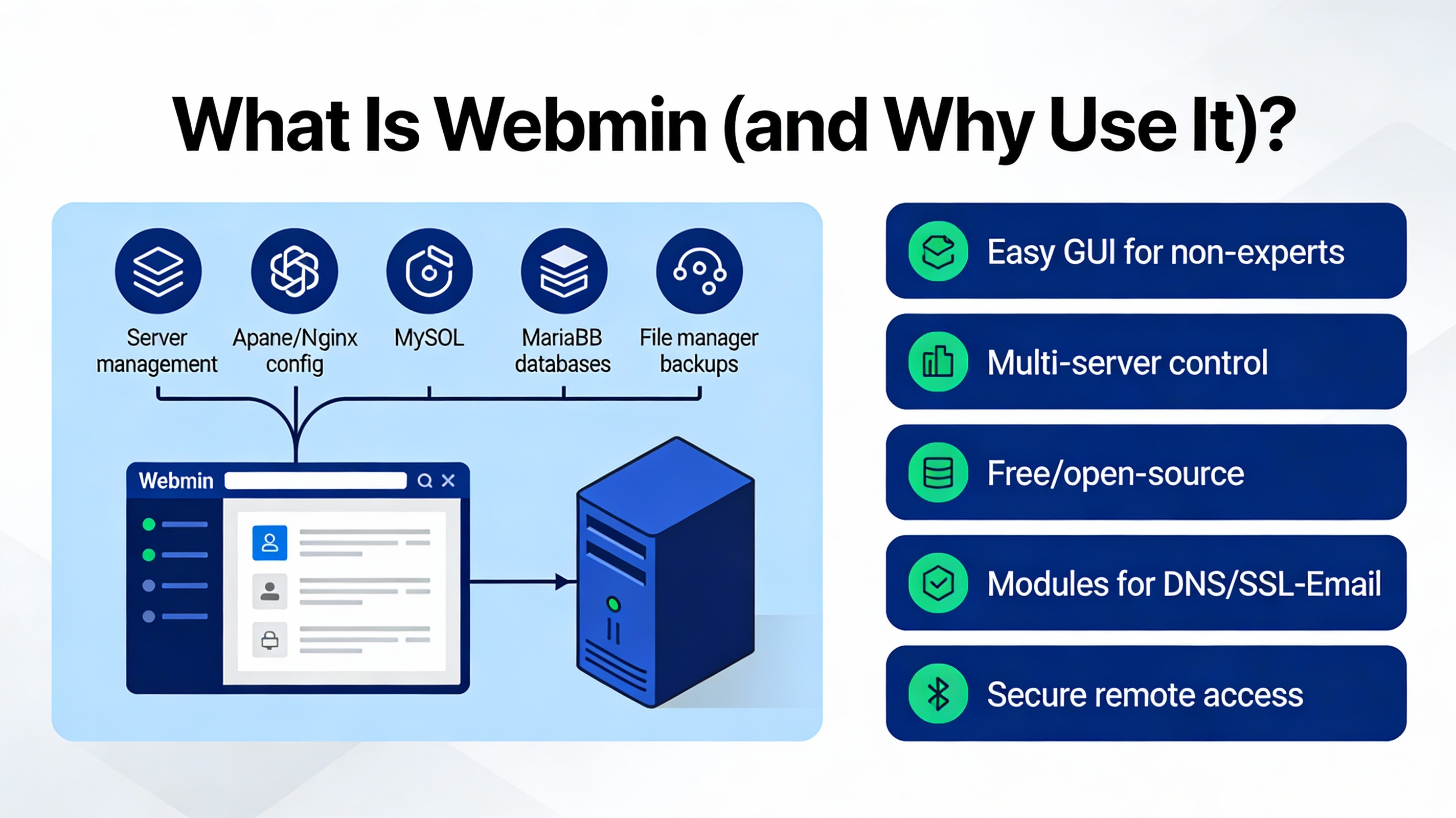
Webmin is a lightweight, browser-based system administration panel for Linux. It lets you manage users, packages, services, firewalls, cron jobs, Apache/Nginx, DNS, databases, and more—without SSHing in for every task. It’s free, modular, fast, and perfect for VPS and dedicated servers when you want control without cPanel licensing.
Prerequisites
- A fresh or existing Linux server: Ubuntu 22.04/24.04, Debian 11/12, or Rocky/AlmaLinux 8/9 (CentOS Stream supported).
- Root or a sudo-enabled user.
- Firewall access (UFW or firewalld) and, for RHEL-based, SELinux tools.
- Optional but recommended: a domain or subdomain pointed to your server for HTTPS via Let’s Encrypt.
- Updated packages and security patches.
Install Webmin on Ubuntu/Debian
Use the official repository with a modern signed-by key method (avoids deprecated apt-key). The commands below work on Ubuntu 22.04/24.04 and Debian 11/12.
Add the Webmin repository and GPG key
sudo apt update
sudo apt install -y curl gnupg apt-transport-https ca-certificates

# Import the Webmin GPG key (dearmored keyring)
curl -fsSL https://download.webmin.com/jcameron-key.asc | sudo gpg --dearmor -o /usr/share/keyrings/webmin.gpg

# Add the Webmin APT repository
echo "deb [signed-by=/usr/share/keyrings/webmin.gpg] https://download.webmin.com/download/repository sarge contrib" | sudo tee /etc/apt/sources.list.d/webmin.list

# Update and install Webmin
sudo apt update
sudo apt install -y webmin
Verify and enable the service
sudo systemctl enable --now webmin
sudo systemctl status webmin
By default, Webmin listens on TCP port 10000 with SSL enabled (self-signed). Access it via https://your-server-ip:10000 after opening the firewall.
Install Webmin on CentOS/Rocky/AlmaLinux
On RHEL-based distributions, create a YUM/DNF repo file and install. If SELinux is enforcing, allow the Webmin port.
Add the repository and install
sudo dnf install -y curl policycoreutils-python-utils # semanage is in this package
sudo tee /etc/yum.repos.d/webmin.repo >/dev/null <<'EOF'
[Webmin]
name=Webmin Distribution Neutral
baseurl=https://download.webmin.com/download/yum
enabled=1
gpgcheck=1
gpgkey=https://download.webmin.com/jcameron-key.asc
EOF

sudo dnf makecache
sudo dnf install -y webmin
sudo systemctl enable --now webmin
Allow Webmin through SELinux (if enforcing)
# Allow TCP 10000 for the http_port_t type
sudo semanage port -a -t http_port_t -p tcp 10000 2>/dev/null || \
sudo semanage port -m -t http_port_t -p tcp 10000
Open Firewall Port 10000
UFW (Ubuntu/Debian)
sudo ufw allow 10000/tcp
sudo ufw status
firewalld (RHEL-based)
sudo firewall-cmd --permanent --add-port=10000/tcp
sudo firewall-cmd --reload
sudo firewall-cmd --list-ports
NFTables (advanced/manual)
# Example (adjust to your nftables ruleset)
sudo nft add rule inet filter input tcp dport 10000 ct state new accept
sudo nft list ruleset | grep 10000
Access Webmin and First Login
- URL:
https://SERVER_IP:10000orhttps://FQDN:10000(browser will warn about a self-signed certificate). - Login user: the system’s root account or a sudo-enabled user (e.g., ubuntu or admin on Ubuntu). Webmin authenticates against the OS users.
- If root is locked on Ubuntu, simply log in with your sudo user.
After login, you’ll see the dashboard with system stats and modules. Before you start using modules in production, secure the panel with HTTPS, IP rules, and 2FA.
Secure Webmin: SSL, 2FA, Port, and IP Allowlist
Use Let’s Encrypt for a trusted HTTPS certificate
- Prerequisites: a domain/subdomain (e.g., panel.example.com) pointing to your server’s public IP and port 80 reachable.
- In Webmin: Webmin Configuration > SSL Encryption > “Let’s Encrypt”.
- Set Hostnames: your FQDN (e.g., panel.example.com).
- Web server root for validation: pick “Standalone” or specify the default document root if Apache/Nginx is serving the domain.
- Request Certificate and enable auto-renew (Webmin handles renewals).
Change the default port (optional)
Security by obscurity isn’t a complete defense, but moving away from 10000 reduces noise from bots.
# Edit miniserv configuration
sudo nano /etc/webmin/miniserv.conf
# Change:
# port=10000
# to, for example:
# port=10443
# Save and restart:
sudo systemctl restart webmin

# Update firewall and SELinux (if applicable)
sudo ufw allow 10443/tcp  # or firewalld/nftables equivalent
sudo semanage port -a -t http_port_t -p tcp 10443 2>/dev/null || \
sudo semanage port -m -t http_port_t -p tcp 10443
Restrict access by IP
- Webmin Configuration > IP Access Control > “Only allow from listed addresses”.
- Add trusted office/home IPs or VPN subnets (e.g., 203.0.113.10, 10.0.0.0/24).
Enable Two-Factor Authentication (TOTP)
- Webmin > Webmin Users > Select your admin user > “Two-factor Authentication”.
- Enable TOTP, scan the QR code using an authenticator app, and confirm the code.
Brute-force protection with Fail2Ban
Create a Fail2Ban filter for Webmin’s miniserv error log and a jail to ban repeated failures.
# Create filter
sudo tee /etc/fail2ban/filter.d/webmin-auth.conf >/dev/null <<'EOF'
[Definition]
failregex = ^.*Authentication failed for .* from <HOST>.*$
ignoreregex =
EOF

# Create jail
sudo tee /etc/fail2ban/jail.d/webmin-auth.local >/dev/null <<'EOF'
[webmin-auth]
enabled  = true
port     = 10000
filter   = webmin-auth
logpath  = /var/webmin/miniserv.error
maxretry = 5
bantime  = 3600
EOF

sudo systemctl restart fail2ban
sudo fail2ban-client status webmin-auth
Everyday Tasks You Can Do in Webmin
- Manage packages and updates (APT/DNF) with “Software Package Updates”.
- Control services and daemons (systemd) under “System > Bootup and Shutdown”.
- Create users, groups, and SSH keys in “System > Users and Groups”.
- Configure Apache/Nginx virtual hosts and TLS.
- Schedule cron jobs and monitor system logs.
- Manage MariaDB/MySQL and PostgreSQL databases via their modules.
Troubleshooting Webmin
Can’t connect to https://IP:10000
- Check the service:
sudo systemctl status webmin - Is the port listening?
sudo ss -ltnp | grep 10000 - Open the firewall (UFW/firewalld/nftables) and, on RHEL, allow via SELinux.
Certificate warnings
- Self-signed is expected initially. Install Let’s Encrypt via Webmin Configuration > SSL Encryption.
- Ensure the domain resolves to your server and port 80 is reachable for HTTP validation.
Login fails for root on Ubuntu
- Root is often locked; log in with your sudo user (e.g., ubuntu) instead.
- If you must enable root (not recommended), set a password with
sudo passwd root.
Quick service commands
sudo systemctl restart webmin
sudo tail -f /var/webmin/miniserv.error
sudo grep -i failed /var/webmin/miniserv.error
Uninstall Webmin (If Needed)
Ubuntu/Debian
sudo apt remove --purge -y webmin
sudo rm -f /etc/apt/sources.list.d/webmin.list /usr/share/keyrings/webmin.gpg
sudo apt autoremove -y
sudo rm -rf /etc/webmin /var/webmin
RHEL-based
sudo dnf remove -y webmin
sudo rm -f /etc/yum.repos.d/webmin.repo
sudo rm -rf /etc/webmin /var/webmin
Performance and Security Best Practices
- Keep the OS and Webmin updated regularly.
- Disable unused Webmin modules.
- Restrict Webmin to a private interface/VPN where possible.
- Back up Webmin configuration:
/etc/webmin/and logs:/var/webmin/. - Consider a reverse proxy (Nginx) with HTTP/2 and strict TLS ciphers if exposing to the public internet.
Deploying Webmin with YouStable
If you’re hosting on a YouStable VPS or dedicated server, our team can pre-harden your OS, open the right firewall rules, and set up Webmin with a valid Let’s Encrypt SSL and 2FA from day one. You get DDoS-protected networks, fast NVMe storage, and support that understands panels, not just tickets.
FAQs: Setup Webmin on Linux Server
Is Webmin safe to use on a public server?
Yes, if you secure it properly: use HTTPS (Let’s Encrypt), enable 2FA, change the default port, restrict IPs, and apply system updates. Consider placing Webmin behind a VPN or reverse proxy for added safety.
What port does Webmin use, and can I change it?
Webmin listens on TCP 10000 by default. You can change it in /etc/webmin/miniserv.conf (port=) and restart the service. Don’t forget to update your firewall and, on RHEL-based systems, allow the port in SELinux.
How do I install Webmin on Ubuntu 22.04 or Debian 12?
Add the official Webmin repo with a signed-by key, run apt update, and install the webmin package. The commands provided above use the modern keyring approach for secure APT installations.
Does Webmin support Let’s Encrypt certificates?
Yes. Point a domain to your server, then use Webmin Configuration > SSL Encryption > Let’s Encrypt to request and auto-renew certificates for a trusted HTTPS connection.
Webmin vs. Cockpit or cPanel: which should I choose?
Webmin is lightweight and modular, great for system-level admin without licensing costs. Cockpit focuses on server monitoring and containers with a modern UI. cPanel is commercial with rich hosting features for shared hosting. Choose based on your stack, budget, and familiarity.



