

While browsing the internet or managing a website, you may sometimes face errors that stop a page from loading properly. Common examples include DNS errors, 404 errors, and one frustrating security related issue called ERR_SSL_PROTOCOL_ERROR.
If you’re seeing this error and wondering what it means or how to fix it, you’re in the right place. In this guide, you’ll learn what ERR_SSL_PROTOCOL_ERROR is, why it happens, and how to fix it using practical, proven methods.
Before jumping into solutions, let’s first understand how this error appears in different browsers and what a secure connection actually means.
How ERR_SSL_PROTOCOL_ERROR Appears in Different Browsers
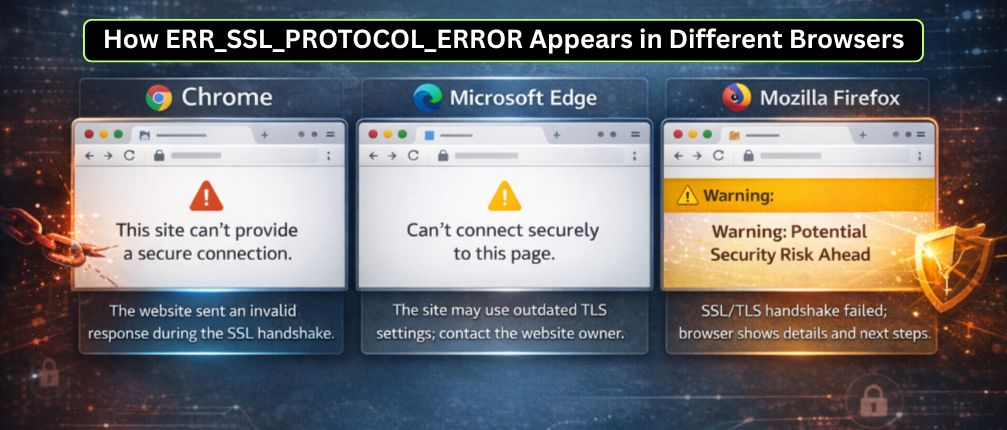
The error message can look slightly different depending on the browser you’re using, but the core issue remains the same: the browser cannot establish a secure connection with the website.
1. Google Chrome
In Google Chrome, the error message is usually direct and clear. You’ll see:
“This site can’t provide a secure connection.”
This indicates that the website sent an invalid response during the SSL handshake process.
2. Microsoft Edge
On Microsoft Edge, the message appears as:
“Can’t connect securely to this page.”
Edge may also mention that the website is using outdated TLS security settings and recommend contacting the website owner if the problem continues.
3. Mozilla Firefox
In Mozilla Firefox, the error appears as a security warning:
“Warning: Potential Security Risk Ahead.”
Firefox often provides additional details explaining why the secure connection failed and what steps you can take.
What Is a Secure Connection?
We often talk about secure connections, but what do they actually mean?
A secure connection ensures that data transferred between your browser and a website is encrypted and protected. This prevents attackers from intercepting or reading sensitive information.

HTTP vs HTTPS
- HTTP transfers data without encryption
- HTTPS uses SSL/TLS protocols to encrypt data
The “S” in HTTPS stands for Security.
To enable HTTPS, a website must have a properly installed SSL certificate. This certificate encrypts communication and confirms that the website is legitimate.
You may have noticed a padlock icon next to the website URL. This icon means:
- The SSL certificate is valid
- The connection is secure
- Data is encrypted
If the SSL certificate is invalid, expired, or misconfigured, the browser blocks the site and shows the ERR_SSL_PROTOCOL_ERROR.
In the past, only websites handling sensitive information used HTTPS. Today, almost all websites are expected to be HTTPS enabled. Although SSL certificates used to be expensive, most hosting providers now offer them for free.
Review Recent Changes on Your Site
Before fixing the error, it’s important to review what has changed recently.
Ask yourself:
- Did you change hosting providers?
- Did you install or renew an SSL certificate?
- Did you update DNS settings?
- Did your hosting provider modify server settings?
The error doesn’t always originate from your device. It can also occur due to server side or website configuration issues.
For example, DNS related changes may trigger other errors such as DNS_PROBE_FINISHED_NXDOMAIN. Similarly, incorrect SSL installation after DNS propagation can cause ERR_SSL_PROTOCOL_ERROR.
Identifying recent changes often helps pinpoint the root cause quickly.
10 Ways to fix ERR_SSL_PROTOCOL_ERROR
Now that you know the basics of the ERR_SSL_PROTOCOL_ERROR error, we should move on to how to get rid of it. This article will show you eleven ways to fix the ERR_SSL_PROTOCOL_ERROR. So let’s get down to business and start working on the issue.
Step 1. Clear SSL State

Once a secure connection is established, your browser or browser cache saves up the SSL certificates it recently encountered. This helps run the website at a more incredible speed which is pretty helpful.
So as we said, your browser storing the SSL certificate is great for reducing the website’s loading time. If this weren’t possible, HTTPS would take the entire security test every time you try to visit a particular website, which would not be very convenient.
The problems might have arisen when you migrated the website, set up the DNS servers, and installed SSL certificates.
Once you are done with the DNS server settings and are ready to access a website with a secure connection type and the website still does not open, this could be due to some faulty or outdated SSL certificate stored in your browser’s cache.
So the simplest way to access the website you want here would be to clear your browser’s SSL slate. So that the outdated or faulty version of the SSL certificate is removed and you get access to the updated website.
But if this method does not work for you, do not break your head and move on to the following process.
Step 2. Verify SSL Certificate
Another thing you could do is verify if the SSL certificate at hand is valid or not. This could be an issue that might arise when the SSL generated after propagation of DNS servers occurs but not in a proper way and the SSL is not connected to the correct domain.
The process differs in different hostings to test whether your SSL certificate is in order, and some also have built in SSL testers. But if you do not have one pre-installed, we could suggest you use Qualys SSL Labs SSL tester.
Through this SSL tester, you can perform a site wide scan which will tell you if the SSL certificate is valid or not and if it is creating any problems.
All you have to do to perform the test is enter your Hostname and click the Submit button. Once Qualys is done scanning the site, you will be displayed a scan report.

If there’s something wrong after the scan, you will know immediately; if not, you may move on to the following method.
Step 3. Disabling QUIC Protocol
QUIC is a type of security protocol that helps browsers such as Chrome access websites most safely but can sometimes become frustrating.
To disable the QUIC protocol, you may just copy paste the following code in your address bar:
chrome://flags/#enable-quic

Now you may set the Experimental QUIC Protocol to Disabled and retry to access the website. If you can access it, all good, but if not, you may move on to the following method.
Step 4. Check the System Date & Time
Now you may move ahead with checking for the cause of ERR_SSL_PROTOCOL_ERROR at your local computer level. To do so, you may start by checking if your operating system’s date and time are correctly tested. Otherwise, you may face problems while authenticating your SSL certificate.
As you may know, SSL certificates have a validity date. If it does not match the operating system, you might have problems making secure connections, as the local system is also involved in this process.
On Windows 10, click Windows Key + X and select System from the context menu to see the Settings.
Search for Time and then select change time and date. Check for the correct date and time. If this works, you can access the website; if not, you may try the following method.
Step 5. Clear Browser Cache and Cookies
It is suggested that you may clear the browser cache and also cookies. As you may know, that cache saves up a lot of information about the websites you visit to save time every time you revisit the same website. The only problem here is that you may again have to log in to all the sites you have been logged in to.

If you can access the website after this, great, but if you cannot, try the following method.
Step 6. Disable Browser Extensions
Now we will try the trial and error method. If you have many browser extensions, this may be causing the ERR_SSL_PROTOCOL_ERROR. So we will try to disable each one of them.
Make sure you have a backup ready before trying any of these methods. So now, you have to disable every extension one by one and try to re-access the website after you disable each extension.

If you disable a particular extension, you can access the website and now know where the problem lies. If that does not work, try the following method.
Step 7. Update Browsers to Latest Version
As we discussed earlier, the ERR_SSL_PROTOCOL_ERROR error might be caused due to an outdated SSL certificate. The same is true when it comes to the browser you are using. So here, we will try to update your browser to the latest version.
This is necessary as the newer browsers are built better and are clear of any bugs they encounter. So if there is a problem, your latest browser version automatically eliminates it, saving you the effort.
Step 8. Update Your Operating System
We know it is not very common to update your operating system for everyone. But it is advised to do so for your good if you haven’t in a long time.
Most operating systems get automatically updated, such as Windows 10, but if that setting is not on your system, you may want to update your operating system manually.
Temporarily Disable Antivirus and Firewall
It is always advised to have a safety net for your content; it must be the first step you take. However, sometimes these safety rules might come in the way of your accessing certain websites.
We suggest you keep a backup of your data ready so that you may just retrieve your backup data even if something happens in the window where your firewalls and antivirus are disabled.
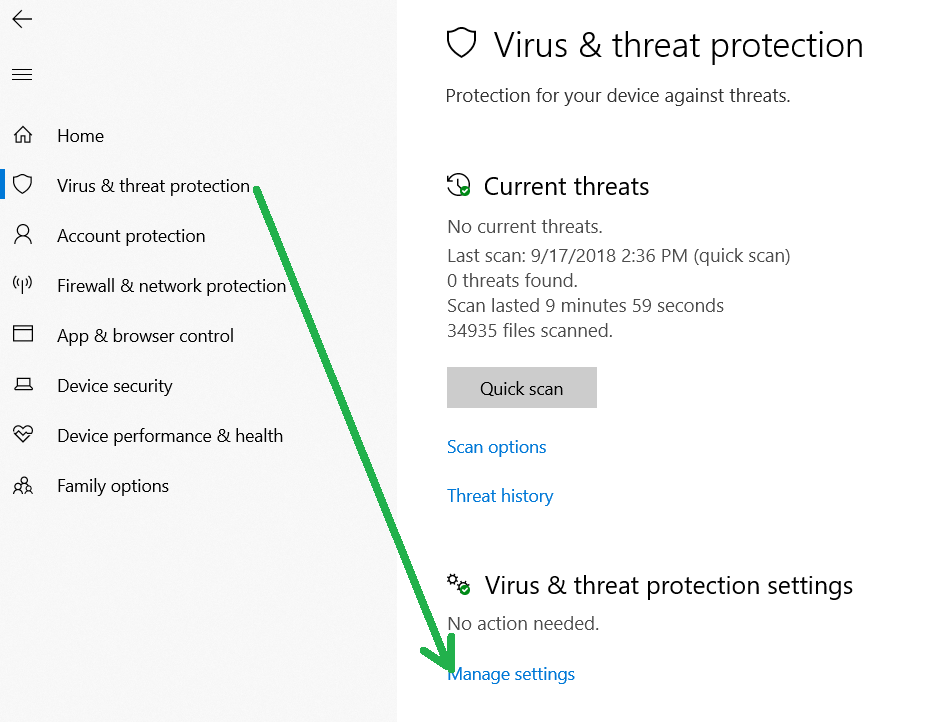
To check whether your antivirus or firewall has mistakenly blocked the website you want to access, you may temporarily disable them and try to access them. If this does not work, get your firewall and antivirus back to work as soon as possible because you do not want to keep your data unsafe for long.
Step 9. Check Server Log for Error Messages
Since you have reached this method, we assume that the ERR_SSL_PROTOCOL_ERROR has not yet been resolved, which means that the problem is not just on the surface.
In such situations, checking your Server log for any recent changes would be best, which will also tell you about any recent errors.
Step 10. Enabling all SSL/TLS Versions (Last Resort)
This is the last method to get the ERR_SSL_PROTOCOL_ERROR error out of your way, but we do not suggest it as it might be hazardous. To enable all the SSL/TLS versions, you may:
- Click on the three dots on the top right corner of your browser and choose the settings.
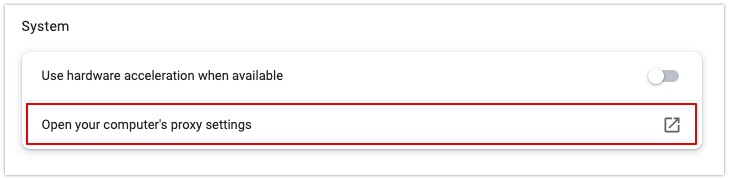
- Select the Advanced settings option and choose the System option.

- Click Open your Computer’s Proxy Settings.
- Open the Advanced section, select Security, and check all TLS/SSL versions.
- Now try to access the website.
If Everything Else Fails
If none of the above methods helps you, it would be best to contact an expert or your hosting service provider if you own a website. But before doing that, make sure you go through most of the methods if not all.
FAQs
What is ERR_SSL_PROTOCOL_ERROR in simple words?
ERR_SSL_PROTOCOL_ERROR means your browser is unable to create a secure HTTPS connection with a website. This usually happens due to SSL certificate issues, browser problems, or incorrect system settings that prevent proper encryption.
Is ERR_SSL_PROTOCOL_ERROR caused by my computer or the website?
It can be caused by either side. Sometimes the issue is on your device (browser cache, wrong date/time, extensions), and other times it’s due to server side problems like an expired or misconfigured SSL certificate on the website.
Can an expired SSL certificate cause ERR_SSL_PROTOCOL_ERROR?
Yes. If a website’s SSL certificate is expired, invalid, or not properly linked to the domain, browsers will block the connection and show the ERR_SSL_PROTOCOL_ERROR to protect users.
Does clearing browser cache really fix ERR_SSL_PROTOCOL_ERROR?
In many cases, yes. Browsers store SSL and website data in cache. If this data becomes outdated or corrupted, clearing the cache and cookies forces the browser to load fresh SSL information from the server.
Why does ERR_SSL_PROTOCOL_ERROR appear only in one browser?
This usually happens because different browsers handle SSL, cache, extensions, and security protocols differently. An outdated browser version or a conflicting extension in one browser can trigger the error while others work fine.
Is it safe to enable all SSL/TLS versions to fix this error?
Enabling all SSL/TLS versions should be considered a last resort. While it may fix compatibility issues, it can reduce security. This method should only be used temporarily and avoided on production systems.
When should I contact my hosting provider for ERR_SSL_PROTOCOL_ERROR?
You should contact your hosting provider if:
• The error persists after trying all fixes
• You recently installed or renewed an SSL certificate
• Server logs show SSL or TLS handshake errors
Hosting support can check server side SSL configuration and resolve issues faster.
Conclusion
So now we are at the end of the article that taught you how to fix the ERR_SSL_PROTOCOL_ERROR. In this article, you have looked into eleven easy ways that you could use to get rid of this error.
It is suggested that you keep a backup of your data before going through any of these methods, especially with the security settings and the last process. If you cannot perform these, you may finally connect with an expert for help.




