If n8n is not working, not starting, or failing to run workflows, you are not alone. Issues like blocked ports, Docker errors, broken webhooks, or low system resources can quickly stop your automation and waste your time. The real challenge is not just fixing the error, but understanding what actually caused it in your specific setup.
To make this simple, we analyzed the most common n8n problems across local setups, Docker, and VPS environments, based on real usage and practical troubleshooting. In this guide, you will learn exactly how to identify the issue and fix it step by step, so your workflows run smoothly without confusion or repeated failures.
Why Is n8n Not Working?
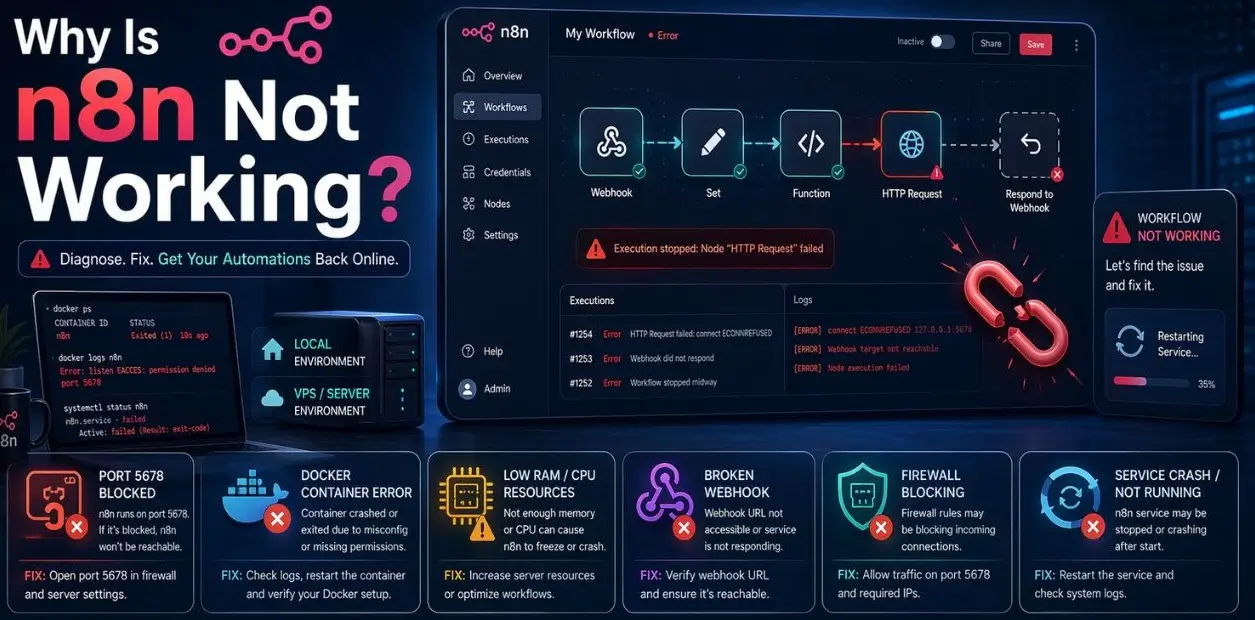
n8n usually stops working due to service issues, blocked ports, Docker errors, or limited system resources like low RAM and CPU. In many cases, workflows fail because triggers are inactive or integrations are not configured correctly.
Another important factor is your setup environment, as local systems often hit performance limits while servers may face configuration or networking issues.
Common Reasons:
- Service not running or crashed in background
- Port (5678) blocked or not exposed properly
- Docker/container misconfiguration
- Low RAM or CPU causing slow or failed execution
- Incorrect webhook or trigger setup
- API credentials or integrations not working properly
- Firewall or server network restrictions
Common Reasons Why n8n Stops Working
n8n can stop working due to several technical reasons, and most issues are linked to configuration problems, system limitations, or workflow errors. Whether you are running it locally, through Docker, or on a VPS, problems like stopped services, blocked ports, or broken integrations can interrupt automation. Identifying the exact cause helps you fix the issue quickly and keep your workflows running smoothly.
Main Reasons Behind n8n Issues
- Service Not Running Properly: If the n8n service stops or crashes in the background, workflows will not run and the dashboard may stop loading completely.
- Port Issues (5678 Blocked): Since n8n runs on port 5678 by default, a blocked or closed port can prevent you from accessing it in your browser.
- Docker or Container Errors: When using Docker, problems like container crashes, wrong configuration, or restart failures can stop n8n from working.
- Low System Resources (RAM/CPU): Limited RAM or CPU can slow down workflows or cause them to fail, especially when handling complex automations.
- Broken Triggers or Webhooks: If triggers are not active or webhook URLs are incorrect, workflows will not start even if everything else is set correctly.
- Invalid API Credentials: Incorrect or expired API keys can break integrations and stop specific workflow steps from executing.
- Firewall or Network Restrictions: Firewall settings or server restrictions can block required connections, causing workflows or access issues.
- Incorrect Environment Configuration: Missing or wrongly configured environment variables can prevent n8n from starting or running properly.
Quick Overview of Common n8n Issues
| Issue Type | What Happens | Common Cause | Quick Fix |
| Service Down | n8n not opening or running | Process stopped or crashed | Restart service (n8n start) |
| Port Blocked | Cannot access dashboard | Port 5678 closed or firewalled | Open port / check firewall |
| Docker Error | Container stops or keeps restarting | Misconfiguration or crash | Restart container / check logs |
| Low Resources | Slow or failed workflows | Low RAM or CPU | Upgrade system or use VPS |
| Trigger Issue | Workflow not starting | Inactive trigger or webhook | Re-enable trigger / fix URL |
| API Error | Integration not working | Invalid or expired API keys | Update credentials |
| Network Restriction | Requests failing | Firewall blocking traffic | Adjust firewall settings |
| Env Config Issue | n8n not starting properly | Missing or wrong variables | Fix .env or config settings |
n8n Not Starting Fix (Step-by-Step Guide)
If n8n is not starting, the issue is usually related to the service not running, missing environment variables, or configuration errors. This can happen in local setups, Docker environments, or VPS servers, and the fix depends on identifying where the process is failing. By following a step-by-step approach, you can quickly diagnose and restart n8n without unnecessary troubleshooting.
Step-by-Step Fix
- Step 1: Check if n8n is running
Run the command below to start n8n manually and see if any error appears: n8n start - Step 2: Restart the n8n service
If it was already running but stopped, restart it: pm2 restart n8n
or
systemctl restart n8n - Step 3: Check error logs
Logs help you identify the exact issue: n8n logs
or for Docker: docker logs n8n - Step 4: Verify environment variables
Make sure required variables like N8N_PORT, N8N_HOST, and database configs are correctly set. - Step 5: Check port availability (5678)
Ensure port 5678 is not blocked or used by another service: lsof -i :5678 - Step 6: Check system resources
Low RAM or CPU can prevent n8n from starting properly, especially on local machines. - Step 7: Reinstall or update n8n
If nothing works, reinstall or update: npm install n8n -g
Quick Troubleshooting
| Problem | Possible Cause | Solution |
| n8n not starting | Service stopped/crashed | Restart service |
| Error on startup | Config or env issue | Fix environment variables |
| Port conflict | Port 5678 already in use | Change or free the port |
| Docker failure | Container issue | Restart container / check logs |
| Slow or crash | Low system resources | Upgrade system or use VPS |
By following these steps, most n8n startup issues can be resolved quickly. If the problem continues, moving to a stable VPS environment can eliminate many of these errors permanently.
Also Read: Best n8n VPS Hosting Providers
n8n Not Opening in Browser (Port Fix)
If n8n is running but not opening in your browser, the issue is usually related to port configuration, firewall rules, or incorrect URL access. By default, n8n runs on port 5678, and if this port is blocked, not exposed, or not mapped correctly, you won’t be able to access the dashboard even if the service is active.
How to Fix It
- Check if n8n is running on port 5678:
Make sure the service is active and listening on the correct port. - Open port 5678 in firewall:
Allow incoming traffic for port 5678 in your server or system firewall settings. - Use the correct URL:
Access n8n using: http://localhost:5678 (local)
or
http://your-server-ip:5678 (VPS) - Verify Docker port mapping (if using Docker):
Ensure you are exposing the port correctly: -p 5678:5678 - Check if port is already in use: lsof -i :5678
If another service is using it, free the port or change n8n port. - Restart n8n service:
After making changes, restart the service to apply fixes.
Quick Fix
| Problem | Cause | Solution |
| Not opening in browser | Port blocked | Open port 5678 in firewall |
| Page not loading | Wrong URL | Use correct localhost/server IP |
| Docker access issue | Port not mapped | Use -p 5678:5678 |
| Port conflict | Port already in use | Change or free port |
| Still not working | Service issue | Restart n8n |
Fixing port and access issues usually resolves most browser-related problems quickly.
n8n Docker Not Working Fix
If n8n is not working in Docker, the issue is usually related to container crashes, incorrect configuration, or port and volume mismanagement. These problems can stop n8n from starting, cause repeated restarts, or prevent workflows from running properly, especially if environment variables or resources are not set correctly.
How to Fix It
- Check if the container is running:
Run: docker ps
If n8n is not listed, the container is stopped. - Restart the container: docker restart n8n
This fixes temporary crashes or stuck processes. - Check container logs: docker logs n8n
Logs will show exact errors like config issues or missing variables. - Verify port mapping:
Ensure correct mapping: -p 5678:5678
Without this, the browser cannot access n8n. - Check environment variables:
Make sure required variables like N8N_HOST, N8N_PORT, and database configs are properly set. - Verify volumes and data persistence:
Incorrect volume setup can cause data loss or startup issues. - Check system resources:
Low RAM or CPU can cause containers to crash or restart repeatedly.
Quick Fix
| Problem | Cause | Solution |
| Container not running | Container stopped/crashed | Restart container |
| Continuous restart | Config or resource issue | Check logs and fix config |
| Not accessible | Port not mapped | Use -p 5678:5678 |
| Data missing | Volume not configured | Fix volume mapping |
| Slow or crash | Low RAM/CPU | Upgrade system or use VPS |
Fixing Docker issues usually requires checking logs and configuration carefully, as most problems come from small setup mistakes rather than the tool itself.
n8n Workflow Not Running Fix
If your n8n workflow is not running, the issue is usually related to inactive workflows, incorrect trigger setup, or failed integrations. Even when n8n is running correctly, workflows won’t execute unless triggers, credentials, and nodes are properly configured, making it important to check each step carefully.
How to Fix It
- Activate the workflow: Make sure the workflow is turned on; inactive workflows will not run automatically.
- Check trigger configuration: Verify that triggers (Webhook, Cron, etc.) are properly set and enabled.
- Test workflow manually: Use the “Execute Workflow” option to see if it runs without errors.
- Verify API credentials: Ensure all connected services (Google, Slack, etc.) have valid and working credentials.
- Check node errors: Look for red error indicators on nodes and fix incorrect inputs or settings.
- Review execution logs: Logs help identify exactly where the workflow is failing.
- Check webhook URL (if used): Make sure the webhook is correct and publicly accessible.
Quick Fix
| Problem | Cause | Solution |
| Workflow not starting | Not activated | Turn on workflow |
| Trigger not working | Misconfigured trigger | Fix trigger settings |
| Node failure | Incorrect input/data | Check and fix node |
| API error | Invalid credentials | Update API keys |
| Webhook issue | Wrong or inaccessible URL | Fix webhook configuration |
| Execution stopped | Hidden errors in flow | Check logs |
Most workflow issues are caused by small configuration mistakes, so checking triggers, nodes, and credentials usually resolves the problem quickly.
n8n Webhook Not Working Fix
If your n8n webhook is not working, the issue is usually related to incorrect URL configuration, lack of public access, or blocked ports. Webhooks require external services to reach your n8n instance, so even a small mistake in URL, network, or security settings can stop them from triggering workflows.
How to Fix It
- Check webhook URL: Ensure the webhook URL is correct and matches the one generated inside n8n.
- Use a public URL (not localhost): Webhooks will not work with localhost; use your server IP or domain.
- Verify port access (5678): Make sure the port is open and accessible from the internet.
- Set correct N8N_HOST and WEBHOOK_URL: Configure environment variables properly so external services can connect.
- Check reverse proxy (NGINX/Apache): If using a domain, ensure proxy settings are correctly forwarding requests.
- Enable HTTPS if required: Some services only accept secure webhook URLs.
- Test webhook manually: Use tools like Postman or curl to verify if the webhook endpoint is working.
Quick Fix
| Problem | Cause | Solution |
| Webhook not triggering | Incorrect URL | Use correct webhook URL |
| Not receiving data | Localhost used | Use public IP/domain |
| Connection failed | Port blocked | Open port 5678 |
| External service error | Missing HTTPS | Enable SSL/HTTPS |
| Proxy issue | Reverse proxy misconfigured | Fix NGINX/Apache settings |
| No response | Server not accessible | Check network/firewall |
Webhook issues are usually network-related, so fixing URL, port, and public access settings resolves most problems quickly.
n8n Login / Authentication Issues Fix
If you cannot log in to n8n or face authentication errors, the problem is usually related to incorrect credentials, misconfigured authentication settings, or session issues. These problems can prevent access to the dashboard even when n8n is running properly, so checking both system and browser-level factors is important.
How to Fix It
- Check login credentials: Make sure your username and password are correct, especially if authentication was recently changed.
- Verify authentication settings: Check environment variables like N8N_BASIC_AUTH_ACTIVE, N8N_BASIC_AUTH_USER, and N8N_BASIC_AUTH_PASSWORD.
- Clear browser cache and cookies: Old sessions or cached data can cause login issues or redirect loops.
- Restart n8n service: Restarting the service can fix temporary authentication or session errors.
- Check for session conflicts: Logging in from multiple tabs or devices can sometimes cause session problems.
- Review logs for errors: Logs may show authentication-related errors that help identify the issue.
- Disable and re-enable authentication (if needed): Reset authentication settings to fix misconfiguration issues.
Quick Fix
| Problem | Cause | Solution |
| Cannot login | Wrong credentials | Check username/password |
| Login loop | Cache or session issue | Clear cache/cookies |
| Auth not working | Wrong env variables | Fix auth configuration |
| Access denied | Permissions issue | Check user settings |
| Session expired | Token/session conflict | Restart service |
| Unknown error | Config issue | Check logs |
Most login issues are caused by small configuration or session problems, and they can usually be fixed quickly by checking credentials and clearing cache.
n8n Not Working on VPS (Common Server Issues)
When n8n is not working on a VPS, the problem is usually related to server configuration, firewall settings, or limited resources rather than the application itself. Unlike local setups, VPS environments require proper port access, environment setup, and stable system performance, otherwise workflows may fail, slow down, or stop completely.
How to Fix It
- Check firewall and port access: Ensure port 5678 is open and accessible from the internet.
- Verify server resources (RAM/CPU): Low resources can cause crashes or slow workflow execution, especially with multiple automations.
- Check service or container status: Make sure n8n is running properly using systemctl, pm2, or Docker.
- Validate environment variables: Incorrect settings like N8N_HOST, N8N_PORT, or database configs can break n8n.
- Check domain and SSL configuration: If using a domain, ensure DNS and SSL are properly set up.
- Review server logs: Logs help identify errors related to networking, permissions, or startup issues.
- Check network restrictions: Some VPS providers block ports or restrict traffic by default.
Quick Fix
| Problem | Cause | Solution |
| Not accessible | Port blocked | Open port 5678 |
| Slow or crashing | Low RAM/CPU | Upgrade VPS resources |
| Service not running | Service stopped | Restart n8n |
| Domain not working | DNS/SSL issue | Fix domain and SSL config |
| Config error | Wrong env variables | Correct configuration |
| Connection blocked | Network restriction | Adjust firewall/network settings |
Most VPS-related issues come from configuration or resource limitations, and fixing these ensures stable and smooth n8n performance.
Why You Should Use n8n VPS Hosting for Better Performance
If your n8n setup keeps crashing, running slowly, or failing during workflows, the issue is often not the software but your system resources. Running n8n on a local machine or low-end server can lead to memory issues, downtime, and unstable performance, especially when handling multiple automations.
This is where using a dedicated VPS becomes a practical solution. Instead of relying on your local system, you can run n8n on a high-performance server with better CPU, RAM, and uptime. A platform like YouStable offers optimized n8n VPS hosting that allows you to run workflows smoothly without worrying about crashes or setup complexity.
With a reliable VPS setup, you also get consistent performance, improved security, and the ability to scale as your automation needs grow. This makes it a strong choice for developers, businesses, and anyone who wants stable, long-term usage of n8n without technical limitations.
Key Benefits of Using n8n VPS Hosting
- High performance with dedicated CPU and RAM
- Better uptime compared to local systems
- Smooth workflow execution without crashes
- Easy scalability as your usage grows
- No dependency on your personal device
How to Improve n8n Performance
Improving n8n performance is not just about fixing errors, it’s about making your workflows run faster, more reliably, and without interruptions. Performance issues usually come from limited system resources, inefficient workflows, or poor configuration, especially in local or low-end setups.
By optimizing your setup, workflows, and environment, you can significantly reduce execution time, avoid crashes, and ensure smooth automation even under heavy workloads.
Key Ways to Improve n8n Performance
- Upgrade System Resources (RAM & CPU) n8n depends heavily on available memory and processing power, especially for complex workflows. Low RAM or CPU can slow execution or cause failures. Using a system with at least 4–8GB RAM improves stability significantly.
- Use a VPS Instead of Local Setup Local machines often struggle with continuous workloads or multiple workflows. Running n8n on a VPS provides better uptime, dedicated resources, and consistent performance without depending on your personal device.
- Optimize Workflow Design Avoid unnecessary nodes or overly complex logic. Break large workflows into smaller, modular ones to reduce load and improve execution speed.
- Enable Queue Mode (Advanced Use) For high workloads, queue mode allows n8n to process multiple jobs efficiently using workers. This is useful for scaling automation in production environments.
- Limit Concurrent Executions Running too many workflows at once can overload your system. Control concurrency to prevent crashes and maintain stable performance.
- Use External Database (PostgreSQL) Instead of default SQLite, using PostgreSQL improves performance, especially for larger workflows and high execution volume.
- Keep n8n Updated New updates often include performance improvements and bug fixes. Running an outdated version can lead to unnecessary slowdowns or errors.
- Monitor Logs and Errors Regularly checking logs helps identify slow nodes, failing steps, or bottlenecks that affect performance.
Quick Performance Improvement
| Area | Issue | Improvement Action |
| System Resources | Low RAM/CPU | Upgrade system or use VPS |
| Workflow Design | Complex workflows | Simplify and split workflows |
| Execution Load | Too many tasks at once | Limit concurrency |
| Database | SQLite limitations | Use PostgreSQL |
| Setup Environment | Local system limits | Shift to VPS |
| Software Version | Outdated n8n | Update regularly |
If you frequently run multiple workflows or handle large automation tasks, the biggest performance boost comes from moving n8n to a high-performance VPS. It removes hardware limitations and keeps your workflows running smoothly without interruptions.
Quick Fix Checklist
If n8n is not working properly or performing slowly, you don’t always need deep troubleshooting. In many cases, a quick checklist helps you identify and fix the issue within minutes. These basic checks cover the most common problems across local setups, Docker, and VPS environments.
Quick Checks to Fix n8n Issues Fast
- Check if n8n service is running: Make sure n8n is active and not stopped or crashed in the background. Restart it if needed using n8n start, pm2, or systemctl.
- Verify port 5678 access: Ensure port 5678 is open and accessible. If blocked by firewall or already in use, you won’t be able to access the dashboard.
- Confirm correct URL access: Use the correct address like http://localhost:5678 (local) or http://server-ip:5678 (VPS). Wrong URLs often cause confusion.
- Check Docker/container status (if used): Run docker ps to confirm the container is running. If not, restart it and check logs for errors.
- Validate environment variables: Incorrect or missing variables like N8N_HOST, N8N_PORT, or database settings can break startup or workflows.
- Test workflows manually: Run workflows using “Execute Workflow” to check if nodes and triggers are working properly.
- Check API credentials and integrations: Make sure all connected services have valid and updated API keys to avoid execution failures.
- Review logs for errors: Logs quickly show the root cause of issues like crashes, failed nodes, or configuration problems.
- Check system resources (RAM/CPU): Low resources can slow down or stop n8n completely, especially during heavy workflows.
Quick Troubleshooting Table
| Check Area | What to Verify | Quick Fix |
| Service Status | n8n running or not | Restart service |
| Port Access | Port 5678 open | Open port / fix firewall |
| URL Access | Correct address used | Use proper localhost/server IP |
| Docker Status | Container running | Restart container |
| Environment | Variables configured | Fix .env settings |
| Workflows | Trigger and nodes working | Test and fix workflow |
| API Integration | Credentials valid | Update API keys |
| Logs | Any error messages | Debug using logs |
| Resources | Enough RAM/CPU | Upgrade system or use VPS |
This checklist solves most n8n issues without complex debugging. If problems still continue after these steps, the issue is likely related to system limitations or deeper configuration errors.
When Should You Use VPS Instead of Local System
If your n8n setup starts slowing down, crashing, or failing during workflows, it usually means your local system cannot handle the workload efficiently. Local setups work well for testing, but they often struggle with continuous automation, multiple workflows, and real-time integrations.
A VPS becomes the better choice when you need stable performance, reliable uptime, and the ability to scale without depending on your personal device. It provides a dedicated environment where n8n runs smoothly without interruptions or resource limitations.
Key Situations Where VPS Is the Better Choice
- Frequent crashes or instability: If n8n stops randomly or fails during execution, your system likely lacks the resources required for stable automation.
- Slow workflow execution: Heavy workflows with multiple nodes or API calls can slow down significantly on systems with low RAM or CPU.
- Need for 24/7 automation: Local systems depend on your device being active, while a VPS keeps workflows running continuously without downtime.
- Webhook and external access requirements: Webhooks require a public URL, which is not possible with localhost. A VPS provides proper external access for integrations.
- Handling multiple workflows or high usage: Running several automations at once increases system load, and a VPS manages this efficiently with dedicated resources.
Local setups are suitable for learning and testing, but for consistent performance, scalability, and real world usage, a VPS is the more reliable and practical solution.
FAQs
Why is n8n not working even after installation?
n8n can install successfully but still fail due to configuration or environment issues. In most cases, the service is not running properly, required variables are missing, or the port is blocked. Checking logs and restarting the service usually helps identify the exact cause quickly.
How do I fix n8n not starting issue?
If n8n is not starting, the issue is usually related to service failure or incorrect configuration.
• Run n8n start to check errors
• Restart using pm2 or systemctl
• Verify environment variables like N8N_HOST and N8N_PORT
• Check logs to find the exact issue
These steps resolve most startup problems without complex troubleshooting.
Why is n8n not opening in the browser?
When n8n is running but not opening in the browser, it is usually due to port or access issues. The default port (5678) may be blocked, the URL might be incorrect, or Docker port mapping is not configured properly. Fixing these access settings usually solves the problem.
Why are my n8n workflows not running?
Workflows often fail due to small configuration mistakes. Inactive workflows, incorrect triggers, or broken integrations can prevent execution. Checking each node, verifying credentials, and reviewing logs helps identify and fix the issue quickly.
Why is n8n webhook not working?
Webhook problems are mostly related to network configuration.
• Using localhost instead of a public URL
• Port not accessible from the internet
• Incorrect webhook URL
• Missing HTTPS for some services
Using a proper server setup with public access resolves most webhook issues.
Can low system resources cause n8n to fail?
Yes, limited RAM and CPU can significantly affect n8n performance. Low resources can slow down workflows, cause crashes, or stop execution completely, especially when handling multiple automations. Upgrading your system or using a VPS improves stability.
Should I run n8n on VPS instead of local system?
If you are using n8n regularly or running multiple workflows, a VPS is a better option. It provides consistent performance, runs continuously without downtime, and handles heavier workloads more reliably compared to local systems.
Conclusion
Fixing n8n issues is not just about restarting the service or checking logs, it is about understanding where the problem actually comes from. Most errors are caused by simple things like blocked ports, incorrect configurations, broken workflows, or limited system resources, and once you identify the root cause, the fix becomes much easier and faster.
If you are working on a local setup, many issues will keep repeating due to hardware limits, downtime, or lack of proper access. For long term stability, better performance, and reliable automation, moving to a VPS environment is often the smarter solution. It allows n8n to run continuously, handle multiple workflows smoothly, and avoid common failures caused by system limitations.
The key takeaway is simple: diagnose first, fix step by step, and choose the right environment based on your usage. Once your setup is optimized, n8n becomes a powerful and reliable automation tool that works exactly as expected without interruptions.