A subdomain is an additional part of your main website that can exist as a new website without a new domain name.
Subdomains are used to organize and navigate to different URLs for different content areas of your site.
For example
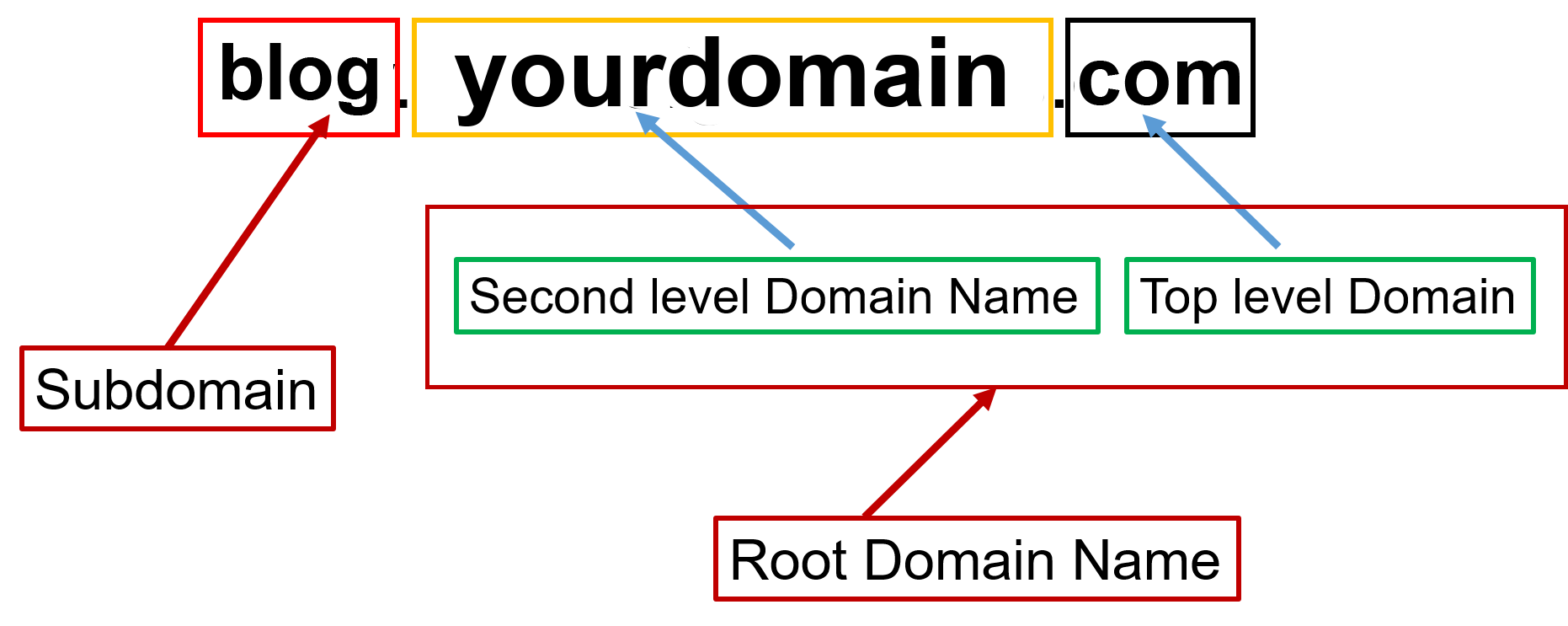
In this example, ‘blog’ is the subdomain, ‘yourdomain’ is the primary domain, and ‘.com’ is the top-level domain (TLD).
Any text can be used as your subdomain, but please make sure it’s easy to remember.
How to create a Subdomain in cPanel
Here we assume that you’ve already logged in to cPanel.
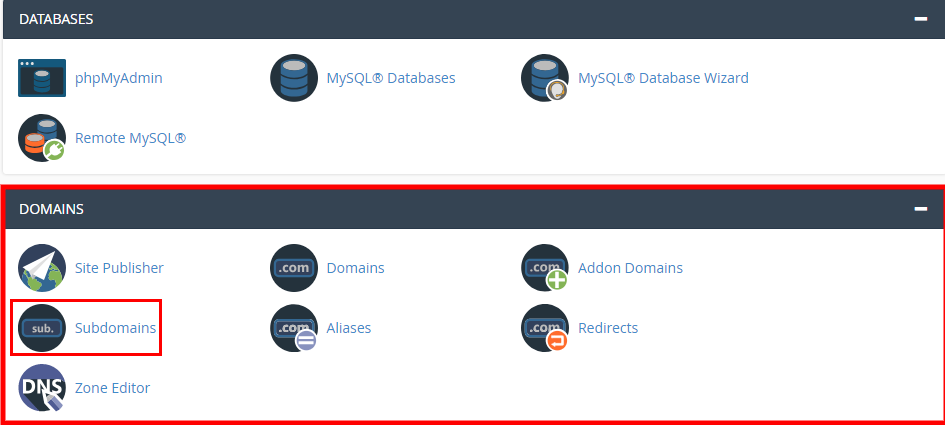
1) Go to the ‘DOMAINS’ section and click on the Subdomains icon.
2) Enter the subdomain text you wish to create and select the domain name from the drop-down under which you wish to create it.
Enter the Document Root. cPanel by default fills in the the document root with the subdomain text. You can either leave it as it is or modify it as per your convenience.
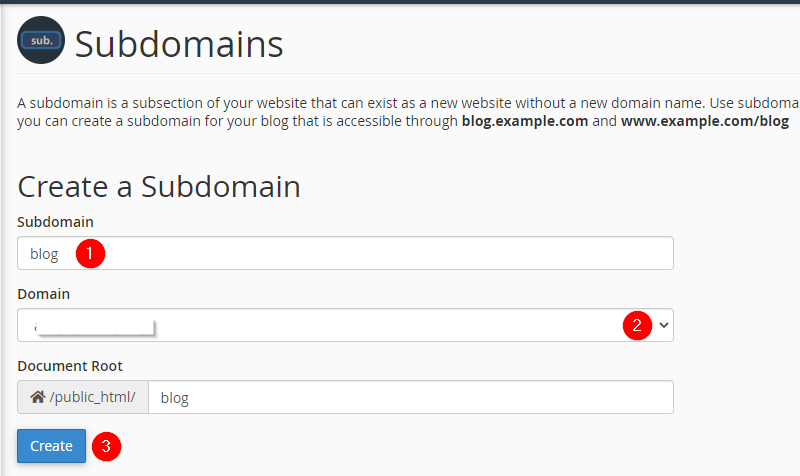
3) Click Create button and the subdomain will be created.
4) You can have a list of subdomain which you have created. You can manage them from cPanel –> subdomains
That’s it! I hope that now you know how to create subdomains in cPanel.