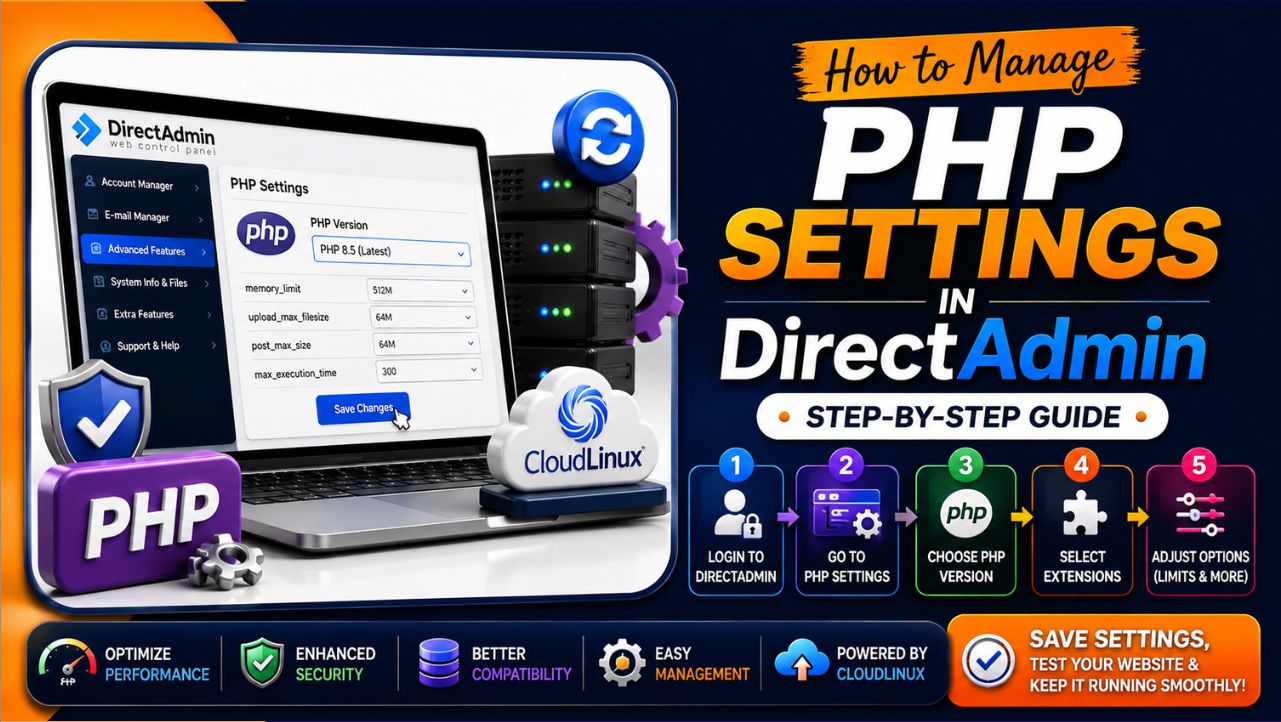
Suppose you are facing Outdated PHP Version errors on your website, then what will you do? Definitely, you will have to change PHP Version for your website. So in this tutorial, we will learn how to change PHP version in DirectAdmin.
This article will help you to change the PHP version on the Directadmin Panel.
Now, let’s see how you can change the PHP version for your Website using the Directadmin Panel.
How to Change PHP Version from Directadmin.
1. Login to your Directadmin account replacing domain.com with your domain name using the login credentials provided by your hosting provider.
https://domain.com:2222
2. On the top right corner, select the domain name for which the PHP version needs to be changed.
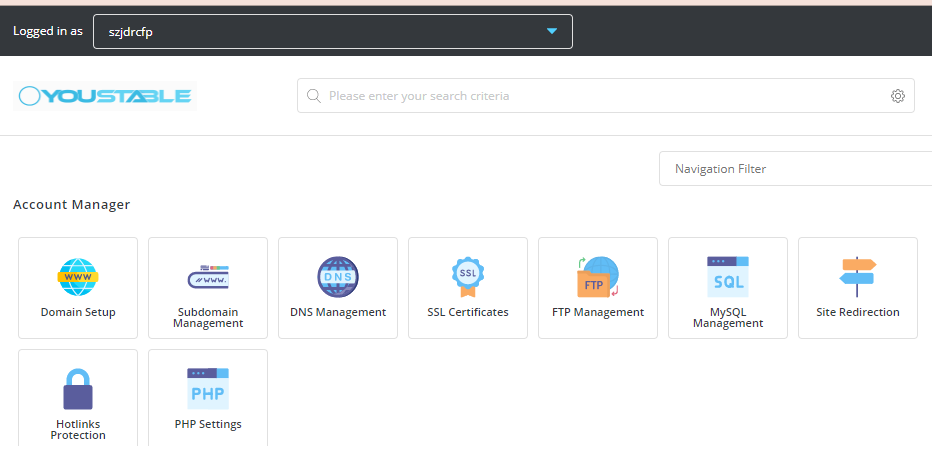
3. Scroll down and click “Select PHP Version”.
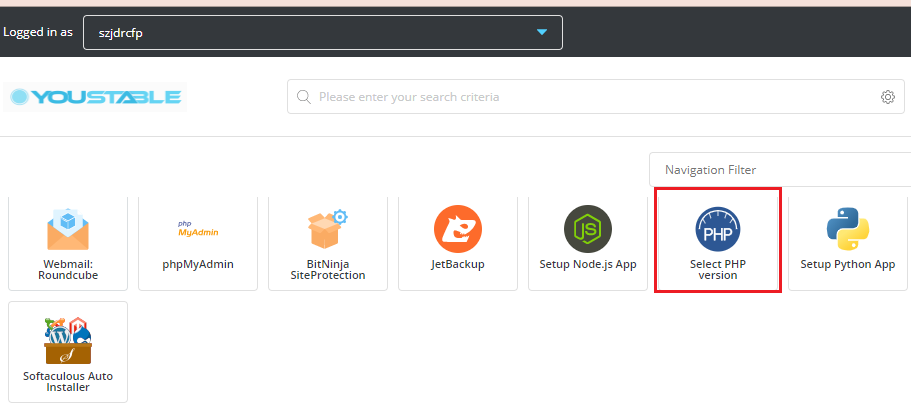
4. Click on the drop-down arrow near Current PHP Version
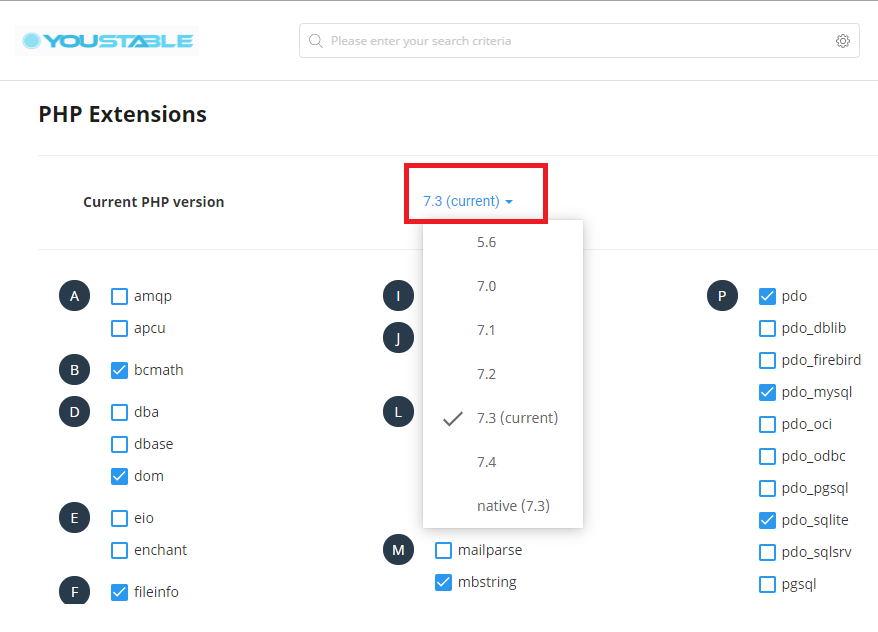
5. Select your PHP Version as per your requirement, here am selecting 7.4 and clicking on “Set as current”.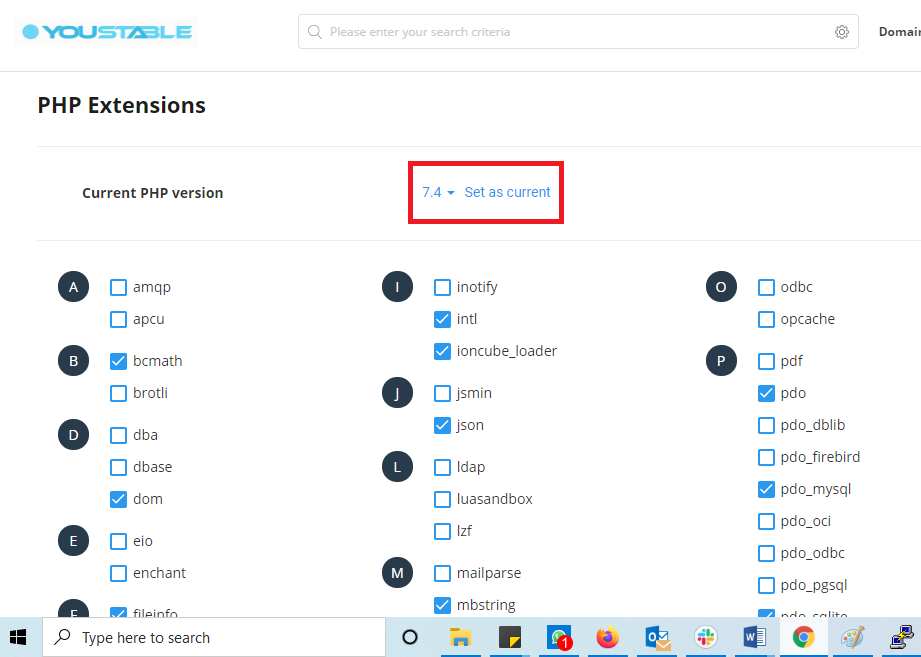
The above steps will help you select your PHP Version. Now let’s see how we can check the PHP Version on your website.
Checking PHP Version for your website.
1. Create a file in your public_html directory of the domain with any name let’s say xyz.php.
Our file path will be /home/domain/public_html/xyz.php
2. Add the following line of code in the file and save it.
<?php
phpinfo();
?>
3. Now open your URL domain.com/xyz.php to test the current PHP Version. It will show the PHP Info web page with all the PHP variables and settings.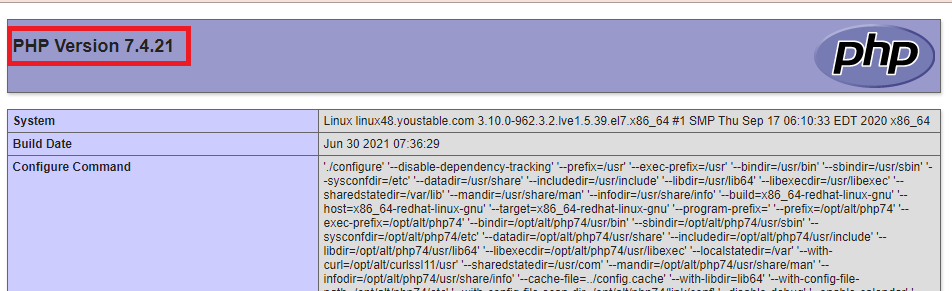
You may also like