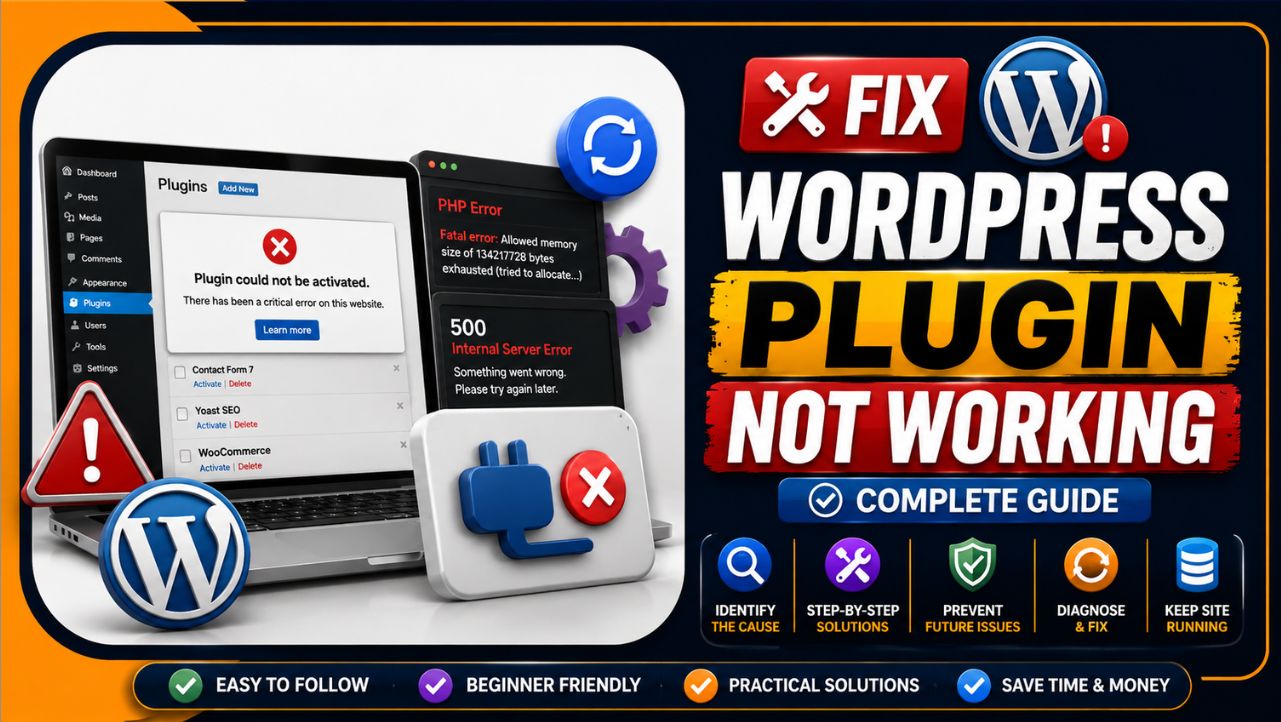
A WordPress plugin can stop working at any time, breaking forms, pages, or important website features. The right troubleshooting steps help you identify the actual problem before making unnecessary changes that could create bigger issues.
Most plugin problems are caused by cache, plugin conflicts, PHP limits, or compatibility issues. These are common WordPress problems and, in many cases, can be fixed without advanced technical knowledge or expensive developer support.
This guide walks you through practical, step-by-step solutions to fix a WordPress plugin that isn’t working. You’ll also learn how to prevent similar problems and keep your website running smoothly in the future.
Key Takeaways
- Clear every caching layer first (browser, plugin, and server or CDN cache) before assuming the plugin is actually broken
- A white screen or 500 error almost always traces back to a PHP fatal error, visible only once WP_DEBUG or the server error log is checked
- Deactivating a plugin never deletes its data. Settings and custom tables stay in the database until the plugin is reinstalled
- Test conflicts on a staging copy of the site, never directly on the live, production environment
- If a plugin has not been updated in 12+ months, treat it as a security risk and plan a replacement rather than continuing to patch around it
Quick Diagnostic Flow
Match your symptom to the step that fixes it fastest, instead of working through every step in order.
| Symptom | Likely Cause | Jump To |
|---|---|---|
| Plugin update shows but nothing changed on the live site | Cache serving an old version | Step 1 |
| Plugin worked yesterday, broke after an update | Version conflict with core, theme, or another plugin | Step 2 / Step 3 |
| Entire site is a blank white page | PHP fatal error (WSoD) | Step 5 |
| Site shows “500 Internal Server Error” | PHP fatal error or corrupted .htaccess | Step 4 / Step 5 |
| Button, form, or dropdown from the plugin does not respond | JavaScript or jQuery conflict | Step 6 |
| Plugin broke right after a site migration or host change | Absolute paths, PHP version mismatch, or missing extension | See “Plugin Not Working After a Migration” below |
| Plugin works for admin but not for visitors, or vice versa | Caching serving different versions per user role | Step 1, check role based cache exclusions |
Why WordPress Plugins Stop Working
WordPress plugins run as PHP code inside your site’s execution environment. When that code hits a limit the server enforces, PHP throws an error and WordPress can fail to load the plugin, the admin dashboard, or the entire front end.
The four entities to check in order are: cache (browser, plugin-level, and server-side), PHP environment (memory_limit, max_execution_time, PHP version), plugin/theme conflicts (two plugins calling the same function or hook), and core compatibility (an outdated plugin running against a newer WordPress core release).
Before You Start: Backup Checklist
Do not troubleshoot a live site without a safety net. Confirm the following before making any change:
- A full backup exists (files + database), taken within the last 24 hours, either through your hosting panel’s backup tool or a plugin like UpdraftPlus
- You have active FTP/SFTP or File Manager credentials, in case the WordPress dashboard becomes inaccessible
- You have database access (phpMyAdmin) through your hosting control panel
- A staging environment is available, or one can be cloned from your hosting panel, so conflict testing happens away from live traffic
Step 1: Clear Every Caching Layer
Caching is the single most common false alarm in plugin troubleshooting. A plugin can be fixed on the server and still appear broken because an old cached version is being served.
Clear cache in this order:
- Browser cache — hard refresh with Ctrl+Shift+R (Windows) or Cmd+Shift+R (Mac), or test in an incognito window
- Caching plugin — purge cache from WP Rocket, W3 Total Cache, LiteSpeed Cache, or whichever plugin is active
- Server side or CDN cache — if hosting includes LiteSpeed Cache, Varnish, or a CDN like Cloudflare, purge that layer separately from the plugin cache. This step is frequently missed because it lives outside the WordPress dashboard, inside the hosting control panel
- Object cache — if Redis or Memcached is active, flush it as well
If the plugin still misbehaves after every layer is cleared, the issue is not caching. Move to Step 2.
Step 2: Update WordPress Core, Themes, and Plugins
Outdated software is the second most common cause. Before updating anything on a live site:
- Take a fresh backup
- Update plugins one at a time, checking the site after each update
- Update the theme
- Update WordPress core last
Updating in this order isolates exactly which update caused the problem, if one does.
Step 3: Run a Plugin Conflict Test
If clearing cache and updating did not fix it, the plugin is very likely conflicting with another plugin or the active theme.
- Switch the active theme to a default WordPress theme (Twenty Twenty Four)
- Deactivate every plugin except the one that is broken
- Test the broken plugin on its own
- If it now works, reactivate the other plugins one at a time, testing after each, until the conflict reappears. The last plugin reactivated before the conflict returns is the culprit
Always run this test on a staging site. A plugin like WP Safe Mode, or the Health Check & Troubleshooting plugin, can also run this test for logged in admins only, without affecting what visitors see on the live site.
Step 4: Check and Increase PHP Limits
Many “broken” plugins are actually hitting a server-enforced ceiling, most commonly memory_limit or max_execution_time.
Recommended PHP memory by site type:
| Site Type | Minimum PHP Memory | Recommended for 2026 |
|---|---|---|
| Basic blog | 128MB | 256MB |
| Business site with forms | 256MB | 512MB |
| eCommerce / visual builder heavy | 512MB | 1GB |
To check or raise these limits:
- Look for the current value under Tools > Site Health > Info > Server in wp-admin
- Raise it through your hosting control panel’s PHP configuration screen (path and label vary by host), or by adding
define('WP_MEMORY_LIMIT', '512M');towp-config.php - If using shared hosting, confirm with your host whether the limit is server-enforced. Some values in
wp-config.phpare overridden by the server’sphp.ini, and can only be changed through the hosting panel or a support ticket
Step 5: Enable WordPress Debug Mode
With debugging off, WordPress hides fatal errors from the visitor and shows a blank white screen instead, known as the White Screen of Death (WSoD).
To see the actual error, add this to wp-config.php, above the line that reads /* That's all, stop editing! */:
define( 'WP_DEBUG', true );
define( 'WP_DEBUG_LOG', true );
define( 'WP_DEBUG_DISPLAY', false );
This logs errors to /wp-content/debug.log without displaying them to site visitors. Open that file via FTP or File Manager and look at the most recent entries, which will name the exact plugin file and line number causing the failure.
Turn debug mode back off once the fix is confirmed. Leaving it on exposes file paths to anyone who can view page source.
Checking Server Side Error Logs via Your Hosting Control Panel
WP_DEBUG only captures errors WordPress itself catches. Some failures, such as a PHP extension missing on the server or a crash before WordPress finishes loading, only appear in the raw server error log, which sits outside the WordPress dashboard entirely.
- Log in to your hosting control panel (cPanel, or your host’s custom panel)
- Locate Errors or Error Log under the Metrics or Logs section
- Look for the most recent PHP Fatal error, PHP Warning, or Parse error entry, timestamped close to when the plugin broke
- Cross check the file path in the log against the plugin’s folder in
/wp-content/plugins/to confirm which plugin triggered it
Server level logs also show issues WP_DEBUG cannot catch, including PHP version mismatches and missing PHP extensions a plugin depends on (such as imagick or curl).
Plugin Not Working After a Migration or Hosting Change
Plugins that worked perfectly on the old server sometimes break immediately after moving to a new host or a new server. This is rarely the plugin’s fault. Check these first:
- PHP version mismatch — the new server may run a different PHP version than the old one. Check the plugin’s required PHP version against Tools > Site Health and adjust the PHP version in the new hosting control panel if needed
- Missing PHP extensions — some plugins depend on specific extensions (
imagick,curl,gd,zip). A migration to a new server can leave one of these disabled by default - Hardcoded absolute file paths — plugins that store an absolute server path (rather than a relative one) in the database will break if the new server’s directory structure differs. Search the database for the old path and update it, or use a migration plugin that handles path search and replace automatically
- File and folder permissions reset during transfer — set folders to 755 and files to 644 after any migration
Step 6: Inspect the Browser Console for JavaScript Errors
Not every plugin failure is server side. If a plugin adds a broken button, a form that will not submit, or a missing dropdown, the cause is usually JavaScript, not PHP.
- Open the page in Chrome, right click, and select Inspect
- Go to the Console tab
- Reload the page and look for red error text
- A common cause is jQuery conflicts, where two plugins load different jQuery versions or one plugin uses
$in a context where another plugin has already redefined it
Step 7: Roll Back or Reinstall the Plugin
If the plugin is still broken after every previous step, roll back to the last working version or remove and reinstall it entirely.
To roll back:
- Go to the plugin’s page on WordPress.org and check the Advanced View tab for previous versions
- Deactivate the current version
- Upload the older version via Plugins > Add New > Upload Plugin
To reinstall via FTP, if the dashboard is inaccessible:
- Connect via FTP/SFTP or your hosting panel’s File Manager
- Navigate to
/wp-content/plugins/ - Rename the problem plugin’s folder (adding
-disabledto the name deactivates it without deleting anything) - Confirm the site loads again, then delete the renamed folder and reinstall a fresh copy of the plugin
Deactivating or renaming a plugin folder never deletes its settings. Custom data stays in the MySQL database until the plugin is reinstalled and its settings are reconfigured or restored.
Preventing Future Plugin Conflicts
Fixing a broken plugin once does not stop it from breaking again. These habits reduce how often this happens:
- Update one plugin at a time, not all at once, so a failure is immediately traceable to a single update
- Test updates on staging before applying them to the live site, especially for plugins tied to checkout, forms, or membership access
- Keep the plugin count lean. Remove plugins that are inactive rather than leaving them installed, since inactive plugins can still be exploited if they contain a vulnerability
- Set a monthly review, checking each active plugin’s last update date on WordPress.org. Anything untouched for 12+ months should be flagged for replacement
- Keep a pre-update snapshot habit. A backup taken immediately before any update, even a minor one, turns a broken update into a two minute rollback instead of an hour of troubleshooting
When to Contact Your Hosting Support Team
Some plugin issues are genuinely server side, and no amount of plugin level troubleshooting will fix them. Contact hosting support directly when:
- The server error log references a PHP extension the host has not enabled (
imagick,curl,gd) - The site’s PHP memory or execution time limit needs raising and the hosting control panel does not expose that setting
- A 500 error appears with no matching entry in
debug.log, which usually means the failure happened at the server level, before WordPress finished loading - File permissions were reset unexpectedly and manual correction via FTP does not resolve it
- The issue reappears only under load or high traffic, which points to a server resource ceiling rather than the plugin’s code
Issues that are plugin code specific, such as a bug in the plugin’s own logic or a genuine incompatibility with another plugin, are outside what hosting support can fix and are better directed to the plugin developer.
Glossary of Key Terms
- WSoD (White Screen of Death): A blank white page shown when a PHP fatal error occurs while debugging is turned off
- memory_limit: The maximum amount of memory PHP allows a single script to use before terminating it
- max_execution_time: The maximum number of seconds a PHP script is allowed to run before the server stops it
.htaccess: An Apache server configuration file controlling redirects, permalinks, and access rules. Corruption here commonly causes 403 or 500 errors- FTP/SFTP: File Transfer Protocol (and its encrypted version), used to access site files directly when the WordPress dashboard is inaccessible
- Object cache: A caching layer (commonly Redis or Memcached) that stores database query results in memory to reduce repeated database calls
- Plugin conflict: When two plugins, or a plugin and the active theme, both modify the same WordPress hook or function in incompatible ways
Common WordPress Error Codes and Fixes
| Error | Likely Cause | First Fix to Try |
|---|---|---|
| 500 Internal Server Error | PHP fatal error, corrupted .htaccess, or exhausted memory | Enable WP_DEBUG, check /wp-content/debug.log |
| White Screen of Death (WSoD) | PHP fatal error with debugging off | Enable WP_DEBUG_LOG, check server error log |
| 403 Forbidden | Corrupted .htaccess or a security plugin blocking access | Regenerate permalinks, temporarily disable the security plugin |
| “Allowed memory size exhausted” | PHP memory_limit too low for the plugin’s operation | Raise PHP memory limit via hosting panel or wp-config.php |
| Maximum execution time exceeded | A script, import, or plugin task ran longer than the server allows | Raise max_execution_time via hosting panel PHP settings |
| Plugin update failed: could not create directory | Incorrect file/folder permissions | Set folders to 755 and files to 644 via FTP or File Manager |
FAQs
Does deactivating a plugin delete its data?
No. Deactivating or deleting a plugin through FTP only removes its executable files. Settings, shortcodes, and any data the plugin stored stay in the MySQL database until the plugin is reinstalled.
How do I know if my theme is causing the conflict, not a plugin?
Switch the active theme to a default WordPress theme like Twenty Twenty Four. If the broken plugin works normally under the default theme, the premium theme’s code is conflicting with the plugin.
What is the White Screen of Death?
The WSoD happens when PHP hits a fatal error while debugging is turned off. Instead of showing the error, WordPress stops rendering entirely, leaving a blank white page. It is almost always caused by a plugin or theme conflict.
Will updating WordPress break my existing plugins?
It can. If a plugin has not been updated in over a year, a WordPress core update may remove functions that plugin still relies on. Testing any core update on a staging site first avoids this risk on the live site.
How much PHP memory does a WordPress site actually need?
A basic blog runs fine on 128MB. Sites using eCommerce features, complex forms, or page builders need at least 256MB, and 512MB is a safer baseline for 2026 hosting environments.
Can having too many plugins slow down my site?
Not directly through count alone, but poorly coded plugins that load unnecessary CSS and JavaScript on every page do slow load times and hurt Core Web Vitals, regardless of how many plugins are active.
Is FTP the only way to remove a broken plugin?
FTP or your hosting provider’s File Manager becomes necessary only if a fatal error has locked you out of the wp-admin dashboard entirely. If the dashboard is still reachable, deactivating through Plugins is simpler.
What if the plugin developer has abandoned the plugin?
A plugin with no update in 12+ months is a security liability, even if it currently works. The safer path is migrating to an actively maintained alternative rather than continuing to run unpatched code.