To fix Let’s Encrypt on a Linux server, verify DNS points to the server, open ports 80/443, install Certbot via Snap, run the correct challenge method (HTTP-01 for regular domains, DNS-01 for wildcards), update web server configs, then test automatic renewal with certbot renew --dry-run and reload your web server.
If your SSL renewals fail or new certificates won’t issue, this step by step guide explains how to fix Let’s Encrypt on a Linux server using Certbot.
We’ll cover common errors, the right installation method, web server configuration for Apache and Nginx, DNS and firewall checks, renewal automation, and production ready best practices.
Quick Diagnosis Checklist
Before deep troubleshooting, confirm these items. Most Let’s Encrypt failures trace back to one of them.
- DNS A/AAAA records point to the correct server IP (avoid stale or wrong IPv6).
- Ports 80 (HTTP) and 443 (HTTPS) are open and reachable from the internet.
- Web server serves /.well-known/acme-challenge/ without redirects or blocks during HTTP-01 validation.
- No restrictive CAA record blocking Let’s Encrypt issuance.
- Server time is accurate (NTP enabled).
- Using a current Certbot install (Snap recommended) and correct plugin (nginx, apache, webroot, or DNS).
- Automatic renewal is enabled and healthy (systemd timer or cron).
How Let’s Encrypt Validation Works
Let’s Encrypt uses the ACME protocol to verify domain control. Understanding challenge types helps you pick the right fix.
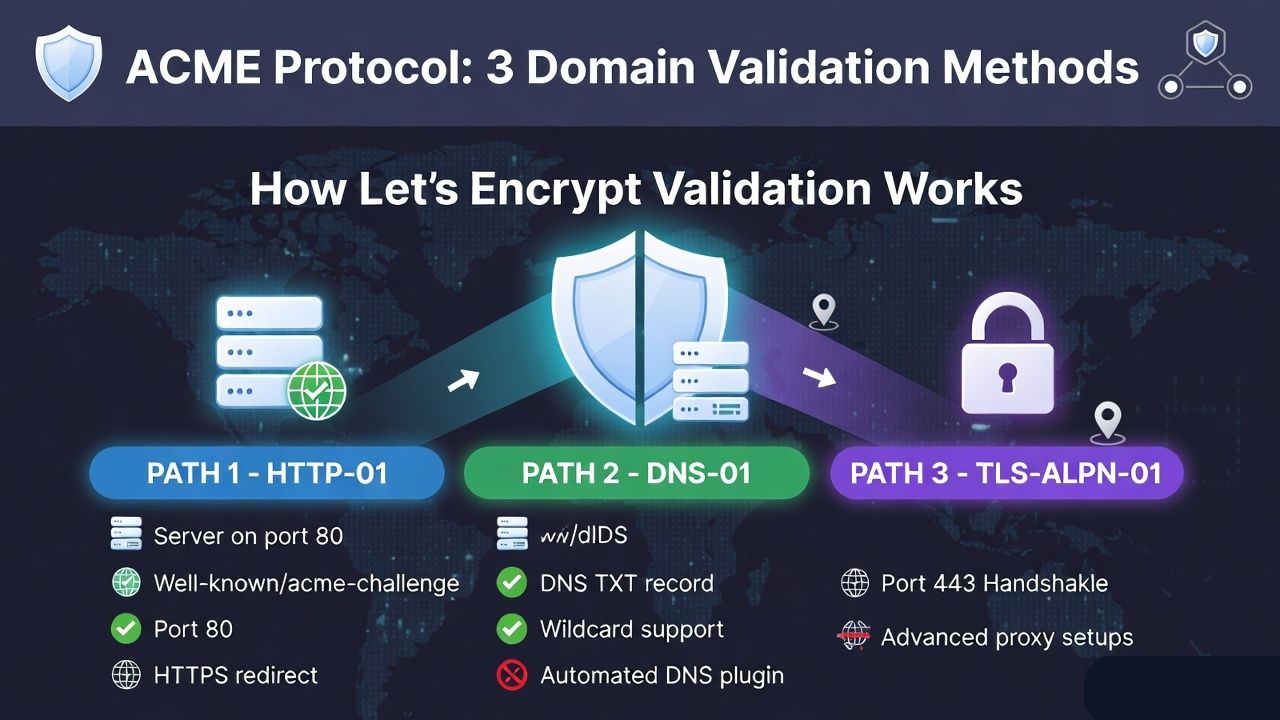
HTTP-01 (Most Common)
ACME fetches a token from http://example.com/.well-known/acme-challenge/<token>. Your server must be publicly reachable on port 80 and serve the exact file content with a 200 status. Redirects to HTTPS are fine if the file is still reachable, but complex rewrites often break validation.
DNS-01 (Wildcards and Complex Setups)
ACME checks a TXT record at _acme-challenge.example.com. Choose this when issuing wildcard certificates or when HTTP is not possible due to proxies, locked-down ports, or custom routing. Use a DNS plugin to automate TXT updates.
TLS-ALPN-01 (Advanced)
Validates over port 443 with a special ALPN certificate. Useful behind certain proxies, but not as beginner-friendly as HTTP-01 or DNS-01.
Install or Repair Certbot the Right Way
The most reliable method today is the Snap package. Many distro packages are outdated and cause failures.
# Remove old distro Certbot if present
sudo apt remove certbot python3-certbot-* -y 2>/dev/null || true
sudo dnf remove certbot python3-certbot-* -y 2>/dev/null || true
sudo yum remove certbot python3-certbot-* -y 2>/dev/null || true

# Install Snap (if not installed)
sudo apt update && sudo apt install -y snapd || true
sudo dnf install -y snapd || true
sudo systemctl enable --now snapd

# Install Certbot via Snap and link it
sudo snap install core; sudo snap refresh core
sudo snap install --classic certbot
sudo ln -sf /snap/bin/certbot /usr/bin/certbot

# Verify version (should be recent)
certbot --version
Choose the plugin that matches your stack:
- Nginx:
certbot --nginx(auto config) - Apache:
certbot --apache(auto config) - Webroot (custom paths/proxies):
certbot certonly --webroot -w /var/www/html -d example.com -d www.example.com - Standalone (no web server running):
certbot certonly --standalone -d example.com
Fix Common Let’s Encrypt Errors (With Proven Solutions)
Connection Refused or Timeout on Port 80/443
Symptoms: logs show “Connection refused”, “Timeout during connect”, or “Fetching …: Timeout”.
- Open the firewall:
# UFW
sudo ufw allow 80/tcp
sudo ufw allow 443/tcp
sudo ufw reload

# firewalld
sudo firewall-cmd --permanent --add-service=http
sudo firewall-cmd --permanent --add-service=https
sudo firewall-cmd --reload- Check cloud security groups or provider firewalls (AWS, GCP, Azure, DigitalOcean).
- Ensure Nginx/Apache is running and listening on the correct IPs.
404 or 403 on .well-known/acme-challenge
Cause: rewrite rules or permissions block access to the challenge path.
Fix for Nginx: add an explicit location that bypasses redirects and points to the correct webroot.
server {
    listen 80;
    server_name example.com www.example.com;

    root /var/www/html;

    # Always allow ACME challenge
    location ^~ /.well-known/acme-challenge/ {
        default_type "text/plain";
        allow all;
        root /var/www/html;
    }

    # Optional: redirect others to HTTPS
    location / {
        return 301 https://$host$request_uri;
    }
}
Fix for Apache: ensure Alias and Directory config allows reads and is not blocked by rewrites.
<VirtualHost *:80>
  ServerName example.com
  ServerAlias www.example.com
  DocumentRoot /var/www/html

  Alias /.well-known/acme-challenge/ /var/www/html/.well-known/acme-challenge/
  <Directory "/var/www/html/.well-known/acme-challenge/">
    Options None
    AllowOverride None
    Require all granted
  </Directory>

  # If using .htaccess redirects, add an exception:
  # RewriteRule ^\.well-known/acme-challenge/ - [L]
</VirtualHost>
Permissions: the challenge file must be readable by the web server. For SELinux systems, restore contexts if needed:
sudo chown -R www-data:www-data /var/www/html
sudo find /var/www/html -type d -exec chmod 755 {} \;
sudo find /var/www/html -type f -exec chmod 644 {} \;
sudo restorecon -Rv /var/www/html 2>/dev/null || true
Wrong DNS, Especially IPv6
If you publish an AAAA record but your server is not actually listening on that IPv6 address, ACME may connect over IPv6 and fail. Either fix IPv6 on the host or remove the AAAA record. Verify with:
dig +short A example.com
dig +short AAAA example.com
curl -I http://example.com
curl -6 -I http://example.com  # test IPv6 path
Behind a CDN or Reverse Proxy (e.g., Cloudflare)
For HTTP-01, ensure the proxy passes requests to /.well-known/acme-challenge/ unmodified. Temporarily set DNS to “DNS only” (no proxy) during issuance, or use DNS-01 with the provider’s API plugin to avoid proxy issues entirely.
CAA Record Blocks Issuance
Check if you have restrictive CAA records. You must allow Let’s Encrypt:
dig CAA example.comIf present, include entries like 0 issue "letsencrypt.org". Otherwise issuance will be refused.
Clock Skew and NTP
ACME requires correct system time. Enable NTP and resync:
timedatectl
sudo timedatectl set-ntp true
sudo systemctl restart systemd-timesyncd 2>/dev/null || true
Rate Limits and Staging
If you request too many certs quickly, you may hit Let’s Encrypt rate limits. Test with the staging environment first:
certbot certonly --nginx -d example.com --test-cert --agree-tos -m admin@example.comOnce stable, run without --test-cert for production.
Set Up Reliable Auto Renewal
Certbot via Snap installs a systemd timer for renewals. Validate it and perform a dry run.
systemctl list-timers | grep certbot
systemctl status snap.certbot.renew.service
sudo certbot renew --dry-run
Reload your web server automatically after successful renewals with a deploy hook:
# Nginx
sudo certbot renew --deploy-hook "systemctl reload nginx"

# Apache
sudo certbot renew --deploy-hook "systemctl reload apache2"   # Debian/Ubuntu
sudo certbot renew --deploy-hook "systemctl reload httpd"     # RHEL/CentOS/Alma
Certificates live in /etc/letsencrypt/live/<domain>/ as fullchain.pem and privkey.pem. Ensure your vhosts reference these paths and reload after issuance.
Migrating or Cleaning Up Broken Installs
Replace Outdated Certbot With Snap
If you used distro packages in the past, remove them and switch to Snap (as shown earlier). Certs in /etc/letsencrypt remain intact.
Repair Broken Symlinks in /etc/letsencrypt/live
Sometimes moving servers or manual edits break symlinks. If ls -l /etc/letsencrypt/live/<domain> shows dangling links, reissue the certificate:
sudo mv /etc/letsencrypt/live/example.com /etc/letsencrypt/live/example.com.bak.$(date +%F)
sudo certbot certonly --nginx -d example.com -d www.example.com
# or use --apache / --webroot depending on your stack
Migrate Certificates Between Servers
Copy /etc/letsencrypt and maintain permissions (root:root, 600 for private keys). Then run a dry-run renewal to verify:
sudo rsync -a /etc/letsencrypt/ newserver:/etc/letsencrypt/
sudo certbot renew --dry-run
sudo systemctl reload nginx || sudo systemctl reload apache2 || sudo systemctl reload httpd
When to Use DNS-01 and How to Automate It
Use DNS-01 for wildcard certificates or when HTTP-01 is blocked by proxies, WAFs, or strict networks. Automate TXT record creation with a DNS plugin to avoid manual edits and long propagation windows.
# Example: Cloudflare (requires a credentials file)
sudo certbot certonly \
  --dns-cloudflare \
  --dns-cloudflare-credentials /root/.secrets/cf.ini \
  -d example.com -d *.example.com

# For other providers, use the matching --dns-*** plugin.
# Alternative lightweight client:
curl https://get.acme.sh | sh
~/.acme.sh/acme.sh --issue --dns dns_cf -d example.com -d *.example.com
Nginx and Apache: Production Ready SSL Config Snippets
Nginx Example
server {
    listen 80;
    server_name example.com www.example.com;
    root /var/www/html;

    location ^~ /.well-known/acme-challenge/ {
        default_type "text/plain";
        root /var/www/html;
    }

    return 301 https://$host$request_uri;
}

server {
    listen 443 ssl http2;
    server_name example.com www.example.com;

    ssl_certificate     /etc/letsencrypt/live/example.com/fullchain.pem;
    ssl_certificate_key /etc/letsencrypt/live/example.com/privkey.pem;

    # Optional: ECDSA keys
    # ssl_certificate     /etc/letsencrypt/live/example.com-ecdsa/fullchain.pem;
    # ssl_certificate_key /etc/letsencrypt/live/example.com-ecdsa/privkey.pem;

    root /var/www/html;
    index index.html index.php;
}
Apache Example
<VirtualHost *:80>
  ServerName example.com
  ServerAlias www.example.com
  DocumentRoot /var/www/html
  RewriteEngine On
  RewriteRule ^\.well-known/acme-challenge/ - [L]
  RewriteRule ^(.*)$ https://%{HTTP_HOST}$1 [R=301,L]
</VirtualHost>

<IfModule mod_ssl.c>
<VirtualHost *:443>
  ServerName example.com
  ServerAlias www.example.com
  DocumentRoot /var/www/html

  SSLEngine on
  SSLCertificateFile /etc/letsencrypt/live/example.com/fullchain.pem
  SSLCertificateKeyFile /etc/letsencrypt/live/example.com/privkey.pem
</VirtualHost>
</IfModule>
Security Best Practices for Let’s Encrypt on Linux
- Limit key access:
chmod 600on private keys; ownerroot:root. - Use ECDSA keys for better performance:
certbot certonly --key-type ecdsa --elliptic-curve secp384r1. - Monitor expiry: add a lightweight check or use external monitors that alert before 30 days.
- Pin to
fullchain.pemin your web server, not justcert.pem, to avoid chain issues. - Keep Certbot updated via Snap; periodically run
certbot renew --dry-runafter major OS updates.
Why Fixing Let’s Encrypt With YouStable Is Easier
As a hosting provider, YouStable optimizes Linux servers for SSL from day one. Our managed stacks ship with properly configured firewalls, current Certbot, and tested Nginx/Apache templates, so certificates issue and renew reliably. If you’d rather not wrestle with ACME challenges and DNS plugins, our team can implement and monitor it for you.
From Zero to Working SSL: Step-by-Step
- Point DNS A/AAAA records to your server IP and wait for propagation.
- Open ports 80/443 on OS and provider firewall.
- Install Certbot via Snap and verify version.
- Choose the right plugin:
- Simple sites:
certbot --nginxorcertbot --apache - Custom roots/proxies:
--webroot - Wildcards or behind-CDN: DNS plugin
- Simple sites:
- Confirm web server uses
/etc/letsencrypt/live/<domain>/fullchain.pemandprivkey.pem. - Reload Nginx/Apache; verify with
curl -I https://example.com. - Enable and test renewals with
certbot renew --dry-run.
Learn How to Fix ERR_CONNECTION_RESET error on Chrome Browser
FAQs
Why does Certbot say “Challenge failed” for HTTP-01?
Common causes are blocked port 80, wrong DNS target, forced HTTPS redirects that prevent access to /.well-known/acme-challenge/, or an incorrect webroot path. Make the challenge path publicly reachable over HTTP, verify DNS/IPv6, and retry with the correct plugin or --webroot path.
How do I renew Let’s Encrypt certificates automatically?
With Snap-installed Certbot, a systemd timer runs twice daily. Confirm with systemctl list-timers | grep certbot, run certbot renew --dry-run to test, and add a deploy hook to reload your web server after renewal.
Should I use HTTP-01 or DNS-01?
Use HTTP-01 for standard domain certificates when port 80 is open and the site serves files directly. Use DNS-01 for wildcard domains, behind-CDN setups, or when port 80 cannot be exposed. DNS-01 with a provider plugin automates TXT record creation.
How do I fix chain or “untrusted certificate” errors?
Point your web server to fullchain.pem (not just cert.pem). Reload Nginx/Apache. On very old clients, the trust store may be outdated; update the OS or use modern devices. Let’s Encrypt currently issues from ISRG Root X1.
Is there an alternative to Certbot?
Yes. Lightweight clients like acme.sh or lego work well and support many DNS providers. If you choose them, disable Certbot renewals to avoid conflicts and document your renewal process clearly.