Do you want your own private cloud where you can save your sensitive files? Here’s how you can build it!
But first, let me ask you something really straight!
Are you still uploading your files to Google Drive or some other 3rd party platform, without exactly knowing where your data actually gets stored? Do you pay for it every month?
You trust them with your sensitive data. But the truth is that the server belongs to them and if they decide to shut your account or share your data, you won’t have much to say about it.
That’s where NEXTCLOUD changes everything.
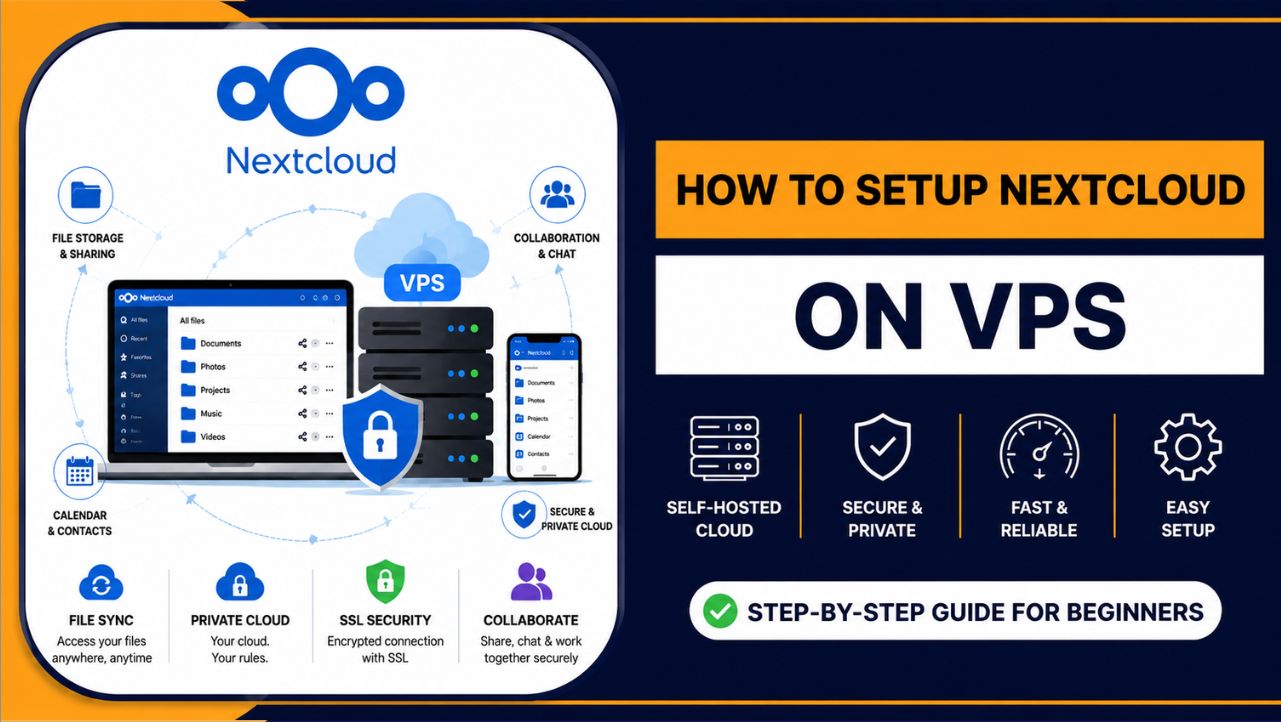
Nextcloud is a free, open-source cloud platform that you install on your own server, your own VPS, and suddenly, you control everything. Your files. Your calendars. Your team collaboration. Your video calls. All running on your terms, on your server, behind your lock and key.
And the best thing is that you don’t need to be a server expert to set it up. This guide walks you through every single step, from picking the right VPS to logging into your own private cloud for the first time.
I’ll make it so simple that even if you’ve never touched a server before, you’ll have Nextcloud running by the end of this.
| What you’ll learn: How to order a VPS Hosting from YouStable, connect to it, install Nextcloud, secure it with SSL and start using it like a pro. |
What Is Nextcloud: And Why Should You Use It?
Think of Nextcloud as your personal Google Drive. You own the server, you own the data and every decision around it.
It’s open-source software you download, install on your own server, and run completely on your terms. This way you have no cloud company in the middle and no data sitting on someone else’s machine.
What makes it genuinely powerful is how much it covers out of the box:
- File storage, sync, and sharing across every device you own, web, Windows, Mac, Linux, Android, and iOS all supported natively.
- A built-in calendar and contacts app that syncs straight to your phone, plus Nextcloud Talk for encrypted video calls and team chat, all self-hosted.
- Over 200 apps in its built-in app store, with end-to-end encryption, two-factor authentication, and brute-force protection baked right in.
And that’s what I think separates Nextcloud from every other tool in this space. It’s not just file storage. It’s a full collaboration platform that replaces Google Workspace, Zoom and Dropbox in one install.
You get shared folders, document editing, task boards and team communication tools, all running on infrastructure you control.
For businesses that take data privacy seriously, or teams tired of paying per-seat fees to five different SaaS tools, Nextcloud is the answer I’d recommend every single time.
Who Uses Nextcloud?
Nextcloud is trusted by freelancers who want a private Dropbox alternative, small businesses that need a collaboration hub, remote teams sharing files across cities, hospitals and schools that must comply with data privacy laws and developers who want full control of their infrastructure.
Nextcloud vs Google Drive vs Dropbox: The Quick Comparison
| Features | Nextcloud (Your VPS) | Google Drive | DropBox |
| Data Ownership | 100% Yours | Google’s servers | Dropbox’s servers |
| Monthly Cost | Only VPS cost | $6–$18/user/mo | $9.99+/mo |
| Privacy Control | Full control | Limited | Limited |
| Custom Branding | Yes | No | No |
| Works Offline | Yes (sync client) | Partial | Yes |
| Self-hosted | Yes | No | No |
What You Need Before You Start
You only need a few things to get Nextcloud running. Here’s your checklist before we dive in:
- A VPS (Virtual Private Server): We’ll cover this in the next section
- A domain name: This is optional but highly recommended for SSL
- An SSH client: Terminal on Mac/Linux, PuTTY or Windows Terminal on Windows
- About 45–60 minutes of your time
Minimum Server Requirements for Nextcloud
These are the minimum requirements that you would require your server to have to set up Nextcloud.
| Resources | Minimum Recommended |
| RAM | 2 GB (4 GB preferred for teams) |
| CPU | 1 vCPU (2 vCPU for better speed) |
| Storage | 20 GB SSD (more for file storage) |
| OS | Ubuntu 22.04 LTS or Ubuntu 24.04 LTS |
| Network | 100 Mbps uplink minimum |
| Quick tip from my side: Always pick a VPS with NVMe SSD storage. Regular HDDs or basic SSDs will make your Nextcloud feel slow, especially when syncing large files. |
Where to Get Your VPS?
There are dozens of VPS providers out there. You’ll get really confused if you see each and every one
I would like to recommend YouStable for running Nextcloud, especially if you’re in India or want your data close to home.
YouStable Is Built for Real Performance
YouStable runs its servers on AMD EPYC processors paired with NVMe SSD storage. That combination means your Nextcloud loads fast, syncs fast, and handles multiple users without breaking a sweat.
A lot of budget VPS providers still use older hardware, YouStable doesn’t cut corners here.
Their Network Speed Is Genuinely Fast
Every YouStable VPS comes with a 1 Gbps uplink. That’s the network speed between your server and the internet. When you’re syncing 5 GB of files or running a video call on Nextcloud Talk, that speed makes a real difference. Slower providers throttle you to 100 Mbps or less.
Security Is Built In: Not Bolted On
YouStable includes DDoS protection, free SSL certificate support, daily backups, and a built-in firewall on every plan. For a self-hosted cloud, that’s exactly what you need. Your data is protected even before you configure anything on Nextcloud itself.
99.99% Uptime Guarantee
Your cloud storage needs to be available when you need it. YouStable backs their infrastructure with a 99.99% uptime SLA. That means your Nextcloud stays online, your team stays productive, and you don’t lose access to your files.
24/7 Real Human Support
Most providers give you a chatbot. YouStable gives you real support agents via live chat and ticket system around the clock. When something goes wrong at 2 AM during a critical file sync and it might, you want a human on the other end, not an FAQ bot.
Free Migration: Up to 5 GB
Already have a server elsewhere? YouStable migrates your existing data for free, up to 5 GB. That’s a genuinely rare offering in the hosting space.
Pricing That Makes Sense
YouStable VPS plans start at just $3.67/month. For a self-hosted Nextcloud with all the features above, that’s a fraction of what you’d pay for Google Workspace or Dropbox Business per user. As your team grows, you scale your plan, not your per-user subscription cost.
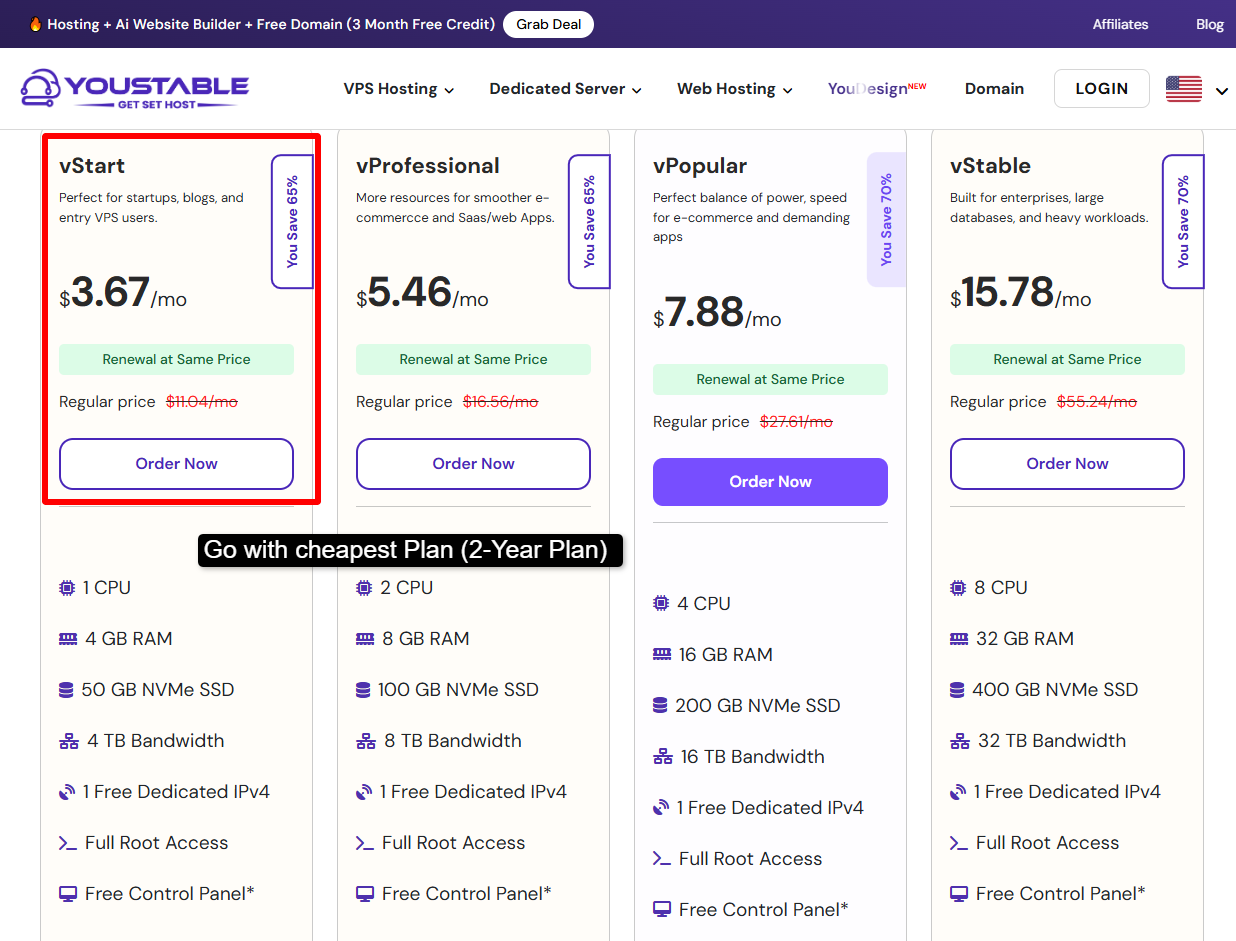
YouStable VPS Plans Overview
| Plans | RAM | CPU | Storage | Best For |
| vStart | 2 GB | 1 vCPU | 30 GB NVMe | Personal / solo use |
| vProfessional | 4 GB | 2 vCPU | 60 GB NVMe | Small teams (5–15 users) |
| vElite | 8 GB | 4 vCPU | 120 GB NVMe | Growing businesses |
| vStable | 16 GB | 8 vCPU | 240 GB NVMe | Enterprises / heavy workloads |
My recommendation: Start with vProfessional if you’re setting up for a team. It gives you enough headroom to run Nextcloud smoothly without overpaying.
Step1) Order Your VPS From YouStable
Let’s tell you the ordering process together. It takes about 5 minutes.
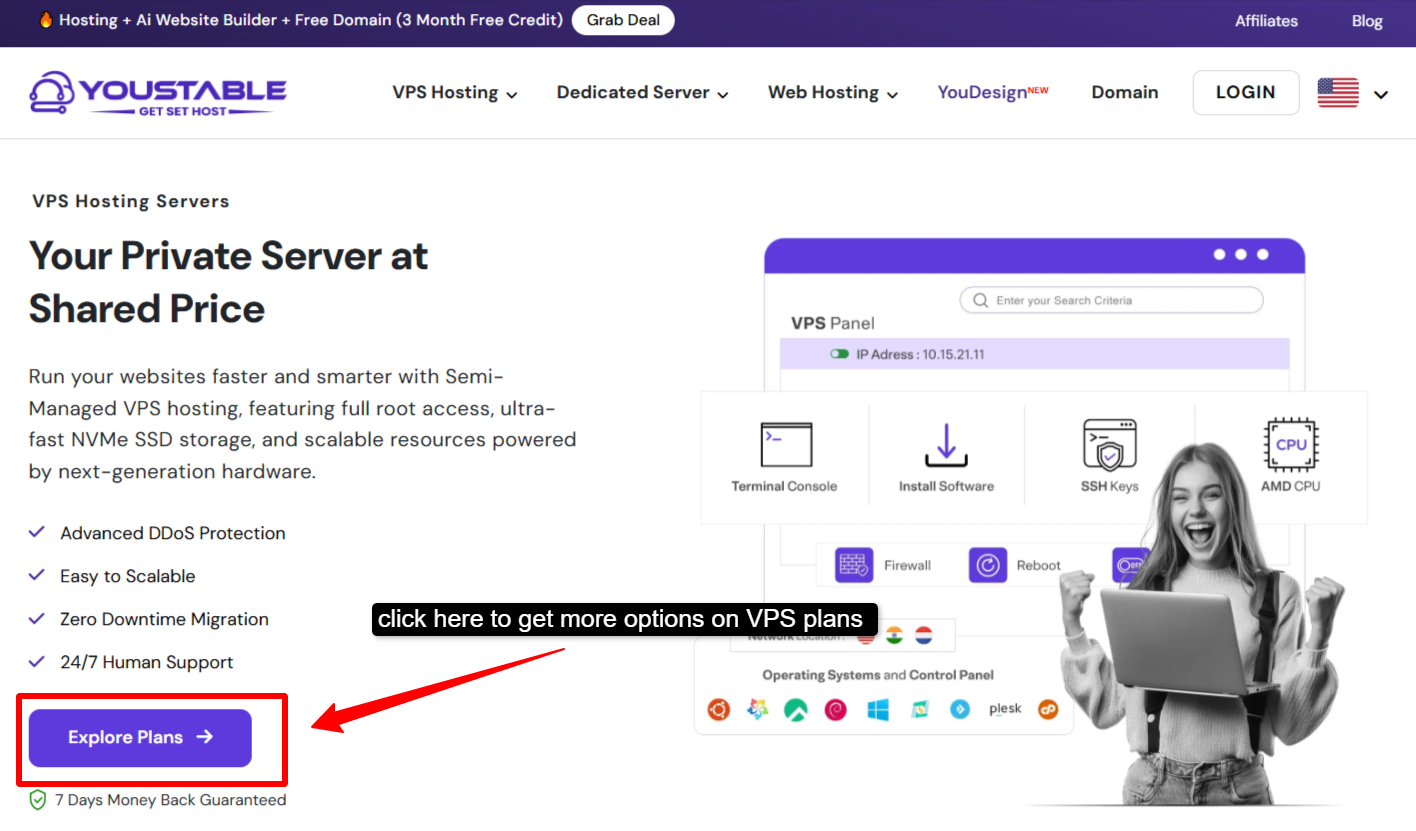
- Open your browser and go to: youstable.com/vps-hosting >> You’ll see the four VPS plans laid out clearly.
- Pick the one that matches your needs from the table above >> Click the Order Now button on your chosen plan >> You’ll be taken to the configuration page.
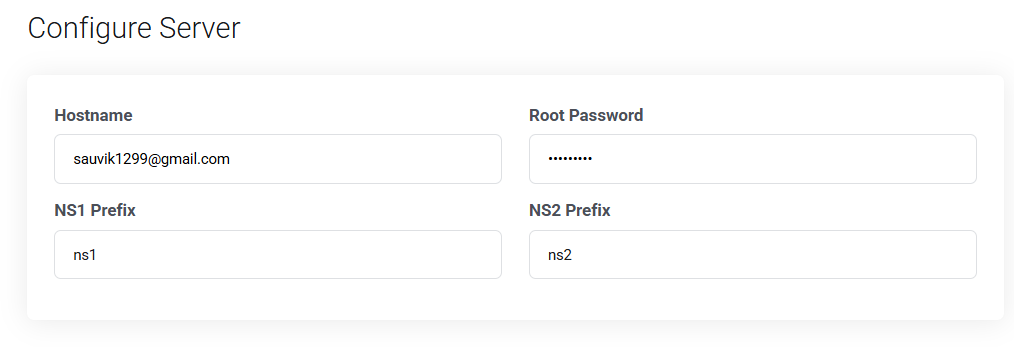
| On the configuration screen, choose the following:1. Operating System: Select Ubuntu 22.04 LTS or Ubuntu 24.04 LTS2. Data Center Location: Pick the location closest to you or your users3. Billing Cycle: Monthly or annual (annual saves you more)4. Control Panel: CyberPanel comes pre-installed, keep it5. Hostname: Give your server a name, e.g., nextcloud.yourdomain.com |

- Add the plan to your cart, create your YouStable account >> Complete payment >> Within minutes, you’ll receive an email with your VPS IP address, root username, and password.
- Save this email! It contains your login credentials >> You’ll need the IP address and root password in the very next step.
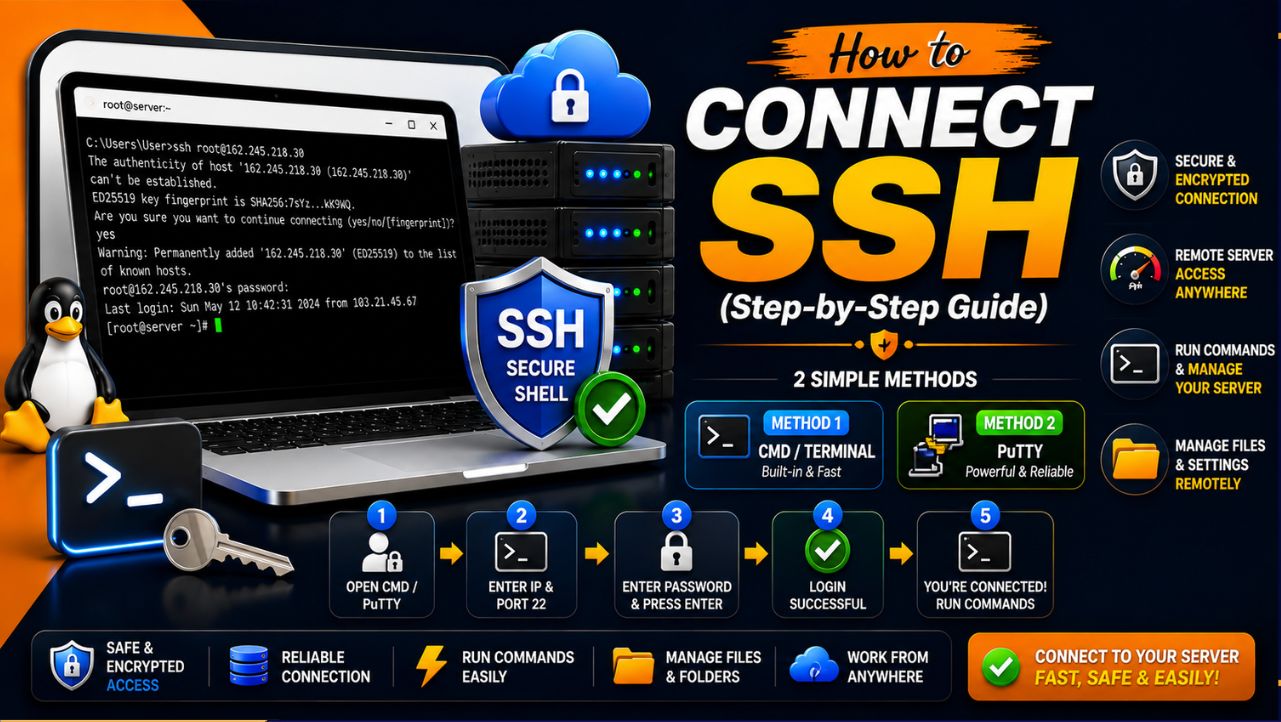
Step2) Connect to Your VPS via SSH
SSH is how you talk to your server. Think of it like a remote control for your VPS, you type commands, the server executes them.
On Mac or Linux >> Open your Terminal app and type:
ssh root@YOUR_SERVER_IPReplace YOUR_SERVER_IP with the IP address from your YouStable email. Hit Enter, then type your password when asked.
On Windows >> Open Windows Terminal (or install PuTTY), then:
ssh root@YOUR_SERVER_IPEnter your password. You’re now inside your server.
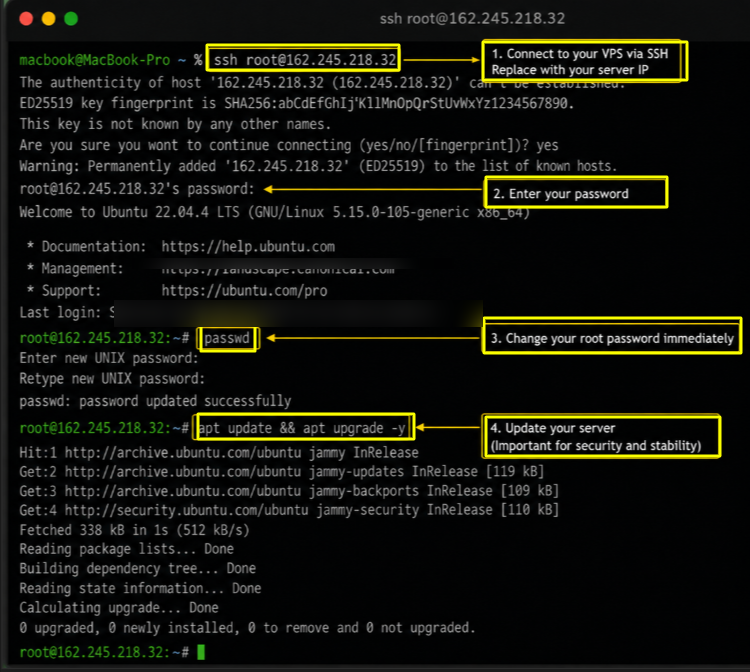
First login tip: Change your root password immediately after logging in.
Run: passwd >> Set a strong password.
Update Your Server First >> Before installing anything, always update your server’s packages:
apt update && apt upgrade -yThis pulls the latest security patches and package versions. It takes about 1–2 minutes.
Step3) Install the Required Software Stack
Nextcloud runs on a web server, a database, and PHP. This combination is called the LAMP stack, Linux, Apache, MySQL, PHP.
Let’s install them one by one.
Install Apache Web Server
apt install apache2 -y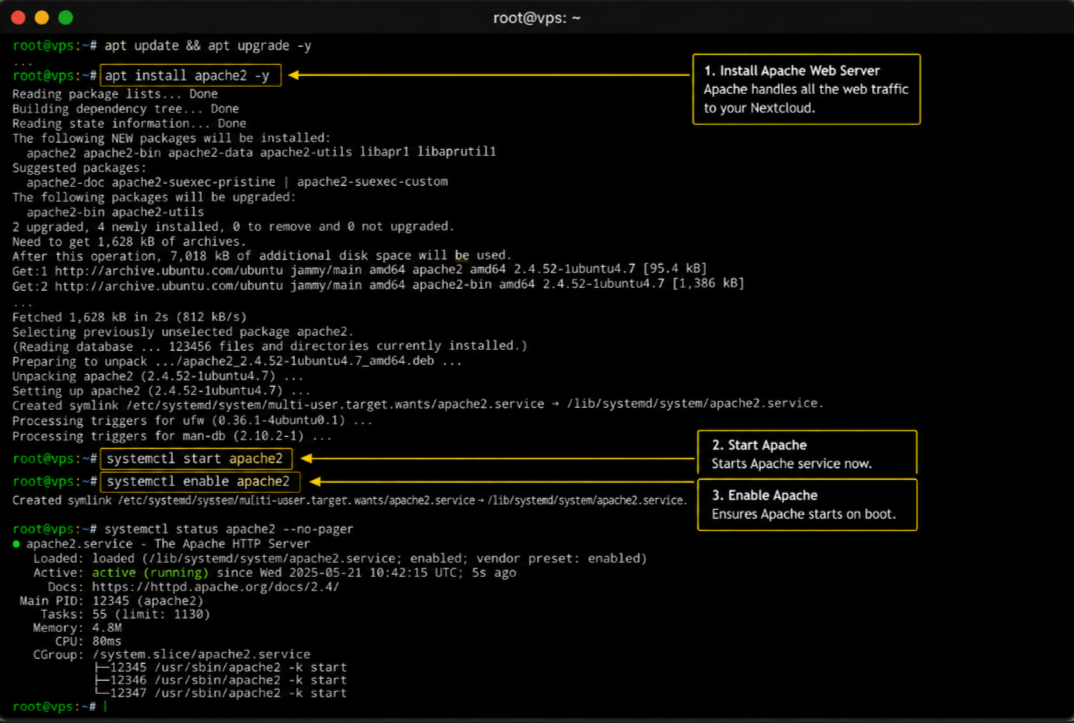
Apache handles all the web traffic to your Nextcloud. Once installed, start it:
systemctl start apache2systemctl enable apache2Install MariaDB (Database)
apt install mariadb-server -yThen secure your database installation:
Mysql_secure_installationPress Enter for the current root password (it’s blank), then answer Y to all the security questions that follow.
Install PHP and Required Extensions
apt install php php-mysql php-gd php-json php-curl php-mbstring php-intl php-imagick php-xml php-zip php-apcu php-bcmath php-gmp libapache2-mod-php -yThese PHP extensions are all required by Nextcloud. Missing even one can cause install errors later.
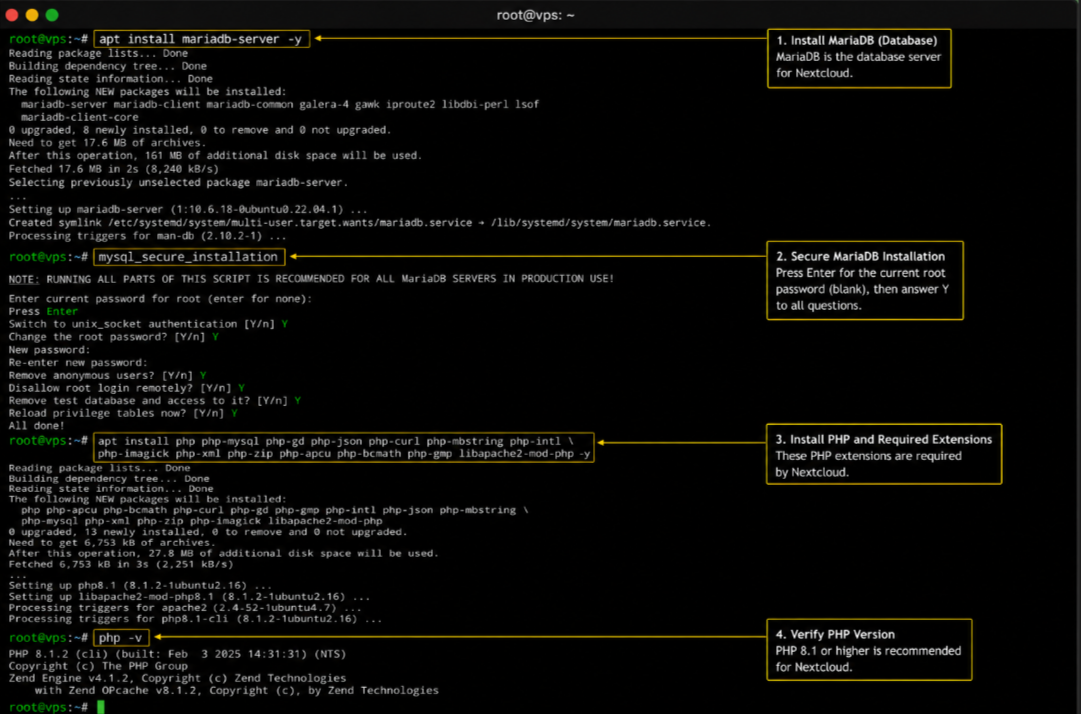
Verify PHP Version
php -vYou should see PHP 8.1 or higher. Nextcloud works best on PHP 8.1 and above.
Step4) Create a Database for Nextcloud
Nextcloud needs its own database. Let’s create one.
Log into MariaDB:
mysql -u root -pEnter your database root password. Now run these commands one by one:
CREATE DATABASE nextcloud;CREATE USER 'nextclouduser'@'localhost' IDENTIFIED BY 'StrongPassword123!';GRANT ALL PRIVILEGES ON nextcloud.* TO 'nextclouduser'@'localhost';FLUSH PRIVILEGES;EXIT;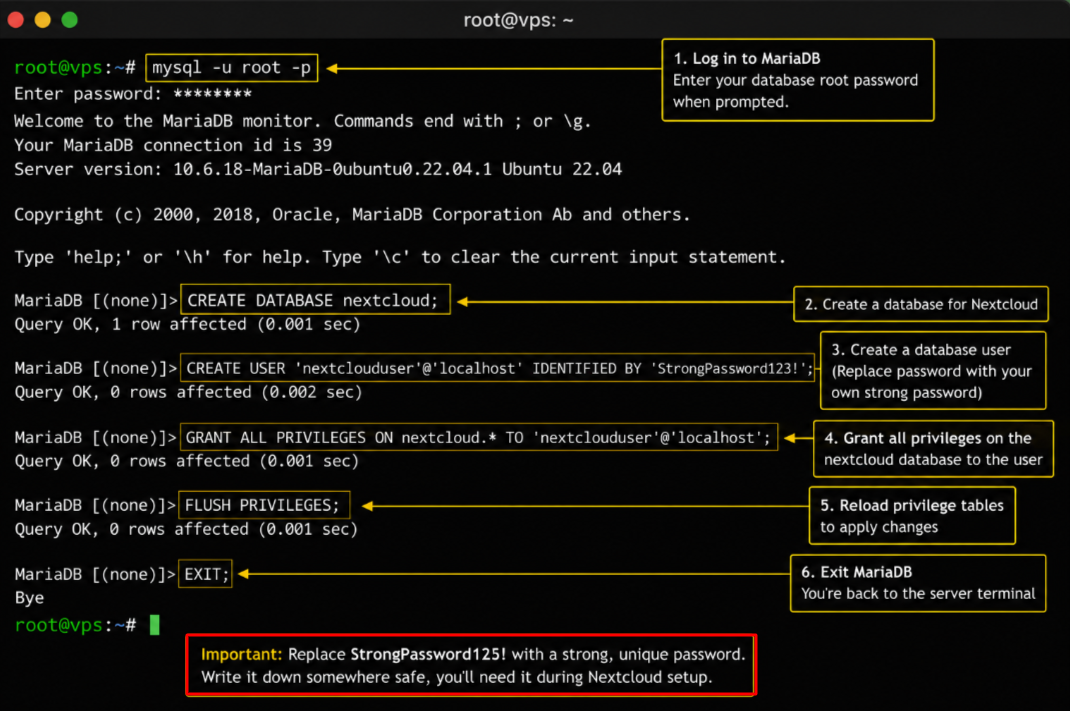
Important: Replace StrongPassword123! with a strong, unique password. Write it down somewhere safe, you’ll need it during Nextcloud setup.
Step5) Download and Install Nextcloud
Download the Latest Nextcloud Version
cd /tmpwget https://download.nextcloud.com/server/releases/latest.zipunzip latest.zipMove Nextcloud to Apache’s Web Root
mv nextcloud /var/www/chown -R www-data:www-data /var/www/nextcloudchmod -R 755 /var/www/nextcloud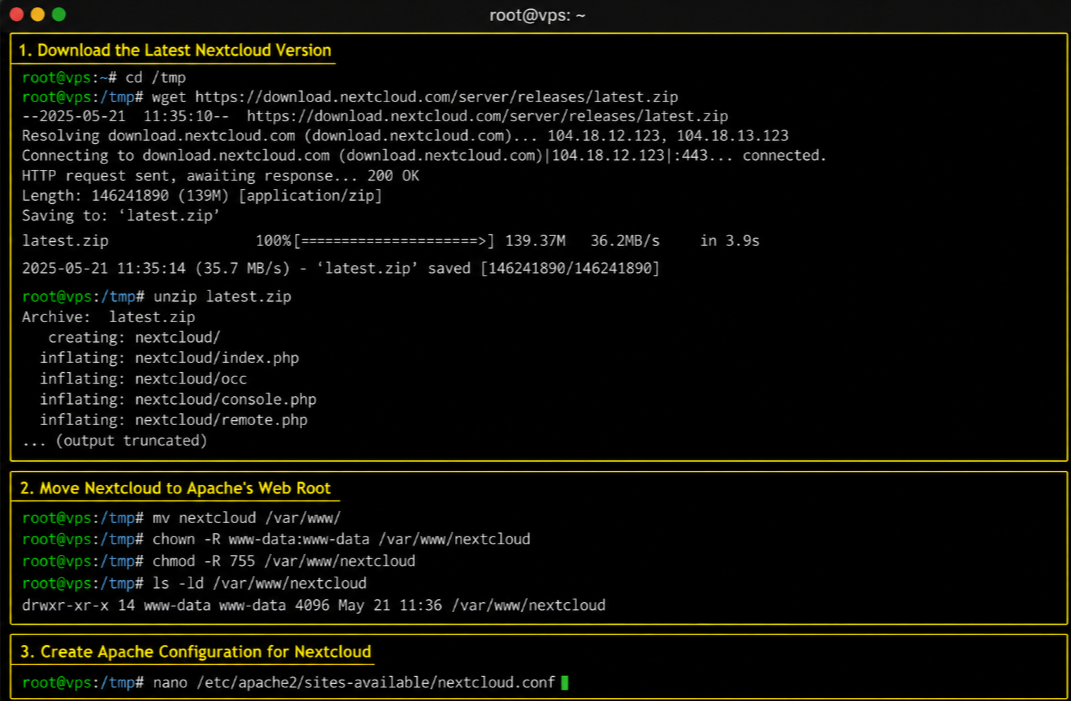
Create Apache Configuration for Nextcloud
nano /etc/apache2/sites-available/nextcloud.confPaste the following configuration into the file:
<VirtualHost *:80> ServerAdmin [email protected] DocumentRoot /var/www/nextcloud ServerName yourdomain.com <Directory /var/www/nextcloud/> Options +FollowSymlinks AllowOverride All Require all granted </Directory> ErrorLog ${APACHE_LOG_DIR}/nextcloud_error.log CustomLog ${APACHE_LOG_DIR}/nextcloud_access.log combined</VirtualHost>Save the file with Ctrl+X, then Y, then Enter.

Enable the Site and Required Apache Modules
a2ensite nextcloud.confa2enmod rewrite headers env dir mime setenvifsystemctl restart apache2Step6) Secure Nextcloud with a Free SSL Certificate
Never run Nextcloud on plain HTTP. Your files and login credentials would travel unencrypted. Let’s install a free SSL certificate using Let’s Encrypt.
Install Certbot
apt install certbot python3-certbot-apache -y
Get Your SSL Certificate
certbot --apache -d yourdomain.comCertbot will ask for your email address and ask you to agree to terms. Say yes to both. It automatically configures Apache to redirect HTTP to HTTPS.
Set Up Auto-Renewal
SSL certificates expire every 90 days. Certbot handles renewal automatically, just verify it works:
certbot renew --dry-runYour Nextcloud now runs on HTTPS. All connections to your server are encrypted. Your data stays private in transit.
Step 7) Complete Nextcloud Setup in Your Browser
Now comes the satisfying part.
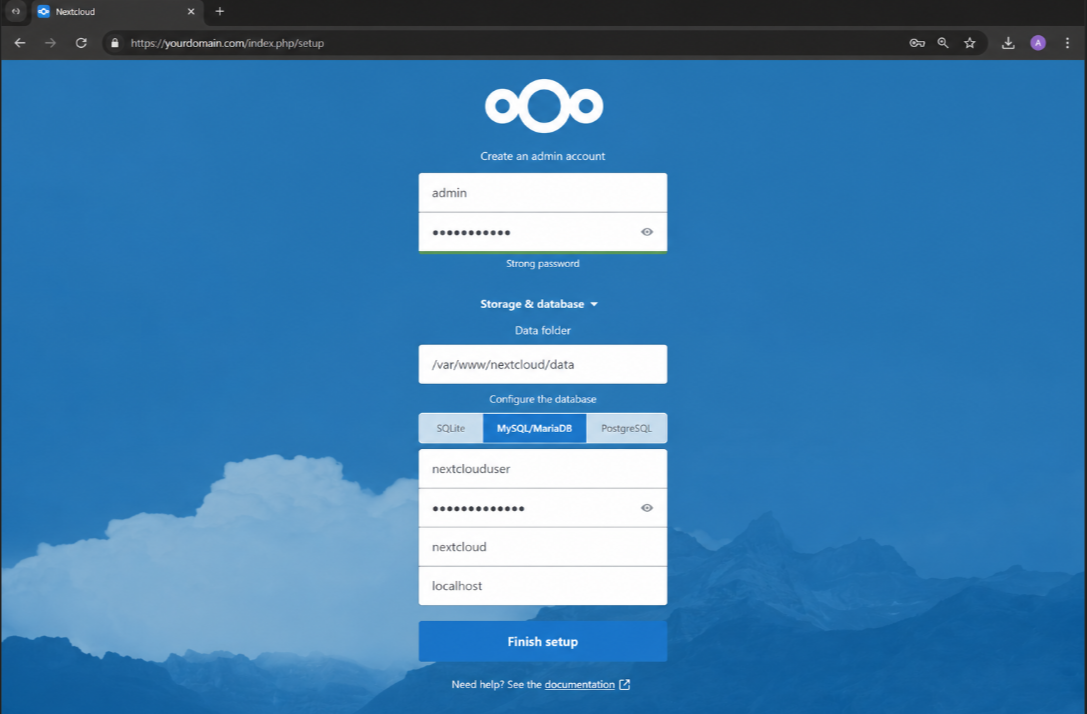
- Open your browser and go to: https://yourdomain.com >> You’ll see the Nextcloud setup page. Fill in the following fields:
| Admin Account Username: Choose your admin username (e.g., admin)Password: Set a very strong password |
Data Folder
Leave this as the default: /var/www/nextcloud/data
| Database Configuration Database type: MySQL/MariaDBDatabase user: nextclouduserDatabase password: StrongPassword123! (the one you set earlier)Database name: nextcloudDatabase host: localhost |
Click ‘Finish Setup’
Nextcloud will now install itself. This takes 30 to 60 seconds. When it’s done, you’ll land on your Nextcloud dashboard, your own private cloud is live.
Step8) Start Using Nextcloud Like a Pro
Your Nextcloud is running.
Now let me walk you through the key things you’ll use every day.
Upload and Manage Files
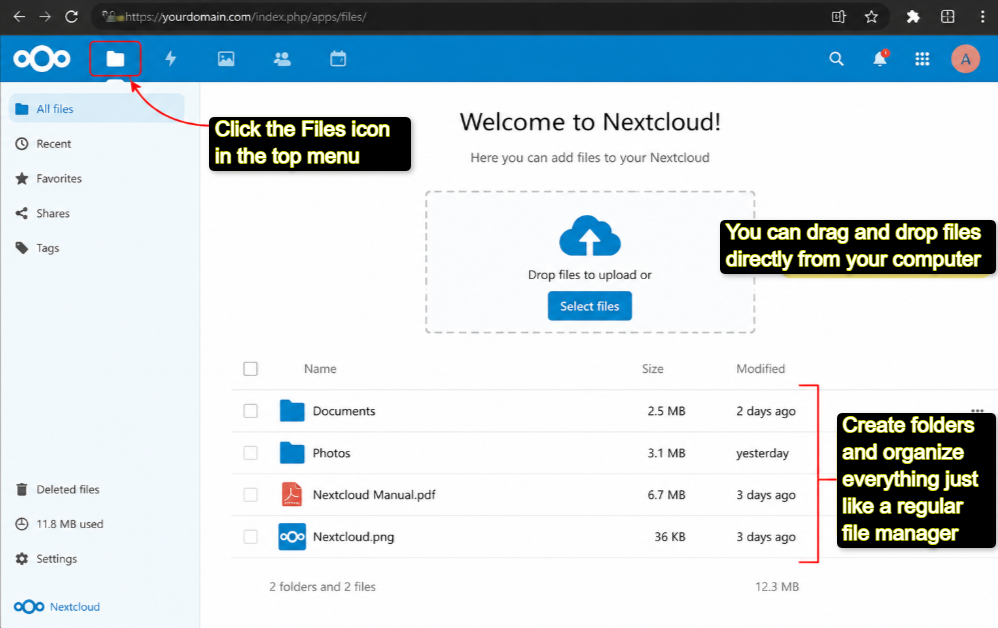
Click the Files icon in the top menu >> You can drag and drop files directly from your computer, create folders and organize everything just like a regular file manager.
Install the Desktop Sync Client
Head to nextcloud.com/install and download the desktop client for Windows, Mac, or Linux >> Once installed, it creates a local folder on your computer that automatically syncs with your server, just like Dropbox.
Install the Mobile App
Search for ‘Nextcloud’ on the App Store or Google Play >> Log in with your domain and admin credentials >> Now your files sync to your phone too.
Share Files and Folders
Right-click any file or folder and hit Share >> You can share with other users on your Nextcloud, generate a public link, set an expiry date on the link, or add password protection to the shared link.
Set Up Calendar and Contacts
Go to the Apps section (top right menu) and install the Calendar and Contacts apps >> They sync with your phone via CalDAV and CardDAV >> Android and iPhone both support this natively.
Use Nextcloud Talk for Team Chat
Install the Talk app from the Nextcloud App Store >> You get group chats, direct messages, and encrypted video calls, all self-hosted >> No Zoom subscription needed.
Manage Users
Go to the top-right user menu >> Users >> Add team members, set storage quotas, and assign roles >> Each user gets their own login and private storage space.
Step9) Lock Down Your Nextcloud Security
A self-hosted cloud is only as secure as you make it. Here are the key steps I recommend you do right away.
Enable Two-Factor Authentication >> Go to your Nextcloud admin panel >> Settings >> Security >> Enable two-factor authentication for your admin account. Install the TOTP app (Google Authenticator, Authy) and scan the QR code.
Set Up a Firewall
This blocks all ports except SSH (22), HTTP (80), and HTTPS (443). Your VPS is now protected from port scanning attacks.
Configure Automatic Backups
If you buy YouStable VPS, it includes daily backups on your VPS plan. On the Nextcloud side, install the Backup app from the App Store >> Set it to back up to a separate folder or external location weekly.
Keep Nextcloud Updated
Go to Settings >> Overview in Nextcloud.
You’ll see a notification when updates are available. Always update, each release includes security patches. You can update directly from the admin panel without touching the command line.
Security checklist
2FA enabled, firewall configured, backups active, Nextcloud on latest version, strong admin password set. Check all five and your cloud is solid.
Common Issues and How to Fix Them
There are few common issues that can come between you and your work.
Below, I’ve tried my best to state the problems that pop up during the nextcloud setup on VPS and even have given ways on how to fix them:
Can’t Access Nextcloud in Browser?
Check that Apache is running:
systemctl status apache2Check that your domain’s DNS points to your server IP.
DNS propagation can take up to 24 hours.
Database Connection Error on Setup >> Double-check your database credentials. The username, password, and database name must match exactly what you created in Step 4.
File Upload Size Limited
- Edit your PHP config to raise the upload limit:
nano /etc/php/8.1/apache2/php.ini- Find and update these two lines:
upload_max_filesize = 2Gpost_max_size = 2G- Then restart Apache:
systemctl restart apache2SSL Certificate Error
Make sure your domain’s A record points to your VPS IP >> Then re-run Certbot:
certbot --apache -d yourdomain.comNextcloud Shows Security Warnings
- Go to Settings >> Overview.
- Nextcloud lists every security issue with a fix suggestion.
- Work through them one by one >> most are fixed with a single configuration change.
FAQs
How much storage can I get on Nextcloud?
As much as your VPS storage allows. YouStable’s vStable plan gives you 240 GB NVMe SSD. You can also mount additional block storage to your server and point Nextcloud’s data directory there for terabytes of space.
Can multiple people use the same Nextcloud?
Yes. Nextcloud supports unlimited users. You create accounts for each person from the admin panel. Each user gets their own files, calendar, and contacts, all on the same server.
Is Nextcloud really free?
The Nextcloud software itself is completely free and open-source. You only pay for the VPS that runs it. With YouStable starting at $3.67 per month, it’s significantly cheaper than any commercial cloud storage subscription.
Does Nextcloud work on mobile?
Yes. There are official Nextcloud apps for Android (Google Play) and iOS (App Store). They sync files, access your calendar, view contacts, and let you join Talk video calls.
Can I connect my own domain?
Absolutely! Point your domain’s A record to your YouStable VPS IP address, then use it as the ServerName in your Apache config. That’s how you access Nextcloud at https://cloud.yourdomain.com.
What happens to my data if the VPS restarts?
Your data stays intact. Everything is stored on your VPS disk, it persists across reboots. YouStable also runs daily backups, so you have a recovery point even in the worst case.
Is it difficult to update Nextcloud?
Not at all. Nextcloud has a built-in updater you access from the admin panel. One click, a few minutes, and you’re on the latest version, no command line needed for standard updates.
Conclusion
Your Private Cloud Is Ready: And It’s Yours You just did something most people never do. You took control of your own data.
Believe me! No more depending upon someone else’s servers. With Nextcloud running on a YouStable VPS, you now have:
- A private cloud that rivals Google Drive and Dropbox in features
- File sync across all your devices (desktop, mobile, tablet)
- Built-in calendar, contacts, team chat, and video calls
- End-to-end encryption and full security in your hands
- A monthly cost that’s a fraction of any commercial alternative
And you built it yourself, step by step, right from ordering the VPS to watching Nextcloud load in your browser.
Now it’s time to invite your team, start uploading your files, and explore the 200+ apps in the Nextcloud App Store. There’s a lot more you can do with this platform, document collaboration, AI-powered file tagging, external storage mounting and more.
Start with YouStable today: youstable.com/vps-hosting. Your data. Your server. Your cloud.