

Windows Server Backup for Hyper-V is the built in, VSS aware solution to protect virtual machines at the host level. It captures crash consistent or application consistent snapshots via the Hyper-V VSS writer, stores them on local disks, external drives, or network shares, and supports cluster scenarios with CSV and SAN storage when correctly configured.
Backing up Hyper-V on Windows Server isn’t just a checkbox, it’s your last line of defense against data loss, ransomware, and hardware failures. In this guide, we’ll explain Windows Server Backup for Hyper-V, how it works with Storage & SAN, cluster considerations, backup strategies, and the exact steps and commands to safeguard your virtual machines.
What is Windows Server Backup for Hyper-V?
Windows Server Backup (WSB) is a native feature that uses Volume Shadow Copy Service (VSS) to take image level and volume level backups of a Hyper-V host, including its virtual machines.
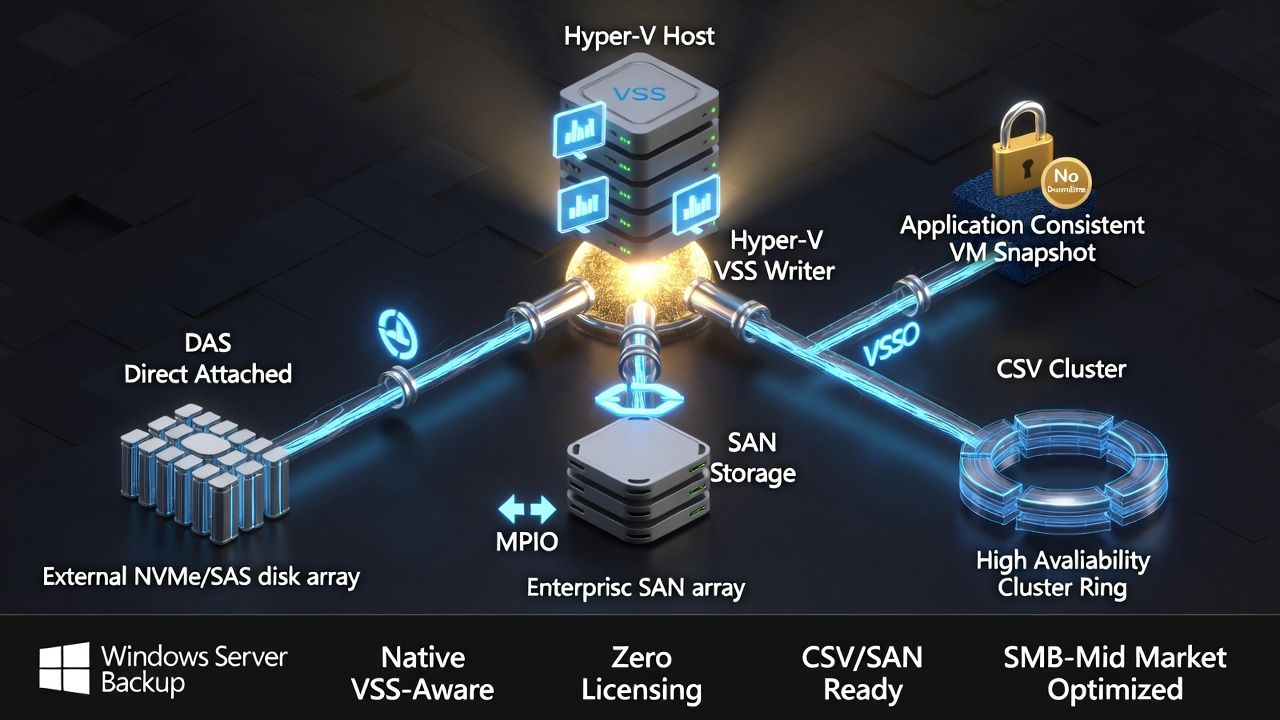
With the Hyper-V VSS writer and guest integration services, WSB can create application consistent backups of VMs without shutting them down, and later restore the entire VM or the host volumes.
WSB is ideal for small to mid size environments that need reliable, low overhead backups without extra licensing. It supports direct attached storage (DAS), iSCSI or Fibre Channel SAN, and Cluster Shared Volumes (CSV) for clustered Hyper-V deployments.
How Hyper-V Backups Work (VSS, Checkpoints, and Consistency)
Hyper-V leverages VSS to coordinate snapshots at both the host and guest levels. When a backup starts, the Hyper-V VSS writer communicates with each VM’s integration services to quiesce applications and the file system, then captures a point in time image of the VM disks.
Crash Consistent vs Application Consistent
Crash consistent: Captures the VM state as if power was pulled, no guarantee that in guest apps (SQL, Exchange, AD, VSS aware line of business systems) flush their data. Fast, but riskier for transactional workloads.
Application consistent: Uses VSS writers inside the VM to quiesce apps and flush write buffers. Safest for databases and domain controllers. Requires integration services, VSS writers in the guest, and sufficient free space for shadow copies.
Production Checkpoints vs Backup Snapshots
Production checkpoints (Windows Server 2016+) use VSS inside the VM for app consistent recovery but are not backups by themselves. Windows Server Backup takes VSS based backups that can be restored independently from the original storage. Avoid relying on checkpoints as your backup strategy.
Storage & SAN Considerations for Hyper-V Backups
DAS vs SAN vs S2D
DAS (SATA/SAS/NVMe): Simple and cost effective for standalone hosts. Backups run fastest to a dedicated external disk or JBOD on the same host.
SAN (iSCSI/FC): Common in clustered Hyper-V. Ensure MPIO is configured, the SAN vendor’s VSS provider is installed if needed, and test backup throughput to avoid production I/O impact.
Storage Spaces Direct (S2D): Supported with CSV volumes. Backups should be executed in a way that respects CSV redirected I/O during snapshotting to avoid cluster contention.
Cluster Shared Volumes (CSV) and WSB
In clusters, VMs typically run on CSVs. WSB can back up CSVs using the Hyper-V VSS writer. Best practice: run the backup job on the node that owns the VM(s) to minimize redirected I/O. Confirm the “CSV writer” is active and test recovery regularly.
Hardware VSS Providers and Off Host Backups
Some SANs offer hardware VSS providers for near instant, offloaded snapshots. While WSB supports VSS, it doesn’t perform true off host backups or SAN based proxy transport like some enterprise tools.
If you require off host backup or storage level snapshots with cataloging and quick mount, consider third party solutions designed for SAN integration.
Backup Strategy: RPO, RTO, and Retention
Define RPO and RTO
RPO (Recovery Point Objective): How much data you can afford to lose (e.g., 4 hours). RTO (Recovery Time Objective): How quickly you must restore service. These targets guide your schedule, storage sizing, and whether you need advanced features like replication or off host backups.
3-2-1 and Offsite Copies
Maintain at least three copies of your data on two different media, with one offsite or offline. For WSB, use a rotation of external disks (air gapped) or replicate backups to another site. Add immutability (WORM/object lock) if your storage supports it to help resist ransomware.
Incrementals, Scheduling, and Network Share Limits
WSB performs block level incrementals to disk targets after the first full, enabling efficient daily or even hourly backups. When backing up to a network share, WSB has limitations and often retains only the most recent version. Prefer local/external disk targets for rich versioning; then replicate those backups offsite.
How to Back Up Hyper-V with Windows Server Backup
Prerequisites
- Install Windows Server Backup (Server Manager > Add Roles and Features > Features).
- Ensure Hyper-V Integration Services (or latest VM guest services) are installed inside each VM.
- Verify VSS writers are healthy (Hyper-V, CSV, and inside guests).
- Have a dedicated backup target (separate volume, external disk, or share).
Backup via GUI (Quick Steps)
- Open “Windows Server Backup” > “Backup Schedule” (or “Backup Once”).
- Select “Custom” and add volumes that store your VM files (VHDX, configuration, checkpoints), or select the Hyper-V item if available.
- Choose the destination: dedicated disk, volume, or network share.
- Schedule frequency (e.g., daily at 22:00) and retention (based on target size and policy).
- Finish and run the first backup. Monitor Event Viewer > Applications and Services Logs > Microsoft > Windows > Backup/HVVM.
Backup via Command Line (wbadmin)
Use wbadmin for automation and precise control. Examples below assume Hyper-V VMs reside on volume E: and backup target is drive F:.
# Run a one-time backup of volume E: to F: with VSS full (application-consistent)
wbadmin start backup -backuptarget:F: -include:E: -quiet -vssFull

# If you do not want guest log truncation, use VSS copy instead:
wbadmin start backup -backuptarget:F: -include:E: -quiet -vssCopy

# Schedule a daily backup at 22:00
wbadmin enable backup -addtarget:F: -schedule:22:00 -include:E: -quiet -vssFull
Restore Scenarios
- Entire VM restore: Use WSB “Recover” to select the date/time and restore the VM files to original or alternate location, then import in Hyper-V Manager.
- Host volume restore: Restore the entire volume that holds VM storage if multiple VMs were affected.
- File level inside a VM: Mount the VHDX from backup on a staging host, copy required files, and detach.
# List available versions
wbadmin get versions

# Restore a volume (example: E:) from a specific version
wbadmin start recovery -version:MM/DD/YYYY-HH:MM -itemType:Volume -items:E: -quiet
Also Read: How to Optimize DirectAdmin on Linux Server – Easy Guide
Best Practices and Common Pitfalls
- Separate backup traffic: Use a dedicated NIC/VLAN to avoid impacting VM production I/O.
- Run backups on the owning node: In clusters, target the node hosting the VM to minimize CSV redirected I/O.
- Size your target generously: Plan for the first full plus incrementals and retention; monitor free space.
- Choose VSS mode deliberately: VSS full can truncate application logs inside guests; use VSS copy if app aware backups run inside the VM.
- No checkpoints as backups: Delete lingering checkpoints after successful backups; monitor for merge failures.
- Test restores quarterly: Validate you can boot a recovered VM and that application data is intact.
- Harden backups: Use offline rotation, restricted permissions, and optionally immutable targets to resist ransomware.
- Document runbooks: Capture precise restore steps for the team; include credentials, encryption keys, and DR contacts.
Windows Server Backup vs Third Party Tools
- WSB strengths: Included with Windows, simple, VSS aware, incremental to disk targets, supports Hyper-V and CSV, low overhead.
- WSB limitations: Basic scheduling/reporting, limited retention on network targets, no off host proxy, no native instant recovery or granular item restore for apps, fewer multi site/immutable options.
- Third party strengths: Advanced SAN integration, agentless app aware backups, instant VM boot, WAN acceleration, immutability, tape/offsite orchestration, richer RBAC and reporting.
- Third party trade offs: Licensing cost, learning curve, and additional infrastructure (proxies, repos).
Real World Scenarios
Small Business, Single Host (DAS)
- Target: External USB or dedicated SATA disk.
- Schedule: Nightly incrementals, weekly full verification.
- Offsite: Rotate two disks; keep one offsite.
- Recovery: Restore a full VM in minutes; file level via mounting VHDX.
Mid Market, Dual Hosts with iSCSI SAN
- Target: Dedicated backup volume on separate storage or backup appliance.
- Schedule: Twice daily incrementals; weekly synthetic full.
- Cluster: Run backups from owning node; validate CSV VSS.
- Offsite: Replicate backups to DR site; test VM boots quarterly.
Enterprise Cluster with S2D or Fibre Channel
- Target: Tiered backup with fast disk + object storage; immutability enabled.
- Consider: Third party for off host and instant recovery; use WSB for additional local protection.
- Compliance: Document retention, encryption, and key management.
FAQs
Does Windows Server Backup support application consistent Hyper-V backups?
Yes. With Hyper-V Integration Services and VSS writers installed inside the VM, WSB can take application consistent snapshots. Use VSS full to enable log truncation for supported apps, or VSS copy to avoid affecting in guest backup policies.
Can I back up Hyper-V VMs stored on a SAN or CSV?
Yes. WSB supports SAN backed storage and Cluster Shared Volumes. For best performance, run backups on the node that owns the VM to reduce CSV redirected I/O, and install any required SAN VSS providers.
Is backing up to a network share recommended?
It works, but WSB often retains only the latest version on network shares. For multi version retention and better performance, back up to a dedicated local or external disk, then replicate those backups to a share or offsite repository.
How often should I back up Hyper-V VMs?
Align frequency with your RPO. Many environments run nightly incrementals, while critical workloads might require backups every 1–4 hours. Always balance RPO goals with storage throughput and production I/O impact.
Can I restore individual files from a VM backup?
WSB doesn’t provide in guest file item recovery directly. Mount the backed up VHDX on a staging host, browse files, and copy out what you need. Third party tools can streamline granular restores if this is a frequent requirement.










