Incoming and outgoing mail servers are the systems that send and receive your email. The incoming mail server (IMAP or POP3) stores and delivers messages to your device, while the outgoing mail server (SMTP) sends messages to recipients. In 2026, secure SSL/TLS, correct ports, and authentication are essential for reliable, spam‑free email delivery.
This guide explains incoming and outgoing mail servers in simple terms, shows the best 2026 settings, and helps you configure email clients, fix common errors, and improve deliverability. Whether you use cPanel, Plesk, Microsoft 365, Google Workspace, or a hosting provider like YouStable, you’ll find practical steps and proven, real world advice.
What Are Incoming and Outgoing Mail Servers?
An incoming mail server downloads or synchronizes your messages from your mailbox to your device. It uses IMAP or POP3 protocols.
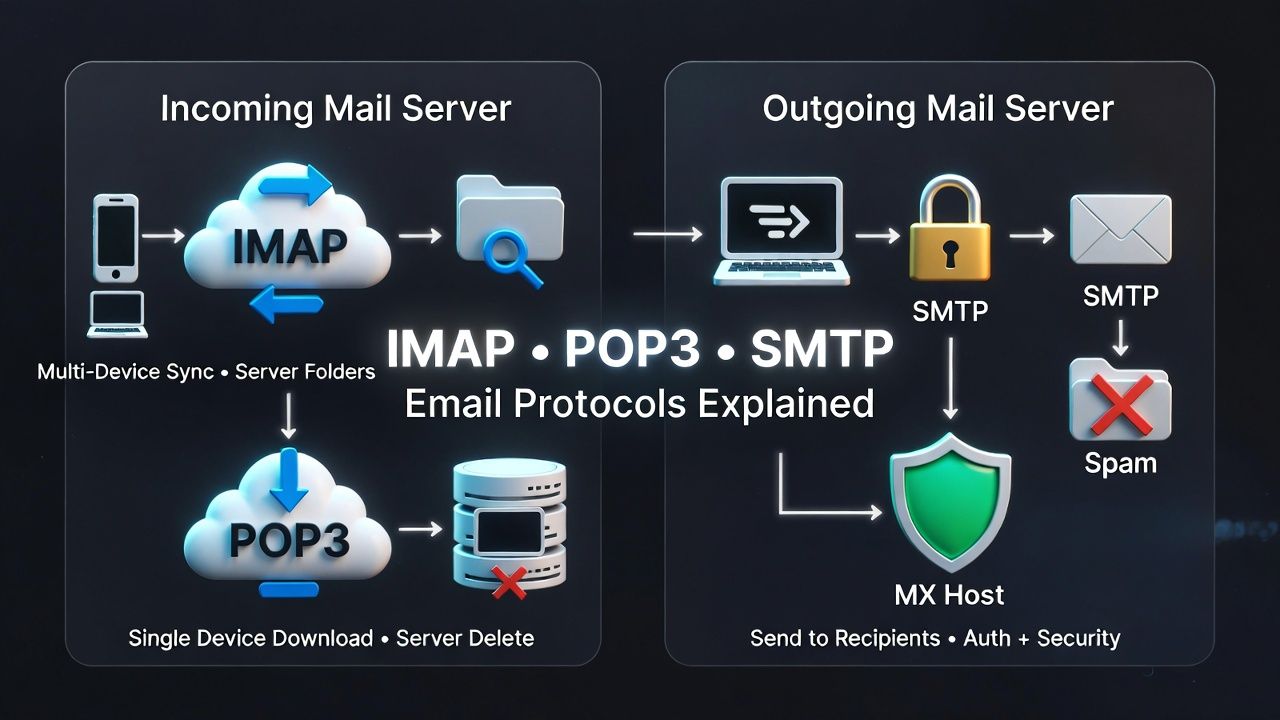
An outgoing mail server sends your email to recipients using SMTP. Together, they form the core of email communication for personal inboxes and business domains.
Incoming Mail Server (IMAP vs POP3)
IMAP (Internet Message Access Protocol) syncs your mailbox across devices, keeping messages on the server. It is ideal for modern, multi device use (phone, laptop, webmail). POP3 (Post Office Protocol) downloads messages and can remove them from the server; it suits single device, low storage scenarios but is less flexible.
- Use IMAP if you access email on multiple devices and need server side folders and search.
- Use POP3 if bandwidth or storage is limited and you primarily read on one device.
- 2026 best practice: choose IMAP with SSL/TLS for most users and businesses.
Outgoing Mail Server (SMTP)
SMTP (Simple Mail Transfer Protocol) transmits your email out to other mail servers. It authenticates the sender, applies security, and hands off messages through the internet to the recipient’s MX host. Proper SMTP settings, authentication, and domain records are critical to avoid spam folders and bounces.
Standard Ports and Security: 2026 Best Practices
Modern email relies on encryption in transit (TLS) and authenticated sessions. Use these recommended ports and ciphers to protect data and improve compatibility with strict mail providers.
- IMAP over TLS: Port 993 (recommended)
- IMAP (STARTTLS): Port 143 (only if your provider prefers STARTTLS)
- POP3 over TLS: Port 995 (recommended)
- POP3 (STARTTLS): Port 110 (legacy/only if required)
- SMTP submission (STARTTLS): Port 587 (recommended for clients)
- SMTP over TLS: Port 465 (widely supported; many providers accept 465 or 587)
- Always enable authentication (username + password) for SMTP submission.
- Enable SSL/TLS or STARTTLS; never send logins over plain text.
- Prefer modern TLS (1.2/1.3) and strong ciphers; disable obsolete SSLv3/TLS1.0 where possible.
How Email Flows from Sender to Recipient
Understanding the path improves troubleshooting and deliverability:
- You compose mail in a client (e.g., Outlook, Apple Mail).
- Your client authenticates to the outgoing mail server (SMTP on 587/465) and submits the message.
- The SMTP server checks policies (rate limits, SPF/DKIM signing), then looks up the recipient domain’s MX record via DNS.
- It connects to the recipient’s MX, negotiates TLS, and transfers the message.
- The recipient’s server filters for spam/phishing and delivers to the inbox or spam folder.
- The recipient’s client retrieves messages via IMAP/POP3 from their incoming server.
Essential DNS Records for Reliable Delivery
Correct DNS is the foundation of outgoing and incoming email for your domain:
- MX: Points to the server that receives mail for your domain (e.g., mail.example.com).
- SPF: Authorizes which servers may send mail on behalf of your domain.
- DKIM: Cryptographically signs outgoing messages to prove authenticity.
- DMARC: Instructs receivers how to handle failures of SPF/DKIM and sends you reports.
- PTR (Reverse DNS): Maps your sending IP back to a hostname; vital for SMTP reputation.
- MTA–STS/TLS-RPT: Enforces TLS for SMTP and provides TLS reports (advanced but recommended).
How to Find Your Mail Server Settings
- Hosting control panels: In cPanel or Plesk, open Email Accounts > Set Up Mail Client to see IMAP/POP3 and SMTP hostnames, ports, and SSL options.
- Managed suites: For Microsoft 365 or Google Workspace, use admin portals; look for “IMAP/POP/SMTP” and “DNS” pages for MX, SPF, DKIM, DMARC.
- Self hosted: Your mail server documentation (Postfix/Dovecot/Exim) lists the submission ports and TLS settings. Confirm with your sysadmin.
- YouStable customers: Find “Secure SSL/TLS Settings” in your dashboard or welcome email, including hostname (e.g., mail.yourdomain.com) and correct ports.
Configure Email Clients: Quick Settings
Use these baseline settings; replace example values with your provider’s details.
- Incoming mail server: mail.example.com, IMAP port 993 (SSL/TLS) or 143 (STARTTLS)
- Outgoing mail server: smtp.example.com, SMTP port 587 (STARTTLS) or 465 (SSL/TLS)
- Username: Your full email address (e.g., user@example.com)
- Password: Your email password (never reuse weak passwords)
- Authentication: Required for SMTP; choose “Password/Normal” or “OAuth” if offered
# Example: Secure IMAP + SMTP client configuration
Incoming (IMAP):
  Server: mail.example.com
  Port: 993
  Security: SSL/TLS
  Authentication: Normal password
  Username: user@example.com
Outgoing (SMTP submission):
  Server: smtp.example.com
  Port: 587
  Security: STARTTLS
  Authentication: Normal password
  Username: user@example.com
IMAP vs POP3: Which Should You Choose?
- IMAP pros: Multi device sync, server side folders and search, better backups on the server.
- IMAP cons: Uses server storage; may need quotas and archiving policies.
- POP3 pros: Lower server storage usage; good for single device workflows.
- POP3 cons: No true multi device sync; risk of losing mail if device fails.
Troubleshooting Incoming and Outgoing Mail Servers
Start with the simplest checks: credentials, ports, encryption type, and network/firewall. Then move to DNS and server logs.
- Cannot send mail: Ensure SMTP port 587/465 (not 25) and authentication is enabled. Check if your ISP blocks outbound SMTP. Verify SPF and DKIM to avoid policy rejections.
- Cannot receive mail: Confirm MX records point to the correct hostname; check mailbox quota, spam filters, and IMAP port 993 availability.
- SSL/TLS errors: Your client may reject mismatched certificates (hostname mismatch). Use the exact hostname in the certificate (e.g., mail.yourhost.com).
- Messages landing in spam: Add SPF, DKIM, and DMARC; maintain clean content and consistent “From:” domain; avoid URL shorteners and spammy keywords.
- Rate limits and throttling: Many providers cap sends per hour/day. Implement queues and staggered sends, or use a dedicated SMTP relay.
# Quick diagnostic commands (run from a terminal)

# Check MX
nslookup -type=mx example.com
dig MX example.com +short

# Test SMTP with STARTTLS
openssl s_client -starttls smtp -connect smtp.example.com:587 -servername smtp.example.com

# Test IMAP TLS
openssl s_client -connect mail.example.com:993 -servername mail.example.com

# Check SPF/DKIM/DMARC
dig TXT example.com +short
dig TXT default._domainkey.example.com +short
dig TXT _dmarc.example.com +short
Deliverability and Security Essentials 2026
- SPF: Include all legitimate senders (hosting SMTP, CRM, marketing platform). Avoid overly broad “+all” and prefer “~all” or “-all” endings.
- DKIM: Enable and rotate 1024–2048-bit keys. Sign all outbound mail from your primary domain.
- DMARC: Start with p=none; monitor reports, then move to p=quarantine or p=reject once aligned.
- Reverse DNS: Ensure sending IP PTR matches your SMTP banner hostname.
- MTA-STS and TLS-RPT: Enforce TLS and monitor encryption issues with receiving servers.
- List hygiene: Remove hard bounces, monitor complaints, and warm up new sending IPs gradually.
- Content quality: Use a consistent From name, proper text to image ratio, and unsubscribe links for bulk mail.
Business Email Hosting: What to Consider
- Reliability and SLAs: Look for uptime guarantees and redundant infrastructure.
- Security: Enforced TLS, spam/virus filtering, 2FA, and robust abuse controls.
- Admin controls: Easy DNS management, DKIM keys, DMARC reporting, per user policies.
- Limits: Understand send/hour and send/day thresholds, attachment size, and mailbox quotas.
- Compliance and archiving: Retention policies, journaling, and eDiscovery if required.
- Support: 24×7 support with real email expertise and clear escalation paths.
YouStable provides secure, performance tuned email hosting with spam filtering, SSL/TLS by default, and guided setup for SPF, DKIM, and DMARC. If you’re moving from shared SMTP or facing deliverability issues, our team can help you migrate, validate DNS, and stabilize your reputation without downtime.
Real World Setup Examples
cPanel/Plesk with Your Own Domain
- MX: mail.example.com
- SPF: v=spf1 a mx include:_spf.yourhost.com ~all
- DKIM: Enable in Email Deliverability; publish provided TXT record.
- DMARC: v=DMARC1; p=none; rua=mailto:dmarc@example.com; fo=1;
- Client: IMAP 993 SSL/TLS, SMTP 587 STARTTLS with authentication.
Microsoft 365 or Google Workspace (Hybrid)
- MX: Points to Microsoft/Google’s MX host.
- SPF: Include the suite plus any third party senders (e.g., include:spf.protection.outlook.com or _spf.google.com).
- DKIM: Enable and publish keys from the admin console.
- DMARC: Align From domain with authenticated sources; move to “quarantine” or “reject” after monitoring.
- Use SMTP relay where supported for internal apps or devices.
Common Misconceptions to Avoid
- “Port 25 is fine for sending from my laptop.” Use 587 or 465 for authenticated submission; 25 is typically blocked or for server to server only.
- “POP3 is more secure than IMAP.” Security depends on TLS and authentication, not the protocol itself.
- “SPF alone prevents spoofing.” You need SPF, DKIM, and DMARC alignment for strong protection.
- “A new IP can send at full volume.” Warm it up gradually to build reputation.
FAQs
What is the difference between incoming and outgoing mail servers?
Incoming servers (IMAP/POP3) let your device retrieve messages stored on the server. Outgoing servers (SMTP) send your email to recipient domains. You need both configured with authentication and TLS for a complete, secure email setup.
Which ports should I use for email in 2026?
Use IMAP 993 (TLS) or 143 (STARTTLS), POP3 995 (TLS), and SMTP 587 (STARTTLS) or 465 (TLS). Avoid sending via port 25 from clients; it’s commonly blocked and intended for server to server delivery.
Why do my emails go to spam, and how can I fix it?
Missing SPF/DKIM/DMARC, poor sender reputation, spammy content, or mismatched reverse DNS can trigger spam filters. Publish correct DNS records, authenticate every message, warm up new IPs, maintain list hygiene, and use consistent branding.
Is IMAP better than POP3 for business email?
Yes, in most cases. IMAP supports multi device synchronization, server side search, and better continuity after device loss. POP3 mainly suits single device workflows or very limited storage situations.
Do I need a dedicated SMTP service?
If you send high volumes, run marketing campaigns, or need granular deliverability controls, a dedicated SMTP relay helps with reputation management, analytics, and throughput. Providers like YouStable can advise whether shared, dedicated, or hybrid sending fits your use case.
With the right incoming and outgoing mail server settings, authenticated TLS, and proper DNS, your email will be secure, fast, and inbox ready in 2026. If you’re unsure where to start, YouStable’s engineers can audit, configure, and optimize your entire email stack for reliable results.