The Chocolatey install command (choco install) installs Windows software packages from community or private repositories using one PowerShell line. It supports silent installs, version pinning, multiple packages at once, and custom parameters.
Choco install googlechrome -y installs Google Chrome automatically without prompts and with sensible defaults. If you’re new to Windows package managers, the Chocolatey install command is the fastest way to script, automate, and standardize software deployment.
In this guide, we’ll explain the choco install syntax, options, and best practices, with clear examples you can copy paste. As a hosting provider, we also share real world tips we use when preparing developer workstations and Windows servers.
What is Chocolatey and Why Use the Install Command?
Chocolatey is a Windows package manager that downloads, installs, and updates software via command line or scripts.
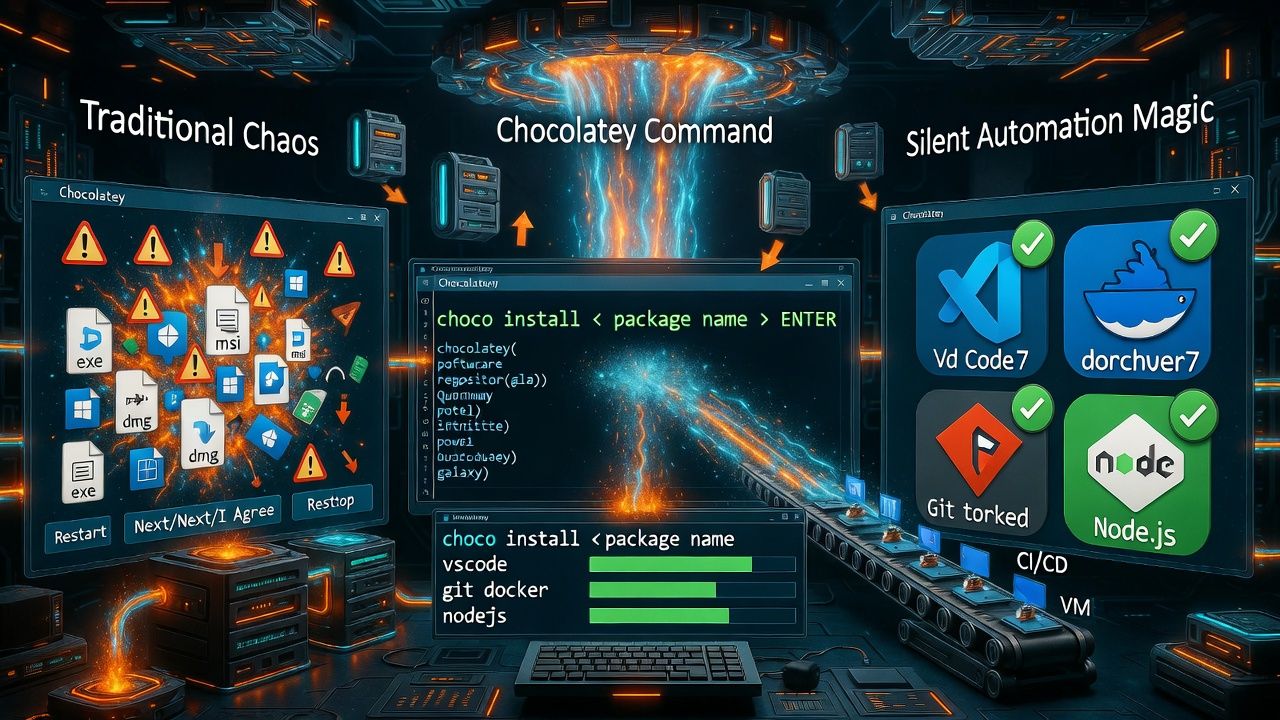
Instead of clicking through installers, you use choco install <package> to perform silent, unattended installs. It’s a staple for developers, IT admins, and CI/CD pipelines where speed, repeatability, and auditability matter.
Chocolatey install command. Secondary keywords used naturally include choco install, Windows package manager, install multiple packages with Chocolatey, and Chocolatey example.
Before You Begin: Requirements and Setup
Most Chocolatey packages require an elevated PowerShell session.
- Open Windows PowerShell or Windows Terminal as Administrator
- Ensure TLS 1.2 and Execution Policy allow the installer
- Install Chocolatey if missing
To install Chocolatey (official method), run in an elevated PowerShell window:
Set-ExecutionPolicy Bypass -Scope Process -Force; `
[System.Net.ServicePointManager]::SecurityProtocol = `
[System.Net.ServicePointManager]::SecurityProtocol -bor 3072; `
iex ((New-Object System.Net.WebClient).DownloadString('https://community.chocolatey.org/install.ps1'))
Verify installation:
choco --versionYou can now use the Chocolatey install command.
Chocolatey Install Command Syntax
Basic syntax:
choco install <packageName> [<packageName2> ...] [options]Common options you’ll use daily:
- -y or –yes: Accept all prompts for unattended installs
- –version=<x.y.z>: Install a specific package version
- –pre: Allow pre-release versions
- –source=<url|path|feed>: Use a custom/local repository
- –params or –package-parameters: Pass package specific parameters
- –installargs or –install-arguments: Pass arguments to the native installer (MSI/EXE)
- –force: Reinstall even if it’s already installed
- –ignore-checksums: Bypass checksum verification (use cautiously)
- -r or –limit-output and –no-progress: Cleaner logs for CI
- -v or –verbose; -d or –debug: More detailed output for troubleshooting
Chocolatey Install Command Examples
1. Install a Single App Silently
This installs Google Chrome without prompts:
choco install googlechrome -yWhy it matters: -y ensures the install runs headlessly, ideal for automation and remote sessions.
2. Install Multiple Packages at Once
Bootstrap a developer workstation in one line:
choco install git nodejs-lts vscode 7zip -yReal-world tip: Save this into a PowerShell script for new team members and server images.
3. Install a Specific Version
Pin versions to keep builds reproducible:
choco install nodejs-lts --version=18.18.2 -yUse this for production servers where a minor version change can break integrations.
4. Install a Pre-release Version
Access bleeding-edge builds when the package supports it:
choco install terraform --pre -yOnly use –pre on test machines or sandboxes.
5. Install from an Internal Repo or Local Folder
For enterprises, mirror packages to a private feed (e.g., Nexus, Artifactory, Azure DevOps) or use a local folder:
# Private feed
choco install 7zip --source="https://repo.company.local/choco" -y

# Local folder containing .nupkg files
choco install mypkg --source="C:\packages" -y
Benefit: Improved reliability, speed, and compliance with internal vetting.
6. Pass Package Parameters and Installer Arguments
Many packages accept parameters to customize behavior. Always check the package page for supported flags.
# Example: Git without shell integration and without AutoCRLF
choco install git -y --params "'/NoShellIntegration /NoAutoCrlf'"

# MSI/EXE arguments passed to native installer
choco install somepackage -y --installargs "'/quiet /norestart'"
Note the nested quotes. Chocolatey expects the entire parameter string as one value.
7. Work Behind a Proxy
Configure proxy once, then run installs as usual:
choco config set proxy "http://proxy.company.local:8080"
choco config set proxyUser "DOMAIN\user"
choco config set proxyPassword "SecretPassword!"
Store secrets securely in your environment or use a secure credential vault when possible.
Best Practices for Reliable Chocolatey Installs
- Run as Administrator to avoid permission issues and UAC interruptions.
- Use -y for automation and CI pipelines; consider choco feature enable -n allowGlobalConfirmation for non interactive sessions.
- Pin versions on servers with –version to keep environments consistent.
- Mirror critical packages to a private repository to reduce external dependency and improve speed.
- Read each package’s documentation for supported –params and silent switches.
- Log and audit: keep C:\ProgramData\chocolatey\logs\chocolatey.log for compliance.
- Use –no-progress and –limit-output for cleaner CI logs.
- Handle reboots: many packages support /norestart; schedule reboots after maintenance windows.
- Update regularly: choco upgrade all -y during patch cycles.
- Validate checksums (avoid –ignore-checksums unless absolutely necessary).
Troubleshooting Common Install Errors
Execution Policy or TLS Errors
Use the install bootstrap snippet shown earlier to set Execution Policy and TLS 1.2. Always launch PowerShell as Admin.
Checksum Mismatch
This can occur if the upstream vendor updated binaries. Avoid bypassing verification. Instead, update package metadata (for internal packages) or wait until the community package is refreshed. As a last resort, use –ignore-checksums temporarily in controlled environments.
Antivirus or EDR Blocking
Security tools may quarantine installers. Whitelist Chocolatey’s cache path (check choco config get cacheLocation or default under C:\ProgramData\chocolatey) according to your security policy.
Installer Requires GUI or User Interaction
Confirm the package supports silent switches. Use –installargs or package parameters for silent mode. Some vendor installers don’t fully support silent mode; test on a VM first.
Where to Check Logs
Chocolatey logs to C:\ProgramData\chocolatey\logs\chocolatey.log. For deeper insight, re-run with -d -v. Many native installers also log to %TEMP% or their own directories.
Real World Use Cases (Dev, CI, and Servers)
- Developer onboarding: One script installs IDEs, SDKs, and tools in minutes.
- CI runners and build agents: Choco ensures exact toolchain versions on ephemeral agents.
- Windows servers: Standardize deployments across fleets; store approved packages in a private feed.
- Disaster recovery: Rebuild workstations with a single package manifest.
At YouStable, we frequently help teams automate Windows server provisioning. Whether you’re on a managed Windows VPS or dedicated server, using Chocolatey with a private repository tightens security, shortens build times, and keeps environments consistent. If you need guidance integrating Chocolatey into your server images or pipelines, our experts can help.
Complete Script Example: Bootstrap a Fresh Machine
Use this example to get a dev-ready machine quickly. Run in elevated PowerShell:
# Ensure TLS and install Chocolatey (skip if already installed)
Set-ExecutionPolicy Bypass -Scope Process -Force
[System.Net.ServicePointManager]::SecurityProtocol = `
[System.Net.ServicePointManager]::SecurityProtocol -bor 3072
iex ((New-Object System.Net.WebClient).DownloadString('https://community.chocolatey.org/install.ps1'))

# Install core tools silently
choco install git nodejs-lts vscode 7zip googlechrome -y --no-progress

# Verify installs
git --version
node --version
code --version
This template is easily adapted for build agents, classroom labs, or cloud VMs.
Also take a look at these commands
• Chown Command in Linux Explained With Examples
• Echo Command in Linux Explained With Examples
• NMAP Command in Linux | Ultimate Network Scanning Guide
• Head Command in linux | Complete User Guide with Examples
FAQs
What’s the difference between choco install and choco upgrade?
choco install installs a package if it’s not present (or reinstalls with –force). choco upgrade updates an already installed package to the latest (or to a specified version). For fleet updates, use choco upgrade all -y.
How do I install a specific version with Chocolatey?
Add –version. Example: choco install python –version=3.11.7 -y. Pinning versions ensures consistent environments across machines and CI pipelines.
What does -y do in choco install?
-y (or –yes) auto-confirms prompts for unattended installs. It’s essential for scripts, remote sessions, and CI/CD pipelines where no user is available to click through dialogs.
When should I use –params vs –installargs?
–params (or –package-parameters) are interpreted by the Chocolatey package’s script. –installargs (or –install-arguments) are passed directly to the vendor’s installer (MSI/EXE). Some packages support both; check the package page for recommended usage.
Can I use Chocolatey without admin rights?
Chocolatey supports non admin installs in some scenarios, but many packages require elevation to write to Program Files or system paths. For reliability, run as Administrator or use a location and packages compatible with non admin mode.
The Chocolatey install command is a powerful, time saving tool for Windows automation. Start small with a few packages, then evolve to version pinned manifests and private repositories. If you’re rolling this out across servers or teams, YouStable can help you design a secure, scalable approach tailored to your infrastructure.