

SSH on a Linux server is a secure, encrypted protocol (Secure Shell) used to remotely access, manage, and transfer files between systems. It replaces insecure methods like Telnet by using public key cryptography and strong ciphers. With SSH, admins can log in, run commands, automate tasks, tunnel traffic, and securely administer servers over any network.
If you manage infrastructure, understanding SSH on Linux server environments is essential. In this guide, you’ll learn what SSH is, how it works, how to install and use it, and how to harden it for production.
I’ll share practical steps, battle-tested tips, and security best practices from 12+ years working with hosting, cloud, and Linux servers.
What is SSH and How it Works?
SSH (Secure Shell) is a cryptographic network protocol that provides secure remote login and command execution. On Linux, it’s typically implemented by OpenSSH. SSH consists of a server daemon (sshd) that listens on a port (default 22) and a client (ssh) you run from your local machine.
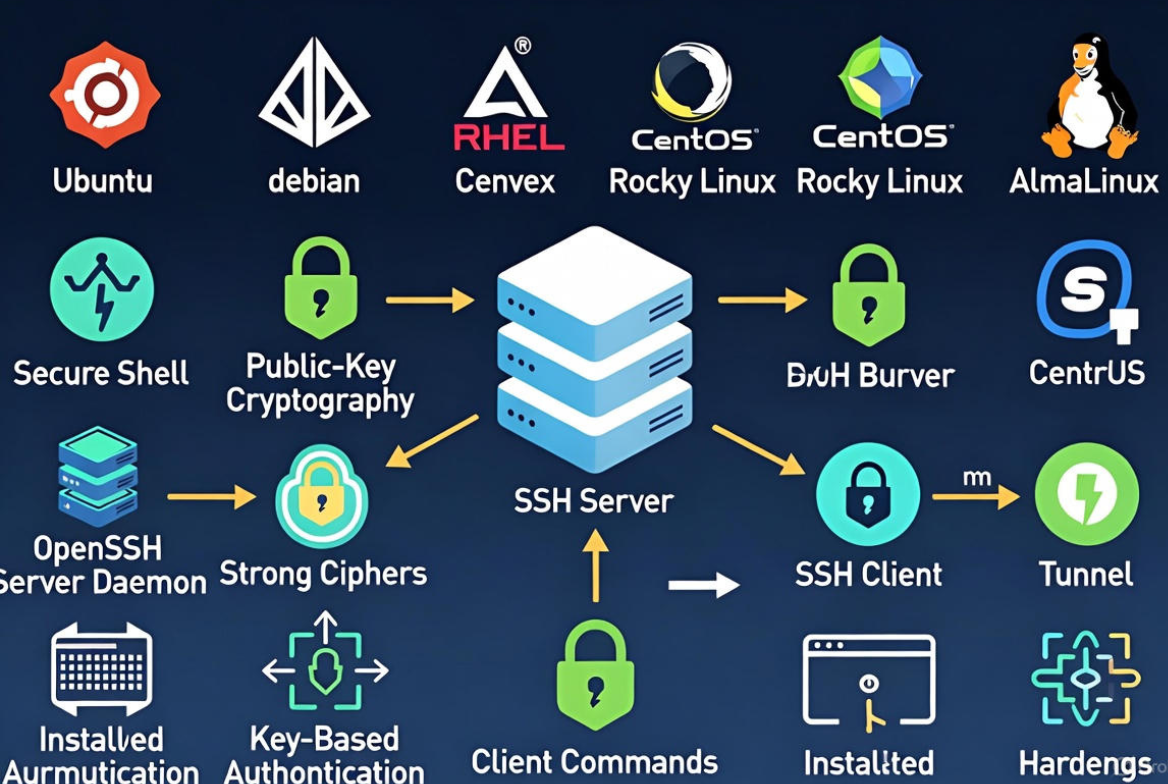
- Encryption: Establishes a secure channel using asymmetric keys during handshake, then switches to fast symmetric ciphers.
- Authentication: Validates users via passwords, public keys (recommended), or multi-factor methods.
- Integrity: Ensures data isn’t tampered with using MACs (message authentication codes).
- Extensibility: Supports SFTP/SCP for file transfer and tunneling for port forwarding.
Why SSH Matters for Server Administration
- Secure remote shell: Run commands, edit configs, and manage services from anywhere.
- File transfer: Use SFTP/SCP for encrypted uploads/downloads and backups.
- Automation: CI/CD, Ansible, and scripts use SSH keys for passwordless access.
- Tunneling: Securely expose internal services (databases, dashboards) without public access.
- Auditing and control: Centralize access, restrict users, and log activity.
Install and Enable SSH on Popular Linux Distros
Ubuntu/Debian
sudo apt update
sudo apt install -y openssh-server
sudo systemctl enable --now ssh
sudo systemctl status ssh
RHEL/CentOS/Rocky/AlmaLinux
sudo dnf install -y openssh-server
sudo systemctl enable --now sshd
sudo systemctl status sshd
Allow SSH in your firewall:
# UFW (Ubuntu/Debian)
sudo ufw allow 22/tcp
sudo ufw enable

# firewalld (RHEL family)
sudo firewall-cmd --permanent --add-service=ssh
sudo firewall-cmd --reload
First Connection and Essential SSH Commands
Replace user with your server user and server with the IP or hostname. The first connection will ask you to trust the host key fingerprint—verify it via your provider or console before accepting.
# Basic login
ssh user@server

# Custom port
ssh -p 2222 user@server

# Use a specific private key
ssh -i ~/.ssh/id_ed25519 user@server

# Copy files
scp file.txt user@server:/var/www/
scp -r site/ user@server:/var/www/site/

# SFTP interactive session
sftp user@server

# Rsync over SSH (efficient sync/backup)
rsync -avz -e "ssh -p 22" ./localdir/ user@server:/backup/localdir/
SSH Keys: Generate, Deploy, and Manage
Key-based authentication is the gold standard. It provides strong security and enables passwordless login. Prefer Ed25519 keys for modern, secure defaults.
# Generate a key pair (use a strong passphrase when prompted)
ssh-keygen -t ed25519 -C "you@example.com"

# Deploy your public key to the server (easiest method)
ssh-copy-id -i ~/.ssh/id_ed25519.pub user@server
Manual deployment (when ssh-copy-id isn’t available):
mkdir -p ~/.ssh && chmod 700 ~/.ssh
cat ~/id_ed25519.pub >> ~/.ssh/authorized_keys
chmod 600 ~/.ssh/authorized_keys
Use an agent to cache decrypted keys during a session:
eval "$(ssh-agent -s)"
ssh-add ~/.ssh/id_ed25519
Organize multiple servers with a per-host config to simplify commands:
# ~/.ssh/config
Host prod-web
  HostName 203.0.113.10
  User ubuntu
  Port 22
  IdentityFile ~/.ssh/id_ed25519

Host db-internal
  HostName 10.0.1.10
  User ec2-user
  ProxyJump prod-bastion

Host prod-bastion
  HostName 203.0.113.20
  User ec2-user
Hardening SSH for Production
Secure defaults vary by distro. Review and tighten /etc/ssh/sshd_config, then reload SSH. Always keep a second session open when applying changes to prevent lockouts.
# Common secure baseline (adjust to your environment)
Port 22
PermitRootLogin no
PasswordAuthentication no
PubkeyAuthentication yes
AllowUsers ubuntu deploy
MaxAuthTries 3
LoginGraceTime 20
ClientAliveInterval 300
ClientAliveCountMax 2
X11Forwarding no
UsePAM yes
# Reload safely (Ubuntu/Debian)
sudo systemctl reload ssh

# Reload safely (RHEL family)
sudo systemctl reload sshd
Should You Change the Default Port?
Changing port 22 to a high, uncommon port reduces bot noise and log spam but does not replace real security controls. If you change it, adjust firewalls and, for SELinux, label the new port.
# Example SELinux label for custom port 2222
sudo semanage port -a -t ssh_port_t -p tcp 2222
Disable Root Login
Use a non-root user with sudo. This reduces blast radius and improves auditability.
Enforce Key-Based Logins
Disable passwords in sshd_config with PasswordAuthentication no. Keep at least one working key verified before toggling this in production.
Limit Who Can Log In
Use AllowUsers or AllowGroups and restrict by IP at the firewall. Consider a bastion host and ProxyJump for internal servers.
Rate-Limit and Block Attacks
Fail2ban detects repeated failures and bans offending IPs automatically.
sudo apt install -y fail2ban   # or dnf install fail2ban
sudo systemctl enable --now fail2ban
sudo fail2ban-client status sshd
Keep OpenSSH Updated
Apply security updates regularly. For high-security environments, consider SSH certificates, hardware keys (FIDO2), and MFA via PAM (e.g., Google Authenticator or Duo).
SSH Tunneling and Port Forwarding
Tunneling is powerful for securely accessing internal services without exposing them to the internet.
- Local forwarding (
-L): Access a remote service locally. - Remote forwarding (
-R): Expose your local service to the remote server. - Dynamic forwarding (
-D): Create a SOCKS proxy to route app traffic via SSH.
# Local: connect to remote DB at localhost:5432
ssh -L 5432:127.0.0.1:5432 user@server

# Remote: share local web app at remote:8080
ssh -R 8080:127.0.0.1:80 user@server

# Dynamic: start SOCKS proxy at local port 1080
ssh -D 1080 user@server
Troubleshooting SSH Quickly
- Permission denied (publickey): Check file permissions (
~/.sshis 700, private key 600), ensure the right key is used, and verifyauthorized_keyscontent and ownership. - Connection refused/timeouts: Confirm
sshdis running and listening; check firewalls and security groups. - Host key verification failed: The server’s key changed. Verify out-of-band and update
~/.ssh/known_hostsif legitimate. - Debug with verbosity:
ssh -vvv user@serverto trace key negotiation and failures.
# Is sshd listening?
sudo ss -tlpn | grep sshd

# Logs
sudo journalctl -u ssh -f        # Debian/Ubuntu
sudo journalctl -u sshd -f       # RHEL/CentOS/Rocky/Alma
Best Practices Checklist
- Use Ed25519 keys with strong passphrases; manage with
ssh-agent. - Disable root login and password authentication.
- Restrict access by user/group and at the firewall; consider a bastion host.
- Enable Fail2ban or equivalent; monitor logs and alerts.
- Keep OpenSSH and OS packages patched; rotate keys regularly.
- Use SSH config for consistency; tag hosts, set ports, and identities.
- Use port forwarding instead of exposing internal services publicly.
- Back up critical configs:
/etc/ssh/sshd_config, authorized keys, and~/.ssh/config.
Real-World Scenarios and Tips
- CI/CD deployments: Create a dedicated
deployuser with limited permissions and a specific SSH key. - Multi-cloud fleets: Use a bastion (jump host) with
ProxyJumpand per-environment key policies. - Compliance needs: Enable verbose logging, centralize logs, and enforce MFA for privileged access.
- Shared environments: Use
AllowGroupsand unique keys per user; never share private keys.
FAQs:
What’s the difference between SSH, SFTP, and SCP?
SSH is the secure remote login protocol. SFTP is a file transfer subsystem that runs over SSH, offering interactive and resumable transfers. SCP also runs over SSH but is simpler and less flexible than SFTP; many admins prefer rsync over SSH for efficient synchronization.
Is changing the SSH port necessary for security?
No. Changing the port reduces noise from bots but doesn’t prevent targeted attacks. It’s a minor hardening step. Real security comes from key-only authentication, disable root, firewall restrictions, rate limiting, MFA, and regular updates.
How do I fix “Permission denied (publickey)”?
Ensure the correct key is being used (-i or ~/.ssh/config), verify ~/.ssh permissions (700) and private key (600), confirm your public key exists in ~/.ssh/authorized_keys with proper ownership, and check server logs. Try ssh -vvv for detailed negotiation output.
How can I allow SSH from specific IPs only?
Use your firewall. For example with UFW: sudo ufw allow from 203.0.113.5 to any port 22 proto tcp. For broader setups, restrict at your cloud security groups or edge firewall, and optionally pair with a bastion host.
Can I use SSH on Windows?
Yes. Windows 10/11 includes an OpenSSH client (ssh) in PowerShell. GUI alternatives like PuTTY and WinSCP work well. Windows Subsystem for Linux (WSL) also provides a native Linux environment with OpenSSH tools.




