

cPanel on a Linux server is a web hosting control panel that simplifies server administration with a graphical interface and automation tools. It pairs with WHM (WebHost Manager) to manage accounts, domains, email, DNS, databases, security, and backups. Ideal for beginners and pros, it turns complex Linux tasks into point and click actions.
If you’re trying to understand cPanel on a Linux server, this guide explains what it is, how it works with WHM, its key features, installation steps, best practices, common issues, and when managed cPanel hosting makes sense. You’ll learn practical workflows I use on production servers so you can manage sites reliably and securely.
What Is cPanel on a Linux Server?
cPanel is a commercial control panel designed for Linux servers that provides an easy interface for website owners (cPanel) and a powerful admin layer for server operators (WHM).
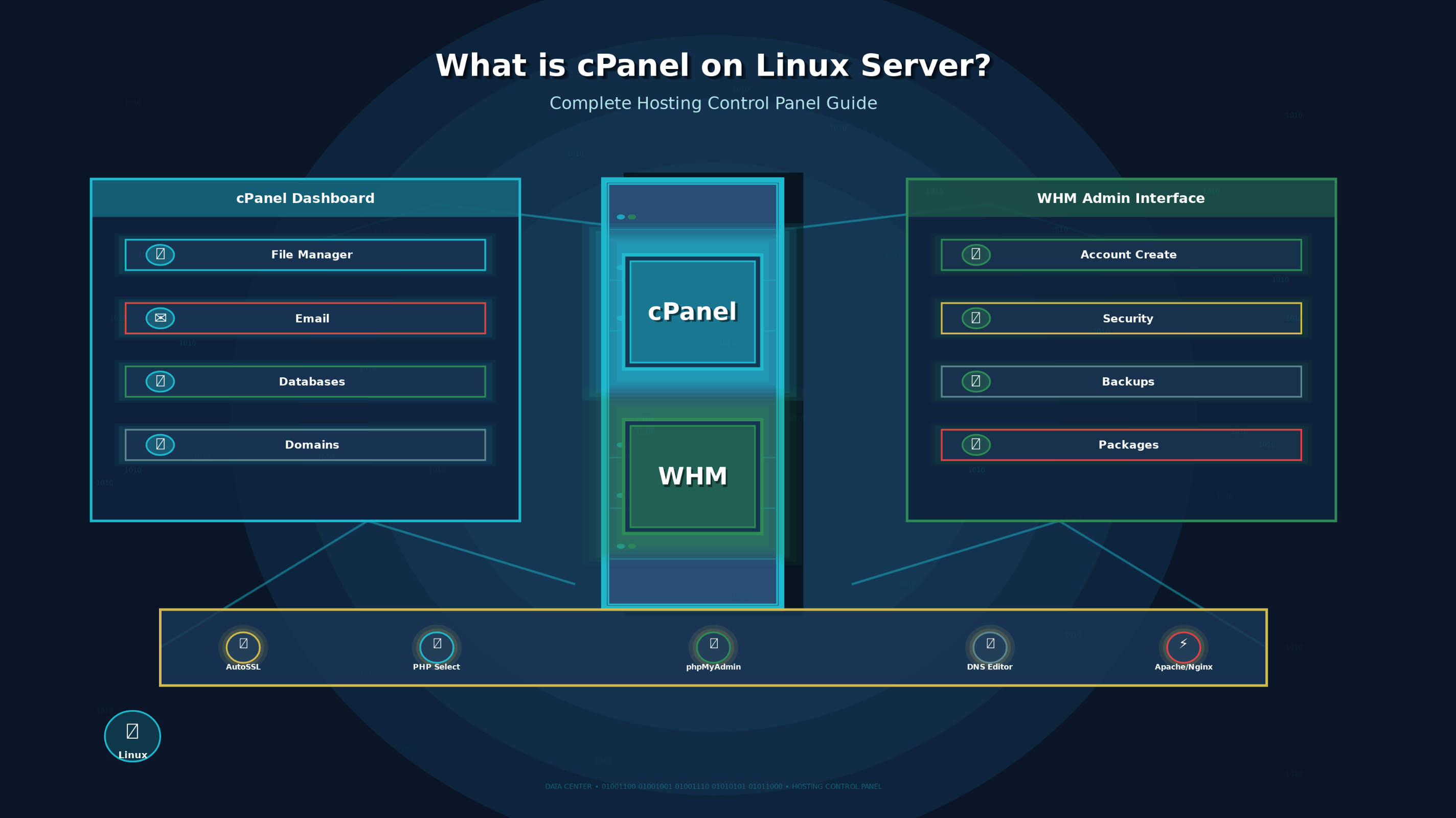
Together, they streamline tasks like domain setup, email creation, SSL deployment, backups, and performance tuning without needing to SSH for every change.
- cPanel: End user dashboard to manage websites, files, databases, email, and security.
- WHM: Admin dashboard for creating accounts, packages, security policies, updates, and server wide configuration.
- Use cases: Shared hosting, reseller hosting, WordPress hosting, and managed VPS/dedicated servers.
How cPanel and WHM Work Together
Think of WHM as the “control tower” and cPanel as the “cockpit” for each website. In WHM, you create hosting accounts and packages, set resource limits, configure services (Apache, PHP, MySQL/MariaDB, DNS), then each user logs into their own cPanel interface to manage their site and email independently.
Core Features You’ll Use Daily
File and Domain Management
- File Manager, FTP/SFTP accounts, SSH access (if enabled)
- Addon domains, subdomains, Aliases (Parked domains), Redirects
- Zone Editor for DNS records (A, CNAME, MX, TXT, SRV)
Email and DNS Tools
- Create email accounts, forwarders, autoresponders
- Spam filters, email deliverability (SPF, DKIM, DMARC)
- Webmail (Roundcube), SMTP/IMAP/POP configuration
Databases and PHP
- MySQL/MariaDB with phpMyAdmin
- Multiple PHP versions via EasyApache 4; per-domain PHP selectors
- Composer, Node.js app setup (if provided by your host), and cron jobs
Security and SSL
- AutoSSL (Let’s Encrypt or cPanel SSL) and manual certificate installs
- ModSecurity (WAF), IP Blocker, Hotlink Protection, Two Factor Authentication
- Integration with CSF firewall, Imunify360, and malware scanners (host dependent)
Backups, Restoration, and Staging
- Automated backups (local/remote via SFTP, Amazon S3, etc.)
- Full and partial restores (files, databases, email)
- Account level cloning/staging support via backup tools or plugins (e.g., JetBackup, WordPress plugins)
Supported Linux Distributions and Server Requirements
cPanel officially supports modern, enterprise Linux distributions. As of recent releases, you’ll commonly deploy on AlmaLinux 8/9, Rocky Linux 8/9, or Ubuntu LTS (20.04/22.04). Always verify the current matrix in cPanel’s documentation before installation, as support evolves with new versions.
- CPU/RAM: Minimum 2 CPU cores and 2 GB RAM; 4+ cores and 4–8 GB RAM recommended for WordPress heavy workloads.
- Storage: SSD/NVMe preferred; plan for daily backups (often 2–3× your data size).
- Network: Static public IPv4; IPv6 optional but recommended.
- Licensing: cPanel & WHM requires a paid license (per account tiers for VPS/dedicated).
Install cPanel on a Fresh Linux Server
Pre install Checklist
- Use a clean, minimal OS image (no existing control panel).
- Set a fully qualified domain name (FQDN) hostname, e.g., server.example.com.
- Ensure root SSH access and a static public IP.
- Open required ports (e.g., 22, 53, 80, 443, 2083, 2087, 21, 25/465/587, 110/143/993/995).
- Update the OS and reboot if necessary.
# Set hostname
sudo hostnamectl set-hostname server.example.com

# Update packages (AlmaLinux/Rocky/Ubuntu)
sudo dnf -y update || sudo apt -y update && sudo apt -y upgrade

# Optional: install basic tools
sudo dnf -y install curl perl tar || sudo apt -y install curl perl tar

# Reboot if kernel updated
sudo reboot
Run the One Line Installer
Log back in as root after reboot. The installer will fetch and set up cPanel & WHM. It can take 20–60 minutes depending on your server and network speed.
cd /home
curl -o latest -L https://securedownloads.cpanel.net/latest
sh latest
Complete the WHM Setup Wizard
- Access WHM at https://your-server-ip:2087
- Accept license, add contact email, set nameservers, and choose DNS resolver settings.
- Configure services: EasyApache 4 (Apache/PHP), PHP versions/handlers, and MySQL/MariaDB.
- Enable AutoSSL (Let’s Encrypt or cPanel).
Daily Operations and Best Practices
Create Packages and Accounts
In WHM, create packages with defined limits (disk, bandwidth, inodes, email accounts) to standardize resources. Then “Create a New Account” to provision a domain, user, and cPanel login. Resellers get delegated WHM access with restricted privileges.
Performance Tuning That Actually Helps
- Web server: Use Apache with MPM Event, PHP-FPM for PHP workloads. Consider LiteSpeed (license) for high concurrency or use NGINX as a reverse proxy if supported by your environment.
- OPcache: Enable and size appropriately; tune per PHP version.
- Databases: Use MariaDB 10.5+ and tune buffers (innodb_buffer_pool_size ~50–70% of RAM on DB-heavy servers).
- Caching/CDN: Employ object caching (Redis if available) and a CDN for static assets.
Backup and Disaster Recovery
- Schedule daily incremental backups with weekly full backups; keep offsite copies (S3, remote SFTP).
- Test restores quarterly. A backup not tested is a backup you don’t have.
- For WordPress, pair server backups with application level backups for fast single site restores.
Security Essentials
- Enforce strong passwords and 2FA in WHM and cPanel.
- Harden SSH: key based auth, non default port, disable root login or use sudo.
- Enable ModSecurity, keep rules updated, and deploy a WAF policy tuned to your apps.
- Install CSF or equivalent firewall; rate limit logins; monitor with fail2ban if compatible.
- Enable AutoSSL everywhere; prefer HSTS and TLS 1.2/1.3.
Common cPanel Issues and Quick Fixes
- Can’t log in to WHM/cPanel: Check firewall rules and open ports 2083/2087; confirm correct hostname SSL or use the server IP with self signed SSL first.
- AutoSSL fails: Verify DNS A/AAAA records resolve correctly and no HTTP auth blocks (e.g., .htaccess) prevent validation.
- Email landing in spam: Set SPF, DKIM, and DMARC; use valid PTR (rDNS) and consider a dedicated SMTP/relay for high volume senders.
- High CPU/memory: Inspect top processes, enable PHP-FPM, optimize MySQL, and use caching. Scan for malware if usage spikes unexpectedly.
- Disk full: Rotate logs, prune old backups, and enable log compression. Move backups offsite to free local space.
cPanel vs. Other Panels: What’s Different?
- cPanel & WHM: Mature ecosystem, strong multi tenant tooling, broad plugin support (Imunify360, JetBackup, LiteSpeed). Industry standard for shared/reseller hosting.
- Plesk: Great for Windows and Linux; polished WordPress Toolkit; strong single server UX.
- DirectAdmin: Lightweight, lower cost; suitable when you need a simpler, resource friendly panel.
If you plan to host many accounts, resell hosting, or standardize operations, cPanel’s depth and ecosystem usually pay off in time saved and fewer support incidents.
When Managed cPanel Hosting Makes Sense
If your team doesn’t have time for sysadmin duties, patching kernels, tuning PHP, securing email, managing backups, opt for a managed provider. At YouStable, our managed cPanel VPS and dedicated servers include performance tuning, proactive security, and 24×7 support. You focus on websites; we handle the stack.
Real World Tips from Production Environments
- Use separate volumes for /home, /backup, and databases to avoid one workload starving another.
- Pin critical PHP versions per account to prevent surprise compatibility breaks during updates.
- Automate account creation via WHM API if you provision frequently.
- Set default DNS templates with SPF/DKIM/DMARC so every new domain is email ready.
- Schedule routine security scans and weekly vulnerability reviews of plugins/themes.
FAQs
Is cPanel only for Linux servers?
Yes. cPanel is designed specifically for Linux based operating systems such as AlmaLinux, Rocky Linux, and Ubuntu LTS. It does not support Windows servers. If you require Windows hosting, control panels like Plesk or a Windows native stack using IIS and MSSQL are more suitable.
How do I access cPanel and WHM?
You can access cPanel using https://your-domain:2083 and WHM using https://your-server-ip:2087. Once DNS and SSL are properly configured, it is recommended to use the server hostname (for example, https://server.example.com:2087) to avoid SSL certificate warnings.
What are the minimum resources required for cPanel?
At a minimum, cPanel requires 2 CPU cores, 2 GB RAM, and SSD storage. For hosting multiple WordPress websites, 4–8 GB RAM along with NVMe storage is recommended for better performance. Always allocate additional disk space for backups.
How do I install SSL certificates in cPanel?
You can enable AutoSSL in WHM to automatically issue SSL certificates using Let’s Encrypt or cPanel’s built in SSL provider. In cPanel, go to SSL/TLS Status and click Run AutoSSL, or install custom SSL certificates manually under SSL/TLS → Manage SSL Sites.
Can I migrate websites into cPanel from another host?
Yes. WHM’s Transfer Tool allows easy cPanel to cPanel migrations. For other control panels, manual migration is required, which includes transferring files, exporting and importing databases, updating DNS records, and reinstalling SSL certificates. Backup tools and WordPress migration plugins can help speed up the process.
Conclusion
cPanel on a Linux server gives you a reliable, user friendly way to manage websites at scale. With WHM for administration, cPanel for end users, and a robust ecosystem of security and backup tools, it’s a proven choice for hosting businesses and growing agencies. Need a hand? YouStable can deploy, secure, and manage it for you.




