

ClamAV on a Linux server is an open-source antivirus engine that detects and removes malware, viruses, and trojans from files, email, and web content.
It uses fast signature-based scanning (clamscan/clamdscan), automatic updates with freshclam, optional on-access protection, and easy integrations with mail servers—making Linux hardening practical without heavy resource use.
If you manage a Linux server, understanding ClamAV is essential for defending websites, mailboxes, and file uploads. In this guide, you’ll learn what ClamAV is, how it works, how to install and configure it on popular distributions, and how to schedule scans and handle quarantine safely.
I’ll also share real-world, practical tips from years of hosting and server security work.
What is ClamAV and Why Use it on a Linux Server?
ClamAV is a veteran, open-source antivirus toolkit widely used on mail gateways, web servers, and file servers. While desktop Linux may not require traditional antivirus, servers often handle uploads, archives, and third-party content that can carry malware.
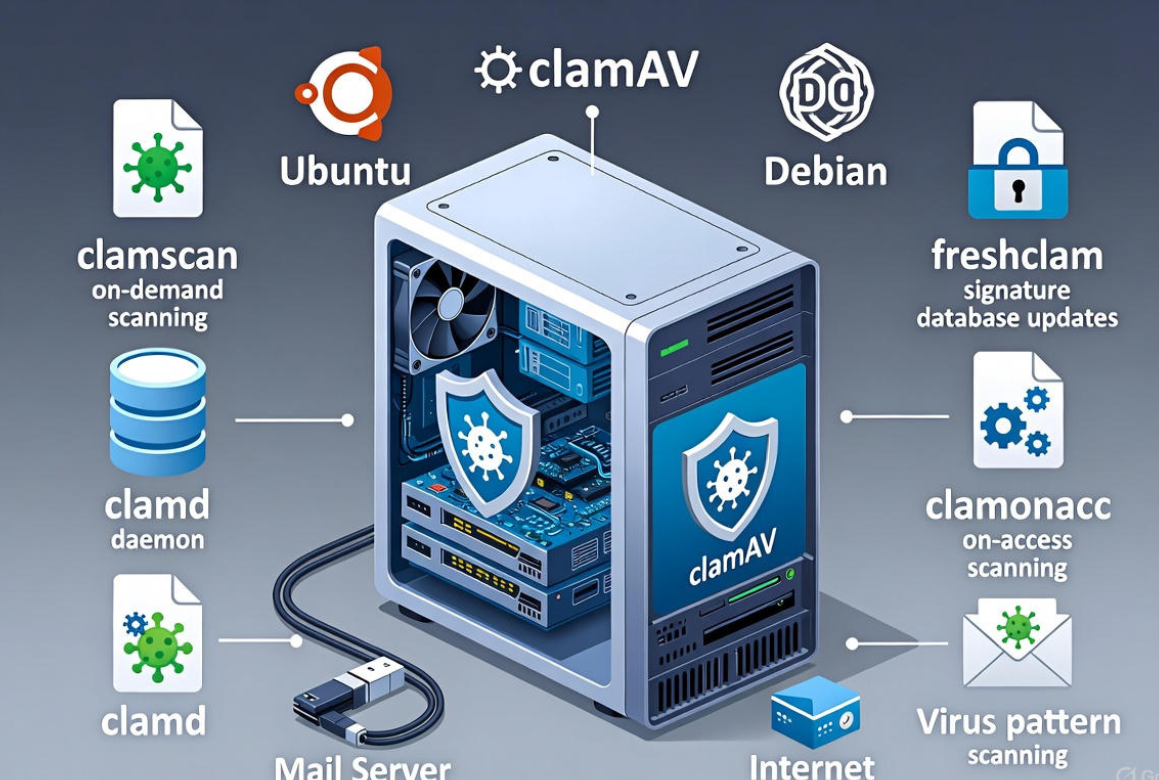
ClamAV helps you scan proactively, block threats at the mail layer, and audit filesystems without expensive licenses.
How ClamAV Works (Core Components)
- Signature database: Updated via freshclam, includes official and community-maintained patterns for malware, trojans, phishing, and more.
- clamscan: On-demand scanner for one-off or scheduled scans.
- clamd: A daemon that keeps signatures in memory for faster, repeated scans; used by clamdscan, mail filters, and on-access scanning.
- clamonacc (optional): On-access (real-time) scanning for file events using fanotify on supported kernels.
- clamav-milter (optional): Integrates with Postfix/Sendmail to scan mail traffic.
Search Intent: What Users Want to Know
- How to install ClamAV on Ubuntu, Debian, CentOS/RHEL, AlmaLinux, Rocky Linux, and SUSE.
- How to run a first scan, exclude system paths, and quarantine safely.
- How to enable automatic updates and schedule routine scans.
- How to use clamd for better performance and clamonacc for on-access scanning.
- How to integrate ClamAV with mail servers and troubleshoot common errors.
Install ClamAV on Popular Linux Distributions
Ubuntu/Debian
sudo apt update
sudo apt install -y clamav clamav-daemon
# Start and enable automatic signature updates
sudo systemctl enable --now clamav-freshclam
# (Optional) Start the scanning daemon for faster scans
sudo systemctl enable --now clamav-daemon
CentOS/RHEL/AlmaLinux/Rocky Linux
# Enable EPEL if needed (RHEL/CentOS family)
sudo dnf install -y epel-release
sudo dnf install -y clamav clamav-update clamd
# Update signatures
sudo freshclam
# Start FreshClam updater
sudo systemctl enable --now clamav-freshclam
# Start clamd (service name may vary by distro)
sudo systemctl enable --now clamd@scan || sudo systemctl enable --now clamd
SUSE/OpenSUSE
sudo zypper refresh
sudo zypper install -y clamav clamav-daemon
sudo systemctl enable --now freshclam
sudo systemctl enable --now clamd
Note: Service names differ across distributions. If a unit name fails, check available units with: systemctl list-unit-files | grep -i clam.
Update the Virus Database
Signatures drive detection accuracy. Keep them updated:
# Manual update (one-time)
sudo freshclam

# Ensure automatic updates are running
sudo systemctl status clamav-freshclam || sudo systemctl status freshclam
If updates are rate-limited or blocked, check freshclam.conf and ensure your server can reach database.clamav.net over HTTPS.
Run Your First Scan (Safely)
Start with a targeted scan of user content (web roots, home directories) and avoid moving or deleting system files on your first run.
# Scan a web root, show only infected files
sudo clamscan -r -i /var/www

# Scan home directories, write a log
sudo clamscan -r -i /home -l /var/log/clamav/first-scan.log

# Exclude pseudo-filesystems and caches to speed up scans
sudo clamscan -r -i / \
  --exclude-dir="^/proc" \
  --exclude-dir="^/sys" \
  --exclude-dir="^/dev" \
  --exclude-dir="^/run" \
  --exclude-dir="^/snap" \
  --exclude-dir="^/var/lib/docker" \
  -l /var/log/clamav/full-system.log
Quarantining is safer than deleting. Create a quarantine directory with strict permissions:
sudo mkdir -p /var/quarantine
sudo chown root:root /var/quarantine
sudo chmod 700 /var/quarantine

# Example: Move only infected matches to quarantine (user content)
sudo clamscan -r -i /var/www --move=/var/quarantine -l /var/log/clamav/www-scan.log
Expert Tip: Avoid –remove until you review what ClamAV detected; deleting core files or plugins can break websites.
Use clamd for Faster, Repeated Scans
clamd keeps signatures in memory, making frequent scans significantly faster than clamscan. After enabling clamd, switch to clamdscan:
# Ensure daemon is active
sudo systemctl enable --now clamav-daemon || sudo systemctl enable --now clamd@scan

# Scan via clamd
sudo clamdscan --fdpass -m -i /var/www
If clamdscan reports permission issues, use –fdpass to let it borrow your privileges. Confirm the clamd socket path in /etc/clamav/clamd.conf (or distro equivalent).
Enable On-Access Scanning (Optional)
On-access scanning uses clamonacc to watch file events in real time. It’s useful on shared hosting or upload-heavy servers but adds overhead.
# Example: run clamonacc with clamd
sudo clamonacc --fdpass --move=/var/quarantine --include=/var/www

# Systemd-managed (if available)
sudo systemctl enable --now clamonacc
Scope it carefully (e.g., only /var/www and /home) to avoid scanning system paths and causing slowdowns.
Automate Updates and Scheduled Scans
Most servers should run nightly scans of user content and weekly deeper scans. Here’s a simple cron approach.
# /etc/cron.d/clamav-nightly
# Scan web roots nightly at 2:15 AM and email results to admin
15 2 * * * root nice -n 19 clamscan -r -i /var/www \
  --exclude-dir="^/var/www/cache" \
  -l /var/log/clamav/nightly-www.log | mail -s "ClamAV Nightly (WWW)" admin@example.com

# /etc/cron.d/clamav-weekly
# Weekly broader scan (Sunday 3:30 AM)
30 3 * * 0 root ionice -c3 nice -n 19 clamscan -r -i /home \
  -l /var/log/clamav/weekly-home.log
Ensure logrotate handles /var/log/clamav to prevent oversized logs. Many distros include a default logrotate rule for ClamAV.
Tune Detection and Reduce False Positives
- PUA (Potentially Unwanted Applications): Enable in clamd.conf with care (DetectPUA yes) and customize ExcludePUA sections to avoid noisy alerts on tools like remote admins or adware bundles in archives.
- Heuristics: HeuristicScanPrecedence can prioritize heuristics in some cases—good for detection, but test in staging first.
- Exclusions: Exclude known-clean caches, session stores, and backup mounts to speed scanning and reduce noise.
- Limits: Use –max-filesize and –max-scansize to control resource usage on massive archives.
Integrate ClamAV with Mail Servers
For Postfix/Sendmail gateways, clamav-milter scans inbound/outbound mail before delivery. This is essential for shared email servers or corporate relays.
# Example (high-level)
sudo apt install -y clamav-milter || sudo dnf install -y clamav-milter
# Configure milter socket and connect Postfix via main.cf/master.cf
# Restart services after configuration changes
sudo systemctl restart clamav-milter postfix
Combine ClamAV with DNSBLs, SPF/DKIM/DMARC, and a spam filter (e.g., SpamAssassin or rspamd) for stronger protection across the email stack.
Real-World Use Cases
- WordPress security: Scan uploads and themes for injected PHP shells. Target /wp-content/uploads and exclude cache directories.
- Shared hosting: Nightly scans of all /home accounts with per-user reports to catch cross-account infections early.
- Mail relays: Scan attachments at SMTP time, quarantine or reject malicious content.
- CI/CD pipelines: Scan build artifacts or uploaded assets before deployment to production storage.
Troubleshooting Common ClamAV Issues
- freshclam can’t update: Check outbound HTTPS, verify database.clamav.net is reachable, and ensure only one freshclam instance is running.
- Permission denied: Use sudo for scans or enable –fdpass with clamdscan. Avoid scanning /proc, /sys, /dev.
- High CPU during scans: Run scans off-peak, use nice/ionice, exclude caches, and prefer clamd over clamscan for repetitive tasks.
- False positives: Quarantine first, review logs, and whitelist specific paths or PUA categories if legitimate tools are flagged.
Best Practices Checklist
- Keep signatures updated with freshclam (service enabled).
- Use clamd + clamdscan for performance on busy servers.
- Scan user content nightly; do deeper scans weekly.
- Quarantine instead of delete; review before removal.
- Exclude system pseudo-filesystems and heavy caches.
- Log results, rotate logs, and alert admins on infections.
- Test PUA/heuristic settings in staging before production rollout.
When Managed Security Helps
If you’d rather not babysit malware scans, signature updates, and performance tuning, a managed hosting provider can do it for you. At YouStable, we harden Linux servers with ClamAV, optimize clamd for your workload, and set up scheduled scans and alerts. You get proactive security without extra complexity.
Essential ClamAV Configuration Samples
/etc/clamav/freshclam.conf (key lines)
DatabaseMirror database.clamav.net
UpdateLogFile /var/log/clamav/freshclam.log
Checks 12
# Optional corporate mirror:
# PrivateMirror your-mirror.example.com
/etc/clamav/clamd.conf (tuning highlights)
LogFile /var/log/clamav/clamd.log
LogTime yes
LocalSocket /run/clamav/clamd.ctl
FixStaleSocket yes
TCPSocket 3310
# TCPAddr 127.0.0.1
DetectPUA no
# Set to yes after testing:
# DetectPUA yes
ScanPE yes
ScanELF yes
ScanArchive yes
MaxFileSize 100M
MaxScanSize 200M
ExcludePath ^/proc
ExcludePath ^/sys
ExcludePath ^/dev
FAQs:
Is ClamAV necessary on Linux servers?
Yes for most servers. While Linux itself is resilient, servers handle uploads, email attachments, and third-party code. ClamAV helps detect malware early, protect users, and prevent distributing infected files to others.
How do I install ClamAV on Ubuntu?
Run: sudo apt update && sudo apt install -y clamav clamav-daemon, then enable updates: sudo systemctl enable –now clamav-freshclam. Optionally start clamd for faster scans: sudo systemctl enable –now clamav-daemon.
What’s the difference between clamscan and clamdscan?
clamscan loads signatures each run and is ideal for occasional scans. clamdscan talks to the clamd daemon, which keeps signatures in memory, making repeated scans faster and better for production servers.
How do I schedule ClamAV scans?
Use cron or systemd timers. For example, create a cron job that runs nightly: clamscan -r -i /var/www -l /var/log/clamav/nightly-www.log. Use nice/ionice to reduce impact during business hours.
Should I enable on-access scanning with clamonacc?
Enable it if you need real-time protection on upload-heavy servers or shared hosting. Scope it to content paths like /var/www and /home to minimize overhead. For many servers, scheduled scans with clamd are sufficient.




