

Apache on a Linux server is the open-source Apache HTTP Server running on Linux to deliver web content over HTTP/HTTPS. It’s modular, supports virtual hosts, SSL/TLS, PHP via PHP-FPM, and is managed with systemctl and simple text configuration. Apache powers millions of sites and remains a stable, extensible choice for production workloads.
If you’re trying to understand Apache on Linux server environments, this guide walks you through the essentials: how it works, how to install and manage it, best-practice configuration, security hardening, performance tuning, and troubleshooting. Drawing on real-world hosting experience, you’ll get practical steps you can apply on Ubuntu, Debian, RHEL, AlmaLinux, or Rocky Linux.
What is Apache HTTP Server and Why it Matters?
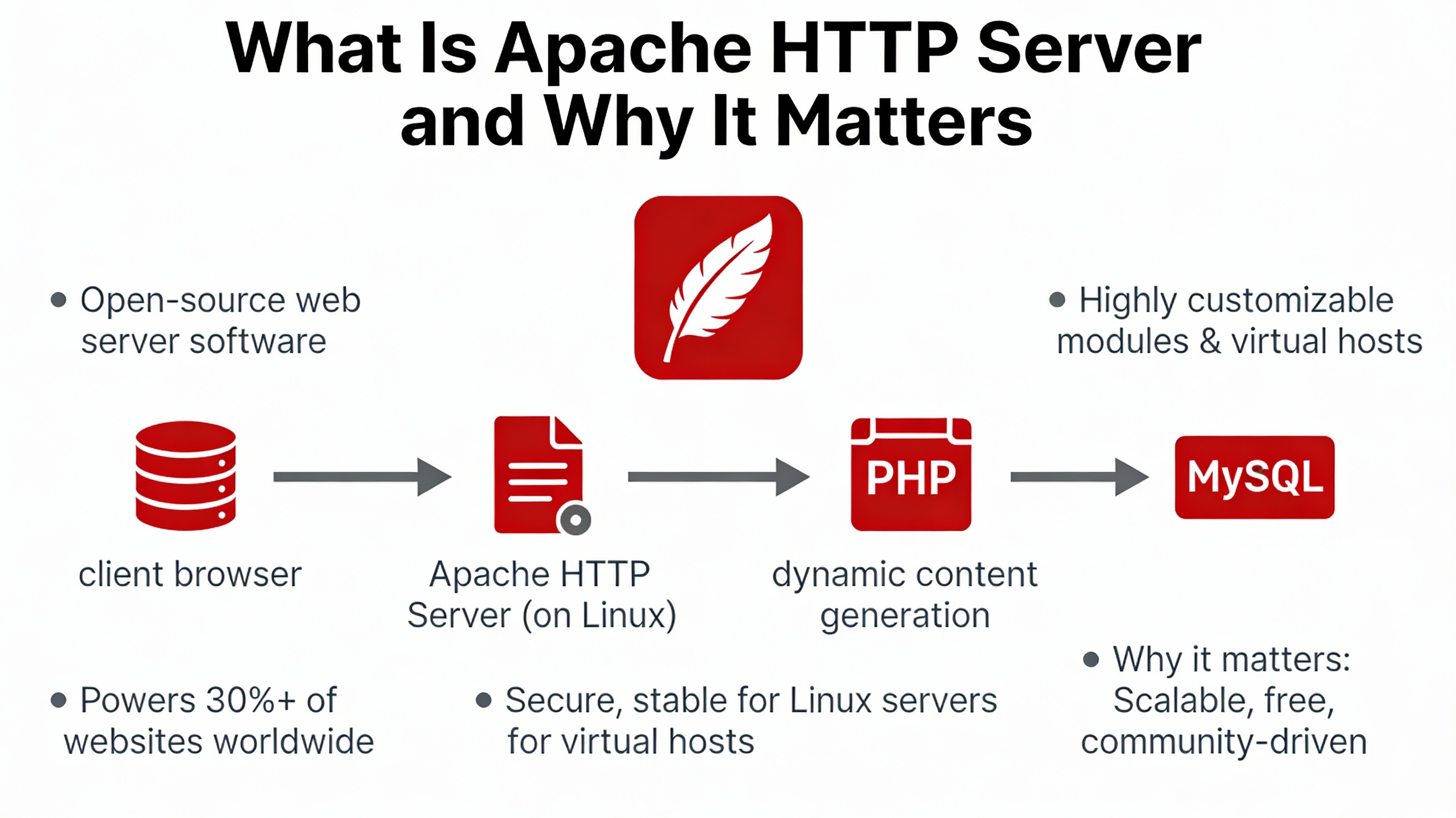
Apache HTTP Server (often just “Apache”) is a battle-tested, cross-platform web server that serves static assets and proxies dynamic applications. It’s popular for LAMP stacks, straightforward configuration, and rich module ecosystem (authentication, caching, compression, HTTP/2, security). On Linux, Apache integrates cleanly with systemd, package managers, and host firewalls.
How Apache Works on Linux
At a high level, Apache listens on TCP ports (80 for HTTP, 443 for HTTPS), accepts client connections, matches the request to a VirtualHost, and returns a response from static files or a backend (PHP-FPM, app server, proxy). Configuration is composed of a main config plus site- and module-specific files.
Multi-Processing Modules (MPMs)
MPMs define how Apache handles concurrency:
- prefork: Process-per-request model. Compatible with legacy mod_php, but higher memory usage.
- worker: Threaded model. Efficient for static content and proxying.
- event: Worker with improved keep-alive handling. Recommended for most modern sites, especially with HTTP/2 and PHP-FPM.
Use event MPM with PHP-FPM for best performance and isolation.
Linux Directory Layout (Debian/Ubuntu vs. RHEL/Alma/Rocky)
- Debian/Ubuntu: /etc/apache2/, with apache2.conf, ports.conf, mods-available/enabled, sites-available/enabled, conf-available/enabled, logs in /var/log/apache2/.
- RHEL/Alma/Rocky/CentOS: /etc/httpd/, with conf/httpd.conf, conf.d/*.conf, modules in /etc/httpd/modules, logs in /var/log/httpd/.
Install Apache on Linux
Use your distro’s package manager. These commands install Apache and enable it at boot.
# Ubuntu/Debian
sudo apt update
sudo apt install apache2
sudo systemctl enable --now apache2

# RHEL 8+/AlmaLinux/Rocky Linux
sudo dnf install httpd
sudo systemctl enable --now httpd
Open the firewall for HTTP/HTTPS:
# UFW (Ubuntu)
sudo ufw allow "Apache Full"

# firewalld (RHEL family)
sudo firewall-cmd --permanent --add-service=http
sudo firewall-cmd --permanent --add-service=https
sudo firewall-cmd --reload
Essential Management Commands
# Start/stop/status
sudo systemctl status apache2   # Debian/Ubuntu
sudo systemctl status httpd     # RHEL/Alma/Rocky

# Reload after config changes (no downtime)
sudo systemctl reload apache2   # or httpd

# Test configuration syntax
sudo apachectl configtest       # or: sudo httpd -t

# List enabled modules
apache2ctl -M                   # Debian/Ubuntu
httpd -M                        # RHEL family

# Debian-specific helpers
sudo a2enmod rewrite headers ssl
sudo a2ensite example.conf
sudo a2dissite 000-default.conf
Create Virtual Hosts
HTTP Virtual Host (Ubuntu/Debian)
sudo nano /etc/apache2/sites-available/example.conf
-----------------------------------------------
<VirtualHost *:80>
    ServerName example.com
    ServerAlias www.example.com
    DocumentRoot /var/www/example/public

    <Directory /var/www/example/public>
        AllowOverride All
        Require all granted
    </Directory>

    ErrorLog ${APACHE_LOG_DIR}/example_error.log
    CustomLog ${APACHE_LOG_DIR}/example_access.log combined
</VirtualHost>

# Enable and reload
sudo a2ensite example.conf
sudo systemctl reload apache2
HTTP Virtual Host (RHEL/Alma/Rocky)
sudo nano /etc/httpd/conf.d/example.conf
----------------------------------------
<VirtualHost *:80>
    ServerName example.com
    ServerAlias www.example.com
    DocumentRoot /var/www/example/public

    <Directory "/var/www/example/public">
        AllowOverride All
        Require all granted
    </Directory>

    ErrorLog /var/log/httpd/example_error.log
    CustomLog /var/log/httpd/example_access.log combined
</VirtualHost>

sudo systemctl reload httpd
Enable HTTPS with Let’s Encrypt
Use Certbot to obtain and auto-renew free SSL/TLS certificates. Ensure DNS points to your server.
# Ubuntu/Debian
sudo apt install certbot python3-certbot-apache
sudo certbot --apache -d example.com -d www.example.com

# RHEL family (EPEL required on some versions)
sudo dnf install certbot python3-certbot-apache
sudo certbot --apache -d example.com -d www.example.com

# Test renewal
sudo certbot renew --dry-run
Redirect www → non-www (or HTTP → HTTPS)
Use mod_rewrite inside the VirtualHost. Example: force HTTPS and non-www.
<IfModule mod_rewrite.c>
RewriteEngine On
RewriteCond %{HTTPS} !=on [OR]
RewriteCond %{HTTP_HOST} ^www\.(.*)$ [NC]
RewriteRule ^ https://example.com%{REQUEST_URI} [L,R=301]
</IfModule>
Serve PHP with Apache (Recommended: PHP-FPM)
Modern best practice is Apache event MPM + PHP-FPM (FastCGI), not mod_php. This improves concurrency and isolates PHP from the web server.
# Ubuntu/Debian
sudo apt install php-fpm
sudo a2enmod proxy_fcgi setenvif
sudo a2enconf php8.2-fpm    # adjust version
sudo systemctl reload apache2

# RHEL family
sudo dnf install php php-fpm
sudo systemctl enable --now php-fpm
# In your vhost:
<FilesMatch "\.php$">
    SetHandler "proxy:unix:/run/php-fpm/www.sock|fcgi://localhost/"
</FilesMatch>
Verify with a phpinfo.php file (remove after testing):
echo "<?php phpinfo(); ?>" | sudo tee /var/www/example/public/phpinfo.phpPerformance Tuning Essentials
Switch to event MPM and tune workers
Ensure event MPM is enabled and adjust concurrency to your CPU/RAM. Avoid overcommitting memory in high-traffic environments.
# Debian/Ubuntu
sudo a2dismod mpm_prefork
sudo a2enmod mpm_event
sudo systemctl reload apache2

# Example tuning (Debian-style mpm_event.conf)
/etc/apache2/mods-available/mpm_event.conf
------------------------------------------
<IfModule mpm_event_module>
   StartServers             2
   ServerLimit             16
   ThreadsPerChild         25
   MaxRequestWorkers      400
   MaxConnectionsPerChild 1000
</IfModule>
Enable compression and caching headers
# Enable modules (Debian/Ubuntu)
sudo a2enmod deflate expires headers brotli
sudo systemctl reload apache2

# Example directives
AddOutputFilterByType DEFLATE text/html text/css application/javascript application/json
Header append Vary Accept-Encoding
ExpiresActive On
ExpiresByType text/css "access plus 7 days"
ExpiresByType application/javascript "access plus 7 days"
ExpiresByType image/webp "access plus 30 days"
Use HTTP/2 and modern TLS
HTTP/2 improves multiplexing and TLS handshakes. Ensure OpenSSL supports ALPN, enable mod_http2, and prefer strong ciphers.
sudo a2enmod http2           # Debian/Ubuntu
# In your SSL vhost:
Protocols h2 http/1.1
SSLProtocol all -SSLv3 -TLSv1 -TLSv1.1
SSLCipherSuite HIGH:!aNULL:!MD5:!3DES
SSLHonorCipherOrder on
Security Hardening Checklist
- Least privilege: web files owned by a deploy user, readable by www-data/apache group; never run Apache as root.
- Disable directory listing and limit .htaccess: use AllowOverride only when necessary.
- Hide server tokens: ServerTokens Prod and ServerSignature Off.
- Security headers: HSTS, X-Frame-Options, X-Content-Type-Options, Referrer-Policy, and a minimal CSP.
- Enable ModSecurity (WAF) and consider mod_evasive or Fail2ban against brute force.
- Keep packages updated and automate SSL renewals with Certbot.
- Use SELinux/AppArmor in enforcing mode; set correct contexts for web roots and sockets.
# Example hardening snippets
ServerTokens Prod
ServerSignature Off

# Security headers (add inside vhost or a conf.d file)
Header always set X-Content-Type-Options "nosniff"
Header always set X-Frame-Options "SAMEORIGIN"
Header always set Referrer-Policy "strict-origin-when-cross-origin"
Header always set X-XSS-Protection "1; mode=block"
Header always set Strict-Transport-Security "max-age=31536000; includeSubDomains; preload"

# RHEL SELinux examples
sudo semanage fcontext -a -t httpd_sys_content_t "/var/www/example(/.*)?"
sudo restorecon -Rv /var/www/example
sudo setsebool -P httpd_can_network_connect on
Logs, Monitoring, and Troubleshooting
Logs tell you what happened and why. Use them for performance analysis and error isolation.
- Access logs: /var/log/apache2/access.log or /var/log/httpd/access_log
- Error logs: /var/log/apache2/error.log or /var/log/httpd/error_log
- System logs: journalctl -u apache2 or journalctl -u httpd
# Tail logs live
sudo tail -f /var/log/apache2/error.log
sudo tail -f /var/log/httpd/error_log

# Check syntax and modules
sudo apachectl -t
apache2ctl -M | sort

# Quick 403/404/500 fixes
# 403 Forbidden: permissions or Require directives
sudo chown -R deploy:www-data /var/www/example
sudo find /var/www/example -type d -exec chmod 755 {} \;
sudo find /var/www/example -type f -exec chmod 644 {} \;

# 500 Internal Server Error: check .htaccess and PHP-FPM logs
sudo tail -f /var/log/php*/www-error.log
Apache vs. Nginx: When to Choose Which
- Choose Apache when you need .htaccess flexibility, extensive modules, or drop-in LAMP compatibility.
- Choose Nginx for ultra-high concurrency on static assets and as a fast reverse proxy.
- Use both: Nginx in front (TLS, caching, HTTP/2) and Apache behind for application logic and .htaccess compatibility.
Real-World Use Cases and Best Practices
- WordPress hosting: Apache + PHP-FPM with OPcache, HTTP/2, Brotli, and page caching (e.g., full-page cache plugin) for fast TTFB.
- Multi-site hosting: Separate VirtualHosts and log files per domain, automated Let’s Encrypt certificates, and per-site WAF rules.
- Application backends: Apache as a reverse proxy to Node.js, Python (Gunicorn), or Ruby (Puma), with health checks and timeouts.
If you want Apache on Linux server without the headache, YouStable’s managed VPS and dedicated servers include hardened builds, proactive monitoring, SSL automation, backups, and 24×7 expert support—so you can focus on your site, not the stack.
Common Mistakes to Avoid
- Running mod_php with prefork when PHP-FPM with event MPM would perform better.
- Overusing .htaccess; prefer central configs for speed and consistency.
- Missing HTTP→HTTPS redirects or HSTS, causing mixed content and SEO issues.
- Ignoring log growth and logrotate, leading to full disks.
- Opening firewall ports globally instead of least-privilege exposure.
Action Plan: Your First 60 Minutes with Apache
- Install Apache and open firewall ports.
- Create a VirtualHost and deploy a basic index.html.
- Enable SSL with Certbot and force HTTPS.
- Switch to event MPM, enable compression and caching headers.
- Harden headers, hide tokens, and verify permissions.
- Check logs, run a quick load test (ab, wrk), then iterate.
FAQs: Apache on Linux Server
Is Apache free and production-ready for Linux?
Yes. Apache is open-source (Apache License 2.0) and widely used in production. It’s stable, well-documented, and supported by all major Linux distros and hosting providers.
Which is faster: Apache or Nginx?
Nginx typically serves static files faster at very high concurrency, while Apache offers flexibility and rich modules. For many stacks, Apache event MPM + PHP-FPM delivers excellent performance. Pairing Nginx in front of Apache combines strengths.
Where are Apache configuration files on Linux?
On Debian/Ubuntu, configs live under /etc/apache2/ with sites-available/enabled and mods-available/enabled. On RHEL/Alma/Rocky, use /etc/httpd/ with httpd.conf and conf.d/*.conf. Logs are in /var/log/apache2/ or /var/log/httpd/.
How do I enable HTTPS on Apache quickly?
Install Certbot and run certbot –apache -d yourdomain -d www.yourdomain. It provisions Let’s Encrypt certificates, updates your VirtualHost, and sets up automatic renewals via systemd timers or cron.
Should I use .htaccess or main config files?
Prefer main configuration files (vhosts or conf.d) for performance and consistency. Enable .htaccess (AllowOverride) only when you need per-directory overrides, such as in shared hosting scenarios.
Final Word
Mastering Apache on Linux server isn’t complicated when you follow a structured approach. Start with a clean install, secure it, enable HTTPS, optimize for your workload, and monitor continuously. For a managed path with guaranteed performance and support, consider YouStable’s optimized hosting platforms.




