

To safely reboot, restart, or reinstall your VPS, first back up data and check active processes, then restart services instead of the whole server where possible. Use a graceful reboot from SSH or your provider’s console, monitor boot logs, and verify services after.
Reinstall only after backups and a tested recovery plan. Managing a virtual private server can be intimidating the first time you need to reboot, restart, or reinstall it.
In this step-by-step guide, I’ll show you exactly how to reboot VPS instances safely, minimize downtime, and avoid data loss on both Linux and Windows based on 12+ years of hands on hosting experience.
Reboot vs. Restart vs. Reinstall: What’s the Difference?
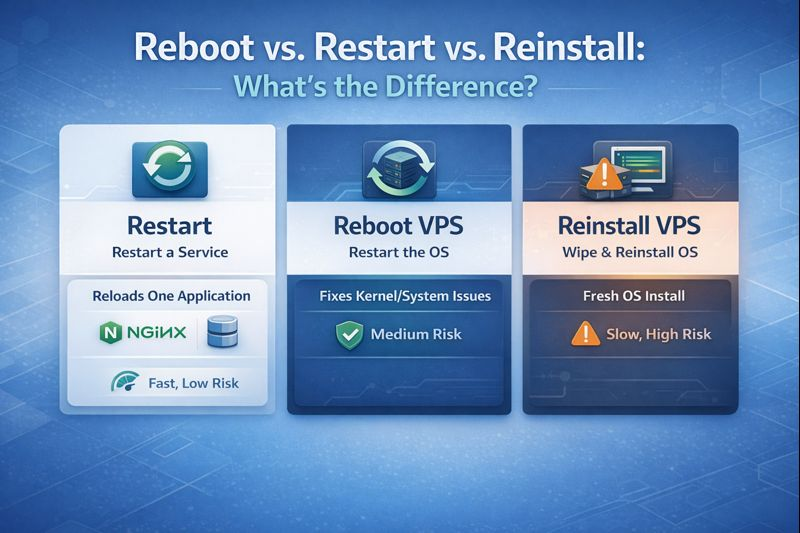
Knowing the right action saves time and reduces risk:
- Restart a service: Reloads only one application (e.g., Nginx, MySQL). Fast, lowest risk.
- Reboot VPS: Restarts the whole operating system. Fixes kernel level or system wide issues.
- Reinstall VPS: Wipes the server and installs a fresh OS. Highest risk; use when the OS is corrupted or you need a clean slate.
Before You Do Anything: Backups and Pre‑Checks
Most outages happen because these basics were skipped. Do this checklist first:
- Back up: Take a snapshot or offsite backup (files + databases + configs). Verify it restores.
- Check logged in users & tasks: Ensure no one is deploying, migrating, or running backups.
- Confirm no package manager is running: Avoid rebooting mid-update.
- Review resource spikes: High CPU, memory, or I/O can delay shutdowns.
- Note dependency order: DB before app, app before cache, etc.
- Schedule a window: Inform stakeholders; monitor during and after.
# Who is on the server and what's running
who
w
top -o %CPU  # or htop

# Disk, memory, load
df -h
free -m
uptime

# Package managers (ensure none running)
ps aux | egrep 'apt|dpkg|yum|dnf|zypper'

# Services to restart instead of rebooting
systemctl list-units --type=service --state=running
Restart Services First (Often No Reboot Needed)
Linux: Safely restart common services
- Nginx:
sudo systemctl restart nginx && sudo systemctl status nginx - Apache:
sudo systemctl restart apache2orhttpd - MySQL/MariaDB:
sudo systemctl restart mysqlormariadb - PHP-FPM:
sudo systemctl restart php-fpm(package name varies) - Docker:
sudo systemctl restart docker
Windows: Restart a service via PowerShell
# Run as Administrator
Get-Service -Name "W3SVC" | Restart-Service   # IIS
Restart-Service -Name "MSSQLSERVER" -Force    # SQL Server (default instance)
Get-Service | Where-Object {$_.Status -eq "Stopped"} | Start-Service
If the issue disappears after a service restart, you’ve avoided a risky full reboot and saved downtime.
How to Safely Reboot a Linux VPS (SSH + Console)
Use a graceful reboot so the kernel can stop services cleanly and write pending disk operations.
- 1) Announce and prepare: Put sites in maintenance mode if needed; stop long-running jobs.
- 2) Graceful reboot via SSH (pick one):
sudo shutdown -r now        # Recommended
# or
sudo systemctl reboot
# or
sudo reboot- 3) Watch the shutdown (if console available): use your cloud/VPS provider’s web/VNC console to confirm progress.
- 4) Verify after boot:
last -x | head              # recent reboots
systemctl is-system-running # should be "running" or "degraded"
systemctl --failed          # list failed units
ss -tulpn                   # listening ports
journalctl -b -p err        # errors this boot
journalctl -xe              # detailed logs
If the server is hung, a reboot -f (force) or provider’s “Hard Reboot” may work—but use only after graceful attempts fail, as this can corrupt data on busy filesystems.
How to Safely Restart/Reboot a Windows VPS
- RDP method: Start > Power > Restart. Close apps to avoid unsaved data loss.
- PowerShell method (run as Administrator):
Restart-Computer -Force
# To wait and verify remote availability:
Restart-Computer -ComputerName localhost -Wait -For PowerShell -Timeout 600- Provider console: If RDP is unresponsive, use your VPS panel’s Restart button or out-of-band console to watch the boot sequence.
Reinstalling Your VPS OS Safely (When and How)
Only reinstall when the OS is irreparably broken, compromised, or you need a new distro/version. Treat this like a migration: plan, back up, rebuild, restore, verify.
- Back up and export everything: Databases (logical dumps), web files, configs in
/etc, SSL certificates, crons, custom systemd units, firewall rules, and licensing keys. - Take a full snapshot in your VPS panel as a last-resort rollback.
- Inventory users and secrets: SSH keys, sudoers, service accounts, .env files.
- Detach or snapshot extra volumes to prevent accidental formatting.
- From your provider panel: Choose the OS image/template, confirm partitioning, and rebuild.
- Hardening baseline: Create a non-root sudo user, disable password SSH, enable UFW/Firewalld, install Fail2ban, update packages.
- Restore data: Move configs and data back with correct perms/SELinux labels; restore DBs; re-issue SSL if needed.
- Validate: Health checks, logs, synthetic HTTP checks, and functional testing.
# Example: quick Linux hardening after reinstall
sudo adduser deploy && sudo usermod -aG sudo deploy
sudo mkdir -p /home/deploy/.ssh && sudo chmod 700 /home/deploy/.ssh
sudo sh -c 'cat >> /home/deploy/.ssh/authorized_keys' <<EOF
ssh-rsa AAAA... your_public_key
EOF
sudo chmod 600 /home/deploy/.ssh/authorized_keys && sudo chown -R deploy:deploy /home/deploy/.ssh

# Disable root SSH password login
sudo sed -i 's/^#\?PasswordAuthentication.*/PasswordAuthentication no/' /etc/ssh/sshd_config
sudo sed -i 's/^#\?PermitRootLogin.*/PermitRootLogin prohibit-password/' /etc/ssh/sshd_config
sudo systemctl restart sshd

# Firewall (UFW example)
sudo ufw default deny incoming
sudo ufw default allow outgoing
sudo ufw allow 22/tcp
sudo ufw allow 80,443/tcp
sudo ufw enable
Post‑Reboot and Post‑Reinstall Checklist
- Connectivity: Can you SSH/RDP? Are DNS and IPs unchanged?
- Services: Nginx/Apache, PHP-FPM, DB, queue, cache are active and enabled on boot.
- Ports: 22/3389, 80, 443, app ports listening.
- Security: Firewall rules loaded; Fail2ban running; unattended upgrades configured.
- Storage: Mounts correct; no “dirty” fs; RAID/ZFS healthy.
- Performance: Load, CPU, memory, disk I/O within normal ranges.
- Monitoring/alerts: Reconnected to your monitoring platform; alert noise under control.
# Quick Linux verification set
systemctl --failed
systemctl is-enabled nginx mysql
ss -tulpn | egrep ':22|:80|:443'
ufw status verbose  # or firewall-cmd --list-all
mount | column -t
dmesg -T | tail -n 50
Troubleshooting: VPS Won’t Boot or You Can’t Log In
- Use provider/VNC console: Watch boot messages; note failures (e.g., fstab, networking, SELinux).
- Rescue mode: Boot into a rescue image, mount disks, and fix configs.
- Fix common issues:
# In rescue mode (example paths may vary)
lsblk
mount /dev/vda1 /mnt
mount -o bind /dev /mnt/dev && mount -o bind /proc /mnt/proc && mount -o bind /sys /mnt/sys
chroot /mnt

# fstab typo: comment the bad line and test
nano /etc/fstab
mount -a

# Network down: regenerate configs
ip link
cat /etc/netplan/*.yaml
netplan apply  # Ubuntu
nmcli device status  # RHEL/CentOS/Alma/Rocky

# Firewall locked you out
iptables -F   # or
firewall-cmd --set-default-zone=public

# SSH keys/permissions
ls -ld /home/*/.ssh
chmod 700 ~/.ssh && chmod 600 ~/.ssh/authorized_keys
Still stuck? Roll back to the snapshot you created before the change. This is the fastest path to recovery in production.
Best Practices and Maintenance Cadence
- Patch cadence: Apply security updates weekly; reboot monthly or as required by kernel changes.
- Staggered restarts: For clusters, drain traffic and reboot nodes one by one.
- Configuration as code: Store configs in Git; use Ansible/Salt for repeatability.
- Monitoring & logs: Track service health, SSL expiry, disk usage, and login attempts.
- Document runbooks: Clear SOPs reduce mistakes during incidents.
Why Many Teams Choose YouStable for Safer VPS Operations
At YouStable, we build VPS hosting for reliability and recovery: one‑click reboots from the dashboard, VNC/console access for stuck boots, snapshot backups, and ISO/rescue mode for fast repairs. Our support team has deep Linux and Windows experience—so if you ever need eyes on a tricky reboot or reinstall, we’re there.
Real World Scenarios
- High load after deploy: Restart just PHP-FPM and Nginx; no full reboot required.
- Kernel update: Schedule a maintenance window and gracefully reboot to load the new kernel.
- Filesystem errors: Reboot to rescue mode, run fsck on unmounted volumes, fix fstab, and reboot normally.
- Compromised OS: Snapshot, reinstall the VPS, harden, restore only clean data, and rotate all secrets.
FAQ’s
Is it safe to reboot a VPS?
Yes when you back up first, stop critical jobs, and perform a graceful reboot. Avoid hard reboots unless the OS is unresponsive. Always verify services and logs after the server comes back up.
What’s the difference between reboot and restart on a VPS?
Restart typically refers to restarting an application or service (e.g., Nginx), while reboot restarts the entire operating system. Reinstall wipes and rebuilds the OS, which is a last resort.
How do I reboot my VPS from SSH?
Use sudo shutdown -r now, sudo systemctl reboot, or sudo reboot. These commands signal services to stop cleanly before the system restarts. Confirm with last -x and check journalctl -b after boot.
Will rebooting a VPS delete my data?
No. A reboot does not delete data. However, unsaved in-memory data can be lost if applications don’t shut down gracefully. That’s why you should use a graceful reboot and ensure persistent storage is healthy.
When should I reinstall my VPS?
Reinstall only when the OS is corrupted, compromised, or you need a clean base (e.g., major distro change). Always take snapshots/backups, document your setup, and restore data with proper hardening steps after the rebuild.



