Are your n8n webhooks not triggering on your VPS?
Are you sending requests, but nothing is happening in your workflow?
This is a very common issue after moving from a local setup to a VPS. On your local system, everything works perfectly. But once you deploy n8n on a server, webhooks may stop responding, fail silently, or return errors.
The reason is simple. Webhooks depend completely on your VPS configuration. If even one important setting is missing, your webhook will not work properly.
If your webhook is not working, it usually means your VPS setup is missing something important.
Here, you will understand how to fix n8n webhook issues step by step using practical methods. Each step is based on real setup scenarios, so you can quickly identify the problem and make your webhooks work properly without confusion.
What Is n8n Webhook and How It Works?
A webhook in n8n is a public URL that triggers a workflow when it receives a request from an external source.
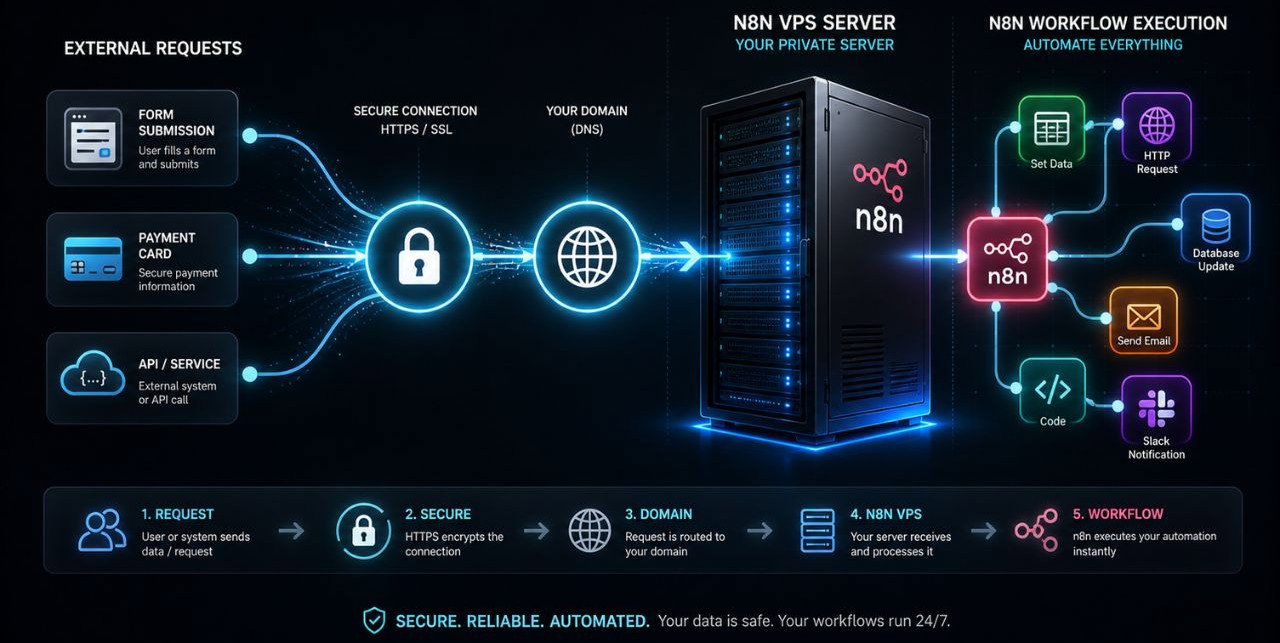
Instead of checking for updates again and again, a webhook waits for an event and runs the workflow instantly when that event happens. This makes automation faster and more efficient.
How It Works in Simple Terms
- A request is sent to your webhook URL
- n8n receives the request
- The connected workflow starts automatically
- Data is processed and actions are performed
Common Examples
- A form submission triggers a workflow
- A payment event starts an automation process
- An API request activates a task or integration
When you run n8n on a VPS, webhooks depend on proper setup. Your domain, HTTPS (SSL), and server configuration must be correctly configured. If any of these are missing, the webhook may not work or fail to trigger workflows.
Common Reasons Why n8n Webhook Is Not Working on VPS
Before fixing the issue, it is important to understand what usually causes webhook problems on a VPS. In most cases, the issue is related to server configuration rather than the workflow itself.
Main Causes of Webhook Issues
- Incorrect webhook URL: Using localhost or a private IP instead of your domain prevents external services from reaching your webhook.
- Missing HTTPS or invalid SSL certificate: Many services require secure HTTPS connections. Without SSL, webhook requests may fail or get blocked.
- Firewall blocking requests: If your VPS firewall is not configured correctly, incoming webhook requests may not reach your server.
- Reverse proxy not set properly: Without a correct reverse proxy setup (like Nginx), external traffic cannot connect to n8n.
- Missing or incorrect environment variables: If settings like WEBHOOK_URL are not configured correctly, n8n may generate wrong webhook links.
Even a single misconfiguration in these areas can prevent your webhook from working properly, which is why checking each one carefully is important.
Fix n8n Webhook in 5 Steps
If your webhook is not working on a VPS, it usually means one or more core configurations are missing or incorrect. The good thing is, you can fix almost every webhook issue by checking these 5 areas properly.
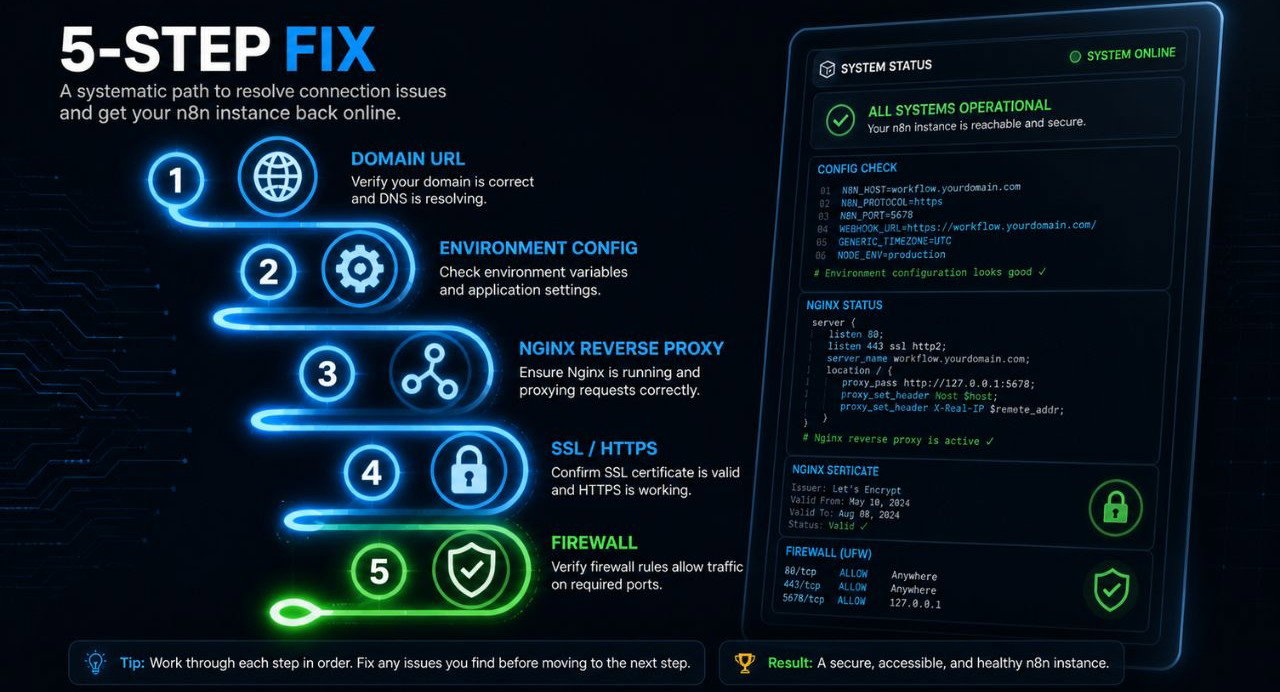
Follow each step carefully and do not skip anything, because even a small mistake can stop your webhook from working.
Step 1: Check Your Webhook URL Configuration
Your webhook URL must be publicly accessible. This means it should use your domain, not localhost or a private IP.
Correct Example:
https://yourdomain.com/webhook/your-pathWhat you should verify:
- Your domain is properly pointing to your VPS (via DNS A record)
- You can open your domain in a browser
- Your webhook URL is reachable from outside your server
Common mistakes:
- Using http://localhost:5678/webhook/…
- Using http://127.0.0.1 or private IP
- Using wrong webhook path (/webhook-test vs /webhook)
If your URL is not publicly accessible, external services will never reach your webhook.
Step 2: Configure WEBHOOK_URL in n8n
n8n generates webhook URLs based on your environment configuration. If this is not set correctly, your webhook will point to the wrong address.
Set the environment variable:
WEBHOOK_URL=https://yourdomain.comWhere to set it:
- Docker: in .env file or docker-compose
- VPS install: in system environment or service config
After setting this:
- Restart n8n
- Re-open your workflow
- Copy the webhook URL again
Why this is important:
- Ensures correct public URL is used
- Fixes broken webhook links
- Prevents localhost based URLs
Many users skip this step, and their webhook never works properly.
Step 3: Set Up Reverse Proxy Properly
n8n runs on port 5678, but this port is not directly exposed to the internet. That is why you need a reverse proxy.
Using Nginx, you connect your domain to n8n.
Basic flow:
https://yourdomain.com → Nginx → localhost:5678Example Nginx configuration:
server {
   listen 80;
   server_name yourdomain.com;
   location / {
       proxy_pass http://localhost:5678;
       proxy_set_header Host $host;
       proxy_set_header X-Real-IP $remote_addr;
   }
}
What to check:
- Nginx is installed and running
- Domain is correctly mapped
- Proxy is pointing to correct port (5678)
Common mistakes:
- Wrong port in proxy_pass
- Nginx not restarted
- Missing server_name
Without reverse proxy, your webhook cannot receive external requests.
Step 4: Enable HTTPS with SSL Certificate
Most modern APIs and services require HTTPS. If your site is not secure, webhook requests may fail or get blocked.
Use Let’s Encrypt SSL via Certbot.
Install SSL:
sudo certbot --nginx -d yourdomain.comAfter SSL setup:
- Your URL becomes https://
- Traffic is encrypted
- Webhooks become compatible with external services
Why HTTPS is required:
- Security (data protection)
- Required by Stripe, PayPal, etc.
- Prevents browser/API blocking
If your webhook is HTTP only, many services will reject it.
Step 5: Check Firewall and Open Required Ports
Even if everything is configured correctly, your firewall can still block incoming requests.
You must allow:
- Port 80 (HTTP)
- Port 443 (HTTPS)
If you are using UFW:
sudo ufw allow 80
sudo ufw allow 443
sudo ufw reload
Also check:
- Cloud firewall (if using VPS provider)
- Security groups (AWS, etc.)
- Any custom rules blocking traffic
How to verify:
- Try opening your domain from another device
- Use tools like curl or Postman
If ports are blocked, your webhook will never receive requests.
How to Test if Your Webhook Is Working Properly
After setting up everything, testing your webhook is important to confirm that it is working correctly. This helps you make sure your workflow is actually triggering and receiving data as expected.
Ways to Test Your Webhook
- Open the webhook URL in your browser: Visit your webhook URL directly. If your setup is correct, you should see a response instead of an error or timeout.
- Use Postman or similar tools: Send a GET or POST request to your webhook URL and check whether the workflow is triggered inside n8n.
- Trigger from an external service: Use a real source like a form, API, or integration connected to your workflow and see if it activates properly.
- Check n8n execution logs: Go to the “Executions” section in n8n and verify whether your workflow is triggered and processed successfully.
What to Look For
- Workflow starts instantly after request
- No errors in execution logs
- Data is received and processed correctly
If all these checks are working properly, your webhook setup is correct and ready for use.
Common Mistakes to Avoid
Most n8n webhook issues are caused by small configuration mistakes. Understanding these common problems can help you fix issues faster and avoid unnecessary troubleshooting.
Common Mistakes and Their Impact
| Mistake | What Happens | How to Fix |
| Using localhost instead of domain | External services cannot reach your webhook | Always use your public domain (https://yourdomain.com) |
| WEBHOOK_URL not set correctly | n8n generates incorrect webhook links | Set WEBHOOK_URL with your domain and restart n8n |
| Not restarting n8n after changes | Old configuration remains active | Restart n8n after any configuration update |
| HTTPS not enabled | Requests may fail or get blocked | Install SSL and use HTTPS |
| Reverse proxy not configured properly | Requests never reach n8n | Set up proxy correctly using Nginx |
| Firewall blocking ports | Incoming requests are blocked | Open ports 80 and 443 in firewall |
| Wrong webhook path | Workflow does not trigger | Use correct path (/webhook or /webhook-test) |
Why This Matters
Even a single mistake can stop your webhook from working. By checking these common issues, you can quickly identify problems and ensure your workflows run smoothly on your VPS.
Best VPS Setup for Stable n8n Webhooks
Webhook performance is not only about correct configuration. Your VPS setup also plays a major role in how fast and reliably your webhooks work.
If your server is slow or unstable, even a properly configured webhook can fail or respond late.
What a Good VPS Setup Should Include
- Reliable uptime: Your VPS should stay online without interruptions so webhook requests are always received and processed.
- Fast storage (NVMe preferred): Faster storage improves read and write speed, which helps workflows execute quickly without delay.
- Enough RAM and CPU resources: Adequate memory and processing power allow multiple webhook triggers to run smoothly at the same time.
- Stable network performance: Good network speed ensures webhook requests are received and processed instantly without latency issues.
- Optimized server environment: Proper setup with tools like Nginx and secure HTTPS improves performance and reliability.
Why Choosing the Right VPS Matters
Even if your n8n setup is configured correctly, a low quality VPS can still cause slow responses, missed triggers, or unstable automation.
For consistent performance, it is important to choose a reliable hosting provider. Platforms like YouStable offer VPS solutions specifically optimized for automation tools like n8n.
With YouStable, you get:
- High uptime for uninterrupted webhook execution
- Fast NVMe storage for better speed
- Scalable resources as your automation grows
- Stable performance for real time workflows
If you are planning to run n8n on a VPS, choosing a setup like YouStable n8n VPS hosting ensures your webhooks run smoothly without delays or failures.
Also REad: n8n Automation for E-Commerce
FAQs
Why is my n8n webhook not working on VPS even after setup?
This usually happens when one or more configurations are still incorrect.
• Wrong domain or webhook URL
• WEBHOOK_URL not set properly
• Reverse proxy misconfigured
• Firewall blocking requests
• HTTPS not enabled
Checking these areas step by step will fix most issues.
Do I need a domain to use n8n webhooks on VPS?
Yes, a domain is required for proper webhook functionality on a VPS.
• Webhooks must be publicly accessible
• External services cannot access localhost
• HTTPS setup requires a domain
Without a domain, webhooks will not work reliably in production.
Why is HTTPS important for n8n webhooks?
HTTPS ensures secure and accepted communication between services.
• Many APIs reject non secure HTTP requests
• Prevents data exposure
• Required for production level automation
Without HTTPS, your webhook may fail or get blocked.
Which VPS configuration is best for running n8n webhooks?
A balanced VPS setup ensures smooth webhook execution.
• At least 2 vCPU and 4 GB RAM
• NVMe storage for faster performance
• Stable network and uptime
• Proper reverse proxy and SSL setup
For better performance, using a reliable provider like YouStable is recommended.
How do I know if my webhook is working correctly?
You can verify your webhook setup using these methods:
• Open webhook URL in browser
• Send request using Postman
• Trigger via external service
• Check n8n execution logs
If your workflow runs without errors, your webhook is working properly.
Conclusion
Webhook issues in n8n are usually not complex. In most cases, they happen because one or more important VPS configurations are missing or set incorrectly.
When your domain, WEBHOOK_URL, reverse proxy, HTTPS, and firewall settings are properly configured, your webhooks start working as expected. Your workflows trigger instantly, process data correctly, and run without interruptions.
A stable setup not only fixes current issues but also ensures your automation continues to run smoothly as your workload grows.
For consistent performance, using a reliable VPS provider like YouStable helps maintain uptime, improve speed, and avoid webhook failures.
Once everything is set up correctly, your n8n webhooks become fast, reliable, and ready for real time automation without any issues.