Your n8n workflows may run smoothly in the beginning, but after some time, they start slowing down, failing, or even crashing without any clear reason. In most cases, the issue is not the workflow itself, but the VPS configuration behind it.
When I tested n8n on different VPS setups, the difference was clear. Low resource servers struggled with multiple workflows, while a properly configured VPS handled everything smoothly without interruptions.
Choosing the right RAM, CPU, and storage is what decides whether your automation runs reliably or keeps breaking under load.
This guide explains the minimum and recommended VPS requirements for n8n based on real usage, so you can set up your environment correctly and avoid common performance issues.
What Is n8n and Why VPS Requirements Matter?
n8n is a workflow automation tool that connects apps, APIs, and services into automated processes. You can build workflows that run on triggers, schedules, or specific events, handling tasks automatically without manual effort.
As you start using n8n more actively, it does more than just simple automation. It runs multiple workflows, processes data in the background, and manages continuous executions.
Because of this, your VPS resources directly affect how well everything performs.
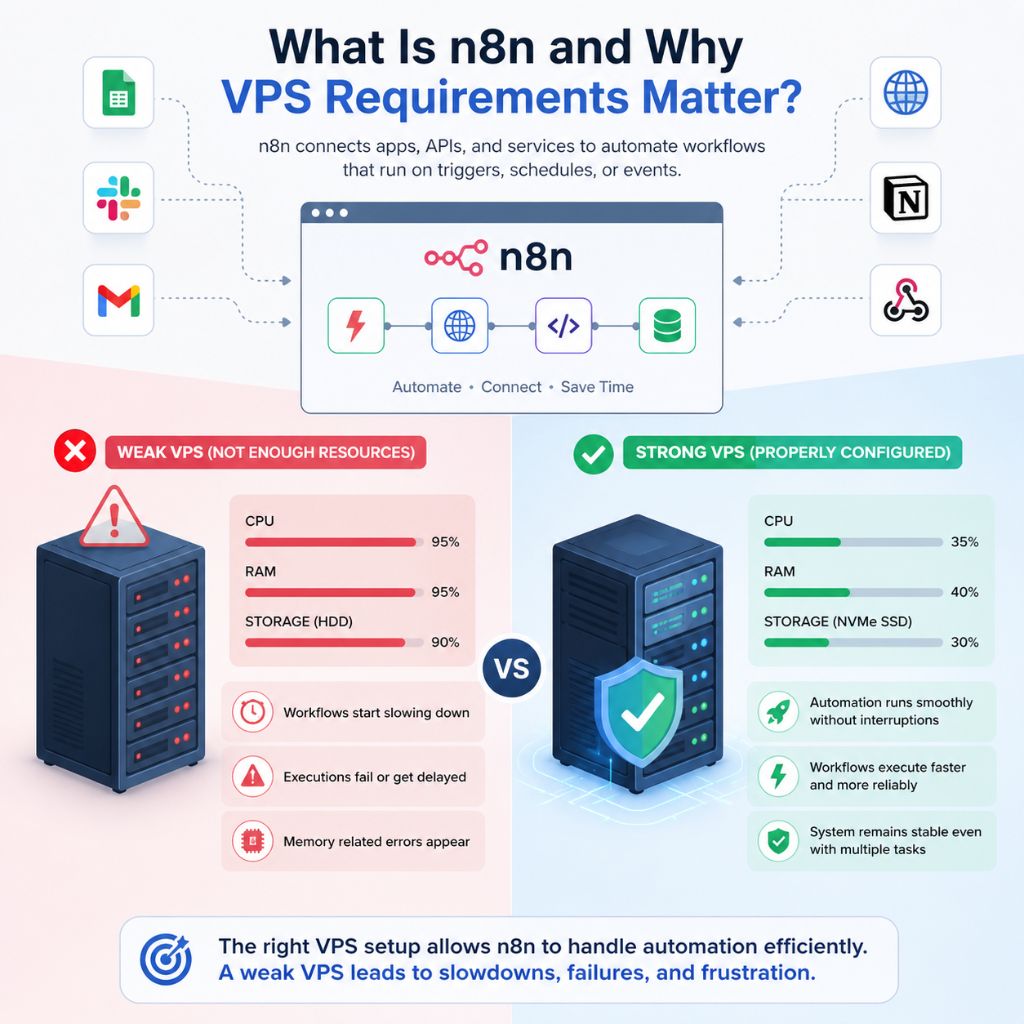
If your VPS is not powerful enough:
- Workflows start slowing down
- Executions fail or get delayed
- Memory related errors appear
With a properly configured VPS:
- Automation runs smoothly without interruptions
- Workflows execute faster and more reliably
- The system remains stable even with multiple tasks
From real usage, the difference is very clear. The right VPS setup allows n8n to handle automation efficiently, while a weak setup quickly leads to performance issues.
Minimum VPS Requirements for n8n
These are the lowest specifications where n8n can run. This setup works for testing, learning, or very small workflows, but it is not ideal for long term or heavy usage.
RAM Requirements
- Minimum: 1 GB RAM
This setup can handle:
- Basic workflows
- Low frequency automation
However, in real usage:
- It can crash when multiple workflows run together
- Memory usage increases quickly under load
- Background processes may fail silently
CPU Requirements
- Minimum: 1 vCPU
This is enough for:
- Simple workflow execution
- Light automation tasks
Limitations you will notice:
- Slower execution speed
- Delays when running multiple tasks
- Reduced performance during peak usage
Storage Requirements
- Minimum: 20 GB SSD
This storage is used for:
- Workflow data
- Logs and execution history
- System files
Why SSD is important:
- Faster read and write speed
- Better overall performance compared to HDD
- More stable handling of data intensive tasks
From practical experience, this minimum setup works only for basic usage. As soon as your workflows grow or run continuously, upgrading resources becomes necessary for stable performance.
Recommended VPS Requirements for n8n (Stable Setup)
After testing n8n on different VPS configurations, this is the setup where performance becomes stable and reliable for regular use.
- 2 vCPU
- 2–4 GB RAM
- NVMe storage
With this configuration, the difference is noticeable:
- Workflows execute faster without delays
- System remains stable during continuous automation
- Multiple workflows run without crashing
In real scenarios, upgrading from 1 GB to 2 GB RAM makes a clear impact. Earlier, workflows would fail or slow down under load, but after upgrading, execution becomes smooth and consistent.
This setup is ideal if you want n8n to run properly without constant monitoring or performance issues.
n8n VPS Requirements Based on Usage Type
The right VPS configuration depends on how you plan to use n8n. A setup that works for basic testing may not handle real workloads properly. Based on practical usage, here’s how requirements change as your automation grows:
For Beginners or Small Projects
- 1 vCPU
- 1 GB RAM
- Basic workflows
This setup works when you are:
- Learning how n8n works
- Testing simple workflows
- Running low frequency automation
It is enough to get started, but not suitable for long term or continuous usage.
For Medium Workloads
- 2 vCPU
- 2–4 GB RAM
- Multiple workflows
This is a balanced setup for:
- Running several workflows together
- Handling API integrations
- Daily automation tasks
In most real cases, this configuration provides stable performance without frequent issues.
For Heavy Automation
- 4+ vCPU
- 8 GB+ RAM
- NVMe storage
This setup is required when:
- Workflows run continuously
- Multiple tasks execute at the same time
- High API usage is involved
- Automation is part of business operations
At this level, performance, speed, and stability become critical, and higher resources ensure everything runs without interruption.
Choosing the right setup from the beginning helps avoid performance problems and unnecessary upgrades later.
How RAM, CPU and Storage Affect n8n Performance
Each resource in your VPS plays a direct role in how n8n performs. When one of these is limited, you start noticing slow execution, failed workflows, or system instability.
RAM
RAM is used for:
- Workflow execution
- Background processes
- Temporary data handling
When RAM is low:
- Workflows may crash
- Executions fail under load
- System becomes unstable
In most cases, low RAM is the main reason behind performance issues.
CPU
CPU affects:
- Execution speed
- Running multiple tasks at the same time
With low CPU:
- Workflows execute slowly
- Delays occur during multiple executions
Higher CPU improves speed and allows smoother parallel processing.
Storage
Storage is responsible for:
- Logs and execution history
- Workflow data
- System files
Using SSD or NVMe:
- Improves read and write speed
- Makes execution more responsive
- Handles data more efficiently
A balanced combination of RAM, CPU, and storage ensures that n8n runs smoothly without slowdowns or unexpected failures.
Real Setup Experience (Practical Insight)
When I first tested n8n on a 1 GB VPS, it handled a single workflow without any issues. But as soon as I added multiple triggers and API calls, performance started dropping and errors began to appear.
After upgrading to a VPS with 2 GB RAM:
- Workflow execution became stable
- Random crashes stopped
- Response time improved noticeably
This clearly shows that minimum specifications can work for basic setups, but they are not reliable once your workflows start growing or running continuously.
Common Mistakes When Choosing VPS for n8n
Choosing the wrong VPS setup at the beginning can create performance issues later. Here are the most common mistakes with a quick explanation:
- Choosing very low RAM: This may work at first, but as workflows increase, it leads to crashes and memory errors.
- Ignoring CPU performance: Low CPU power slows down execution and creates delays when multiple workflows run together.
- Using HDD instead of SSD or NVMe: Slower storage affects data processing speed and overall responsiveness.
- Selecting cheap or unstable providers: Poor uptime and network issues can interrupt automation and cause failures.
- Not planning for scaling: As your workload grows, lack of upgrade options can lead to downtime and migration issues.
Avoiding these mistakes helps ensure your n8n setup runs smoothly without unexpected problems.
Best VPS Configuration for n8n (Quick Summary)
Choosing the right configuration depends on how you plan to use n8n. Here’s a quick overview to help you decide:
| Use Case | CPU | RAM | Storage |
| Basic (Testing & Learning) | 1 vCPU | 1 GB | 20 GB SSD |
| Recommended (Stable Setup) | 2 vCPU | 2–4 GB | NVMe |
| High Load (Advanced Use) | 4+ vCPU | 8 GB+ | NVMe |
- Basic setup works for simple workflows and testing purposes
- Recommended setup provides stable performance for regular use
- High load setup is ideal for continuous automation and heavy workflows
Starting with a balanced configuration helps avoid performance issues and makes scaling easier as your usage grows.
How to Scale n8n VPS as Your Workload Grows
As your workflows increase, your VPS should scale accordingly to maintain performance and stability. A setup that works in the beginning may not handle higher loads later.
- Increase RAM first: If you notice crashes or memory errors, upgrading RAM usually solves most issues.
- Upgrade CPU when execution slows down: If workflows take longer to complete or delays appear, more CPU helps improve speed.
- Switch to NVMe storage if needed: Faster storage improves responsiveness, especially when handling logs and data heavy workflows.
- Monitor performance regularly: Keep an eye on CPU and RAM usage to identify when upgrades are needed.
- Scale gradually based on usage: Avoid over upgrading early. Increase resources step by step as your workload grows.
Scaling your VPS at the right time helps keep n8n running smoothly without unnecessary costs or performance issues.
Where to Get Reliable VPS for n8n
Choosing a stable VPS provider is important if you want n8n workflows to run without interruptions. Even with the right configuration, poor server performance can lead to slow execution and failures. A reliable option is YouStable, which offers VPS plans optimized for automation tools.
You can explore their plans here: n8n VPS Hosting
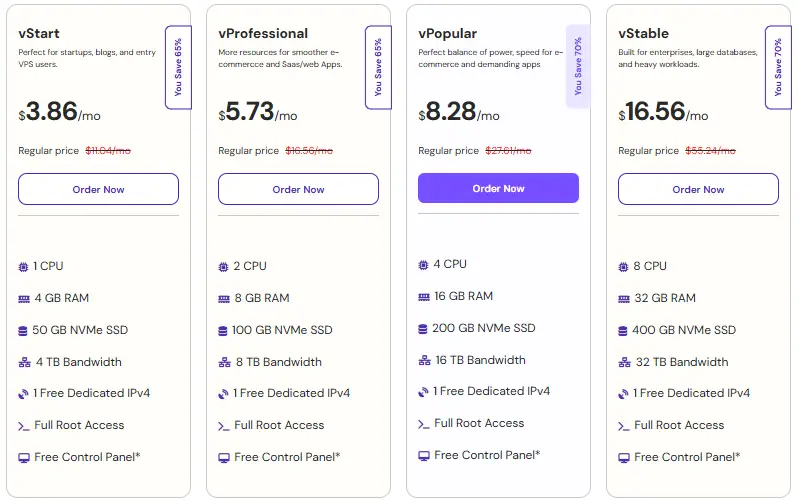
- Starting from $3.86 per month: An affordable entry point that works well for beginners and small setups.
- NVMe SSD and full root access: Faster performance with complete control over your server environment.
- Auto-restart and Docker support: Keeps workflows running continuously and makes deployment easier.
- 24/7 support and easy scaling: Quick help when needed and the ability to upgrade resources as your workload grows.
Choosing a reliable provider from the start helps ensure your n8n automation runs smoothly without constant issues.
When You Should Use Higher VPS Resources
As your n8n setup grows, there comes a point where minimum or basic configurations are no longer enough. Upgrading your VPS resources becomes necessary to maintain performance and stability.
- Running multiple workflows at the same time: More workflows increase load on RAM and CPU, which can slow down execution if resources are limited.
- Handling heavy API integrations: Frequent API calls and data processing require more processing power and memory.
- Working with large amounts of data: Data heavy workflows consume more RAM and storage, especially during processing.
- Using n8n for business or critical tasks: When automation is important, stability and uptime become essential, which requires higher resources.
- Noticing slow performance or frequent errors: Delays, crashes, or failed executions are clear signs that your current VPS is not enough.
Upgrading at the right time ensures that your workflows continue running smoothly without interruptions.
When Minimum VPS Is Enough
A minimum VPS setup is suitable in situations where your usage is simple and does not require continuous or heavy processing. Here’s a quick overview:
| Scenario | Why Minimum VPS Works |
| Learning n8n | Basic setup is enough to understand workflows and automation |
| Testing workflows | Small tests do not require high resources |
| Simple automation tasks | Lightweight workflows run smoothly on low specs |
| Non-continuous usage | Works fine when workflows are not running 24/7 |
| Limited budget | Helps reduce cost while starting out |
This setup works well in the beginning, but as your workflows grow or run continuously, upgrading your VPS becomes important for stability and performance.
FAQs
What is the minimum VPS requirement to run n8n?
n8n can run on a VPS with 1 vCPU, 1 GB RAM, and 20 GB SSD, but this setup is suitable only for basic testing or small workflows. For stable performance, higher resources are recommended.
Why does n8n slow down or crash on a low VPS?
This usually happens because the server does not have enough resources to handle the workload:
• Low RAM causes memory related crashes
• Weak CPU slows down workflow execution
• Multiple workflows increase load on the system
• Background processes consume additional resources
When these factors combine, performance issues and failures start appearing.
Is 2 GB RAM enough for n8n?
Yes, 2 GB RAM is a reliable starting point for most users. It allows multiple workflows to run smoothly and reduces the chances of crashes or delays.
Do I need NVMe storage for n8n?
NVMe is not required, but it improves performance. Faster storage helps with logging, data processing, and overall responsiveness, especially in continuous automation setups.
Conclusion
Choosing the right VPS configuration for n8n directly impacts how your automation performs over time. A low resource setup may work in the beginning, but as workflows grow, performance issues and instability start appearing.
With a properly configured VPS, n8n runs smoothly, handles multiple workflows efficiently, and avoids unexpected failures. The difference becomes very clear once you move from minimum specs to a balanced setup with enough RAM and CPU.
In real usage, this shift reduces crashes, improves execution speed, and removes the need for constant monitoring. Your workflows continue running reliably in the background without interruptions.
If you want consistent, stable, and scalable automation, setting up n8n on the right VPS configuration from the start is the most practical approach.