

To host Node.js on shared hosting, choose a provider that supports Node (typically via cPanel’s Application Manager/CloudLinux Passenger), upload your app, install dependencies with npm, set the startup file and environment variables, and map a domain or subdomain.
If your host lacks native Node support, use an external Node platform or upgrade to a VPS. Hosting Node.js on shared hosting is possible if your provider supports it, but it comes with limitations.
In this guide, I’ll show you how to host Node.js on shared hosting step-by-step using cPanel + Passenger, what to do if your host doesn’t support Node, and when it’s smarter to use a VPS for production workloads.
Can You Host Node.js on Shared Hosting?
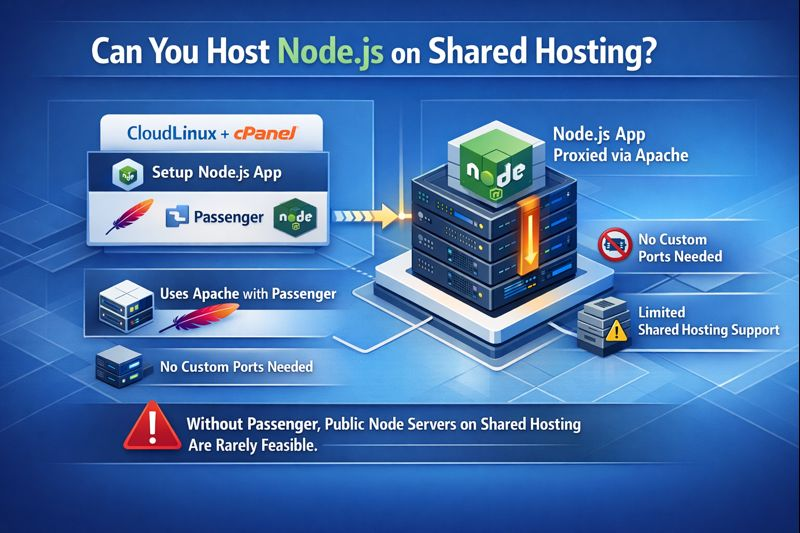
Yes, if your shared hosting uses CloudLinux and exposes cPanel’s Setup Node.js App (Passenger). It lets Apache proxy traffic into your Node app without opening custom ports. Not all shared hosts offer this. Without Passenger, running a public-facing Node server on shared hosting is rarely feasible.
When Shared Hosting Works
Choose shared hosting if your app is light or in development, gets modest traffic, doesn’t need background workers, and doesn’t require WebSocket-heavy workloads. It’s fine for small APIs, dashboards, admin tools, or learning projects.
When You Need a VPS
Go VPS if you need PM2, custom ports, WebSockets at scale, long-running background jobs, native modules (build tools), or predictable CPU/RAM. VPS also suits CI/CD pipelines and microservices. If you outgrow shared hosting, migrating to a managed VPS is straightforward.
Prerequisites and Checklist
- Shared hosting with Node.js support (cPanel Application Manager/CloudLinux Node.js Selector/Passenger).
- SSH access or cPanel Terminal to run npm install.
- Node.js version compatibility (e.g., Node 18/20 LTS).
- App startup file (e.g., app.js/server.js) and a package.json with start script.
- Domain/subdomain ready (e.g., api.example.com) and DNS access.
- Optional: Git repo for smooth deployments via cPanel’s Git Version Control.
Method 1: Host Node.js on Shared Hosting with cPanel + Passenger
This is the most reliable way to host Node.js on shared hosting. Passenger runs your app behind Apache/Nginx and maps it to your domain without opening custom ports.
1. Prepare a Minimal Express App
Your app should bind to process.env.PORT if it’s set. Passenger sets this automatically. Here’s a minimal example:
// server.js
const express = require('express');
const app = express();

const PORT = process.env.PORT || 3000;

app.get('/', (req, res) => {
  res.send('Hello from Node.js on shared hosting via Passenger!');
});

app.listen(PORT, '127.0.0.1', () => {
  console.log(`Server listening on port ${PORT}`);
});
Ensure your package.json includes a start script:
{
  "name": "shared-node",
  "version": "1.0.0",
  "main": "server.js",
  "type": "module",
  "scripts": {
    "start": "node server.js"
  },
  "dependencies": {
    "express": "^4.19.0"
  }
}
2. Create the App in cPanel
- Log in to cPanel.
- Open “Setup Node.js App” or “Application Manager.”
- Click “Create Application.”
- Choose Node.js version (prefer LTS like 18 or 20).
- Application mode: Production.
- Application root: The folder containing your app (e.g., /home/user/apps/shared-node).
- Application URL/Domain: Select a domain or subdomain (e.g., api.example.com).
- Application startup file: server.js (or your chosen entry point).
- Save/Deploy to create the environment.
After creation, cPanel shows a virtual environment path and “Run NPM Install” or SSH instructions. Use them to install dependencies inside the app root.
3. Upload Code and Install Dependencies
- Via File Manager: Upload a ZIP, extract into the Application root.
- Via Git: Use “Git Version Control” in cPanel to clone your repo into the Application root and pull updates.
- Via SSH/Terminal: Navigate to the Application root and run npm install.
# In cPanel Terminal or SSH
cd ~/apps/shared-node
npm ci --only=production
# or
npm install --production
4. Configure Environment Variables (Optional)
In the Node.js App interface, add key/value pairs like NODE_ENV=production, API keys, and database URLs. Do not commit secrets to Git; keep them in environment variables whenever possible.
5. Restart and Test
- Click “Restart Application” in cPanel after any change.
- Visit your domain/subdomain. You should see your app’s response.
- If you see 503 errors, check Passenger logs and the startup file path.
# Useful checks
node -v
cat ~/logs/<domain>.error.log
cat ~/apps/shared-node/passenger.log
Method 2: If Your Shared Host Doesn’t Support Node.js
Some shared hosts block custom ports and don’t offer Passenger. In that case, you can’t expose a public Node server directly. Use one of these workarounds.
Option A: External Node Platform + Your Domain
- Deploy your Node app to a platform like Render, Railway, Fly.io, or similar.
- Create a subdomain (e.g., api.example.com) in your shared hosting DNS and CNAME it to your external app.
- Keep static assets (front-end) on shared hosting; point API calls to the subdomain.
- Set CORS properly and enable HTTPS. Many platforms provide free TLS.
Option B: Upgrade to a Managed VPS
A VPS gives you full control: choose Node version, run PM2, enable WebSockets, and scale resources. If your project is customer-facing or revenue-critical, a managed VPS is safer and faster than bending shared constraints.
At YouStable, we recommend NVMe-powered managed VPS for Node.js. You get root access, isolated resources, and help with setup and migrations—ideal when you outgrow shared hosting.
Best Practices for Node.js on Shared Hosting
- Use LTS: Pick Node 18 or 20 for security and stability.
- PORT handling: Always bind to process.env.PORT if present.
- Production mode: Set NODE_ENV=production to enable performance optimizations.
- Lightweight dependencies: Avoid heavy native modules that need build tools.
- Logging: Log to files or a lightweight remote service; avoid verbose console logs in production.
- Security: Keep secrets in environment variables; sanitize inputs; validate payloads; rate-limit sensitive routes.
- Static caching: Serve static assets with caching headers (front-end via Apache/LiteSpeed caching).
- Health checks: Add /health endpoint for uptime checks.
- Graceful restarts: Use cPanel’s Restart for changes; don’t rely on long-running background tasks on shared.
Troubleshooting Common Errors
- 503 Service Unavailable: Startup file path wrong, app crashed, or dependencies missing. Verify startup file in cPanel, run npm ci, check passenger.log.
- App stops randomly: Shared processes can be recycled. Avoid background jobs; keep the app lean; consider a VPS for daemons/queues.
- Cannot install native modules: Shared environments often lack build tools. Replace with pure JS alternatives or move to VPS.
- Node version mismatch: Switch Node version in cPanel to match your app’s engines field; reinstall node_modules.
- WebSockets not working: Some shared stacks restrict upgrade connections. Test with a simple WS server; if unreliable, use a VPS or a managed Node host.
Realistic Expectations and Upgrade Path
Shared hosting is a cost-effective way to get a Node.js app online, but it’s not designed for heavy, stateful, or latency-sensitive services. Start small, validate your app, and monitor usage. When you need autoscaling, background workers, or full control, move to a managed VPS.
If you’re unsure, ask your host specifically whether they support “cPanel Node.js App” or “CloudLinux Passenger.” If they don’t, point your API to an external Node platform or migrate to a VPS. YouStable can help you choose the right plan and migrate with minimal downtime.
Step-by-Step Summary (cPanel + Passenger)
- Prepare your app with a startup file and a start script.
- Create a Node.js Application in cPanel, set Node version, app root, and startup file.
- Upload code (File Manager or Git) into the Application root.
- Install dependencies via npm in the app’s virtual environment.
- Set environment variables (production, API keys, DB URL).
- Map a domain or subdomain to the app in cPanel.
- Restart the app and test logs if issues arise.
FAQ’s
1. Can I run Node.js on cPanel shared hosting?
Yes, if your host provides CloudLinux’s Node.js Selector or cPanel’s Application Manager (Passenger). It lets you deploy Node apps without opening custom ports. If your cPanel lacks this feature, you likely can’t expose a Node server on shared hosting.
2. Do I need PM2 on shared hosting?
No. Passenger manages the app lifecycle. PM2 is great on VPS where you control processes, clustering, and startup scripts. On shared, stick to Passenger and cPanel’s Restart.
3. How do I point my domain to a Node app on shared hosting?
In cPanel’s Node.js App interface, choose the domain or create a subdomain and map it to the application. Apache/Passenger handles the routing; you don’t need to open a port or edit ProxyPass rules.
4. Why do I get a 503 after deployment?
Common reasons: wrong startup file, missing dependencies, Node version mismatch, or app listening on the wrong address. Ensure server.js matches the path in cPanel, run npm ci, select the correct Node LTS, and bind to process.env.PORT.
5. Is shared hosting good for production Node.js?
It’s fine for small, low-traffic apps, prototypes, or internal tools. For mission-critical workloads, WebSockets, or background workers, a managed VPS is more reliable. YouStable’s NVMe VPS plans offer better performance, isolation, and control for Node.js.



