To fix iptables on a Linux server, connect via console, identify your firewall stack (iptables-legacy, iptables-nft, firewalld, or UFW), list and back up current rules, set safe default policies, allow essential ports (SSH/HTTP/HTTPS), flush or correct bad rules, save and make rules persistent, then verify connectivity and logs.
If your server is unreachable or services are failing, a misconfigured firewall is often the culprit. This guide explains how to fix iptables on a Linux server step by step, whether you’re on Ubuntu/Debian, CentOS/RHEL/AlmaLinux, or derivatives.
You’ll learn safe recovery steps, how to diagnose issues, and how to make fixes persistent.
What is IPTables and Why it Breaks?
IPTables is the user space tool for Linux’s Netfilter firewall. It filters traffic using tables (filter, nat, mangle, raw) and chains (INPUT, FORWARD, OUTPUT).
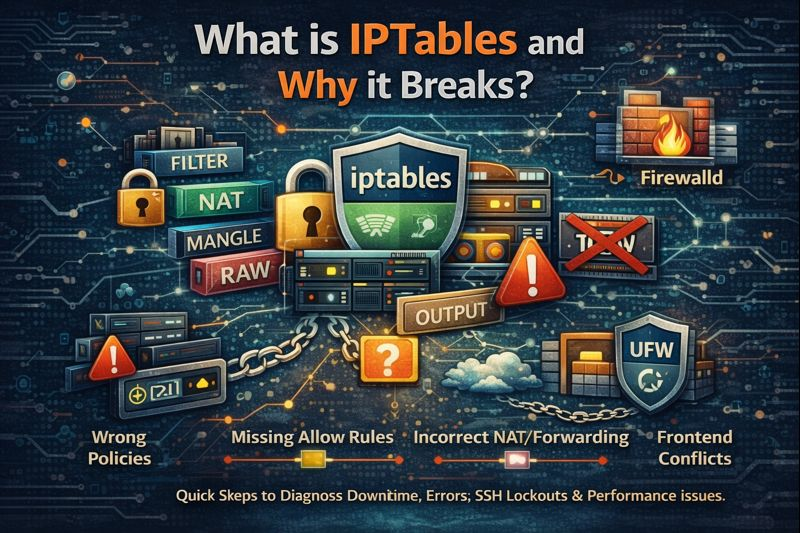
Problems usually come from wrong default policies, missing allow rules, incorrect NAT/forwarding, or conflicts with front ends like UFW and firewalld.
Quick Fix Checklist (Use Console/KVM If Locked Out)
- Connect via out of band console (KVM/IPMI/Virtual Console) to avoid SSH lockouts.
- Detect firewall stack: iptables legacy vs iptables-nft, firewalld, or UFW.
- List and backup rules with iptables save.
- Set default policies to ACCEPT temporarily, allow SSH, then apply minimal rules.
- Validate connectivity, then tighten rules gradually.
- Save and enable persistence.
Step 1: Identify Your Firewall Stack
Modern distros often ship iptables as a compatibility shim for nftables (called iptables-nft). Others use firewalld (RHEL-based) or UFW (Ubuntu). You must know what you’re fixing.
# Check which iptables backend
update-alternatives --display iptables 2>/dev/null
iptables --version

# Detect firewalld or UFW
systemctl is-active firewalld
ufw status 2>&1 | head -n1

# Show nftables (if in use)
nft list ruleset
If firewalld or UFW is active, prefer fixing via those tools, not raw iptables, to avoid conflicts.
Step 2: List and Backup Current Rules
Before changing anything, snapshot the current firewall. This gives you a rollback if needed.
# Human-readable listing
iptables -L -n -v --line-numbers
iptables -S

# Save to file (backup)
iptables-save > /root/iptables-$(date +%F-%H%M).rules
If you use IPv6, repeat with ip6tables commands.
Step 3: Recover Access Safely
Always ensure you have console access. If you’re remote over SSH, use a safety window by permitting SSH first and applying a timed rollback via at or sleep in another session if needed.
# Temporarily set permissive defaults
iptables -P INPUT ACCEPT
iptables -P FORWARD ACCEPT
iptables -P OUTPUT ACCEPT

# Flush rules and non-default chains
iptables -F
iptables -X
iptables -t nat -F
iptables -t mangle -F

# Allow essential traffic explicitly before tightening
iptables -A INPUT -m conntrack --ctstate ESTABLISHED,RELATED -j ACCEPT
iptables -A INPUT -p tcp --dport 22 -j ACCEPT   # SSH
iptables -A INPUT -p tcp --dport 80 -j ACCEPT   # HTTP
iptables -A INPUT -p tcp --dport 443 -j ACCEPT  # HTTPS
iptables -A INPUT -i lo -j ACCEPT               # Loopback
iptables -A INPUT -p icmp -j ACCEPT             # Ping (optional)
iptables -A INPUT -j DROP                       # Default deny
Confirm you can reconnect via SSH before closing your session. Then proceed to adjust service specific ports.
Step 4: Fix Common IPTables Problems
Problem: Locked Out of SSH
Ensure an allow rule for port 22 (or your custom SSH port). If you use a non-standard port, adjust accordingly and consider rate limiting to reduce brute force attacks.
# If SSH runs on 2222
iptables -A INPUT -p tcp --dport 2222 -m conntrack --ctstate NEW -j ACCEPT

# Simple rate limiting example
iptables -A INPUT -p tcp --dport 22 -m state --state NEW -m recent --set
iptables -A INPUT -p tcp --dport 22 -m state --state NEW -m recent --update --seconds 60 --hitcount 10 -j DROP
Problem: Website or API Not Reachable
Open HTTP/HTTPS and check that your web server is listening. Sometimes OUTPUT rules block egress (for fetching packages, APIs, or OCSP).
# Allow inbound web
iptables -A INPUT -p tcp -m multiport --dports 80,443 -j ACCEPT

# Verify process listening
ss -tulpn | grep -E ':(80|443)\s'
Problem: Database or Internal Service Blocks
For MySQL (3306), PostgreSQL (5432), Redis (6379), etc., only allow trusted IPs. Opening databases publicly is risky.
# Allow MySQL from a trusted app server
iptables -A INPUT -p tcp -s 203.0.113.10 --dport 3306 -j ACCEPT
Problem: NAT or Port Forwarding Not Working
For NAT/forwarding (gateways, Kubernetes, VPNs), you need correct nat table rules and IP forwarding enabled.
# Enable forwarding at runtime and persist
sysctl -w net.ipv4.ip_forward=1
echo 'net.ipv4.ip_forward = 1' >> /etc/sysctl.conf

# Masquerade outbound via eth0
iptables -t nat -A POSTROUTING -o eth0 -j MASQUERADE

# Port forward 8080 on WAN to 10.0.0.10:80
iptables -t nat -A PREROUTING -i eth0 -p tcp --dport 8080 -j DNAT --to-destination 10.0.0.10:80
iptables -A FORWARD -p tcp -d 10.0.0.10 --dport 80 -m conntrack --ctstate NEW,ESTABLISHED,RELATED -j ACCEPT
iptables -A FORWARD -m conntrack --ctstate ESTABLISHED,RELATED -j ACCEPT
Step 5: Set Default Policies Correctly
A secure baseline is DROP on INPUT and FORWARD, ACCEPT on OUTPUT, with explicit allows. Many outages happen because default policy is DROP but required services aren’t whitelisted.
iptables -P INPUT DROP
iptables -P FORWARD DROP
iptables -P OUTPUT ACCEPT
Step 6: Make Rules Persistent
Rules set with iptables are not persistent across reboots unless saved. Method depends on the distro.
Ubuntu/Debian (iptables-persistent)
apt update && apt install -y iptables-persistent
# Save IPv4 and IPv6
iptables-save > /etc/iptables/rules.v4
ip6tables-save > /etc/iptables/rules.v6
systemctl enable netfilter-persistent
systemctl restart netfilter-persistent
RHEL/CentOS/AlmaLinux (iptables-services)
On RHEL 7/8/9, firewalld is default. If you prefer raw iptables, install iptables services and disable firewalld to avoid conflicts.
yum install -y iptables-services
systemctl stop firewalld && systemctl disable firewalld
systemctl enable iptables
systemctl start iptables
# Save current rules
service iptables save   # or: iptables-save > /etc/sysconfig/iptables
Also Read: Fix FTP on Linux Server – Passive Mode, TLS, & SELinux
Working With firewalld and UFW
firewalld (RHEL, CentOS, AlmaLinux)
firewalld is a higher level controller over nftables. Use it unless you have a specific need for raw iptables.
# Open common services
firewall-cmd --permanent --add-service=ssh
firewall-cmd --permanent --add-service=http
firewall-cmd --permanent --add-service=https

# Open a custom port
firewall-cmd --permanent --add-port=2222/tcp

# Apply changes and verify
firewall-cmd --reload
firewall-cmd --list-all
UFW (Ubuntu)
UFW simplifies firewall management. It manages iptables under the hood. Keep SSH open before enabling.
ufw allow OpenSSH
ufw allow 80/tcp
ufw allow 443/tcp
ufw enable
ufw status verbose
Advanced: iptables vs nftables and Back Ends
Many modern kernels use nftables. Distributions map iptables commands to nftables via the iptables-nft back-end. If you see unexpected behavior, confirm whether you’re using iptables legacy or iptables-nft and keep the stack consistent system wide.
# Switch backend on Debian/Ubuntu if needed (requires installed alternatives)
update-alternatives --config iptables
update-alternatives --config ip6tables

# Inspect nft ruleset directly
nft list ruleset
Troubleshooting Techniques That Save Hours
- Check counters: iptables -L -n -v to see which rule matches (packet/byte counts).
- Test from another host: curl -I http://server, nc -zv server 80,443.
- Verify listeners: ss -tulpn to ensure services bind to the correct IP.
- Inspect logs: dmesg and journalctl -k for dropped packets (LOG target helps).
- Avoid double-management: don’t run UFW and firewalld simultaneously, or raw iptables with them unless you know precedence.
# Example logging rule before DROP
iptables -A INPUT -m limit --limit 10/min -j LOG --log-prefix "IPT DROP: " --log-level 4
iptables -A INPUT -j DROP
Safe Baseline Ruleset (IPv4)
Use this compact baseline, then add service specific rules. Adapt SSH port and interfaces as needed.
# Flush
iptables -F
iptables -X
iptables -t nat -F
iptables -t mangle -F

# Policies
iptables -P INPUT DROP
iptables -P FORWARD DROP
iptables -P OUTPUT ACCEPT

# Allow loopback
iptables -A INPUT -i lo -j ACCEPT

# Allow established/related
iptables -A INPUT -m conntrack --ctstate ESTABLISHED,RELATED -j ACCEPT

# SSH/HTTP/HTTPS
iptables -A INPUT -p tcp --dport 22 -j ACCEPT
iptables -A INPUT -p tcp -m multiport --dports 80,443 -j ACCEPT

# Optional: ping
iptables -A INPUT -p icmp -j ACCEPT

# Log and drop everything else (optional log)
# iptables -A INPUT -m limit --limit 10/min -j LOG --log-prefix "DROP: " --log-level 4
iptables -A INPUT -j DROP
Best Practices to Prevent Future Breakage
- Always keep console access when changing firewall rules on remote servers.
- Back up with iptables save before edits; use version control for rule files.
- Apply changes incrementally and test from a separate host.
- Prefer services and zones (firewalld) or UFW profiles for simplicity.
- Document non standard ports and peer IPs (VPNs, DB clients, monitoring).
- Automate with configuration management (Ansible, Salt, Puppet) to avoid drift.
- Plan migration to nftables if your distro is moving away from legacy iptables.
When You Need Expert Help
If you manage production environments or multi tenant servers, a small firewall mistake can cause major downtime. YouStable’s managed Linux hosting and server management can audit your firewall, harden iptables or firewalld, and implement safe, persistent rules, so you can focus on your applications. Ask our team for a security first review tailored to your stack.
FAQs
How do I quickly reset iptables to allow all traffic?
Use permissive policies and flush rules, then re-allow SSH and essential services. Run: iptables -P INPUT ACCEPT; iptables -P FORWARD ACCEPT; iptables -P OUTPUT ACCEPT; iptables -F. This is only for recovery. Re-apply a secure ruleset and make it persistent once access is restored.
Why do my iptables changes disappear after reboot?
Iptables rules are not persistent by default. On Debian/Ubuntu, install iptables-persistent (netfilter-persistent) and save to /etc/iptables/rules.v4 and rules.v6. On RHEL-based systems, use iptables-services and save to /etc/sysconfig/iptables. With firewalld or UFW, rules are persistent through their own tooling.
Should I use iptables or nftables?
nftables is the modern backend with cleaner semantics and better performance. Many distros map iptables to nftables (iptables-nft). If starting fresh, consider using nftables or firewalld/UFW. If you have legacy automation around iptables, maintain consistency and plan a gradual migration.
How can I check which rule is blocking my traffic?
Run iptables -L -n -v to inspect packet counters per rule, add a LOG rule before DROP to see hits in journalctl -k, and test from a client using curl or nc. Narrow down the chain (INPUT/FORWARD/OUTPUT) and table (filter/nat) involved in your traffic path.
What ports should I always allow on a web server?
At minimum: SSH (your chosen port), HTTP (80), and HTTPS (443). Add DNS (53) if the server runs a resolver, and any application ports (e.g., 8080, 9000) as required. Restrict database ports (3306, 5432) to trusted IPs, not the public internet, and allow loopback traffic.