

To create FirewallD on a Linux server, install the firewalld package, enable and start the service, choose an appropriate default zone, and allow only required services/ports.
Use firewall cmd to manage runtime and permanent rules, then reload and verify your configuration to lock down network access while keeping critical applications reachable. In this guide, you’ll learn exactly how to create, install, and configure FirewallD on a Linux server.
We’ll cover installation for major distributions, core concepts like zones and services, practical commands for opening ports, rich rules for fine grained control, NAT/port forwarding, and security best practices everything you need to run a production grade Linux firewall confidently.
What is FirewallD and Why Use it?
FirewallD is a dynamic firewall manager for Linux that uses nftables (or iptables on older systems) to control network traffic.
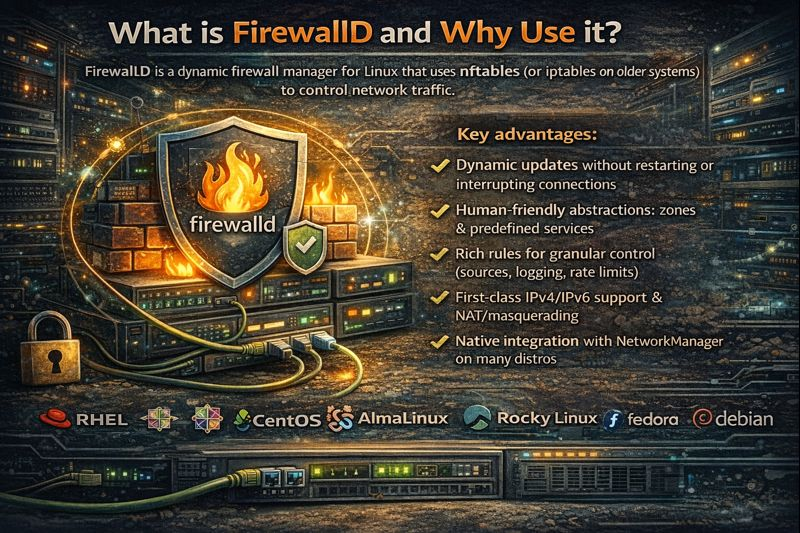
It provides zones, service definitions, and runtime vs permanent states, making firewall changes seamless without dropping active connections. It’s the default on RHEL, CentOS, AlmaLinux, Rocky Linux, and Fedora, and available on Ubuntu/Debian.
Key advantages:-
- Dynamic updates without restarting or interrupting connections
- Human-friendly abstractions: zones and predefined services
- Rich rules for granular control (sources, logging, rate limits)
- First-class IPv4/IPv6 support and NAT/masquerading
- Native integration with NetworkManager on many distros
Prerequisites and Supported Distros
- A Linux server (RHEL, CentOS, AlmaLinux, Rocky Linux, Fedora, Ubuntu, Debian, openSUSE)
- Root or sudo access
- Package manager access (dnf/yum, apt, or zypper)
- OpenSSH access and console access (in case you lock yourself out)
Install and Enable FirewallD
Choose your distribution and run the relevant commands below.
RHEL / CentOS / AlmaLinux / Rocky Linux / Fedora:
sudo dnf install -y firewalld
sudo systemctl enable --now firewalld
sudo firewall-cmd --state
Ubuntu / Debian (consider disabling UFW if it’s enabled):
sudo apt update
sudo apt install -y firewalld
sudo systemctl enable --now firewalld
sudo ufw disable  # optional: avoid conflicts
sudo firewall-cmd --state
openSUSE:
sudo zypper install -y firewalld
sudo systemctl enable --now firewalld
sudo firewall-cmd --state
If you’re migrating from iptables, note that modern FirewallD uses the nftables backend:
sudo firewall-cmd --get-backend # expected: nftables
Core Concepts: Zones, Services, and States
Zones
Zones are trust levels (e.g., public, home, work, internal, dmz, drop). Each network interface or source IP can be bound to a zone. The active zone controls what traffic is allowed.
sudo firewall-cmd --get-default-zone
sudo firewall-cmd --get-active-zones
sudo firewall-cmd --zone=public --list-all
Services
Services are named rule bundles (e.g., ssh, http, https, mysql) defined in XML. They open the correct port/protocol combo without you remembering port numbers.
Runtime vs Permanent
Runtime changes apply immediately and reset on restart; permanent changes persist after reload/reboot. Use both to test safely: apply runtime first, confirm access, then make it permanent and reload.
Quick Start: Secure Access and Keep SSH Alive
Lock in a safe baseline: ensure SSH stays open and enable common web services.
# Ensure SSH is allowed in your default (or public) zone:
sudo firewall-cmd --add-service=ssh
sudo firewall-cmd --runtime-to-permanent
sudo firewall-cmd --reload

# Allow HTTP and HTTPS permanently:
sudo firewall-cmd --add-service=http --permanent
sudo firewall-cmd --add-service=https --permanent
sudo firewall-cmd --reload

# Verify:
sudo firewall-cmd --list-services
Common FirewallD Tasks (With Examples)
Open or Close Specific Ports
# Open TCP 8080 in the public zone:
sudo firewall-cmd --zone=public --add-port=8080/tcp --permanent
sudo firewall-cmd --reload

# Remove it:
sudo firewall-cmd --zone=public --remove-port=8080/tcp --permanent
sudo firewall-cmd --reload
Add or Remove Services
# Allow MySQL server port via service:
sudo firewall-cmd --add-service=mysql --permanent
sudo firewall-cmd --reload

# Or remove a service:
sudo firewall-cmd --remove-service=mysql --permanent
sudo firewall-cmd --reload
Change Default Zone and Bind Interfaces
# Set default zone:
sudo firewall-cmd --set-default-zone=public

# Attach interface to a zone:
sudo firewall-cmd --zone=internal --change-interface=eth0
sudo firewall-cmd --zone=internal --list-all
Create Rich Rules (Granular Policies)
Rich rules add source/destination filters, logging, time limits, and more.
# Block a single IP:
sudo firewall-cmd --add-rich-rule='rule family="ipv4" source address="203.0.113.10" reject' --permanent

# Allow SSH from a trusted subnet only:
sudo firewall-cmd --add-rich-rule='rule family="ipv4" source address="192.0.2.0/24" service name="ssh" accept' --permanent

# Rate-limit SSH accepts (example: 3 per minute):
sudo firewall-cmd --add-rich-rule='rule service name="ssh" limit value="3/m" accept' --permanent

sudo firewall-cmd --reload
NAT, Masquerading, and Port Forwarding
Enable masquerading when forwarding traffic between networks (common on gateways) or when forwarding to another host.
# Enable masquerade for the zone that faces the internet:
sudo firewall-cmd --zone=public --add-masquerade --permanent

# Forward incoming TCP/80 to local 8080 (same host):
sudo firewall-cmd --zone=public --add-forward-port=port=80:proto=tcp:toport=8080 --permanent

# Forward TCP/8443 to another server:
sudo firewall-cmd --zone=public --add-forward-port=port=8443:proto=tcp:toaddr=10.10.0.50:toport=443 --permanent

sudo firewall-cmd --reload
Panic Mode and Logging
# Temporarily drop all traffic (use carefully, may cut SSH):
sudo firewall-cmd --panic-on
sudo firewall-cmd --panic-off

# Log denied packets:
sudo firewall-cmd --set-log-denied=all
# View logs:
journalctl -xe | grep -i "denied"
Create a Custom Service (Recommended for Apps)
If your app doesn’t match a predefined service, define a clean, reusable service instead of opening raw ports each time.
sudo tee /etc/firewalld/services/myapp.xml >/dev/null <<'EOF'
<service>
  <short>myapp</short>
  <description>Custom app listening on TCP 9000</description>
  <port protocol="tcp" port="9000"/>
</service>
EOF

sudo firewall-cmd --reload
sudo firewall-cmd --add-service=myapp --permanent
sudo firewall-cmd --reload
sudo firewall-cmd --list-services
Verification and Troubleshooting
Verify open ports and active zones, and test connectivity from a client machine.
# Inspect configuration:
sudo firewall-cmd --check-config
sudo firewall-cmd --get-active-zones
sudo firewall-cmd --list-all

# Confirm listeners:
sudo ss -tulpn

# Scan from another host (replace IP):
nmap -Pn -p 22,80,443,9000 SERVER_IP
SELinux tip (RHEL-family): if your service uses a nonstandard port, allow it in SELinux too:
# Example: allow HTTP on TCP/8080:
sudo semanage port -a -t http_port_t -p tcp 8080
# If semanage is missing:
sudo dnf install -y policycoreutils-python-utils
Backup and Restore Your FirewallD Configuration
Configuration lives under /etc/firewalld. Always commit runtime changes to permanent before backup.
# Persist runtime to permanent:
sudo firewall-cmd --runtime-to-permanent

# Backup:
sudo tar czf firewalld-backup-$(date +%F).tar.gz /etc/firewalld

# Restore:
sudo tar xzf firewalld-backup-YYYY-MM-DD.tar.gz -C /
sudo firewall-cmd --reload
FirewallD vs UFW vs Raw iptables/nft
- FirewallD: Dynamic, zone-based, enterprise-friendly; great on RHEL/Fedora-family and cross-distro.
- UFW: Simplified firewall for Ubuntu; excellent for quick server setups.
- Raw iptables/nft: Ultimate control but steeper learning curve; best for specialized cases or custom scripts.
Best Practices for Production Servers
- Deny by default; allow only what you need (principle of least privilege).
- Lock SSH to trusted IPs/subnets; consider nonstandard ports and key-based auth.
- Separate interfaces into appropriate zones (public vs internal).
- Use services over raw ports for readability and maintenance.
- Document changes, back up /etc/firewalld, and version-control custom service files.
- Enable logging of denied packets for auditing; regularly review logs.
- Test with a secondary session to avoid locking yourself out.
- Combine with SELinux/AppArmor and fail2ban for layered security.
Automation Tip (Ansible)
Codify your firewall with Ansible to keep environments consistent:
- name: Harden firewall
  hosts: web
  become: true
  tasks:
    - ansible.builtin.package:
        name: firewalld
        state: present
    - ansible.builtin.service:
        name: firewalld
        state: started
        enabled: true
    - ansible.posix.firewalld:
        service: ssh
        state: enabled
        permanent: true
        immediate: true
        zone: public
    - ansible.posix.firewalld:
        service: http
        state: enabled
        permanent: true
        immediate: true
        zone: public
When Managed Security Makes Sense
If you’d rather not worry about firewall architecture, hardening, and audits, a managed VPS or dedicated server from YouStable can help. Our team provisions FirewallD with best-practice zones, monitors exposed surfaces, and assists with complex NAT or multi-network setups—all while keeping your stack performant and compliant.
FAQ’s – FirewallD on Linux Server
How do I install and start FirewallD on Linux?
On RHEL-family systems, run: dnf install -y firewalld; systemctl enable –now firewalld. On Ubuntu/Debian: apt install -y firewalld; systemctl enable –now firewalld. Verify with firewall-cmd –state. Disable UFW on Ubuntu to avoid conflicts if you use FirewallD.
What is the difference between runtime and permanent in FirewallD?
Runtime changes apply immediately and disappear after reboot or service restart. Permanent changes are saved to disk and activated after a reload. Safest workflow: test at runtime, then apply permanent and reload once confirmed.
How do I open a port in FirewallD?
Use firewall-cmd –zone=public –add-port=PORT/proto –permanent; firewall-cmd –reload. Example: firewall-cmd –zone=public –add-port=8080/tcp –permanent. Prefer services when available: firewall-cmd –add-service=http –permanent.
How can I restrict SSH to a specific IP range?
Use a rich rule: firewall-cmd –add-rich-rule=’rule family=”ipv4″ source address=”192.0.2.0/24″ service name=”ssh” accept’ –permanent; firewall-cmd –reload. Remove the generic ssh service if it’s globally enabled to avoid wider access.
Does FirewallD support port forwarding and NAT?
Yes. Enable masquerade on the internet-facing zone and add forward-port rules. Example: firewall-cmd –zone=public –add-masquerade –permanent; firewall-cmd –zone=public –add-forward-port=port=80:proto=tcp:toport=8080 –permanent; firewall-cmd –reload.
Conclusion
Creating FirewallD on a Linux server is straightforward: install, enable, set zones, allow necessary services, and verify. With zones, services, and rich rules, you can implement a strong, flexible perimeter quickly. Follow the best practices above—and if you need a hand hardening at scale, YouStable’s managed hosting team is ready to help.




