To clear DNS cache on Windows, macOS, and Linux, run the platform’s flush command to remove stored hostname to IP records and force fresh lookups. Use ipconfig /flushdns on Windows, dscacheutil -flushcache and killall -HUP mDNSResponder on macOS, and resolvectl flush caches or restart your resolver on Linux, then verify with nslookup or dig.
Clearing DNS cache fixes issues like websites not loading, wrong IP resolutions after a DNS change, or intermittent 404s. In this guide, I’ll show you exactly how to flush DNS on Windows, Linux, and Mac, verify results, clear browser and router caches, and troubleshoot stubborn cases.
What is DNS Cache and When Should You Clear it?
DNS cache is a temporary store of hostname to IP mappings your system and apps keep to speed up future lookups.
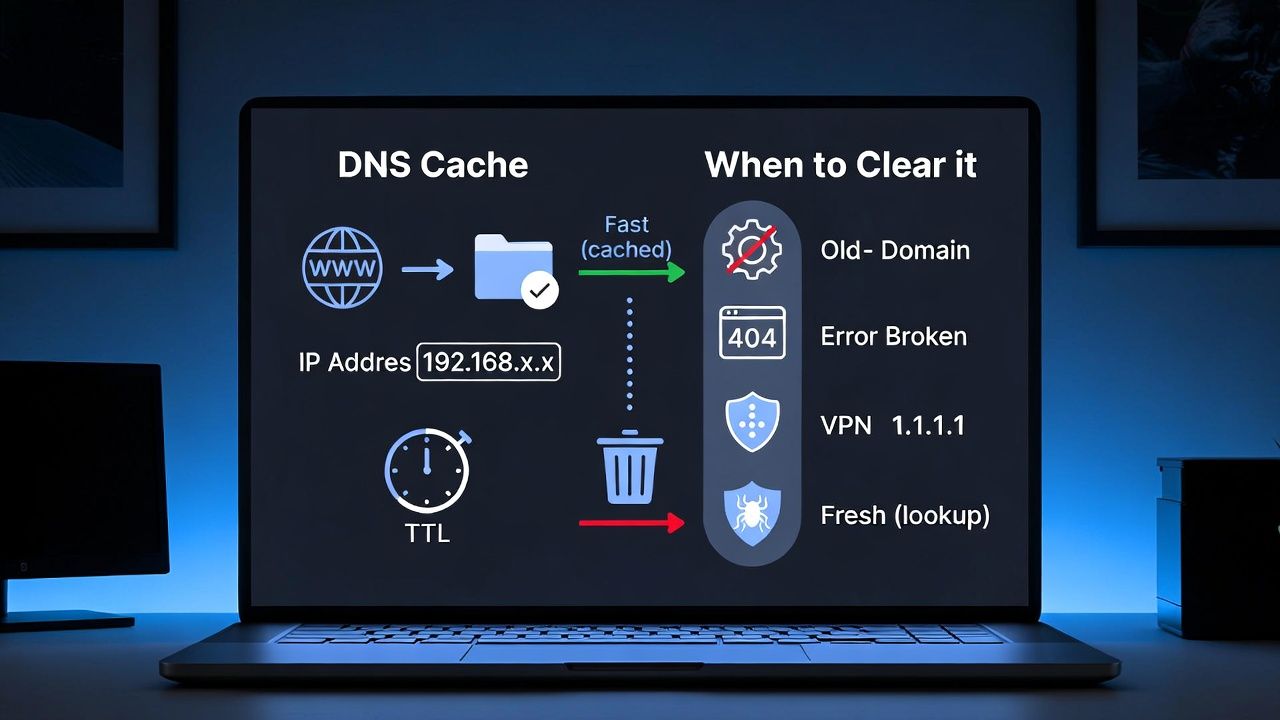
It respects TTLs (time to live), but caches can go stale after migrations, DNS record edits, CDN changes, or when switching networks/VPNs.
Clear the DNS cachewhen you:-
- Recently changed DNS records (A, CNAME, MX) and still see old results.
- Experience “server IP address could not be found” or unexpected 404/ERR_NAME_NOT_RESOLVED.
- Switched DNS resolvers (e.g., to 1.1.1.1 or 8.8.8.8) or toggled a VPN/proxy.
- Suspect poisoned or corrupted cache after malware or network issues.
Quick Commands: Flush DNS on Windows, macOS, and Linux
Windows 11/10/8/7
ipconfig /flushdns
ipconfig /displaydns   # optional: view cache after flush
macOS (Sonoma, Ventura, Monterey, Big Sur)
sudo dscacheutil -flushcache
sudo killall -HUP mDNSResponder
# Optional: verify
sudo killall -INFO mDNSResponder
Linux (systemd resolved, NetworkManager/dnsmasq, nscd, BIND)
# systemd-resolved (Ubuntu 18+, Debian 10+, Fedora, etc.)
sudo resolvectl flush-caches
# or older:
sudo systemd-resolve --flush-caches

# NetworkManager (often with dnsmasq)
sudo systemctl restart NetworkManager

# dnsmasq standalone
sudo systemctl restart dnsmasq

# nscd (Name Service Cache Daemon)
sudo systemctl restart nscd

# BIND (named) local resolver
sudo rndc flush

# Unbound local resolver
sudo unbound-control flush_zone .
Step-by-Step: Clear DNS Cache on Each Platform
Windows: Using Command Prompt (Admin)
This works on Windows 11/10/8/7 and Windows Server.
- Press Start, type “cmd”. Right click Command Prompt > Run as administrator.
- Flush the DNS client cache.
ipconfig /flushdns
- You should see “Successfully flushed the DNS Resolver Cache.”
- Optional: Display the cache to confirm it’s cleared.
ipconfig /displaydns
If name resolution still fails, you can reset sockets/Winsock (this resets network stack; use with care):
netsh winsock reset
netsh int ip reset
Windows: PowerShell Alternative
Run PowerShell as administrator and clear the client cache:
Clear-DnsClientCache
# Optional: query DNS with PowerShell
Resolve-DnsName example.com
macOS: Terminal Commands
Open Terminal and run both commands. They are safe and effective across recent macOS releases (Big Sur → Sonoma).
sudo dscacheutil -flushcache
sudo killall -HUP mDNSResponder
For older OS X Yosemite only, Apple briefly used another utility. Most users can ignore this today.
# Yosemite (10.10) only
sudo discoveryutil mdnsflushcache
sudo discoveryutil udnsflushcaches
Linux: Ubuntu/Debian/Fedora/RHEL
Linux behavior depends on the resolver stack in use.
Try these in order:
- Systemd-resolved (most modern distros):
sudo resolvectl flush-caches
# Verify statistics
resolvectl statistics
- NetworkManager (desktop distros):
sudo systemctl restart NetworkManager
- dnsmasq / nscd / BIND / Unbound (local resolvers):
sudo systemctl restart dnsmasq
sudo systemctl restart nscd
sudo rndc flush       # BIND
sudo unbound-control flush_zone .  # Unbound: flush all
If your distro lacks any DNS caching service, there’s nothing to flush at the OS layer. Your application or browser may still cache (see below).
Browser DNS Cache (Chrome, Edge, Firefox, Safari)
- Google Chrome / Microsoft Edge: Go to
chrome://net-internals/#dnsoredge://net-internals/#dns, then click “Clear host cache”. If unavailable in your version, closing all browser windows and relaunching often clears the in app cache. You can also flush sockets atchrome://net-internals/#sockets. - Mozilla Firefox: Visit
about:networking#dnsand click “Clear DNS Cache”. - Safari: Quit and relaunch Safari after you flush macOS DNS at the system level.
Verify DNS is Cleared and Resolving Fresh
Test with nslookup or dig
After flushing, test with your system resolver, then compare with public resolvers such as Cloudflare (1.1.1.1) or Google (8.8.8.8).
# Windows/macOS/Linux
nslookup yourdomain.com

# Compare via Cloudflare
nslookup yourdomain.com 1.1.1.1

# Compare via Google
nslookup yourdomain.com 8.8.8.8

# Linux/macOS detailed query
dig +trace yourdomain.com
PowerShell verification (Windows)
Resolve-DnsName yourdomain.com -Server 1.1.1.1
Resolve-DnsName yourdomain.com -Server 8.8.8.8
If public resolvers show the expected new IP while your system resolver doesn’t, the local cache or your router/ISP cache is still stale. Continue with the advanced steps below.
Advanced: Router and Local DNS Resolver Caches
Home/Office Router
Many routers cache DNS. Reboot the router or log into its admin interface and restart the DNS service. After reboot, renew your client’s IP (disable/enable Wi‑Fi or run ipconfig /renew on Windows).
Pi-hole / dnsmasq / Ad-blocking Appliances
If you run Pi-hole or dnsmasq on a Raspberry Pi or NAS, flush there too:
pihole -f       # Pi-hole: flush cache
sudo systemctl restart pihole-FTL
sudo systemctl restart dnsmasq
Troubleshooting: If Flushing DNS Doesn’t Work
Check the hosts file
A manual entry overrides DNS. Remove stale lines and save.
# Windows
C:\Windows\System32\drivers\etc\hosts

# Linux/macOS
/etc/hosts
DNS over HTTPS (DoH) or VPN
Browsers with DoH enabled may bypass system DNS. Temporarily disable DoH or set it to your desired provider. VPN clients can also force DNS through their tunnel; disconnect or update VPN DNS settings.
IPv6 vs IPv4
If your A record changed but AAAA did not (or vice versa), clients may still reach the old address. Ensure both records are updated or temporarily disable IPv6 to isolate the issue while testing.
DNS Propagation vs Local Cache
Even after clearing caches, global DNS propagation can take time depending on your record TTL. Compare results from multiple resolvers (1.1.1.1, 8.8.8.8, 9.9.9.9) or use a multi location DNS checker to confirm worldwide updates.
Also Read: Secure Your VPS Hosting
Best Practices for Faster, Safer DNS
- Use reliable public DNS resolvers (Cloudflare 1.1.1.1, Google 8.8.8.8, Quad9 9.9.9.9) or your provider’s Anycast DNS.
- Set sensible TTLs: shorter during migrations (300–600s), longer for stability after cutover.
- Harden your stack with DNSSEC where supported and monitor for hijacks.
- Document where DNS caches live in your environment: endpoints, browsers, routers, and local resolvers.
- For businesses, centralize DNS management and observability to reduce downtime during changes.
If your domain or server is hosted with YouStable, our support can help validate your records, advise on TTL strategies, and ensure our global DNS responds consistently. As a hosting provider, we see DNS related tickets daily lean on that experience during migrations.
Real World Example: Post Migration DNS Fix
After moving a WordPress site to a new server, the A record is updated but some users still reach the old IP. The fix is multi layered: flush the server’s local resolver, clear endpoint OS caches, restart the office router, and clear browser DNS. Verify with nslookup against 1.1.1.1 and 8.8.8.8 to confirm propagation.
FAQs
Does clearing DNS cache delete my browsing history?
No. DNS cache only stores hostname to IP mappings. It does not contain page history, cookies, or saved passwords. Clearing it simply forces new DNS lookups.
How often should I flush DNS cache?
Only when troubleshooting or immediately after DNS changes. Under normal conditions, let TTLs expire naturally. Frequent flushing offers no performance benefit.
Why do Chrome or Edge still show old IPs after flushing Windows DNS?
Browsers maintain their own DNS cache and sometimes use DNS over HTTPS. Clear browser DNS at chrome://net-internals/#dns or edge://net-internals/#dns, disable DoH temporarily, and relaunch the browser.
Is there a single command to flush DNS on all Linux systems?
No. Linux is modular. On most modern distros, resolvectl flush caches works. Otherwise, restart the resolver you actually use (NetworkManager, dnsmasq, nscd, BIND, Unbound).
What’s the difference between DNS cache and browser cache?
DNS cache maps hostnames to IP addresses. Browser cache stores site assets (HTML, CSS, JS, images). DNS cache issues cause wrong IP lookups; browser cache issues cause stale content. You may need to clear both when troubleshooting.
Conclusion
Flushing DNS cache is a fast, safe fix for stale name resolution on Windows, macOS, and Linux. Use the quick commands above, verify with nslookup or dig, and remember to clear browser and router caches when needed. Managing DNS changes? YouStable can help you plan TTLs, propagate records cleanly, and reduce downtime.