

To back up your website safely, follow the 3-2-1 rule: keep three copies, on two different storage types, with one offsite. Automate daily incremental and weekly full backups for both files and database, encrypt them, and test restores quarterly.
Use your host’s panel, a trusted plugin, or CLI scripts never store backups on the same server. Backing up a website isn’t optional it’s your recovery plan when updates break, malware hits, or a server fails.
In this guide, you’ll learn how to backup your website step by step, avoid costly mistakes, and implement a safe, automated strategy that includes testing restores and offsite storage.
What is a Website Backup and Why it Matters?
A website backup is a copy of your site’s files and database that you can restore after data loss or corruption.
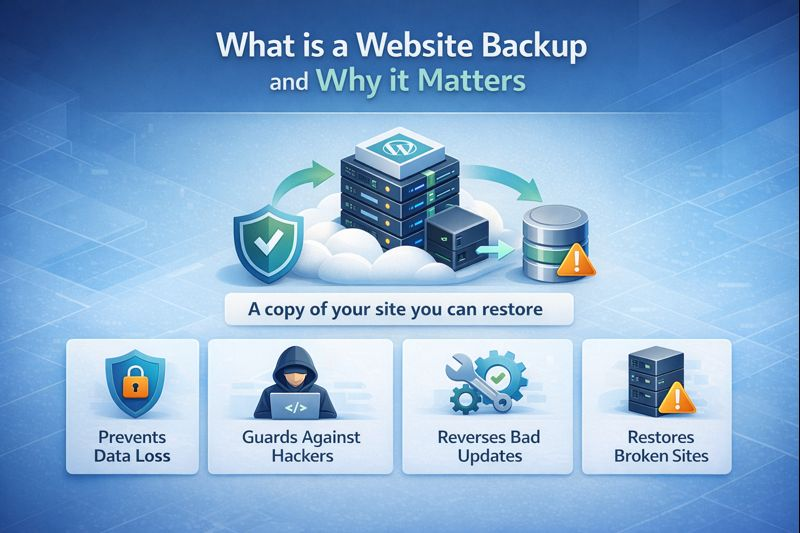
It protects you from hacks, bad updates, accidental deletions, and server failures. For WordPress, that means both the file system (core, themes, plugins, uploads) and the database (posts, pages, settings, users).
Full vs Incremental vs Differential vs Snapshots
- Full backup: Copies everything. Reliable but larger and slower.
- Incremental backup: Copies only changes since the last backup (full or incremental). Fast, smaller, best for daily/nightly automation.
- Differential backup: Copies changes since the last full backup. Medium size and speed.
- Snapshots: Storage-level or VM-level point-in-time copies. Fast to create, but not a substitute for offsite backups.
The 3-2-1 Backup Strategy for Websites
The safest way to back up your website follows the 3-2-1 model: keep three copies (production + two backups), on two different media (e.g., local disk + cloud), with one copy offsite. This minimizes single points of failure and improves disaster recovery.
What to Back Up (Don’t Miss These)
- Website files: WordPress core, wp-content (themes, plugins, uploads), .htaccess, web.config.
- Database: All tables (posts, users, orders, settings) plus character set/collation.
- Config and secrets: wp-config.php, .env, API keys (store backups encrypted).
- Server items (if you self-manage): Nginx/Apache vhost files, PHP-FPM config, crontab.
Where to Store Backups
- Cloud object storage: Amazon S3, Backblaze B2, Wasabi (supports lifecycle and immutability).
- Cloud drives: Google Drive, Dropbox, OneDrive (easy to start, watch for quotas).
- Remote server: SFTP/SSH or rsync to a hardened box.
- Host-provided offsite: Use your provider’s remote backup feature when available.
How Often Should You Back Up?
Base it on RPO (how much data you can lose) and RTO (how fast you must recover). For most sites: daily incremental + weekly full backups. For ecommerce or high-activity sites: hourly incremental + daily full. Always back up before major updates.
Step-by-Step: How to Backup Your Website
Method 1: Using Your Hosting Control Panel (cPanel/Plesk)
- cPanel
- Go to Backup or Backup Wizard.
- Click “Download a Full Account Backup” to capture home directory, databases, email, DNS.
- Choose a remote destination (SCP/FTP) if offered, or download locally and upload to cloud storage.
- For selective backups, use “Partial Backups” for Home Directory and MySQL Databases.
- Plesk
- Open Websites & Domains > Backup Manager.
- Create backup > include files and databases.
- Configure scheduled backups and remote storage (S3, FTP, Google Drive if supported).
Pros: Simple UI, quick full account snapshots. Cons: Manual downloads can be forgotten; ensure at least one copy is offsite and automated.
Method 2: WordPress Plugin (UpdraftPlus Example)
- Install and activate UpdraftPlus (or alternatives like Duplicator, Jetpack VaultPress, BlogVault).
- Set schedules: daily or hourly database; daily files; weekly full backup.
- Select remote storage: S3/B2/Wasabi, Google Drive, Dropbox, or SFTP.
- Enable encryption for database backup and restrict access to backup files.
- Exclude transient/cache folders (e.g., wp-content/cache) to save space.
- Run your first backup and verify the remote copy exists.
Pros: Granular control, one-click restore. Cons: Plugin conflicts on low-resources hosts; verify timeouts and splitting archives for large sites.
Method 3: Manual Backup via SFTP + Database Dump
- Files: Connect via SFTP and download your web root (e.g., public_html or htdocs). Compress locally or on-server to speed transfer.
- Database: Export using phpMyAdmin (Export > Quick > SQL) or run mysqldump over SSH.
- Offsite: Upload the archive and SQL dump to cloud storage or a remote server.
# SSH into your server
cd /var/www/example.com
tar -czf site-files-$(date +%F).tar.gz public_html

# Export the database (replace credentials)
mysqldump -u db_user -p'STRONGPASS' db_name > db-$(date +%F).sql

# Optionally encrypt the dump (OpenSSL example)
openssl enc -aes-256-cbc -pbkdf2 -salt -in db-$(date +%F).sql -out db-$(date +%F).sql.enc

# Send to remote (S3 CLI example)
aws s3 cp site-files-$(date +%F).tar.gz s3://your-bucket/backups/
aws s3 cp db-$(date +%F).sql.enc s3://your-bucket/backups/
Pros: Full control, CMS-agnostic. Cons: Manual, error-prone if you skip steps or forget offsite storage.
Method 4: Automated WP-CLI Script (Advanced)
For WordPress on a VPS or cloud instance, automate nightly backups with WP-CLI and cron. This is efficient and versionable.
#!/bin/bash
# backup-wp.sh - nightly WordPress backup with rotation
# Requirements: wp-cli, awscli or rclone, tar, openssl

set -e
SITE_PATH="/var/www/example.com/public_html"
BACKUP_PATH="/var/backups/example.com"
DB_NAME="db_name"
DB_USER="db_user"
DB_PASS="STRONGPASS"
S3_BUCKET="s3://your-bucket/backups/example.com"
DATE=$(date +%F)
RETENTION_DAYS=14

mkdir -p "$BACKUP_PATH/files" "$BACKUP_PATH/db"

# Database export (via wp-cli)
cd "$SITE_PATH"
wp db export "$BACKUP_PATH/db/db-$DATE.sql" --add-drop-table --single-transaction

# Encrypt database dump
openssl enc -aes-256-cbc -pbkdf2 -salt -in "$BACKUP_PATH/db/db-$DATE.sql" -out "$BACKUP_PATH/db/db-$DATE.sql.enc"
shred -u "$BACKUP_PATH/db/db-$DATE.sql"

# Files archive (exclude caches)
tar --exclude="wp-content/cache" --exclude="*.zip" -czf "$BACKUP_PATH/files/site-$DATE.tar.gz" -C "$SITE_PATH" .

# Upload to S3
aws s3 cp "$BACKUP_PATH/files/site-$DATE.tar.gz" "$S3_BUCKET/"
aws s3 cp "$BACKUP_PATH/db/db-$DATE.sql.enc" "$S3_BUCKET/"

# Local retention
find "$BACKUP_PATH" -type f -mtime +$RETENTION_DAYS -delete

echo "Backup completed: $DATE"
Add this to cron (crontab -e): 0 2 * * * /bin/bash /root/backup-wp.sh >> /var/log/backup.log 2>&1
How to Restore (and Test) a Backup
- Use staging: Restore to a staging subdomain first to verify.
- Restore database: Import the .sql (or decrypted .sql) via phpMyAdmin, WP-CLI, or mysql CLI.
- Restore files: Upload/extract your files archive to the web root.
- Reissue keys: If compromised, rotate salts/API keys in wp-config.php.
- Verify: Check pages, logins, checkout flows, forms, and error logs.
Test restores quarterly. A backup you can’t restore quickly is a liability.
Common Mistakes to Avoid
- Storing backups on the same server: Hardware failure or ransomware can hit both live site and backup.
- Backing up files but not the database: WordPress content and settings live in the database.
- Keeping only one copy: At least two backups + one offsite.
- Never testing restores: Corrupt or partial archives go unnoticed until disaster strikes.
- No encryption: Backups contain sensitive data; encrypt at rest and in transit.
- Unlimited retention: You’ll blow storage budgets. Define and enforce retention.
- Ignoring locks/exclusions: Include uploads; exclude cache and temp files to speed backups.
- Running during peak traffic: Schedule off-hours to reduce load and timeouts.
Security and Compliance Best Practices
- Encrypt backups (AES-256) and use strong unique passwords.
- Use IAM with least privilege for cloud storage; avoid root keys.
- Enable object lock/immutability on S3-compatible storage to resist ransomware.
- Rotate keys and salts after incidents; keep secrets out of public repos.
- Mask or purge PII for development copies; comply with GDPR/CCPA.
- Log and alert: Monitor backup success/failure and storage usage.
Sample Backup Schedule and Retention Plan
- Frequency: Hourly incremental database (busy sites) or daily for standard sites; daily incremental files; weekly full backup.
- Retention: 7 daily, 4 weekly, 3 monthly. Archive a quarterly snapshot for 1 year.
- Storage: Local node (short-term), cloud object storage (primary offsite), secondary region or provider (redundancy).
- Testing: Restore to staging every quarter; verify critical flows.
- Change management: Force a manual backup before updates, migrations, or plugin/theme changes.
Real World Scenario: Fast Recovery After a Bad Update
You update a plugin, and the site whitescreens. Because you scheduled daily incrementals with weekly full backups to S3, you restore last night’s incremental on staging, confirm it’s clean, then restore to production. Downtime is under 10 minutes. Without offsite, you’d risk hours of rebuild—if the server disk is intact at all.
Where YouStable Helps
YouStable’s hosting includes automated backups with easy one-click restore and optional offsite storage. You can take on-demand snapshots before updates, schedule retention, and our support team can help you verify restores. If you manage multiple sites, ask about remote backup add-ons or object storage integrations to implement a full 3-2-1 strategy.
FAQ’s – Backup Your Website Safely
What is the safest way to back up a WordPress site?
Use automated daily incremental and weekly full backups stored offsite (S3, B2, or Google Drive), with encryption and retention. Test restores quarterly on staging. Avoid keeping the only backup on the production server.
How often should I back up my website?
Daily is the baseline for most sites. Ecommerce and high-traffic sites benefit from hourly database backups. Always take an on-demand snapshot before major plugin, theme, or core updates.
Do I need both file and database backups?
Yes. Files hold code and media; the database stores content, users, orders, and settings. Missing either will produce an incomplete restore.
Where should I store website backups?
Use cloud object storage (S3/B2/Wasabi) or a secure remote server. Follow the 3-2-1 rule: three copies, two media types, one offsite. Enable bucket versioning and object lock if available.
How do I know my backup will restore?
Perform test restores on a staging environment. Validate homepage, login, checkout/forms, and error logs. Consider checksum verification (hashes) and ensure your backup includes both files and database.
By following these steps, you’ll have a reliable, secure backup system that protects your site and reduces recovery time when something goes wrong.



