


WordPress is a popular open-source content management system that allows users to create, organize, manage, and edit their websites. The file “wp_config.php” is a core system file of WordPress CMS, and the users can edit the file to customizations.
Follow my lead to edit the wp_config .php file in a few clicks. Users require access to the cPanel control panel credentials and create a backup of the WordPress site to ensure that you can recover from significant errors.
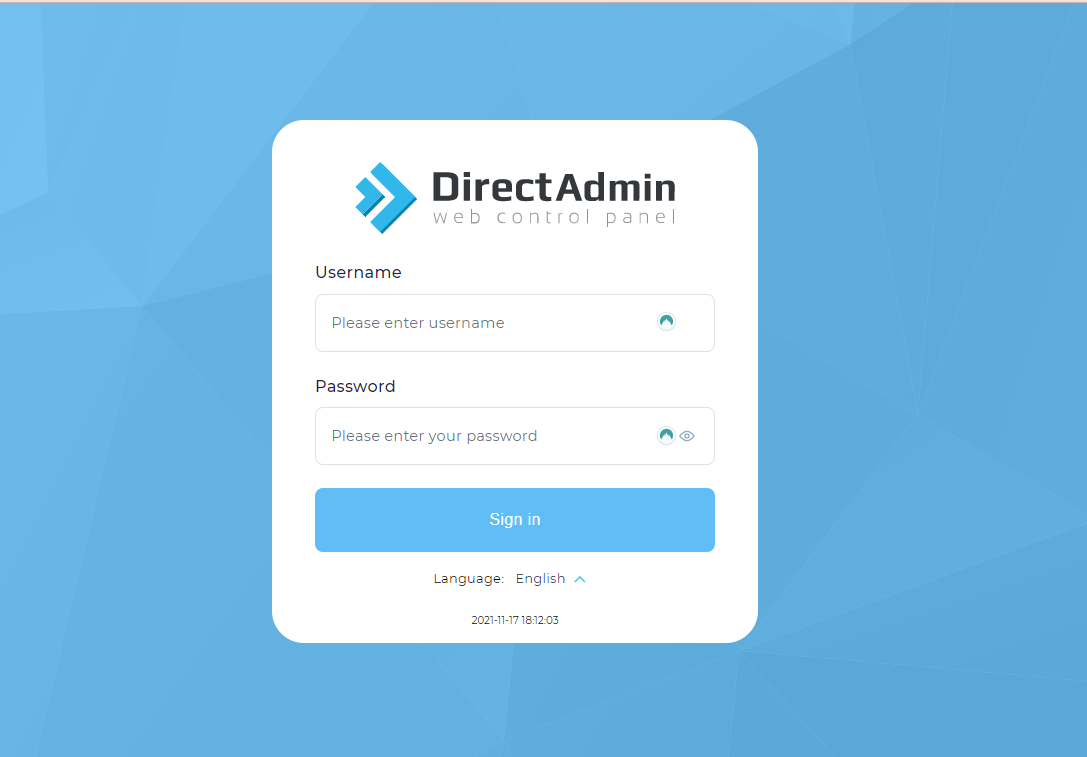
Step 1: Log in to the DirectAdmin control panel with the correct credentials that YouStable sent to the registered email address.
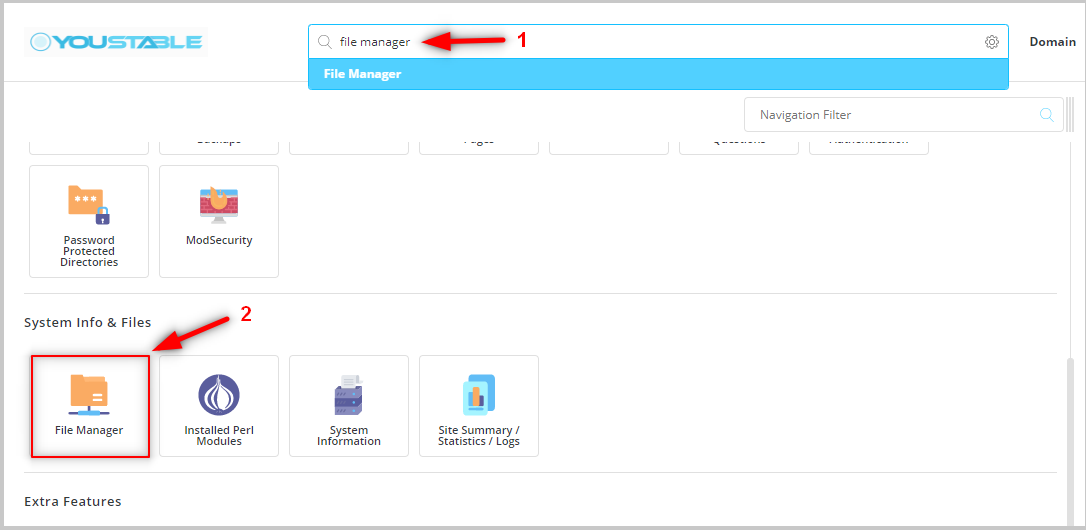
Step 2: Type “file manager” in the search bar or scroll down and locate File Manager and click on it.
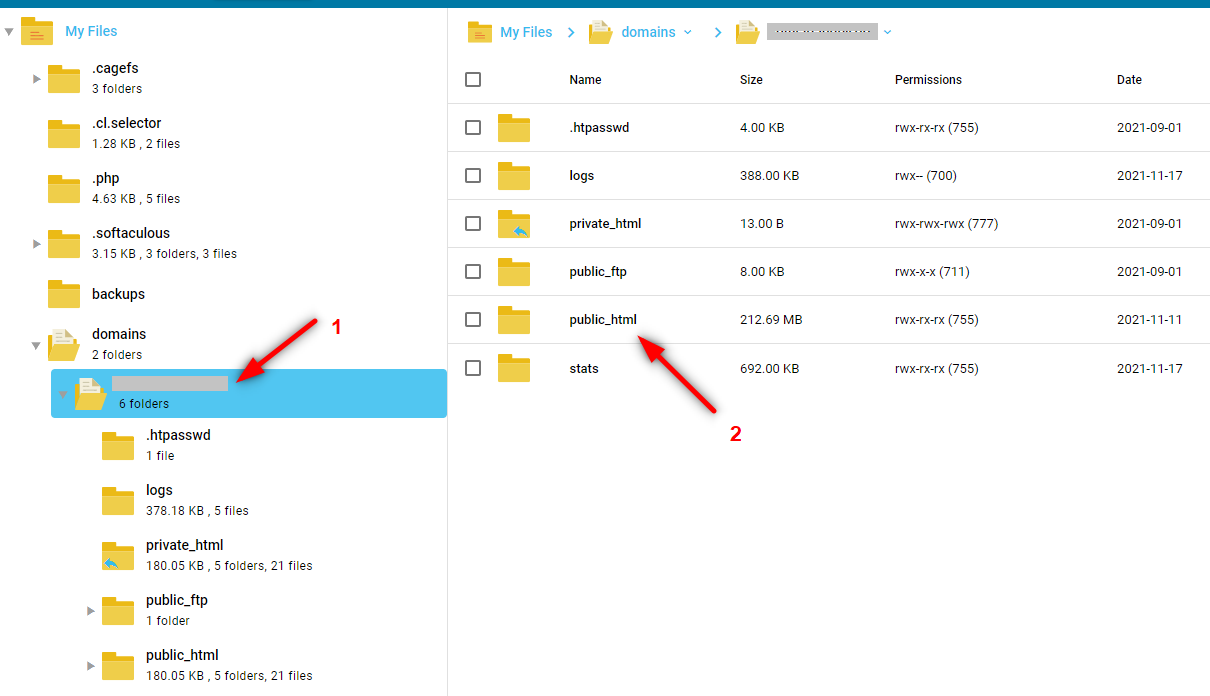
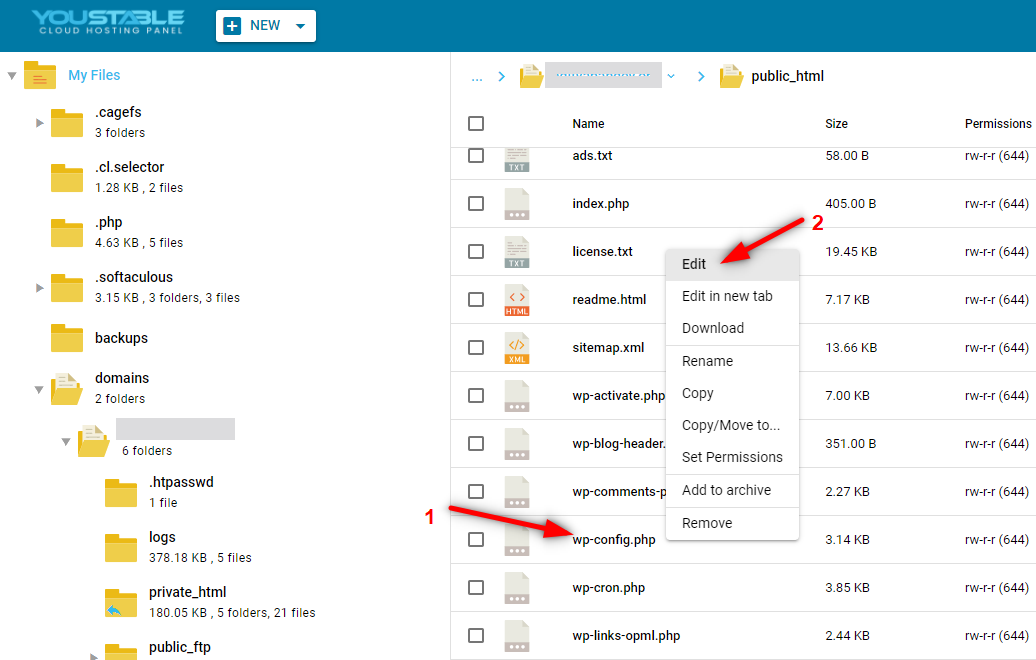
Step 3: Click Domains –> your domain(for which you want to edit wp_config.php) –>public_html
Step 4: The library of WordPress installed folders shows up on your screen, and scroll down until you find “wp.config.php” in it.
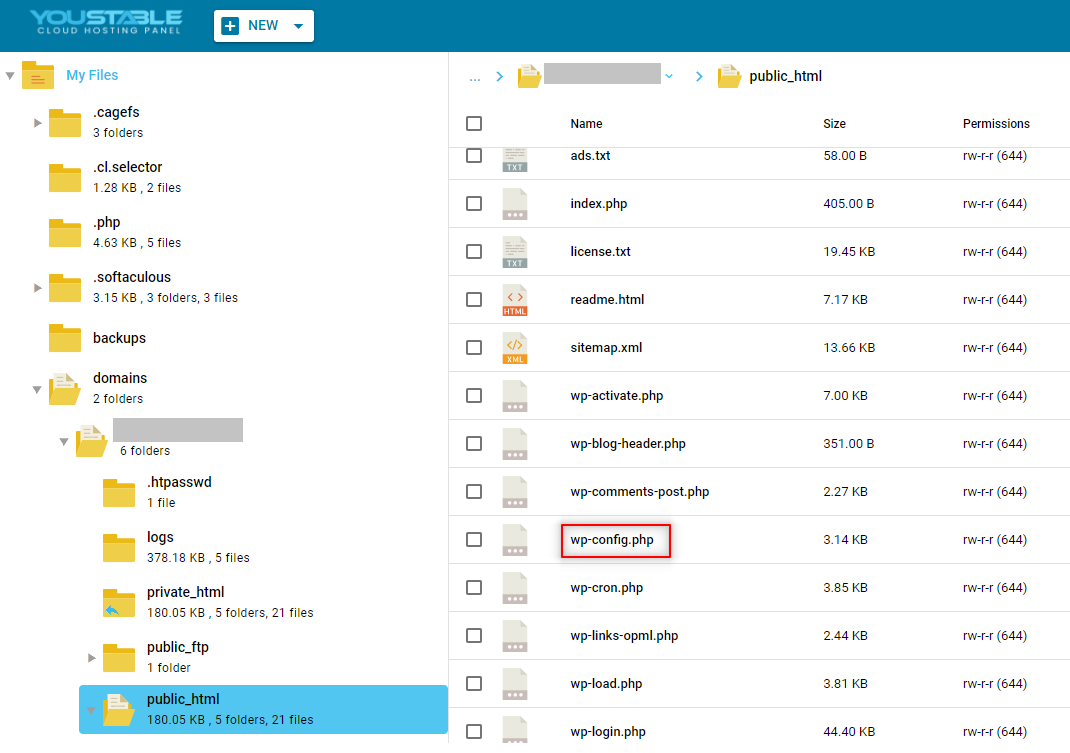
Step 5: Click on the “wp.config.php” to select it, and then click on the “EDIT” option to make changes to it.
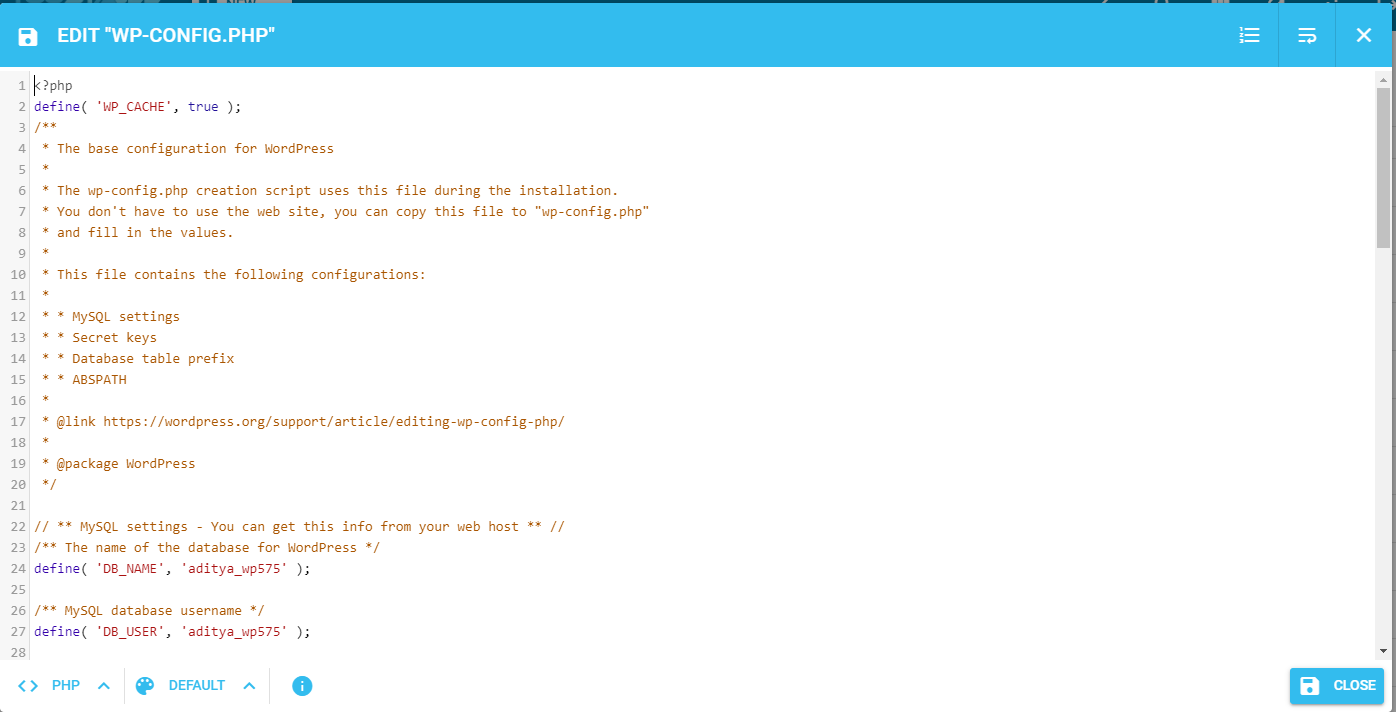
Step 6: A new window pop-up in the browser, and the editor shows up.
Create a backup using control panel features, and it will help the customers to revert the changes.
Note: Do not play around with the “wp.config.php” because it can mess up the configuration of WordPress.










