

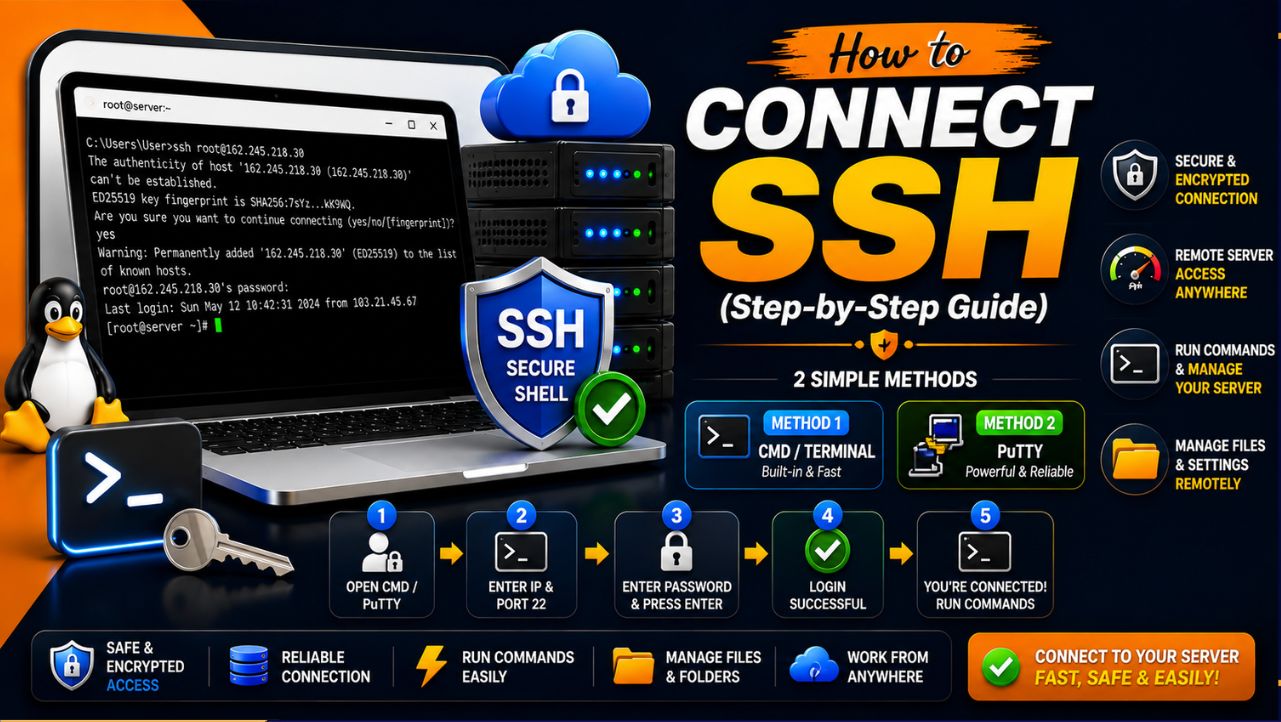
You can easily get a start point with YouStable hosting, but one of the first things you might want to do is access your server through SSH to manage your files, run different commands, and fine-tune your server settings.
SSH (Secure Shell) is a safe and encrypted way to connect directly to your server. You can run an endless number of commands and configure your server remotely. Here we’ll show you simple ways of how easily you can connect to your SSH in 2 simple ways.
- CMD/Terminal Method.
- PuTTY Method.
Both work perfectly fine, either you choose the first or second method. Only the process of connecting to SSH is a little different in either of the methods, but the end result will be the same in both, so just pick the one that matches your comfort.
How to connect SSH
Let’s see the two easy methods of connecting to your SSH.
Method 1: CMD/Terminal
Step 1) Open Command Prompt or Terminal >> Type “SSH,” then give a space >> Put “@” and then paste your IP address you received from your hosting company.
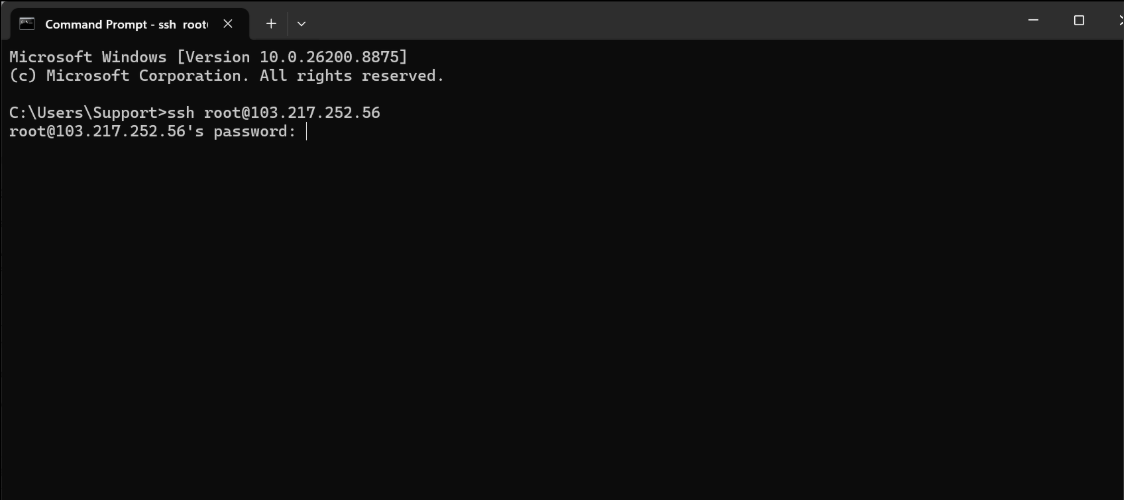
Step 2) Press Enter (If you’re connecting for the first time, you’ll see a security message; type “yes” and press enter.) >> For your password, right-click, then press enter.
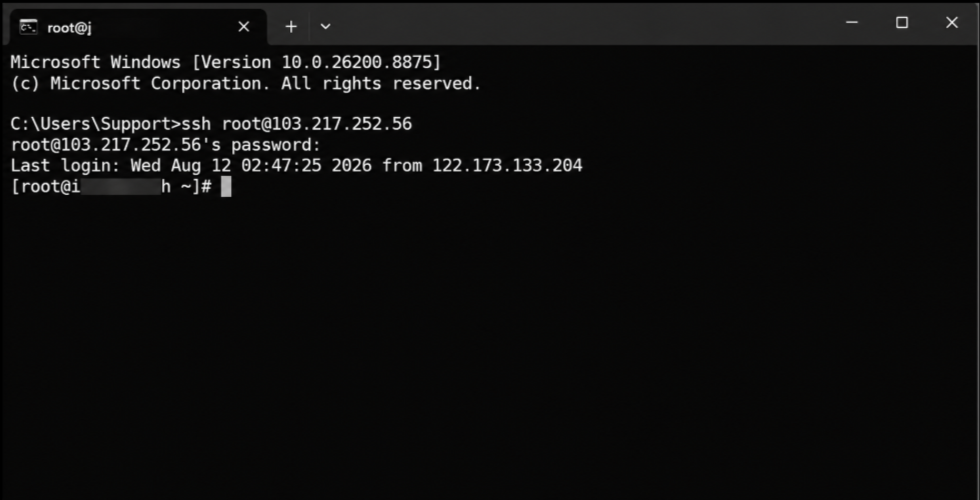
| Important: There is another method for entering your password; you just have to type your password correctly. Nothing will appear on screen (no dots or asterisks). This is normal and secure; just type carefully. |
Step 3) Now you are connected to your SSH through the command prompt. After your successful login, you’ll see a prompt like root@username ~]#
This prompt will show you you’re on the server. Now you can run commands on your server, manage your files and folders, and configure your settings.
Method 2: PuTTY
The PuTTY method simply means using the PuTTY application to connect to and manage a remote server through SSH. There are simple steps you need to follow, and, same as CMD, you will get the same result.
Step 1) Your hosting provider (YouStable) will email your server details to your verified email address. >> You’ll get your server details with a link to download PuTTY.
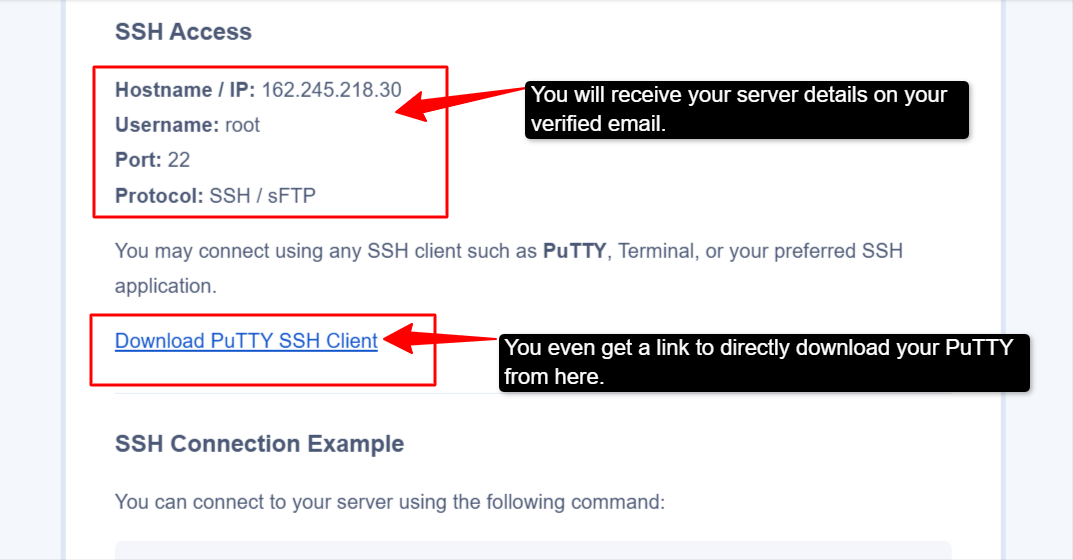
Step 2) Click on that link >> Download the Installer (Install it like any other program you install) >> Open PuTTY after installation.
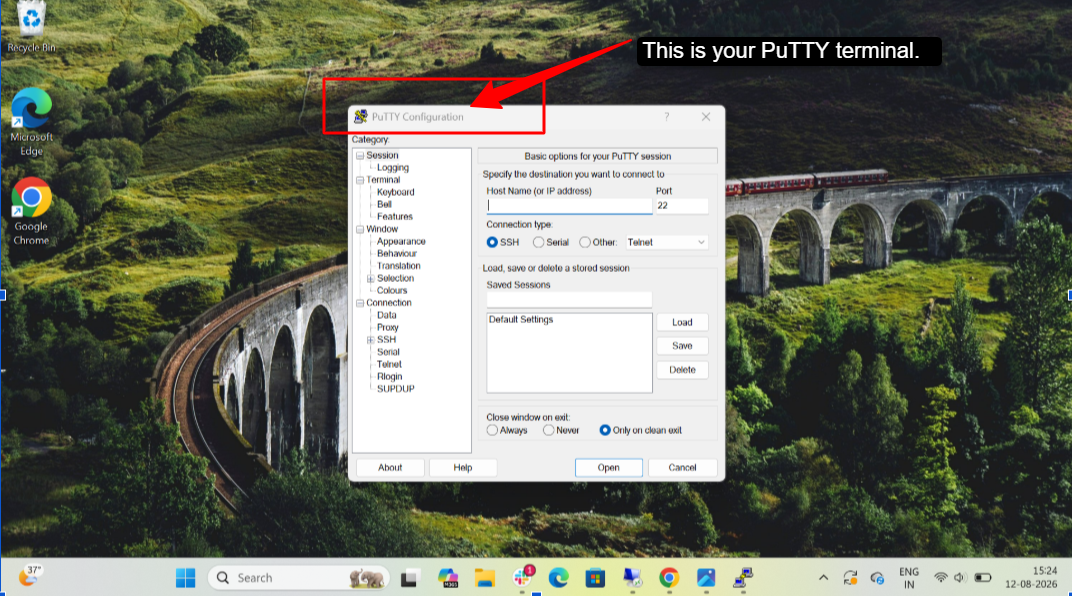
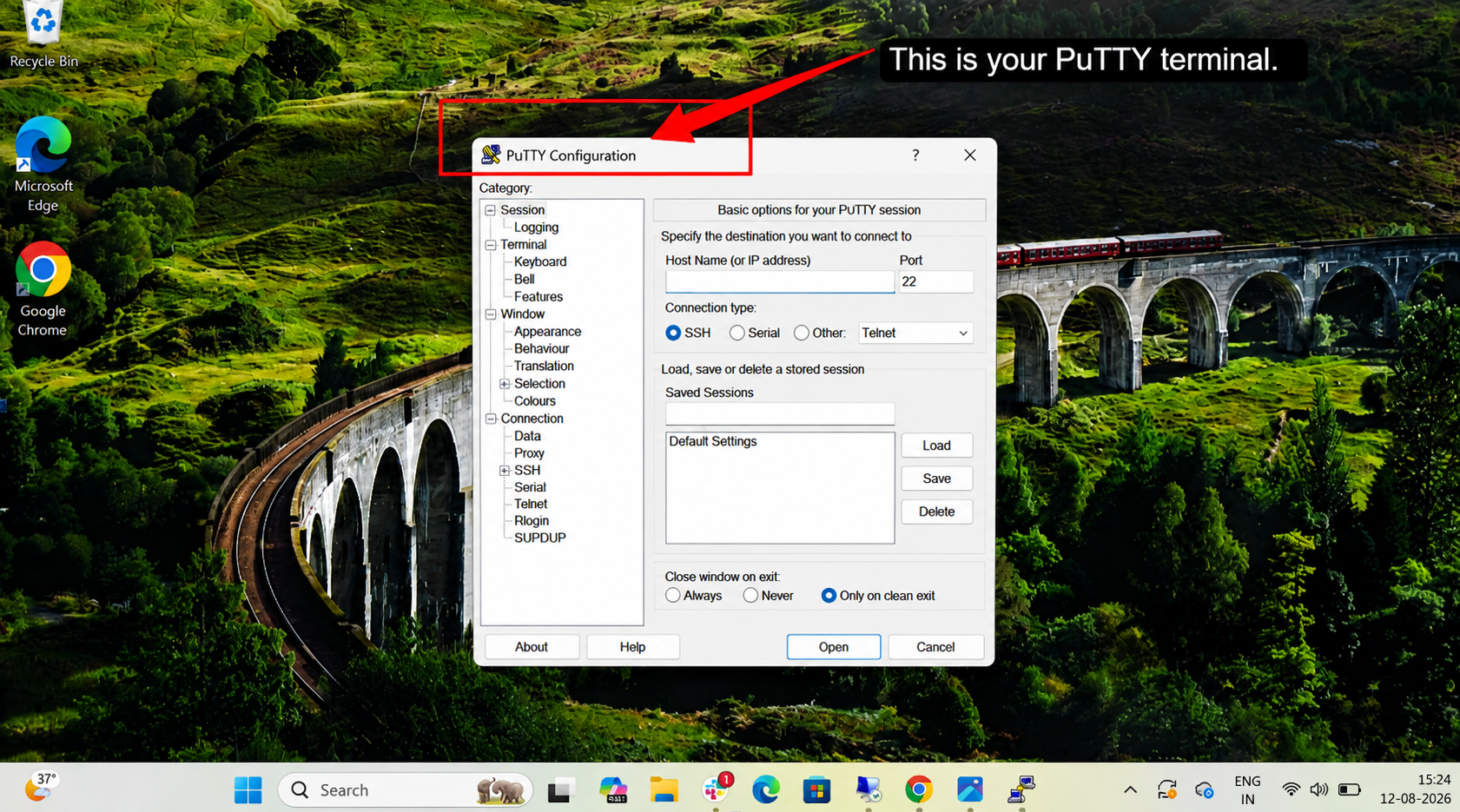
Step 3) Fill in your IP or Host name >> Copy and Paste it from the email you received from your hosting provider >> Leave the port at 22 (default SSH port). Make sure SSH is selected in the connection.
Step 4) Once you click on the Connect button >> The PuTTY terminal window will open (if this is the first connection, click Accept on the security warning) >> You’ll see “login as” >> Type “root” and press Enter >> Type your password and press Enter.
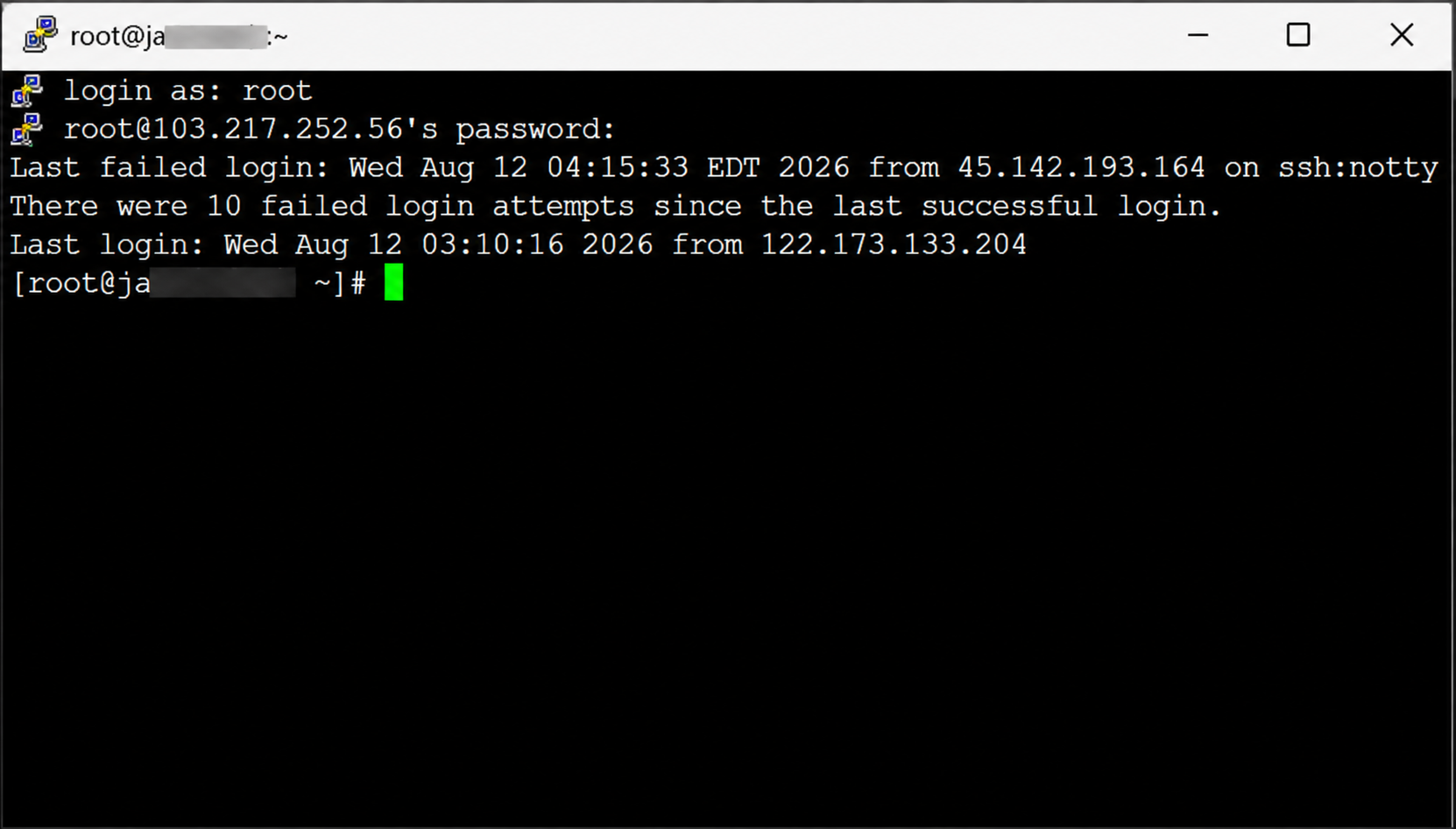
Congratulations, finally you have completed this process. You’re now connected to SSH through the PuTTY method. This method is especially useful for users who require command line access.
Both Command Prompt and PuTTY are useful methods for connecting and monitoring a remote server through SSH. Command Prompt is convenient for risers who prefer a quick and built-in Windows tool. PuTTY, on the other hand, is good for users who want to securely connect to their Linux server through SSH.








Regarding the CMD/Terminal method for entering the password, could you clarify why right-clicking and then pressing enter is the recommended action, especially when it also states that just typing carefully works without anything appearing on screen? Is there a specific benefit to the right-click method over simply typing the password directly?