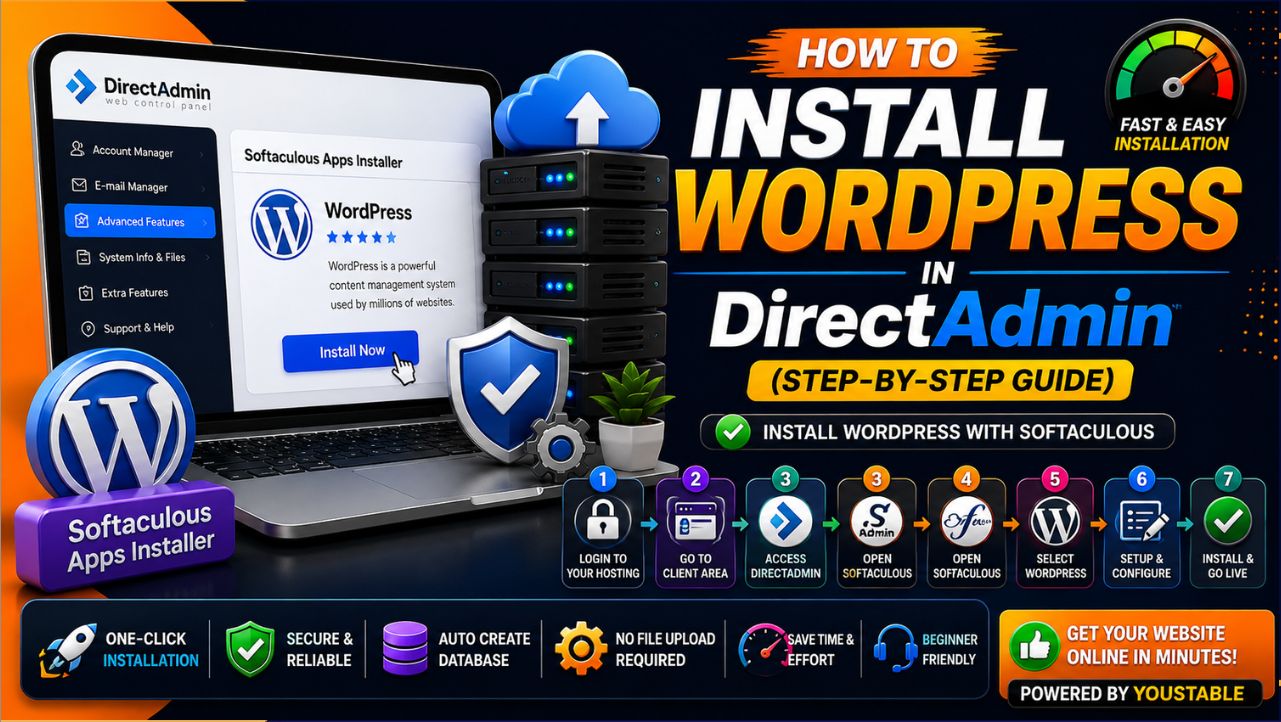
I know installing WordPress for the first time can seem a little confusing, especially when you see options like DirectAdmin, Softaculous, databases, and installation settings.
So, I’ll tell you through the whole process in simple steps.
If you use YouStable hosting, you can install WordPress through Softaculous directly from your DirectAdmin panel. You don’t need to upload WordPress files or create the database manually.
Before we begin, there’s one important thing I want you to know. DirectAdmin does not include one-click WordPress installation through Softaculous by itself. Your hosting provider needs to enable Softaculous with the required license for the option to appear inside DirectAdmin.
With YouStable, Softaculous is available with your hosting, so I can show you how to install WordPress with just a few clicks.
How to Install WordPress in DirectAdmin: Step-by-Step
I’ve added clearly labelled screenshots along with the steps below, so you can follow the same process on your screen.
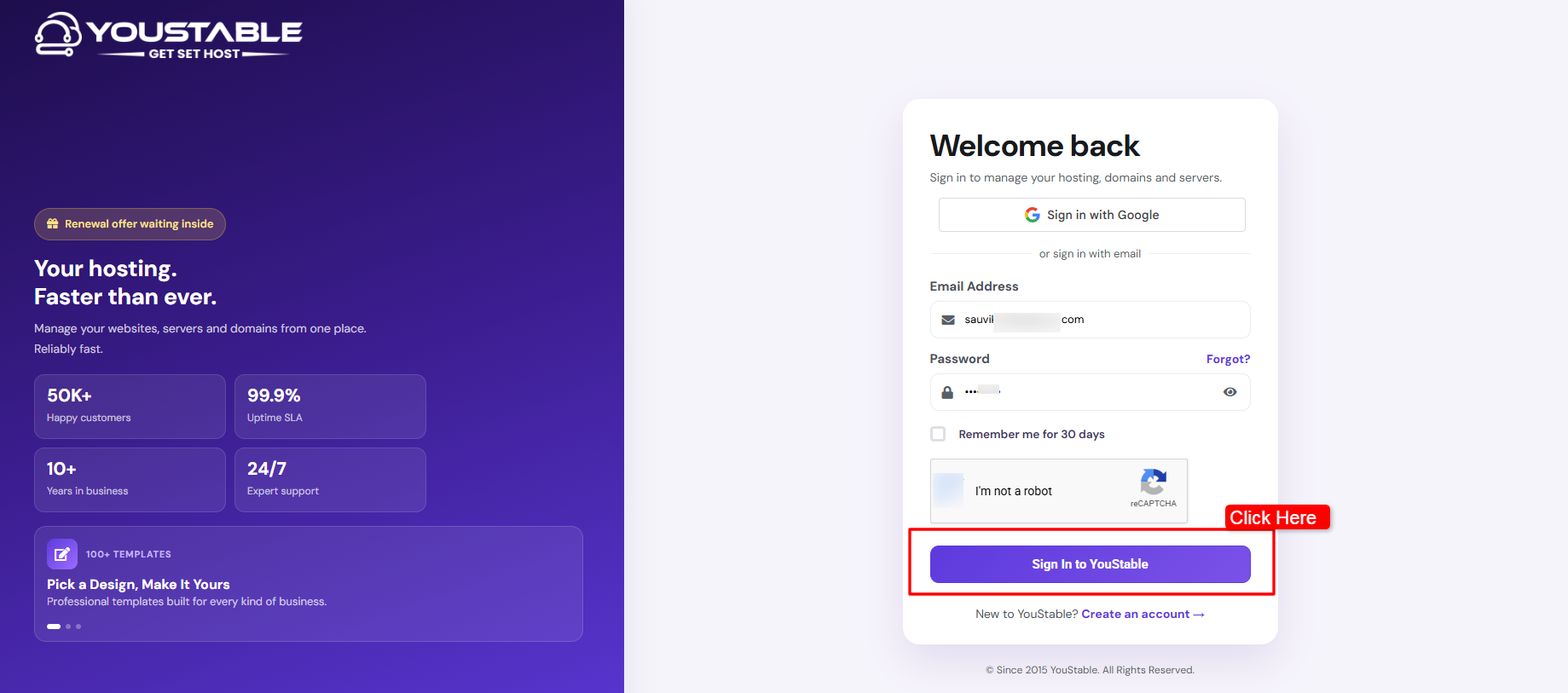
Step 1) First, go to the YouStable website >> Click Login >> Enter your account credentials >> Click the Sign In to YouStable button >> This will take you to your YouStable Client Area, where you can manage your hosting service.
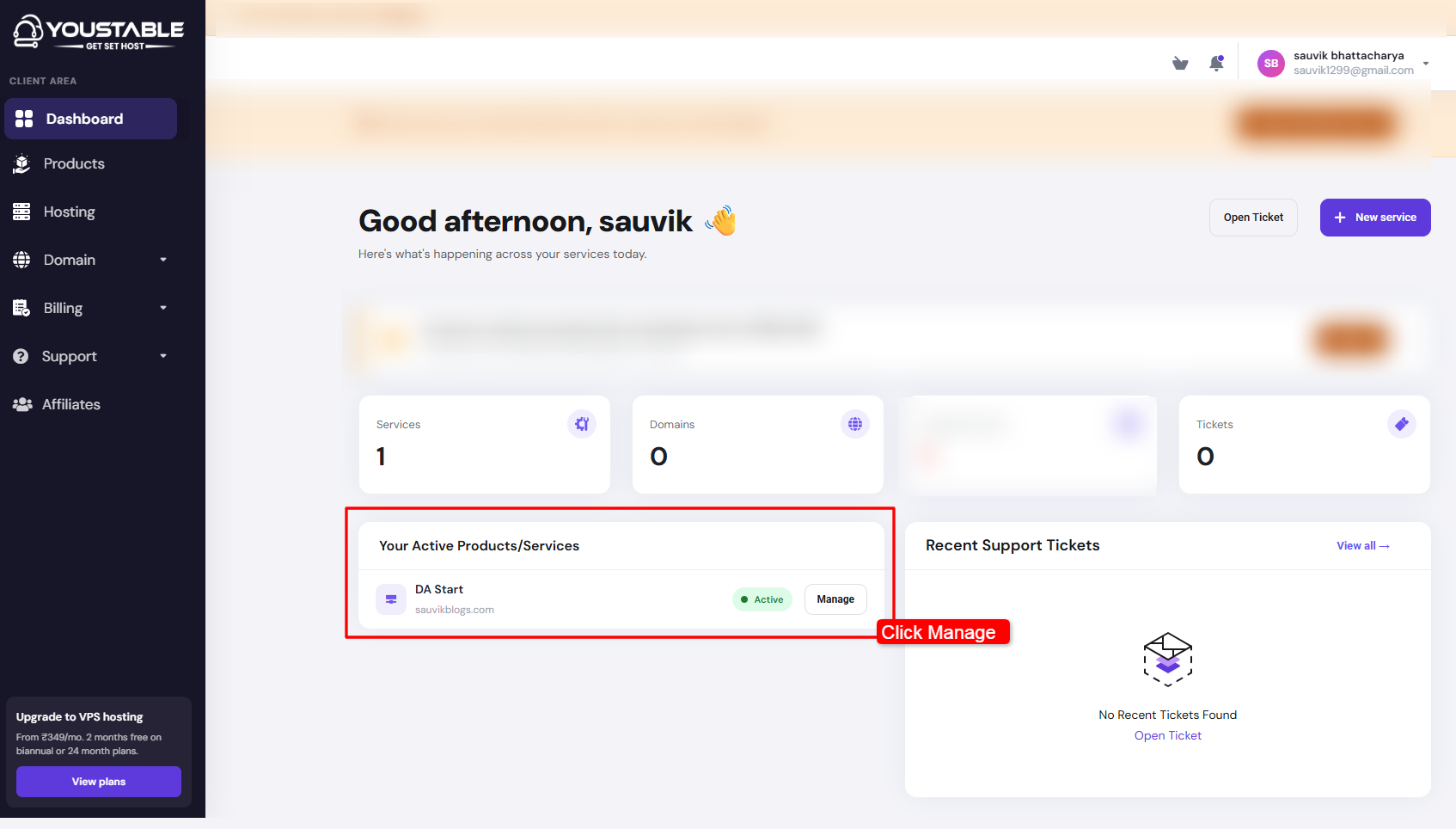
Step 2) Once you’re inside your Client Area >> Find the hosting service where you want to install WordPress >> Click Manage next to it >> You’ll now see the management page for your hosting account.
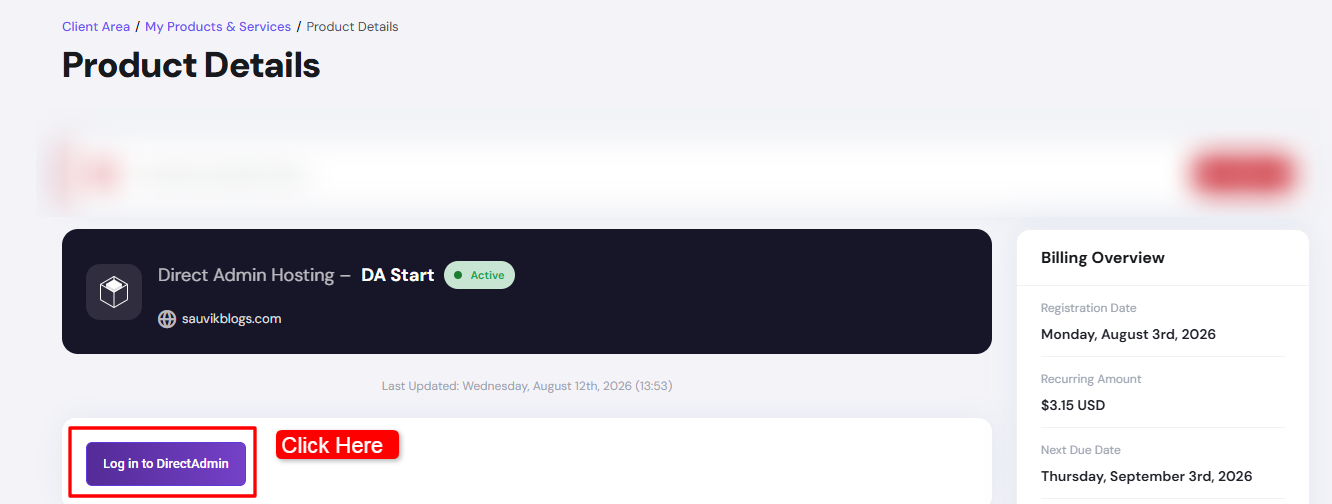
Step 3) In your product details page >> Look for the option to access your hosting control panel >> Click Login to DirectAdmin >> YouStable will take you straight to DirectAdmin, so you don’t have to enter your DirectAdmin login details again.
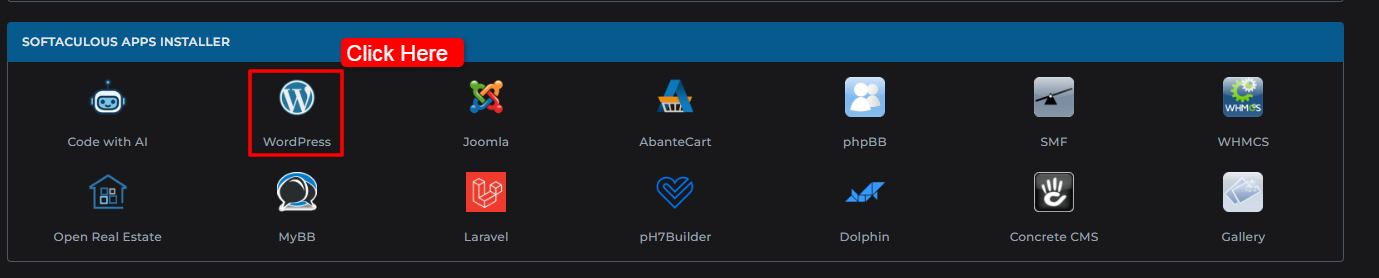
Step 4) Now you’re inside DirectAdmin >> From the DirectAdmin dashboard >> Find Softaculous Apps Installer >> Click WordPress >> This will open the WordPress section in Softaculous, where you can start the installation.
Step 5) You’ll now see the WordPress installation page >> Take a quick look around before you continue >> Softaculous gives you information about WordPress, including its features, how it works, and other useful details.
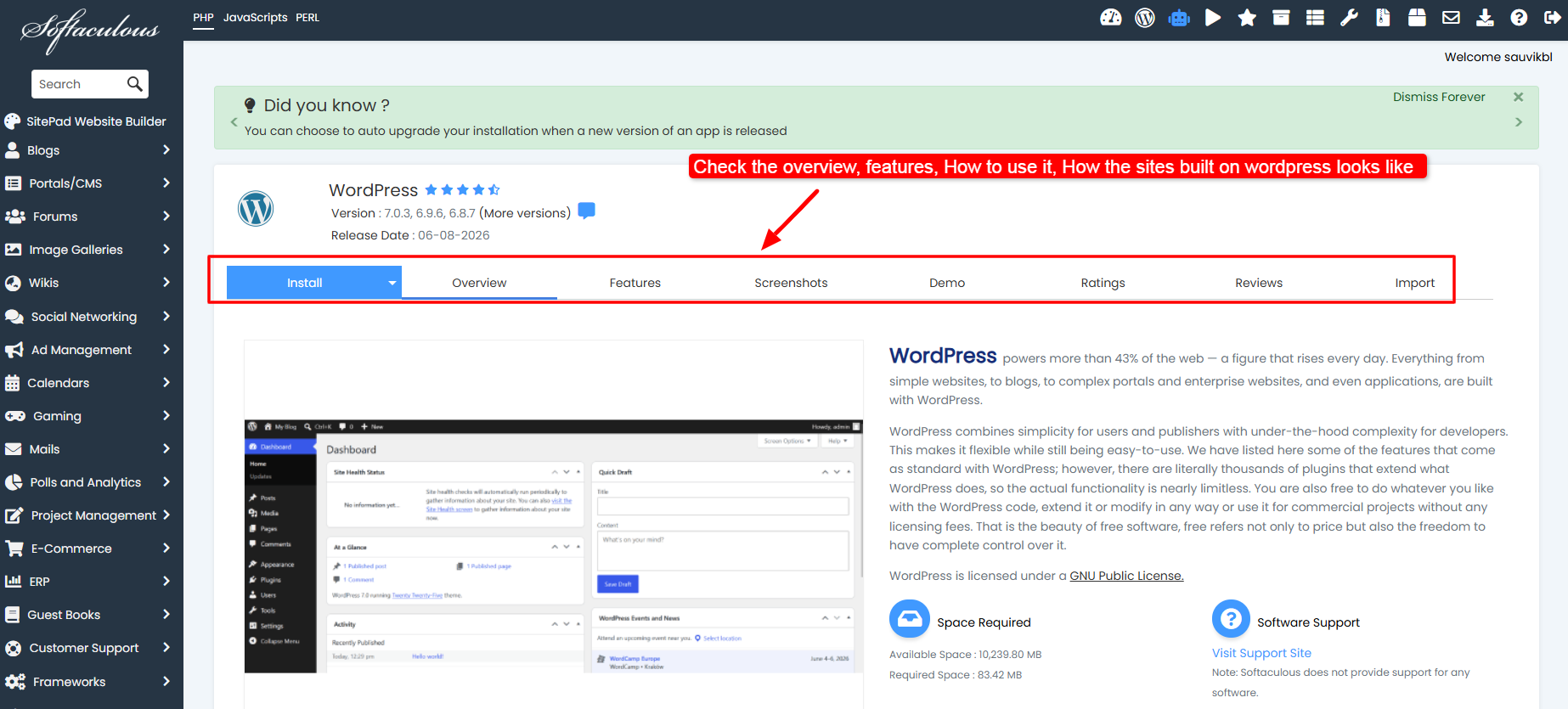
Step 6) Once you’re ready, Click Install Tab that you see in blue in the screenshot below.

Step 7) Start Setting Up WordPress >> Fill in a few details about your new WordPress website >> First, select the domain where you want to install WordPress >> You’ll also need to choose the appropriate protocol. If your SSL certificate is already active, select HTTPS for your website.
Next, enter your basic website information:
- Website name
- Website description
- Admin username
- Admin password
- Admin email address
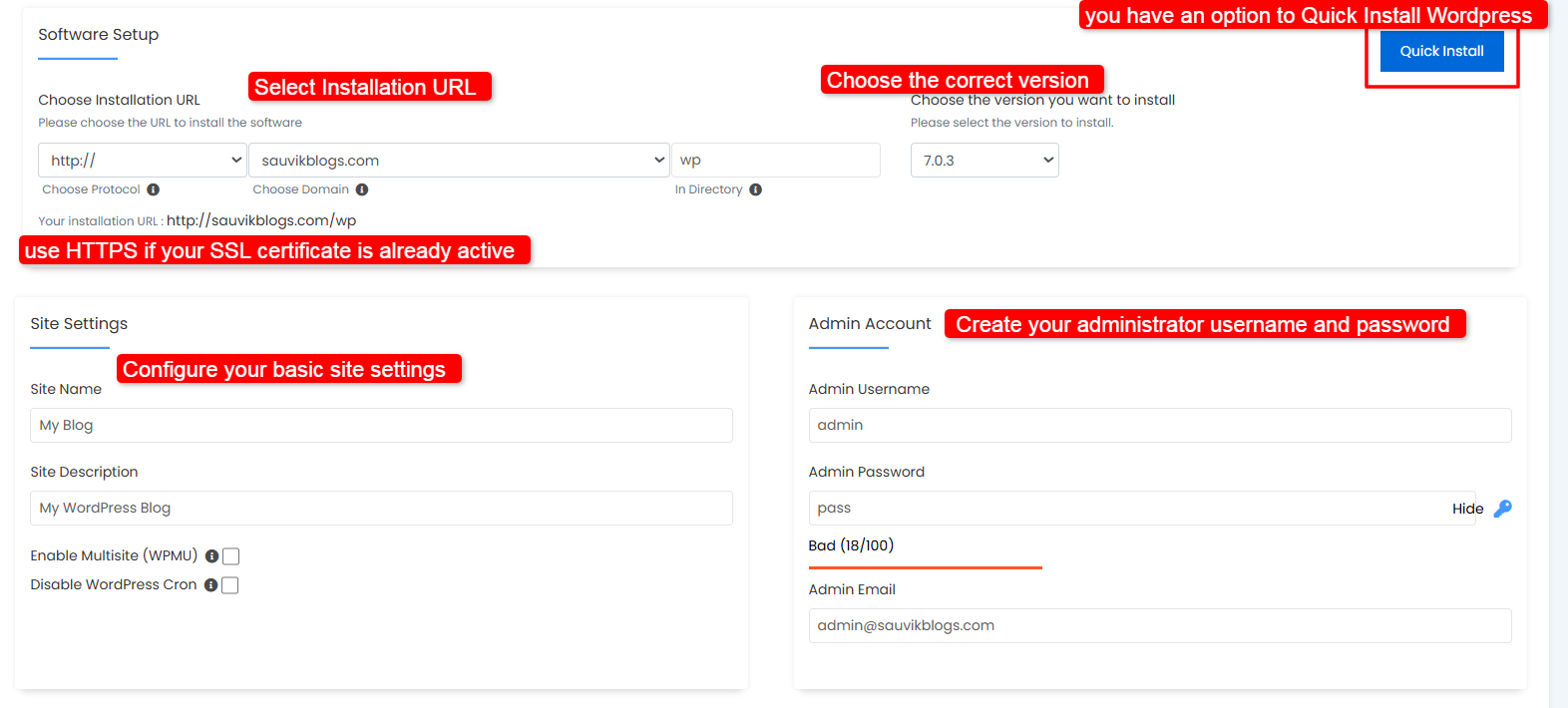
I recommend that you pay special attention to the admin username and password. You’ll need these details whenever you want to log in to your WordPress dashboard >> Use a strong password.
Step 8) Add Plugins if You Need Them >> Softaculous may also give you the option to install some WordPress plugins during the setup.
Step 9) Next, open the Advanced Options section >> Here, you’ll find settings related to your WordPress database.
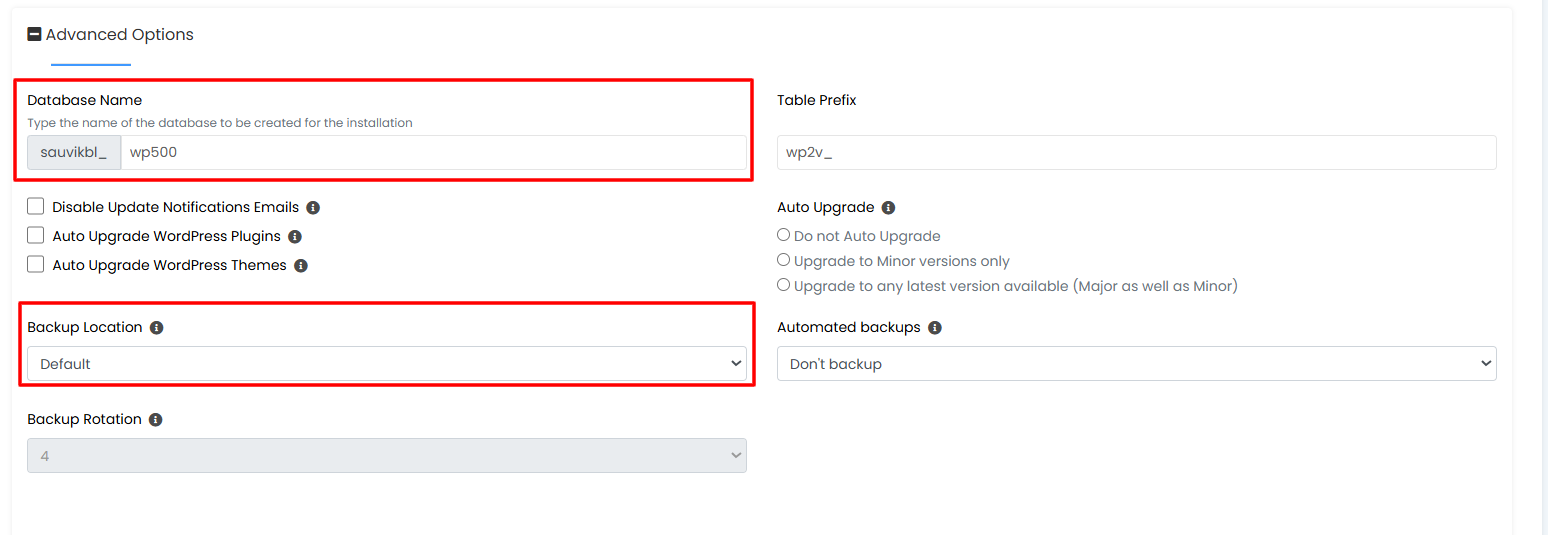
| I also recommend that you should keep a proper backup system for your website. Your WordPress site contains important files and database information. A backup can help you recover your website if something goes wrong later. |
Choose the backup option that suits your hosting plan and requirements.
Step 10) Once you’ve checked everything >> Click Install >> Softaculous will now start the WordPress installation >> The process usually takes only a few moments.

Please Note: While it is running, don’t refresh the page, click the Back button, or close the window.
Just wait until Softaculous finishes the installation.
Once everything is complete, you’ll see a confirmation message telling you that WordPress has been successfully installed.
Step 11) After the installation, you’ll find the Website URL (Use this to open your website) & your WordPress Admin URL (Use this to access your WordPress dashboard) >> Click the website URL to see your new WordPress site.
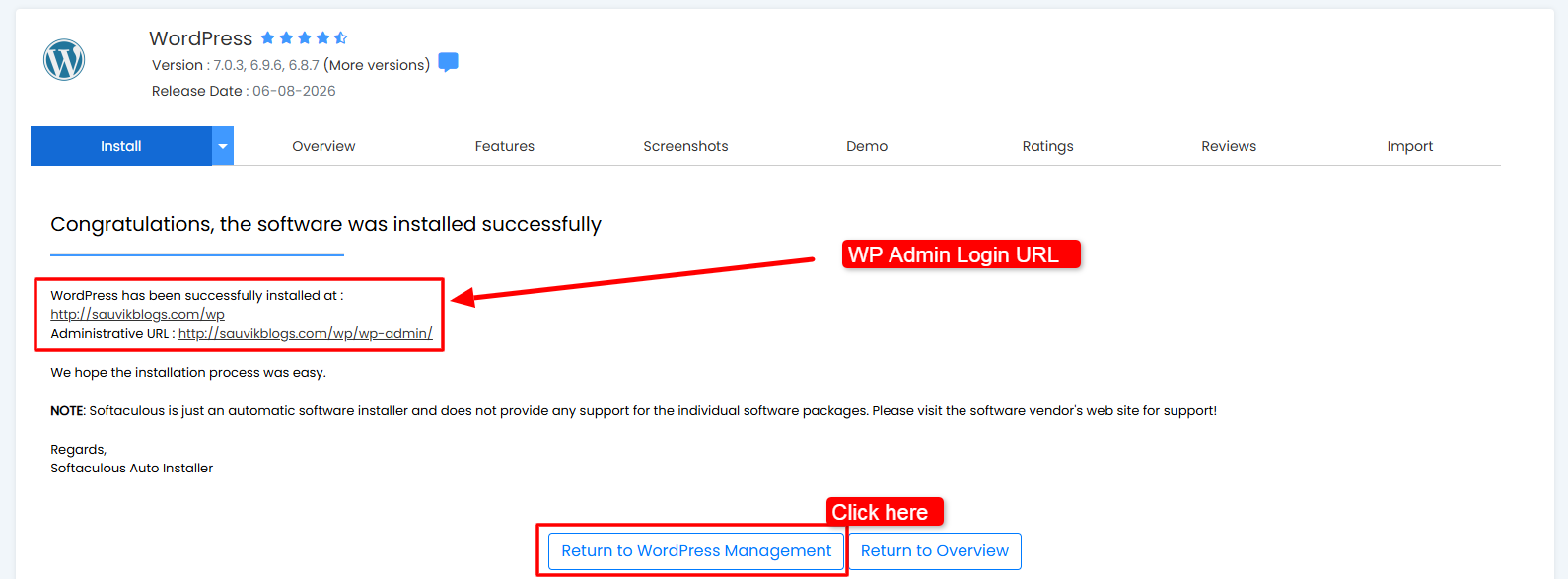
To manage your website, click the Admin URL and log in with the username and password you created during the installation.
That’s It! WordPress Is Ready!
One More Thing to Keep in Mind
If you use hosting from another provider and don’t see the Softaculous Apps Installer inside DirectAdmin, your hosting company may not provide it.
In that case, you may need to contact their support team or install WordPress manually. A manual installation requires you to upload the WordPress files, create a database, connect the database, configure the installation and complete a few additional steps.
So, if Softaculous is available with your hosting, it can make the entire WordPress setup much quicker and easier.