

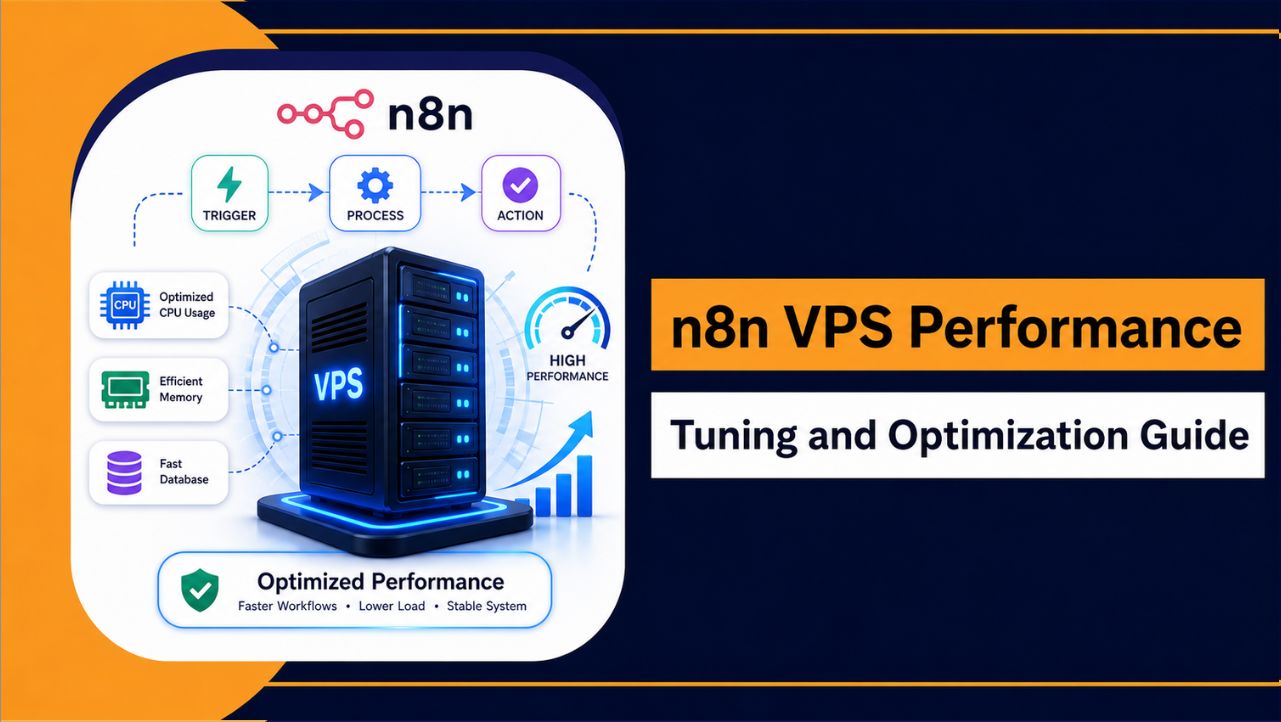
Are your n8n workflows getting slower day by day?
Are some executions taking too long or failing without any clear reason?
If this is happening, then the problem is usually not your workflow. It is your VPS setup.
When you run n8n on a VPS, performance depends completely on how your server is configured. In the beginning, everything works fine. But as your workflows grow, you may start noticing delays, higher CPU usage, or unstable execution. This is a common situation many users face after scaling their automation.
This is where proper performance tuning becomes important. Without it, even simple workflows can become slow and unreliable.
Here, you will understand how to improve your n8n VPS performance in a practical way. From server optimization to database setup and workflow improvements, everything is explained clearly so your automation runs smoothly and handles more load without issues.
What Is n8n and How It Works on a VPS Server?
n8n is an automation platform that connects apps, APIs, and services into workflows so tasks run automatically without manual effort.
Each workflow follows a simple flow: trigger → process → action. This allows you to automate everything from simple tasks to complex operations.
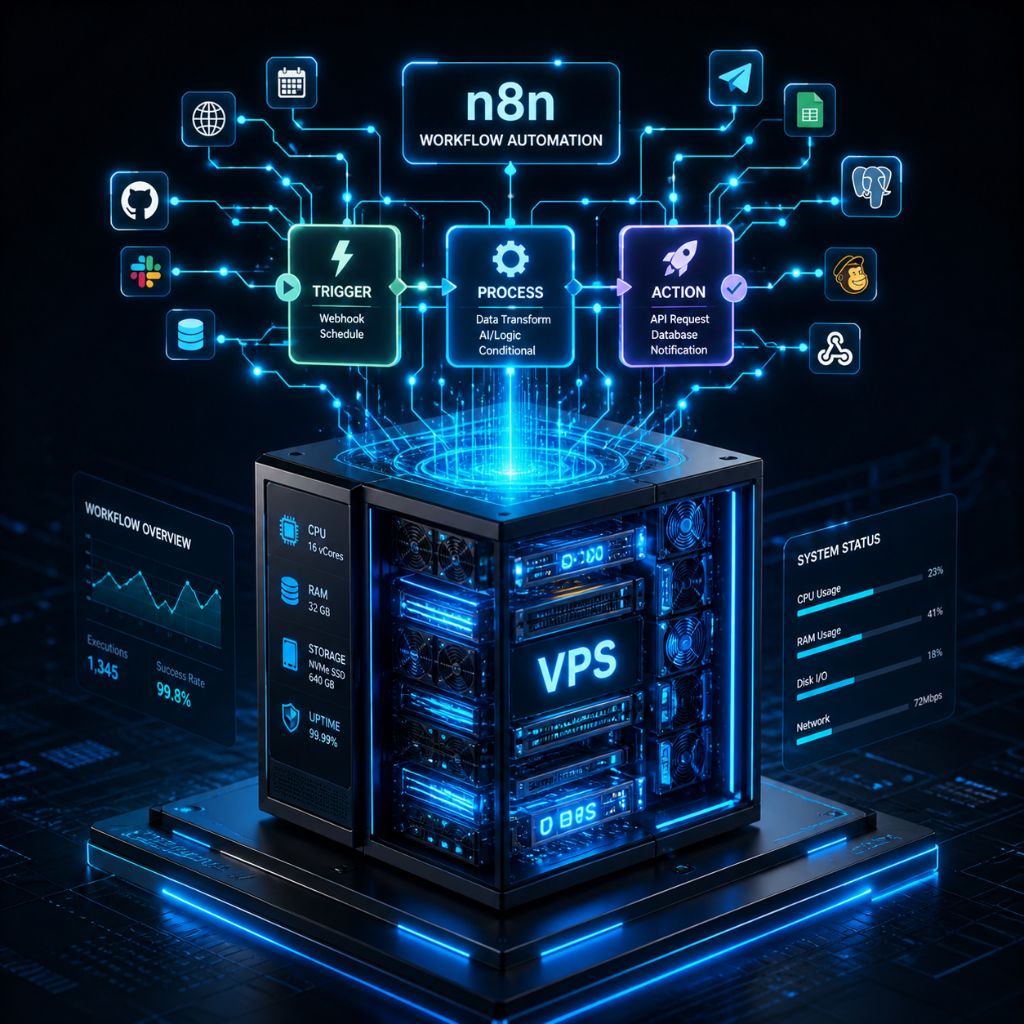
When n8n runs on a VPS server, its performance depends directly on your server setup.
How n8n Works on a VPS
- CPU and RAM usage: Every workflow execution uses your VPS resources. More workflows or complex logic will consume more CPU and memory, which can affect speed.
- Database storage: All workflow data, logs, and execution history are stored in a database. A slow database can delay your workflows.
- Parallel workflow execution: Multiple workflows can run at the same time. If your VPS is not optimized, this can lead to slowdowns or failures.
- Background processes: Tasks like scheduling, logging, and execution handling run in the background and also use server resources.
Because of this, your VPS directly impacts performance. A weak or poorly configured server can cause delays and failures, while a well optimized VPS ensures fast, stable, and reliable workflow execution.
Why n8n Performance Optimization Matters
Performance optimization is not just about speed. It ensures your automation runs smoothly, reliably, and without unexpected failures.
Key Benefits of Optimizing n8n
- Faster workflow execution: An optimized setup processes tasks quickly, which means your automations complete without delays and respond faster in real time.
- Reduced failures and timeouts: Proper configuration helps prevent crashes and execution errors, even when workflows are running continuously.
- Better handling of multiple workflows: A well tuned VPS can run several workflows together without slowing down or creating performance issues.
- Lower resource usage and cost efficiency: Efficient workflows use fewer server resources, helping you avoid unnecessary upgrades and keep your hosting costs under control.
- Stable performance during traffic spikes: When activity increases, an optimized system continues to run smoothly without sudden slowdowns or failures.
When your setup is properly optimized, workflows run instantly, APIs respond faster, and your entire automation system feels smooth and reliable.
Common n8n VPS Performance Issues
As your automation setup grows, performance issues can start appearing if your VPS is not properly optimized. These problems often begin small but can quickly affect your entire workflow system.
Most Common Issues
- High CPU usage: When multiple workflows run at the same time, your CPU can get overloaded. This leads to slower execution and delays in processing tasks.
- Memory overload: Large workflows or frequent executions can consume too much RAM. When memory runs out, your server may crash or restart unexpectedly.
- Slow database queries: If your database is not optimized, fetching or storing workflow data becomes slow, which directly impacts execution speed.
- Queue delays during peak activity: When too many workflows are triggered at once, tasks can get stuck in a queue, causing delays and slower response times.
- Disk speed limitations: Slow storage reduces read and write speed, which affects how quickly data is processed and workflows are completed.
These issues usually indicate that your VPS or configuration needs optimization. Fixing them early helps maintain smooth and reliable automation.
Minimum vs Recommended VPS Requirements for n8n
Choosing the right VPS is the foundation of smooth and reliable performance. Your server resources directly affect how fast your workflows run and how well your system handles multiple tasks.
Recommended VPS Configurations
| Usage Type | CPU | RAM | Storage |
| Small Workflows | 1 vCPU | 1 to 2 GB | SSD |
| Moderate Usage | 2 vCPU | 4 GB | NVMe |
| High Automation Load | 4 or more vCPU | 8 or more GB | NVMe |
What These VPS Requirements Mean
- NVMe storage improves speed: NVMe drives are much faster than traditional SSDs, which helps in quicker data processing and faster workflow execution.
- More RAM prevents crashes: As your workflows grow, memory usage increases. Having enough RAM ensures your server stays stable during heavy activity.
- Extra CPU cores improve multitasking: More CPU cores allow your VPS to handle multiple workflows at the same time without slowing down.
For stable and scalable performance, choosing a reliable hosting provider is important. Services like YouStable offer VPS solutions that are well suited for running automation tools like n8n, with consistent uptime and strong performance.
Choosing the Right Database for Performance
n8n uses SQLite by default, which works fine for small or basic setups. However, as your workflows grow and executions increase, SQLite can become slow and limit overall performance.
Switching to PostgreSQL is a better option for scalable and stable automation.
Why PostgreSQL Improves Performance
- Better performance under load: PostgreSQL handles multiple workflows efficiently, even when your system is processing many executions at the same time.
- Faster query execution: It processes data faster, which helps reduce delays in workflow execution and improves overall speed.
- Improved stability for multiple workflows: PostgreSQL is designed for production use, making it more reliable when your automation setup grows.
If your workflows are increasing, taking longer to execute, or starting to fail, switching to PostgreSQL is a practical and effective step to improve performance.
Enable Queue Mode for Better Scalability
Queue mode is one of the most effective ways to improve n8n performance when your automation workload starts growing. It separates workflow execution from the main application, which helps your system stay fast and responsive.
It works with Redis to manage and process jobs efficiently in the background.
Benefits of Queue Mode
- Parallel workflow execution: Multiple workflows can run at the same time without blocking each other, which significantly improves speed.
- Reduced load on the main server: The main instance handles triggers and scheduling, while workers process executions, reducing overall strain.
- Better performance during high traffic: Even when many workflows are triggered together, the system remains stable and avoids slowdowns.
Queue mode becomes especially important when you are running multiple workflows, handling frequent triggers, or scaling your automation setup.
Optimize n8n Environment Configuration
Proper environment configuration plays a key role in improving n8n performance. Small changes in settings can reduce server load, improve execution speed, and make your automation more stable.
Important Configuration Settings
- EXECUTIONS MODE: Setting the execution mode to queue helps handle multiple workflows efficiently. It separates execution from the main process and improves scalability.
- EXECUTIONS PROCESS: You can control how workflows run. For lighter workloads, using the main process works fine. For heavier workloads, separating executions can improve stability.
- N8N LOG LEVEL: Setting the log level to warn or error reduces unnecessary logging. This helps lower CPU usage and improves overall performance.
- WEBHOOK URL configuration: Using a proper webhook URL ensures faster response times and better reliability for triggered workflows.
Why This Matters
When your environment is properly configured, your workflows run more efficiently, consume fewer resources, and handle higher workloads without slowing down.
If you are using n8n VPS hosting for automation, optimizing these settings helps you get the best performance from your server without needing constant upgrades.
Reduce Workflow Complexity for Better Speed
Complex workflows can slow down execution and consume more server resources. If your workflows include too many steps or unnecessary logic, they will take longer to process and may even fail under load.
How to Simplify Workflows
- Remove unnecessary nodes: Extra nodes increase execution time. Keeping only essential steps makes workflows faster and easier to manage.
- Break large workflows into smaller ones: Instead of one heavy workflow, split it into smaller workflows. This improves performance and makes debugging easier.
- Use webhooks instead of polling: Polling checks data repeatedly and consumes resources. Webhooks trigger workflows instantly only when needed, which is more efficient.
- Avoid repeated API calls: Calling the same API multiple times slows down execution. Store or reuse data whenever possible.
- Optimize data processing logic: Simplify conditions, filters, and transformations to reduce processing time.
Why This Improves Performance
Simpler workflows run faster, use fewer resources, and are less likely to fail. As your automation grows, keeping workflows clean and efficient helps maintain consistent performance on your VPS.
VPS Level Optimization Tips for Better n8n Performance
Your VPS configuration has a direct impact on how well n8n performs. Even with optimized workflows, a poorly configured server can slow everything down or cause unexpected failures.
How to Optimize Your VPS
- Use a lightweight operating system: A minimal setup like Ubuntu minimal uses fewer resources, leaving more CPU and RAM available for n8n workflows.
- Enable swap memory: Swap acts as backup memory when RAM is full. This helps prevent crashes during heavy workflow execution.
- Keep your system updated: Regular updates improve stability, security, and performance of your VPS environment.
- Disable unnecessary services: Background services consume resources. Removing unused processes frees up CPU and memory for n8n.
- Use fast storage (NVMe preferred): Faster storage improves data read and write speed, which directly affects workflow execution time.
- Monitor server performance regularly: Use tools like htop and Netdata to track CPU, RAM, and system load in real time.
Why VPS Optimization Matters
A well optimized VPS ensures your n8n workflows run smoothly, handle more tasks, and remain stable even during high usage. It also reduces the chances of crashes and improves overall system reliability.
Use Caching and API Optimization Techniques
Frequent API calls can slow down your workflows and increase the load on your VPS. If not optimized, this can lead to delays, higher resource usage, and unstable automation performance.
API Optimization Techniques and Their Impact
| Technique | What It Does | Performance Benefit |
| Caching data | Stores frequently used API responses instead of calling the API again | Reduces execution time and server load |
| Avoid duplicate requests | Fetches data once and reuses it across the workflow | Prevents unnecessary processing and improves speed |
| Rate limiting | Controls how often API requests are sent | Avoids overload and protects against API limits |
| Process only required data | Filters and uses only necessary data instead of full responses | Reduces workload and speeds up execution |
| Conditional API calls | Runs API requests only when needed | Improves efficiency and avoids unnecessary calls |
Why This Improves Performance
When API usage is optimized, your workflows become faster, your VPS uses fewer resources, and your automation system runs more smoothly even under higher workloads.
Monitoring and Debugging Performance
Monitoring helps you understand how your n8n setup is performing in real time, while debugging helps you fix issues before they affect your workflows. Without proper monitoring, small problems can turn into major failures.
What You Should Monitor
- Execution logs: Check which workflows are slow or failing. This helps you quickly identify problem areas.
- CPU and RAM usage: Monitor resource usage during workflow execution. High spikes indicate your VPS is under pressure.
- Database performance: Slow queries can delay workflows. Keeping an eye on database activity helps maintain speed.
- Error frequency: Repeated errors often point to deeper issues that need to be fixed.
- Queue activity: If workflows are delayed, it may indicate your system is overloaded or not properly optimized.
Why Monitoring Improves Performance
When you regularly monitor your system, you can detect issues early, fix them quickly, and keep your workflows running smoothly. This ensures your automation remains stable and reliable even as your workload increases.
Scaling n8n for High Performance
As your automation grows, your VPS may start struggling to handle increased workload. Scaling helps you maintain speed, stability, and reliability even when multiple workflows are running continuously.
Ways to Scale n8n
- Vertical scaling: This means upgrading your VPS resources such as CPU, RAM, and storage. It is the easiest way to improve performance when your current server is reaching its limits.
- Horizontal scaling: Instead of relying on a single server, you can use multiple workers with queue mode. This distributes workflow execution across different processes and improves performance.
- Distribute workload efficiently: Heavy workflows can be separated and handled by different workers, which prevents overloading a single instance.
- Use queue mode for scaling: Queue mode with Redis allows multiple executions to run in parallel, making scaling more effective.
When You Should Scale
- When workflows start slowing down
- When execution failures increase
- When resource usage remains high for long periods
- When you are handling multiple or complex automations
Why Scaling Is Important
Scaling ensures your n8n setup can handle growth without performance issues. It keeps workflows fast, reduces failures, and allows your automation system to run smoothly even under heavy load.
Security Optimization Without Affecting Performance
Securing your VPS is important, but it should not slow down your workflows. The goal is to protect your n8n setup while keeping performance fast and stable.
How to Secure Your VPS Efficiently
- Configure a basic firewall: Allow only required ports and block unnecessary access. This improves security without adding extra load.
- Disable unused services: Background services that you do not use can consume resources and create security risks. Turning them off improves both safety and performance.
- Keep your system updated: Regular updates fix vulnerabilities and improve system stability without affecting speed.
- Use secure access methods: Replace password login with SSH keys to improve security without impacting performance.
- Limit access to n8n: Restrict access using authentication or IP based rules to prevent unauthorized usage.
Why This Matters
A clean and secure VPS setup not only protects your data but also ensures your system runs efficiently. By avoiding unnecessary security tools and focusing on essential configurations, you maintain both safety and performance at the same time.
How to Maintain n8n Performance Over Time
Keeping your n8n setup fast and stable is not a one time task. As your workflows grow, regular maintenance helps prevent slowdowns and keeps everything running smoothly.
What You Should Do Regularly
- Clean old execution data: Over time, stored execution logs can grow large and slow down your database. Removing unnecessary data helps maintain speed.
- Backup your database consistently: Regular backups protect your data and allow quick recovery if something goes wrong.
- Keep n8n and dependencies updated: Updates often include performance improvements, bug fixes, and better stability.
- Test workflows after changes: Even small changes can affect performance or break workflows, so testing ensures everything works as expected.
- Plan scaling in advance: As your automation grows, preparing your VPS early helps avoid sudden performance issues.
Why This Matters
When you maintain your setup regularly, your workflows stay fast, reliable, and ready to handle increasing workload without unexpected problems.
FAQs
What is the best VPS configuration for n8n?
For most users, a VPS with at least 2 vCPU and 4 GB RAM works well. If you are running multiple workflows or heavy automation, upgrading to 4 vCPU and 8 GB RAM with NVMe storage is a better choice for stable performance.
How can I improve n8n performance on a VPS?
You can improve performance by focusing on these key areas:
• Use PostgreSQL instead of SQLite
• Enable queue mode with Redis
• Optimize workflows by removing unnecessary steps
• Reduce API calls and use caching where possible
• Monitor CPU and RAM usage regularly
These steps help your workflows run faster and reduce failures.
When should I enable queue mode in n8n?
You should enable queue mode when your workflows start increasing or your VPS struggles to handle multiple executions at the same time. It becomes especially useful when dealing with high frequency triggers or large automation setups.
Can n8n run on a low end VPS?
Yes, n8n can run on a low end VPS, but performance will be limited. For better results:
• Basic workflows can run on 1 vCPU and 1–2 GB RAM
• Moderate usage requires at least 2 vCPU and 4 GB RAM
• High automation setups need 4+ vCPU and 8+ GB RAM
Upgrading your VPS ensures smoother and more reliable performance.
Which VPS provider is best for running n8n?
Choosing a reliable VPS provider is important for performance and stability. A provider like YouStable offers good uptime, fast storage, and scalable resources, which makes it suitable for running n8n automation smoothly.
Conclusion
n8n performance depends on how well your VPS, database, and workflows are optimized together. When these parts are properly configured, your automation runs smoothly without delays or unexpected failures.
As your workflows grow, small performance issues can quickly affect the entire system. Fixing these areas step by step helps improve speed, stability, and overall reliability.
A well optimized setup allows your workflows to run faster, handle multiple tasks efficiently, and remain stable even during higher workload.
For consistent and reliable performance, choosing a trusted VPS provider like YouStable helps ensure better uptime and smoother execution.
When everything is set up correctly, your automation becomes more efficient, easier to manage, and ready to handle future growth without performance issues.










