


To create cron jobs on a Linux server, ensure the cron service is installed and running, then use crontab -e to add a schedule in the format m h dom mon dow command. Save the file, verify with crontab -l, and check logs to confirm execution. Use absolute paths and log output for reliability.
In this guide, you’ll learn how to create cron jobs on a Linux server step by step, understand cron syntax, avoid common pitfalls, and see real-world examples. As a senior hosting professional at YouStable, I’ll also share practical tips from managing production servers so your scheduled tasks run on time, every time.
What is Cron and How Does It Work?
Cron is a time-based task scheduler for Unix/Linux. It reads user and system “crontab” files and executes commands at specified times. There are two broad types: user crontabs (per user) and system-wide cron jobs (/etc/cron.* and /etc/cron.d). Cron runs in the background as a service (cron or crond).
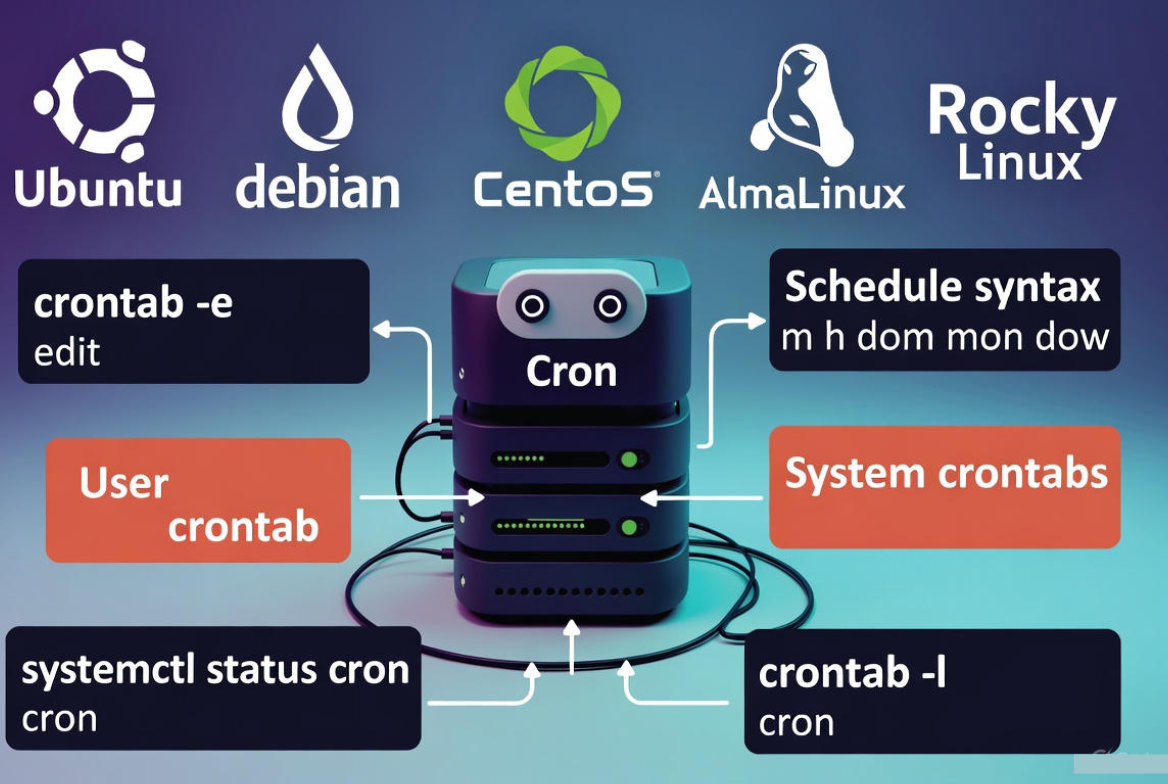
Prerequisites
- Linux server access (SSH)
- Text editor (nano, vim)
- Sudo privileges for system-wide jobs
- Basic command line familiarity
Install and Enable Cron (Popular Distros)
Most distributions include cron by default. If not, install and enable it using your package manager.
# Ubuntu/Debian
sudo apt update
sudo apt install -y cron
sudo systemctl enable --now cron
sudo systemctl status cron

# RHEL/CentOS/AlmaLinux/Rocky
sudo dnf install -y cronie
sudo systemctl enable --now crond
sudo systemctl status crond
Understand the Crontab Syntax
Every cron entry uses a five-field schedule followed by the command. The scheduler evaluates from left to right.
# ┌───────── minute (0-59)
# │ ┌─────── hour (0-23)
# │ │ ┌───── day of month (1-31)
# │ │ │ ┌─── month (1-12 or Jan-Dec)
# │ │ │ │ ┌─ day of week (0-7 or Sun-Sat; 0/7 = Sunday)
# │ │ │ │ │
# * * * * *  command to execute
Special Strings and Operators
- Special strings:
@reboot,@hourly,@daily(or@midnight),@weekly,@monthly,@yearly/@annually - Lists:
1,15,30 - Ranges:
1-5 - Step values:
*/5(every 5 units)
Environment Variables That Matter
PATH: Set it explicitly to avoid “command not found”.MAILTO: Receive output by email. Empty value disables mail.SHELLandHOME: Define interpreter and working directory.
# At top of a user crontab
SHELL=/bin/bash
PATH=/usr/local/sbin:/usr/local/bin:/usr/sbin:/usr/bin:/sbin:/bin
[email protected]
Create Your First Cron Job (User Crontab)
User crontabs run as the current user. This is ideal for personal scripts or app-level tasks.
# Edit (select your editor on first run)
crontab -e

# Example: run a backup every day at 02:00
0 2 * * * /usr/local/bin/backup.sh >> /var/log/backup.log 2>&1

# Verify
crontab -l
Create System-Wide Cron Jobs
System crons are useful for global maintenance or root tasks. You can use folders like /etc/cron.hourly, /etc/cron.daily, or the more flexible /etc/cron.d directory.
Using /etc/cron.d (Flexible and Explicit)
sudo nano /etc/cron.d/nightly-backup

# File contents: note the required "user" field
SHELL=/bin/bash
PATH=/usr/local/sbin:/usr/local/bin:/usr/sbin:/usr/bin:/sbin:/bin
0 2 * * * root /usr/local/bin/backup.sh >> /var/log/backup.log 2>&1
Using cron.hourly, cron.daily, cron.weekly, cron.monthly
Drop executable scripts in these directories and the system will run them at the corresponding frequency. Use these for simple maintenance tasks.
# Example: run daily
sudo cp cleanup.sh /etc/cron.daily/
sudo chmod +x /etc/cron.daily/cleanup.sh
Practical Cron Examples (Copy–Paste Ready)
1. Run a script every 5 minutes
*/5 * * * * /usr/bin/php /var/www/app/artisan schedule:run >> /var/log/laravel-schedule.log 2>&12. Weekly log cleanup on Sundays at 03:30
30 3 * * 0 /usr/bin/find /var/log/myapp -type f -name "*.log" -mtime +14 -delete3. Database dump nightly at 01:15
15 1 * * * /usr/bin/mysqldump -u backup -p'STRONGPASS' mydb
| /usr/bin/gzip > /backups/mydb-$(/bin/date +%F).sql.gz 2>&1
4. Run on boot
@reboot /usr/local/bin/warm-cache.sh >> /var/log/warm-cache.log 2>&15. Prevent overlapping runs with flock
*/10 * * * * /usr/bin/flock -n /var/run/report.lock
/usr/local/bin/generate-report.sh >> /var/log/report.log 2>&1
Testing, Logs, and Troubleshooting
- Test the command manually first in your shell.
- Use absolute paths to binaries and scripts.
- Redirect output to a log file:
>> /var/log/job.log 2>&1.
Where to Find Cron Logs
- Ubuntu/Debian:
grep CRON /var/log/syslogorjournalctl -u cron - RHEL/Alma/Rocky/CentOS:
less /var/log/cronorjournalctl -u crond
Common Causes of Cron Not Running
- Wrong PATH or missing absolute paths.
- File permissions: script not executable (
chmod +x), wrong ownership. - Environment differences: cron runs with a minimal environment.
- Incorrect crontab syntax or Windows line endings (use Unix LF).
- Disabled by
/etc/cron.denyor missing in/etc/cron.allow. - Service not running: start or enable
cron/crond.
Security Best Practices for Cron
- Least privilege: use user crontabs when root is not necessary.
- Absolute paths for commands, scripts, and files.
- Protect secrets: prefer env files or a vault over inline passwords; restrict file permissions.
- Validate inputs and add error handling in scripts (
set -Eeuo pipefail). - Log everything; rotate logs with
logrotate. - Use
flockto avoid concurrent runs andnice/ioniceto reduce system impact.
Cron vs Systemd Timers vs Anacron
Cron is lightweight and ubiquitous, perfect for simple schedules. Systemd timers add robust features like calendar expressions, randomized delays, and native logging. Anacron ensures periodic jobs still run on systems that are not always on (e.g., laptops) by executing missed runs after boot.
- Use cron for precise, frequent schedules on always-on servers.
- Use systemd timers when you need advanced scheduling or structured logs.
- Use anacron for daily/weekly/monthly tasks on systems that sleep or reboot often.
WordPress: Replace WP Cron with a Real Cron
WordPress’s default pseudo-cron runs on page loads, which can be unreliable. Disable it and use a system cron for accuracy and performance.
# in wp-config.php
define('DISABLE_WP_CRON', true)
# Run every 5 minutes via curl (replace domain)
*/5 * * * * /usr/bin/curl -s https://example.com/wp-cron.php?doing_wp_cron=1 > /dev/null 2>&1
# Or with WP-CLI (safer, faster); set correct path
*/5 * * * * cd /var/www/html && /usr/local/bin/wp cron event run --due-now >> /var/log/wp-cron.log 2>&1If you host with YouStable, our managed WordPress and VPS plans include cron-ready environments, WP-CLI, and expert support to configure reliable schedules for backups, updates, and cache purges—so your site stays fast and consistent.
Real World Tips from Production
- Use UTC for mission-critical schedules to avoid daylight-saving surprises.
- Version control your scripts and store crontab templates in your repo.
- Add clear log prefixes and job IDs to distinguish tasks in shared logs.
- For heavy jobs, schedule during off-peak hours and use
nice/ionice. - Document who owns each cron and how to disable it safely.
FAQ’s
1. u003cstrongu003eHow do I schedule a cron job in Linux?u003c/strongu003e
Run u003ccodeu003ecrontab -eu003c/codeu003e, add a line using the five-field schedule and a command, save, and verify with u003ccodeu003ecrontab -lu003c/codeu003e. Ensure the cron service is running and use absolute paths in your command.
2. u003cstrongu003eWhat is the crontab format?u003c/strongu003e
The format is u003ccodeu003eminute hour day-of-month month day-of-week commandu003c/codeu003e. Use numbers, names (e.g., Mon, Jan), lists (u003ccodeu003e1,2u003c/codeu003e), ranges (u003ccodeu003e1-5u003c/codeu003e), steps (u003ccodeu003e*/10u003c/codeu003e), or special strings like u003ccodeu003e@dailyu003c/codeu003e and u003ccodeu003e@rebootu003c/codeu003e.
3. u003cstrongu003eWhere are cron job logs stored?u003c/strongu003e
On Ubuntu/Debian, check u003ccodeu003e/var/log/syslogu003c/codeu003e or u003ccodeu003ejournalctl -u cronu003c/codeu003e. On RHEL-based systems, check u003ccodeu003e/var/log/cronu003c/codeu003e or u003ccodeu003ejournalctl -u crondu003c/codeu003e. Also redirect job output to a dedicated log file.
4. u003cstrongu003eWhy isn’t my cron job running?u003c/strongu003e
Common reasons: wrong paths, missing execute permission, syntax errors, environment differences, cron service stopped, or restrictions via u003ccodeu003ecron.allow/cron.denyu003c/codeu003e. Test the command manually and add logging.
5. u003cstrongu003eShould I use cron or systemd timers?u003c/strongu003e
For simple, frequent schedules on servers, cron is perfect. Choose systemd timers for advanced calendars, jitter, dependencies, and better logging. For laptops or desktops that aren’t always on, add anacron to catch missed runs.










