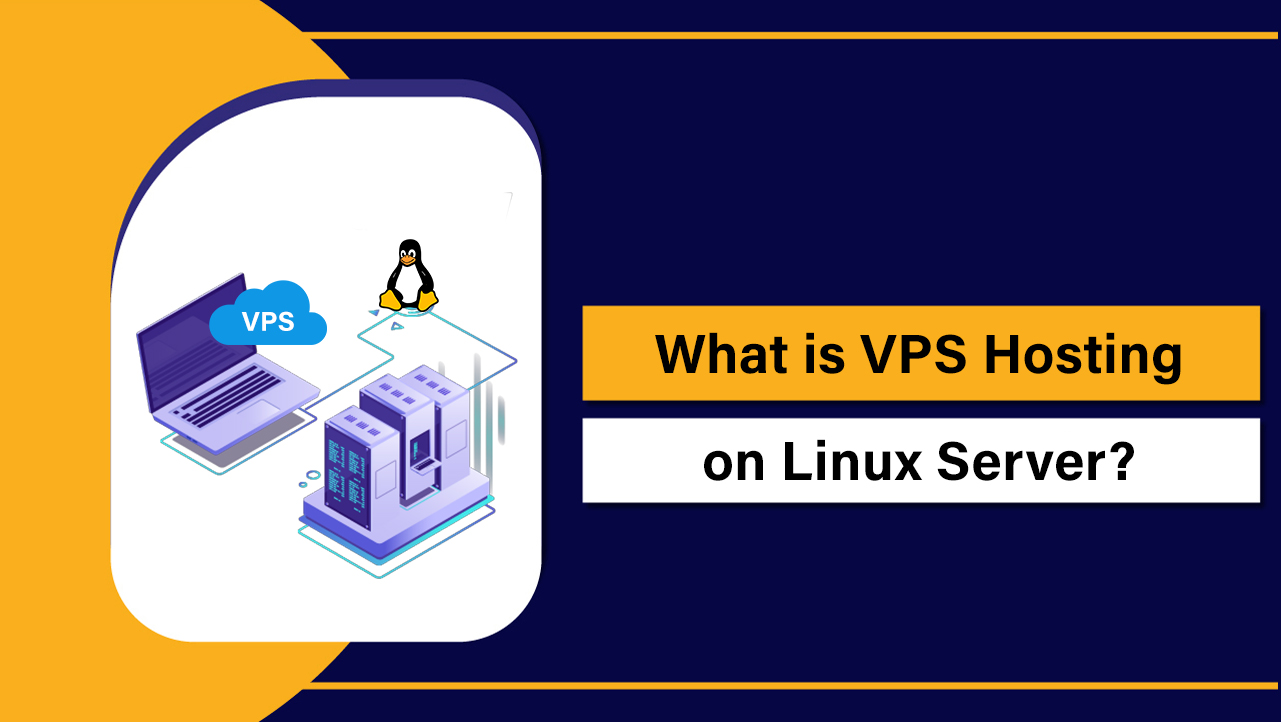
VPS hosting on a Linux server is a virtualized hosting environment that allocates dedicated CPU, RAM, storage, and root access on a physical machine running Linux.
It offers better performance, security isolation, and scalability than shared hosting, without the full cost of a dedicated server ideal for growing websites, eCommerce, and developers.
If you want full control, predictable performance, and enterprise grade security without renting an entire machine, VPS hosting on a Linux server is one of the smartest upgrades you can make.
This guide explains how Linux VPS works, when to choose it, how to configure it safely, and the best practices I’ve refined across 12+ years of hosting and server management.
What is VPS Hosting on a Linux Server?
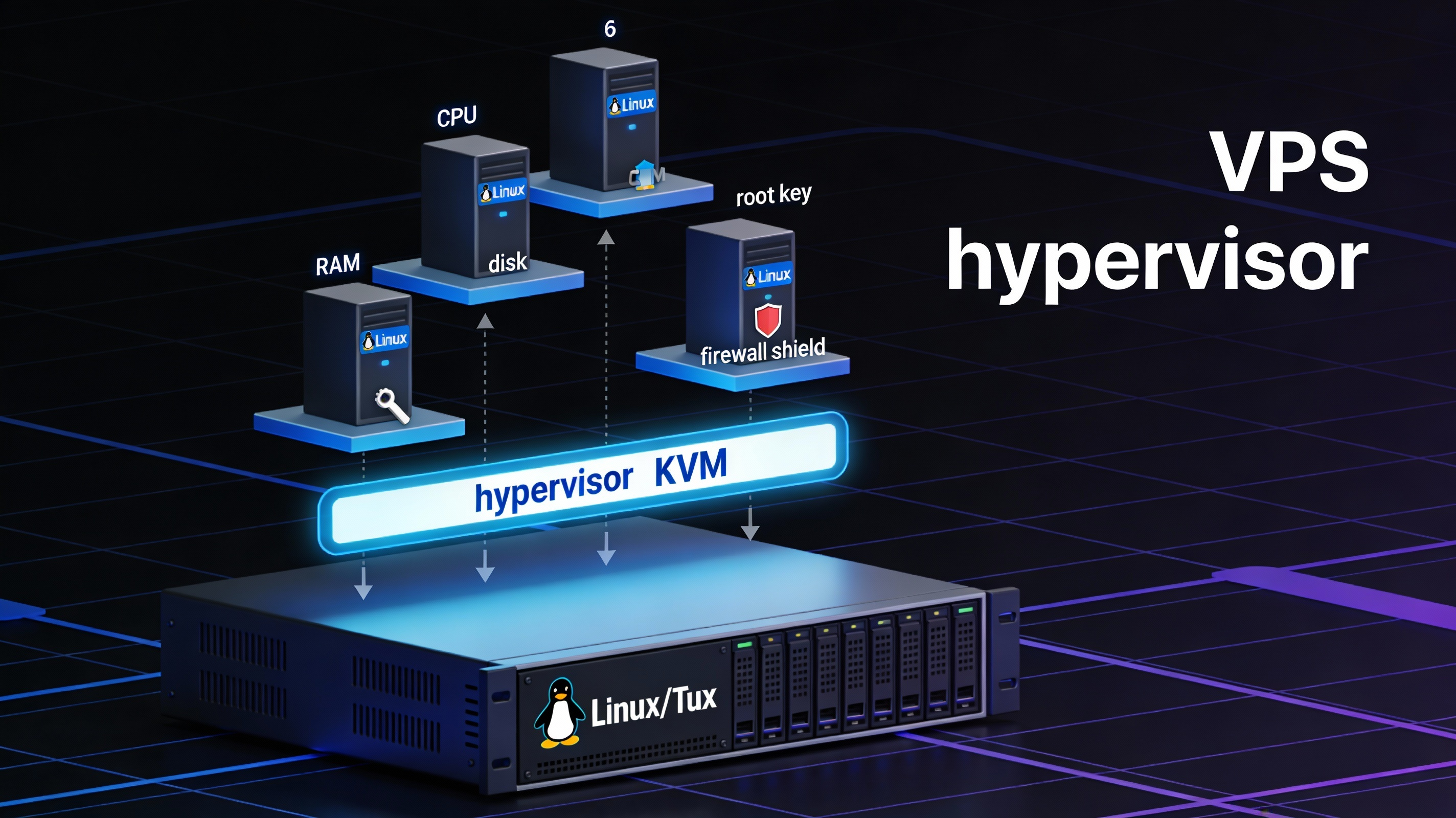
A VPS (Virtual Private Server) is created by partitioning a powerful physical server into multiple isolated virtual machines using a hypervisor (commonly KVM).
Each VPS gets dedicated resources and its own Linux operating system instance (Ubuntu, Debian, AlmaLinux, Rocky Linux, etc.). You can install software, configure firewalls, and control the environment with root access.
Compared to shared hosting, a Linux VPS provides:
- Resource isolation (vCPU, RAM, disk I/O) for consistent performance
- Root access and custom stack options (LAMP/LEMP, Node.js, Docker)
- Better security boundaries via virtualization
- Scalability with snapshots and quick resource upgrades
Who Should Choose a Linux VPS?
- Growing WordPress sites or WooCommerce stores experiencing shared hosting limits
- Agencies hosting client sites needing isolation and custom tuning
- Developers deploying web apps (Laravel, MERN, Python/Django, Rails)
- Startups running APIs, microservices, or staging environments
- Businesses needing compliance friendly isolation and predictable SLAs
Stick to shared hosting only for small, static, or early stage sites with minimal traffic. Move to a Linux VPS as soon as you need root access, performance tuning, or stricter security controls.
VPS vs Shared vs Dedicated vs Cloud
- Shared Hosting: Cheapest, easy, limited control and inconsistent performance.
- Linux VPS: Balanced cost, isolation, root access, and host level support.
- Dedicated Server: Full physical resources, highest cost and management overhead.
- Cloud VPS (virtual instances): Similar to VPS with elastic scaling; pay as you go pricing.
For most SMBs and serious WordPress users, WordPress VPS hosting on Linux is the optimal middle ground before moving to clusters or managed cloud architectures.
Managed vs Unmanaged Linux VPS
Unmanaged VPS gives you the server and root access. You configure OS, updates, security, stack, and troubleshooting. Best for sysadmins or developers comfortable with Linux.
Managed VPS includes help with server setup, security hardening, patches, performance tuning, and often control panel support (cPanel/WHM, Plesk, CyberPanel). Perfect for teams that prefer focusing on apps and content.
- Choose unmanaged if you want full control and have Linux experience.
- Choose managed if uptime and support matter more than DIY administration.
YouStable offers both managed and unmanaged Linux VPS with KVM virtualization, NVMe SSD storage, DDoS protection, and optional control panels ideal if you want predictable performance with human support when you need it.
How to Choose the Right Linux VPS Plan
- vCPU: For PHP-heavy WordPress or APIs, start with 2-4 vCPU; scale to 6-8+ for busy stores.
- RAM: 2-4 GB for basic sites, 8-16 GB for WooCommerce or multiple sites. Databases love RAM.
- Storage: Prefer NVMe SSD for low latency. Estimate 2-3x your current usage for logs/backups.
- Bandwidth/Network: Look for 1 Gbps+ ports, free inbound traffic, fair outbound allowances.
- Virtualization: KVM is the gold standard for full kernel isolation and compatibility.
- Backups/Snapshots: Ensure provider offers automated backups and on demand snapshots.
- IPv4 + IPv6: Dual stack improves reachability and future proofs your stack.
- Panel: cPanel/WHM, Plesk, or lightweight options like CyberPanel/Hestia if you prefer GUI.
If you’re targeting European users, choosing a VPS Hosting Server in the Netherlands can give you faster loading speed, better connectivity, & more stable performance for your Linux projects.
Best Linux Distributions and Panels for VPS
Recommended distros: Ubuntu LTS (user friendly, huge ecosystem), Debian (stable, minimal), AlmaLinux/Rocky (RHEL-compatible, great with cPanel).
- For WordPress hosting: Ubuntu LTS + Nginx (LEMP) + PHP-FPM + MariaDB + Redis
- For cPanel users: AlmaLinux + cPanel/WHM
- For multi stack devs: Ubuntu/Debian + Docker/Podman + Traefik
Popular panels: cPanel/WHM, Plesk, CyberPanel (OpenLiteSpeed), Hestia, aaPanel, and Webmin/Virtualmin. Panels simplify email, DNS, SSL, and multi site hosting handy if you want managed like convenience on unmanaged servers.
Your First 15 Minutes on a New Linux VPS
Secure and prepare the server before deploying apps. Here’s a minimal, battle tested checklist for Ubuntu/AlmaLinux. Run as root initially, then switch to a sudo user for daily work.
# 1) Connect and create a non-root sudo user
ssh root@your_server_ip
adduser devuser
usermod -aG sudo devuser   # (Ubuntu/Debian)
usermod -aG wheel devuser  # (AlmaLinux/Rocky)
passwd devuser

# 2) Upload your public key and harden SSH
mkdir -p /home/devuser/.ssh
chmod 700 /home/devuser/.ssh
echo "ssh-ed25519 AAAA... yourkey" >> /home/devuser/.ssh/authorized_keys
chmod 600 /home/devuser/.ssh/authorized_keys
chown -R devuser:devuser /home/devuser/.ssh

# 3) Basic updates and reboots when needed
apt update && apt -y upgrade      # Ubuntu/Debian
dnf -y update                    # AlmaLinux/Rocky

# 4) Firewall
# Ubuntu/Debian
apt -y install ufw
ufw allow OpenSSH
ufw allow 80,443/tcp
ufw enable
# AlmaLinux/Rocky
dnf -y install firewalld
systemctl enable --now firewalld
firewall-cmd --permanent --add-service=http --add-service=https --add-service=ssh
firewall-cmd --reload

# 5) Fail2ban to block brute-force attacks
apt -y install fail2ban   # Ubuntu/Debian
dnf -y install fail2ban   # AlmaLinux/Rocky
systemctl enable --now fail2ban

# 6) Optional swap for burst RAM workloads (adjust size)
fallocate -l 2G /swapfile
chmod 600 /swapfile
mkswap /swapfile && swapon /swapfile
echo "/swapfile swap swap defaults 0 0" >> /etc/fstab

# 7) SSH daemon hardening (example)
# Edit /etc/ssh/sshd_config:
#   PermitRootLogin no
#   PasswordAuthentication no
systemctl restart sshd
Deploy a Fast Web Stack (WordPress Example)
For performance, I prefer LEMP (Nginx + PHP-FPM + MariaDB) on Ubuntu LTS with Redis object cache.
Here’s a quick start:-
# Install Nginx, MariaDB, PHP-FPM and extensions (Ubuntu)
apt -y install nginx mariadb-server
apt -y install php-fpm php-mysql php-xml php-curl php-zip php-gd php-mbstring php-intl php-bcmath

# Secure MariaDB
mysql_secure_installation

# Create DB and user
mysql -u root -p -e "CREATE DATABASE wpdb DEFAULT CHARACTER SET utf8mb4 COLLATE utf8mb4_unicode_ci;"
mysql -u root -p -e "CREATE USER 'wpuser'@'localhost' IDENTIFIED BY 'StrongP@ssw0rd!';"
mysql -u root -p -e "GRANT ALL PRIVILEGES ON wpdb.* TO 'wpuser'@'localhost'; FLUSH PRIVILEGES;"

# PHP-FPM tune (example)
sed -i 's/^;cgi.fix_pathinfo=.*/cgi.fix_pathinfo=0/' /etc/php/*/fpm/php.ini
systemctl restart php*-fpm

# Nginx server block (example)
cat > /etc/nginx/sites-available/example.conf <<'EOF'
server {
    listen 80;
    server_name example.com www.example.com;
    root /var/www/example;
    index index.php index.html;

    location / {
        try_files $uri $uri/ /index.php?$args;
    }

    location ~ .php$ {
        include snippets/fastcgi-php.conf;
        fastcgi_pass unix:/run/php/php-fpm.sock;
    }

    location ~* .(jpg|jpeg|png|gif|ico|css|js|svg|webp)$ {
        expires 30d;
        access_log off;
    }
}
EOF

ln -s /etc/nginx/sites-available/example.conf /etc/nginx/sites-enabled/
mkdir -p /var/www/example
chown -R www-data:www-data /var/www/example
nginx -t && systemctl reload nginx

# Install Redis for object caching
apt -y install redis-server php-redis
systemctl enable --now redis-server
systemctl restart php*-fpm nginx
Add free SSL with Let’s Encrypt (Certbot), enable HTTP/2 or HTTP/3 (QUIC), and configure a WordPress caching plugin or Nginx microcaching for best results.
Security Hardening Essentials
- Use SSH keys; disable password logins and root SSH
- Keep OS and packages updated; consider unattended upgrades
- Enable a host firewall (UFW/Firewalld) and Fail2ban
- Install ModSecurity (WAF) with OWASP CRS for web apps
- Separate privileges: individual SFTP/DB users per site
- Daily offsite backups + snapshots; test restores regularly
- Force HTTPS, HSTS, modern ciphers; enable TLS 1.3
- Scan with ClamAV or commercial malware scanners for CMS sites
- Limit services; remove unused packages; monitor open ports
- Consider SELinux/AppArmor in enforcing mode when applications support it
Performance Optimization on Linux VPS
- Use PHP-FPM with OPcache; tune pm.max_children based on RAM
- Enable Redis or Memcached for object caching (WordPress/WooCommerce)
- Nginx/OpenLiteSpeed for high concurrency; enable gzip or Brotli compression
- HTTP/2 or HTTP/3 for faster multiplexed delivery
- Tune MySQL/MariaDB (innodb_buffer_pool_size 50-70% of RAM for DB heavy sites)
- Use latest stable PHP for performance and security
- Serve static assets via CDN; move media off the origin when possible
- Monitor with Netdata/Prometheus + node exporter; review slow logs
- Choose NVMe storage and avoid noisy neighbors by using reputable providers
Scaling and High Availability
- Vertical scaling: Add vCPU/RAM as traffic grows; use snapshots for quick rollbacks
- Horizontal scaling: Load balancer + multiple web nodes; sticky sessions or Redis for sessions
- Database scaling: Primary replica topology; read replicas for reporting and heavy reads
- Static offload: CDN + object storage for media
- Failover: Backups, images, or standby instances in another AZ/region
Cost Optimization and Common Pitfalls
- Right size resources; avoid over provisioning RAM/CPU
- Automate log rotation; prevent disks from filling unexpectedly
- Track outbound data transfer; use CDN to reduce egress
- Schedule backups during low traffic windows; store offsite
- Use staging for updates; avoid live site experiments
Migrating from Shared Hosting to a Linux VPS
- Audit current usage (disk, traffic, PHP version, DB size, cron jobs)
- Spin up VPS and replicate environment (PHP/MySQL versions, extensions)
- Sync files and DB: rsync + mysqldump or panel based migration tools
- Test on staging subdomain; fix permissions, .htaccess/NGINX rules
- Lower DNS TTL, schedule cutover, final sync, then switch DNS
- Monitor logs and metrics post migration; keep old host for fallback briefly
Why Choose YouStable for Linux VPS?
As a hosting provider focused on performance and reliability, YouStable’s Linux VPS plans use KVM virtualization, NVMe SSD storage, free DDoS protection, and global locations. Choose managed for hands off care or unmanaged for full control. Need help migrating or optimizing WordPress? Our team can do it without downtime.
FAQ’s – VPS Hosting on Linux Server
1. What is a Linux VPS and how is it different from shared hosting?
A Linux VPS is an isolated virtual server with dedicated resources and root access on a Linux OS. Unlike shared hosting, your performance isn’t affected by other tenants as much, and you can install custom software, tweak services, and enforce stricter security policies.
2. Is VPS hosting on Linux good for beginners?
Yes choose a managed Linux VPS with a control panel (cPanel, Plesk, CyberPanel). You’ll get GUI tools for sites, emails, SSL, and backups while the provider handles updates, security patches, and tuning. Unmanaged VPS is better if you’re comfortable with the Linux command line.
3. Which Linux distribution is best for a VPS?
For most users: Ubuntu LTS for ease and community; AlmaLinux/Rocky for RHEL compatibility and cPanel; Debian for stability and minimalism. Choose LTS releases for predictable updates and longer support cycles.
4. How much RAM and CPU do I need for WordPress?
Start with 2 vCPU and 4 GB RAM for a typical WordPress site. For WooCommerce or higher traffic (50k-200k monthly visits), aim for 4-6 vCPU and 8-12 GB RAM, plus Redis object caching and NVMe storage for best performance.
5. How do I secure a Linux VPS quickly?
Enable a firewall (UFW/Firewalld), disable root and password SSH logins, use SSH keys, install Fail2ban, keep packages updated, enforce HTTPS with modern TLS, and run regular offsite backups. Add ModSecurity for web apps and scan periodically for malware.
With the right plan, a clean setup, and ongoing maintenance, VPS hosting on a Linux server delivers the control, speed, and security your online projects deserve. When you’re ready, YouStable can help you choose, deploy, and optimize the perfect Linux VPS for your workload.