

phpMyAdmin on a Linux server is a web-based interface for managing MySQL or MariaDB through Apache or Nginx with PHP. It lets you create databases, users, run SQL, import/export data, and monitor performance.
Install via your distribution’s packages or the upstream tarball, then harden it with HTTPS, authentication, and strict firewall rules.
In this guide, we’ll help you understand phpMyAdmin on Linux server environments from the ground up how it works, how to install it, and how to secure and optimize it for production. Whether you run a LAMP or LEMP stack, you’ll learn best practices I use in real-world hosting to keep databases fast and safe.
What is phpMyAdmin and When Should You Use It?
phpMyAdmin is an open-source, browser-based tool to administer MySQL/MariaDB. It’s ideal for visual database management: creating schemas, tables, and indices; editing data; executing queries; and importing/exporting backups. On a Linux server, it runs behind Apache or Nginx and communicates with the database via PHP extensions (mysqli/PDO MySQL).
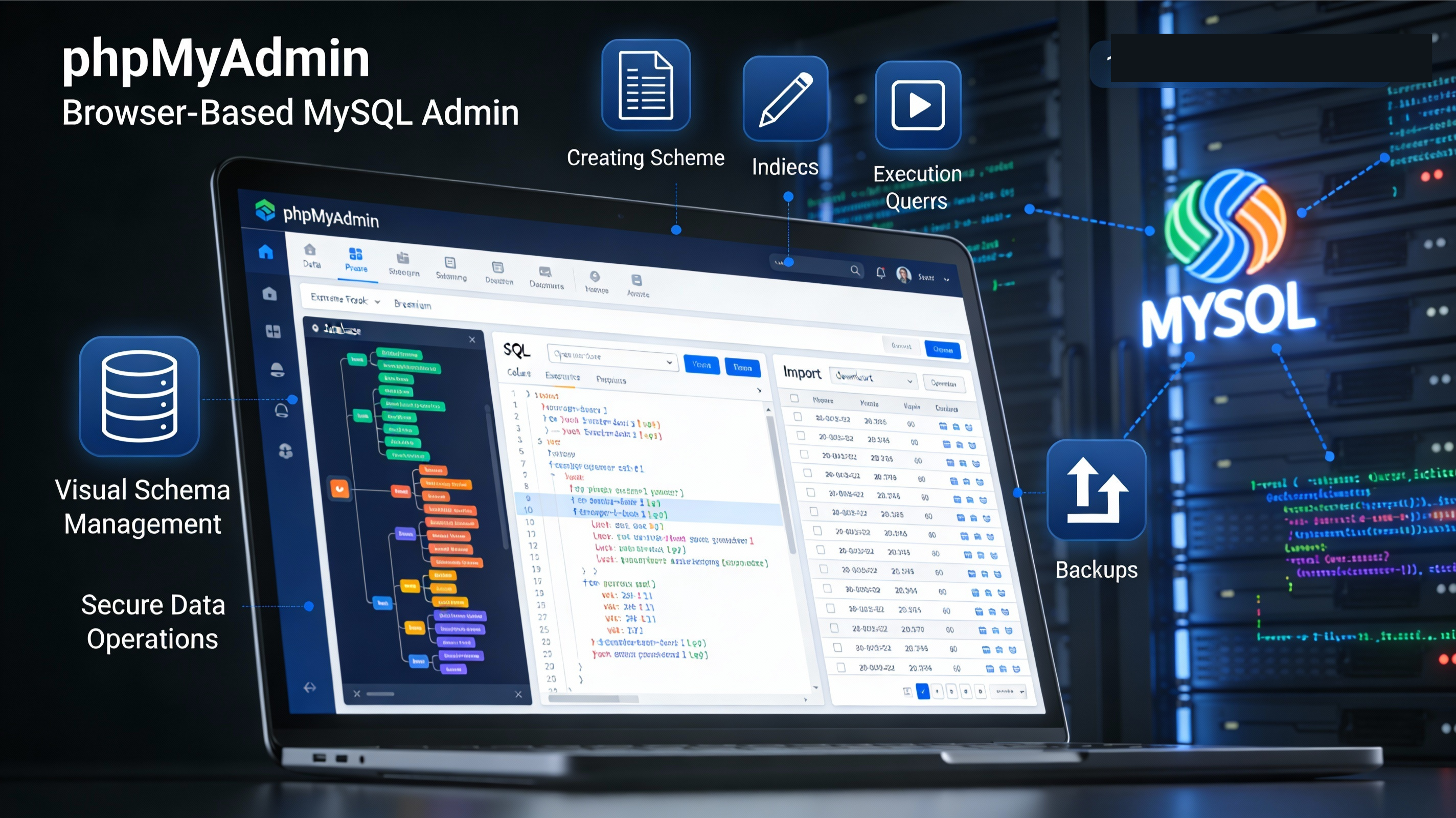
Use phpMyAdmin when you need a secure, convenient interface for routine tasks, quick inspections, or light analytics. For very large imports, heavy migrations, or automation, the MySQL CLI or tools like mysqldump and MySQL Shell often perform better.
How phpMyAdmin Fits Into Your Linux Stack
Architecture overview:
- Browser → Web server (Apache/Nginx)
- Web server → PHP-FPM or mod_php
- PHP → MySQL/MariaDB (localhost socket or TCP)
Prerequisites:
- A LAMP/LEMP stack: Apache or Nginx, PHP 7.4+ (8.x recommended), MySQL or MariaDB
- PHP extensions: mysqli, mbstring, zip, xml, gd, curl, json, openssl
- HTTP/HTTPS access and a firewall allowing ports 80 and 443
Install phpMyAdmin on Linux
Ubuntu/Debian (APT)
Works well on Ubuntu 20.04/22.04/24.04 and recent Debian releases. On some Debian versions, the package may be absent; use the manual method below if needed.
sudo apt update
sudo apt install apache2 mariadb-server php php-mbstring php-zip php-gd php-json php-curl php-xml php-mysql -y
sudo apt install phpmyadmin -y

# If Apache integration isn't auto-enabled:
sudo ln -s /etc/phpmyadmin/apache.conf /etc/apache2/conf-enabled/phpmyadmin.conf
sudo phpenmod mbstring
sudo systemctl reload apache2
Access: http://your-domain/phpmyadmin (change this path later for security).
RHEL/CentOS/AlmaLinux/Rocky (DNF/YUM)
Install from EPEL on RHEL-compatible systems:
sudo dnf install epel-release -y
sudo dnf install httpd mariadb-server php php-fpm php-mbstring php-zip php-gd php-json php-curl php-xml php-mysqlnd -y
sudo dnf install phpMyAdmin -y

sudo systemctl enable --now httpd mariadb
Apache creates /etc/httpd/conf.d/phpMyAdmin.conf. Harden it before exposing publicly.
Manual (Upstream) Installation
Use this if your distro lacks a recent phpMyAdmin package.
# Paths assume Apache/Nginx serves /usr/share/phpmyadmin
cd /usr/share
sudo wget https://www.phpmyadmin.net/downloads/phpMyAdmin-latest-all-languages.tar.gz
sudo tar xzf phpMyAdmin-latest-all-languages.tar.gz
sudo mv phpMyAdmin-*-all-languages phpmyadmin
sudo mkdir -p /usr/share/phpmyadmin/tmp

# Set web user: www-data (Debian/Ubuntu) or apache (RHEL-based)
WEBUSER=www-data
# For RHEL-based, use: WEBUSER=apache
sudo chown -R $WEBUSER:$WEBUSER /usr/share/phpmyadmin

# Create config
sudo cp /usr/share/phpmyadmin/config.sample.inc.php /usr/share/phpmyadmin/config.inc.php
We’ll add secure config values in the next section.
Secure phpMyAdmin in Production
Change the URL and Restrict by IP
Move phpMyAdmin off the default path and allow only trusted IPs. Example for Apache:
# /etc/apache2/conf-available/phpmyadmin-hardening.conf (Debian/Ubuntu)
# or /etc/httpd/conf.d/phpmyadmin-hardening.conf (RHEL-based)
Alias /dbadmin /usr/share/phpmyadmin
<Directory /usr/share/phpmyadmin>
  Options SymLinksIfOwnerMatch
  DirectoryIndex index.php
  AllowOverride All
  Require ip 203.0.113.0/24 198.51.100.10
</Directory>

# Deny access to sensitive directories
<Directory /usr/share/phpmyadmin/setup>
  Require all denied
</Directory>
Enable and reload:
# Debian/Ubuntu
sudo a2enconf phpmyadmin-hardening
sudo systemctl reload apache2

# RHEL-based
sudo systemctl reload httpd
Nginx example:
# In your server {} block
location /dbadmin/ {
    alias /usr/share/phpmyadmin/;
    index index.php;
    allow 203.0.113.0/24;
    allow 198.51.100.10;
    deny all;
}

location ~ ^/dbadmin/(.+\.php)$ {
    alias /usr/share/phpmyadmin/$1;
    include fastcgi_params;
    fastcgi_param SCRIPT_FILENAME $request_filename;
    fastcgi_pass unix:/run/php/php-fpm.sock; # adjust to your PHP-FPM socket
}

location ~ ^/dbadmin/(doc|sql|setup)/ {
    deny all;
}
Add HTTP Basic Authentication
Require an extra password before phpMyAdmin even loads.
sudo mkdir -p /etc/phpmyadmin
sudo htpasswd -c /etc/phpmyadmin/.htpasswd admin
Apache configuration snippet inside the phpMyAdmin Directory block:
AuthType Basic
AuthName "Restricted"
AuthUserFile /etc/phpmyadmin/.htpasswd
Require valid-user
Force HTTPS with Let’s Encrypt
Always encrypt phpMyAdmin traffic.
# Apache
sudo apt install certbot python3-certbot-apache -y
sudo certbot --apache -d example.com

# Nginx
sudo apt install certbot python3-certbot-nginx -y
sudo certbot --nginx -d example.com
Set a Blowfish Secret and Safe Defaults
Edit /usr/share/phpmyadmin/config.inc.php:
<?php
$cfg['blowfish_secret'] = 'your-32-char-random-string-1234567890abcd'; // required for cookie auth
$i = 1;
$cfg['Servers'][$i]['auth_type'] = 'cookie';
$cfg['Servers'][$i]['AllowNoPassword'] = false;
$cfg['LoginCookieValidity'] = 1800; // 30 minutes
$cfg['TempDir'] = '/usr/share/phpmyadmin/tmp';
?>
Never log in as root. Create a limited database user for phpMyAdmin tasks.
Firewall and Attack Mitigation
Open only what you need:
# UFW (Ubuntu/Debian)
sudo ufw allow 'Apache Full'   # or 'Nginx Full'
sudo ufw enable

# firewalld (RHEL-based)
sudo firewall-cmd --permanent --add-service=http
sudo firewall-cmd --permanent --add-service=https
sudo firewall-cmd --reload
Consider Fail2ban to rate-limit Apache/Nginx logins and a WAF (e.g., ModSecurity) for additional hardening.
Tune PHP Limits for Imports
Large SQL imports often fail due to low limits. Increase them in php.ini and reload PHP/your web server.
# Typical values (adjust to your workload)
upload_max_filesize = 256M
post_max_size = 256M
memory_limit = 512M
max_execution_time = 300
For Nginx, also set client_max_body_size in your server block:
client_max_body_size 256M;Restart services after changes:
# Apache (Debian/Ubuntu)
sudo systemctl reload apache2

# PHP-FPM (RHEL-based adjust version)
sudo systemctl reload php-fpm
Using phpMyAdmin Effectively
Create Databases and Users (Best Practice)
Use a dedicated user per application with least privileges.
CREATE DATABASE appdb CHARACTER SET utf8mb4 COLLATE utf8mb4_unicode_ci;
CREATE USER 'appuser'@'localhost' IDENTIFIED BY 'StrongP@ss!';
GRANT ALL PRIVILEGES ON appdb.* TO 'appuser'@'localhost';
FLUSH PRIVILEGES;
Import/Export and Backups
Use the Export tab for quick .sql or compressed backups. For very large imports, the CLI is faster and more reliable:
mysql -u appuser -p appdb < /path/to/dump.sqlOptimize Queries and Indexes
Use EXPLAIN in the SQL tab to inspect query plans. Add composite indexes for common filters and sorts:
CREATE INDEX idx_orders_user_created ON orders (user_id, created_at);Other Handy Tasks
- Change collation/character set to utf8mb4 for full Unicode.
- Switch storage engines (e.g., InnoDB for transactions).
- View server variables and status to diagnose performance issues.
Troubleshooting Common Issues
- 403 Forbidden: Check your Apache/Nginx allow/deny rules and path alias. On SELinux systems, ensure contexts are correct or use setsebool -P httpd_can_network_connect_db 1 if connecting to remote DB.
- 500/Internal Server Error: Review error logs (/var/log/apache2/error.log or /var/log/httpd/error_log). Make sure php-mbstring and php-mysql/php-mysqlnd are installed and enabled.
- Token mismatch/session errors: Ensure $cfg[‘blowfish_secret’] is set and the TempDir is writable by the web user. Confirm session.save_path is writable.
- 413 Request Entity Too Large (Nginx): Increase client_max_body_size and PHP upload limits, then reload services.
- Blank page after update: Clear opcode caches (if any) and browser cache; verify file permissions on /usr/share/phpmyadmin.
When Not to Use phpMyAdmin
For massive imports, scripted migrations, or heavy analytics, use the MySQL CLI, MySQL Shell, or admin tools like Adminer or desktop clients (HeidiSQL, DataGrip). phpMyAdmin shines for day-to-day administration, but the CLI is superior for large, automated, or time-sensitive tasks.
Managed Alternative: Let YouStable Handle It
If you prefer security and convenience over DIY, YouStable’s managed hosting ships with hardened LAMP/LEMP stacks, preconfigured phpMyAdmin (off a custom path), free Let’s Encrypt SSL, WAF rules, automated backups, and 24×7 support. You focus on your app—our team handles patching, monitoring, and performance tuning.
FAQs:
Is phpMyAdmin safe to use on a public server?
Yes—when secured properly. Change the default URL, restrict by IP, protect with HTTP Basic Auth, force HTTPS, and never allow root or passwordless logins. Keep PHP, the web server, and phpMyAdmin updated, and monitor access logs for anomalies.
How do I change the phpMyAdmin URL on Linux?
Create an alias (e.g., /dbadmin) in Apache or Nginx pointing to /usr/share/phpmyadmin, then reload the web server. Combine this with IP allowlists and Basic Auth to reduce discovery and brute-force attempts.
How can I import a very large SQL file?
Increase PHP limits and Nginx/Apache body size, but for multi-GB files use the MySQL CLI: mysql -u user -p db < dump.sql. It’s faster, more reliable, and avoids browser timeouts. You can gzip dumps and use zcat dump.sql.gz | mysql …
Can I enable two-factor protection for phpMyAdmin?
phpMyAdmin does not include native 2FA, but you can enforce 2FA at the reverse proxy or SSO layer (e.g., Cloudflare Access, OAuth/OIDC in front of Apache/Nginx). Pair this with Basic Auth and IP restrictions for layered security.
Where is the phpMyAdmin config file on Linux?
Common locations: /etc/phpmyadmin/config.inc.php (Ubuntu/Debian package) or /usr/share/phpmyadmin/config.inc.php (manual install). On RHEL-based systems via EPEL, see /etc/httpd/conf.d/phpMyAdmin.conf for web access rules and create config.inc.php under /usr/share/phpmyadmin if needed.




