

FTP on a Linux server is a client–server protocol that transfers files over TCP/IP, typically on port 21. It supports user authentication, directory navigation, and upload/download operations.
While classic FTP is unencrypted, you can secure it with FTPS (TLS) or replace it with SFTP (SSH). For most production uses, SFTP or FTPS is recommended.
Understanding FTP on a Linux server helps you move website files, automate backups, and collaborate with teams. This guide explains how FTP works, the difference between FTP, FTPS, and SFTP, how to install and configure an FTP server (vsftpd), secure it, troubleshoot issues, and follow best practices for performance and reliability.
How FTP Works on a Linux Server
FTP uses two channels: a control connection for commands and a data connection for file transfer and directory listings. The complexity arises from how the data channel is opened: active vs. passive mode.
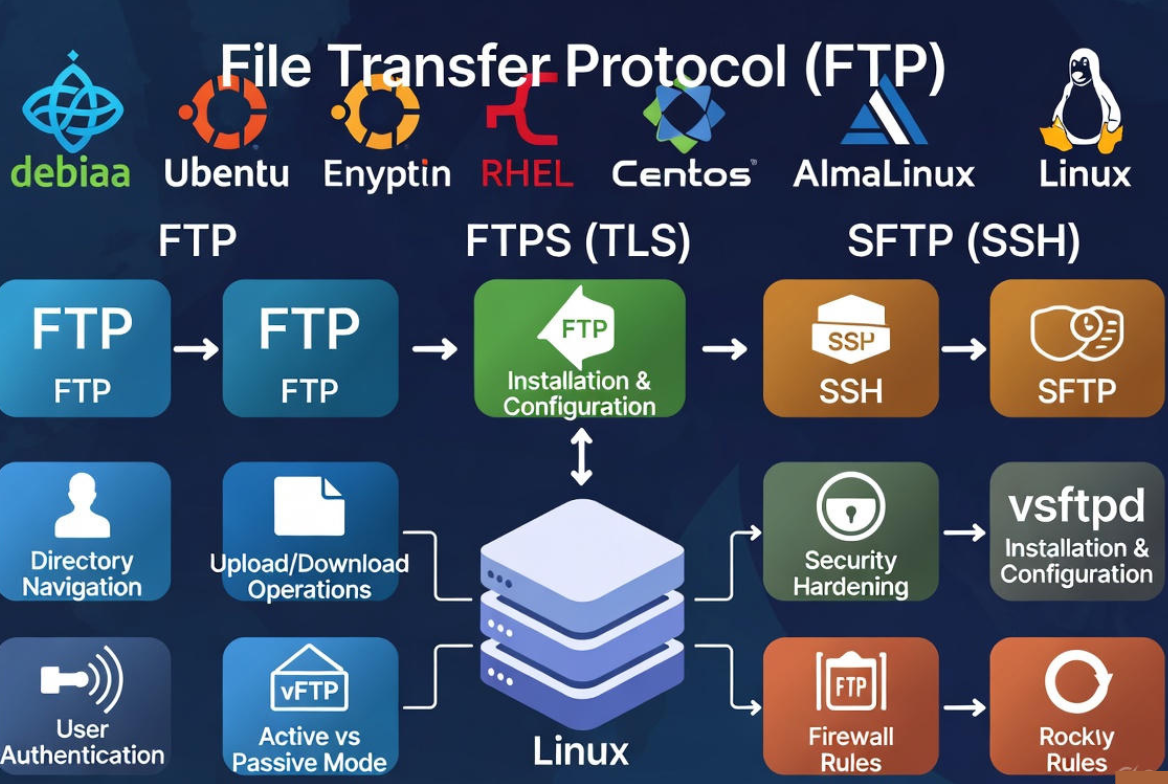
Active vs. Passive FTP
In active mode, the server initiates the data connection back to the client. In passive mode, the client initiates both control and data connections, and the server tells the client which passive port to use. Passive mode works better behind NAT, firewalls, and cloud environments.
- Control channel: TCP 21 (FTP) or TCP 21 with AUTH TLS (Explicit FTPS)
- Data channel (active): Server connects from TCP 20 to a client port
- Data channel (passive): Server listens on a high port range you configure (e.g., 40000–50000)
FTP vs. FTPS vs. SFTP
- FTP: Unencrypted, simple, widely supported. Not recommended over the public internet.
- FTPS (FTP over TLS): Encrypts credentials and data. Two flavors: Explicit FTPS (AUTH TLS on port 21) is most common; Implicit FTPS (port 990) is legacy.
- SFTP (SSH File Transfer Protocol): Different protocol over SSH (TCP 22). Firewall-friendly, key-based auth, easy to harden. Preferred in most modern setups.
Rule of thumb: If you control both ends and need classic FTP compatibility, use FTPS. If you want simpler security and fewer firewall issues, use SFTP.
Choosing an FTP Server on Linux
- vsftpd: Very Secure FTP Daemon. Fast, lightweight, security-focused. Great default choice for FTP/FTPS.
- ProFTPD: Flexible, Apache-style config, rich modules. Good for complex virtual hosting.
- Pure-FTPd: Easy configuration, virtual users, TLS support. Balanced simplicity and features.
For most admins, vsftpd offers the best blend of performance and security with minimal configuration. The steps below use vsftpd.
Install and Configure vsftpd
Install the package
# Debian/Ubuntu
sudo apt update
sudo apt install -y vsftpd

# RHEL/CentOS/AlmaLinux/Rocky
sudo dnf install -y vsftpd

# Start and enable service
sudo systemctl enable --now vsftpd
sudo systemctl status vsftpd
Basic security-first configuration
Edit /etc/vsftpd.conf. The following hardens a common “local users only” setup with chroot, passive ports, and no anonymous access.
# /etc/vsftpd.conf (baseline secure config)
anonymous_enable=NO
local_enable=YES
write_enable=YES
local_umask=022
dirmessage_enable=YES
use_localtime=YES
xferlog_enable=YES
connect_from_port_20=YES

# Chroot local users to their home directories
chroot_local_user=YES
allow_writeable_chroot=YES

# Passive mode ports (match your firewall)
pasv_enable=YES
pasv_min_port=40000
pasv_max_port=50000

# Limit users to a whitelist file (optional)
userlist_enable=YES
userlist_file=/etc/vsftpd.userlist
userlist_deny=NO

# Disable ASCII mode for performance and safety
ascii_upload_enable=NO
ascii_download_enable=NO

# Security & performance
seccomp_sandbox=YES
pam_service_name=vsftpd
Then restart vsftpd:
sudo systemctl restart vsftpdCreate users and set permissions
# Create a Linux user without shell access
sudo useradd -m -s /usr/sbin/nologin ftpuser
sudo passwd ftpuser

# Optional: limit to specific directory
sudo mkdir -p /var/www/ftpuser
sudo chown ftpuser:ftpuser /var/www/ftpuser
sudo usermod -d /var/www/ftpuser ftpuser

# Add user to vsftpd whitelist (if enabled)
echo "ftpuser" | sudo tee -a /etc/vsftpd.userlist
Open firewall and SELinux
Open port 21 and the passive range you configured. Also allow FTPS if you enable TLS later.
# UFW (Ubuntu)
sudo ufw allow 21/tcp
sudo ufw allow 40000:50000/tcp
sudo ufw reload

# firewalld (RHEL/CentOS/Alma/Rocky)
sudo firewall-cmd --permanent --add-port=21/tcp
sudo firewall-cmd --permanent --add-port=40000-50000/tcp
sudo firewall-cmd --reload

# SELinux (allow FTP to read/write home directories and passive ports)
sudo setsebool -P ftpd_full_access on
# Or more granular:
# sudo setsebool -P allow_ftpd_anon_write=off
# sudo setsebool -P allow_ftpd_full_access=on
Test the connection
# From a client machine
ftp your.server.ip
# or use lftp for better features
lftp -u ftpuser your.server.ip
# Basic commands once connected
pwd
ls
cd dir
get file
put localfile
bye
Secure FTP the Right Way
Enable FTPS (TLS) in vsftpd
If policy mandates FTP compatibility, enable TLS. Use Explicit FTPS (AUTH TLS on port 21). Generate or install a certificate:
# Self-signed (replace CN)
sudo openssl req -x509 -nodes -days 365 -newkey rsa:2048 \
  -keyout /etc/ssl/private/vsftpd.key \
  -out /etc/ssl/certs/vsftpd.crt \
  -subj "/C=US/ST=State/L=City/O=Org/OU=IT/CN=ftp.example.com"

# vsftpd TLS config additions
sudo bash -c 'cat >> /etc/vsftpd.conf' << "EOF"
ssl_enable=YES
rsa_cert_file=/etc/ssl/certs/vsftpd.crt
rsa_private_key_file=/etc/ssl/private/vsftpd.key
force_local_data_ssl=YES
force_local_logins_ssl=YES
ssl_tlsv1=YES
ssl_tlsv1_1=YES
ssl_tlsv1_2=YES
require_ssl_reuse=NO
ssl_ciphers=HIGH
EOF

sudo systemctl restart vsftpd
Note: Many modern clients prefer TLSv1.2+. If older clients fail, adjust TLS settings accordingly.
Use SFTP (recommended for most cases)
SFTP runs over SSH (port 22). No extra daemon required; OpenSSH is usually installed by default. It’s simpler to secure and easier through firewalls.
# Ensure SSH is installed and running
sudo systemctl enable --now sshd

# Configure SFTP-only group with chroot
sudo groupadd sftpusers
sudo useradd -m -G sftpusers -s /usr/sbin/nologin sftpuser
sudo passwd sftpuser

# In /etc/ssh/sshd_config (add at the end)
Subsystem sftp internal-sftp

Match Group sftpusers
    ChrootDirectory %h
    ForceCommand internal-sftp
    X11Forwarding no
    AllowTcpForwarding no

# Permissions: chroot dir must be owned by root and not writable by user
sudo chown root:root /home/sftpuser
sudo mkdir -p /home/sftpuser/upload
sudo chown sftpuser:sftpusers /home/sftpuser/upload

sudo systemctl restart sshd

# Connect
sftp sftpuser@your.server.ip
Additional hardening tips
- Enforce key-based SSH authentication for SFTP. Disable password auth when possible.
- Use strong passwords and rotate credentials; integrate with Fail2ban to block brute-force attempts.
- Disable anonymous access. Limit users with userlist or Match blocks.
- Set appropriate umask (e.g., 022) and permissions to avoid group/world-writable files.
- Log transfers and review regularly. Enable xferlog in vsftpd and syslog for SSH.
Common FTP and SFTP Commands
# FTP client basics
ftp server
User: ftpuser
Password: ****
ls
cd /path
lcd /local/path
get remote.file
put local.file
mget *.zip
mput *.html
bye

# SFTP client basics
sftp user@server
ls
cd /remote/dir
lcd /local/dir
get file
put file
chmod 640 file
mkdir newdir
exit

# lftp (robust, supports FTPS)
lftp -u user,pass -e "set ssl:verify-certificate no; mirror -R ./site /var/www/html; bye" ftps://server
Troubleshooting FTP on Linux
Connection refused or timeout
- Is the service running? systemctl status vsftpd or sshd
- Firewall open? Ports 21 and passive range for FTP/FTPS; 22 for SFTP
- Cloud security groups/network ACLs allow inbound?
530 Login incorrect
- Check user existence, password, and shell (nologin is fine for FTP/SFTP-only).
- If using vsftpd userlist, ensure user is whitelisted and userlist_deny=NO.
- Home directory permissions must allow access (not group/world-writable when chrooted).
425 Can’t open data connection / directory listing fails
- Open passive ports on firewall and match vsftpd pasv_min_port/pasv_max_port.
- Client behind NAT? Force passive mode in client settings.
- On FTPS, some devices break deep packet inspection. Disable DPI or allow FTPS properly.
553 Could not create file / permission denied
- Verify directory ownership and write permissions for the user.
- On SFTP chroot, ensure writable operations happen in a subdirectory owned by the user.
- On SELinux, use setsebool or proper contexts (semanage fcontext, restorecon).
Performance and Reliability Best Practices
- Use passive mode with a tight port range to simplify firewalling and reduce random “hang” issues.
- Keep connections alive with client keepalives; tune timeouts (idle_session_timeout, data_connection_timeout).
- Use a dedicated filesystem or disk for heavy upload directories to avoid I/O contention.
- Limit concurrency if needed (e.g., one process per client) or scale horizontally with multiple nodes.
- Monitor logs and metrics: xferlog, systemd journal, and network graphs to detect bottlenecks.
When to Choose Managed Hosting
If FTP/SFTP powers your production workflows, downtime or misconfiguration is costly. A managed VPS or dedicated server from YouStable can preconfigure secure SFTP, FTPS with auto-renewing TLS, firewall policies, and 24/7 monitoring. This frees you to focus on your application while our team keeps transfers fast and safe.
FAQ‘s
1. Is FTP secure on a Linux server?
Plain FTP is not secure because credentials and data are unencrypted. For security, use FTPS (TLS) with vsftpd or SFTP over SSH. Both encrypt traffic; SFTP is typically simpler to deploy through firewalls and supports SSH keys.
2. Which ports do I need to open for FTP, FTPS, and SFTP?
FTP: TCP 21 plus a passive range (e.g., 40000–50000). FTPS (Explicit): TCP 21 with the same passive range after AUTH TLS; Implicit FTPS uses TCP 990. SFTP uses only TCP 22, no passive range needed.
3. Should I choose FTPS or SFTP?
Pick SFTP when possible: it’s simpler, secure by default, and firewall-friendly. Choose FTPS only if you require strict FTP compatibility with legacy systems or specific compliance workflows involving FTP clients and servers.
4. How do I change the default upload directory for a user?
For vsftpd, set the user’s home directory (usermod -d /path user) and ensure permissions fit the chroot model. For SFTP chroot, the home must be owned by root and not writable; create a writable subfolder owned by the user (e.g., /home/user/upload).
5. Why do directory listings work locally but fail over the internet?
It’s usually a passive mode issue. Ensure your server advertises the correct public IP, define a passive port range in vsftpd, and open that range in your firewall and cloud security groups. In many audits, this alone resolves 425/timeout errors.




