

CI/CD on a Linux server is the practice of automating code build, test, and deployment using a Linux host as the execution and delivery environment. It connects your repository to a pipeline that continuously integrates changes, runs tests, and deploys artifacts to staging or production with repeatable scripts, strong security, and minimal downtime.
Continuous Integration and Continuous Delivery (CI/CD) on a Linux server is one of the most reliable ways to ship software fast without breaking production. In this guide, you’ll learn how CI/CD works, which tools to choose, how to set it up on Ubuntu or similar distros, and how to deploy with zero downtime safely and repeatably.
Whether you’re deploying a web app, API, or microservice, this beginner-friendly walkthrough distills 15+ years of hands-on hosting and DevOps experience into clear steps. We’ll focus on practical examples using GitLab CI and Docker, with notes for Jenkins and GitHub Actions, so you can adopt the best fit pipeline for your stack and team.
What is CI/CD on a Linux Server?
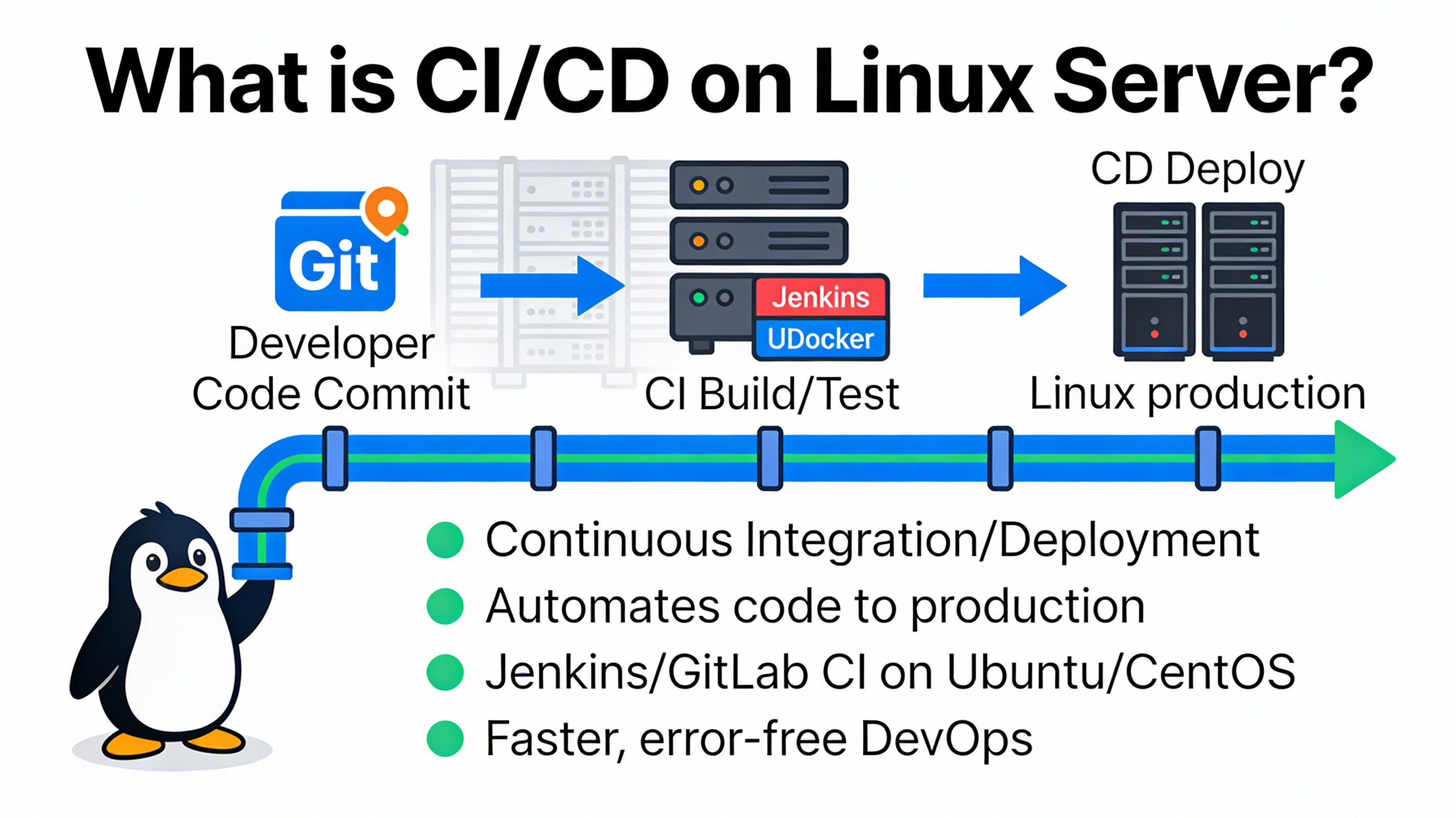
CI/CD is a DevOps pipeline that automates software delivery from commit to production. On a Linux server, it means your builds, tests, and deployments run on a Linux host (VM, VPS, or bare metal) using tools like GitLab CI, GitHub Actions, or Jenkins. The result is faster releases, consistent environments, and fewer human errors.
How CI/CD Works: From Commit to Deploy
Continuous Integration (CI)
CI triggers on each commit or pull/merge request. The pipeline installs dependencies, lints code, runs unit/integration tests, and builds artifacts or Docker images. The goal is to catch defects early and keep the main branch always deployable.
Continuous Delivery or Deployment (CD)
CD promotes tested builds to staging or production with controlled approvals. “Delivery” usually stops at a manual approval step. “Deployment” fully automates release to production. On Linux, CD often uses SSH, Docker, systemd, and Nginx for stable, repeatable rollouts.
Typical CI/CD Pipeline Stages
- Source: Code pushed to Git (GitHub, GitLab, Bitbucket).
- Build: Compile or package; build Docker images; create artifacts.
- Test: Run unit, integration, and security scans (SAST/DAST).
- Release: Tag and push images to a registry; sign artifacts.
- Deploy: Update services on the Linux server; run migrations.
- Verify: Smoke tests, health checks, and monitoring alerts.
Choosing Your CI/CD Stack on Linux
GitHub Actions vs. GitLab CI vs. Jenkins
- GitHub Actions: Native to GitHub, easy marketplace actions, great for open-source and small teams. Self-hosted Linux runners are supported.
- GitLab CI: Integrated issues, MR approvals, container registry, and environments. GitLab Runner on Linux is simple and scalable.
- Jenkins: Highly customizable, vast plugin ecosystem, ideal for complex enterprise pipelines. Needs more care to harden and maintain.
Other options include CircleCI, Drone CI, and Argo CD (for GitOps/Kubernetes). If you host your own runners on a Linux server, ensure they’re isolated with Docker, firewalled, and kept up to date.
Prerequisites: Prepare Your Linux Server
Baseline Setup
- OS: Ubuntu 22.04+ or Debian 12+ (stable, widely supported).
- Users: Create a non-root deploy user with sudo for controlled tasks.
- Networking: Configure a static IP, A/AAAA DNS records, and open only required ports (80/443/22).
- TLS: Use Let’s Encrypt certificates (Certbot) for HTTPS.
- Storage: Separate volumes for logs, Docker, and backups where possible.
# Create deploy user and harden SSH
sudo adduser deploy
sudo usermod -aG sudo deploy
sudo mkdir -p /home/deploy/.ssh && sudo chmod 700 /home/deploy/.ssh
# Add your public key to /home/deploy/.ssh/authorized_keys
sudo apt update && sudo apt install -y ufw fail2ban

# Basic firewall
sudo ufw allow OpenSSH
sudo ufw allow http
sudo ufw allow https
sudo ufw enable
Install Docker, Nginx, and Utilities
sudo apt install -y docker.io docker-compose-plugin nginx certbot python3-certbot-nginx jq
sudo usermod -aG docker deploy
sudo systemctl enable --now docker nginx
sudo certbot --nginx -d example.com -d www.example.com
Docker standardizes environments, Nginx serves as a reverse proxy, and systemd manages service lifecycles. This trio is a proven base for reliable deployments on Linux.
Step-by-Step: A Simple CI/CD Pipeline on Linux (GitLab CI + Docker)
This example builds a Docker image, pushes it to a registry, and deploys to a Linux server via SSH. Adapt the same pattern for GitHub Actions or Jenkins.
Sample Dockerfile
# Dockerfile
FROM node:20-alpine AS build
WORKDIR /app
COPY package*.json ./
RUN npm ci
COPY . .
RUN npm run build

FROM nginx:stable-alpine
COPY --from=build /app/dist /usr/share/nginx/html
EXPOSE 80
HEALTHCHECK CMD wget -qO- http://localhost/ > /dev/null || exit 1
.gitlab-ci.yml
stages:
  - test
  - build
  - deploy

variables:
  IMAGE_NAME: registry.gitlab.com/namespace/project
  DOCKER_DRIVER: overlay2

test:
  image: node:20-alpine
  stage: test
  script:
    - npm ci
    - npm test -- --ci

build:
  image: docker:24.0.6
  stage: build
  services:
    - docker:24.0.6-dind
  script:
    - docker build -t "$IMAGE_NAME:$CI_COMMIT_SHA" .
    - docker push "$IMAGE_NAME:$CI_COMMIT_SHA"
    - docker tag "$IMAGE_NAME:$CI_COMMIT_SHA" "$IMAGE_NAME:latest"
    - docker push "$IMAGE_NAME:latest"
  only:
    - main

deploy_production:
  image: alpine:3.19
  stage: deploy
  before_script:
    - apk add --no-cache openssh-client
  script:
    - |
      ssh -o StrictHostKeyChecking=no deploy@your-server-ip '
        set -e
        docker pull '$IMAGE_NAME':latest
        docker compose -f /opt/app/docker-compose.yml up -d --no-deps --build app
        docker image prune -f
      '
  only:
    - tags
    - main
docker-compose.yml on the Server
version: "3.9"
services:
  app:
    image: registry.gitlab.com/namespace/project:latest
    restart: always
    networks: [web]
    healthcheck:
      test: ["CMD-SHELL", "wget -qO- http://localhost || exit 1"]
    labels:
      - traefik.enable=false
networks:
  web: {}
Nginx Reverse Proxy (example)
server {
    listen 80;
    listen 443 ssl http2;
    server_name example.com;

    ssl_certificate /etc/letsencrypt/live/example.com/fullchain.pem;
    ssl_certificate_key /etc/letsencrypt/live/example.com/privkey.pem;

    location / {
        proxy_pass http://127.0.0.1:8080;
        proxy_set_header Host $host;
        proxy_set_header X-Forwarded-Proto $scheme;
        proxy_set_header X-Real-IP $remote_addr;
        proxy_read_timeout 60s;
    }

    access_log /var/log/nginx/app_access.log;
    error_log /var/log/nginx/app_error.log;
}
Bind your container to 127.0.0.1:8080 (or a Docker network) and let Nginx handle SSL and HTTP/2 at the edge. This separation simplifies certificate renewals and improves performance.
Zero-Downtime Deployments and Rollbacks
Blue-Green or Rolling Updates
- Blue-Green: Run two identical stacks (blue and green). Switch traffic with Nginx when green is healthy; keep blue as a rollback.
- Rolling: Replace containers gradually with health checks. Works well with Docker Compose replicas or orchestration (Swarm/K8s).
- Canary: Route a small percentage of traffic to the new version, then ramp up if metrics look good.
Safe Database Migrations
- Use backward-compatible migrations (expand-contract pattern).
- Run migrations as a separate CI/CD job before switching traffic.
- Back up the database and practice restoring. Automate snapshot creation.
Security Best Practices for CI/CD on Linux
- Secrets Management: Store tokens, SSH keys, and registry credentials in CI/CD secrets/variables. Never commit secrets to Git.
- Least Privilege: Restrict the deploy user and use sudoers with exact commands if needed. Limit network egress from runners.
- Isolate Runners: Use dedicated Linux VMs or containers for self-hosted runners. Don’t run untrusted PRs on production hosts.
- Patch Regularly: Automate security updates for OS packages and containers. Rebuild base images frequently.
- Image Security: Scan images (Trivy, Grype), sign them (Cosign), and pin digests for deterministic deploys.
- SSH Hygiene: Use Ed25519 keys, disable password auth, and consider ProxyJump or VPN for bastion access.
Monitoring, Logging, and Cost Control
- Monitoring: Use Prometheus + Grafana or lightweight node_exporter for CPU, RAM, disk, and application metrics.
- Logging: Centralize with the ELK/Elastic stack or Loki + Promtail. Keep logs on separate storage and rotate aggressively.
- Health Checks: Wire health endpoints into Nginx and CI smoke tests. Alert on non-200s and latency spikes.
- Cost Optimization: Right-size your Linux VPS, enable auto-pruning of old images, and archive artifacts after a set period.
Common Mistakes to Avoid
- Building on the production server instead of shipping prebuilt artifacts or images.
- Mixing app code and server config in ad hoc scripts (use Infrastructure as Code or at least versioned configs).
- Skipping tests and health checks, which leads to broken main branches and failed rollouts.
- Hardcoding secrets in scripts; use CI variables or a vault.
- Ignoring rollback plans; always keep the previous image and Nginx config handy.
Real World Setup Patterns
- Small Teams: GitHub Actions or GitLab CI with a single Linux VPS runner, Dockerized app, Nginx proxy, nightly backups.
- Growing Startups: Self-hosted GitLab Runner pool on Linux, registry + artifact storage, staging and production environments, blue-green.
- Enterprises: Jenkins with Linux agents, policy-as-code, signed artifacts, multiple environments, canary releases, SSO, and audit logs.
When to Choose Managed Hosting or Help
If you’d rather focus on your app, consider a reliable Linux VPS or managed cloud from a provider that understands CI/CD workflows. At YouStable, we provision fast Linux VPS instances, IPv4/IPv6, free SSL, and 24×7 support—ideal for hosting Dockerized apps behind Nginx and integrating GitHub/GitLab pipelines without friction.
FAQ’s
What’s the difference between CI and CD on a Linux server?
CI focuses on building and testing each commit on a Linux runner to keep code always releasable. CD automates delivering that tested code to staging or production on the Linux host using scripts, Docker, Nginx, and systemd, often with approvals and health checks.
Which tools are best for CI/CD on Linux?
For most teams: GitHub Actions or GitLab CI with self-hosted Linux runners is a great start. For complex, plugin-heavy pipelines, Jenkins on Linux agents is powerful. Container registries, Docker, and Nginx are common across all approaches.
How do I deploy with zero downtime on Linux?
Use blue-green or rolling deployments with health checks. Keep two versions running, switch Nginx traffic to the new version once healthy, and keep the old version for instant rollback. For databases, apply backward-compatible migrations first.
Is Docker required for CI/CD on a Linux server?
No, but Docker simplifies reproducible builds and deployments. Without Docker, you can deploy systemd services or virtualenvs, but you’ll need stricter dependency management and more careful server configuration to achieve the same consistency.
How do I secure CI/CD pipelines and secrets?
Store secrets in CI variables or a vault, restrict runner permissions, disable SSH password login, patch OS and images regularly, and scan dependencies and containers. Sign images, pin digests, and audit who can trigger production deploys.




