YUM (Yellowdog Updater, Modified) is the default package manager on Red Hat–based Linux servers. Use YUM to install, update, remove software, and manage repositories with commands such as yum install, yum update, yum search, yum repolist, and yum history. It resolves dependencies, verifies GPG signatures, and streamlines server patching.
If you’re learning how to use YUM on a Linux server, this guide gives you a practical, step-by-step workflow. As a hosting professional, I’ll show you the essential YUM commands, repository management, updates, rollback strategies, and troubleshooting tips so you can maintain CentOS, RHEL, AlmaLinux, Rocky Linux, and Amazon Linux systems with confidence.
What is YUM and Where You’ll Use it?
YUM is a high-level package manager for RPM-based distributions, including CentOS 7, RHEL 7, Amazon Linux 1/2, and their derivatives. On newer releases (RHEL 8+, AlmaLinux 8+, Rocky 8+), yum is a compatibility command that calls dnf under the hood. Nearly all commands in this guide work the same for both YUM and DNF.
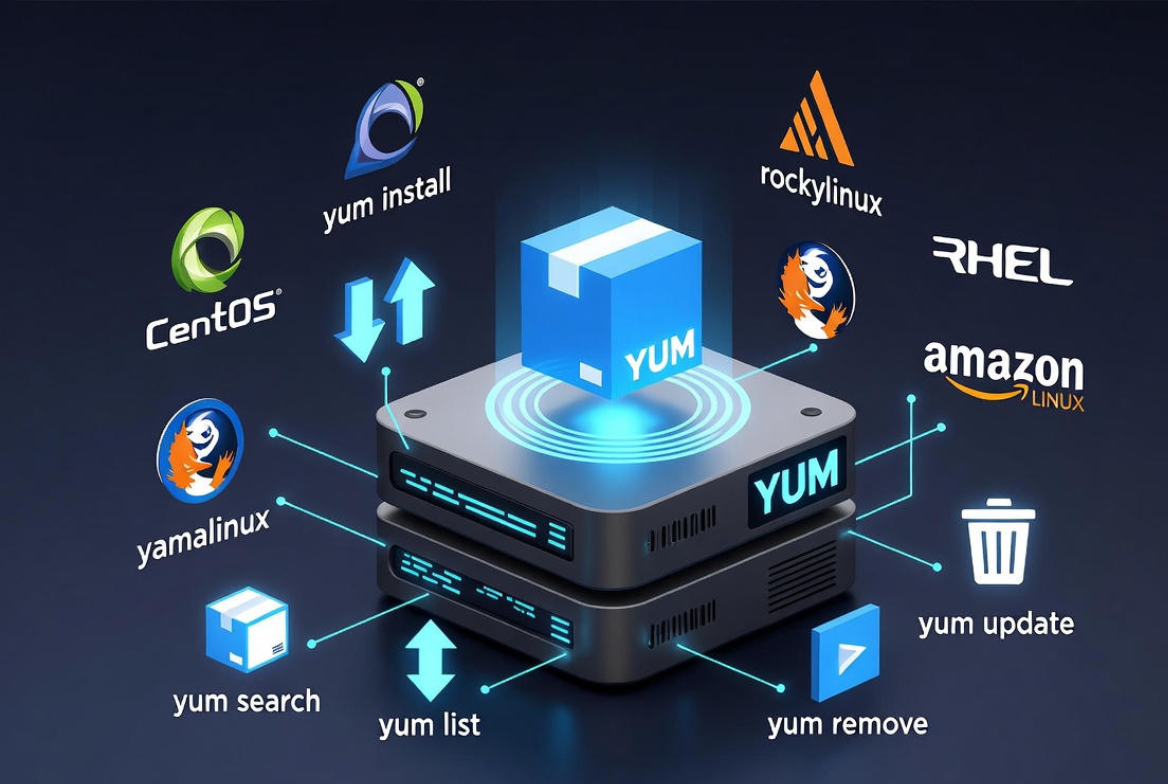
With YUM you can:
- Install and remove packages with automatic dependency resolution.
- Search, list, and get info about software and repositories.
- Apply security and kernel updates consistently.
- Audit and roll back changes via YUM history.
- Enable third-party repositories such as EPEL.
Prerequisites and Safe Practices
- Use a privileged account: prepend commands with
sudoor run as root. - Ensure working repositories in
/etc/yum.repos.d/and correct server time (NTP). - Back up configs or snapshot your VPS before major updates.
- Prefer maintenance windows for kernel or service upgrades.
- On production, test updates on staging first (YouStable managed customers can request this).
Essential YUM Commands (With Examples)
Update the Package Index and System
sudo yum check-update
sudo yum update -y
# Reboot if the kernel or core libraries were updated
sudo reboot
check-update lists available updates. update applies them. Use -y to auto-confirm prompts during automation or maintenance windows.
Search and Inspect Packages
# Search by name/description
sudo yum search nginx

# Show detailed package info
sudo yum info nginx

# Find which package provides a file/binary
sudo yum provides /usr/sbin/nginx
Use provides to discover the right package when you only know a file path or command.
Install, Reinstall, and Remove Packages
# Install
sudo yum install nginx

# Reinstall an existing package (fix corrupted files)
sudo yum reinstall nginx

# Remove a package
sudo yum remove nginx
When removing, YUM shows dependencies that will also be removed—check carefully on production servers to avoid accidental service impact.
List Installed, Available, and Upgradable Packages
# List installed
sudo yum list installed

# List available in all enabled repos
sudo yum list available

# List only packages with updates
sudo yum list updates
Work With Package Groups
# See all groups (Server with GUI, Development Tools, etc.)
sudo yum group list

# Install a group
sudo yum groupinstall "Development Tools"

# Remove a group
sudo yum groupremove "Development Tools"
Groups bundle curated packages for common roles, speeding up server provisioning.
Managing YUM Repositories
List, Enable, and Disable Repos
# List enabled repos
sudo yum repolist

# List all repos (enabled + disabled)
sudo yum repolist all

# Temporarily enable/disable repos for a single command
sudo yum --enablerepo=epel install htop
sudo yum --disablerepo=base,updates list available
Temporary flags are safer than permanently changing repo files. Use them to pull a package from a specific repo without altering global settings.
Add the EPEL Repository (Common Use Case)
# For EL7 (CentOS 7/RHEL 7)
sudo yum install epel-release

# For EL8/EL9 (AlmaLinux/Rocky/RHEL), install the matching release RPM:
# Example for EL8:
sudo yum install https://dl.fedoraproject.org/pub/epel/epel-release-latest-8.noarch.rpm
EPEL provides popular extras (htop, fail2ban, certbot). Ensure GPG keys are imported automatically or use rpm --import if needed.
Understanding Repo Files
Repositories are defined in /etc/yum.repos.d/*.repo. Each file contains blocks like [base], [updates] with the base URL, GPG settings, and enablement flags. For mirroring constraints or private networks, point these to internal mirrors and set enabled=1 or 0 accordingly.
Caching, Cleaning, and Speed Tuning
# Clean metadata and cache (fixes many transient repo errors)
sudo yum clean all
sudo yum makecache fast

# Speed up by using fastestmirror plugin (if available)
grep -q 'fastestmirror=1' /etc/yum.conf || echo 'fastestmirror=1' | sudo tee -a /etc/yum.conf
Cleaning cache resolves metadata mismatches. On older networks or with flaky mirrors, enabling the fastest mirror often reduces install and update times.
Audit, Rollback, and Change Control With YUM History
# See transactions
sudo yum history

# Inspect a specific transaction
sudo yum history info <ID>

# Undo or redo a transaction
sudo yum history undo <ID>
sudo yum history redo <ID>
YUM history is invaluable for recovering from a bad update. Note that kernel removals or complex dependency chains may not fully revert; test before using on mission-critical nodes.
Advanced YUM Tips (Production-Friendly)
Exclude or Pin Package Versions
# Temporarily exclude a package from updates
sudo yum --exclude=kernel* update

# Persist in /etc/yum.conf
# Add a line:
# exclude=kernel* mariadb*
Exclusions help avoid accidental major upgrades (e.g., database or kernel) until maintenance windows.
Download RPMs Without Installing
# For EL7 with "yum-plugin-downloadonly"
sudo yum install yum-plugin-downloadonly
sudo yum install --downloadonly --downloaddir=/tmp rpmbuild

# On newer systems, use dnf's download plugin:
sudo dnf download --resolve nginx
Downloading RPMs allows offline installs or inclusion in a custom, internal repository.
Module Streams (EL8/EL9)
# Although invoked as 'yum', on EL8+ these are DNF module commands:
sudo yum module list php
sudo yum module enable php:8.1
sudo yum install php
Module streams let you select supported major versions (e.g., PHP 7.4 vs 8.1) without custom repos.
Troubleshooting Common YUM Errors
“Cannot find a valid baseurl” or metadata errors
- Check DNS and networking:
ping 8.8.8.8,dig google.com. - Verify system time (NTP); TLS repos fail with skewed clocks.
- Clean cache:
sudo yum clean all && sudo yum makecache. - Ensure repo URLs are reachable and not blocked by a firewall or proxy.
GPG key problems
- Confirm
gpgcheck=1andgpgkey=lines in the repo file. - Import keys manually if needed:
sudo rpm --import <URL-or-keyfile>. - Never disable GPG checks permanently on production servers.
Conflicts or broken dependencies
- Review the resolver output; consider excluding specific packages.
- Try a clean install:
sudo yum remove <pkg> && sudo yum install <pkg>. - Use YUM history to undo the last transaction if services broke.
Real-World Server Workflows
- Provisioning a web stack: enable EPEL,
yum installNginx/Apache, PHP modules, andgroupinstall "Development Tools"for build needs. - Security patching: run
yum update --securitywhere supported, or maintain allowlists for critical services, then reboot during a window. - Change control: document YUM transactions and keep a rollback plan via
yum history. - Automation: configure unattended updates on staging; promote to production after tests.
If you host on a YouStable managed VPS or Dedicated Server, our support engineers can configure repositories, test module streams, and schedule patching windows to keep uptime and performance optimal—without surprises.
Quick Reference: Commands You’ll Use Often
yum update– Update all packages.yum install <pkg>– Install a package.yum remove <pkg>– Remove a package.yum search <term>– Search packages.yum info <pkg>– Show details.yum repolist– List enabled repos.yum clean all – Clear caches and metadata.yum history– Audit and rollback transactions.
FAQs
Is YUM the same as DNF on newer RHEL, AlmaLinux, or Rocky Linux?
Yes. On EL8/EL9, yum is a compatibility wrapper for DNF. Most commands and flags work identically. For modules and some advanced features, DNF provides additional subcommands, but calling yum will still function as expected.
How do I enable only security updates with YUM?
On supported repos, you can use sudo yum update --security. If not supported, restrict updates with package includes/excludes or maintain a curated list of CVE-related packages to update during maintenance windows.
What’s the safest way to roll back a bad update?
Check yum history to find the transaction ID, then yum history undo <ID>. Always validate the rollback in a test environment first. For critical systems, snapshots or image backups provide a faster, more reliable recovery path.
How do I add a custom or internal repository?
Create a file in /etc/yum.repos.d/ (e.g., internal.repo) with a [repoid] block including name, baseurl/mirrorlist, enabled=1, and GPG settings. Then run yum clean all and yum makecache. Use HTTPS and signed metadata for security.
Can I limit YUM to a specific repository for one install?
Yes. Use --disablerepo="*" and --enablerepo=<repoid> to force a single-repo operation, for example: sudo yum --disablerepo="*" --enablerepo="epel" install htop.