ConfigServer eXploit Scanner (cxs) is a commercial Linux malware scanner for cPanel/WHM servers that detects, quarantines, and alerts on web shells, injected code, and suspicious uploads in real time. This CSX (cxs) installation guide walks you through prerequisites, licensing, step by step setup, WHM configuration, real time malware scanning, scheduled scans, and best practices.
If you’re looking for a clear, beginner friendly CSX (ConfigServer eXploit Scanner) installation guide, you’re in the right place. Below, I explain what cxs is, why it’s popular on Linux web servers, how to install it safely on cPanel/WHM, and how to enable real time and scheduled scanning for the best malware protection.
What is ConfigServer eXploit Scanner (cxs)?
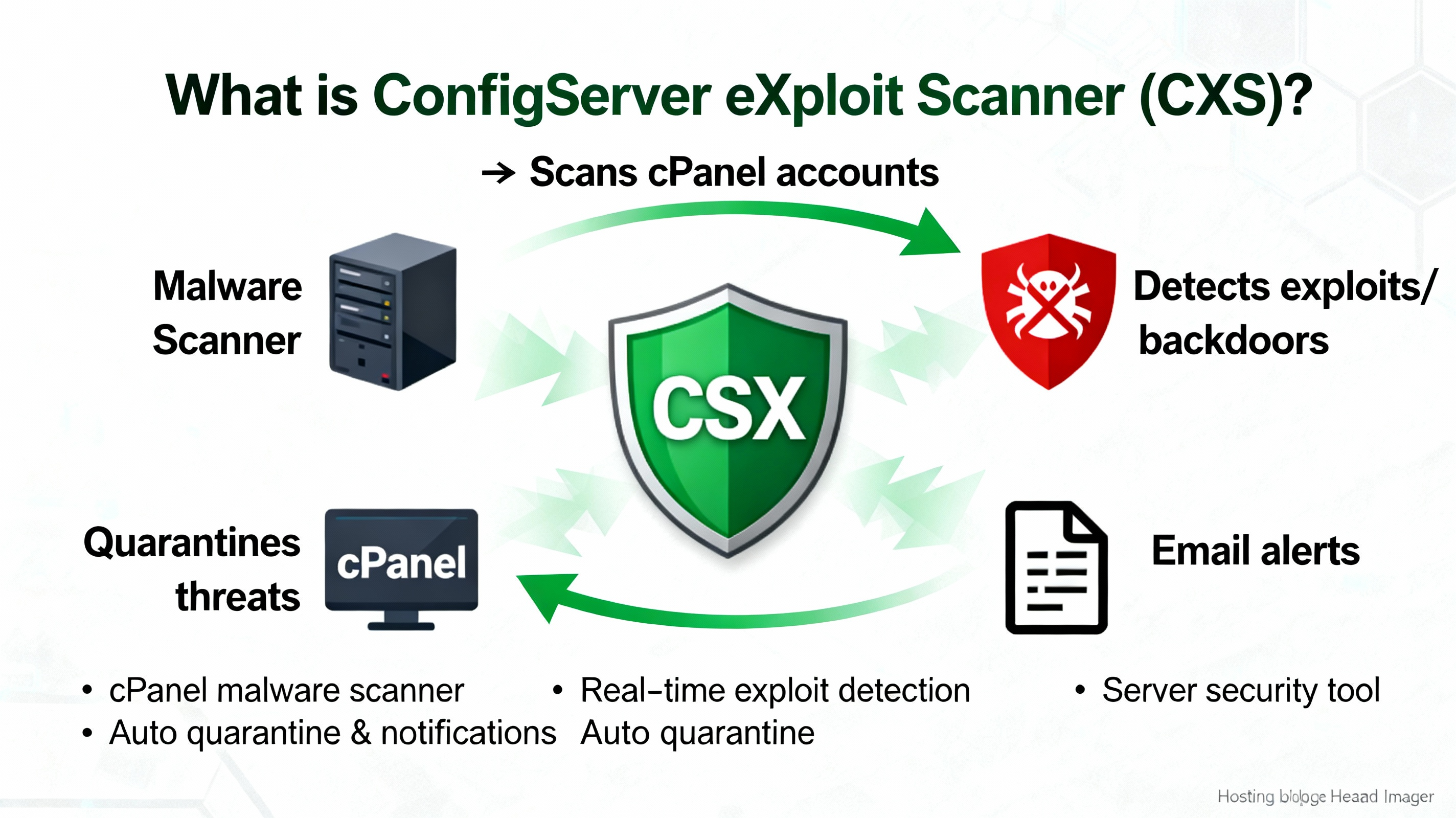
cxs (often miswritten as “CSX”) is a paid Linux malware scanner from ConfigServer designed primarily for cPanel/WHM servers. It inspects files uploaded via PHP, FTP, mail, and web interfaces, using signature and heuristic checks to catch web shells, backdoors, and code injections. cxs integrates with CSF/LFD, ClamAV, Pure FTPd, and ModSecurity for real time detection and automated quarantine.
- Real time upload scanning (inotify based) for instant blocking
- Signature and heuristic detection of web shells and malware patterns
- Quarantine, report, and alerting options
- WHM plugin for point and click management
- Integration with CSF/LFD firewall and email alerts
- Works alongside ClamAV, ModSecurity, and Pure‑FTPd
Who should use cxs? (Search Intent: Is cxs right for me?)
- cPanel/WHM server owners who host multiple WordPress, PHP, or custom applications
- Agencies and shared hosting providers needing proactive upload scanning
- Sysadmins who prefer granular control vs. “black box” security suites
For single site setups or non cPanel servers, you can still use cxs via CLI, but its WHM plugin makes it most compelling on cPanel/WHM.
Requirements and Prerequisites
- Root SSH access to the server
- Supported OS: CloudLinux, AlmaLinux, Rocky Linux, or RHEL/CentOS (modern versions)
- cPanel/WHM recommended for the GUI plugin
- Perl, wget, tar/unzip (usually present)
- ClamAV (recommended for additional signatures)
- CSF/LFD firewall (optional but strongly recommended)
- Valid cxs license (one license per server)
Note: While cxs can run without cPanel, this installation guide focuses on the cPanel/WHM path since that’s the most common and user friendly approach.
Buy and License cxs
cxs is a paid product sold directly by ConfigServer. Purchase one license per server and make sure your server’s public IP is licensed. Keep your license credentials handy; you’ll need them during installation.
Install cxs on a cPanel/WHM Server: Step by Step
The steps below assume AlmaLinux/CloudLinux/RHEL family with dnf. Substitute yum if you’re on older CentOS.
1) Update the server and install prerequisites
sudo dnf -y update
sudo dnf -y install perl wget tar unzip
# Optional but recommended: ClamAV (enable EPEL if needed)
sudo dnf -y install epel-release
sudo dnf -y install clamav clamav-update
sudo freshclam
If you don’t have CSF/LFD installed, consider adding it before cxs. CSF improves alerting and integration with cxs.
2) Download and run the cxs installer
Use the official installer from ConfigServer. The URL below is commonly used; always verify the current download link with the vendor.
cd /usr/src
rm -f cxsinstaller.tgz
wget https://download.configserver.com/cxsinstaller.tgz
tar -xzf cxsinstaller.tgz
cd cxsinstaller
sh install.sh
Follow on screen prompts. The installer will verify the license and set up the WHM plugin. If ClamAV is installed, cxs will use it for extra detection coverage.
3) Access the WHM plugin
Log in to WHM > Plugins > ConfigServer eXploit Scanner. From here you can configure scanning behavior, quarantine options, and integrations. This is the easiest place to manage cxs if you prefer not to use the CLI.
Core Configuration in WHM (Recommended Settings)
Enable quarantine and alerting
- Turn on quarantine for high confidence detections
- Send alerts to an admin email
- Integrate with LFD (from CSF) to get actionable notifications
Start with quarantine enabled for dangerous file types (PHP shells, obfuscated scripts) and report only for low confidence patterns until you’ve tuned false positives.
Real time upload scanning (cxs Watch)
Enable cxs Watch to monitor user directories via inotify. This blocks malicious uploads as they appear. You can start and stop cxs Watch from the WHM plugin. If it fails to start on busy servers, increase inotify limits (see troubleshooting below).
Optional: ModSecurity and FTP integration
- ModSecurity upload scanning: Inspect files uploaded via web forms before they reach the account
- Pure FTPd integration: Scan files as they arrive over FTP/SFTP
These integrations improve catch rates but add overhead. Test performance during off peak hours and whitelist known safe file types or paths to reduce noise.
Scheduling Routine Scans (Cron)
Even with real time scanning enabled, schedule daily or hourly scans to catch dormant malware and deep nested shells.
# Example: nightly scan of all cPanel users with a report
# Run as root: crontab -e
0 3 * * * /usr/sbin/cxs --cron --allusers --quarantine --report /root/cxs-nightly.txt --quiet
Adjust frequency, quarantine behavior, and reporting to fit your environment. Start conservatively and review reports frequently until you trust your tuning.
Command Line Basics (for power users)
While WHM is simpler, cxs shines at the CLI for targeted scans and automation.
# Help and options
cxs --help

# Scan a specific account or directory
cxs --scan /home/username/public_html --quarantine --report /root/cxs-username.txt

# Real-time watch (example: monitor user homes)
cxs --watch /home

# Stop the watch (use WHM plugin preferred)
# Alternatively, identify the watch process and stop it during maintenance windows
Tip: Start with report only scans to benchmark false positives, then enable quarantine on high confidence signatures or paths that frequently attract web shells (e.g., writable upload directories).
Whitelisting and Exclusions
Prevent unnecessary alerts by excluding trusted paths and patterns. Use the cxs ignore files to whitelist known safe files, directories, users, or extensions.
# Common ignore files (examples)
# Global paths and patterns to ignore
/etc/cxs/cxs.ignore

# Users to ignore (be cautious with this)
/etc/cxs/cxs.ignore_user

# Example entries (paths or regex-style patterns)
# /home/username/public_html/cache/
# /home/username/tmp/
# *.log
# *.bak
Keep exclusions tight. Whitelisting broad directories undermines security. Revisit ignores as your stack evolves.
Troubleshooting and Performance Tips
- Real time watch not starting: Increase inotify limits
echo "fs.inotify.max_user_watches=524288" >> /etc/sysctl.conf
echo "fs.inotify.max_user_instances=1024" >> /etc/sysctl.conf
sysctl -p- High false positives: Switch to report only mode, add narrow ignores, and enable quarantine only for high confidence signatures
- Resource usage spikes: Limit scan depth, exclude large backup directories, and schedule heavy scans off peak
- Updates and signatures: Keep cxs and ClamAV updated; outdated signatures reduce detection accuracy
- PHP malware keeps returning: Patch the site, update plugins/themes, enable ModSecurity CRS, harden PHP (disable dangerous functions), and use least privilege file permissions
Security Hardening: Best Practices with cxs
- Combine with CSF/LFD firewall for granular alerts and rate limiting
- Enable and tune ModSecurity (OWASP CRS) to block exploit attempts
- Harden PHP: disable exec, shell_exec, system where possible; use CloudLinux CageFS
- Keep WordPress, plugins, themes, and PHP versions updated
- Enforce strong permissions (no world writable web roots)
- Use separate system users per site to contain breaches
cxs is a detection and response layer. Pair it with strong patching, isolation (e.g., CageFS), and a secure web application firewall for maximum protection.
cxs vs. Alternatives (Imunify, Maldet, ClamAV)
- cxs: Granular, admin friendly, real time upload scanning with deep integration into cPanel/WHM and CSF/LFD
- Imunify360/AV+: All in one suite with WAF, kernel level tools, reputation feeds; easier but more “black box”
- Maldet (LMD) + ClamAV: Free/low‑cost combo; good coverage but less polished real time upload controls
Many hosts run cxs alongside ModSecurity and CSF/LFD for a flexible, transparent security stack. Choose the stack that fits your budget, team skill set, and performance envelope.
Real World Example: WordPress Uploads
On shared servers hosting WordPress, attackers often drop shells via vulnerable plugins. With cxs Watch enabled on /home, uploads to wp‑content/uploads are scanned instantly. Malicious PHP files are quarantined, an alert is sent via LFD, and you can review the incident from WHM before restoring or deleting.
FAQs
Is cxs free?
No. cxs is a commercial product with per server licensing. Many admins find the time saved and real time protection well worth the cost versus free tools alone.
Does cxs require cPanel/WHM?
It doesn’t strictly require it, but cxs is most convenient with the WHM plugin. On non cPanel servers, you’ll manage it from the command line.
How do I run a full server scan?
From WHM, use the cxs interface to scan all users. From CLI, run a recursive scan of /home with report and quarantine enabled. Schedule nightly scans via cron for continuous coverage.
Can cxs scan uploads in real time?
Yes. Enable “cxs Watch” to monitor user directories via inotify and optionally hook into ModSecurity and Pure FTPd for pre delivery inspection. This is one of cxs’s strongest features.
How do I reduce false positives?
Start with report only mode, review detections, and whitelist specific safe paths or patterns in /etc/cxs/cxs.ignore. Avoid broad exclusions. Keep signatures and ClamAV updated.
Will cxs slow down my server?
Real time scanning and deep recursive scans consume resources. Tune your watch paths, exclude large backups, and schedule heavy scans off peak. On modern servers with SSD/NVMe storage, impact is typically manageable.
Does cxs replace a WAF or patching?
No. cxs helps detect and contain malware, but you still need a WAF (e.g., ModSecurity CRS) and frequent patching of WordPress, plugins, themes, and server packages to prevent reinfection.