

To set up MariaDB on a Linux server, install the MariaDB server package, enable and start the service, run mysql_secure_installation to harden defaults, create a database and user with least-privilege, configure remote access and firewall rules if needed, and apply basic performance tuning for your workload.
In this guide, you’ll learn how to setup MariaDB on Linux Server step by step. We’ll cover installation on Ubuntu/Debian and RHEL-based distros, secure configuration, user and database creation, remote access, performance tuning, backups, and troubleshooting—everything you need to deploy a production-ready MariaDB instance confidently.
What is MariaDB and Why Use it on Linux?
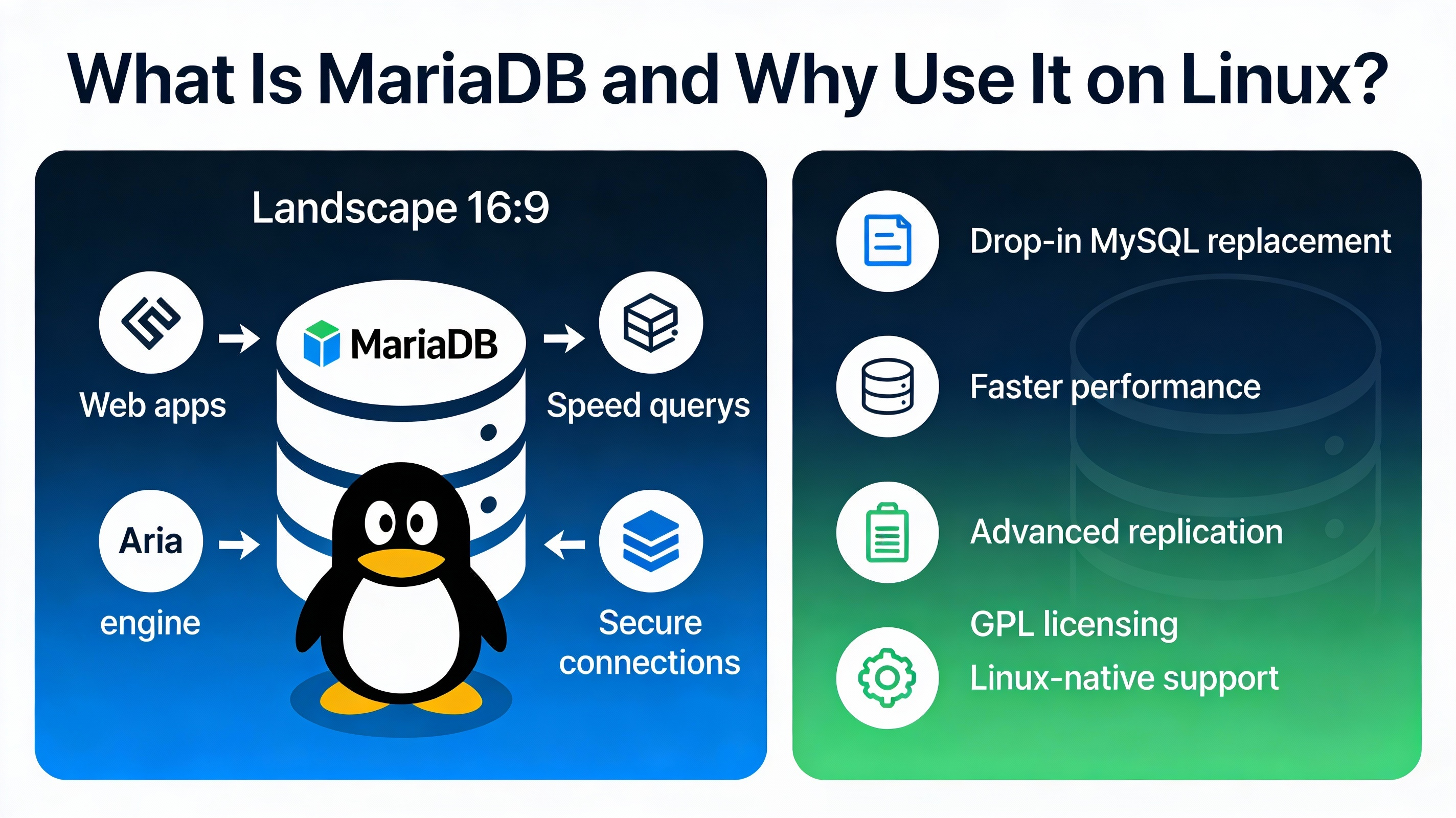
MariaDB is a high-performance, open-source relational database forked from MySQL, widely used for web apps, WordPress, and enterprise systems. It’s drop-in compatible with most MySQL tooling while offering better licensing, new storage engines, and active community development—making it a robust choice for Linux servers.
Prerequisites and System Requirements
- Linux server with sudo or root access (Ubuntu/Debian, RHEL/CentOS/AlmaLinux/Rocky, openSUSE).
- Updated package index and stable network connectivity.
- Open local port 3306 (or a custom port) if remote connections are required.
- Recommended: 1–2 GB RAM minimum for small workloads; more for production.
- Accurate system time via NTP for consistent replication and logs.
Quick Start: Install MariaDB on Popular Linux Distros
Ubuntu / Debian
Use the distribution packages for stable deployments. For newer features, you can use MariaDB’s official repository, but distro packages are easier to maintain.
# Update package index
sudo apt update

# Install MariaDB Server and client
sudo apt install -y mariadb-server mariadb-client

# Enable and start service
sudo systemctl enable mariadb
sudo systemctl start mariadb

# Verify status and version
systemctl status mariadb --no-pager
mariadb --version
RHEL / CentOS / AlmaLinux / Rocky Linux
On modern RHEL derivatives, use dnf. If AppStream provides an older version, consider the official MariaDB repository for a specific major version.
# Install from AppStream (example: RHEL 9/AlmaLinux 9)
sudo dnf install -y mariadb-server

# Enable and start service
sudo systemctl enable mariadb
sudo systemctl start mariadb

# Verify status and version
systemctl status mariadb --no-pager
mysql --version
openSUSE / SLES
# Install on openSUSE
sudo zypper refresh
sudo zypper install -y mariadb

# Enable and start service
sudo systemctl enable mariadb
sudo systemctl start mariadb
Secure the Installation (Mandatory)
Harden defaults immediately to reduce exposure, especially on internet-facing servers.
sudo mysql_secure_installationRecommended answers during the script:
- Set a strong root password (or switch to socket authentication if preferred).
- Remove anonymous users.
- Disallow remote root login.
- Remove test database.
- Reload privilege tables.
MariaDB Service Management
# Check status
sudo systemctl status mariadb

# Start/Stop/Restart
sudo systemctl start mariadb
sudo systemctl stop mariadb
sudo systemctl restart mariadb

# Enable at boot
sudo systemctl enable mariadb

# View logs (systemd journal)
sudo journalctl -u mariadb -e --no-pager
Create a Database, User, and Permissions
Use least-privilege accounts for apps. Avoid using root in application connection strings.
# Log in as root (socket auth on many distros)
sudo mariadb

# Or:
# mysql -u root -p

-- Inside the MariaDB shell:
CREATE DATABASE appdb CHARACTER SET utf8mb4 COLLATE utf8mb4_unicode_ci;
CREATE USER 'appuser'@'localhost' IDENTIFIED BY 'StrongP@ssw0rd!';
GRANT ALL PRIVILEGES ON appdb.* TO 'appuser'@'localhost';
FLUSH PRIVILEGES;
EXIT;
Test the connection:
mariadb -u appuser -p -D appdb -e "SELECT 1;"Enable Remote Access (Optional)
By default, MariaDB listens on localhost. To allow remote connections, bind to a network interface, open the firewall, and grant remote user access. Only do this on trusted networks or over TLS.
1) Configure bind-address
# Edit the server config (path may vary):
sudo nano /etc/mysql/mariadb.conf.d/50-server.cnf   # Ubuntu/Debian
# or
sudo nano /etc/my.cnf.d/server.cnf                  # RHEL derivatives

# Set:
bind-address = 0.0.0.0          # or a specific server IP
port = 3306

# Save, then:
sudo systemctl restart mariadb
2) Open the firewall
# UFW (Ubuntu)
sudo ufw allow 3306/tcp
sudo ufw status

# firewalld (RHEL family)
sudo firewall-cmd --permanent --add-service=mysql
sudo firewall-cmd --reload
3) Grant a remote user
sudo mariadb

-- Replace 203.0.113.10 with your app server's IP or use '%'
CREATE USER 'appuser'@'203.0.113.10' IDENTIFIED BY 'StrongP@ssw0rd!';
GRANT ALL PRIVILEGES ON appdb.* TO 'appuser'@'203.0.113.10';
FLUSH PRIVILEGES;
EXIT;
For production, consider enabling SSL/TLS for client connections and restricting by IP ranges instead of using the wildcard host %.
Basic Performance Tuning
MariaDB’s defaults are conservative. Align memory and connection settings with your workload. Always backup before changes and apply incrementally.
- innodb_buffer_pool_size: 50–70% of RAM on dedicated DB servers.
- max_connections: Set based on application concurrency and RAM.
- query_cache: Deprecated in MariaDB 10.1+; avoid for most workloads.
- tmp_table_size and max_heap_table_size: Increase for complex queries.
- slow_query_log: Enable to identify expensive queries.
# Example: /etc/mysql/mariadb.conf.d/50-server.cnf (Debian/Ubuntu)
# or /etc/my.cnf.d/server.cnf (RHEL)
[mysqld]
innodb_buffer_pool_size = 2G
max_connections = 200
slow_query_log = 1
slow_query_log_file = /var/log/mysql/mariadb-slow.log
long_query_time = 1

# Apply changes
sudo systemctl restart mariadb
Backups and Restores
Backups are non-negotiable. Use mysqldump for logical backups (portable, slower) or mariabackup for physical backups (faster, consistent, ideal for large datasets).
mysqldump (logical)
# Backup a single database
mysqldump -u root -p --routines --triggers --single-transaction appdb > appdb.sql

# Restore
mysql -u root -p appdb < appdb.sql
mariabackup (physical)
# Install if not present
# Ubuntu/Debian package often: mariadb-backup; RHEL: MariaDB-backup
sudo apt install -y mariadb-backup || sudo dnf install -y MariaDB-backup

# Full backup
mariabackup --backup --target-dir=/backups/full-$(date +%F) --user=root --password

# Prepare and restore
mariabackup --prepare --target-dir=/backups/full-2025-01-01
sudo systemctl stop mariadb
sudo rsync -a /backups/full-2025-01-01/ /var/lib/mysql/
sudo chown -R mysql:mysql /var/lib/mysql
sudo systemctl start mariadb
Monitoring and Logs
- Error log: Usually at
/var/log/mysql/error.logor/var/log/mariadb/mariadb.log. - Systemd journal:
journalctl -u mariadb -e. - Slow query log: Analyze with
pt-query-digest(Percona toolkit) or manual review. - Metrics: Consider Prometheus exporters or
mysqladmin statusfor quick checks.
Common Errors and Quick Fixes
- Can’t connect (ECONNREFUSED): Ensure
bind-addressis correct, service is running, and firewall allows the port. - Access denied: Check user host (e.g.,
@'localhost'vs@'%'), password, andFLUSH PRIVILEGES. - Port in use: Verify no other service is listening on 3306; change
portif needed. - SELinux/AppArmor blocks: Permit MariaDB to bind network ports and read the data directory.
SELinux and AppArmor Considerations
On RHEL-based systems with SELinux enforcing, use appropriate booleans and contexts rather than disabling SELinux.
# Allow network connections if needed
sudo setsebool -P mysql_connect_any 1

# If moving data directory, relabel
sudo semanage fcontext -a -t mysqld_db_t "/data/mysql(/.*)?"
sudo restorecon -Rv /data/mysql
On Ubuntu, if AppArmor profiles restrict MariaDB, adjust /etc/apparmor.d/usr.sbin.mysqld to permit new paths and reload the profile.
Migrating the Data Directory (Optional)
If you need storage on a larger disk, move /var/lib/mysql safely.
sudo systemctl stop mariadb
sudo rsync -av /var/lib/mysql/ /data/mysql/
sudo chown -R mysql:mysql /data/mysql

# Update the config (server.cnf)
[mysqld]
datadir = /data/mysql
socket  = /data/mysql/mysql.sock

# Update AppArmor/SELinux contexts as needed (see prior section)
sudo systemctl start mariadb
Integrate with Web Stacks (LAMP/LEMP) and WordPress
MariaDB is a drop-in backend for PHP applications and WordPress. Create a dedicated database and user per site, store credentials in your application’s config, and restrict privileges to that database only. For WordPress, ensure UTF8MB4 encoding for full emoji and multilingual support.
When to Consider Managed Hosting
If you prefer focusing on your application instead of database administration, consider a managed server or VPS with expert support. At YouStable, our hosting engineers can provision, harden, and monitor MariaDB for you, apply performance tuning, and set up automated backups—so your stack stays stable under load.
Best Practices Summary
- Use the latest stable MariaDB available from your distro or the official repo.
- Run
mysql_secure_installationimmediately after install. - Create least-privilege users per application and avoid remote root logins.
- Enable slow query logging and tune based on evidence.
- Automate backups and test restores periodically.
- Restrict network access, enforce SSL/TLS, and monitor logs/metrics.
FAQs: How to Setup MariaDB on Linux Server
How do I check my MariaDB version on Linux?
Run mariadb --version or mysql --version in the terminal. Inside the MariaDB shell, run SELECT VERSION(); to confirm the exact server version running.
What’s the difference between MariaDB and MySQL?
MariaDB is a community-driven fork of MySQL with open licensing, frequent updates, additional storage engines, and broad MySQL compatibility. Many commands and clients are interchangeable, making migration straightforward for most workloads.
How do I allow remote connections securely?
Set bind-address to a reachable IP, open port 3306 in your firewall, create a user bound to the client’s IP, and enable SSL/TLS. Avoid using % for hosts in production and consider VPN or SSH tunnels for added security.
How can I change or reset the MariaDB root password?
If you have access, run sudo mariadb and use ALTER USER 'root'@'localhost' IDENTIFIED BY 'NewPass'. If locked out, start MariaDB with --skip-grant-tables temporarily, reset the password, then restart normally and run FLUSH PRIVILEGES.
How do I upgrade MariaDB safely on Linux?
Back up databases first, read the MariaDB release notes, then upgrade via your package manager (apt or dnf). After upgrade, check logs, run mysql_upgrade if prompted, and verify application compatibility in a staging environment before production rollout.
Conclusion
Setting up MariaDB on a Linux server is straightforward: install, secure, create least-privilege users, and tune based on real metrics. With disciplined backups and monitoring, you get a stable, scalable database for WordPress and modern web apps. Need hands-off reliability? YouStable can provision, optimize, and manage MariaDB so you can focus on growth.




