

To set up iptables on a Linux server: install the iptables tools, add baseline allow rules (loopback, established/related), permit SSH and required service ports, set default policies to DROP, add logging and rate limits, save the configuration, and make it persistent. Always keep console access or a second SSH session while applying changes.
If you’re wondering how to setup iptables on Linux server safely, this guide gives you a proven, beginner-friendly process I’ve used for years managing production VPS and bare-metal nodes. You’ll learn recommended iptables rules, how to persist them on reboot, and how to test so you don’t lock yourself out.
What is iptables and When Should You Use it?
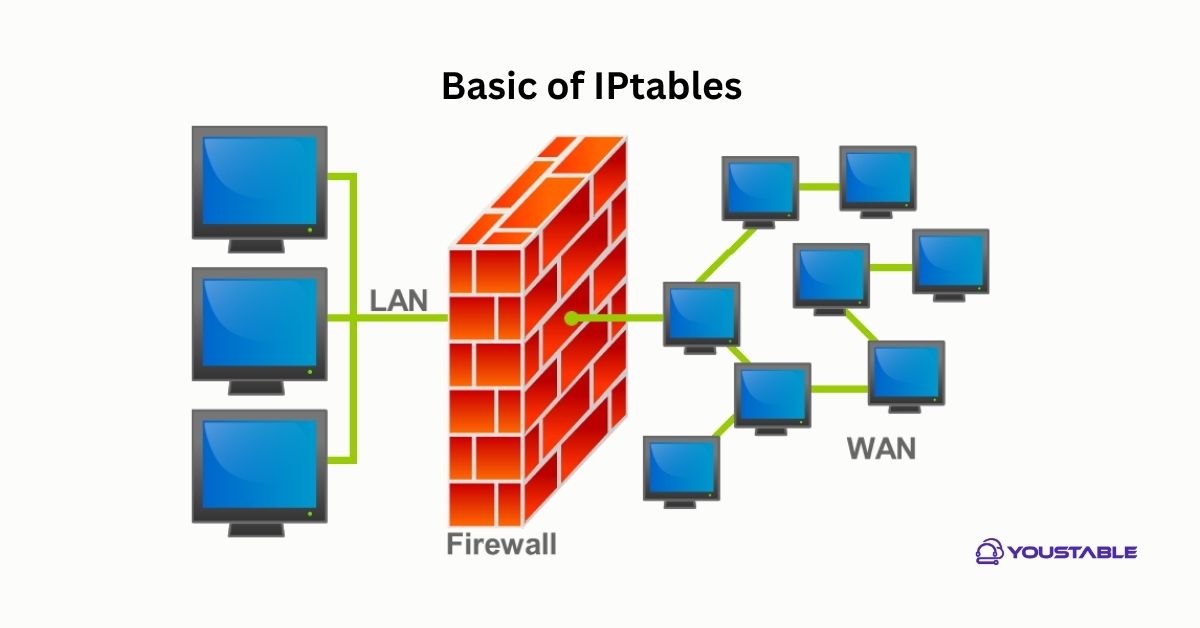
iptables is the classic Linux firewall (netfilter) interface that filters network packets via chains and rules. On many modern distributions, iptables is a compatibility layer over nftables, but the commands still work. If you prefer direct control and scriptability without an abstraction (like UFW or Firewalld), iptables is a solid choice.
Note: Newer servers default to nftables. That’s fine—iptables commands typically call the iptables-nft backend. The steps below work on most Ubuntu/Debian and RHEL/CentOS/AlmaLinux/Rocky systems.
Prerequisites and Safety Checklist
- Root or sudo access.
- Console or out-of-band access (avoid lockouts).
- Know your SSH port and service ports (e.g., 22, 80, 443).
- Package manager access to install iptables tools.
- For IPv6, plan to mirror rules with ip6tables.
Step-by-Step: Configure a Secure Baseline iptables Firewall
1) Identify Your Firewall Stack
Check which backend you’re using (legacy or nft) and list current rules so you can revert if needed.
sudo iptables --version
sudo iptables -S
sudo iptables -L -v -n
# For IPv6:
sudo ip6tables -L -v -n
2) Install Required Packages
Install the iptables tools and persistence utilities for your distro.
# Debian/Ubuntu
sudo apt update
sudo apt install -y iptables iptables-persistent netfilter-persistent

# RHEL/CentOS/AlmaLinux/Rocky (enable classic iptables services)
sudo dnf install -y iptables iptables-services
# (Optional) If Firewalld is enabled and you prefer iptables, stop/disable it:
# sudo systemctl stop firewalld && sudo systemctl disable firewalld
# sudo systemctl enable iptables
3) Start with a Clean Slate (Optional but Recommended)
Flush old rules and custom chains. Do this only if you understand the impact. Keep an SSH session open.
sudo iptables -F
sudo iptables -X
sudo iptables -t nat -F
sudo iptables -t nat -X
sudo iptables -t mangle -F
sudo iptables -t mangle -X

# IPv6 equivalent
sudo ip6tables -F
sudo ip6tables -X
4) Add Baseline Allow Rules First
Add rules that keep your current connection alive and allow local/system traffic. Then set default policies to DROP. This order prevents accidental lockouts.
# Accept all on loopback
sudo iptables -A INPUT -i lo -j ACCEPT
sudo iptables -A OUTPUT -o lo -j ACCEPT

# Accept established/related traffic (critical for SSH stability)
sudo iptables -A INPUT -m conntrack --ctstate ESTABLISHED,RELATED -j ACCEPT
sudo iptables -A OUTPUT -m conntrack --ctstate ESTABLISHED,RELATED -j ACCEPT

# Allow SSH (change 22 if you use a custom port)
SSH_PORT=22
sudo iptables -A INPUT -p tcp --dport $SSH_PORT -m conntrack --ctstate NEW -j ACCEPT

# Allow HTTP/HTTPS if it's a web server
sudo iptables -A INPUT -p tcp --dport 80 -m conntrack --ctstate NEW -j ACCEPT
sudo iptables -A INPUT -p tcp --dport 443 -m conntrack --ctstate NEW -j ACCEPT

# (Optional) Allow ping with rate limit
sudo iptables -A INPUT -p icmp -m icmp --icmp-type echo-request -m limit --limit 1/second -j ACCEPT

# Drop invalid packets
sudo iptables -A INPUT -m conntrack --ctstate INVALID -j DROP

# Default policies: DROP unsolicited inbound and forward; allow outbound by default
sudo iptables -P INPUT DROP
sudo iptables -P FORWARD DROP
sudo iptables -P OUTPUT ACCEPT
For IPv6, mirror the key rules using ip6tables:
sudo ip6tables -A INPUT -i lo -j ACCEPT
sudo ip6tables -A OUTPUT -o lo -j ACCEPT
sudo ip6tables -A INPUT -m conntrack --ctstate ESTABLISHED,RELATED -j ACCEPT
sudo ip6tables -A INPUT -p tcp --dport 22 -m conntrack --ctstate NEW -j ACCEPT
sudo ip6tables -A INPUT -p ipv6-icmp -j ACCEPT
sudo ip6tables -P INPUT DROP
sudo ip6tables -P FORWARD DROP
sudo ip6tables -P OUTPUT ACCEPT
5) Open Additional Service Ports (As Needed)
- DNS (UDP/TCP 53) for resolvers/authoritative servers
- SMTP (25), Submission (587), IMAPS (993) for mail servers
- Database ports (restrict by source IP where possible)
# Examples:
# Allow DNS
sudo iptables -A INPUT -p udp --dport 53 -m conntrack --ctstate NEW -j ACCEPT
sudo iptables -A INPUT -p tcp --dport 53 -m conntrack --ctstate NEW -j ACCEPT

# Allow Postgres only from a trusted app server
sudo iptables -A INPUT -p tcp -s 203.0.113.10 --dport 5432 -m conntrack --ctstate NEW -j ACCEPT

# Allow Redis only from localhost or private network
sudo iptables -A INPUT -p tcp -s 127.0.0.1 --dport 6379 -j ACCEPT
sudo iptables -A INPUT -p tcp -s 10.0.0.0/8 --dport 6379 -j ACCEPT
6) Add Logging and Simple Abuse Protection (Optional)
Selective logging helps during audits without flooding syslog. Rate limits reduce brute-force noise.
# Log (rate-limited) then drop everything else on INPUT
sudo iptables -A INPUT -m limit --limit 5/min -j LOG --log-prefix "[IPT INPUT DROP] " --log-level 4
sudo iptables -A INPUT -j DROP

# Basic SSH brute-force throttle (e.g., 5 new connections/min)
sudo iptables -A INPUT -p tcp --dport $SSH_PORT -m state --state NEW -m recent --set
sudo iptables -A INPUT -p tcp --dport $SSH_PORT -m state --state NEW -m recent --update --seconds 60 --hitcount 5 -j DROP
Save and Persist iptables Rules
Debian/Ubuntu
Use iptables-persistent (netfilter-persistent) to save and auto-restore rules at boot.
sudo netfilter-persistent save
# or
sudo sh -c 'iptables-save > /etc/iptables/rules.v4'
sudo sh -c 'ip6tables-save > /etc/iptables/rules.v6'

# Test reload
sudo netfilter-persistent reload
sudo systemctl enable netfilter-persistent
RHEL/CentOS/AlmaLinux/Rocky
Use iptables-services to manage and persist rules with systemd.
sudo systemctl enable iptables
sudo systemctl start iptables

# Save current rules
sudo service iptables save  # persists to /etc/sysconfig/iptables

# For IPv6 if using ip6tables-services
sudo systemctl enable ip6tables
sudo systemctl start ip6tables
sudo service ip6tables save
Validate and Troubleshoot Your Firewall
- List rules with counters:
iptables -L -v -n - Show raw syntax:
iptables -S - Check logs:
journalctl -k | grep "IPT INPUT DROP" - Port scan from a remote host:
nmap -Pn <server_ip> - Test service reachability: curl, telnet, or nc on required ports
If you’re locked out, use your provider’s console (VNC/HTML5) to revert:
# Flush and accept everything (emergency)
sudo iptables -F
sudo iptables -P INPUT ACCEPT
sudo iptables -P FORWARD ACCEPT
sudo iptables -P OUTPUT ACCEPT
Reusable Baseline Script (IPv4)
Customize ports and allowed sources, run as root, then save/persist.
#!/usr/bin/env bash
set -e
SSH_PORT="22"

# Flush
iptables -F
iptables -X
iptables -t nat -F
iptables -t mangle -F

# Default ACCEPT while building
iptables -P INPUT ACCEPT
iptables -P FORWARD DROP
iptables -P OUTPUT ACCEPT

# Allow loopback
iptables -A INPUT -i lo -j ACCEPT
iptables -A OUTPUT -o lo -j ACCEPT

# Established/related
iptables -A INPUT -m conntrack --ctstate ESTABLISHED,RELATED -j ACCEPT

# SSH
iptables -A INPUT -p tcp --dport "$SSH_PORT" -m conntrack --ctstate NEW -j ACCEPT

# Web
iptables -A INPUT -p tcp --dport 80 -m conntrack --ctstate NEW -j ACCEPT
iptables -A INPUT -p tcp --dport 443 -m conntrack --ctstate NEW -j ACCEPT

# ICMP (ping) rate-limited
iptables -A INPUT -p icmp -m icmp --icmp-type echo-request -m limit --limit 1/second -j ACCEPT

# Drop invalid
iptables -A INPUT -m conntrack --ctstate INVALID -j DROP

# Final policy
iptables -P INPUT DROP
iptables -A INPUT -m limit --limit 5/min -j LOG --log-prefix "[IPT DROP] " --log-level 4
iptables -A INPUT -j DROP

echo "Applied baseline iptables rules."
iptables vs UFW vs nftables
- iptables: Low-level, scriptable, ubiquitous. Excellent for VPS admins who want precise control.
- UFW: User-friendly wrapper on Ubuntu. Faster to start, fewer foot-guns, good for simple servers.
- nftables: Modern backend with improved performance and consistency. Recommended for new deployments if you’re comfortable with its syntax.
If you already use UFW or Firewalld, avoid running raw iptables and a wrapper simultaneously to prevent conflicts. Choose one approach.
Best Practices, Pitfalls, and Hardening Tips
- Apply allow rules before switching default policies to DROP.
- Restrict sensitive ports (databases, admin panels) by source IP.
- Mirror IPv4 rules for IPv6 to avoid unexpected exposure.
- Back up current rules with
iptables-savebefore edits. - Use connection limits and recent module for brute-force protection.
- Log drops with rate limits; otherwise logs can grow fast.
- Automate rule deployment (Ansible/Shell) for consistency across servers.
Real-World Scenarios
- Single-node WordPress host: Allow 22, 80, 443; restrict MySQL to localhost; log drops.
- App + DB split: App server allows outbound 5432 to DB; DB server allows inbound 5432 only from app IPs.
- Public API: Enforce 80/443, rate-limit ICMP, and add Geo/IP allowlists if required.
By following these steps, you can confidently configure and persist a secure iptables firewall on your Linux server, reduce attack surface, and maintain stable access for legitimate services.
FAQs: iptables Setup on Linux
Is iptables still used, or should I switch to nftables?
iptables is still widely used and supported. Many distros map iptables commands to the nftables backend (iptables-nft), so your workflow remains valid. If you’re starting fresh and want a modern syntax and performance, nftables is an excellent choice—but iptables remains production-ready.
How do I list current rules?
Use iptables -L -v -n for a human-readable view with counters, or iptables -S for the exact rule syntax. For IPv6, use ip6tables -L -v -n. These commands help you audit hits and confirm that your policies are applied correctly.
How do I open a port in iptables?
Append an allow rule to the INPUT chain. For example, to open TCP 8080: iptables -A INPUT -p tcp --dport 8080 -m conntrack --ctstate NEW -j ACCEPT. Save and persist the rules afterward using iptables-persistent (Debian/Ubuntu) or iptables-services (RHEL-based).
How can I make iptables rules persistent across reboots?
On Debian/Ubuntu, install iptables-persistent and run netfilter-persistent save. On RHEL-based systems, install iptables-services and run service iptables save. Confirm systemctl enable for the relevant service to load rules at boot.
Will these rules block outgoing traffic?
In this guide, OUTPUT is set to ACCEPT by default, so outbound traffic is allowed. If you need egress control, change iptables -P OUTPUT ACCEPT to DROP and explicitly allow required destinations and ports (e.g., DNS 53, HTTP/HTTPS for updates).




