

To configure FirewallD on a Linux server, install and enable the service, choose a default zone, then allow required services and ports using firewall-cmd. Apply changes permanently, reload, and verify. Use zones, rich rules, and masquerading for granular control. This 2026 step-by-step guide covers RHEL, Rocky/AlmaLinux, CentOS Stream, Fedora, Ubuntu, and Debian.
In this guide, you’ll learn how to configure FirewallD on a Linux server safely and effectively using firewall-cmd. We’ll cover zones, services, ports, rich rules, NAT/port forwarding, runtime vs permanent rules, and troubleshooting. Whether you manage a VPS, dedicated server, or cloud VM, this tutorial is designed to be beginner-friendly and production-ready.
What is FirewallD and Why Use it in 2026?
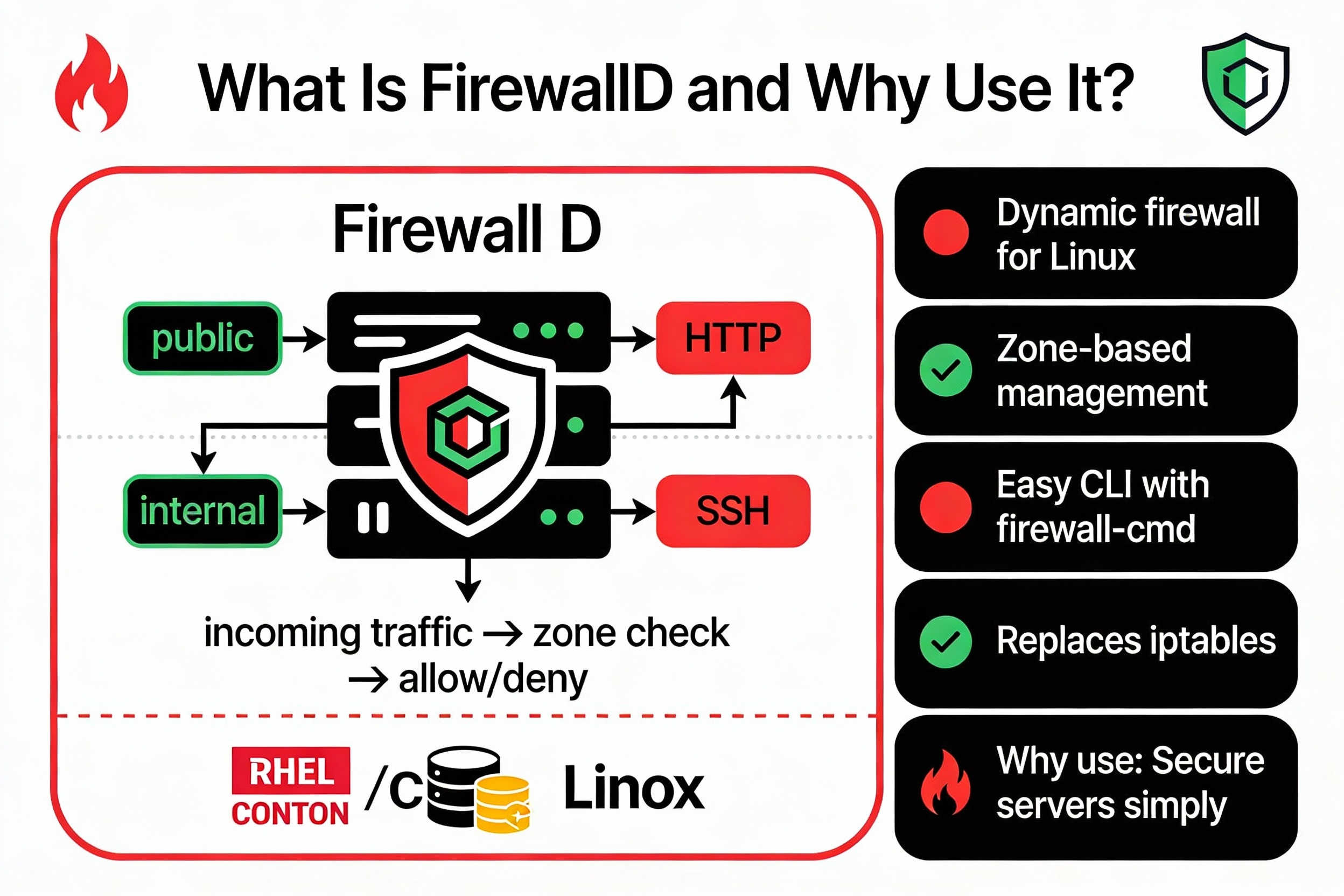
FirewallD is a dynamic firewall manager that uses nftables (or iptables on legacy systems) to enforce network policies without interrupting connections. It introduces zones (trust levels), named services, and rich rules, making it easier to secure servers at scale. It’s the default on RHEL 8/9, Rocky/AlmaLinux, CentOS Stream, Fedora, and available on Ubuntu/Debian.
Prerequisites and Safety Checklist
- SSH access with sudo privileges
- Console/KVM access or a second SSH session to avoid lockout
- Know your interface names (e.g., eth0, ens160)
- Cloud notes: open ports in your provider’s security group as well (AWS SG, Azure NSG, GCP firewall rules)
- On Ubuntu, do not run UFW and FirewallD simultaneously (disable UFW if using FirewallD)
Install and Enable FirewallD
Install and start FirewallD according to your Linux distribution.
# RHEL / Rocky / AlmaLinux / CentOS Stream / Fedora
sudo dnf install -y firewalld
sudo systemctl enable --now firewalld
sudo firewall-cmd --state    # running

# Ubuntu 22.04/24.04 and Debian
sudo apt update && sudo apt install -y firewalld
sudo systemctl enable --now firewalld
sudo firewall-cmd --state    # running

# If UFW is enabled on Ubuntu, disable it to avoid conflicts:
sudo systemctl stop ufw && sudo systemctl disable ufw
Quick Start: Secure Defaults in 60 Seconds
Set the default zone and allow SSH so you don’t lock yourself out. Then open HTTP/HTTPS if this is a web server.
# Set default zone
sudo firewall-cmd --set-default-zone=public

# Allow SSH (runtime), then make it permanent
sudo firewall-cmd --add-service=ssh
sudo firewall-cmd --add-service=ssh --permanent

# Allow web traffic (HTTP/HTTPS)
sudo firewall-cmd --add-service=http --permanent
sudo firewall-cmd --add-service=https --permanent

# Apply persistent rules
sudo firewall-cmd --reload

# Verify
sudo firewall-cmd --list-all
Understanding FirewallD Zones
Zones represent trust levels. Common zones include:
- drop: Drop all incoming; only outgoing allowed
- block: Reject in, outgoing allowed
- public: Untrusted networks (default for servers)
- external: For NAT with masquerading
- internal: Trusted LAN behind your server
- trusted: Accept all (use carefully)
View and Set the Default Zone
sudo firewall-cmd --get-default-zone
sudo firewall-cmd --set-default-zone=public
sudo firewall-cmd --get-zones
sudo firewall-cmd --get-active-zones
Assign Interfaces and Sources to Zones
# Assign interface to a zone (permanent)
sudo firewall-cmd --zone=public --change-interface=eth0 --permanent

# Put a subnet into trusted zone (e.g., office IP range)
sudo firewall-cmd --zone=trusted --add-source=203.0.113.0/24 --permanent

sudo firewall-cmd --reload
sudo firewall-cmd --get-active-zones
Allow Services and Ports
FirewallD uses named services (service files define ports/protocols). Prefer services over raw ports for clarity.
Allow Services
# Common services
sudo firewall-cmd --zone=public --add-service=ssh --permanent
sudo firewall-cmd --zone=public --add-service=http --permanent
sudo firewall-cmd --zone=public --add-service=https --permanent
sudo firewall-cmd --reload
Open Specific Ports
# Single TCP port
sudo firewall-cmd --zone=public --add-port=8080/tcp --permanent

# Port range and UDP
sudo firewall-cmd --zone=public --add-port=6000-6010/tcp --permanent
sudo firewall-cmd --zone=public --add-port=1194/udp --permanent

sudo firewall-cmd --reload
Create a Custom Service
Define your application once and reference it by name.
# /etc/firewalld/services/myapp.xml
<?xml version="1.0" encoding="utf-8"?>
<service>
  <short>myapp</short>
  <description>Custom app on port 9000/tcp</description>
  <port protocol="tcp" port="9000"/>
</service>

# Load and allow it
sudo firewall-cmd --reload
sudo firewall-cmd --zone=public --add-service=myapp --permanent
sudo firewall-cmd --reload
Remove Rules Cleanly
sudo firewall-cmd --zone=public --remove-service=http --permanent
sudo firewall-cmd --zone=public --remove-port=8080/tcp --permanent
sudo firewall-cmd --reload
Runtime vs Permanent Configuration
FirewallD keeps separate runtime and permanent configs. Runtime changes are immediate but lost on reboot. Permanent changes persist after reload or reboot.
Key Commands
# Make current runtime rules persistent
sudo firewall-cmd --runtime-to-permanent

# Apply permanent rules to runtime
sudo firewall-cmd --reload

# See what’s active
sudo firewall-cmd --list-all
sudo firewall-cmd --list-all --zone=public
Rich Rules, Masquerading, and Port Forwarding
Rich rules enable granular logic (source, destination, logging, rate limits) and NAT features like masquerading and port forwarding.
Allow a Service From a Single IP
sudo firewall-cmd --add-rich-rule='rule family="ipv4" \
  source address="198.51.100.10" service name="ssh" accept' --permanent
sudo firewall-cmd --reload
Rate-Limit and Log Access
# Log and limit SSH accepts to 10 per minute
sudo firewall-cmd --add-rich-rule='rule family="ipv4" service name="ssh" \
  log prefix="FW-SSH " level="notice" limit value="2/m" accept' --permanent
sudo firewall-cmd --reload

# Global log of denied packets (optional)
sudo sed -i 's/^#*LogDenied=.*/LogDenied=all/' /etc/firewalld/firewalld.conf
sudo systemctl reload firewalld
NAT: Masquerading and Port Forwarding
Use the external zone for internet-facing NICs when NATing. Ensure IP forwarding is enabled.
# Enable IP forwarding (runtime and persistent)
echo 'net.ipv4.ip_forward=1' | sudo tee /etc/sysctl.d/99-firewalld.conf
sudo sysctl -p /etc/sysctl.d/99-firewalld.conf

# Enable masquerade (NAT) on public zone
sudo firewall-cmd --zone=public --add-masquerade --permanent

# Forward external port 80 to local 8080
sudo firewall-cmd --zone=public \
  --add-forward-port=port=80:proto=tcp:toport=8080 --permanent

# Forward external 2222 to internal host 10.0.0.10:22
sudo firewall-cmd --zone=public \
  --add-forward-port=port=2222:proto=tcp:toaddr=10.0.0.10:toport=22 --permanent

sudo firewall-cmd --reload
Monitoring, Testing, and Troubleshooting
Inspect Active Rules
sudo firewall-cmd --list-all
sudo firewall-cmd --list-all --zone=public
sudo firewall-cmd --list-services
sudo firewall-cmd --list-ports
Test Connectivity
From a remote machine, validate open ports with curl or nmap. If using a cloud VM, confirm the cloud firewall allows the same ports.
curl -I http://your.server.ip
nmap -Pn -p 22,80,443 your.server.ip
Common Issues and Fixes
- Locked out of SSH: Use console/KVM, allow SSH service, or place your admin IP in the trusted zone.
- UFW conflict on Ubuntu: disable UFW if FirewallD is in use.
- Service doesn’t open: check the correct zone, cloud security groups, and whether the app listens on the right interface.
- Unexpected drops: review LogDenied and journal logs: journalctl -u firewalld -f.
- Emergency lockdown: firewall-cmd –panic-on (blocks all in/out). Disable with –panic-off when ready.
Hardening Tips for 2026
- Principle of least privilege: only open what you need; prefer allowlists by IP for admin ports.
- Use public zone for internet, internal for private networks, and avoid trusted except for special cases.
- Log strategically and rate-limit sensitive services (SSH, RDP over tunnel).
- Automate with Ansible or cloud-init to keep rules consistent across servers.
- Back up configs: tar /etc/firewalld before maintenance; use version control for custom service XML.
- Align OS firewall with provider-level firewalls for defense-in-depth.
End-to-End Example: Web + SSH + Private Admin
This example allows public web traffic, restricts SSH to your office IP, and assigns the main NIC to public.
# Set public as default and assign interface
sudo firewall-cmd --set-default-zone=public
sudo firewall-cmd --zone=public --change-interface=eth0 --permanent

# Public web
sudo firewall-cmd --zone=public --add-service=http --permanent
sudo firewall-cmd --zone=public --add-service=https --permanent

# Restrict SSH to office IP
sudo firewall-cmd --add-rich-rule='rule family="ipv4" \
  source address="203.0.113.50/32" service name="ssh" accept' --permanent

# Deny other SSH implicitly (no generic ssh allow in public)
sudo firewall-cmd --reload
sudo firewall-cmd --list-all --zone=public
FAQs: FirewallD on Linux Server
What’s the difference between runtime and permanent in FirewallD?
Runtime rules take effect immediately but disappear after a restart. Permanent rules live in /etc/firewalld and apply after a reload or reboot. Use –permanent to write persistent rules, then run firewall-cmd –reload. To save your current runtime config as permanent, use firewall-cmd –runtime-to-permanent.
How do I open a port in FirewallD?
Use either a named service or a port rule. For example: firewall-cmd –zone=public –add-service=http –permanent or firewall-cmd –zone=public –add-port=8080/tcp –permanent, then firewall-cmd –reload. Verify with firewall-cmd –list-all and test from a remote host.
Which Linux distributions use FirewallD by default in 2026?
RHEL 8/9, Rocky Linux, AlmaLinux, CentOS Stream, and Fedora use FirewallD by default. On Ubuntu 22.04/24.04 and Debian, FirewallD is available via apt but UFW may be the default; disable UFW if you switch to FirewallD.
How can I allow only a specific IP to access a port?
Create a rich rule that accepts traffic from that IP for the target service or port. Example: firewall-cmd –add-rich-rule=’rule family=”ipv4″ source address=”198.51.100.10″ port port=”3306″ protocol=”tcp” accept’ –permanent; then reload. Avoid generic allows that bypass this limit.
Does FirewallD replace iptables or nftables?
FirewallD is a high-level manager that programs packet filters. On modern distributions it uses nftables as the backend; on older systems it may use iptables. You gain consistent commands (firewall-cmd) without manually writing nftables/iptables rules.



